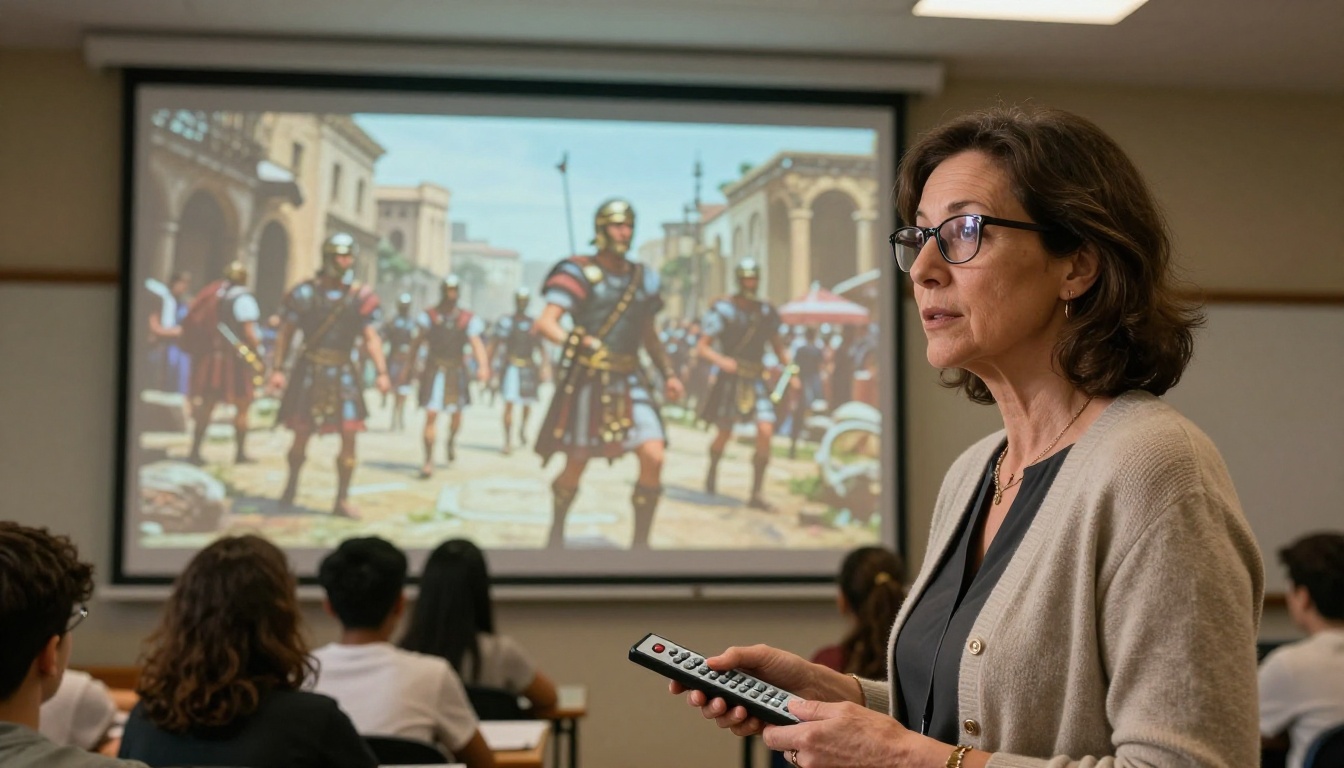
Teachers are ditching slide decks. The proof? A 10th-grade history teacher in Texas typed three sentences into Grok Imagine Video and showed her students Roman legions marching across a battlefield — not one student looked at their phone for 40 minutes. That kind of attention is rare. That kind of tool is new. And schools figuring it out right now are getting a serious head start.
Why Grok Imagine Video Landed in the Classroom
What the tool actually does
Grok Imagine Video is xAI's text-and-image-to-video generator. You type a prompt — or drop in a reference image — and within seconds it produces a short, fluid, AI-generated video clip. Outputs are photorealistic, smooth, and surprisingly accurate to the prompt. Teachers don't need a film degree. They don't need a budget. They just need a description.
What separates it from other AI video tools is the quality-to-effort ratio. You don't need to storyboard. You don't need to record footage. You write a sentence and you get a moving scene. For educators already stretched thin, that efficiency matters enormously.
Why teachers noticed it first
Word spreads fast in teacher communities. When early adopters started sharing classroom clips on Reddit and education forums, the reaction was immediate: wait, that's free and that easy? The tool removed the biggest barrier — technical skill — and left only one requirement: having something worth showing.
💡 Teachers already know how to describe a scene. They write objectives, explanations, and context every single day. That skill transfers directly to writing AI video prompts.
Real Ways Teachers Are Using Grok Videos
History class: seeing the past move
Static images of ancient civilizations only go so far. AI-generated video closes the gap between "here's a painting of the Battle of Thermopylae" and actually seeing warriors on the move. History teachers report using Grok Imagine Video to create:
- Battle reenactments from brief text descriptions
- Visual timelines — showing the same city across different historical eras
- Migration animations — depicting ancient trade routes or population movements
- Monument construction sequences — bringing ancient architecture to life
One middle school teacher described it simply: "I used to spend two hours finding clips on YouTube that half-matched what I needed. Now I type what I want and I have it in under a minute."
The shift isn't just about convenience. It's about precision. Teachers have always had a mental image of what they wanted students to see. Now they can actually show it — exactly as they imagined it, not as a compromise with whatever stock footage happens to exist.
Science class: concepts that click
Abstract science concepts — cell division, tectonic plates, atmospheric pressure — are notoriously hard to visualize from a textbook. Video changes that entirely. Teachers in biology, earth science, and physics are now using AI video to:
- Show mitosis as a smooth animation instead of a static diagram
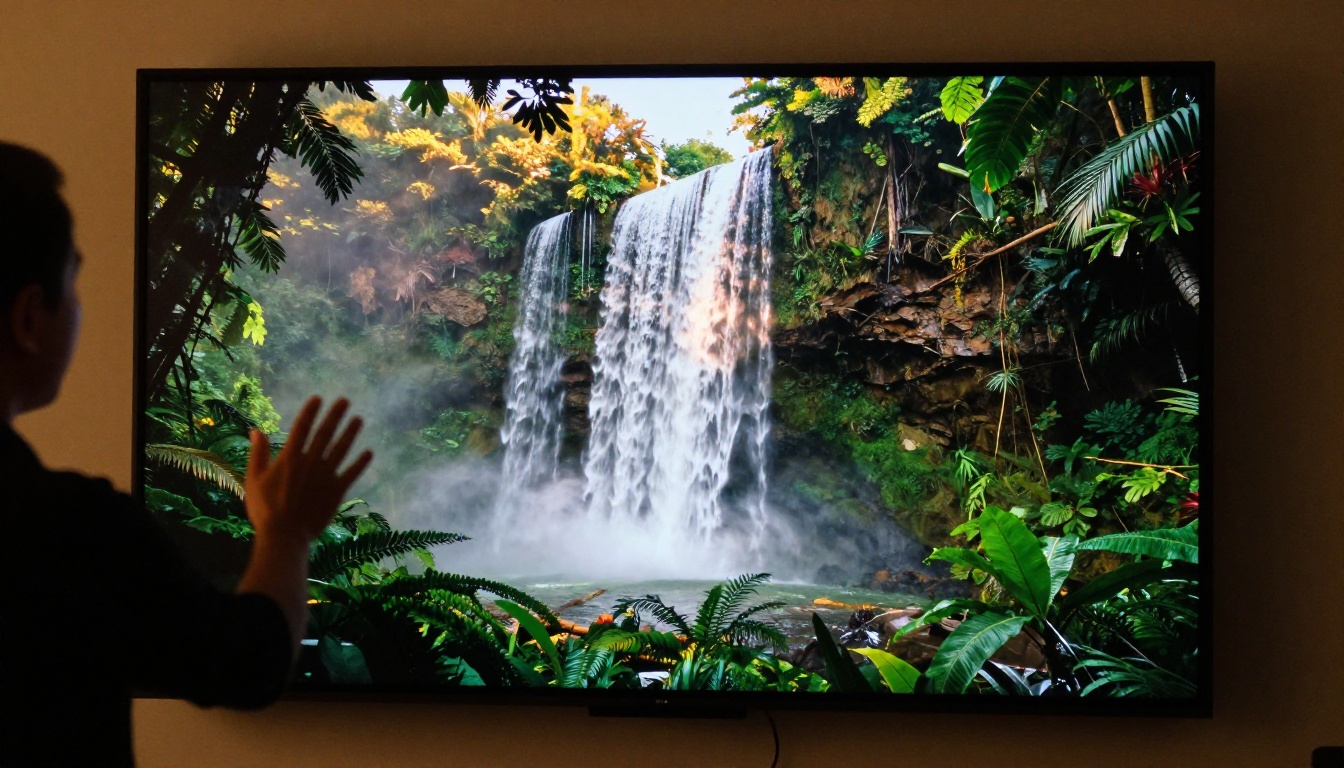
- Generate a volcanic eruption sequence from a real-looking aerial perspective
- Visualize fluid dynamics or weather system formations in motion
- Demonstrate chemical reactions at a molecular scale that no camera can capture
The accuracy isn't always perfect, but that becomes a teaching moment too. Students spot what's right and what's not — which builds critical thinking instead of passive consumption. When a biology teacher showed an AI-generated video of DNA replication, students immediately noticed a step was out of order. That debate lasted 15 minutes and cemented the correct sequence far more effectively than re-reading the chapter would have.
Creative writing: show, don't tell
English and language arts teachers are using AI video in a surprisingly creative way: they generate a short video clip first, then ask students to write a story about what they see. It flips the traditional approach. Instead of "here's a prompt, now write," students receive a living, moving scene and must interpret it.
The results? Teachers report longer, more detailed writing. Students who typically struggle with creative prompts suddenly have something concrete to react to. The video gives them something to see — and that's often all they need to start producing.
💡 Try this: Generate a 5-second clip of a character standing at a crossroads during a storm. Then ask students: Who is this person? Where are they going? What do they fear? Watch the stories pour out.
What Students Say About It
The attention shift
The numbers don't lie. Teachers who've introduced AI video into lessons consistently report a noticeable shift in how long students stay focused. It's not just novelty — though novelty helps at first. The deeper reason is that AI-generated video is specific to the lesson. It's not a stock clip or a random YouTube video. It's exactly what the teacher wanted to show, which means it connects directly to what was just discussed.
That specificity is underrated. When a student sees a video that precisely illustrates what the teacher just explained, the information lands differently. There's no cognitive gap to bridge between "here's a vaguely relevant clip" and the actual concept being taught.
Students have also started asking to make their own. That's the most powerful signal. When a student wants to create something with a tool they just saw used in class, the tool has done its job.
From passive watching to active discussion
The most interesting classroom dynamic teachers report isn't silence during the video — it's the conversation after it. Students debate what they saw. They question whether it was accurate. They want to know: how did you make that? That curiosity opens doors to conversations about AI itself — how it works, what it can and can't do, and why critical evaluation of AI content matters.
This is an unexpected bonus that many teachers have leaned into. The video becomes a jumping-off point for media literacy discussions that would have been hard to start otherwise.
How to Use Grok Imagine Video on PicassoIA
The Grok Imagine Video model is accessible directly through PicassoIA without any account setup friction. Here's how to run it in a classroom context:
Step 1 — Open the model page
Head to PicassoIA's Grok Imagine Video page. The text prompt field is front and center. No complicated interface to figure out, no buried settings to configure.
Step 2 — Write your classroom prompt
The prompt is everything. For classroom use, be specific about:
- Subject — what or who is in the scene
- Action — what is happening
- Setting — where and when it takes place
- Tone — realistic, documentary-style, dramatic
Example prompt for history: "Ancient Egyptian workers moving massive stone blocks toward a half-built pyramid at sunset, realistic documentary style, wide shot"
Example prompt for biology: "A single white blood cell engulfing a bacterium inside the human bloodstream, microscopic style, fluid movement, blue tones"
Example prompt for geography: "Time-lapse of a glacier retreating over decades, mountains visible, wide aerial shot, neutral documentary tone"
Step 3 — Generate and review
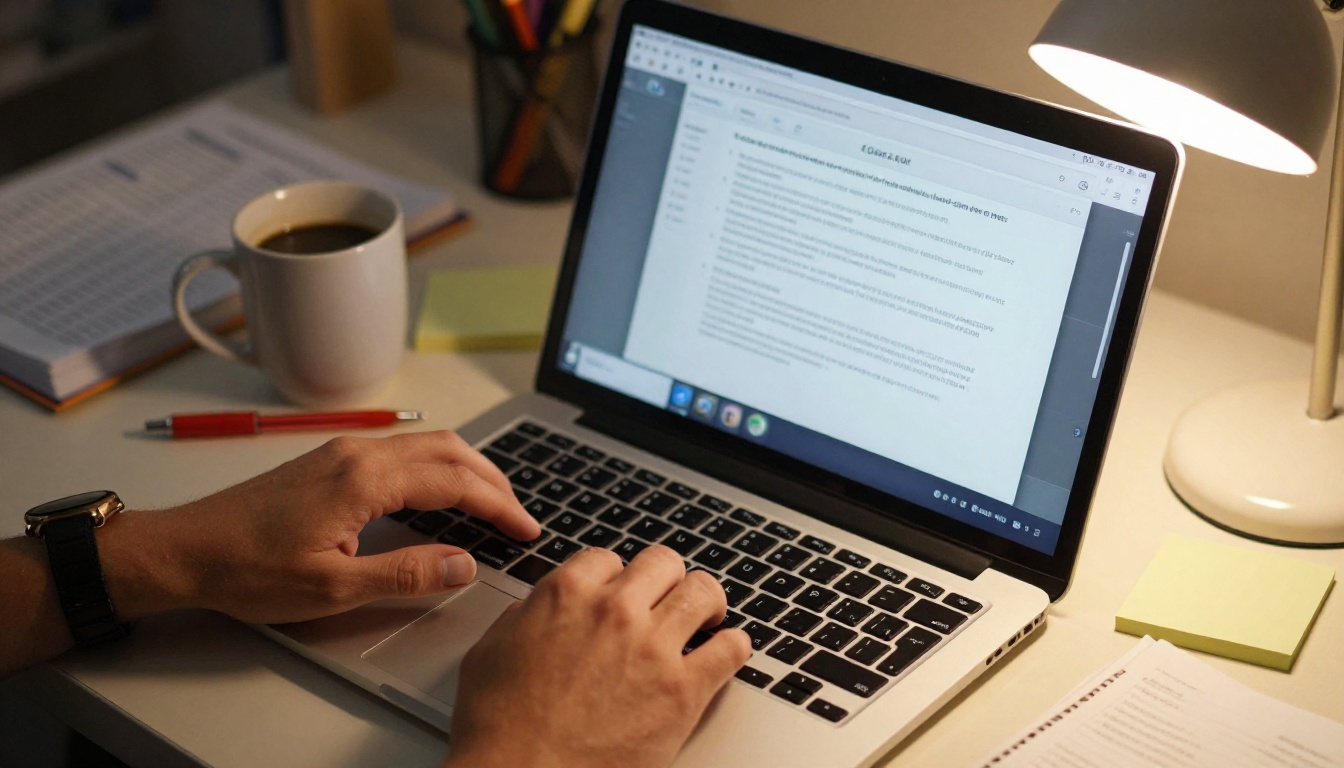
Hit generate. Review the clip. If it doesn't nail it on the first try, adjust the prompt — add more detail, change the camera angle description, or specify the era more precisely. The iteration loop is fast, and most teachers land on a usable result in two or three tries.
Step 4 — Download and embed
Download the clip and embed it into your existing presentation. It drops into PowerPoint, Google Slides, or Keynote with zero technical friction. No special plugins, no conversion tools, no reformatting.
Prompt tips for educators
| Element | Weak Prompt | Strong Prompt |
|---|
| Subject | "a cell" | "a human red blood cell in a capillary" |
| Action | "moving" | "traveling through a narrow blood vessel wall" |
| Setting | "inside" | "inside the human body, microscopic view" |
| Style | (none) | "realistic documentary, blue tones, soft lighting" |
| Scale | (none) | "extreme close-up, microscopic scale, 100x magnification" |
💡 Keep prompts under 80 words. Grok Imagine Video responds best to precise, focused descriptions. Overloading with too much detail can produce muddled output.
Teachers who've tested multiple tools report different strengths. Here's a practical side-by-side:
| Tool | Speed | Realism | Ease of Use | Best For |
|---|
| Grok Imagine Video | Fast | High | Very easy | Quick lesson clips |
| Kling v3 | Medium | Very High | Moderate | Cinematic scenes |
| Veo 3 | Medium | Very High | Moderate | Detailed narratives |
| WAN 2.6 | Fast | High | Easy | Short animations |
| Sora 2 | Slow | Exceptional | Moderate | High-quality production |
For classroom use where time matters and prompts are simple, Grok Imagine Video hits the right balance. More demanding productions — school project videos or presentation intros — might call for Kling v3 or Veo 3. The right tool depends on how much time you have to prep and how polished the output needs to be.
Subject-by-Subject Prompt Ideas
Science prompts
- "A volcano erupting on a Pacific island at dusk, lava flowing into the ocean, aerial shot, documentary style"
- "DNA helix slowly rotating inside the nucleus of a human cell, bioluminescent blue and white tones"
- "The water cycle in a temperate forest — evaporation, cloud formation, rainfall, river flow — one seamless sequence"
- "A solar eclipse viewed from Earth's surface, crowd of people looking up, dramatic shadow moving across the landscape"
- "Cross-section of the Earth's layers rotating slowly, molten core glowing orange, realistic geological textures"
History prompts
- "Medieval knights on horseback crossing a stone bridge at sunrise, mist rising from the river below, cinematic wide shot"
- "A busy ancient Roman marketplace with merchants, traders, and citizens, warm afternoon light, realistic documentary style"
- "The construction of the Great Wall of China, thousands of workers visible on a mountainside, aerial perspective"
- "A 1920s jazz club in New York City, musicians playing on stage, patrons dancing, warm amber lighting"
- "The first Moon landing, astronaut stepping onto lunar surface, Earth visible in the black sky, 1969 style footage"
Literature and language arts
- "A lone lighthouse keeper watching a storm roll in from the sea at dusk, dramatic waves, melancholy atmosphere"
- "Two characters standing at opposite ends of a long dirt road in rural America, 1930s setting, warm sepia tones"
- "A letter being written by candlelight at a wooden desk in Victorian England, close-up on the moving quill"
- "An abandoned carnival at twilight, overgrown rides, a single spinning ferris wheel, mysterious and still"
Things That Don't Work (Yet)
Where it falls short
No tool is perfect, and teachers who've worked with AI video long enough have found the limits:
- Text accuracy: AI-generated videos still struggle to render legible text within the scene itself. Don't expect a chalkboard with readable words — it'll look plausible but won't be accurate.
- Hyperspecific historical accuracy: It'll give you Roman soldiers, but may dress them inconsistently across a single clip. Great for mood and context — not for precise historical costuming.
- Long-form content: Most outputs are short clips, not full lesson videos. Think of them as moments, not documentaries.
- Specific real faces: Generating realistic portraits of specific named people is hit-or-miss and ethically complex. Stick to anonymous characters or general historical scenes.
- Real-time generation: Live generating during class is risky. Server load can cause delays. Always pre-generate before the lesson starts.
Classroom tips to work around limits
- Pre-generate during lesson prep — test prompts the day before, not during class.
- Use imperfection as a lesson — when the AI gets something wrong, make the mistake part of the discussion.
- Pair with primary sources — AI video sets a scene; primary sources provide verified truth. Use both together.
- Keep clips short — a 5-10 second clip shown at the right moment beats a 2-minute video shown at the wrong one.
- Save your best prompts — build a personal library of prompts that worked. You'll reuse them more than you expect.
💡 The power isn't in the video length — it's in the timing. The best classroom uses of AI video are moments — a 6-second clip right before the main concept lands, not a replacement for the lesson itself.
How Teachers Are Sharing What They Build
The smartest thing happening in education right now isn't individual teachers using AI — it's teachers sharing what works. On Reddit's r/Teachers, in school district Slack channels, and at professional development days, educators are swapping prompt libraries. One teacher's perfect volcano prompt becomes 40 teachers' volcano prompt.
Some schools are building shared prompt databases — a collaborative Google Doc where every teacher who finds a great prompt adds it for colleagues. It's low-tech, but it compounds fast. What started as one person experimenting becomes a living resource that every subject area taps into.
There's also an emerging pattern of subject departments creating "AI video days" — a dedicated period where teachers share what they've made and pass around their best prompts. It's informal, organic, and accelerating adoption faster than any formal training program could.
The teachers who are getting the most out of these tools aren't necessarily the most tech-savvy. They're the ones who share what they find, iterate quickly, and aren't afraid to show a clip that doesn't work perfectly and turn it into a discussion.
Now It's Your Turn
If you've been watching this from the sidelines, this is a good moment to try it. You don't need a perfect lesson plan. You don't need district approval. You need one concept you've always struggled to make visual — and three sentences describing what you wish students could see.
Start with Grok Imagine Video on PicassoIA. Type your prompt. Watch what comes back. Adjust it once. Show it in class tomorrow.
If you want more control over longer clips or higher-fidelity scenes, Kling v3, Veo 3, and WAN 2.6 are all available on PicassoIA. The full AI video toolkit is in one place, waiting for a lesson plan that deserves more than a static image.
The teachers winning right now are the ones who started before they had permission. Be one of them.