Your AI video looks stunning. The visuals are crisp, the motion is fluid, and the concept is on point. Then you hit play and hear nothing. Or worse, a generic royalty-free loop that clashes with every frame.
Sound is not an afterthought. It is half the experience. Audiences forgive blurry footage far more easily than they forgive bad audio. And with AI video generation advancing rapidly in 2027, the creators adding compelling sound to their clips are the ones getting shares, saves, and real audience retention.
This article walks through every fast, practical method for adding sound to AI videos. From native audio generation directly inside the video model, to AI voiceovers, AI music, and smart audio layering, you will have a real workflow ready to use by the end.
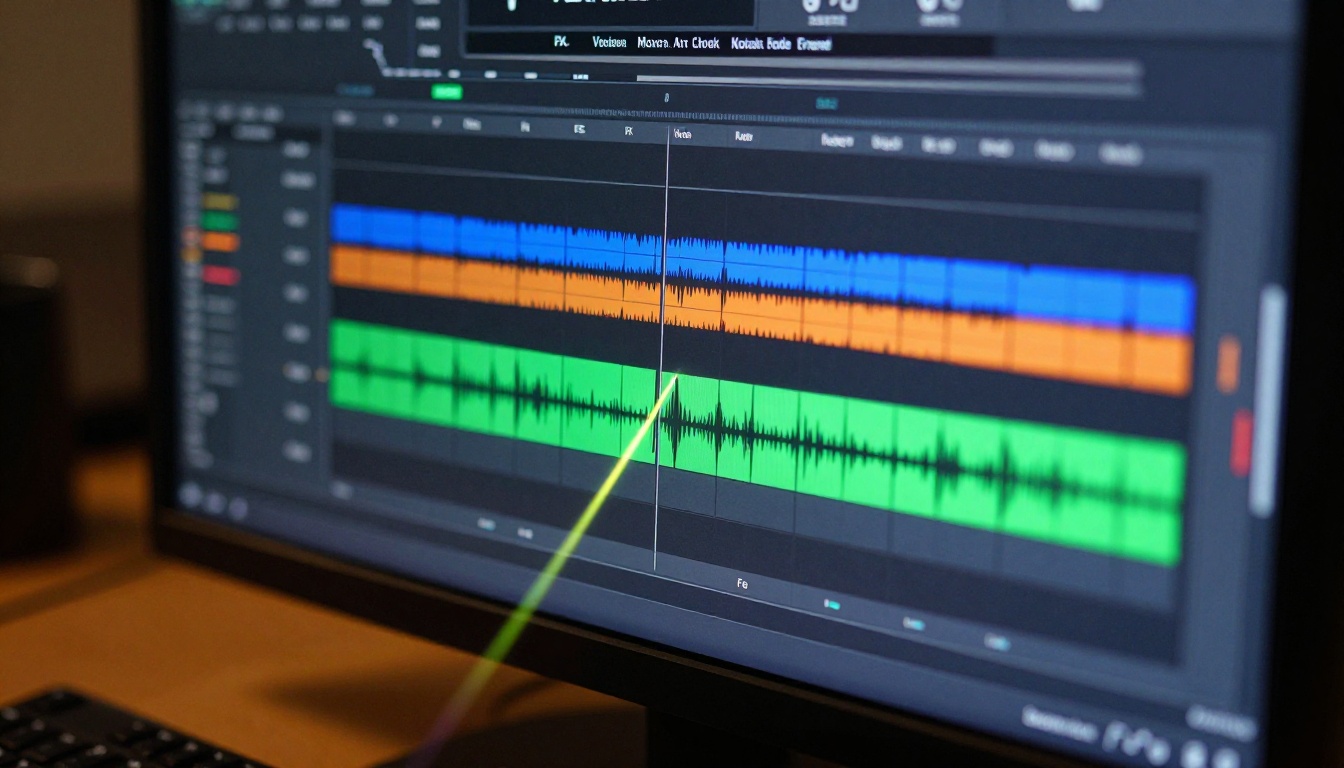
Why Silent Videos Fail in 2027
The numbers are not kind to silent videos. On short-form platforms, a clip without sound is at an immediate disadvantage in the algorithm. Platforms like TikTok, Instagram Reels, and YouTube Shorts all prioritize content that keeps viewers watching. A video without audio drops watch time, and lower watch time means lower reach.
But it goes deeper than platform mechanics. Sound shapes emotion. A 10-second clip with the right ambient tone, a soft voiceover, or a punchy music hit feels professional and intentional. The same clip without sound feels like a draft.
The good news is that AI has completely changed what is possible for solo creators. You no longer need a recording studio, a music producer, or a sound designer. The entire audio pipeline, from voiceover to custom soundtrack to sound effects, is now automatable in minutes.
The Audio Gap Most Creators Ignore
Most AI video tutorials stop at the visual layer. They show you how to generate a clip with a model like Veo 3 or Kling v2.6, but they do not explain what to do with the silent output. That gap is where this article begins.
Audio Changes How Viewers Remember Content
Sound design is deeply linked to memory retention. Viewers who experience content with synchronized audio remember specific moments far more clearly than those who watch silent clips. If you want your AI videos to stick in someone's mind, sound is the multiplier, not a bonus feature.
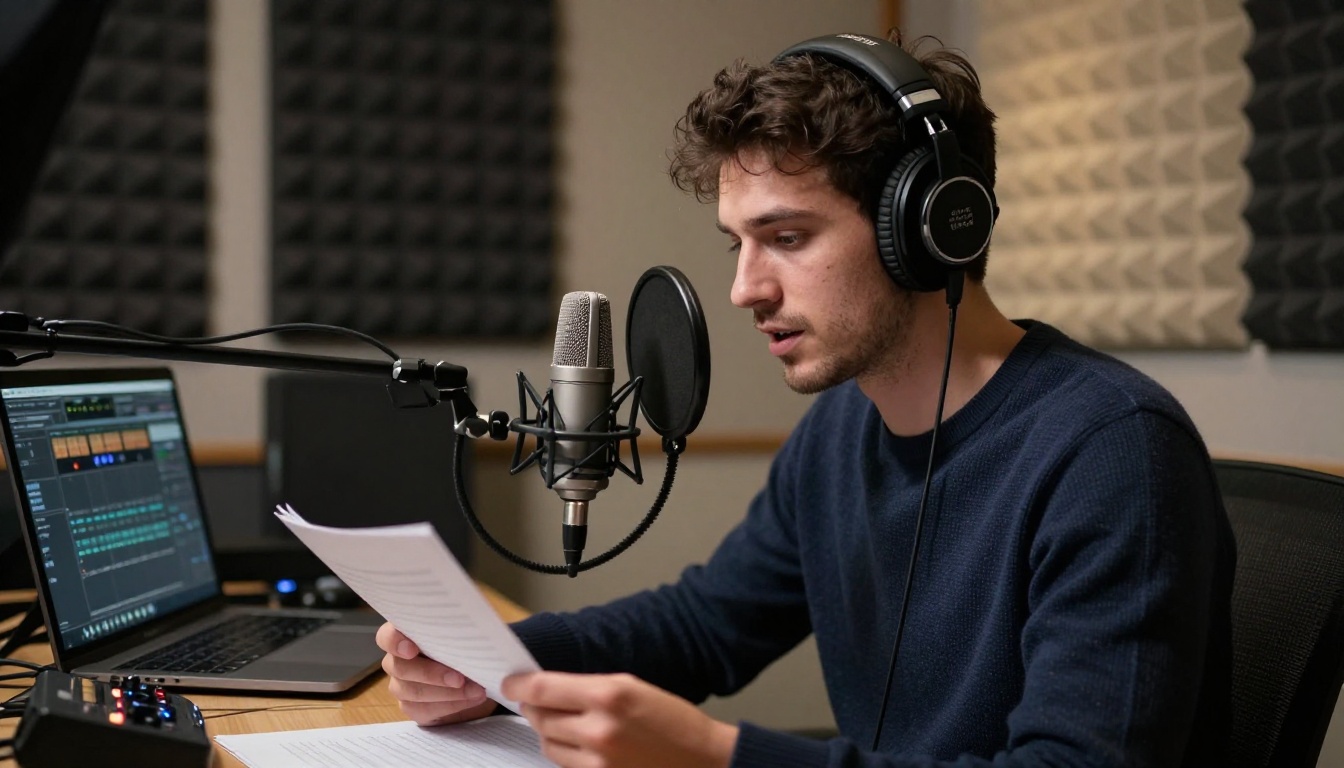
3 Ways to Add Audio Without Editing Skills
There is more than one way to get audio into your AI video. The right method depends on what type of sound you need and how much time you have. Here are the three fastest options available right now.
Method 1: Use a Video Model with Native Audio
Some video generation models now produce audio alongside the visual output. You type a prompt, and you get a video that already includes ambient sound, dialogue, or music baked in.
Veo 3 by Google is the most capable example. It generates videos with native audio, including ambient sounds, voice acting, and sound effects synchronized to the visual content from the start. Veo 3 Fast offers the same native audio capability at a faster generation speed, making it practical for high-volume workflows. And Veo 3.1 pushes this further with 1080p output that includes fully synced audio layers.
Seedance 2.0 from ByteDance also generates video with audio. It handles both text-to-video and audio synthesis in one pass, which makes it a strong choice when you want everything produced together without a separate audio step.
Sora 2 from OpenAI generates videos with synced audio output as well, including ambient and environmental sound layers that match the on-screen scene.
💡 Tip: For native audio, write your prompt to describe the sound environment explicitly. Instead of "a busy café," write "a busy café with the sound of espresso machines, soft jazz, and quiet chatter." The model reads audio cues directly from the prompt text.
Method 2: Generate a Voiceover with AI Text to Speech
If you have a silent video and want to add narration fast, AI text to speech is the cleanest path. You write a script, choose a voice, and download a studio-quality audio file in seconds.
Speech 2.6 HD produces broadcast-quality voiceovers with natural prosody and emotional range. It handles long-form scripts without losing consistency, making it ideal for explainer videos, product demos, and educational clips.
Speech 02 Turbo is the faster version, optimized for real-time generation. When you are iterating quickly and need to test multiple narration styles in minutes, this is the one to reach for.
If you want a distinctive, personalized voice rather than a preset, Voice Cloning lets you build a custom AI voice from a short audio sample. This is particularly powerful for branding, where you want every video to sound like it was recorded by the same person.
Method 3: Add AI-Generated Music
Background music sets the entire emotional tone of a video. AI music generation has reached a point where you can describe the feeling you want and receive a full, royalty-free track in under a minute.
Music 1.5 creates full-length AI songs from text prompts. You can describe genre, tempo, mood, and instrumentation in plain language, and it produces a track that fits the scene.
Lyria 2 by Google is built specifically for high-fidelity original music creation. The output is clean, structured, and avoids the repetitive loops that plague many AI music tools.
Stable Audio 2.5 from Stability AI focuses on audio texture and atmosphere. It excels at generating cinematic underscores, ambient soundscapes, and instrumental tracks that work well under voiceovers without competing for attention.

How to Use Speech 2.6 HD on PicassoIA
PicassoIA hosts Speech 2.6 HD directly, so you can generate professional voiceovers without signing up for separate services. Here is exactly how the workflow runs.
Step 1: Open the Model
Go to the Speech 2.6 HD model page on PicassoIA. You will see the text input area and voice selection options in the interface. No installation or account migration required.
Step 2: Write Your Script
Paste or type your voiceover script into the text field. Keep sentences natural and conversational. Avoid overly long sentences, as they can sound rushed. Use punctuation deliberately: commas create brief pauses, periods create longer ones.
For a 30-second narration, aim for around 70 to 90 words. For a 60-second voiceover, 140 to 170 words. The model reads at a natural conversational pace.
💡 Tip: Add phonetic hints for unusual names or technical terms. Writing "AI" as "A.I." with periods helps the model pause correctly between letters.
Step 3: Choose a Voice
Speech 2.6 HD offers multiple voice options across languages and tones. Select a voice that matches the mood of your video: a warm, measured voice for explainer content, a faster energetic voice for product promotions, a calm intimate voice for storytelling.
If none of the presets match what you need, use Voice Cloning to build a custom voice from a 30-second audio sample. The cloned voice is reusable across any future voiceover you generate.
Step 4: Generate and Sync
Click generate. The model typically produces output in a few seconds. Play it back in the interface. If the pacing feels off, adjust sentence lengths in the script. If the tone is wrong, switch to a different preset voice and generate again.
Once satisfied, download the audio file and import it into your video editor. Align the waveform start point with the first frame and set the voiceover volume at roughly 70 to 80 percent of total headroom, leaving space for music underneath.
The Best Models for Video Sound Right Now
Choosing the right tool depends on what you need. Here is a direct comparison of the top options by use case.
One model that deserves specific attention: Audio to Video by Lightricks. It takes a static image and an audio file and animates the image to react to the sound. This is particularly useful when you want an AI-generated image to come alive in response to a music track or voiceover, turning a still visual into a reactive video clip in seconds.
Also worth noting: Q3 Turbo by Vidu generates 1080p video with native audio at high speed, and Seedance 1.5 Pro by ByteDance delivers text-to-video with audio in a single generation pass.
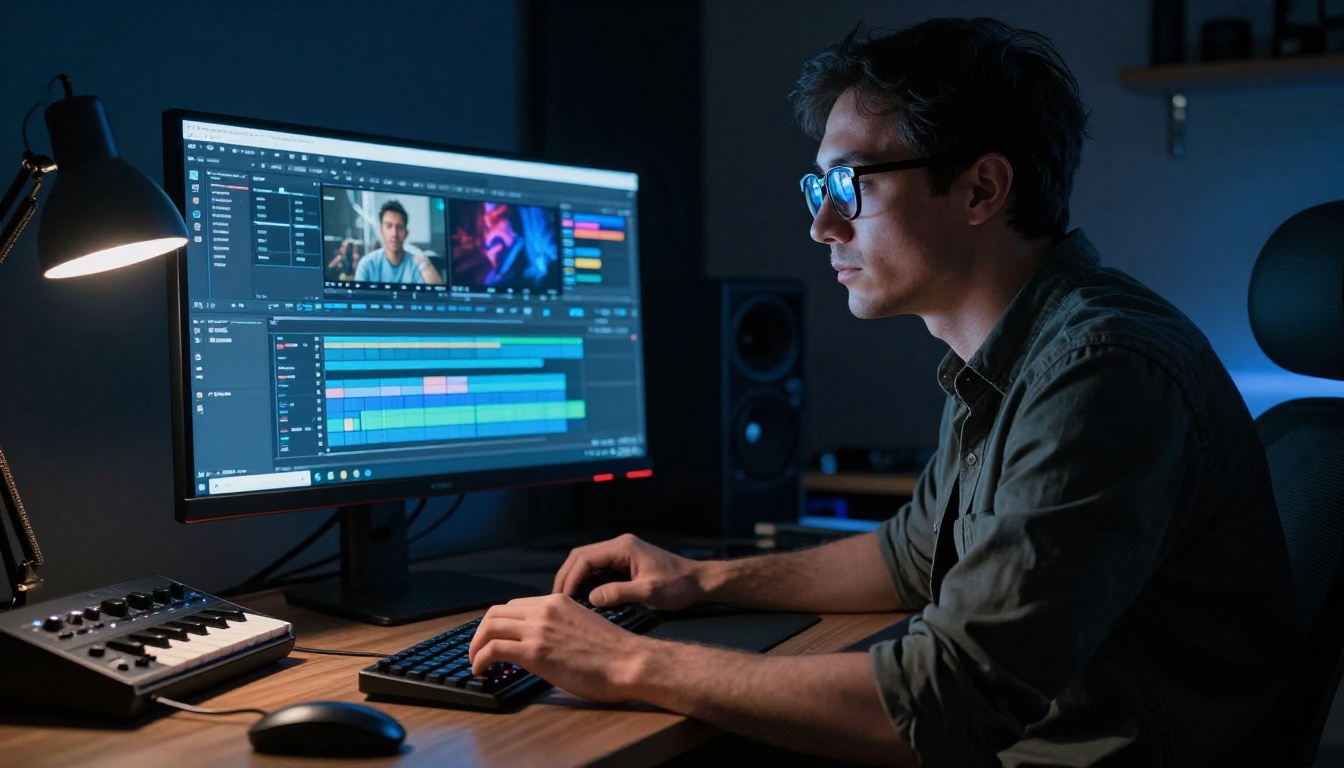
Audio Layers That Make Videos Pop
The difference between a flat-sounding video and a polished one is usually not the quality of any single audio element. It is the way multiple layers work together. Here is the layering logic that professional sound designers use, simplified for AI creators.
Voice First, Music Second
If your video has narration, the voice track is always the most important element. Everything else in the audio mix should support it without competing.
Set your voiceover at a consistent level, then bring music in underneath at roughly half that volume. The music should be barely noticeable on its own but immediately missed if removed. This is called "underscore" in professional production, and it is what separates content that feels polished from content that feels assembled in a hurry.
Sound Effects Add Depth
Ambient sound effects, a keyboard click, a light wind, a crowd murmur, add a sense of physical presence to AI-generated video that purely synthetic audio cannot replicate. Even one or two subtle layers make a visual feel grounded in a real space.
If your AI video shows a city scene, layer in light traffic ambience. If it shows a nature setting, add birdsong or wind. These do not need to be perfectly synced to every visual event. They just need to exist in the background, creating a sense of place.
Mixing and Volume Balance
A common mistake is setting all audio elements at the same volume level. The result is a muddy mix where nothing stands out.
Follow this basic hierarchy: Voiceover at 100%, Music at 40 to 50%, Effects at 20 to 30%. Adjust by ear from this starting point, but always prioritize clarity of the main message over any other audio element.
💡 Tip: Use fade-ins and fade-outs for music. Abrupt audio starts and stops are one of the most noticeable quality signals in online video. A half-second fade at the beginning and end of a music track makes a significant difference to the overall feel.
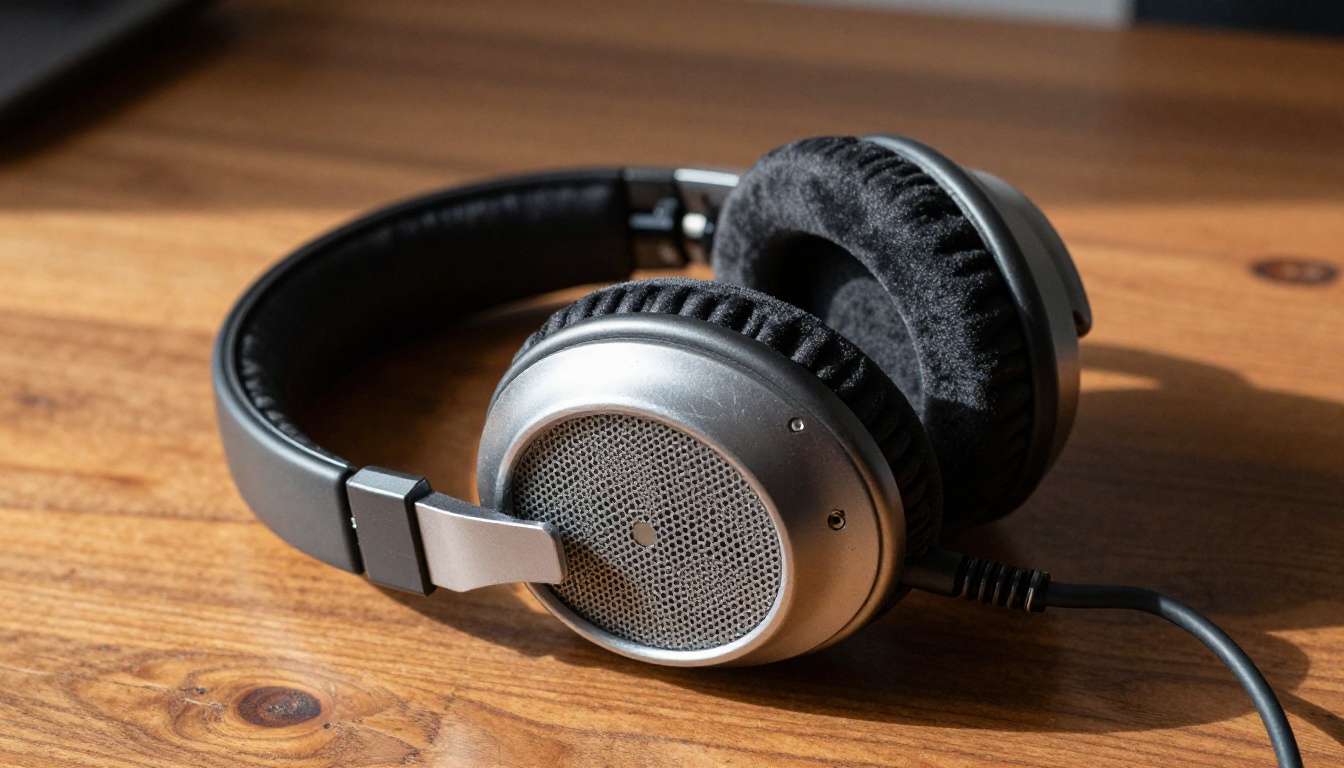
Native Audio vs. Adding Sound Manually
With models like Veo 3.1 and Seedance 1.5 Pro now generating audio alongside visuals, a real question emerges: should you use native audio or add sound in post?
The answer depends on your workflow and the type of content you are making.
When Native Audio Wins
Native audio generation is ideal when:
- Speed is the priority. If you need a finished video with sound in under five minutes, generating audio natively inside the video model eliminates an entire post-production step.
- Sync matters more than control. Native audio is perfectly synchronized to the visual output by default. You do not need to manually align waveforms to on-screen action.
- The content is ambient or cinematic. For videos that rely on atmosphere, natural sounds, or scene-appropriate audio, native generation tends to produce highly convincing results without any additional work.
When Post-Production Audio Wins
Adding audio manually after video generation gives you far more control:
- When you need a specific voiceover. No video generation model can match the precision of a custom script read by a chosen voice. Use Speech 02 HD for narration that needs to be exact.
- When brand consistency matters. Custom voices built with Voice Cloning ensure every video sounds like it came from the same source, regardless of which video model generated the visuals.
- When you want a specific music style. AI music generators like Music 01 give you complete control over genre, tempo, and emotional tone, something no video model can currently replicate natively with the same precision.
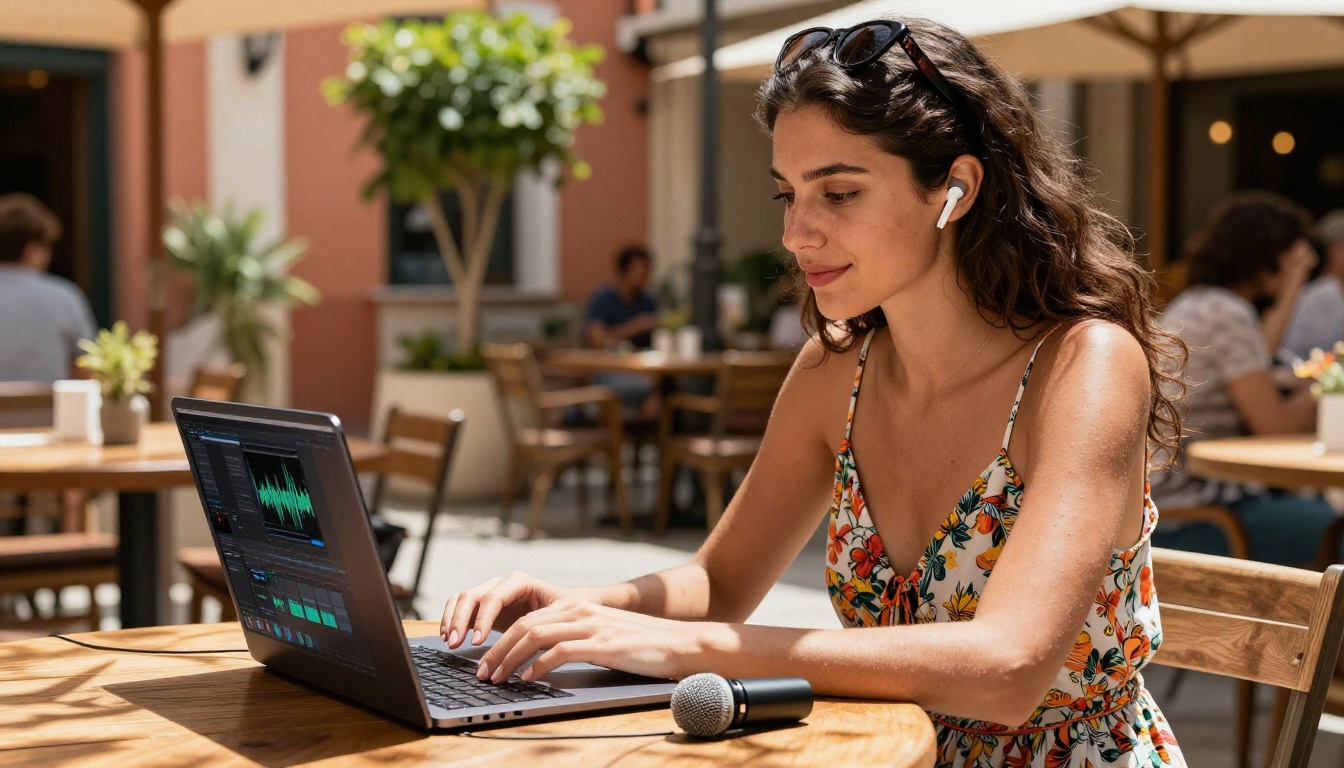
Mistakes That Kill Your Audio Quality
Even with the best AI tools, these errors consistently produce bad results.
Music That Drowns Out the Voice
The most common audio mistake in AI-generated content: background music set too loud. If a viewer has to strain to hear the narration over the background track, they stop watching. Always check your mix with headphones before publishing. What sounds balanced on laptop speakers often sounds completely different through proper playback equipment.
Ignoring Audio Length Mismatch
If your voiceover is 45 seconds and your video is 30 seconds, the audio will cut off mid-sentence. Either trim the script, extend the video, or fade the audio before it ends naturally. This sounds obvious but it is one of the most frequently overlooked errors in rapid AI production workflows.
Scripts That Do Not Match Visual Pacing
AI text to speech tools read exactly what you write at the pace of natural speech. If your script is dense with technical terms or complex sentences, the audio will feel rushed against a slow-moving visual. Write scripts that match the pacing of your video, not just the informational content you want to convey.
Skipping the Mobile Preview
Most viewers watch on phones, often through built-in speakers or budget earbuds. Audio that sounds balanced on studio monitors can sound muddy or thin on mobile. Always do a quick mobile preview before publishing any video with audio elements.
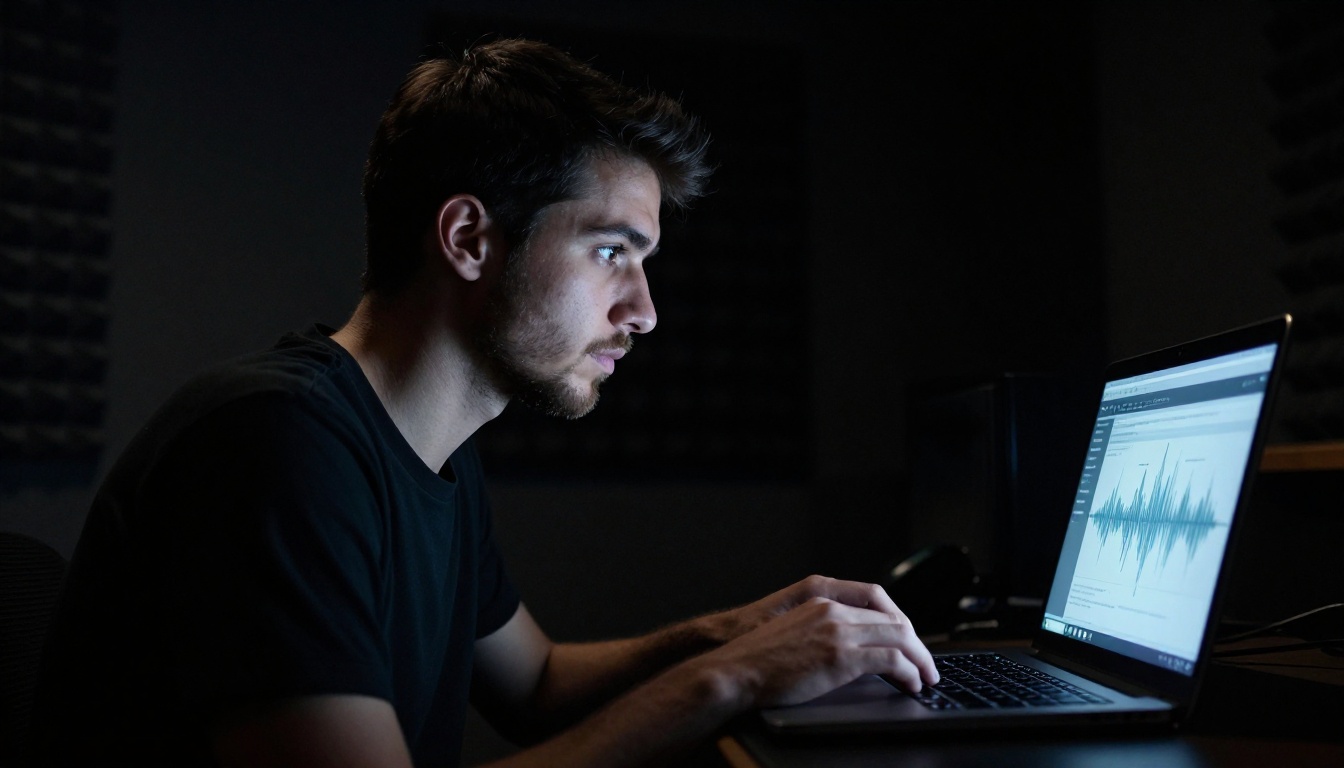
Make Your Next AI Video Sound Professional
Silent videos are a solved problem. The tools to add professional, compelling audio to any AI-generated clip exist right now, and most of them are accessible on a single platform without juggling multiple subscriptions or separate service accounts.
Whether you want instant native audio from Veo 3, precision narration from Speech 2.6 HD, or a cinematic AI soundtrack from Lyria 2, the workflow is within reach for any creator at any level.
The fastest path to a polished AI video with great sound: generate visuals, add a voiceover from Speech 02 Turbo, layer music from Music 1.5 underneath, and publish. That entire workflow takes under 15 minutes with the right tools in place.
All the models mentioned in this article are available on PicassoIA in one place, with no complex setup required. Try generating your first sound-first AI video today and experience the difference that proper audio makes.


