Taking a static AI image and turning it into a fluid, believable video clip sounds like it should require a full production pipeline. It doesn't. Right now, with the right model and a well-written prompt, you can animate a still photograph in minutes, and the results can pass for professionally produced cinematic footage.
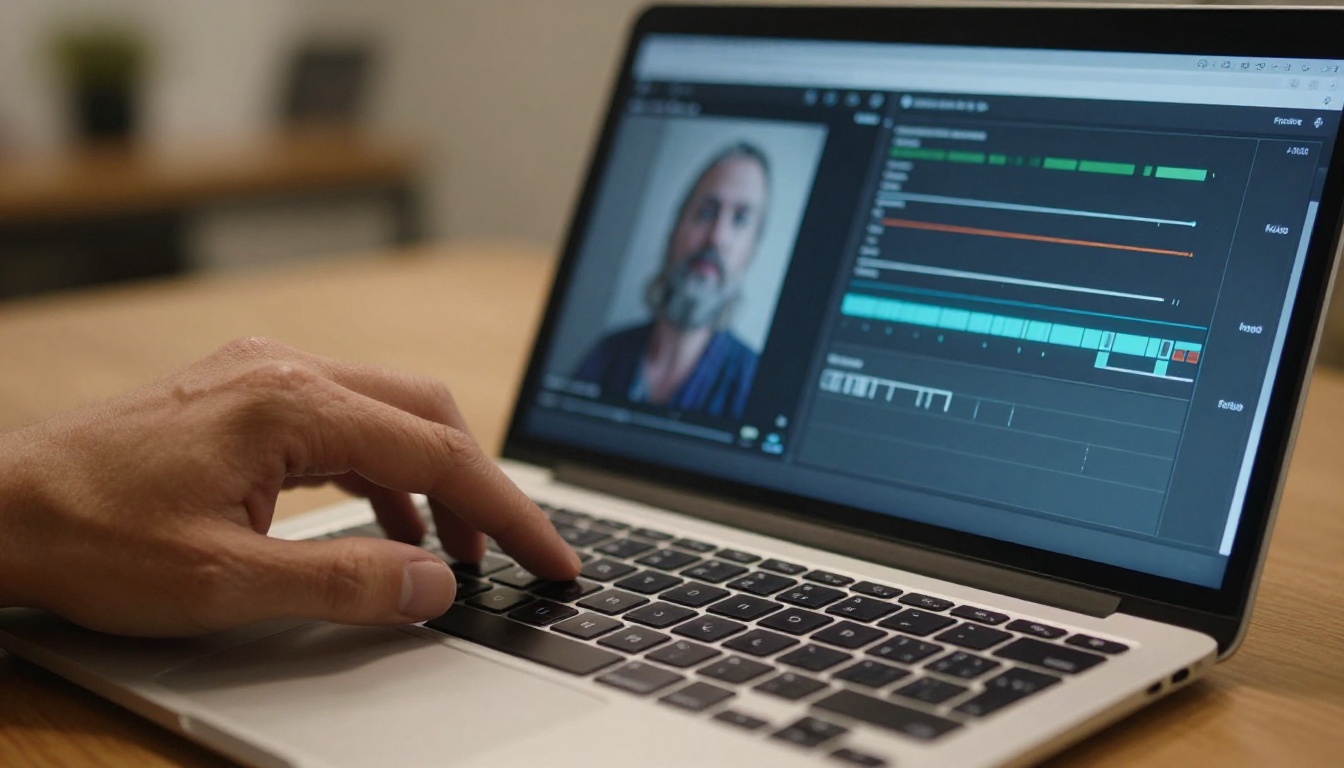
This is not about adding a slow zoom or a vignette. Modern image-to-video AI models synthesize actual motion, from hair moving in a breeze to water rippling to a person turning their head. The motion is inferred, not faked, and it follows the physics of the original scene. Here is how it works, which models do it best, and exactly what you need to do to get a result worth keeping.
What Actually Happens When You Animate an Image
Most people think animating a photo means adding motion effects on top of it. That is the old approach. What AI image-to-video models do is fundamentally different: they predict every intermediate frame between the starting image and a plausible future state, filling in realistic motion based on patterns learned from millions of real videos.
The Physics AI Has to Infer
When a video diffusion model receives your image, it reads the scene: the direction of light, the position of objects, the likely weight and material of surfaces, whether hair should flow or stay rigid, whether cloth should drape or hold form. From that reading, it generates a temporal sequence where all of those physical properties behave consistently over time.
This is why the quality of the source image matters. A soft, flat image with no visible depth cues gives the model less to work with. A sharp, well-lit image with clear foreground and background separation gives the model strong signals for how to create parallax and natural motion.
Why This Works Better With AI-Generated Images
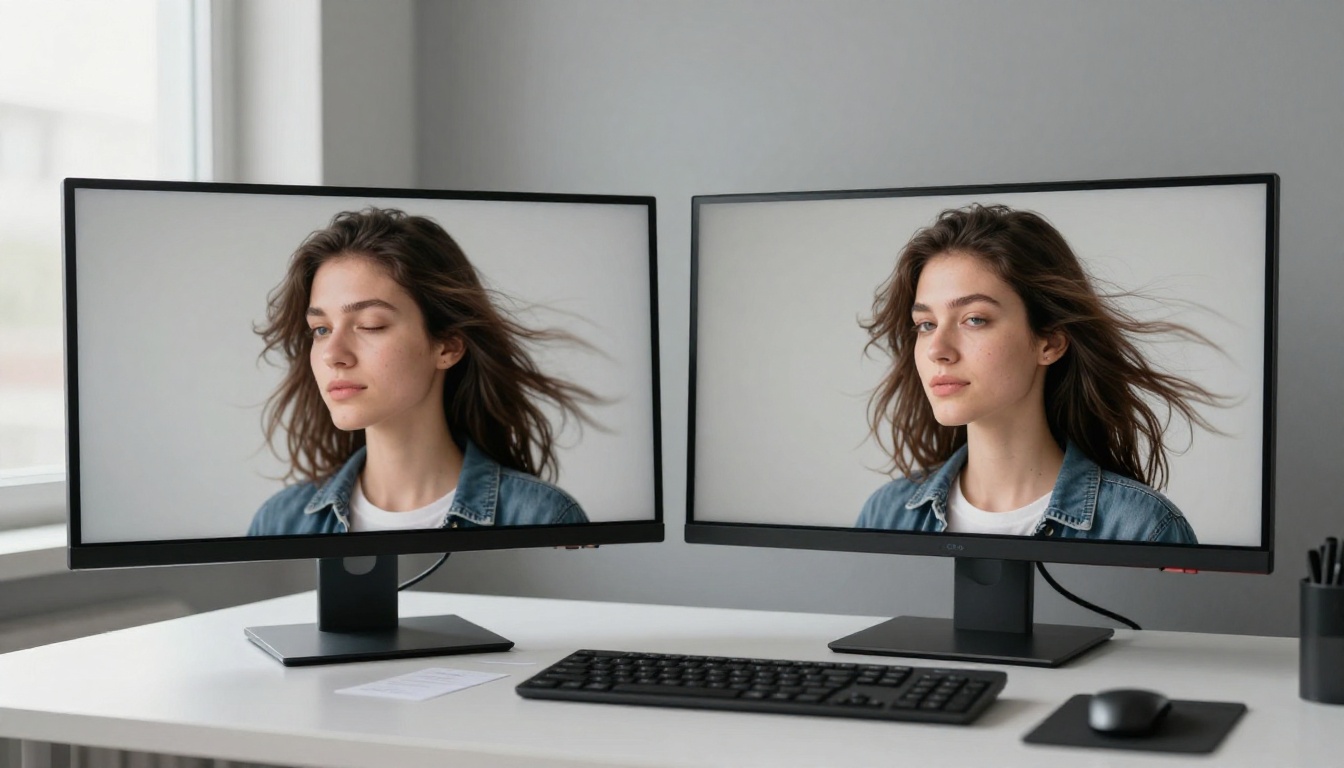
Photographs taken with a camera carry noise, compression artifacts, and inconsistent lighting across the frame. These imperfections can confuse diffusion models. AI-generated images, by contrast, are often cleaner and more internally consistent, which means the animation model can infer motion more accurately.
This is one of the hidden advantages of working with AI-generated source images: the output video tends to have fewer artifacts and smoother motion than you would get from animating a real photograph.
The Best Models for Animating Still Images
Not all video generation models accept an image as input. You specifically need an image-to-video (I2V) model. The distinction matters: a text-to-video model generates motion from a text prompt alone, while an I2V model uses your image as the first frame and generates everything that happens next.
PicassoIA has over 90 video models, and a significant portion of them support image input. These are the ones worth knowing.
P Video Animate
P Video Animate is one of the most accessible options on PicassoIA, specifically designed for animating photographs. It takes a single image and generates smooth, coherent motion without requiring a detailed motion prompt. Results tend to be natural and subtle, which makes it ideal for portrait animation and lifestyle photography.
If you are new to image-to-video workflows, this is the model to start with.
Wan 2.7 I2V
Wan 2.7 I2V is one of the strongest open-architecture image-to-video models available. It handles complex scenes well, including multi-element compositions with both foreground subjects and detailed backgrounds. The motion quality is cinematic at higher resolutions, and the model responds well to descriptive motion prompts.
Its sibling Wan 2.6 I2V is also worth trying if you want slightly faster inference with comparable quality on most scene types.
Kling v2.1 and Kling v3
Kling v2.1 is particularly strong with human subjects. Portrait animations look natural, facial micro-expressions are plausible, and hair motion is one of its consistent strengths. For animating AI-generated headshots or fashion imagery, this is a top pick.
Kling v3 Video takes the quality up a notch with improved scene coherence and better handling of fast motion. If the subject in your image involves action or visible energy, Kling v3 holds up better than earlier versions.
Hailuo 02 and Video 01 Live
Hailuo 02 from Minimax generates at 1080p and handles both portrait and landscape orientations well. The motion is fluid and the output is sharp. It accepts both text and image prompts, so you can describe the motion you want while anchoring the visuals with your source image.
Video 01 Live is Minimax's dedicated still-image-to-video model. The name is descriptive: it takes a frozen image and produces a live, moving version of it. Results are particularly convincing on scenes with natural elements like water, foliage, and sky.
Other Strong Options

How to Use P Video Animate on PicassoIA
Since P Video Animate is PicassoIA's dedicated photo animation model, here is the exact workflow from image to finished clip.
Step 1: Prepare Your Source Image
Before uploading anything, check three things:
- Resolution: At least 512px on the short side. Higher is better for output quality.
- Composition: Your subject should have some implied room to move. A face cut off at the edges leaves the model nowhere to animate toward.
- Lighting: Directional light, not flat front-on light, gives the model depth information it uses to generate realistic shadow movement.
If your image was generated with PicassoIA's image generator, you are already in good shape. The 16:9 aspect ratio standard images come out clean and structured, ready for animation.
Step 2: Upload and Write Your Motion Prompt
Navigate to P Video Animate on PicassoIA and upload your image. In the prompt field, describe the motion rather than the content. The model already knows what is in the image; what it needs from you is what should move and how.
💡 Write motion prompts chronologically. Start with where things are, describe the transition, and end with where they arrive. "Hair gently lifts from shoulders as subject slowly turns head left, soft breeze from the right, warm light shifts slightly" is far more useful than "woman moving."
Step 3: Adjust Duration and Resolution
PicassoIA's video tools typically default to 5-second clips at 480p. For animations where quality matters, bump the resolution. For quick tests and iteration, use the default and save time.
Once satisfied with the settings, hit generate. Output times vary between 30 seconds and a few minutes depending on resolution and server load.
Step 4: Review and Retry Strategically
Your first output probably will not be perfect, and that is normal. The most efficient workflow is:
- Watch the full clip before making any judgment
- Identify what went wrong (frozen areas, distorted faces, unnatural motion)
- Change one thing in the prompt, not everything at once
- Re-run
This methodical approach saves time and gets you to a final output in fewer iterations.
Writing Motion Prompts That Work
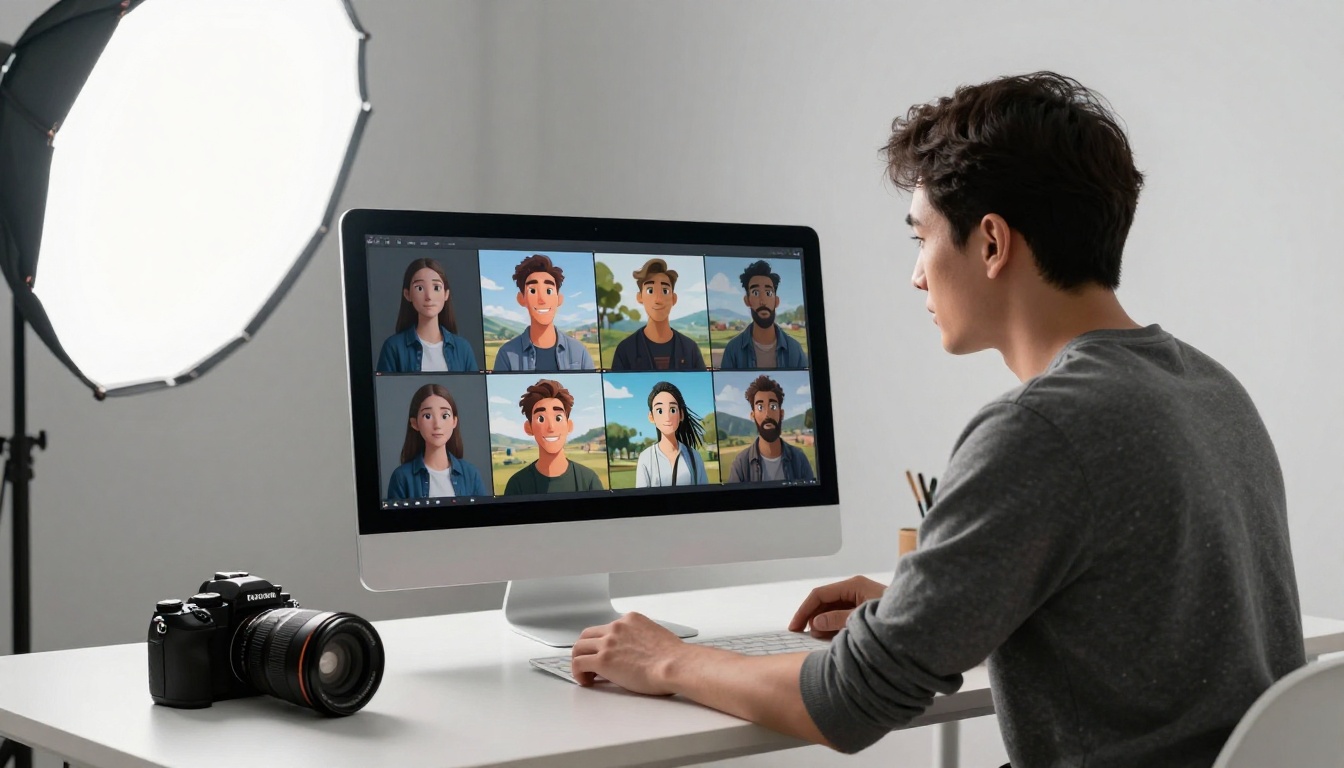
This is where most people struggle. They write prompts that describe the image instead of describing motion, and then they wonder why the output barely moves.
Describe the Motion, Not the Image
Your source image already carries the visual information. The prompt's job is to specify:
- What moves: hair, water, clothing, clouds, hands, trees
- How it moves: "gently sways", "ripples outward", "slowly turns", "rises and falls"
- Speed and energy: "slow drift", "subtle tremor", "quick glance"
- Camera behavior: "slow dolly forward", "gentle pan left", "static locked shot"
Combine these elements and you get prompts that actually produce motion:
"Subject slowly exhales, chest rising subtly, head tilting slightly to the right while loose hair strands lift and drift in a light breeze. Camera holds still. Warm golden light shifts slightly softer over 5 seconds."
5 Prompt Patterns That Produce Results
| Pattern | Example |
|---|
| Breathing life | "Subject breathes naturally, chest rises, slight shoulder movement" |
| Wind and hair | "Breeze moves from left, hair lifts gently, fabric ripples at the hem" |
| Eye contact | "Subject blinks slowly, eyes shift from camera slightly left, returns gaze" |
| Nature motion | "Clouds drift right, grass sways gently, light shifts from warm to cool" |
| Camera move | "Slow dolly-in over 5 seconds, subject stays still, background blurs slightly" |
💡 Avoid vague directives like "be more alive" or "natural movement." These give the model no concrete information to work with. Specificity produces results.
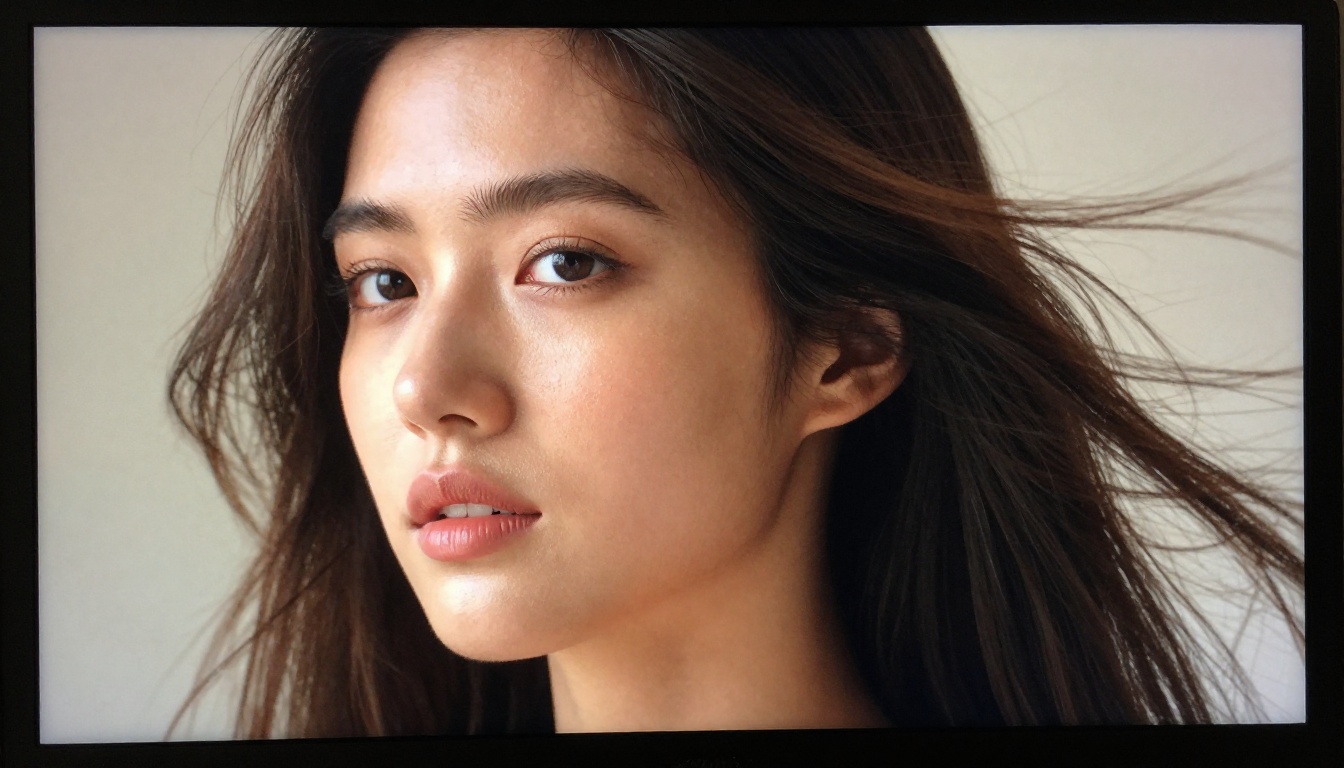
Image Types That Animate Best
Not every type of image produces equally compelling results. Some scene types play to the strengths of video diffusion models; others fight against them.
Portraits and Headshots
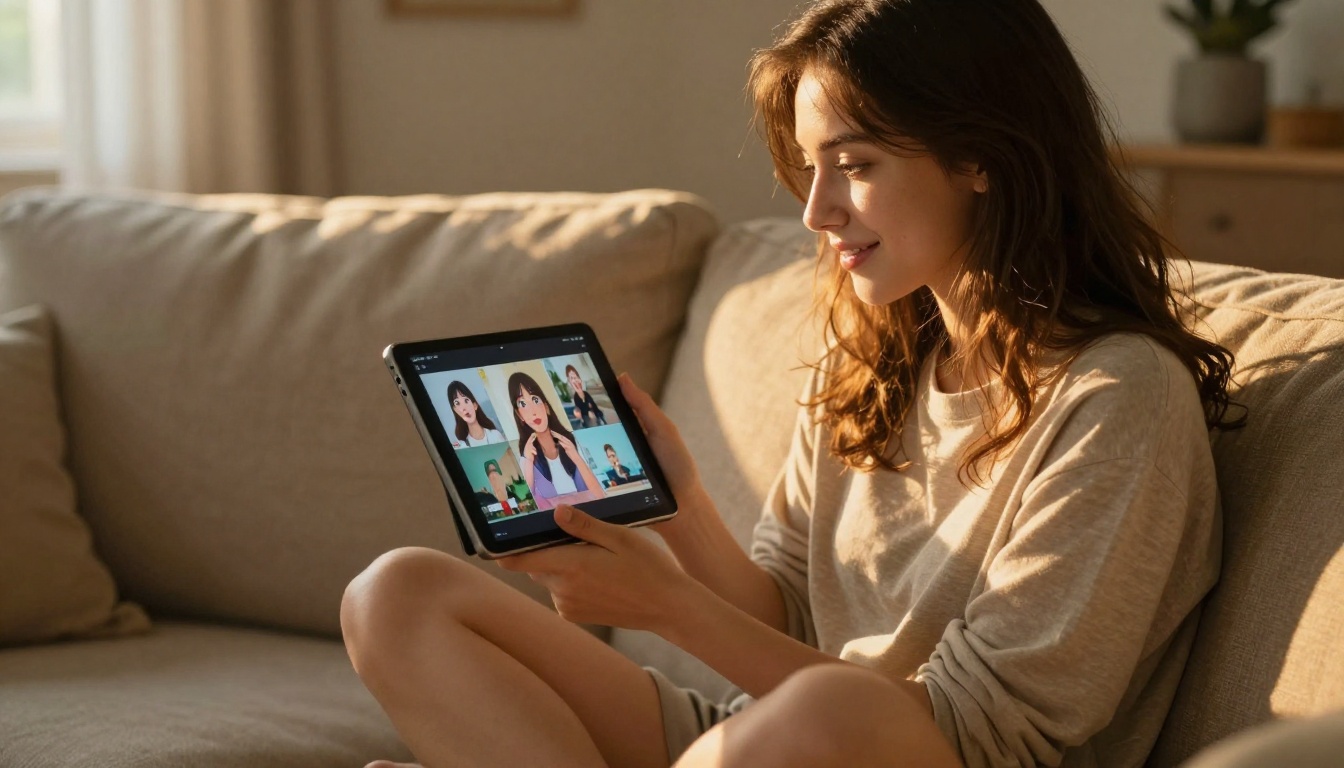
Human faces are one of the most rewarding subjects for still-image animation. Models have seen enormous volumes of face video data during training, so they understand how eyes move, how the jaw behaves, how hair responds to airflow. A clean, well-lit portrait with a neutral or slightly angled head position animates with remarkable realism.
What makes a portrait animatable:
- Clear, sharp facial detail
- Visible hair texture, not compressed or flat
- Head position that has room to move, not an extreme close-up
- Neutral or slightly directional background light
Landscapes and Nature
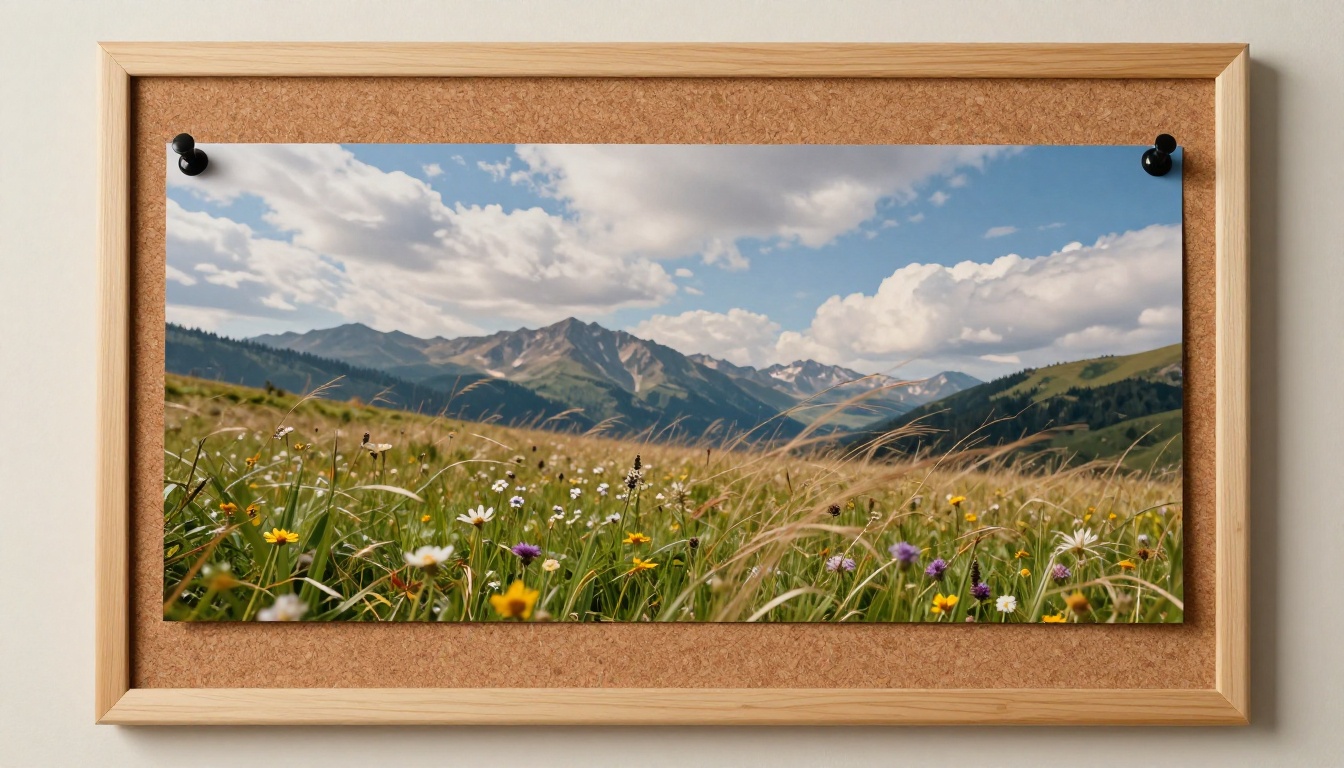
Landscapes animate beautifully because natural elements have predictable, continuous motion: wind through grass, water moving, clouds shifting, light changing. These are areas where Video 01 Live and Wan 2.7 I2V both perform well.
The most effective approach is giving the model permission to move multiple elements simultaneously. A single motion note like "wind blows" is fine; specifying "wind moves through the tall grass in the foreground, the tree canopy sways at the midground, and slow clouds drift in the sky" is much better.
Fashion and Lifestyle Images
AI-generated fashion imagery, from editorial portraits to bikini shots to street style, animates with a distinct cinematic quality. Fabric movement is one of AI video models' consistent strengths because soft materials have visible texture that the model can predict motion patterns for.
Use Kling v2.1 or Kling v3 Video for this category. Both handle the interplay between human figure motion and fabric drape with more accuracy than most alternatives.
Product and Still Life
Product images are the hardest to animate convincingly because rigid objects should not deform, and the model's tendency to introduce slight morphing can look wrong on bottles, electronics, or jewelry. The best approach for product images is minimal motion: slow camera move, subtle environmental effects like steam or condensation, or ambient light shift.
Common Mistakes and Fixes
The Frozen Center Problem
A common failure mode is where the subject in the center of the frame barely moves while the edges animate. This usually happens when the image has a very clear subject isolation, sharp subject against a blurred background, without enough visual information in the background for the model to generate motion.
Fix: Add explicit background motion to your prompt. "Background bokeh softly shimmers, suggesting ambient environmental movement" gives the model permission to animate what would otherwise remain static.
Distorted Faces
Face distortion in animations usually comes from one of two sources: the source image itself had inconsistencies (slightly asymmetrical features, unclear depth), or the motion prompt was too aggressive ("turns head 90 degrees" is asking a lot from a single still frame).
Fix: Keep head movement subtle. "Slight tilt left" or "gaze shifts down briefly then returns" tends to produce cleaner results than large rotations. If face quality is critical, use Kling v2.1, which has the strongest face-consistency record among I2V models.
Unnatural Physics
When water flows upward, hair defies gravity, or fabric moves against the wind direction, the output feels wrong immediately. This is usually a prompt issue: either no physics context was given or contradictory directions were introduced.
Fix: Specify physical context. "Warm breeze from the right side of frame" locks in direction. "Subject is standing outdoors; natural downward gravity applies" tells the model the scene orientation.
Choosing the Right Model for the Job
With over 90 video models on PicassoIA, the choice can feel overwhelming. Use this as a reference:
Speed vs Quality
Most I2V models on PicassoIA sit at one of three points on the speed and quality tradeoff:
For production work, the quality tier is worth the wait. For rapid iteration and prompt testing, start in the fast tier and move up only when you have a prompt you are confident in.
What You Can Build With Animated Images
Knowing how to animate a still image is one thing. Knowing what you can build with that capability is where it gets interesting.
Content creation: Social media posts that stop a scroll. An animated portrait is far more arresting than a static photo. Pair it with a caption and it performs differently than any static image post.
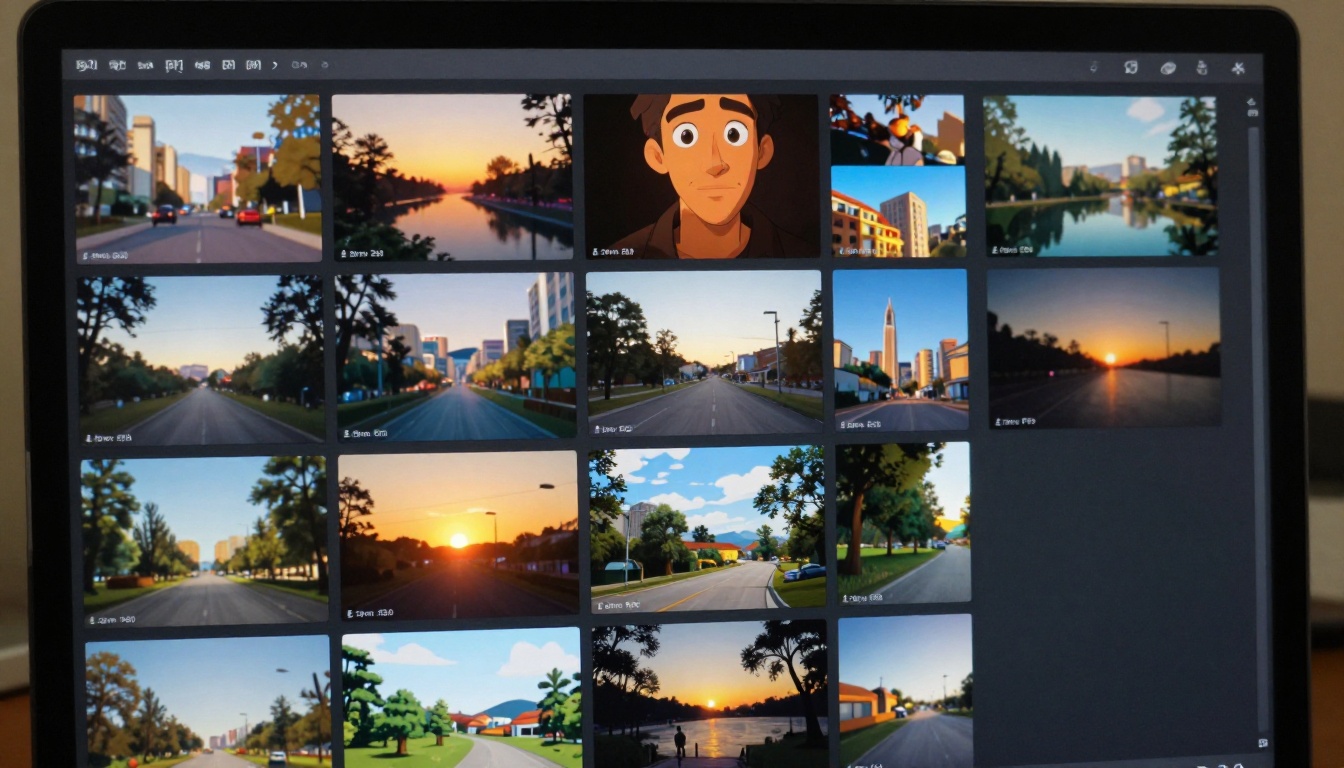
Storytelling: A series of animated AI images, each depicting a different moment, can function as a motion storyboard or a stylized short film without a camera ever being pointed at anything.
Product visualization: Show a product in a context that would be impossible or expensive to film. An AI-generated product shot animated with subtle ambient motion looks more engaging than a flat photo and more authentic than an obviously rendered 3D clip.
Personal projects: Animating portraits is one of the most emotionally resonant applications of this workflow. The Ovi I2V model is particularly well-suited for this because it generates audio alongside the video, adding another dimension to the experience.
Start Animating on PicassoIA
The full stack for this workflow is available at PicassoIA. Generate your source image with the image generator, then pass it directly to one of the I2V models. Everything runs in the browser, no software to install.
Start with P Video Animate for your first attempt. Write a simple motion prompt with one or two specific movements. Watch what the model does with it. Then iterate.
The gap between a static AI image and a polished animated video is now a single well-written prompt, and every tool you need to close that gap is waiting at picassoia.com/en/all-models.


