Your drawing is done. The lines are clean, the pose is right, and something about it just feels alive. The only problem? It's sitting perfectly still on a page, waiting for motion that never comes. That's exactly what AI animation tools were built to fix, and they work faster than most people expect.
Whether you're a sketch artist, a digital illustrator, or someone who drew something on paper and wants to see it breathe, this article breaks down how to animate drawings with AI fast, from the tools that actually deliver results to the specific steps that get a finished animation in minutes, not months.
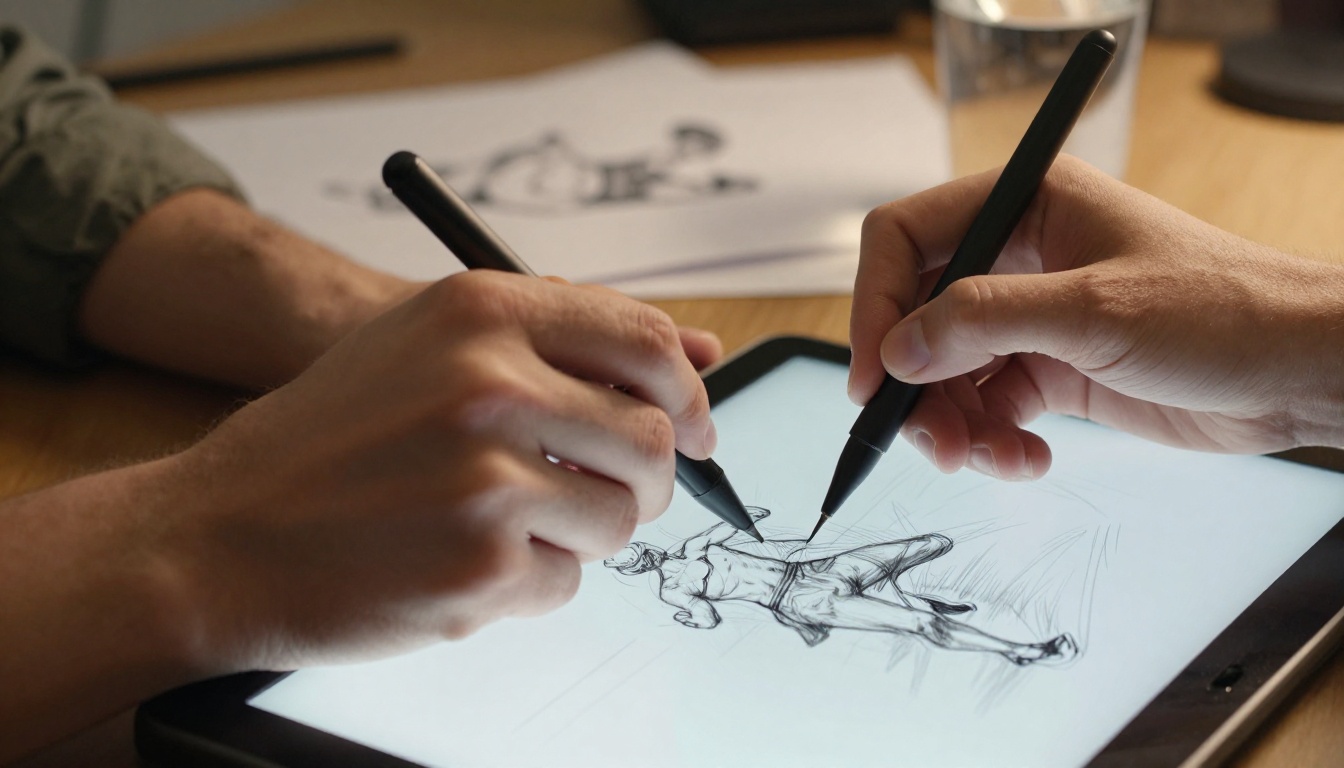
Why Animating Drawings Used to Take Forever
The traditional pipeline was brutal
Classic animation requires drawing every frame by hand. A 10-second clip at 24 frames per second means 240 individual drawings, each slightly different from the last. Professional animators spent years learning how to space movements, time bounces, and create the illusion of weight. Studios had entire departments dedicated to it. Independent artists either devoted months to a short loop or simply didn't animate at all.
Even with modern software like Adobe Animate or Toon Boom, the process demanded technical knowledge, a steep learning curve, and hours of repetitive work. The barrier wasn't creativity, it was time and expertise.
What AI actually changed
AI animation models don't draw each frame manually. Instead, they analyze your existing drawing, understand its structure and composition, then generate the in-between frames automatically, predicting how shapes and figures would move. This process, called interpolation combined with motion generation, happens in seconds on a cloud server. You get the result; the model handles the hard part.
The output is not always perfect, but for social media content, short story clips, character reveals, or animation tests, the quality is more than good enough. And it keeps improving every few months.
What You Actually Need to Start
Your drawing in digital form
You don't need a professional setup. A phone photo of a pencil sketch works. A PNG export from Procreate works. A scanned ink drawing works. The main requirements are:
- File format: JPG or PNG, minimum 512x512 pixels
- Clean lines: High contrast between your drawing and the background helps the AI read the shapes
- Simple backgrounds: White or flat-colored backgrounds give better results than complex ones
- Clear subject: One main character or object animates better than a crowded scene
💡 Tip: If your drawing is on textured paper, photograph it in natural light near a window. Avoid flash, which creates harsh reflections that confuse the AI's edge detection.
The right AI model for your style
Not all animation models treat drawings the same way. Some are built for photorealistic images, others specifically for illustrations and sketches. Choosing the wrong model is the most common reason people get disappointing results.
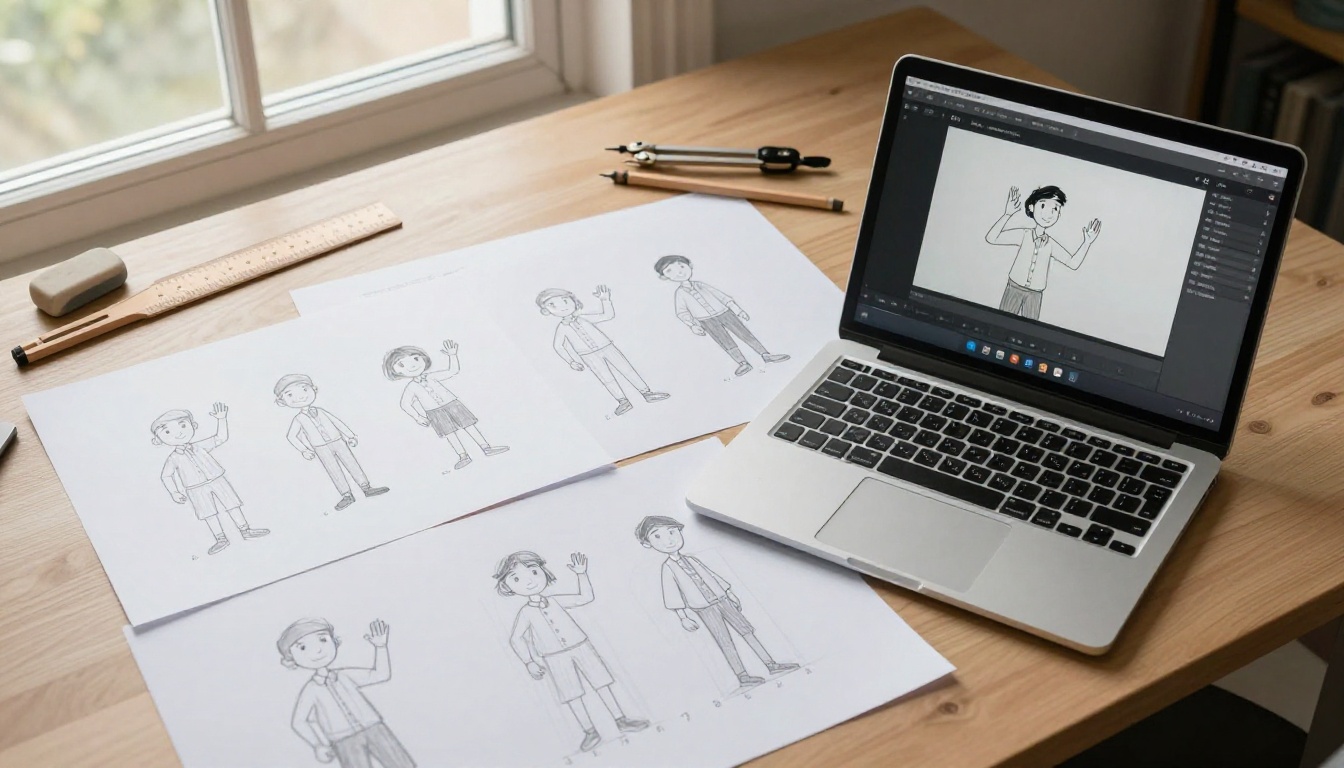
The 3 Main Ways AI Animates Your Drawings
1. Image-to-video models
These take a still image, which can be a drawing, a photo, or any visual, and generate a short video clip from it. The AI predicts natural motion based on what it sees. A character's hair might sway, eyes might blink, or a figure might make a small gesture. These models work best when the motion is subtle and the composition is clear.
Top image-to-video models available right now include Wan 2.5 I2V Fast, which processes images quickly and produces fluid motion, and Wan 2.6 I2V, which adds higher fidelity motion to complex subjects.
For character-focused animations, Kling v2.1 and Kling v3 Motion Control offer precise control over how characters move, making them well-suited for animating drawn figures in specific poses.
2. Illustration-specific models
Some models are purpose-built for drawn content. ToonCrafter is the standout here. It was designed to interpolate between illustration frames, meaning it understands cartoon and sketch aesthetics rather than forcing photorealistic motion onto hand-drawn subjects. If your goal is to animate something that looks like an actual drawing in motion, not a photo, ToonCrafter is your starting point.
PIA is another solid option for bringing illustrated characters to life. It handles character motion especially well and preserves the visual style of your original drawing more faithfully than generic image-to-video models.
3. Text-guided animation
Instead of just feeding an image, you can also describe the motion you want in text. Models like Stable Diffusion Animation and AnimateDiff Prompt Travel let you type things like "character waves slowly" or "figure walks to the right" and the model generates the animation accordingly. This is useful when you have a very specific movement in mind that the AI wouldn't naturally predict from the still image alone.
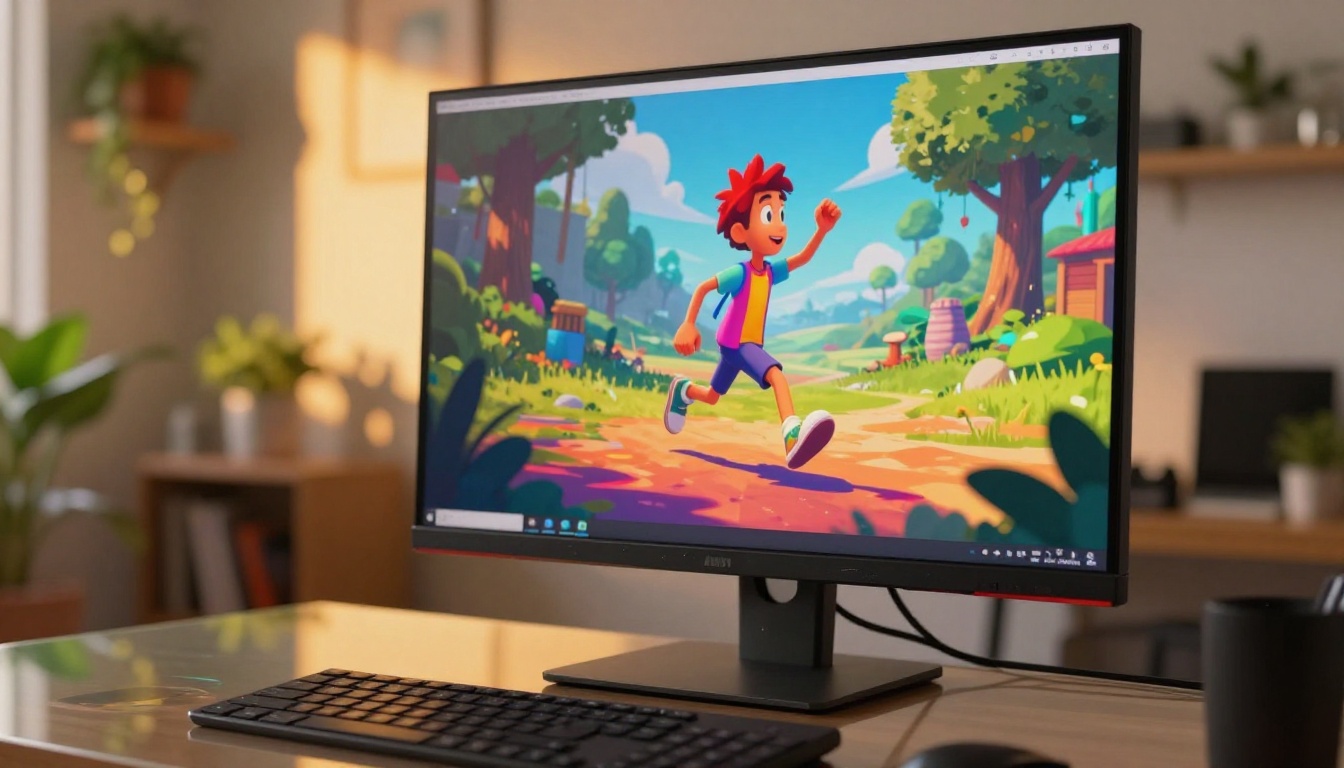
How to Use ToonCrafter on PicassoIA
ToonCrafter is built specifically for animating illustrations. Here is a step-by-step walkthrough of using it on PicassoIA.
Step 1: Prepare your drawing
Export or photograph your drawing as a PNG or JPG. Aim for at least 768x768 pixels. If your sketch has a colored background, use an image editing tool to replace it with white. Make sure your subject is centered in the frame with some breathing room around the edges.
💡 Tip: If you have two key poses, a starting position and an ending position, ToonCrafter can interpolate between them. This produces more controlled animation than using a single frame.
Step 2: Open ToonCrafter on PicassoIA
Go to ToonCrafter on PicassoIA. You'll see the image upload interface. Upload your starting frame in the first slot. If you have a second keyframe (the ending pose), upload it in the second slot. ToonCrafter will generate the frames in between.
Step 3: Set your parameters
- Frame count: Start with 16 frames for a short smooth motion clip
- Prompt: Describe the motion you want, such as "character raises right arm slowly" or "figure turns head to the left"
- Seed: Leave this random for the first generation, then lock it if you want to iterate on a result you like
Step 4: Generate and refine
Click generate and wait. ToonCrafter typically processes in under a minute on PicassoIA's servers. Watch the result and evaluate: Is the motion too fast? Too jittery? Did the style hold up? Adjust your prompt to be more specific or change the number of frames. Each iteration costs only seconds.
Step 5: Download and use your animation
PicassoIA delivers the output as an MP4 video clip. You can use it directly in social posts, embed it in presentations, or import it into video editing software for further polishing.
Comparing the Best AI Animation Models
Different models produce different results. Here's a quick comparison to help you choose:
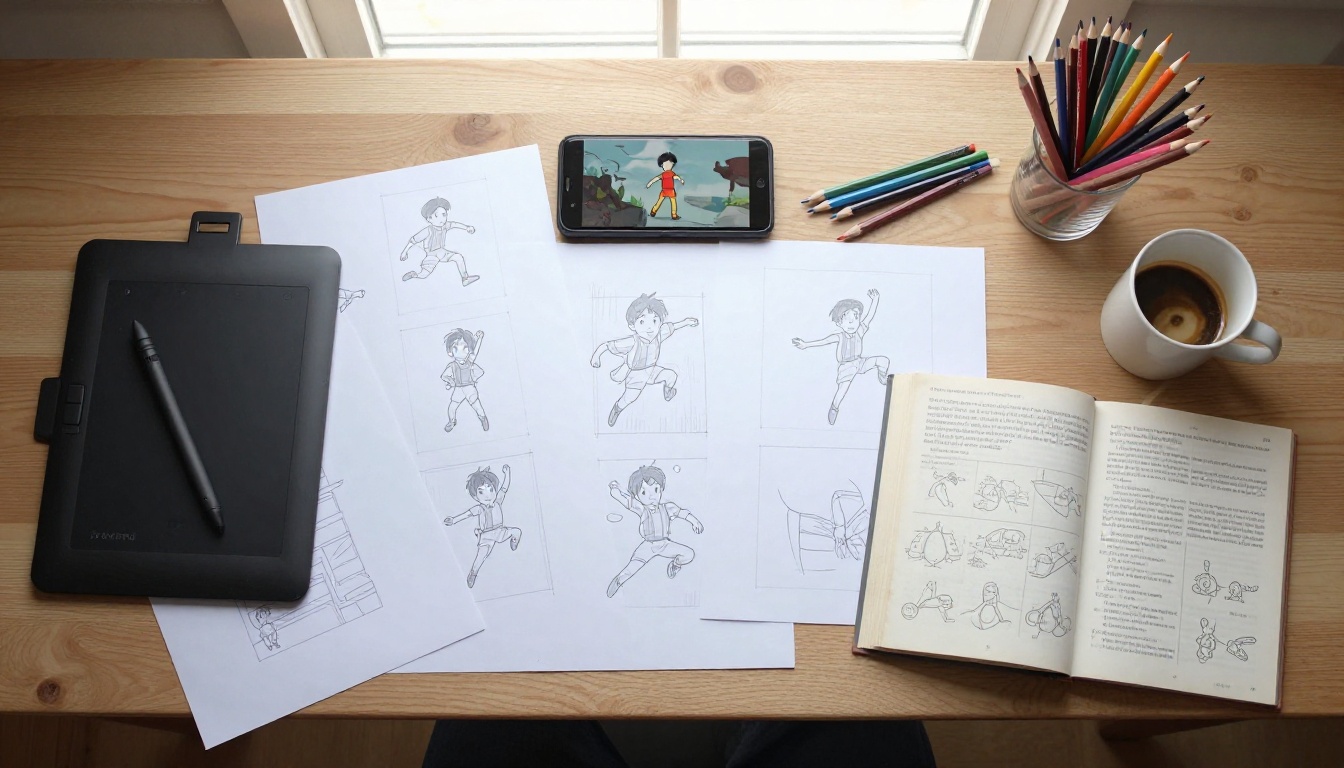
What Drawing Styles Work Best
Simple characters with clear contours
The cleaner and more defined your lines, the better the AI reads your drawing. Thick outlines, flat colors, and minimal hatching produce the most consistent animations. Think of the style used in classic Saturday morning cartoons: bold, readable, and unambiguous.
Silhouette-friendly poses
If your character's pose reads clearly as a silhouette, it will animate more cleanly. A figure with their arms out to the sides reads better than a figure with arms pressed against their body. The AI needs to distinguish limbs from the torso to create believable movement.
Consistent lighting and shading
If your drawing has shading, keep it simple and consistent. Dramatic shadows that span across the whole figure can confuse the model about where one body part ends and another begins.
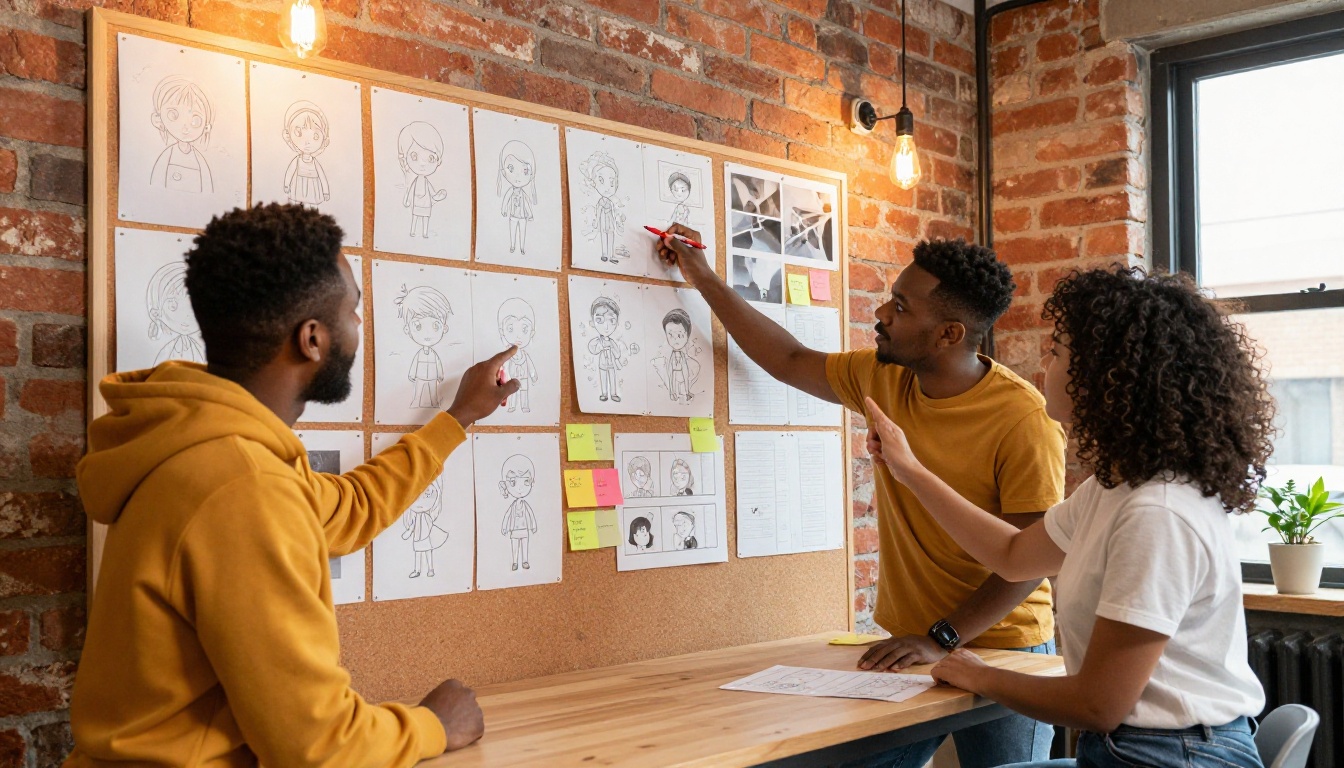
4 Common Mistakes That Ruin Results
Uploading low-resolution files
Small images produce blurry, artifact-heavy animations. The AI needs enough pixel data to understand your drawing's structure. Always use the highest resolution version of your file.
Expecting cinematic motion from a single frame
A single image gives the AI limited information. It doesn't know where your character was a moment ago or where they're going next. The motion it generates will be relatively subtle: a sway, a breath, a slight turn. For more dramatic motion, provide two keyframes or use a model that accepts text motion prompts.
Not iterating
First results are rarely the best. The difference between a mediocre animation and a great one is usually two or three quick iterations, adjusting the prompt, the frame count, or the input image composition. Since generations take under a minute, there is no reason to settle for the first output.
💡 Tip: Use Dreamactor M2.0 for character-specific animations where you want consistent body movement and pose control across multiple frames.
Ignoring the text prompt
Many people upload an image and hit generate without writing anything in the prompt field. Adding even a brief description of the desired motion dramatically improves output quality. "Character blinks and tilts head slightly to the right" is far more useful than leaving the field blank.
From Sketch to Social Post: A Real Workflow
Here is a full end-to-end workflow that takes a hand-drawn character from paper to a shareable animated clip:
- Draw your character on paper with a dark pen or in any digital drawing app
- Photograph or export as a high-resolution PNG
- Clean the background using a background removal tool if needed
- Upload to ToonCrafter on PicassoIA with a motion prompt
- Generate and review the output clip
- Iterate once or twice with adjusted prompts
- Download the MP4 and post or embed
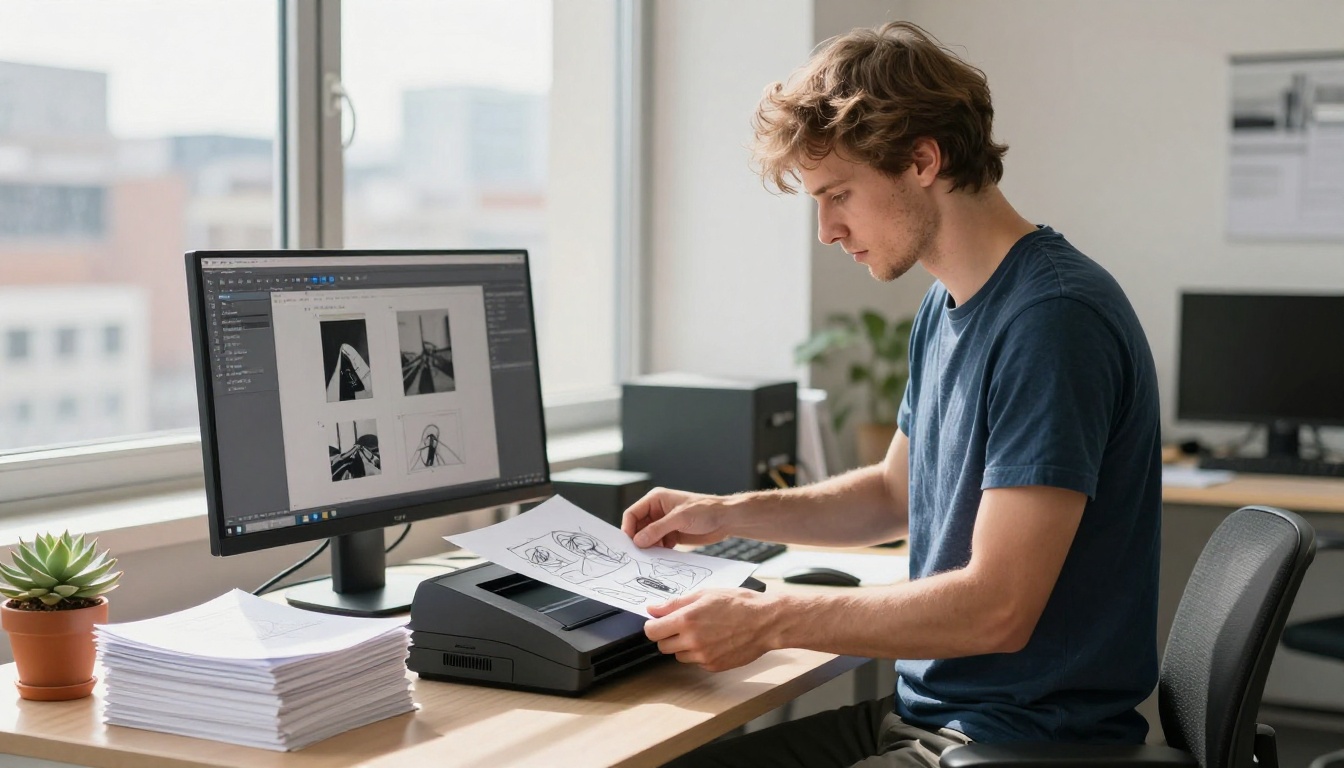
The entire process, from scanning your sketch to having a ready-to-post animation, takes about 5 to 10 minutes on the first attempt. Once you know the workflow, it's closer to 2 to 3 minutes per clip.
When Your Drawing Needs More Than Basic Motion
Animating full scenes
If your drawing is a full scene rather than a single character, image-to-video models like Hailuo 2.3 Fast handle environmental motion well. Trees swaying, clouds drifting, water rippling, these ambient motions work beautifully even on illustrated backgrounds.
Adding background motion separately
A useful trick is to animate your character and background separately, then layer them in video editing software. This gives you much more control than trying to animate both at once. Many illustrators animate just the character with ToonCrafter, then add subtle parallax motion to the background using a standard image-to-video model.
Looping your animation
For social media content, seamless loops are incredibly effective. Generate slightly more frames than you need, then trim the clip in a video editor so the last frame matches the first. PicassoIA's models often create naturally loopable motion, especially for breathing, swaying, and blinking animations.
How AI Handles Different Drawing Types
Put Your Drawings in Motion Right Now
The best way to see what's possible is to actually put one of your drawings through a model. You don't need a polished finished piece. A rough sketch, a doodle, or even a character you drew five minutes ago is enough to start.
Head to PicassoIA and open ToonCrafter for illustrations, or Wan 2.5 I2V Fast for a quicker first test. Upload your drawing, write a simple one-sentence motion description, and generate. The first result might not be perfect, but it will probably surprise you.
That moment when your drawing moves for the first time is worth five minutes of your time. The tools are ready. The only thing missing is your drawing.


