Old photographs are windows into lives already lived. The people in them laughed, cried, worried, and loved, and yet they sit frozen behind glass, unable to show you any of it. AI photo animation changes that. In minutes, a still portrait from 1940 can show the same face turning slightly, eyes blinking, a faint breath rising and falling. The effect is not magic, but it feels close enough.
This article walks you through every step: how to prepare your photos, which AI models produce the best results, how to run an animation on PicassoIA right now, and how to avoid the mistakes that ruin most first attempts.
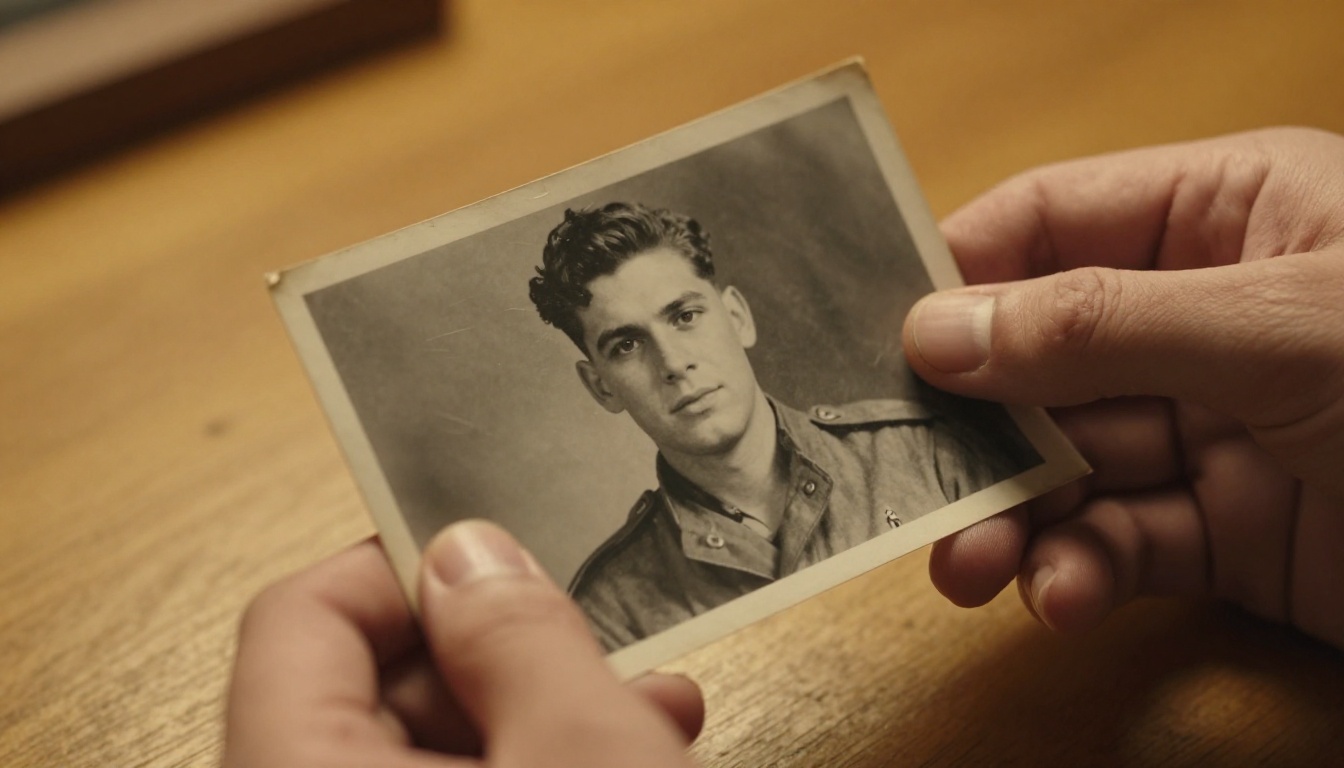
Why Animated Photos Hit Different
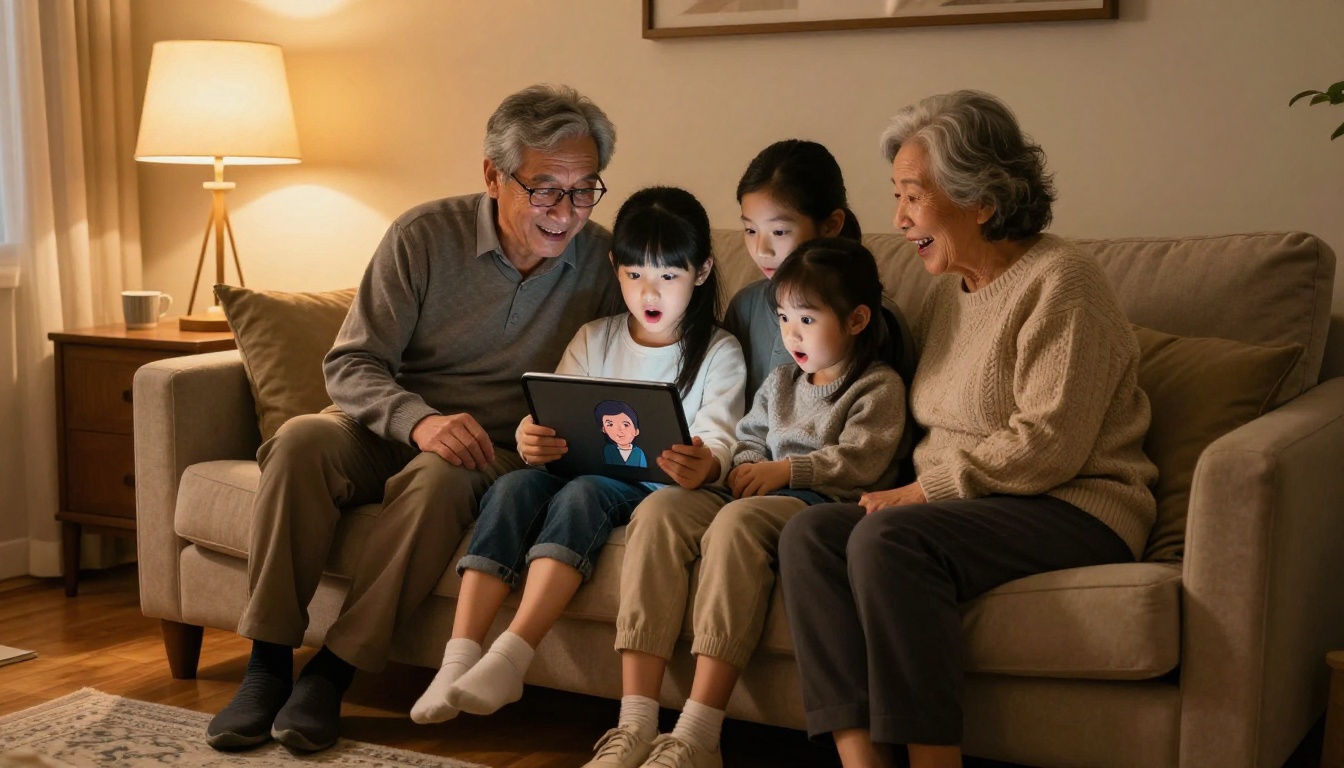
There is something about motion that signals life. A still photo communicates presence; a moving one communicates person. When viewers watch an ancestor's portrait begin to breathe and blink, the emotional response is immediate and often overwhelming. Research in perception psychology consistently shows that detecting motion in a face activates the same neural responses as perceiving a living person, which is why even subtle AI-generated movement feels so powerful.
The science behind the reaction
Humans are wired to track movement. Our peripheral vision evolved to detect motion before our central focus catches up, which is why even the smallest shift in a face, a slow blink or a slight head tilt, triggers the same neural pathways that respond to a living presence. AI photo animation works by exploiting that instinct deliberately.
The moment a portrait starts to breathe, the brain stops processing it as a flat image. It becomes a person. That perceptual shift is the entire value of photo animation, and it happens in less than a second of viewing.
What people actually do with animated photos
- Post them to social media, where they consistently outperform static images in shares and comments
- Play them at memorial services and family reunions where relatives who never met certain ancestors can finally see them in person
- Send them as digital gifts to elderly relatives who have never seen their own grandparents move
- Archive them alongside digitized documents for richer, more immersive family history records
- Use them in documentary and journalism projects to bring historical figures to life for modern audiences
Prepare Your Photos Before Anything Else
The quality of your output is capped by the quality of your input. This is not a disclaimer; it is the single most important variable you control. AI can add motion to a photograph, but it cannot create facial detail that was never captured in the first place.
Scanning tips for best results
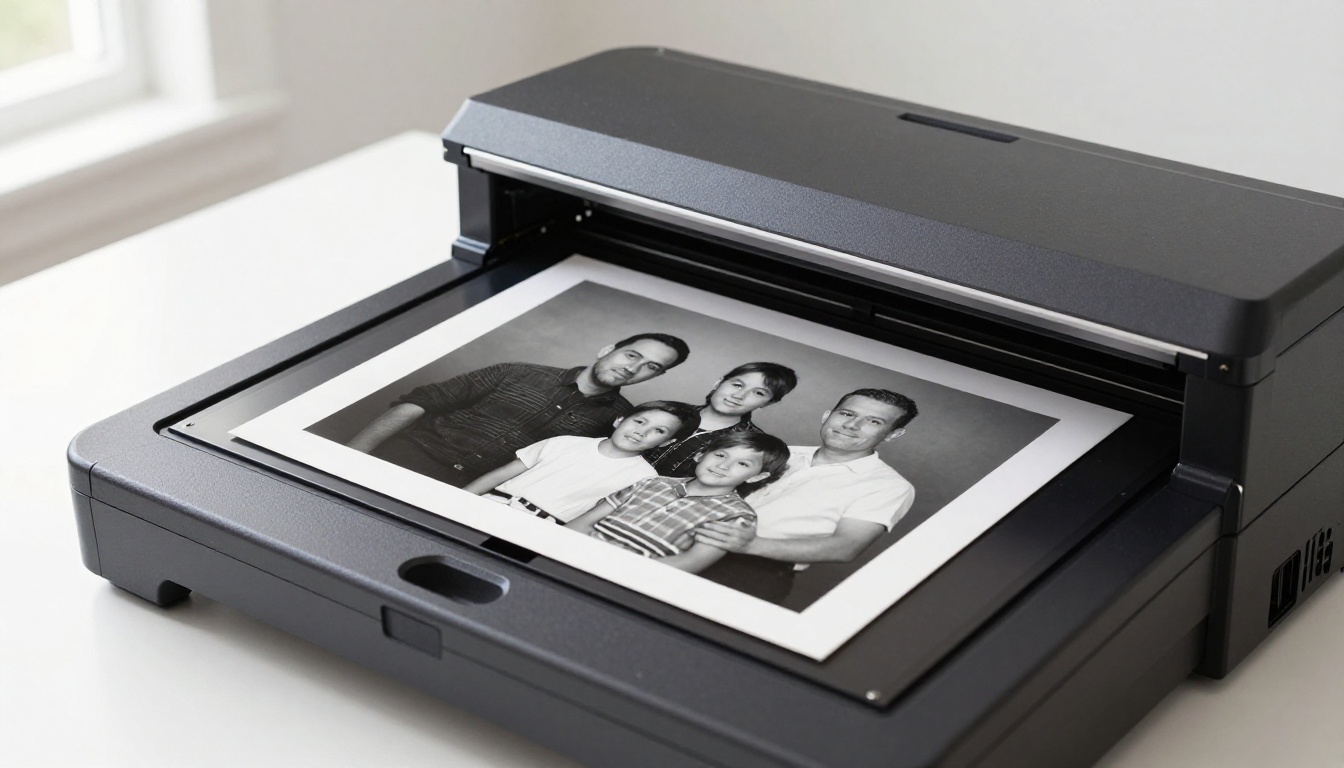
If you are starting with a printed photograph, a flatbed scanner beats a phone camera every time. A phone captures a photo of a photo, picking up ambient reflections, curved edges, and focus inconsistencies. A scanner captures the surface directly with even illumination.
Recommended scan settings:
| Photo Size | Minimum DPI | Preferred DPI | Format |
|---|
| Standard print (4x6") | 600 DPI | 1200 DPI | TIFF or PNG |
| Wallet size | 1200 DPI | 2400 DPI | TIFF or PNG |
| Large format (8x10"+) | 300 DPI | 600 DPI | TIFF or PNG |
| Damaged or faded | 1200 DPI | 2400 DPI | TIFF or PNG |
💡 Tip: Clean your scanner glass before each session. A single dust smear shows up in animation as a persistent artifact the AI cannot distinguish from surface texture.
Save as TIFF or PNG until you are completely done processing. JPEG compression introduces blocking artifacts that animation models interpret as texture, which makes animations look unstable.
When your photo needs upscaling first
AI animation models produce far better results on photos larger than 512 x 512 pixels with clear facial detail. If your scan is low resolution or the face occupies only a small portion of the frame, run it through a super-resolution model before animating.
On PicassoIA, Real ESRGAN can upscale any photo up to 4x without introducing artificial textures. For portraits specifically, Crystal Upscaler is tuned to preserve fine facial detail during upscaling, reconstructing eye and lip definition that may have faded from the original print. If you need maximum resolution for large-format display, Image Upscale by Topaz Labs pushes up to 6x while maintaining edge sharpness.
How the Animation Technology Works
Most tutorials skip this section and jump straight to the steps. That is a mistake, because knowing what the model is actually doing tells you exactly how to prompt it.
Motion synthesis from a single frame
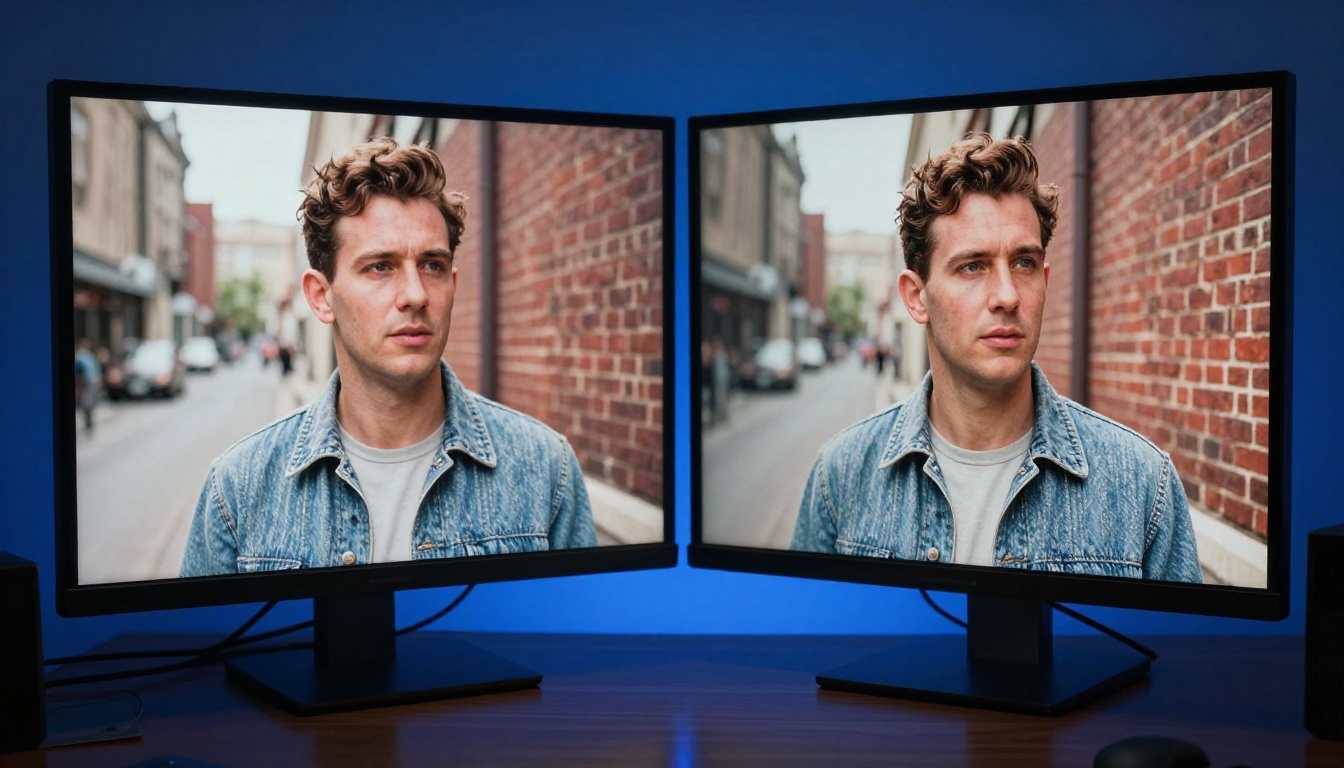
Image-to-video AI models do not animate a face by finding a video of a similar person and copying it. They analyze the spatial structure of a still image, infer depth and surface normals from light and shadow, and then synthesize plausible motion by predicting what physical forces would do to each surface over time.
Hair sways with inertia. Eyes blink at biologically realistic intervals. Clothing folds deepen as shoulders shift. Every animated frame is created from scratch by the model's internalized sense of how the physical world moves, built through training on millions of real video clips.
This also explains why the prompt matters so much. When you write "gentle breathing and natural blinking," you give the model a constraint that keeps synthesized motion subtle and physically plausible. When you write "laughing and turning head dramatically," you are asking for complex motion that may conflict with the original pose, which produces distortion.
Why faces work better than crowds
Face-specialized animation models are trained on concentrated datasets of face video, giving them a strong prior for how facial muscles, skin, and eyes move. Full-scene animation models trained on broader data may produce convincing motion across varied subjects but often show less nuanced facial expression.
For old portraits where a single face is the main subject, prioritize face-specialized or high-quality image-to-video models over general-purpose video generators. The difference in output quality on a close-up portrait is substantial.
The Best AI Models for Animating Old Photos
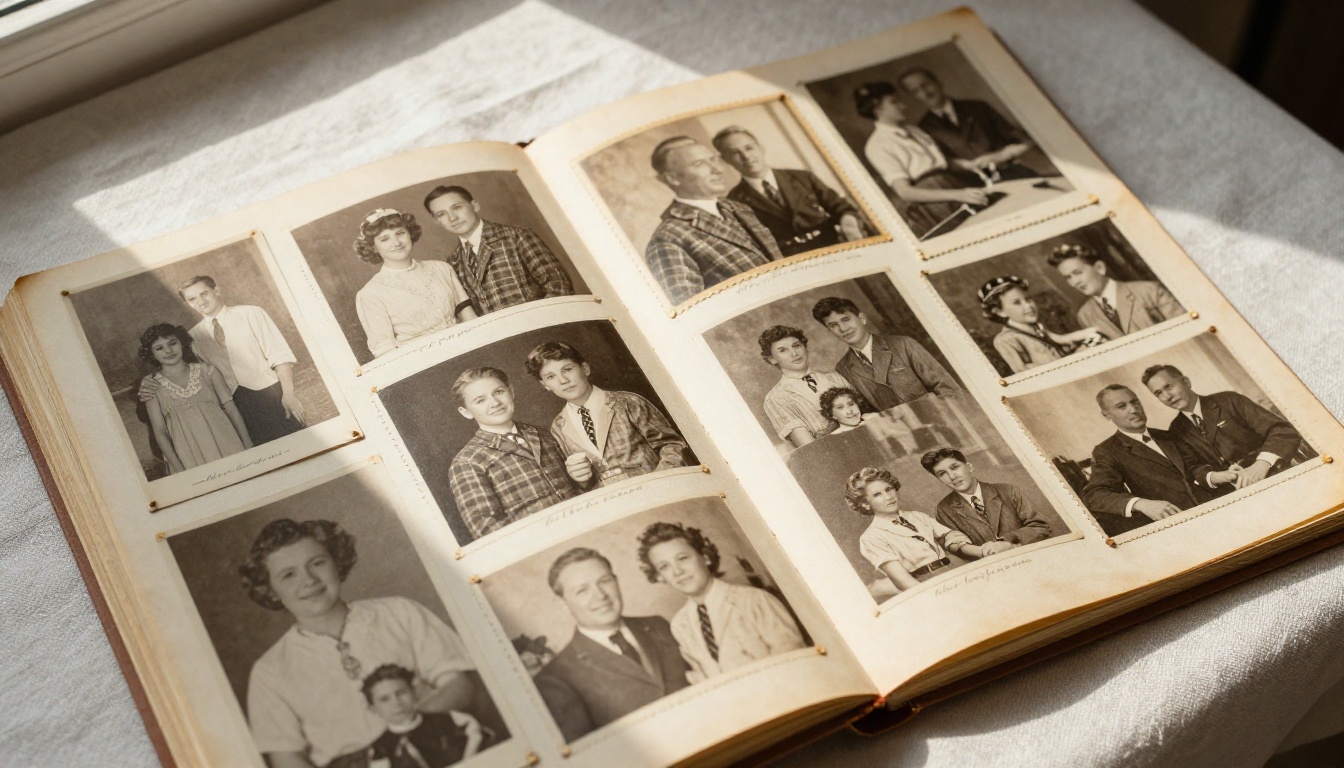
Not all image-to-video models handle old photographs equally. Older photos have noise, grain, color shifts, and low contrast, all of which challenge models trained primarily on modern digital images. The following models consistently produce the best results for historical and vintage photography.
Wan 2.6 I2V: the current standard
Wan 2.6 I2V handles the visual artifacts common in scanned photos, including grain, slight blur, and uneven exposure, without interpreting them as motion signals. The resulting animation stays faithful to the original composition while introducing natural, subtle movement that reads as life rather than computation.
For faster results at some cost to fine detail, Wan 2.6 I2V Flash runs significantly faster and still produces clean animation on most portrait subjects.
Kling v2.6 for cinematic output
Kling v2.6 produces 1080p output with strong temporal consistency, meaning the animated person does not flicker or shift unnaturally between frames. The motion feels cinematic and has a slightly slower, more deliberate quality that suits formal historical portraits well.
Kling v2.1 is a reliable choice when you want natural blinking and breathing without complex head movement. For group portraits where multiple faces need simultaneous animation, Kling v3 Motion Control gives fine-grained control over which subjects move and how.
Hailuo 2.3 Fast for rapid testing
Hailuo 2.3 Fast is the model to use when you are testing multiple prompt variations and need quick feedback. It is less detailed than Wan 2.6 at the pixel level but dramatically faster, making it ideal for settling on the right motion prompt before committing to a final high-quality render.
How to Animate a Photo on PicassoIA
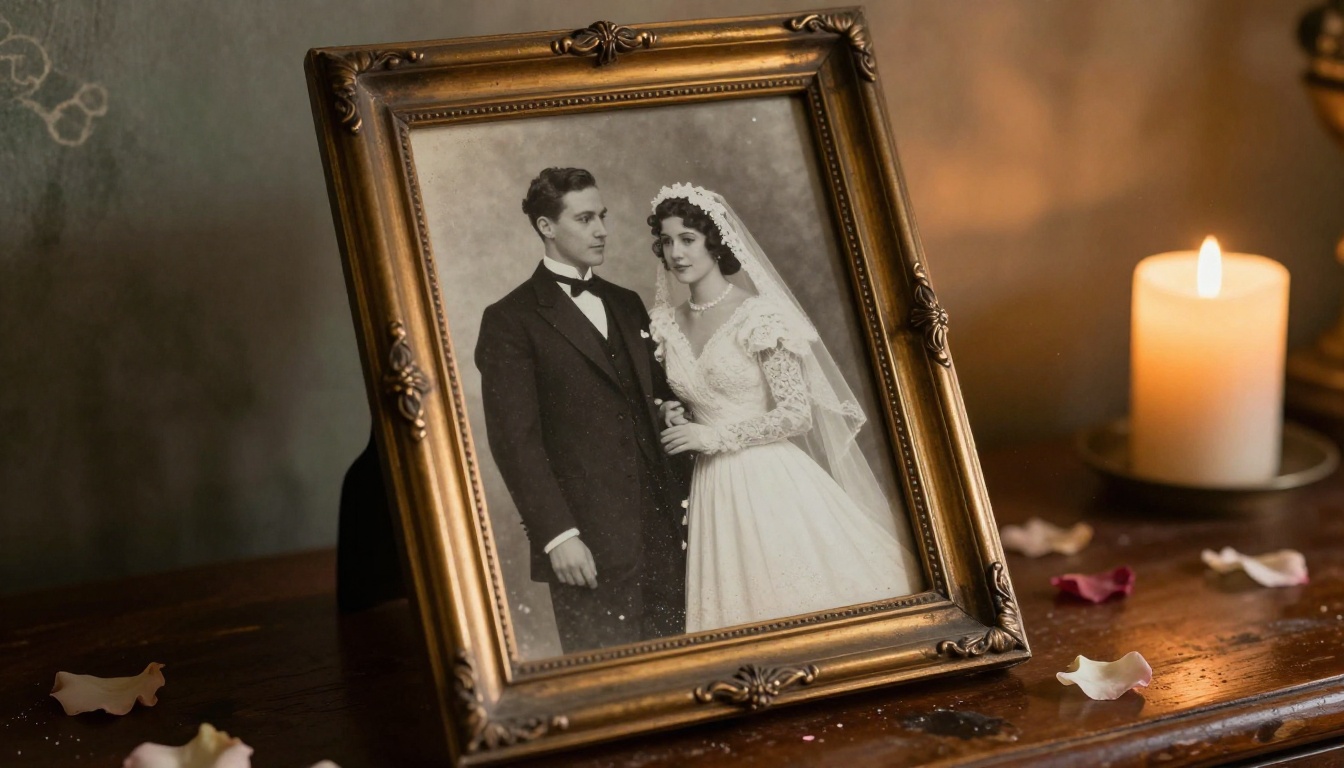
This is the practical part. The workflow below uses Wan 2.6 I2V on PicassoIA and takes roughly five minutes from start to finished animation.
Step 1: Prepare and upload your image
Scan or export your photo at high resolution, ideally 800 x 600 pixels or larger with clear facial detail. If the photo is damaged or very small, run it through Real ESRGAN or Crystal Upscaler first.
Navigate to Wan 2.6 I2V on PicassoIA and upload your image to the input field. The model accepts JPEG, PNG, and WEBP formats.
Step 2: Write your motion prompt
The prompt tells the model what kind of motion to generate. For old portrait photos, shorter and simpler prompts almost always outperform detailed ones. Overly specific motion prompts cause the model to introduce exaggerated expressions that look unnatural on formal historical portraits.
Prompts that work well for portraits:
"Gentle natural breathing, eyes blink slowly, slight natural expression""Person looks softly to the left, blinks once, quiet breathing, hair moves gently""Subtle head movement, natural blinking, slight smile forms, atmospheric breathing"
What tends to cause problems:
- Specifying dramatic emotional shifts ("bursts into laughter," "looks shocked and confused")
- Requesting large body movements when only the face and shoulders are visible in the frame
- Including complex scene descriptions that conflict with the static background
Step 3: Set duration and quality
For portrait animations meant for social sharing, a 3 to 5 second clip is the sweet spot. Long enough to show clear, convincing motion, short enough to loop naturally without a jarring cut.
💡 Tip: A 3-second loop of a face gently breathing cycles far more naturally than a single long clip. Set your video player to loop on repeat for the most lifelike presentation when showing someone else.
Step 4: Generate and evaluate
Run the generation. When the output appears, check these specific things before calling it done:
- Eye motion — Does the blinking look natural, or does the person stare with wide unsettling stillness?
- Skin stability — Does the face texture hold consistent between frames, or shift and flicker?
- Background — Does the static background remain stable, or pulse with subtle warping?
- Overall motion scale — Is the movement subtle and human, or exaggerated and uncanny?
If any of these fail, simplify your motion prompt and generate again. The most common cause of poor output is prompt complexity, not a model limitation.
Step 5: Download and share
PicassoIA outputs the animation as an MP4 file ready to upload to Instagram Reels, TikTok, WhatsApp, YouTube Shorts, or embed in a digital family archive. For the strongest emotional impact, share it without explanation and let the viewer's reaction happen naturally.
Restore First, Animate Second
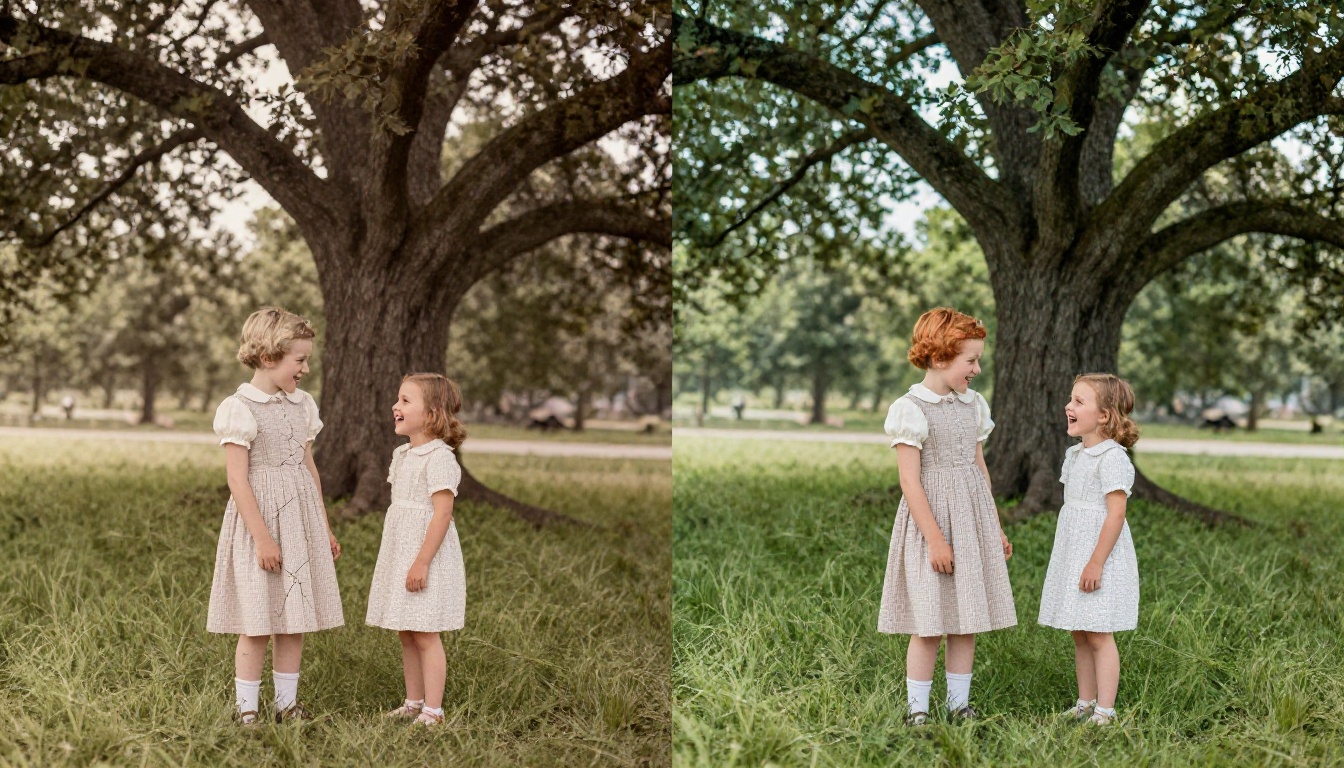
Animation amplifies everything in a photograph, including damage. A water stain that is barely visible in a still image becomes a distracting, moving artifact. Before animating any seriously damaged photo, run a restoration pass.
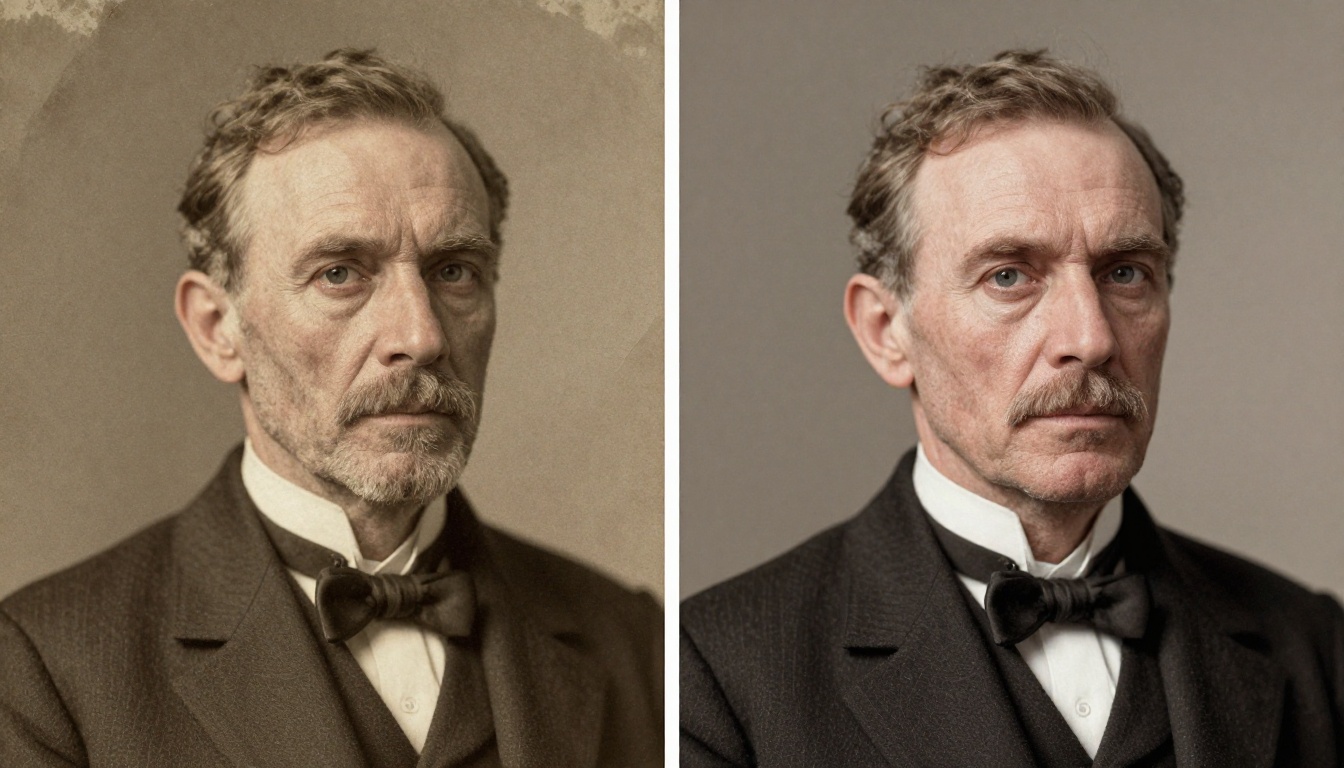
Colorize black and white photos first
Colorized portraits animate with far greater emotional impact than black and white versions. When skin tones, hair color, and clothing colors are realistic, the subject reads as fully human rather than historical. Run your black and white photo through Deoldify Video to add realistic color, then use the colorized result as your animation input.
Fix cracks, stains, and fading
For photos with visible physical damage, PicassoIA's inpainting tools allow manual repair of specific regions before you animate. For automatic damage reduction, Recraft Crisp Upscale includes sharpening and noise reduction that can recover significant detail from faded prints.
For portraits where the face itself is deteriorated or partially missing detail, Crystal Upscaler reconstructs facial structure intelligently from partial information. After restoration, the subject will animate with cleaner, more natural motion because the model has clear facial geometry to work with.
5 Mistakes That Ruin Animated Photos
Most poor results trace back to the same handful of errors. Avoiding them will put your output well above the average:
- Using a low-resolution source. If the face is smaller than 200 pixels wide, no model will produce clean facial animation. Upscale with Real ESRGAN or Crystal Upscaler before you start.
- Writing an overly complex prompt. Every word is an instruction. Shorter, cleaner motion prompts consistently outperform long detailed ones for portrait subjects.
- Skipping the restoration pass. Damage in the source photo becomes damage in motion. Fix cracks, stains, and blur before animating.
- Animating a large group portrait at full size. Multiple small faces produce inconsistent results. Crop to a single face or a small group of two to three people for best output.
- Ignoring background stability. If the background pulses or warps in your animation, add
"static background, no camera movement" to your prompt.
💡 Tip: If your first result looks wrong, regenerate with a simpler prompt before blaming the model. In almost every case, removing words from the prompt fixes more problems than adding them.
Look at Your Family Through Moving Eyes
The photographs sitting in drawers or storage boxes are not just images. They are the faces of people who shaped the world that shaped you. For most families, these portraits are the only proof that certain people ever existed at all.
AI photo animation gives those faces motion, and motion gives them presence. The experience of watching a great-grandmother's portrait begin to breathe is genuinely unlike anything else photography alone can produce. It closes a distance that decades and death create.
Every model discussed in this article is available right now on PicassoIA. Start with Wan 2.6 I2V for your first attempt: upload one portrait, write a simple breathing prompt, set the duration to 4 seconds. When the result appears, you will know immediately what this is capable of.
If your photo needs preparation first, Real ESRGAN and Crystal Upscaler are both available on PicassoIA and take seconds to run. If you want color before animating, Deoldify Video handles it automatically. If the final animation needs upscaling for large-format display, Google Upscaler can sharpen the output up to 4x without quality loss.
The process takes minutes. The result is permanent.
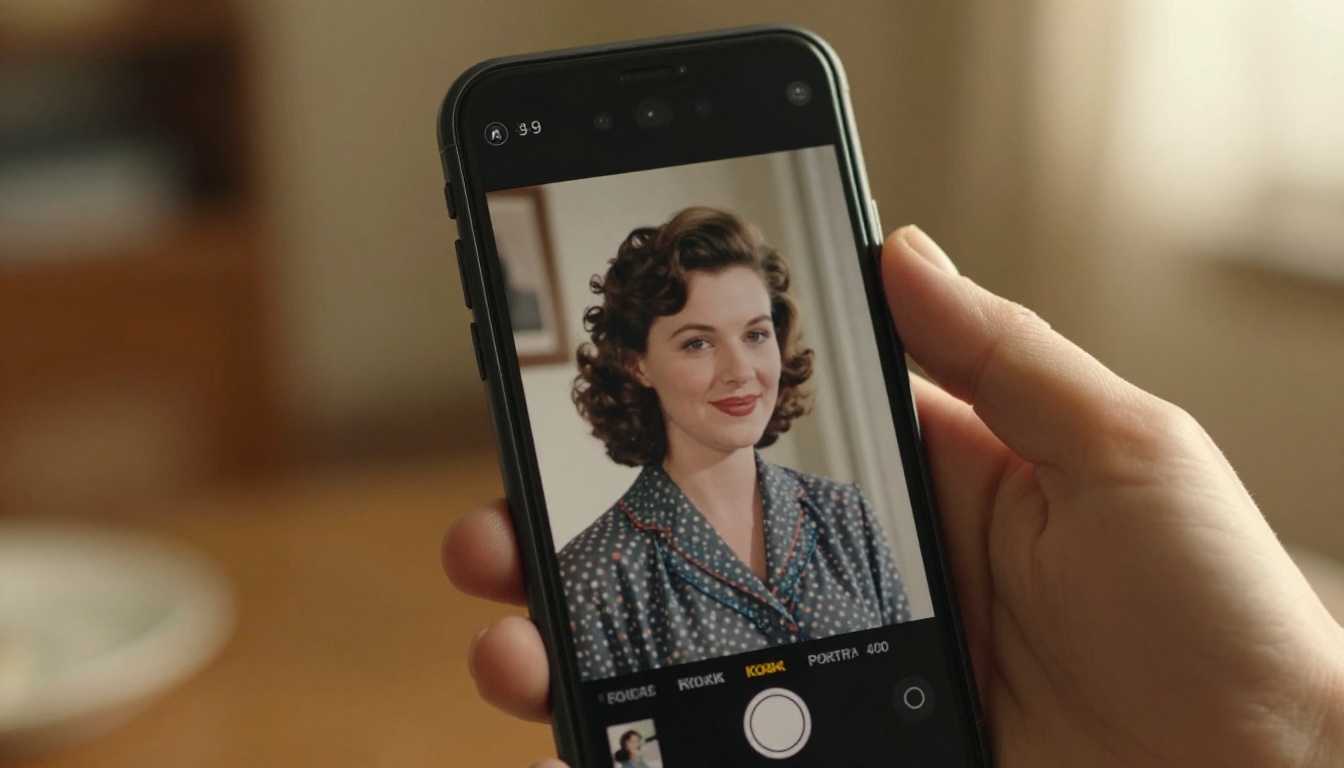
Every family has photographs worth animating. Pick one today and see what happens when the past starts moving.


