Still photos capture a single moment, but Kling 3.0 turns that frozen frame into a living, breathing video clip. Whether it's a portrait, a landscape, a product shot, or a candid memory, the latest version of Kling's AI video engine produces fluid, realistic motion with more precision and fewer artifacts than any previous release. This article walks you through how to animate your photos with Kling 3.0, which settings produce the best output, and how to run the whole process on PicassoIA without any technical setup.
What Kling 3.0 Actually Does
Kling 3.0, available on PicassoIA as Kling v3 Video, is an image-to-video AI that takes a single still image as input, then synthesizes natural-looking motion based on your text prompt. The model doesn't just add a blur effect or shake the frame. It actually reasons about the content of the photo, then generates new frames that are physically plausible, including moving hair, rippling water, swaying trees, and blinking eyes.
The jump from v2 to v3
Compared to Kling v2.x, the v3 generation brings several concrete improvements:
| Feature | Kling v2 | Kling v3 |
|---|
| Max resolution | 720p | 1080p |
| Motion realism | Good | Cinematic |
| Prompt adherence | Moderate | High |
| Artifact rate | Noticeable at edges | Significantly reduced |
| Motion control | Limited | Full trajectory support |
The difference shows most clearly in complex motions: a v2 model might produce a portrait that slightly pulses, while v3 generates a convincing head turn with natural neck movement and soft eye blinks.
Photo types that work best
Not every image animates equally well. These categories produce the strongest results:
- Portraits and faces: Kling 3.0 excels at facial animation, including subtle expressions, blinking, and soft head movements
- Landscapes with natural elements: Water, clouds, trees, and grass all have physics the model understands well
- Product photos: Clean backgrounds and defined subjects produce crisp, controlled motion
- Architecture with environmental context: Wind-moved flags, passing cars, and ambient light shifts work naturally
💡 Tip: Photos with a single dominant subject on a clear background give the model less ambiguity and produce cleaner animation.
How the Image-to-Video Process Works
When you upload a photo to Kling v3 Video, the model runs two processes in parallel: it analyzes the spatial content of the image (depth, objects, foreground/background separation) and interprets your motion prompt to determine what should move, how fast, and in which direction.
Input requirements
For best results with Kling 3.0:
- Resolution: 512x512 minimum, 1024x1024 or above recommended
- Format: JPG or PNG
- Composition: Single subject or clear focal point
- Avoid: Heavy noise, extreme blur, or watermarks
Motion modes in v3
Kling v3 offers three distinct approaches to motion:
- Standard generation (Kling v3 Video): You write a prompt describing what should happen. The model interprets this freely.
- Motion Control (Kling v3 Motion Control): You can define camera trajectories: zoom, pan, tilt, orbit.
- Omni mode (Kling v3 Omni Video): Combines text and image input for more complex scene generation.
How to Use Kling v3 on PicassoIA
PicassoIA gives you direct access to all three Kling v3 variants without any API configuration, credits setup, or local installs. Here's the step-by-step process:
Step 1: Pick your photo
Select a high-resolution image with a clear subject. Avoid heavily compressed JPGs, as compression artifacts can appear exaggerated in the output video. A clean, well-lit photo in landscape orientation works best for 16:9 output.
Step 2: Choose your model
Navigate to Kling v3 Video on PicassoIA. For basic photo animation where you want the subject to move naturally, this is your starting point. If you want specific camera movements such as a dolly in, orbit, or pan, use Kling v3 Motion Control instead.
Step 3: Write your motion prompt
This is where most people underperform. A weak prompt produces weak motion. Write what you want to happen, not what the image shows:
- Weak: "a woman standing in a park"
- Strong: "woman gently turns her head to the left, wind moves her hair softly, she smiles"
Be specific about what moves, what stays still, and the emotional tone of the scene.
💡 Prompt formula: [Subject] + [specific movement] + [environmental detail] + [mood or pace]
Step 4: Set duration and strength
Kling v3 on PicassoIA supports clip lengths up to 10 seconds. For most photos:
- 3-5 seconds: Portrait animations and product shots
- 5-8 seconds: Landscapes and scenes with multiple moving elements
- 8-10 seconds: Complex environmental scenes
Set motion strength between 0.5 and 0.7 for natural, realistic movement. Above 0.8 produces dramatic, exaggerated motion that can look artificial for most use cases.
Step 5: Generate and refine
Submit your generation and review the output. If the motion feels stiff, add more specific verbs to your prompt. If it feels chaotic, reduce the motion strength or simplify the prompt to one primary action.
Motion Control vs. Standard Mode
Kling v3 Motion Control is a separate beast from standard generation. It gives you explicit camera trajectory control, which is the difference between directing a shot and hoping the AI figures it out.
When to use each
| Situation | Recommended Model |
|---|
| Portrait with facial animation | Kling v3 Video (standard) |
| Product shot with slow zoom | Kling v3 Motion Control |
| Landscape with ambient motion | Kling v3 Video (standard) |
| Architectural reveal with dolly | Kling v3 Motion Control |
| Face with camera orbit | Kling v3 Motion Control |
| Fast-paced action scene | Kling v3 Omni Video |
Motion Control shines when the camera movement is the primary storytelling device. Use standard generation when you want the subject to move and the camera to stay roughly fixed.
5 Photo Types That Animate Well
After testing dozens of photo categories, these five consistently produce strong results with Kling 3.0:
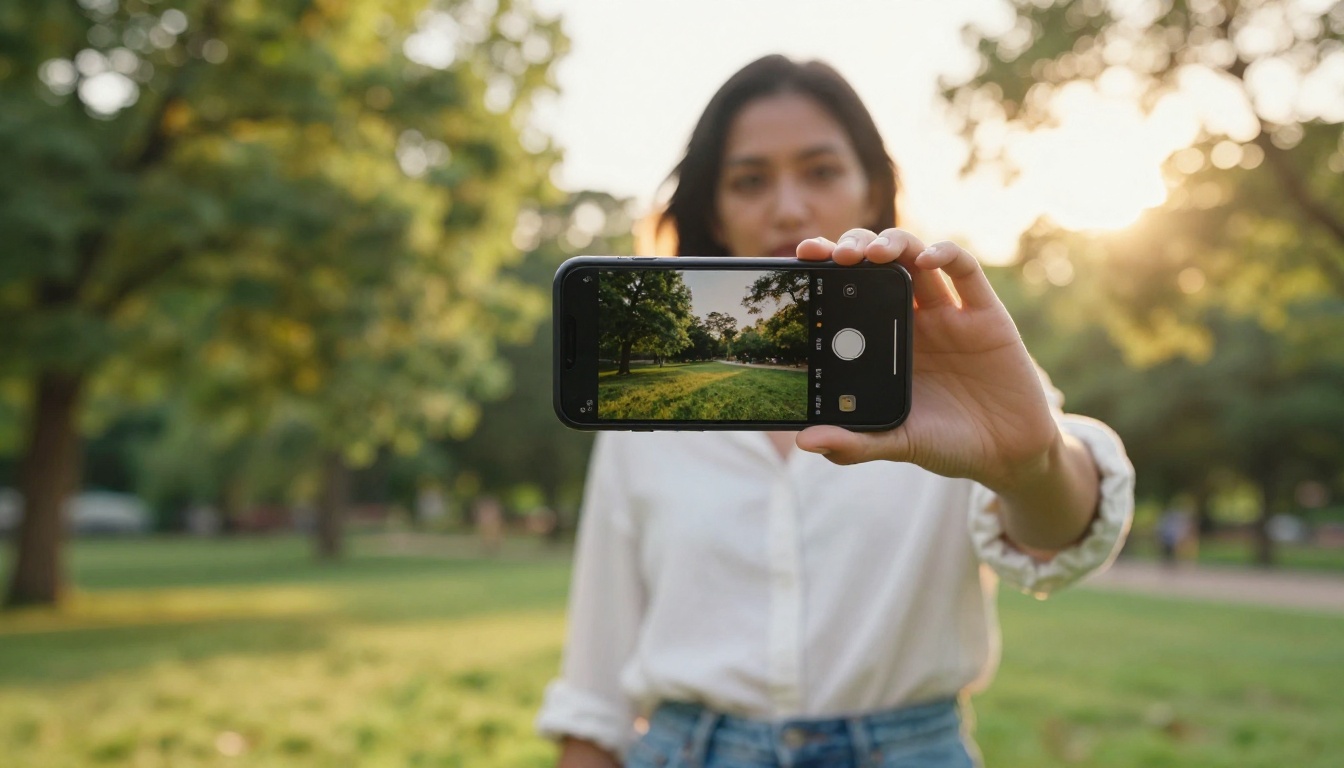
1. Golden hour portraits
The warm directional light from sunset photography gives the model strong shadow data to work with. Portrait subjects come alive naturally with gentle head turns and soft expressions.
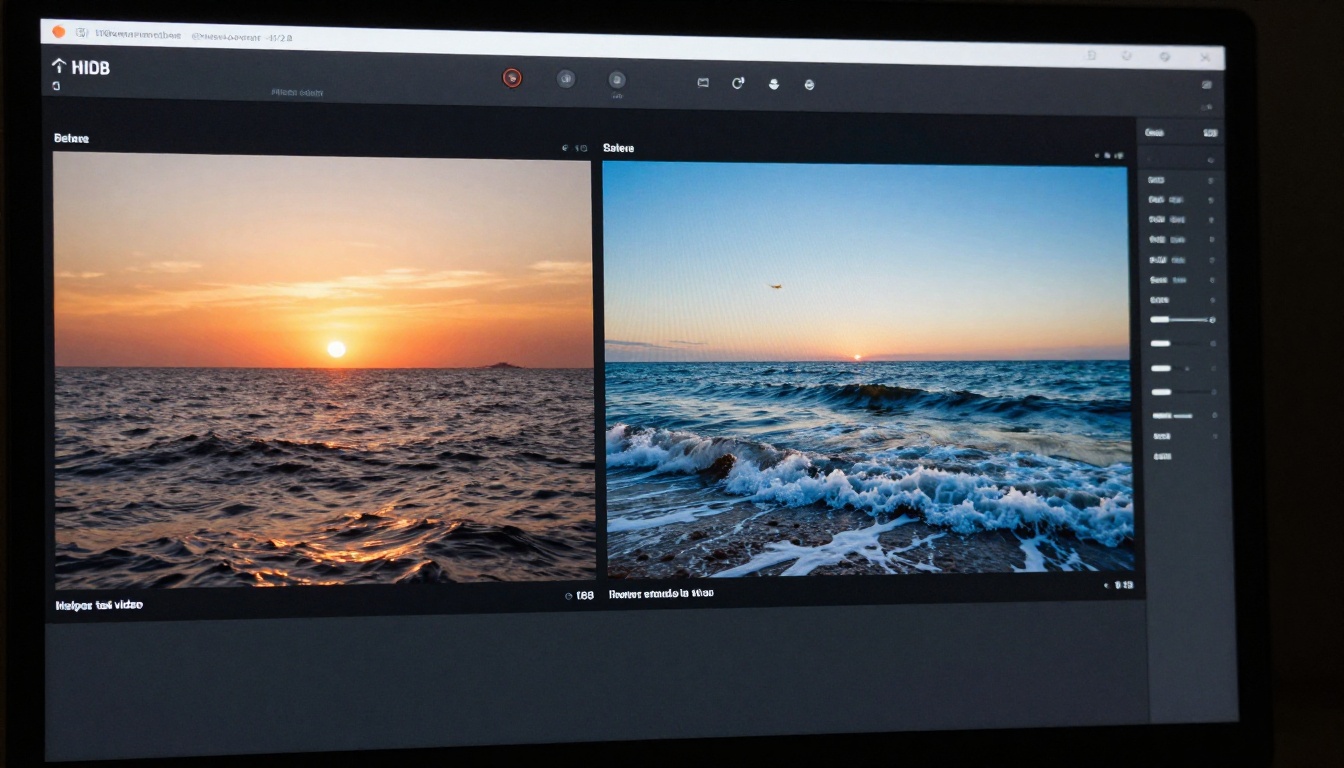
2. Ocean and waterfront scenes
Water is one of the hardest things to animate convincingly in traditional VFX, but Kling 3.0 handles waves, reflections, and tide movement with surprising realism.
3. Street photography
Urban scenes with ambient background activity such as passing traffic or pedestrians in soft focus animate beautifully because the model treats background elements as independent motion objects.
4. Pet photos
Animals with strong subject separation from the background produce fluid, believable movement. Dogs tilting their heads, cats flicking their tails, and birds ruffling feathers all work well.
5. Food and still life
Subtle steam rising from a hot drink, condensation forming on a cold glass, or gentle light shifts across a table scene produce satisfying, atmospheric results.
Common Mistakes to Avoid
Even with a powerful model like Kling v3, bad inputs produce bad outputs. These are the patterns that consistently cause problems.
Why your video looks stiff
The most common cause is a vague or noun-heavy prompt. If your prompt describes what is in the image rather than what should happen in the video, the model has no clear motion directive and defaults to minimal movement.
Bad: "a mountain landscape with snow and trees"
Good: "snow falls gently on pine branches, wind causes small avalanches of powder, clouds drift left to right overhead"
Prompt tips that actually work
- Use verbs of motion: drifts, sways, tilts, blinks, ripples, falls, rolls
- Add pace descriptors: slowly, gently, slightly, dramatically
- Specify what stays still: "background remains static, only the hair moves"
- Include atmospheric cues: "soft morning breeze", "rain beginning to fall"
💡 Avoid conflict in your prompt: If you say "person walks forward" but your image shows someone facing sideways, the model has to choose. Align your prompt with the subject's existing pose and orientation.
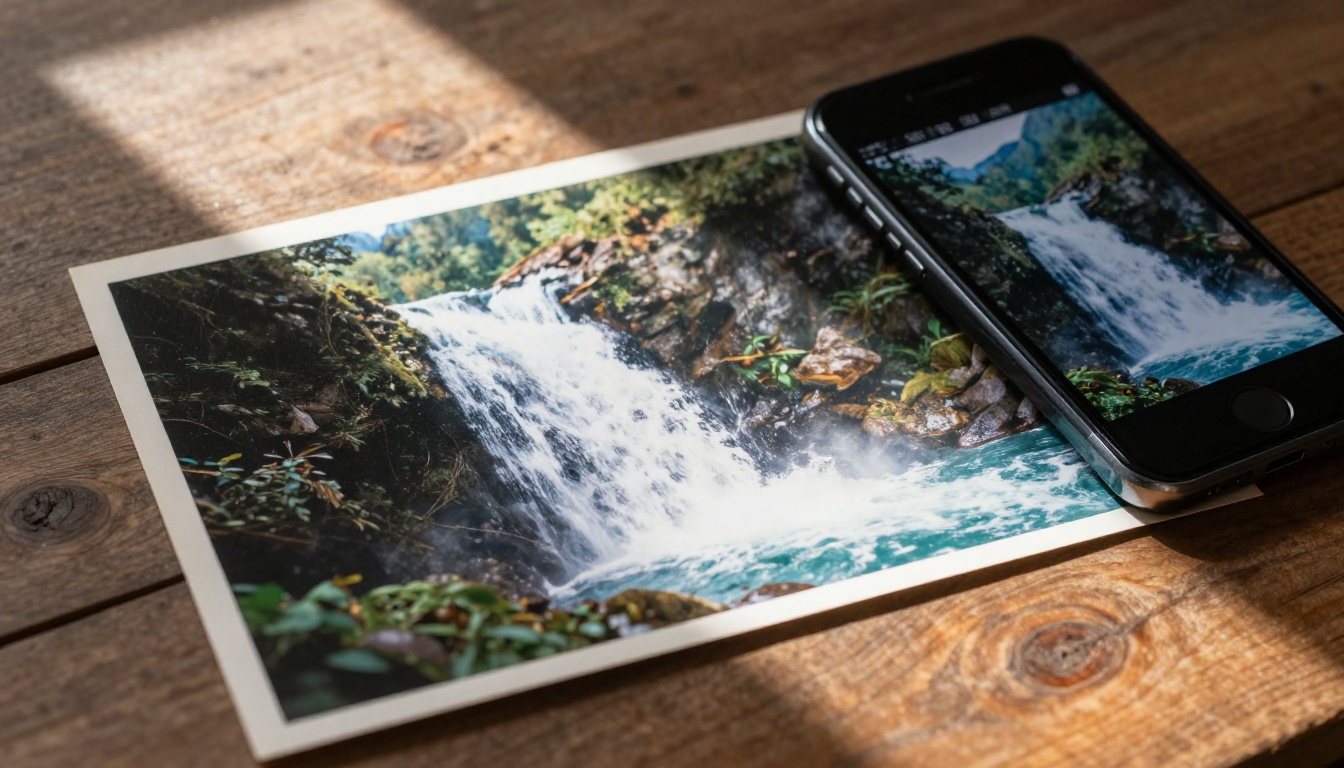
Before Kling v3 and similar models, photo animation was either a looping GIF effect or required frame-by-frame manual intervention in video editing software. The gap between those old methods and what Kling 3.0 produces is significant. Here's what specifically changed in the v3 architecture:
- Temporal consistency: Frames don't drift between generations, keeping the subject looking like the same person across the entire clip
- Physics awareness: The model has learned how hair, fabric, water, and foliage behave under different motion conditions
- Depth understanding: Foreground subjects move differently from background elements, creating parallax that feels cinematic rather than flat
- Prompt specificity: Unlike earlier models that treated motion prompts as suggestions, v3 follows directional instructions more literally
This is why the same image that produced a slightly jittery result in Kling v2.1 now produces a smooth, film-like clip in v3.
Other AI Video Models Worth Trying
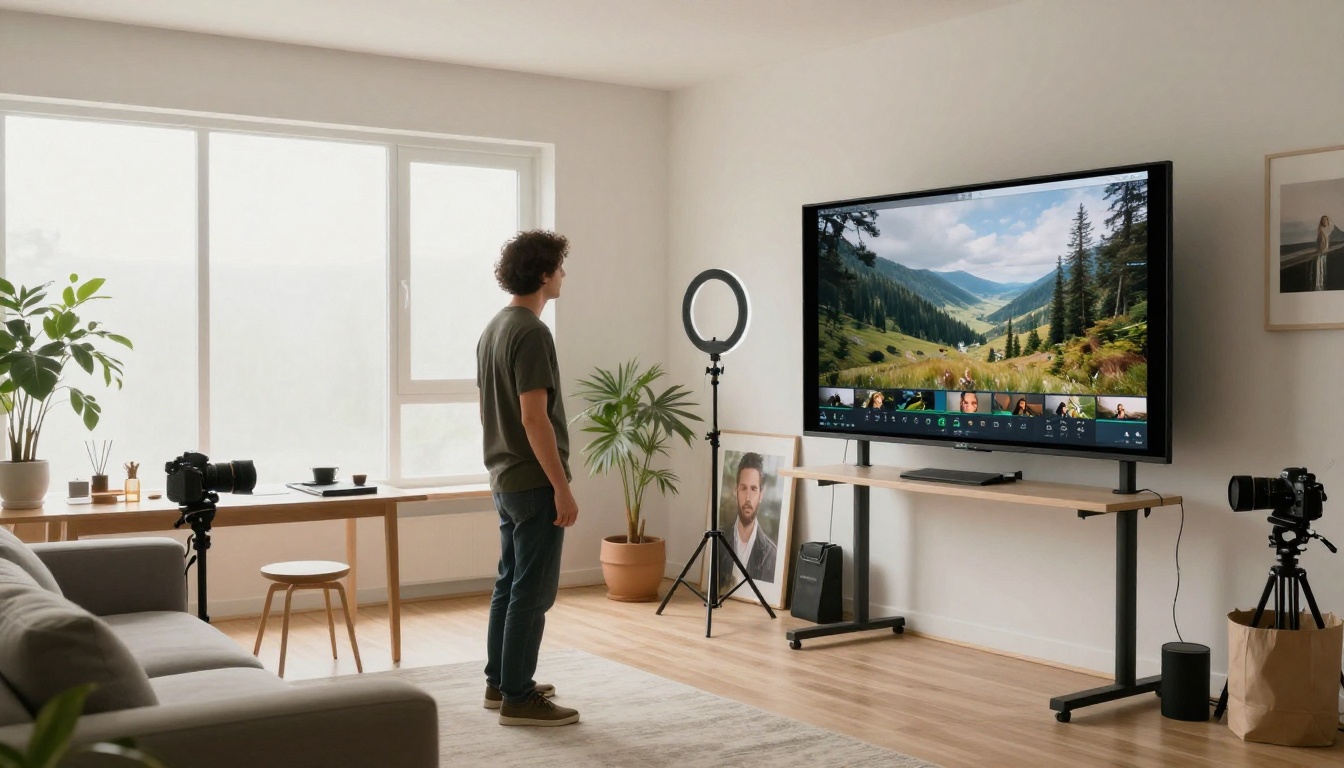
Kling v3 is the top choice for image animation, but PicassoIA also gives you access to models that handle specific use cases differently:
- Wan 2.6 I2V: Strong at object-level motion with clean edge preservation. A solid alternative for product animation.
- Minimax Video 01 Live: Specializes in animating still images, particularly portraits and character-based photos.
- Pia: Built specifically for photo-to-animated-video workflows. Efficient for high-volume batch work.
- Kling v2.6 Motion Control: For controlled camera movement without Kling v3's compute cost, v2.6 still delivers strong camera trajectory results.
- Hailuo 2.3: Particularly strong on cinematic lighting and dramatic motion sequences.
Each model has a different visual signature. Running the same photo through two models and comparing output before committing to a full batch is a good habit worth building.
Real Use Cases for Animated Photos
Photo animation isn't just a novelty. These are practical applications that creators rely on every week:
| Use Case | Best Kling v3 Mode | Output |
|---|
| Social media content | Standard | 5-8s engaging clip |
| Portfolio showcase | Motion Control | Professional reel |
| Memorial or family photos | Standard | Emotional, subtle movement |
| Product advertising | Motion Control | Dynamic product reveal |
| Travel content | Standard | Landscape b-roll |
| Digital art prints | Omni Video | Living art pieces |
The social content angle alone makes this a practical tool: animated photos consistently outperform static images in reach and watch-time across Instagram Reels, TikTok, and YouTube Shorts formats.
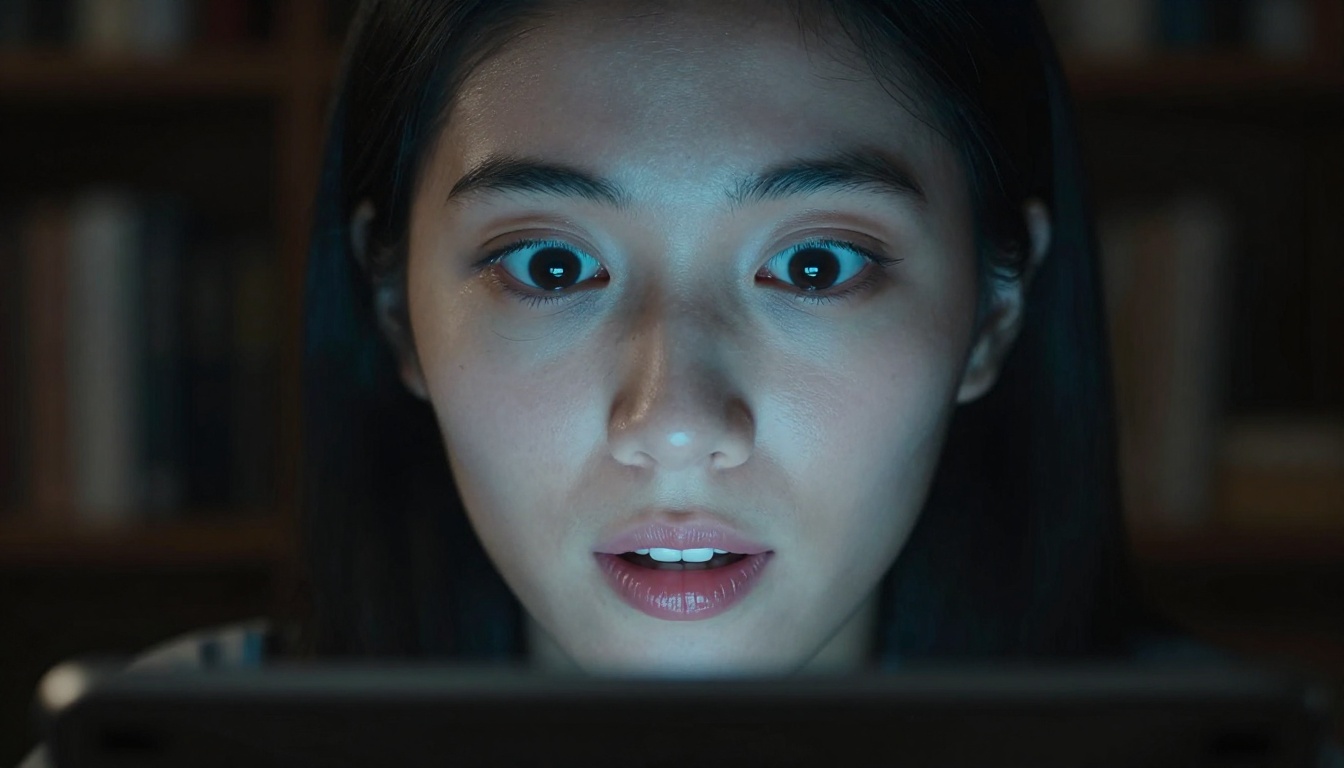
Start Animating Your Photos on PicassoIA
Every photo in your camera roll is a potential video clip. Kling 3.0 makes the conversion fast, accessible, and genuinely impressive in quality, and PicassoIA puts all three Kling v3 variants (Kling v3 Video, Kling v3 Motion Control, and Kling v3 Omni Video) in one place alongside over 87 other video models, image generators, and creative AI tools.
Pick a photo you care about, write a specific motion prompt, and see what Kling v3 does with it. The first output rarely needs to be the final one, but it's usually strong enough to tell you exactly how to refine it. Start with Kling v3 Video on PicassoIA, and if you want to push further, run the same image through Wan 2.6 I2V or Hailuo 2.3 for comparison.