You've seen it before. A portrait that almost passes as a photograph, until you notice the hand has six fingers, the background tiles in a weird repeating pattern, or the skin looks like it was airbrushed by software from 2005. Most AI art fails the reality test not because the technology is weak, but because people describe what they want to see instead of how a real camera would capture it. The gap between "obviously AI" and "wait, is that a photo?" comes down to a handful of deliberate decisions, and this article covers all of them.
Why Most AI Art Still Looks Fake
The problem is not the models. Modern text-to-image models are extraordinary pieces of engineering. The problem is default behavior. Left without specific instructions, an AI will produce something digitally beautiful: even lighting, flawless skin, perfect symmetry, everything in focus. None of that is how real photography works, and the human brain is wired to detect it instantly.
The AI Brain vs. the Camera Brain
Real photographs have imperfections baked in at every level. A camera lens introduces vignetting at the edges. Film or sensors introduce grain, especially in shadows. Depth of field means only a narrow plane is truly sharp. Natural light has direction and fall-off. Faces are asymmetrical. Fabric has texture. None of these things happen unless you ask for them.
When an AI renders a face without any of these properties, the viewer's brain registers something as wrong even if they can't articulate why. The result feels rendered, not captured. Adding deliberate imperfections is not a workaround. It is the actual process of photorealism.
3 Signals That Scream AI-Generated
- Perfect symmetry: Human faces are not symmetrical. Eyebrows sit at different heights. One nostril is slightly wider. One eye is a touch lower. If a portrait looks mirror-balanced, it reads as artificial.
- Uniform lighting: Real light has a source, a direction, a falloff, and a bounce. A face lit from a softbox on the left has a bright side, a transition zone, and a shadow side. Flat, all-directional lighting is the single biggest tell.
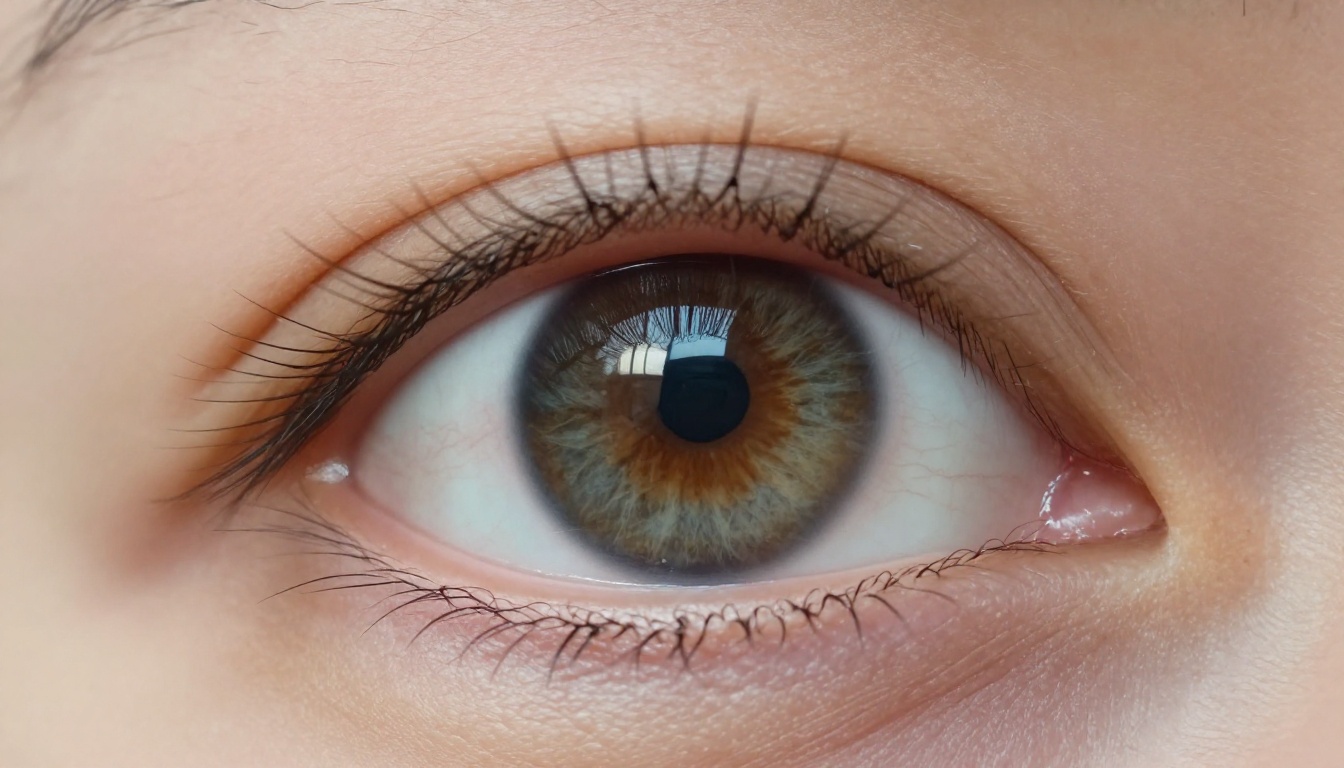
- Plastic surfaces: Skin in real life has pores, freckles, fine hairs, redness, and variations in tone. Fabric has weave. Wood has grain. When every surface looks smooth and perfectly rendered, the image collapses into obvious artificiality.
The Right Model Makes All the Difference
Not all text-to-image models are built for photorealism. Some are optimized for artistic illustration, anime, concept art, or design work. If realistic images are your goal, starting with the wrong model wastes every other effort you make.
Top Models for Photorealism Right Now
For pure portrait work, RealVisXL v3.0 Turbo and Realistic Vision v5.1 are built specifically to render skin, hair, and facial features at a level that consistently produces results indistinguishable from stock photography. For everything else, Flux 1.1 Pro Ultra is the current benchmark with its 4-megapixel output and native film-grain rendering.
Free Options That Still Deliver
Strong photorealism does not require a paid subscription. Flux Dev and Flux Schnell both produce excellent realistic output without cost. Stable Diffusion 3.5 Large also handles detailed photographic prompts very well, particularly for scenes with complex lighting.
Writing Prompts That Fool the Eye
This is where most people leave the largest quality improvement untouched. A typical prompt looks like "beautiful woman in a forest." A photorealism prompt describes the scene the way a cinematographer would brief a director of photography. The difference in output is dramatic.
Think Camera, Not Canvas
Every realistic prompt should answer these questions before you hit generate:
- What camera and lens? (e.g., "Canon EOS R5 with 85mm f/1.4 lens")
- What is the aperture doing? Wide open at f/1.4 means shallow depth of field and heavy bokeh. Stopped down at f/8 means everything is sharp.
- What film stock or sensor character? Kodak Portra 400 is warm, slightly saturated, with beautiful grain. Fuji Provia is cooler and contrastier. Ilford HP5 is classic black-and-white grain.
- What is the shutter speed implying? Fast shutter freezes action. Slow shutter creates motion blur.
💡 Pro Tip: The phrase "shot on [camera model] with [lens] at f/[aperture]" is one of the single most effective additions you can make to any realism prompt. Models have been trained on millions of images with EXIF metadata embedded in the training data, and they respond powerfully to specific camera language.
Here is the same subject described two different ways:
Weak prompt:
"Beautiful woman portrait with soft lighting"
Strong realism prompt:
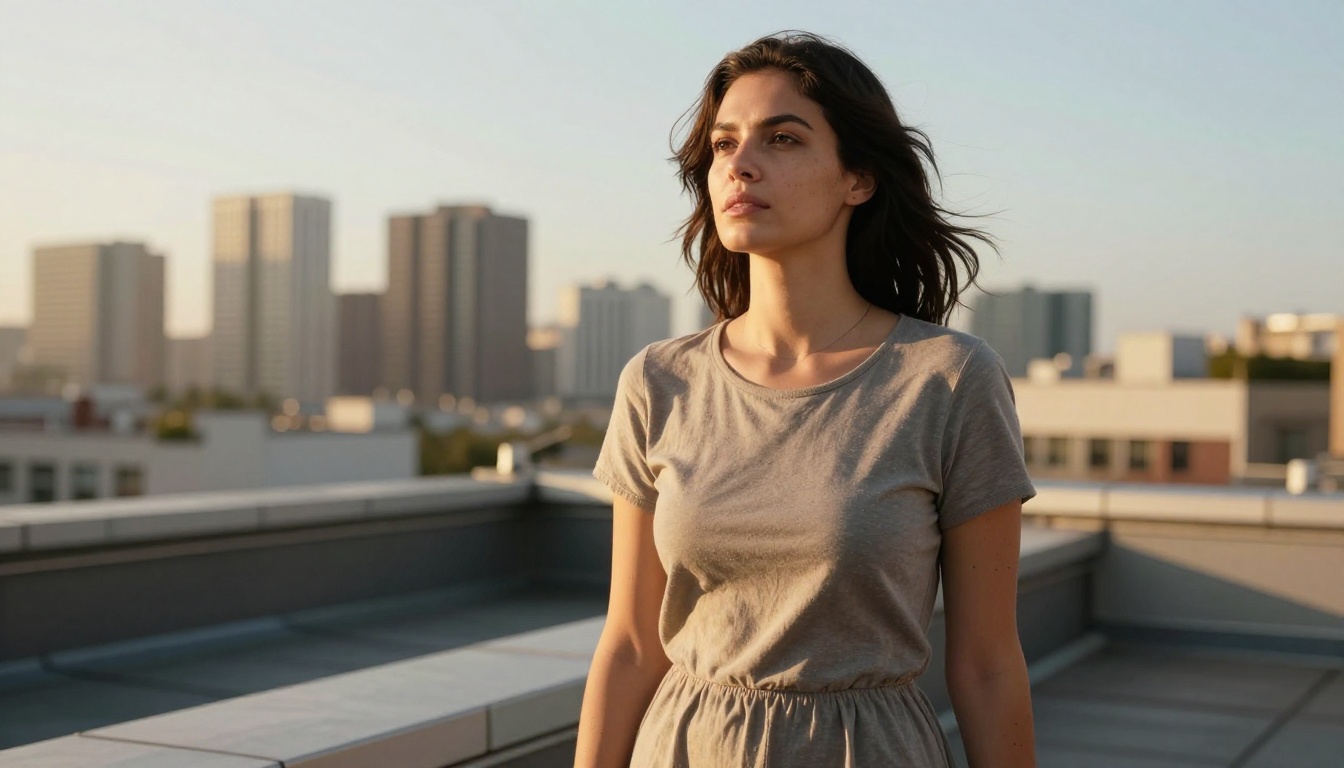
"Candid portrait of a woman in her late twenties, natural imperfections, standing near a window in overcast morning light, diffused daylight from the left, visible skin pores and a few freckles, flyaway hairs, shot on Leica M11 with 50mm Summilux f/1.4, shallow depth of field, Kodak Portra 400 film emulation, grain visible in shadows, photorealistic, 8K RAW"
The second prompt describes a photograph. The first describes a concept.
Lighting Language That Works
Lighting is the single biggest variable in whether an image reads as real or rendered. These specific phrases produce consistent, realistic results:
volumetric morning light from the leftharsh noon sun casting hard ground shadowsovercast diffused window light, no direct sourcegolden hour backlight with natural lens flarepractical lamp creating warm rim lightblue hour ambient, city glow from below
Imperfection is Your Best Friend
The paradox of photorealism is that adding flaws makes images look more real. Include these modifiers when appropriate:
slight motion blur on the subject's handsnatural lens vignetting on edgessubtle chromatic aberration on high-contrast edgesfilm grain at ISO 800slight facial asymmetrynatural skin imperfections, pores visible, fine hairs
How to Use Flux Dev on PicassoIA
Flux Dev is one of the most capable photorealism models available, and you can run it directly in your browser without any local setup, GPU, or installation.
Step 1: Open the Model
Navigate to Flux Dev on PicassoIA. The interface loads immediately with a simple prompt field and generation controls.
Step 2: Choose Your Aspect Ratio
- 2:3 for portrait orientation (people, fashion, editorial)
- 16:9 for cinematic landscapes and environmental shots
- 1:1 for product photography and social content
- 4:3 for documentary and travel photography
Step 3: Write Your Camera-First Prompt
Use this structure:
[Subject + action/pose] + [location and environment] + [lighting source and direction] + [camera and lens] + [film stock] + [imperfection modifiers] + [resolution keyword]
Example for a street portrait:
"Candid street portrait of a young man in his thirties leaning against a brick wall in New York, wearing a worn denim jacket with visible weave texture, overcast daylight creating even diffused light with soft shadows, shot on Fujifilm X100V with 23mm f/2, Fuji Provia film simulation, subtle grain, natural skin pores, authentic relaxed expression, slight postural asymmetry, 8K RAW photorealistic"
Step 4: Dial in the Guidance Scale
- 2.5 to 3.5: Organic, naturalistic output. The model takes some creative license. Often more believable.
- 4.5 to 6: Tighter prompt adherence, more deliberate composition. Better when you need precise control.
For photorealism, start at 3.5 and adjust based on results. Higher guidance can sometimes produce an over-processed look.
Step 5: Generate, Evaluate, Refine
Run 2 to 3 seeds on your first prompt. Then identify exactly what is breaking the realism:
- Plastic skin: Add
natural pores, subsurface scattering, skin texture variation
- Fake background: Add
atmospheric haze, natural bokeh, depth-of-field falloff
- Flat lighting: Get more specific with source and direction
- Too perfect: Add asymmetry, imperfection, and grain modifiers
💡 Pro Tip: Flux Dev LoRA allows you to apply fine-tuned style weights on top of the base model. When you need the same character or specific visual style across multiple images, LoRAs give you that consistency without losing the photorealistic base.

Lighting: The Single Biggest Factor
If there is one thing to commit to memory, it is this: lighting is everything in photorealism. Every great photograph is primarily a study of light. AI images that fail at realism almost always fail because the lighting is wrong, undefined, or described too vaguely.
Natural Light Setups That Work Every Time
Golden Hour
The 30 to 60 minutes after sunrise or before sunset. Prompts: warm amber light from the right, sun at 15 degrees above horizon, long directional shadows, natural lens flare. This setup flatters almost every subject and gives images that instantly warm, magazine-quality feel.
Overcast Window Light
The most forgiving and flattering natural light for portraits. Prompts: diffused daylight through a large north-facing window on the left, soft shadows, even skin illumination, slightly cool color temperature 5500K. This is the light portrait photographers specifically seek on cloudy days.
Blue Hour Urban
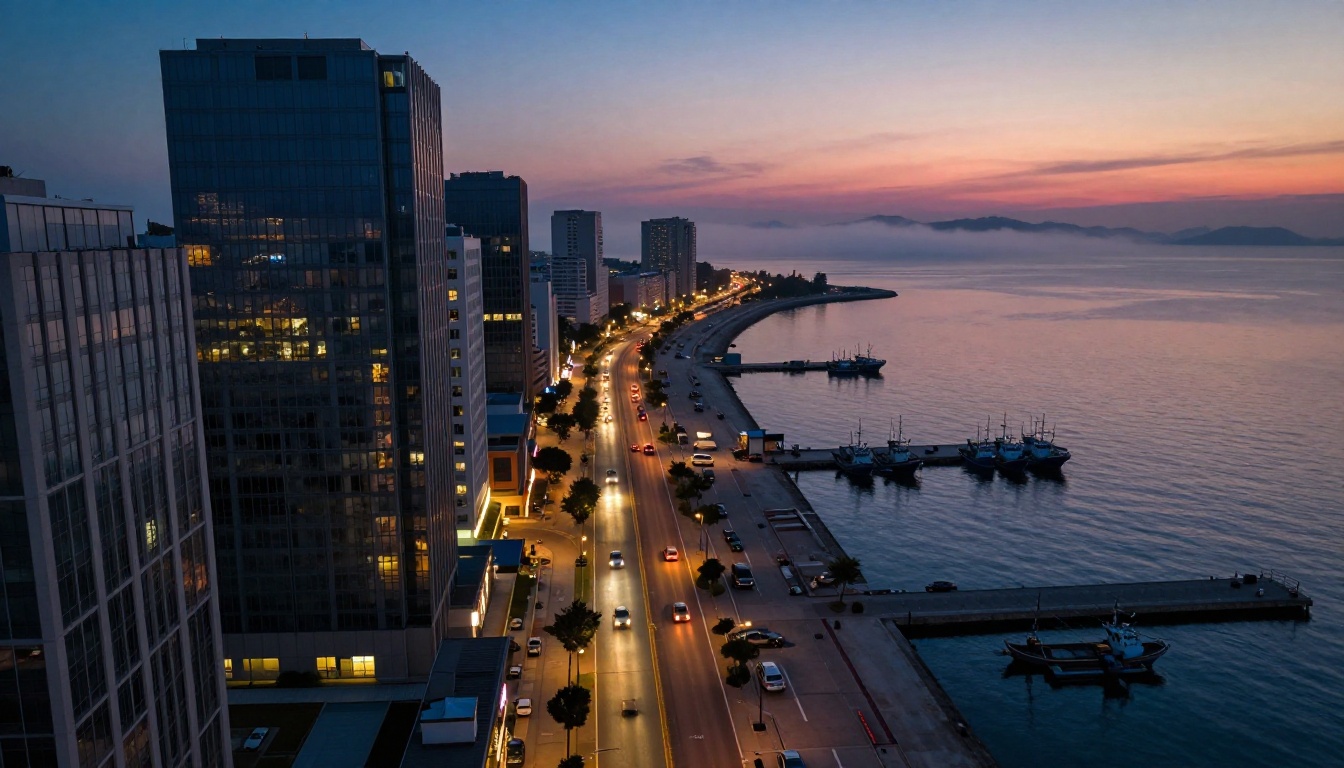
For cityscapes and environmental portraits. Prompts: blue hour ambient light, warm city glow from below, practical street lamps creating pools of warm light, no direct sun source, atmospheric haze, 20 minutes after sunset. Produces cinematic city-at-night realism.
Studio Lighting Language
For controlled portrait work:
- Rembrandt:
45-degree key light from upper left, small triangle of reflected light on the shadow cheek
- Split:
hard light source directly to the right side, 50 percent of face in deep shadow
- Butterfly:
light directly overhead and forward, shadow falling beneath the nose, slight chin shadow
5 Mistakes Killing Your Realism
Even with the right model and a well-structured prompt, these five errors reliably produce outputs that still look artificial.
1. Describing emotion instead of expression
Bad: "happy woman smiling"
Better: "woman with the hint of a smile, lips slightly parted, eyes slightly crinkled at the corners, relaxed jaw"
Emotions described abstractly produce exaggerated cartoon expressions. Physical descriptions of what the face is actually doing produce believable ones.
2. Using "photorealistic" without technical backup
The word "photorealistic" in isolation does almost nothing. It must be supported by camera specifications, film emulation, and lighting direction. The technical language is what actually triggers the model's photographic knowledge.
3. Forgetting the background
An incredible subject sitting in an empty or obviously AI-generated background immediately destroys the image. Even a vague addition like "natural bokeh background of an out-of-focus autumn park" grounds the subject in a believable spatial context.
4. Stacking incompatible style references
Adding ten style descriptors at once ("cinematic, editorial, fashion, documentary, fine art, Vogue, National Geographic, street photography") confuses model weighting. Pick two or three that are genuinely compatible and commit to them.
5. Skipping the negative prompt
When the interface supports it, use negative prompts to push away common AI artifacts:
illustration, cartoon, CGI, 3D render, plastic skin, over-smoothed, airbrushed, symmetrical face, studio makeup, digital art, painting
💡 Pro Tip: Imagen 4 Ultra has particularly strong adherence to complex lighting descriptions. If another model consistently fails to render your lighting correctly, it is worth switching specifically for light-critical scenes.
Skin, Hair, and Micro-Details
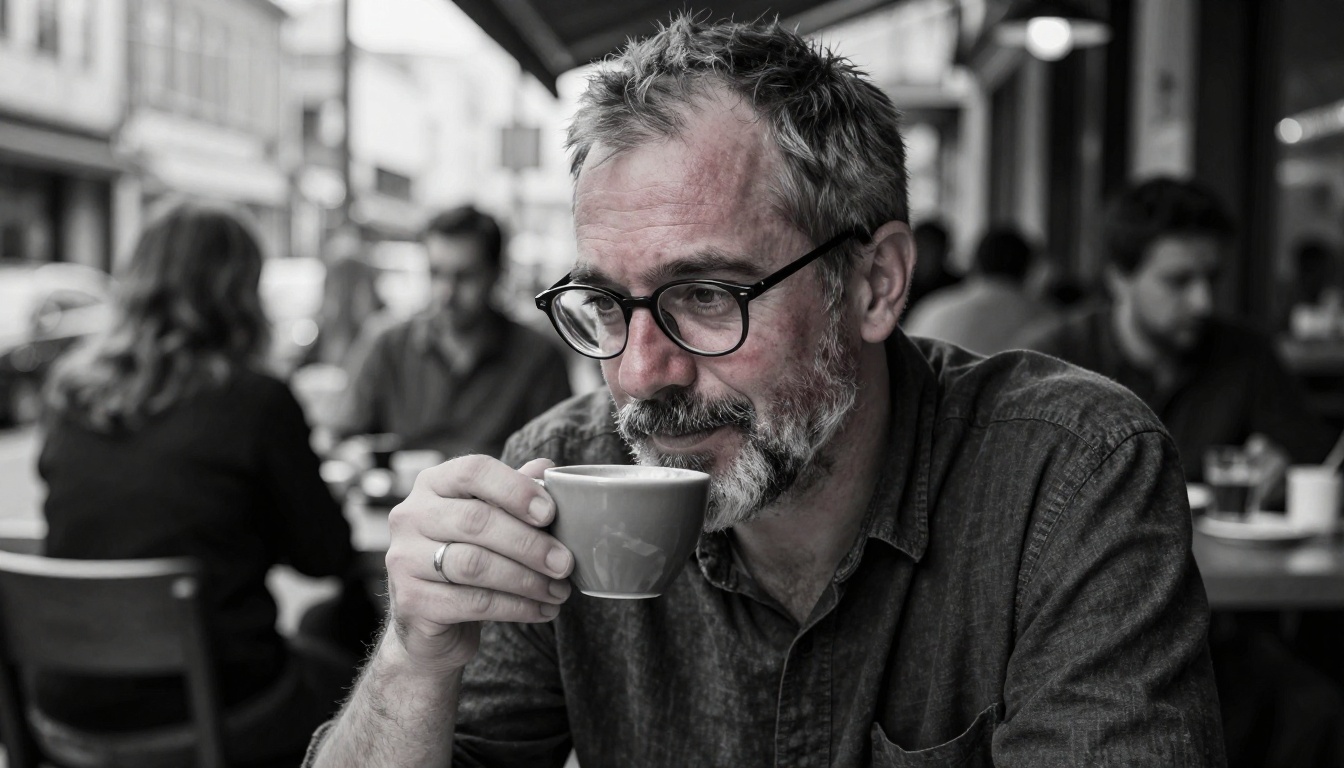
The micro-level is where photorealism either succeeds or fails completely. Two images can have identical composition and lighting, but one reads as real and the other does not, because one has authentic surface detail.
Skin That Reads as Human
These modifiers push skin toward reality:
visible pores on the nose and cheeksslight redness around the nostrilsuneven skin tone, natural variationsubsurface scattering creating warm translucencyfine facial hair even on womennatural skin imperfections, one or two small blemishescrow's feet around the eyes on anyone over 35
Hair That Doesn't Look Painted
AI hair often renders as a single block. Break it up with:
individual hair strands visible in the highlightflyaway hairs catching the backlightnatural variation in wave patternslight frizz in humidityhair texture visible close to the roots
Fabric, Surfaces, and Objects
visible fabric weave on cotton and linenslight wrinkles at joints and foldsworn edges on leather, denim, and canvaswater stains or slight fading on aged materials
Beyond Portraits: Landscapes, Objects, and Architecture
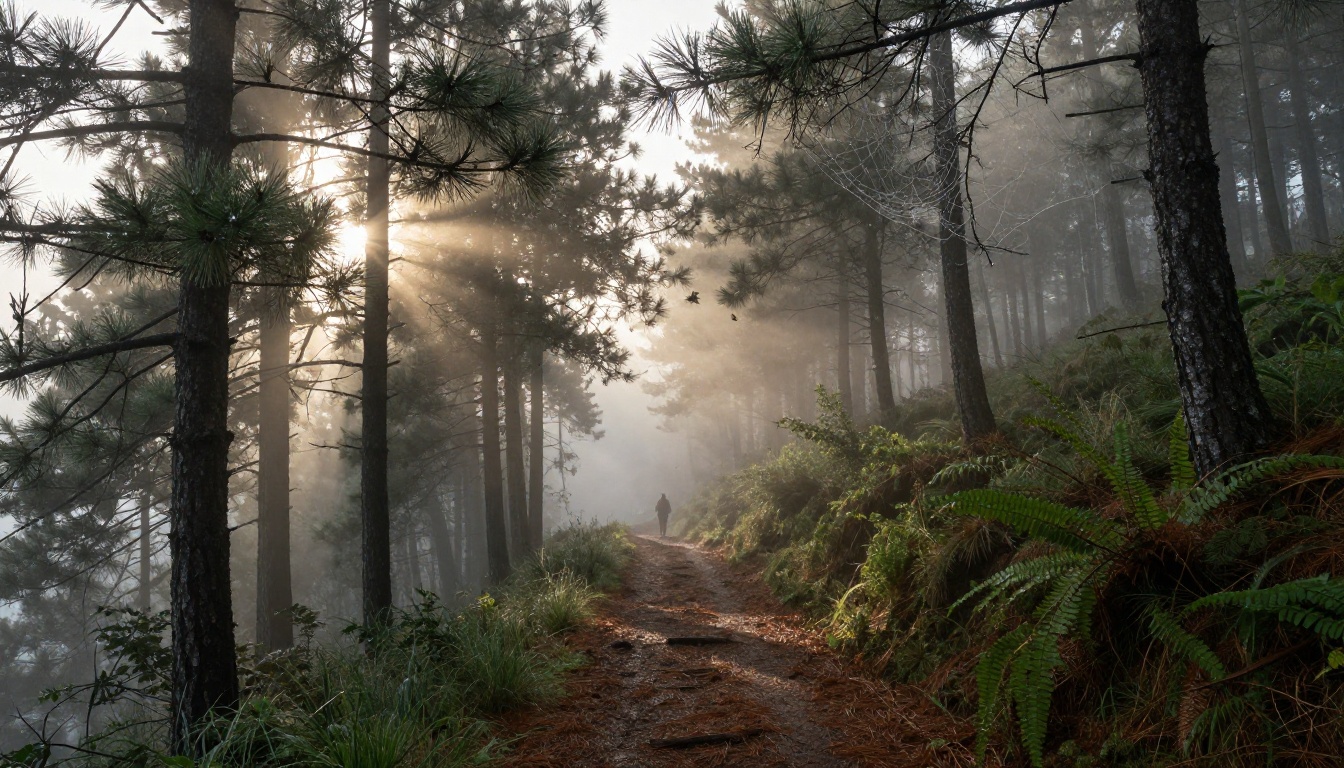
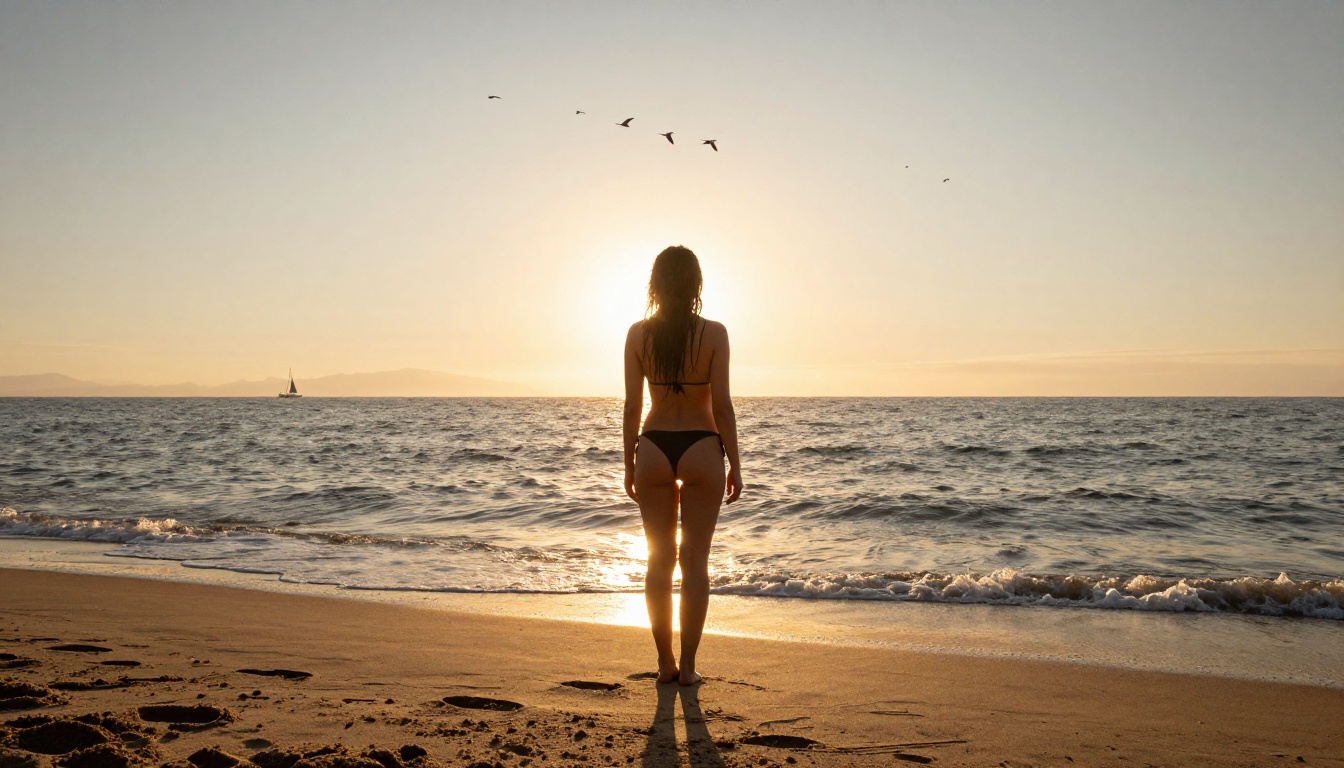
Everything covered above applies equally to non-portrait subjects. Landscapes benefit enormously from atmospheric detail: morning fog in the valley below, haze reducing contrast in the distant mountains, dew on the grass in the foreground. Architecture needs shadow specificity: harsh noon shadows from the cornice creating a strong horizontal line across the facade.
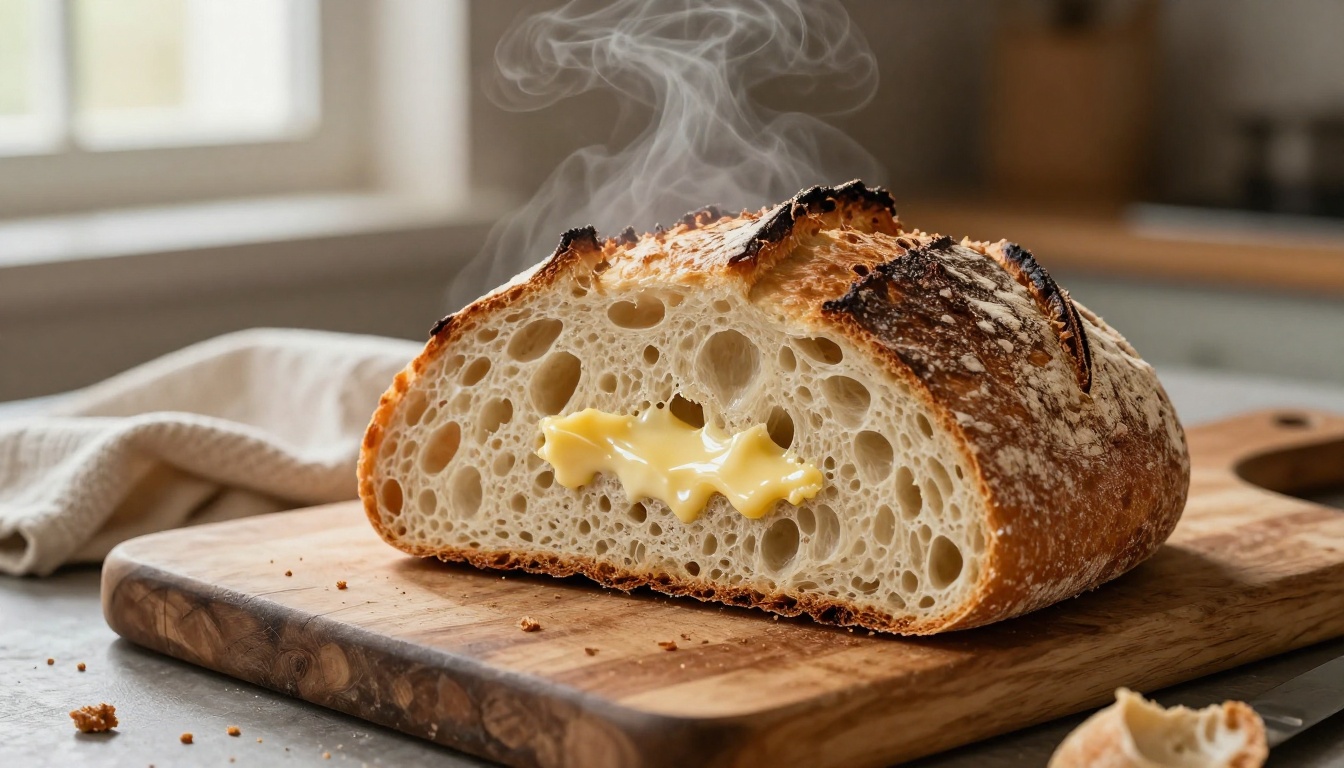
For objects like food, products, or still life, surface texture and reflected light make the difference: steam rising from the surface, condensation on the glass, soft highlight on the ceramic reflecting the window. These physical properties are what separate AI food photography that looks real from the kind that looks like a menu render.
Post-Processing: When to Push Further
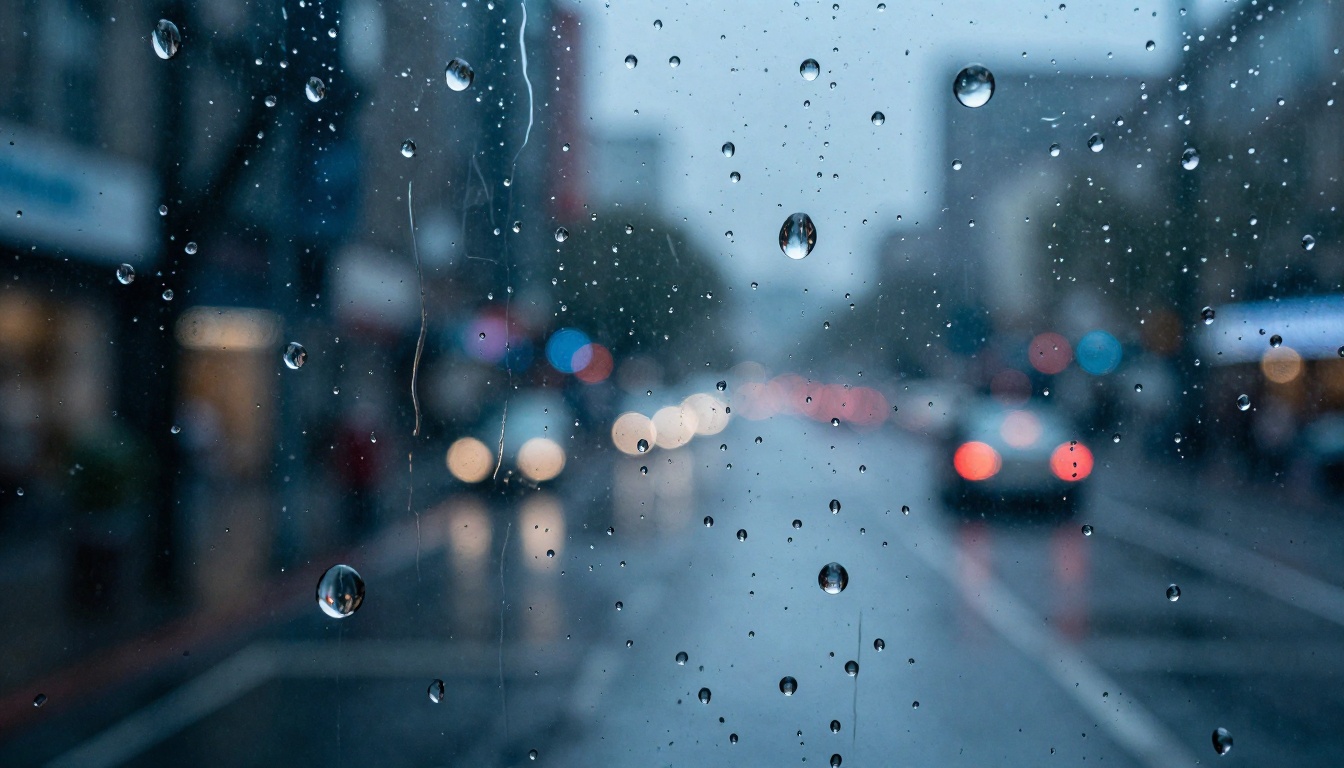
Sometimes an image gets 90 percent of the way there and just needs a final push. PicassoIA offers several tools that work directly on existing images:
- Super Resolution: Upscale 2x or 4x on any generated image, pulling out details that were compressed at lower resolution
- Inpainting: Fix specific areas that failed, like a hand or background element, without regenerating the entire image
- AI Image Restoration: Remove noise, fix blur, or repair damaged textures in images that are nearly there
These tools let you treat AI generation as a starting point rather than a final output, which is exactly how professional photographers use post-processing.
Start Generating Right Now
The difference between AI art that looks real and AI art that looks like AI comes down to this: describe the photograph, not the subject. Name the camera. Name the lens. Name the light source and its direction. Add the imperfections that cameras naturally introduce. Choose a model built for photorealism, and use the negative prompt to push away everything that reads as digital.
Every model mentioned in this article is available to try on PicassoIA. Start with Flux Dev for free, move to Flux 1.1 Pro Ultra when you want that extra resolution, and bring in RealVisXL v3.0 Turbo when portraits are the focus. The tools are ready. The only thing left to do is write a better prompt.


