Your thumbnail is the first thing a potential viewer sees. Before the title, before the description, before they have clicked a single button, that small 1280x720 pixel image either earns their click or loses it forever. With AI image generators now producing photorealistic visuals in under 30 seconds, any creator can build scroll-stopping thumbnails that compete at the highest level, without Photoshop skills or a budget for designers.
This is about executing your creative vision fast, iterating constantly, and testing at a scale that was impossible before AI tools existed.
Why Your Thumbnail Decides Everything
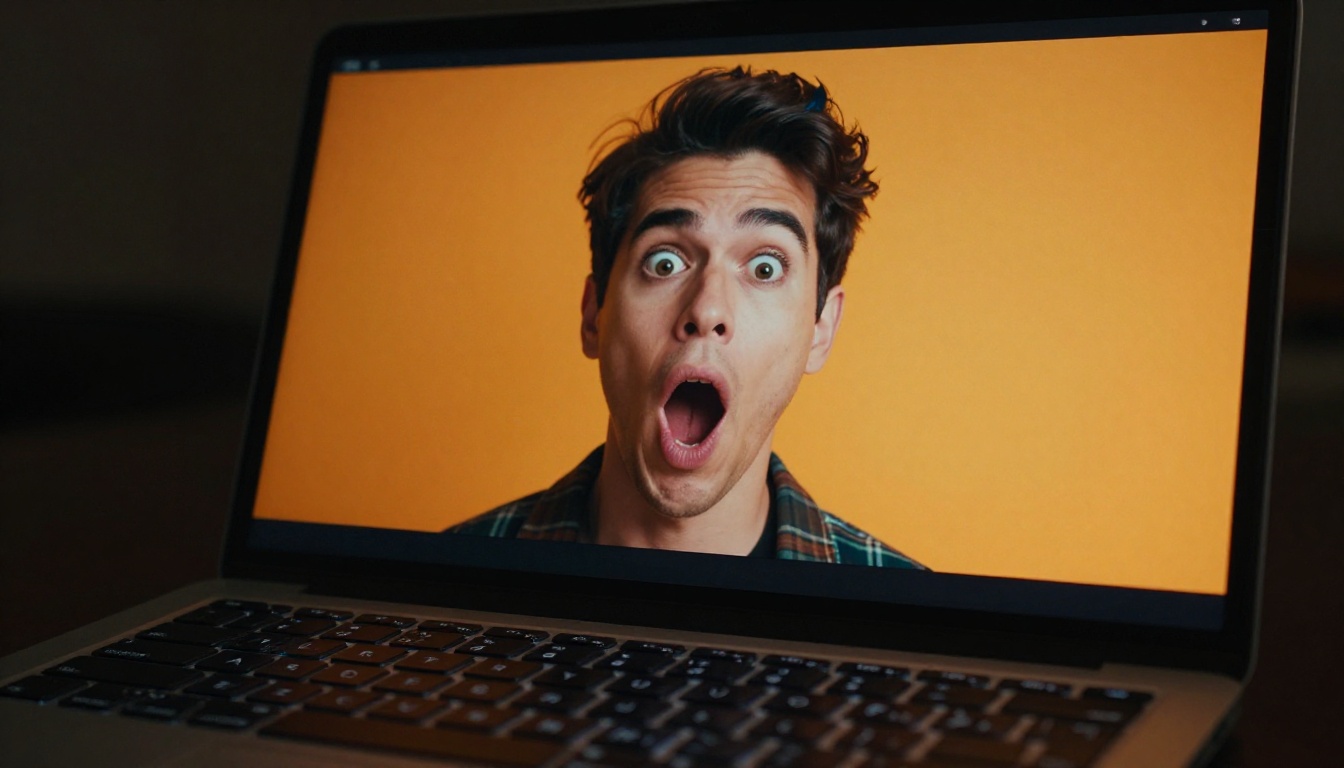
The YouTube algorithm does not push your video to more viewers because it likes you. It pushes your video when data proves people want to watch it. The single most important signal in that data is click-through rate (CTR). A video with a 2% CTR sitting next to one with a 7% CTR will be buried. The algorithm reads that difference as a quality signal and redistributes impressions accordingly.
The CTR Numbers That Should Concern You
YouTube's own data puts average CTR between 2% and 10% across the platform. The top-performing channels consistently sit in the 6-10% range. If your channel is under 4%, your thumbnail is almost certainly the bottleneck. Not your content. Not your titles. Your thumbnail.
💡 Quick benchmark: Open YouTube Studio, go to Reach, filter by Impressions CTR. If you see red across your recent uploads, your thumbnails need immediate attention.
What Viewers Decide in 0.3 Seconds
Eye-tracking research shows viewers make a pass-or-click decision in roughly 300 milliseconds. In that window, only three things register: bold color contrast, a recognizable human face, and one clear focal point. That is it. Everything else is noise at that speed. AI generators let you test different combinations of those three elements in minutes, not days.
What AI Models Work Best for Thumbnails

Not every AI model produces the same results for thumbnail work. Some are optimized for photorealism. Others handle text rendering exceptionally well. Knowing which model fits your thumbnail style saves hours of trial and error.
Ideogram v3 for Text-Heavy Designs
If your thumbnail needs readable text baked directly into the image, Ideogram v3 Quality is the strongest option available. Most image generators struggle with typography, producing blurry or misspelled text that is unusable in a thumbnail. Ideogram v3 was specifically built to handle sharp, legible text rendering, making it ideal for thumbnails that combine a strong visual with a bold callout word or number.
Ideogram v3 Turbo offers a faster version if you are iterating through multiple thumbnail concepts quickly and want to test text placement before committing to a final render.
Flux 1.1 Pro Ultra for Photorealistic Faces
Human faces drive thumbnail CTR more than any other visual element. The more expressive and photorealistic the face, the harder it is for a viewer to scroll past. Flux 1.1 Pro Ultra produces 4-megapixel photorealistic images with exceptional facial detail, including natural skin texture, expressive eyes, and accurate emotion rendering.
For thumbnails that rely on a reaction shot, a dramatic expression, or a close-up face that demands attention, Flux 1.1 Pro Ultra delivers output that consistently looks indistinguishable from a real photograph.
Flux Pro is also worth using when you want slightly faster generation without sacrificing the photorealistic quality that face-forward thumbnails require.
Recraft v4 for Bold Graphic Styles
Some niches, particularly tech, finance, and gaming, perform well with thumbnails that have a strong graphic character rather than pure photography. Recraft v4 excels at generating images with precise style control, sharp edges, bold color blocking, and high contrast compositions that read clearly even at small thumbnail sizes.
GPT Image 1.5 from OpenAI is another strong contender, particularly useful when you need transparency support or want precise compositional control over your thumbnail layout.
How to Write Thumbnail Prompts That Work
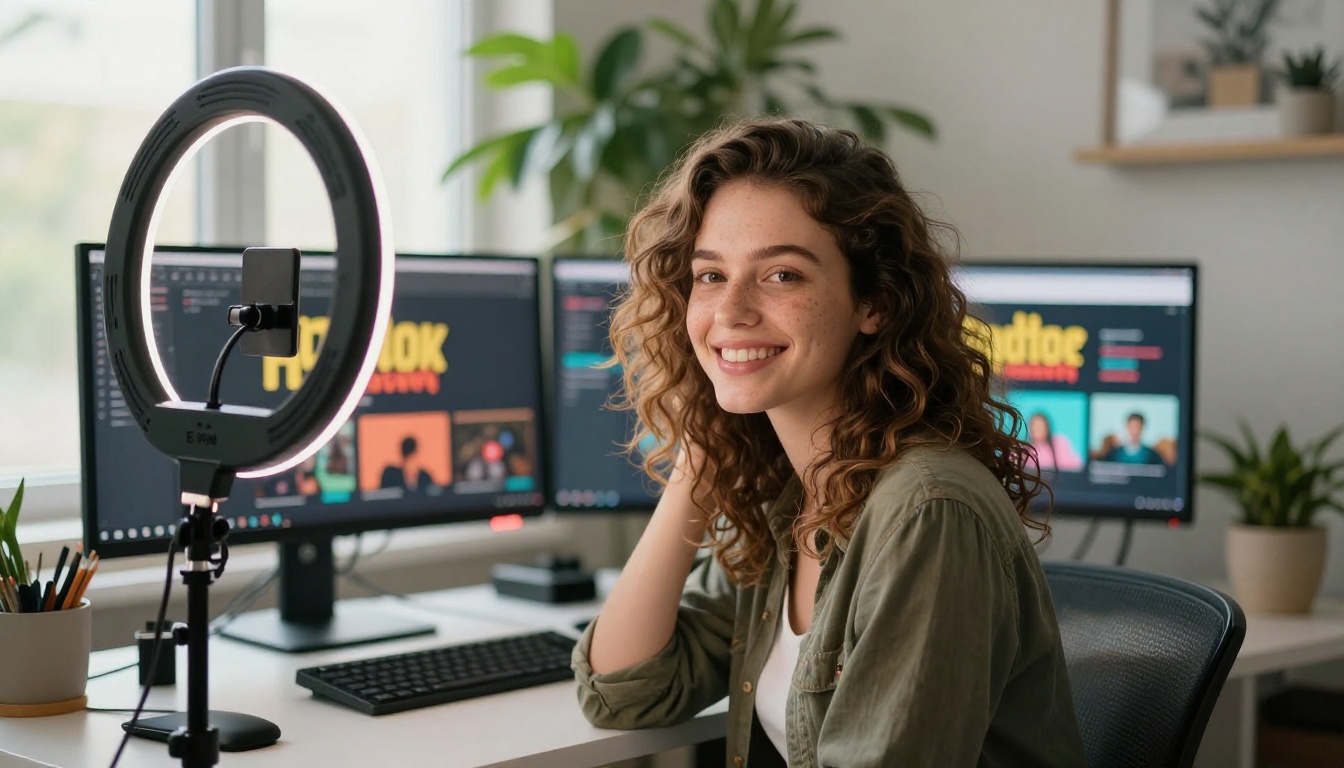
The quality of your AI thumbnail depends almost entirely on the quality of your prompt. Vague prompts produce generic results. Specific, structured prompts produce usable thumbnails. The difference between "a surprised person" and a properly engineered prompt is the difference between stock photo filler and a thumbnail that stops the scroll.
The 4-Part Prompt Formula
Every strong thumbnail prompt follows this structure:
- Subject + Emotion: Describe exactly who is in the image and what they are feeling. "A man in his 30s with wide eyes and open mouth, expression of pure shock"
- Environment: Describe the setting in just enough detail to establish context. "standing in front of a bright yellow wall, minimal background"
- Lighting: Be specific. "dramatic front-facing studio light, high contrast, deep shadows behind"
- Technical spec: Close with photography details. "85mm lens, shallow depth of field, Kodak Portra 400 film grain, photorealistic 8K, RAW"
Putting all four together for a reaction thumbnail: "A man in his late 30s with wide eyes and open mouth showing pure shock, standing in front of a bright yellow seamless background, dramatic front-facing studio light with hard shadows, 85mm f/1.8 lens, shallow depth of field, Kodak Portra 400 film grain, photorealistic 8K RAW photography"
That level of specificity consistently produces usable output on the first or second generation.
Colors and Contrast Tricks
YouTube's interface is predominantly white and dark gray. Thumbnails that use yellow, orange, and red naturally stand out against that background. Cool blues and greens tend to blend in, especially on mobile screens where thumbnails are displayed at 120x67 pixels.
💡 Pro tip: Always include "against a bright [color] background" in your prompt when you want maximum contrast. Specify the exact color, not just "bright background."
The models that handle color-accurate output most reliably are Imagen 4 Ultra and Flux 2 Pro. Both produce vivid, accurate colors and high dynamic range that translate well to the compressed image format YouTube uses for thumbnails.
Face Expressions That Stop the Scroll
Five emotions consistently outperform all others in YouTube thumbnail research:
| Emotion | Why It Works |
|---|
| Shock / Surprise | Triggers curiosity about what caused it |
| Excitement / Joy | Positive emotional contagion, invites participation |
| Confusion / Disbelief | Signals that something unexpected is in the video |
| Fear / Concern | Creates urgency and a protective instinct |
| Pride / Confidence | Positions the creator as an authority |
When prompting for faces, always specify the emotion explicitly. "A surprised face" is weak. "Mouth open, eyebrows raised, pupils wide, body leaning backward in shock" produces a much stronger and more specific result.
Step-by-Step: Build Your First AI Thumbnail
Step 1: Pick Your Model
Go to PicassoIA and navigate to the text-to-image collection. For your first thumbnail, start with Ideogram v3 Quality if your design includes text, or Flux 1.1 Pro Ultra if you want a pure photorealistic face shot.
The model you choose sets the visual language of your output. Switching models mid-iteration wastes time because each model has a distinct output signature. Pick one, commit to it for that thumbnail batch, and evaluate results before switching.
Step 2: Write and Refine Your Prompt
Use the 4-part formula described above. Start with your subject and emotion, add the environment, specify lighting, finish with technical photography details.
Generate your first output. Ask these questions:
- Is the focal point immediately clear at thumbnail size?
- Does the emotion read without ambiguity?
- Does the color contrast work against a white background?
If the answer to any of those is no, refine the prompt specifically for that element. Do not regenerate from scratch. Add or modify the specific part that is not working.
Step 3: Export at the Right Specs
YouTube's official thumbnail specification is:
- Resolution: 1280x720 pixels minimum
- File format: JPG, GIF, BMP, or PNG
- File size: Under 2MB
- Aspect ratio: 16:9
Most AI generators output at 1024x576 or higher in 16:9 ratio. If you need to upscale without losing quality, the Super Resolution tools on PicassoIA can upscale your thumbnail 2x or 4x while preserving sharpness.
Thumbnail Specs You Must Get Right
Getting your thumbnail technically correct matters as much as making it visually strong. A beautiful image at the wrong size or aspect ratio will be cropped or distorted by YouTube, breaking the composition you spent time building.
Size and Format Requirements
The non-negotiable specs:
- Minimum width: 1280px (narrower images get upscaled and look blurry)
- Aspect ratio: 16:9 exactly (YouTube will letterbox non-standard ratios)
- Max file size: 2MB (YouTube rejects larger files)
- Preferred format: JPG for photos, PNG only when transparency is required
Most AI models on PicassoIA output at these dimensions natively in 16:9 mode. If you are using custom dimensions, verify the ratio before downloading.
Mobile vs Desktop Differences
Over 70% of YouTube views happen on mobile. On a phone screen, your thumbnail displays at roughly the size of a large postage stamp. Details that look sharp on desktop become unreadable on mobile.
Test your thumbnail by:
- Shrinking it to 120x67 pixels on your screen
- Viewing it from arm's length
- Asking: does the main subject still read clearly?
If the focal point disappears at that size, your composition is too complex. Simplify. Strong thumbnails work with a single dominant subject and minimal background detail. That is what AI prompts should optimize for.
💡 Mobile test: Use your phone's browser to preview the thumbnail before uploading. Real device feedback is more accurate than simulated scaling on desktop.
5 Thumbnail Mistakes Killing Your CTR

These are the patterns that consistently drag CTR below the channel average:
1. Too much text in the image
If your thumbnail requires more than 3-4 words to communicate its message, the visual design is not strong enough. Text beyond that becomes unreadable on mobile and creates visual clutter that reduces impact. AI models with strong text rendering like Ideogram v3 can produce clean single-word or short-phrase overlays, but resist the urge to add more.
2. Low contrast against YouTube's background
Dark thumbnails disappear in YouTube's interface. Thumbnails with navy, dark brown, or black dominant colors lose their visual punch. Use AI prompt modifiers like "bright background," "high contrast," and "vivid saturated colors" to counteract this.
3. Face is too small or obscured
Faces should occupy at least 40-60% of the thumbnail frame. If the face is small enough that you cannot see the expression, you have lost your strongest click-driving element. When generating images with Flux Pro, specify "close-up portrait, face filling most of frame" to ensure the subject dominates the composition.
4. No single focal point
Thumbnails with multiple competing subjects, three people looking different directions, busy backgrounds, or complex layouts fail the 0.3-second test. Viewers need one thing to focus on. AI prompts that include "minimal background, single subject, clean composition" consistently outperform complex scene descriptions.
5. Inconsistent channel branding
Your thumbnails are a browsing experience across your entire channel page. When someone visits and sees inconsistent visual styles, color palettes, and layouts, it signals disorganization. Pick one model, one dominant color palette, and one compositional style, then build every thumbnail from that template.
A/B Testing Your AI Thumbnails
The best thumbnail you can produce today might not be as strong as a variation you test next week. The creators consistently improving their CTR are the ones running structured thumbnail tests, not the ones relying on intuition.
How YouTube's Split Test Works
YouTube Studio's built-in Test and Compare feature (in the Analytics section for eligible channels) lets you pit two thumbnails against each other on the same video. YouTube shows each version to different viewer segments and tracks which earns more clicks per impression.
If you do not have access to YouTube's native testing tool yet, you can run manual tests by swapping thumbnails every 7-14 days and comparing CTR in the Reach tab before and after each change.
Reading the Data Right
When evaluating test results, look at CTR in context:
- A thumbnail change should produce results over at least 1,000 impressions before drawing conclusions
- Compare CTR within the same time window (weekday vs weekday, not weekday vs weekend)
- A lift of 0.5 percentage points is significant at scale
💡 Test one variable at a time. If you change both the image composition and the text overlay simultaneously, you cannot determine which change drove the CTR improvement. Isolate variables.
AI generation makes it economical to produce 5-10 thumbnail variations in a single session. You can test a face-forward version against an object-forward version, a warm-color version against a cool-color version, and a text overlay version against a pure visual version, all within an hour. That iteration speed is the real competitive advantage of using AI tools for thumbnails.
What Good Test Results Look Like
| Metric | Concerning | Average | Strong |
|---|
| CTR (established channel) | Below 3% | 3-5% | Above 6% |
| CTR (new channel, under 1K subs) | Below 2% | 2-4% | Above 5% |
| Impressions per test | Under 500 | 500-2,000 | Above 2,000 |
Build Thumbnails Faster on PicassoIA
PicassoIA gives you access to 91 text-to-image models in one place, which means you are not locked into a single output style. You can test Flux Dev for photorealistic face shots, switch to Ideogram v3 Quality when a thumbnail needs readable text, and try Recraft v4 when a bold graphic style fits the video topic, all without leaving the platform.
For channels producing content at high volume (daily or multiple times per week), the speed advantage of AI thumbnail generation compounds over time. A thumbnail that once required 2-3 hours of design work now takes 10-15 minutes from concept to upload-ready file.
The workflow on PicassoIA for each thumbnail:
- Go to the text-to-image collection and select your model
- Write your prompt using the 4-part formula
- Generate 3-5 variations with slight prompt adjustments
- Download the strongest output
- Resize to 1280x720 if needed using Super Resolution for upscaling
- Upload to YouTube Studio
If you need to refine the thumbnail after generation, the Inpainting and Outpainting tools let you fix specific areas or expand the canvas without regenerating from scratch. That is particularly useful when a face looks right but the background needs adjustment, or when you need to extend the frame to fit YouTube's required 16:9 ratio.
The difference between a 2% CTR channel and a 7% CTR channel is not always content quality. Often it comes down to who is producing better thumbnails faster and testing more iterations per month. AI tools on PicassoIA close that gap entirely.
Every impression your video receives is an opportunity that either converts to a view or gets wasted. Start generating your first AI thumbnail on PicassoIA now. The results show up in your analytics within 48 hours of publishing, and the data will tell you exactly what to do next.


