Kling 3.5 is not a concept or a promise. It is running right now on public platforms, producing video clips that hold up to close inspection, and the people generating them are not VFX professionals with decades of experience. They are content creators, indie directors, marketers, and curious experimenters who figured out one thing: the quality of your output is almost entirely determined by the quality of your prompt. This article breaks down how Kling 3.5 works, where it sits in the Kling model family, and exactly how to get results worth sharing.
What Kling 3.5 Actually Does
Kling 3.5 is a video generation model from Kwai (the team behind KlingAI), representing the 3.x architecture generation. Where the 2.x series was already competitive on temporal consistency and motion realism, the 3.x generation pushed cinematic quality, physics-aware rendering, and long-clip coherence to a measurably higher standard.
The model accepts two types of input: a text prompt on its own, or an image paired with a text prompt for guided animation. Both modes produce clips up to 10 seconds in length at resolutions up to 1080p, depending on which variant you select.
The Core Engine
What separates Kling from many competing video models is its physics-aware motion synthesis. When you prompt it to show "a woman walking through rain," the droplets hit the ground and scatter. Fabric moves with realistic drag and inertia. Puddles reflect the scene with credible accuracy. This is not guaranteed on every generation, but it is consistent enough to matter for real production work.
The model also interprets camera-language well. Terms like "slow dolly-in," "tracking shot," or "handheld follow" actually shape how the virtual camera behaves, which makes Kling 3.5 genuinely useful for storytelling rather than just producing random motion clips.
Output Quality at a Glance

At 1080p, Kling 3.5 outputs hold up under close inspection. Skin renders with realistic micro-texture, fabric shows weave and drape, and environmental lighting casts accurate-looking shadows. The model is particularly strong in natural outdoor lighting: golden hour, overcast sky, and interior scenes with a single dominant light source all produce excellent results.
Where it is weaker: complex background crowds, hands in motion (still a common AI video failure point across all models), and scenes requiring strict object permanence over long durations. Five-second clips are generally clean. Push to ten seconds and you may see minor consistency drift.
How Kling 3.5 Differs from Earlier Versions
Kling v2.x vs v3.x: The Actual Gap
The jump from Kling v2.1 Master to the v3 series is real and measurable. In v2.x outputs, motion tends to be smooth but slightly artificial, with a particular kind of AI "glide" that experienced eyes identify quickly. The v3.x series addressed this with more natural inertia modeling across subjects and environments.
Kling v2.6 already brought meaningful improvements to color accuracy and prompt adherence compared to v2.0 and v2.1. The v3.x architecture pushed that relationship considerably further.
| Feature | Kling v2.x | Kling v3.x (3.5) |
|---|
| Max resolution | 1080p | 1080p |
| Motion naturalness | Good | Noticeably better |
| Prompt adherence | Moderate | Strong |
| Physics simulation | Basic | Improved |
| Camera control | Limited | More responsive |
| Coherence at 10s | Variable | More stable |
What Improved in the 3.x Series
Three things stand out in practice when comparing v2.x to v3.x:
- Prompt specificity translates better. In v2.x, writing "soft volumetric morning light from the left" produced a roughly correct scene maybe 60% of the time. In v3.5, specific lighting direction makes it into the output far more reliably.
- Background stability increased. Static background elements (walls, sky, pavement) hold their detail better across the full clip duration.
- Human motion reads as more organic. Walking gaits, head turns, and hand gestures carry real weight and deceleration rather than constant-speed movement.
Writing Prompts That Produce Real Results
This is where most people fail. The gap between a mediocre Kling output and a genuinely impressive one is almost always the prompt, not the model settings.
The Anatomy of a Good Kling Prompt
A strong Kling 3.5 prompt contains four layers:
- Subject and action: What is in the frame and what is it doing.
- Environment and atmosphere: Where, at what time of day, in what weather or light.
- Camera behavior: How the virtual camera moves or stays still.
- Texture and material specifics: What surfaces look like, what fabric does, how skin reads.
A weak prompt: "A woman walking in a city at night."
A strong prompt: "A woman in her thirties wearing a charcoal wool coat walks at an even pace down a rain-slick cobblestone alley in central Paris, 11pm, amber streetlights reflected in the wet stones below. The camera follows from behind at chest height on a gentle tracking shot. Her breath is faintly visible. The coat fabric catches the streetlight on her right shoulder."
Both prompts produce output. Only the second one produces a scene worth watching.

Common Prompt Mistakes
- Listing adjectives without describing specifics: "Cinematic, dramatic, professional" adds nothing. Describe the actual light direction, the actual surface, the actual camera movement.
- Overloading the prompt: Kling 3.5 produces 5-10 second videos. One clear scene beats three vague ones crammed into a single generation.
- Ignoring camera language: The model responds to cinematic terms. Use "slow dolly-in," "wide establishing shot," "close-up at eye level," or "handheld follow" to shape virtual camera behavior.
- Skipping the ending: Describe what happens across the clip, not just what the scene looks like at the start.
Prompt Templates That Work
Urban environment:
[Subject + clothing description] walks through [specific city area] at [time of day], [weather condition]. Camera [movement type] at [height]. [Lighting source] casts [specific shadow or reflection]. [Surface texture detail].
Nature / landscape:
Wide shot of [landscape type] at [time of day]. [Weather/atmosphere]. [Foreground element] in sharp focus. Camera [movement] from [starting position] to [ending position]. [Film stock or color palette].
Interior / person:
[Subject] [action] in [specific interior space]. [Single dominant light source] comes from [direction], casting [effect]. Camera [movement] at [height]. [Texture of surface or fabric].
Text-to-Video: Turning Words into Scenes
Kling v3 Video and Kling v3 Omni Video handle pure text-to-video generation. You provide the prompt alone, and the model builds the entire scene from scratch.
What the Model Handles Well
- Human subjects in motion: Realistic walking, running, turning, sitting.
- Outdoor environments: Streets, fields, forests, coastlines, urban rooftops.
- Atmospheric conditions: Rain, fog, golden hour, overcast grey skies.
- Camera movements: Tracking, dolly, static wide shots.

The model performs especially well when the prompt describes a single human subject in an outdoor setting with clearly defined lighting. This is where Kling 3.5 most consistently produces output that looks like actual footage. Interior scenes are good but require more careful prompting to prevent lighting from going flat.
Where It Still Struggles
Text in the frame is unreliable, a known limitation across almost every video model at this stage. Complex crowd scenes lose coherence quickly. Multiple cuts within a single generation are not possible, so each clip is one continuous shot.
For prompting workflows that need a precision boost, some users pair Kling with large language models like Claude Opus 4.7 or GPT 5 to refine and expand prompts before submitting them to the video model. Both are available on PicassoIA.
Image-to-Video: Animating Still Photos
This is arguably the most immediately impressive capability Kling 3.5 offers. You provide a still image as the first frame, add a motion prompt, and the model animates it forward in time.
Choosing the Right Source Image
Not all images animate equally well. The best source images for Kling 3.5 image-to-video:
- Clear subject with room to move: A person with space around them in the frame animates more naturally than a tight crop.
- Defined lighting: High contrast between lit and shadow areas helps the model maintain lighting consistency through the animation.
- Minimal heavy post-processing: Oversharpened or heavily filtered images tend to introduce artifacts in the animation.
- 16:9 aspect ratio: Matches the model's native output ratio and avoids cropping artifacts.

Motion Prompting for I2V
When using an image as a starting frame, your motion prompt describes what changes over the next 5-10 seconds. Think of it as directing the action forward from a frozen moment.
Strong I2V prompt structure: "[Subject in image] begins to [specific action]. Camera [movement]. [Environmental element] responds naturally. The scene progresses over 5 seconds with [lighting or atmospheric detail]."
The model reads the image for the starting state and your prompt for the trajectory. When both are specific, the output is reliable. When the prompt contradicts the image content (asking for rain when the source shows a sunny beach), results become unpredictable.
Motion Control in the Kling v3 Series
Kling v3 Motion Control adds a layer of explicit camera direction that goes well beyond what prompt language alone can achieve.
What Motion Control Does
Rather than inferring camera behavior from text, motion control lets you specify camera path, rotation, and zoom parameters directly. This is particularly useful for:
- Creating dolly shots that maintain a fixed subject position in frame
- Producing rotation around a central point of interest
- Generating zoom sequences with specific start and end focal lengths
Camera Movements You Can Direct
The control system recognizes several movement types:
- Dolly in / Dolly out: Camera moves physically forward or backward through the scene.
- Pan left / Pan right: Camera rotates on its vertical axis.
- Tilt up / Tilt down: Camera rotates on its horizontal axis.
- Orbit: Camera circles around a subject while maintaining focus on it.
- Crane up / Crane down: Camera rises or descends vertically.
Combining two movements, such as a slow pan with a subtle crane up, produces compound camera work that feels like real cinematography rather than digital animation.
Kling v2.6 Motion Control runs the same control system on the v2.6 model if you want to compare outputs across generations on the same shot.

How to Use Kling v3 on PicassoIA
PicassoIA gives you access to the full Kling v3 model lineup without a separate KlingAI subscription. Here is how the workflow runs in practice.
Step 1: Pick Your Model
Go to picassoia.com/en/all-models and search for "Kling" to see the full list. For most starting points:
Step 2: Set Up Your Prompt

In the prompt field, use the four-layer structure from above: subject and action, environment and atmosphere, camera behavior, texture specifics. Keep it under 200 words. Longer prompts do not consistently produce better outputs and at a certain length start introducing contradictions the model has to reconcile.
For image-to-video, upload your source image using the image input field that appears when you select a compatible model. The system accepts JPG, PNG, and WebP.
Step 3: Review and Iterate
Run the generation once. If the output is not what you want, identify one specific element to change before rerunning. Changing everything at once makes it impossible to know what adjustment worked.
The most common refinements in practice:
- Output too static: Add more explicit motion description to the prompt.
- Camera doesn't move as expected: Use more specific cinematic terms ("slow dolly-in from 3 meters" rather than "camera moves forward").
- Lighting looks flat: Add a specific light source with direction ("single diffused light from camera right").
- Subject looks unnatural: Describe the subject's physical state in more detail (pace, posture, clothing behavior in the scene).
💡 A useful habit: After each generation, write one sentence describing exactly what you would change before rerunning. This keeps iteration focused and shortens the number of generations you need.
Other AI Video Models Worth Running
Kling 3.5 is excellent but not the only option worth having in rotation. Several other models on PicassoIA handle different use cases or produce distinctly different aesthetics that may fit a specific project better.
Models with Different Strengths
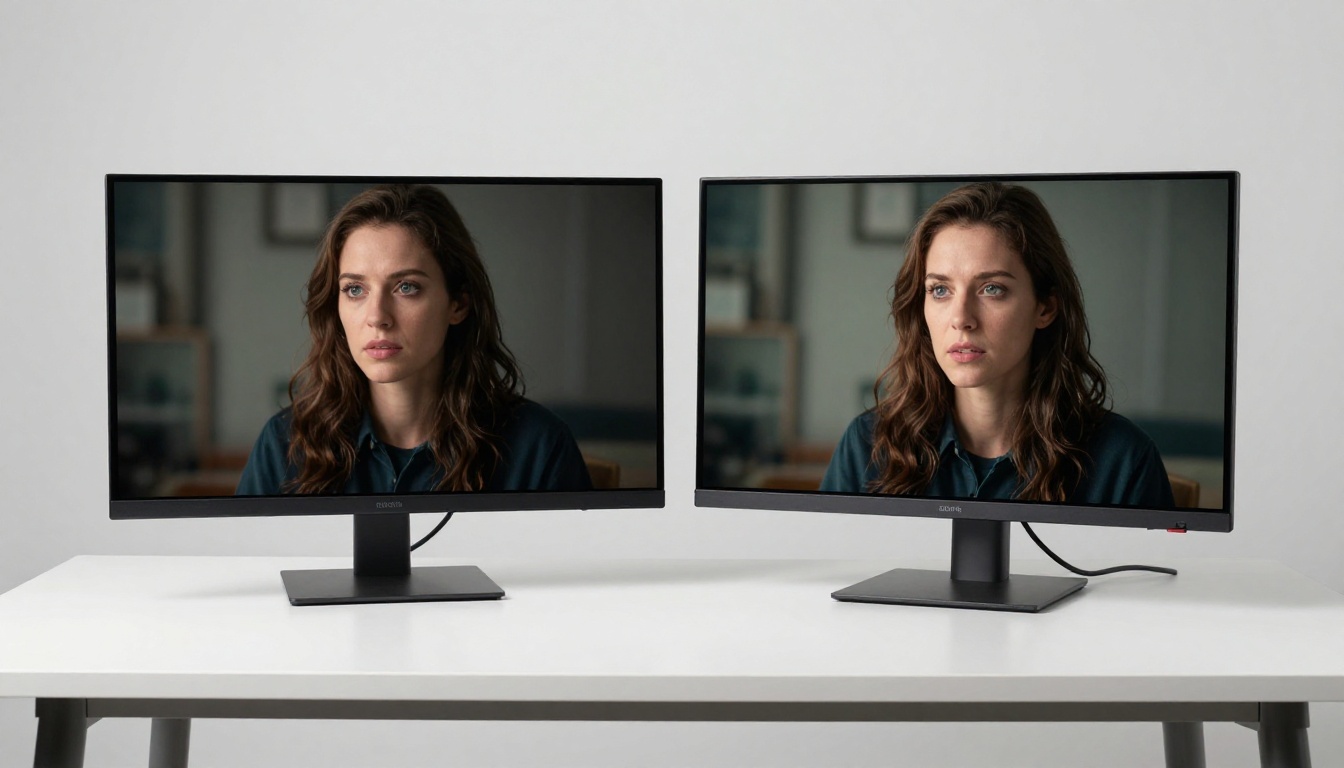
Seedance 2.5 from ByteDance produces up to 30-second clips with native audio, which Kling currently does not offer. For videos that need ambient sound or music sync, Seedance is worth running in parallel.
Veo 3.1 from Google produces 1080p text-to-video with strong audio integration. Its rendering of natural environments, particularly water and sky, is especially clean.
Ray 3.2 from Luma is a fast option for cinematic shots with HDR output. If you need quick turnaround and do not need the depth of Kling's motion quality, Ray 3.2 is a solid alternative.
Wan 2.7 T2V produces 1080p text-to-video with an open-weight architecture, meaning it tends to interpret unusual or creative prompts more liberally than tightly controlled commercial models.
Kling v2.5 Turbo Pro remains relevant for users who need fast generation speed and already have a prompt style that produces reliable results in the v2.5 generation.
Start Creating Your Own Clips
AI video generation with Kling 3.5 rewards specificity and punishes vagueness. The people producing the most impressive outputs are not using better hardware or secret settings. They are writing more precise prompts, studying what works across generations, and iterating with intention.
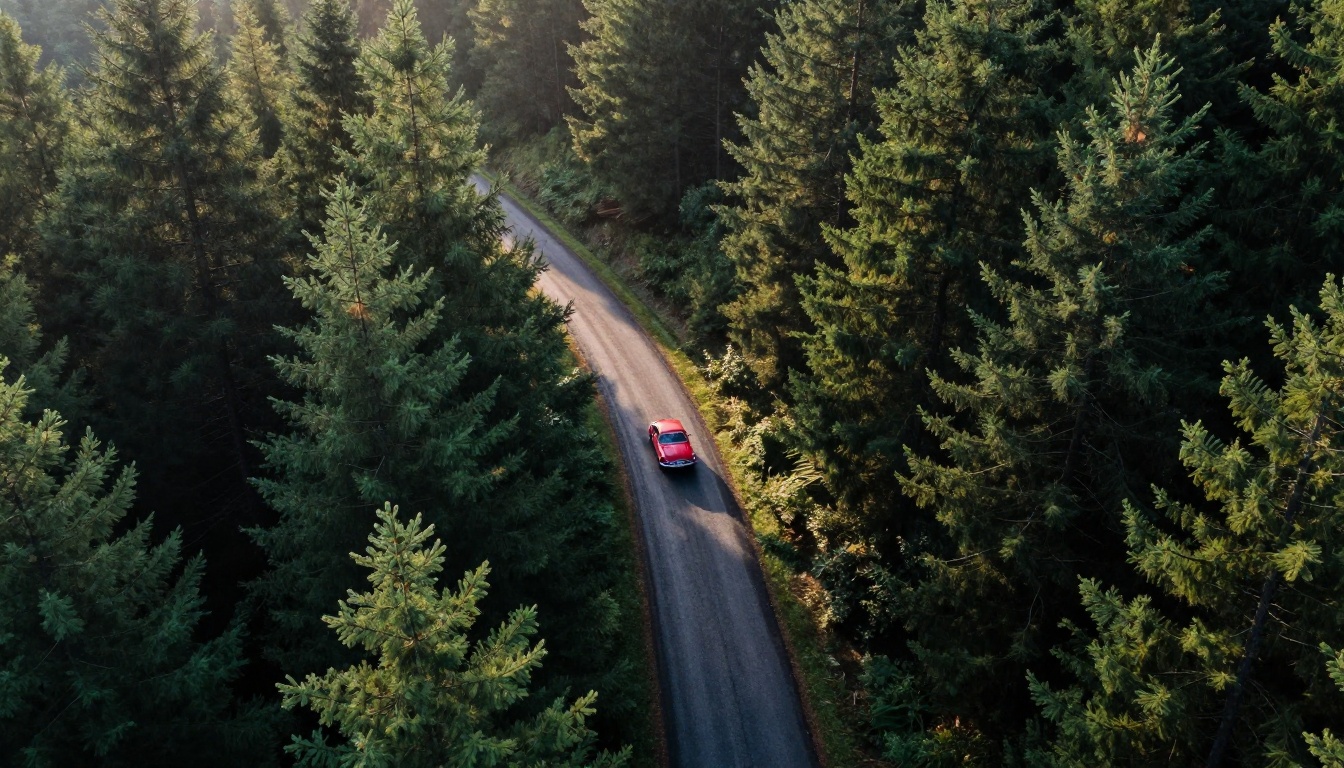
PicassoIA puts the full Kling v3 lineup alongside more than 80 other video models in one place. Run Kling v3 Omni Video for text-to-video work, switch to Kling v3 Motion Control when you need precise camera paths, and compare results against Seedance 2.5 or Veo 3.1 in the same session without switching platforms.
The fastest way to get better at Kling 3.5 is to run it. Take the prompt templates from this article, change one element at a time, and watch how the output shifts in response. Within a few sessions you will have a clear picture of what this model responds to and what it ignores.
Go to picassoia.com/en/all-models and pick the Kling v3 model that fits your starting point.