You don't need a camera, a video editor, or years of creative experience to produce footage that looks like it came from a professional production. That's not a sales pitch — it's just where AI video technology sits in 2027. Anyone with a laptop and an internet connection can generate cinematic-quality clips from a single typed sentence, and the output has crossed the threshold where most viewers genuinely can't tell the difference. Whether the goal is social media content, product promotion, a personal creative project, or just seeing what the technology can do, the real barrier to creating AI videos isn't skill — it's simply knowing where to start.
This article breaks down exactly that: the best tools available right now, how to write prompts that produce strong results, what mistakes to avoid, and how to make your very first AI video in under five minutes — no prior experience required.

What AI Video Generation Actually Does
AI video generation and video editing are two completely different things. Editing means cutting, trimming, and assembling footage that already exists. Generation means creating footage from nothing — the model renders every frame based on your text description.
The result is a short video clip (typically 5–10 seconds) that you download and use like any other video file. No footage required. No camera. No crew.
No software to install
Everything runs in a web browser. You open the tool, type your prompt, wait 30 to 90 seconds, and your clip is ready. There's no learning curve tied to any software interface — just a text box and a button.
No technical skill required
The only skill involved is writing a clear description of what you want to see. If you can describe a scene — a person, a place, an action, a mood — you can generate a video. The model handles everything else: lighting, camera angle, motion, color grading, texture.
💡 Tip: Think of yourself as a director, not an editor. You describe the shot. The AI films it.

The 5 Best Models for Beginners
There are currently dozens of text-to-video models available. For someone without experience, these five deliver the strongest combination of quality, speed, and forgiveness for imperfect prompts.
Kling v3 — the cinematic standard
Kling v3 Video from Kwai has become a go-to for anyone who wants realistic, cinematic output. It handles complex motion — a person walking, water flowing, fabric in the wind — without the jerky artifacts that plague weaker models. The color science and depth-of-field simulation are particularly strong, giving output a genuine "shot on camera" quality.
For image-to-video work, Kling V3 Omni Video accepts a static photo as input and animates it according to your motion description — ideal for product shots or portrait photos.
Best for: Finished, high-quality clips worth publishing.
PixVerse v5.6 — easiest for first attempts
PixVerse v5.6 consistently impresses first-time users because it's forgiving. Vague prompts still produce visually attractive results. Color grading is vivid, motion is smooth, and the model fills in aesthetic details even when the prompt leaves gaps. If you're generating your very first AI video, start here.
Best for: Quick wins, social-first content, building prompt confidence.
Veo 3 — Google's temporal precision
Veo 3 from Google is where the technology gets serious. The temporal consistency — how smoothly and logically objects move across frames — is exceptional. Faces, hands, and complex physical interactions all behave more realistically here than in most competing models. There's also a Veo 3 Fast variant that trades some quality for significantly faster generation.
Best for: Scenes involving people, faces, or physically accurate motion.
Hailuo 2.3 — speed without sacrifice
Hailuo 2.3 from MiniMax generates at speed while maintaining visual quality that holds up on mobile screens and social feeds. For creators who need volume — multiple clips for A/B testing or a content calendar — Hailuo's generation speed makes it practical to run ten prompts in the time others take to run three.
Best for: High-volume content creation, rapid testing.
LTX-2.3 Fast — iterate instantly
LTX-2.3 Fast from Lightricks prioritizes generation speed above all else. The near-real-time generation means you can iterate on a prompt five times in a row in the time a slower model takes to produce one clip. Use it to validate a prompt concept before committing to a quality model.
Best for: Prompt testing, fast iteration, social media drafts.

How to Make Your First AI Video on PicassoIA
This is the step-by-step breakdown for making your very first AI video, using Kling v3 Video as the example. The same steps apply to every model on the platform.
Step 1: Choose your model
Open Kling v3 Video on PicassoIA. You'll see the generation interface immediately — no complex dashboard to navigate, no settings to configure before you can start.
Step 2: Write your prompt
Type a clear, visual description of the scene you want. Here's a reliable format:
[Subject] + [Action] + [Setting] + [Lighting/Mood] + [Camera Style]
Example: "A young woman in a flowing white dress walking slowly through a misty pine forest at dawn, soft golden rays breaking through the canopy, cinematic slow motion, 4K, photorealistic"
You don't need to use every element in that formula — even three of the five will produce a strong result.
Step 3: Set clip duration and ratio
Kling v3 Video lets you select clip length (5 or 10 seconds) and aspect ratio:
- 16:9 → widescreen, ideal for YouTube or desktop viewing
- 9:16 → vertical, ideal for TikTok, Reels, Shorts
Start with 5 seconds at 16:9. Shorter clips are faster to generate and easier to evaluate.
Step 4: Generate and evaluate
Hit generate. Processing takes between 30 seconds and 2 minutes depending on the model and queue. When the clip appears, watch it twice before deciding whether to keep it or adjust the prompt.
Ask yourself: Is the motion smooth? Does the subject match the description? Is the lighting right? If any element is off, change only that element in the prompt and regenerate. Changing too many things at once makes it hard to know what actually improved the result.
Step 5: Download and publish
Download the MP4 file. It's ready to post to any platform — Instagram Reels, TikTok, YouTube Shorts, LinkedIn, or directly embedded in a website or presentation.
💡 Tip: Save your successful prompts in a notes document. A prompt that worked once is a template. Small variations on a proven prompt produce consistently strong output.
Writing Prompts That Actually Work
The quality of your prompt is the single most controllable variable in AI video generation. Everything else — the model, the settings — is secondary.
The 3-part prompt formula
Every reliable video prompt has three components:
1. Subject + Action
Who is doing what? Be specific about both. "A person walking" is weak. "A woman in her thirties jogging along a coastal cliffside path" is strong.
2. Environment + Time
Where is this happening, and when? "Rocky Atlantic cliffs at golden hour with breaking waves below" gives the model specific visual information about color, light source, and atmosphere.
3. Mood + Camera Style
How should it feel, and how should it be shot? "Cinematic, slow motion, 4K, shallow depth of field" are all reliable terms that push AI models toward higher visual quality output.
Combined: "A woman in her thirties jogging along a coastal cliffside path, rocky Atlantic cliffs at golden hour with breaking waves below, cinematic slow motion, 4K, shallow depth of field"
What NOT to write
Abstract or emotional language produces inconsistent results because the model can only render physical things.
- ❌ "Something powerful and moving"
- ❌ "A feeling of freedom and hope"
- ❌ "A futuristic city with glowing neon signs" — triggers digital art aesthetics, avoid for realism
- ✅ "A woman raising both arms on a mountain summit, wide valley below, sunrise, cinematic wide shot"
- ✅ "A golden retriever leaping through tall grass in slow motion, afternoon sun, field of wildflowers"
Specificity equals quality. The more precise your visual description, the less the model has to guess — and the closer the output matches what you had in mind.
Words that reliably improve output
Certain terms consistently push models toward higher-quality results:
cinematic → film-like color grading and compositionphotorealistic → pushes toward camera-accurate renderingslow motion → smooth, slowed movement4K / 8K → signals detail expectation to the modelshallow depth of field → foreground focus with background bokehgolden hour / morning mist / overcast → specific, real lighting conditions
5 Video Ideas You Can Make Today
Not sure what to create first? These five prompt ideas work well for beginners and produce shareable results in one or two attempts.
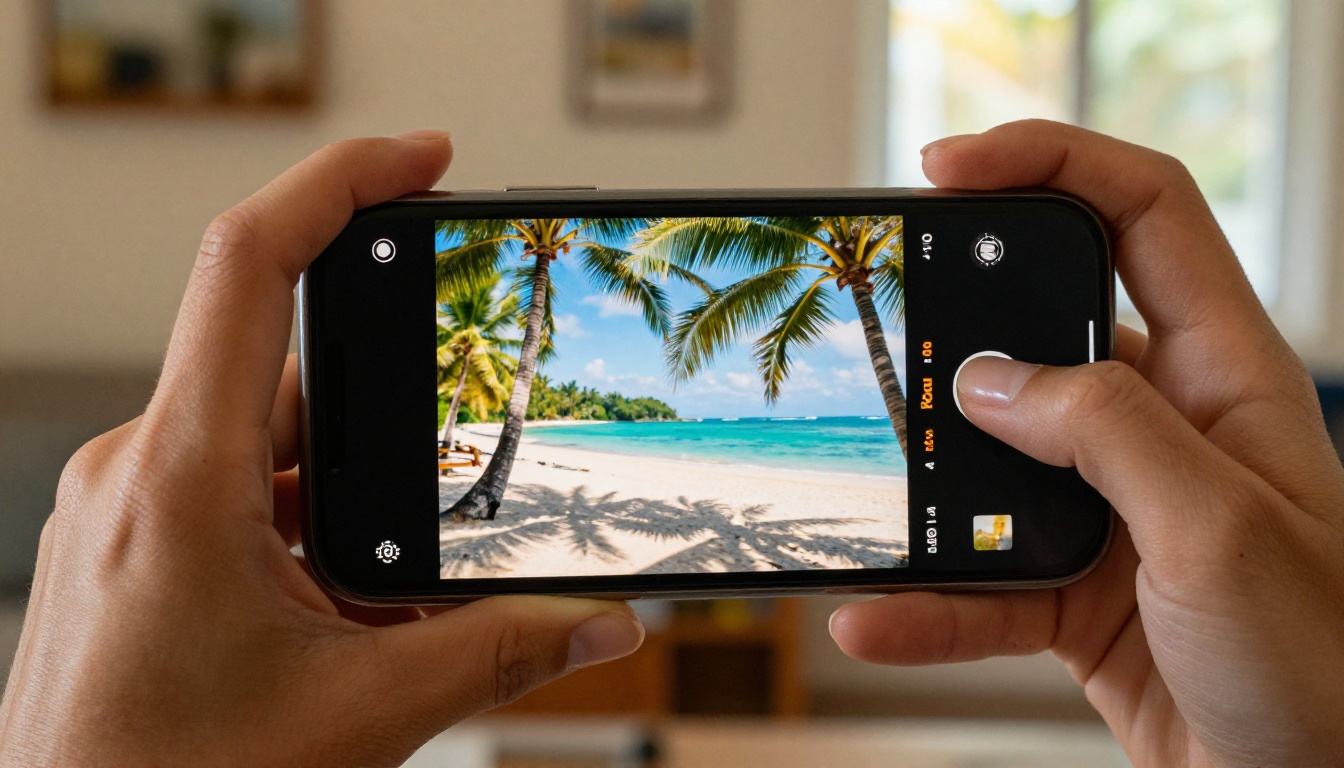
1. Scenic travel
"Aerial view of a tropical island beach at sunrise, turquoise water, white sand, palm trees, cinematic drone shot, slow pan, photorealistic, 4K"
2. Product showcase
"A luxury perfume bottle on a white marble surface, soft studio backlight, slow camera rotation, close-up, cinematic, photorealistic"
3. Nature moment
"Cherry blossom petals falling in a traditional Japanese garden, morning mist, koi pond in the background, peaceful, slow motion, wide shot, 4K"
4. Lifestyle scene
"A woman in a cozy sweater sipping coffee at a rain-streaked window, warm interior lamplight, shallow depth of field, quiet atmosphere, cinematic"
5. Abstract mood
"Ocean waves crashing against dark volcanic rocks at dusk, sea spray catching the last sunlight, slow motion, cinematic wide angle, moody atmosphere"
💡 Tip: Nature and product prompts are the most reliable starting points — no human anatomy to render accurately, so the output holds up strongly on the first attempt.
Why Prompt Style Matters More Than the Model
Most beginners assume the model is the primary variable. It isn't. Two identical prompts run on the same model will produce different results between generations — and a well-written prompt on a mid-tier model often beats a vague prompt on the best model available.
Short clips vs. complex scenes
AI video currently performs best with one continuous action in one consistent setting. Describing a sequence of events ("she walks in, sits down, then looks out the window") typically produces inconsistent or choppy motion. Pick one moment, describe it precisely, and let the model execute it well.
Models like Veo 3 and Seedance 1.5 Pro handle more complex scenes than most alternatives, but the one-action principle still produces the most reliable results even on top-tier models.
Motion types explained
When you describe camera or subject movement, you're giving the model specific directorial instructions. Here's what works:
| Motion Term | What the Model Renders |
|---|
slow motion | Smooth, slowed movement throughout the clip |
cinematic pan | Lateral camera movement left or right |
drone shot | Elevated or overhead perspective |
handheld | Slight natural camera instability |
zoom in | Gradual approach toward the subject |
static shot | Camera fixed, subject moves |
tracking shot | Camera follows a moving subject |
One motion descriptor per clip. Stacking two or more camera movement terms — "zoom in while panning left with handheld shake" — usually produces confused, incoherent camera behavior.
Common Mistakes First-Timers Make
These errors account for the vast majority of disappointing first results — and every one is easy to fix.
Prompts that are too short or vague
"A sunset" or "a busy city" gives the model almost no information. The output will be generic and random. Every prompt needs at minimum: a subject, a setting, and a lighting or mood descriptor.
Expecting perfect human anatomy
Hands, fingers, and faces in close-up are still weak points for most video models. Until these improve further, keep people at mid-distance or in motion — a person walking, running, or in a wide shot. Close-up hand or face shots in complex poses will fail more often than not.
Generating once and stopping
The correct workflow is: generate → evaluate → change one thing → regenerate. If you're dissatisfied, change only one element at a time. Swap the lighting descriptor, adjust the action verb, remove a motion term. This process usually produces a strong result within 3 to 5 iterations.
Using the wrong model for the task
Speed-optimized models like LTX-2.3 Fast are ideal for prompt testing but not final publishing. Hailuo 2.3 is excellent for volume content but not a centerpiece video. Match model selection to the clip's actual purpose.
💡 Workflow tip: Use LTX-2.3 Fast to validate your prompt concept cheaply and quickly. Once you know the prompt works, switch to Kling v3 Video or Veo 3 for the final render worth posting.
From Still Photo to Video — the Image-to-Video Option
If you already have a strong photo — a product shot, a portrait, a landscape — you can skip the text prompt entirely and animate it directly into a video clip.
Several models on PicassoIA support image-to-video generation:
The workflow is simple: upload the image → add a motion description ("the bottle slowly rotates, soft light from the right") → generate. For product marketing in particular, this is one of the fastest ways to produce professional-looking promotional video with no filming involved. One decent product photo becomes a polished 5-second clip in under two minutes.
Start Creating Right Now
There's genuinely no barrier left. No course to take. No software to buy or install. No equipment. The only thing standing between you and your first AI video is typing a sentence and pressing a button.
The creators producing AI video content aren't doing anything technically difficult. They're simply consistent — generating 10 clips to find 1 great one, saving the prompts that work, and trying new models as they release. That's the entire process.
PicassoIA puts every model covered in this article in one place: Kling v3 Video, PixVerse v5.6, Veo 3, Hailuo 2.3, LTX-2.3 Fast, and dozens more — no platform-switching, no separate accounts, no friction.
Pick one idea from the list above. Open PixVerse v5.6 or Kling v3 Video, paste your prompt, and generate. Your first AI video takes less than two minutes. Everything after that is just practice.