Generate imagesVisual EffectsLarge Language Models
How to Create an AI Waifu From a Single Photo (Step-by-Step)
Turning a single photo into a fully realized AI waifu is now possible with today's best AI image generation tools. This piece breaks down the top models, exact prompt formulas, parameter settings, and style tips that produce stunning results, whether you want realistic, anime-inspired, or fantasy aesthetics.
Creating an AI waifu from a single photo used to require specialized software, hours of manual editing, or expensive commissions from digital artists. Today, anyone with a smartphone photo and the right AI image generation model can produce a stunning, highly detailed waifu character in under 30 seconds. The process has changed dramatically, and this piece breaks down exactly how to do it, which models actually work for this type of content, and what separates good results from truly exceptional ones.
What an AI Waifu Actually Is
Beyond the anime stereotype
The term "waifu" originally came from anime fan culture, derived from the word "wife" used to describe beloved fictional characters. In the AI generation space, it has expanded to mean any idealized, beautifully crafted female character generated by artificial intelligence. This includes anime-style portraits, realistic photographic characters, fantasy heroines, and everything in between.
What makes a waifu "AI-generated" in 2027 is not just the style but the process: you provide a reference, whether a single photo, a text description, or a combination of both, and the model produces a character that embodies the features you defined. Modern AI image models have become sophisticated enough that a single reference photo is all they need to capture likeness, expression, and personality traits with remarkable accuracy.
Why single-photo generation changed everything
Prior to image-to-image AI models reaching the quality level they have today, creating a consistent character required multiple reference photos, fine-tuning models on large datasets, or spending hours in manual prompting to get a coherent face. The breakthrough came with models that can read the structural and tonal information from a single portrait, understand the spatial relationships of facial features, and then reinterpret those features in the requested style.
This means your source photo does not need to be professional quality. A decent selfie, a candid shot in natural light, or even a slightly lower-resolution image can produce excellent results if the face is clear and mostly unobstructed. The AI fills in what it cannot see and infers the rest from context.
What Makes a Good Source Photo
Lighting and angle
The quality of your output is directly proportional to the quality of your input, but not in the way most people think. You do not need a studio shoot. What you need is:
Clear face visibility: at least 70% of the face should be unobstructed
Adequate light: not heavily backlit, not shot in very low light
Natural expression: neutral or slightly smiling works better than extreme expressions
Minimal heavy filters: pre-applied app filters can confuse the model's skin-tone reading
Tip: A photo taken in open shade, facing the light source, gives the AI the clearest facial structure data to work from. This is the same principle professional portrait photographers use.
Front-facing or 3/4 angle shots produce the most consistent results. Extreme profile shots can work but require more prompt iteration to get the output you want.
Resolution and format
Most AI waifu generators accept JPEG, PNG, and WebP formats. For the best results, aim for at least 512x512 pixels for the face region. If your photo is lower resolution, use a super-resolution tool first. PicassoIA's Super Resolution models can upscale your source image before processing, which consistently improves the detail level of the final waifu output. You can find the upscaling tools in the full model catalog.
What to avoid in a source photo
Some source photo characteristics consistently produce poor waifu outputs, regardless of which model you use:
Heavy motion blur: the model cannot read facial structure from a blurred face
Extreme shadows covering 50% or more of the face: the AI will invent what it cannot see, often incorrectly
Group photos where your face is small: the AI needs your face to fill a reasonable portion of the frame
Photos with overlaid text or graphics: filters with stickers or emoji on the face confuse the AI's feature mapping
The Best AI Models for Waifu Creation
Not every AI image model handles the photo-to-character transformation well. Some are optimized purely for text-to-image generation and struggle with image references. The models below are specifically capable of reading your source photo and generating high-quality waifu characters from it.
Seedream 4.5: the top pick
Seedream 4.5 is the top recommendation for AI waifu creation from a photo. It accepts image references, handles the full range of waifu aesthetics from realistic to stylized, and generates results in under 3 seconds. This speed matters when you are iterating through prompt variations to find the style you want. It also accepts adult content without filtering, giving creators full control over the tone and aesthetic of their output.
Important note: The newer Seedream 5 Lite does not support NSFW or adult-adjacent content. If that matters for your waifu project, stay with Seedream 4.5.
PicassoIA Image Editor Pro: unlimited iterations
PicassoIA Image Editor Pro is the image-to-image model with the most compelling value proposition for waifu creators who need volume. With Elite and Infinite subscription plans, you get unlimited generations at no additional cost per image. If you are building a character series or testing dozens of style variations, the economics are dramatic: generating 1,000 images costs nothing extra on an Elite plan, versus roughly $100 on per-credit models like Nano Banana 2. Results land in under 1 second, and it reads your source photo as a direct reference. A free trial of 3 generations is available without requiring a credit card.
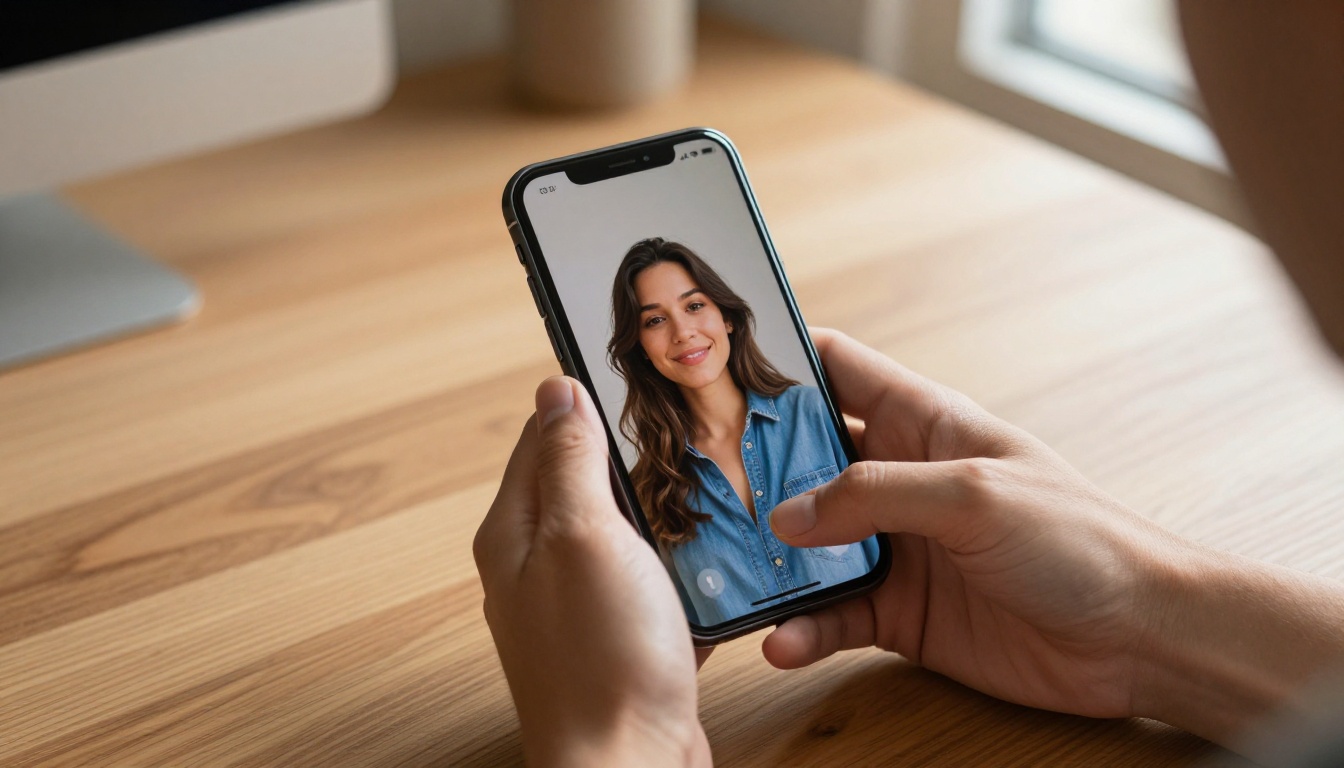
On PicassoIA, navigate to your chosen model (Seedream 4.5 is recommended for first-timers) and locate the image input field. This is typically labeled as "Reference Image," "Source Image," or displayed as an upload zone. Drag your photo directly into this field or use the file picker.
The model reads the image immediately. You do not need to crop or resize beforehand for most models, though cropping to focus on the face can sometimes improve character consistency in the output. If you are working with a lower-resolution image, run it through the super-resolution tool first.
Writing prompts that actually work
Your text prompt works alongside the reference image. Think of it as the direction you give the AI, while the photo provides the raw material. Effective waifu prompts share these characteristics:
Structure your prompt in layers:
Subject and style: "anime-style portrait of a young woman, soft illustrated look"
Key features to emphasize: "large expressive eyes, delicate facial features, long flowing hair"
Setting and atmosphere: "cherry blossom garden background, warm golden sunset light"
A complete example that consistently produces strong results:
Anime-style portrait of a beautiful young woman, large luminous eyes with detailed iris texture, delicate features, long silky hair with gentle wave, wearing a floral kimono with fine fabric detail, traditional Japanese garden background with cherry blossoms, warm diffused golden-hour lighting from the left, soft bokeh background, ultra-detailed, 8k, photorealistic skin texture, sharp focus on eyes
Tip: Do not write long lists of negative prompts unless the model specifically supports them. For most models on PicassoIA, a strong positive prompt produces better results than enumerating what you do not want.
Adjusting the reference strength
Most image-to-image models offer a parameter controlling how strongly the output adheres to your source photo versus how freely the AI interprets your text prompt. This is commonly labeled as:
Strength (0.0 to 1.0)
Denoising strength
Image influence
Prompt weight
For waifu creation from a photo, the sweet spot is typically 0.5 to 0.75. At this range, the AI retains the facial proportions and general likeness from your source photo while giving itself freedom to apply the style transformation you requested. Setting this below 0.4 often produces characters that look too literally like the photo without the stylistic shift. Setting it above 0.85 can produce generic outputs that do not reflect the character personality you are building.
Getting the Exact Style You Want
Realistic vs. stylized aesthetics
AI waifu generation sits on a spectrum between photorealism and stylized illustration. Neither is inherently better; they serve different purposes.
Photorealistic waifu: Looks like a real person who could step out of the image. Best for characters meant to feel tangible and believable. Models like Seedream 4.5 and Qwen Image 2 excel here.
Anime-stylized waifu: Retains exaggerated features like large eyes, simplified skin, and graphic outlines while still appearing detailed. Add descriptors like "anime art style," "cel shading," or "illustrated portrait" to your prompt.
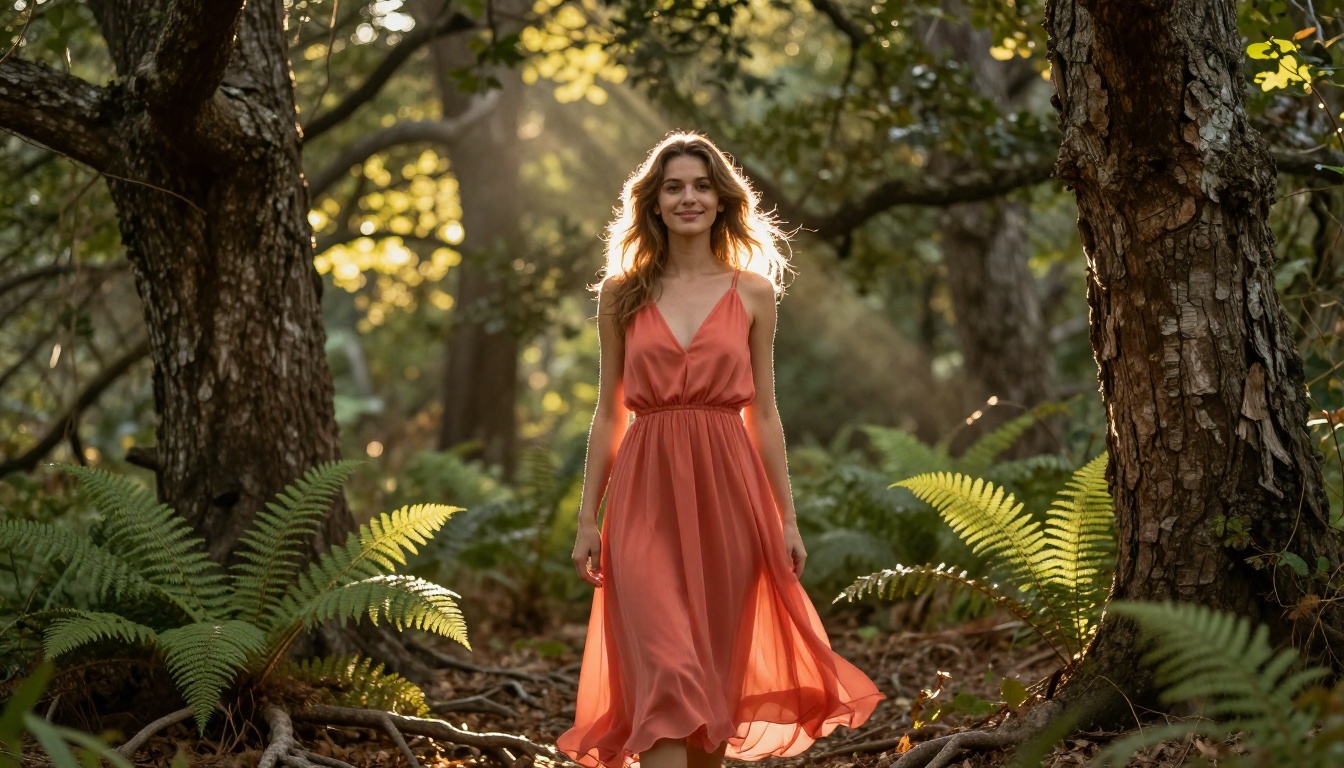
Fantasy/ethereal waifu: Combines realistic anatomy with fantastical environments. Focus on the surroundings rather than altering the character's physical form: "standing in a glowing forest clearing," "surrounded by floating petals," "moonlit stone temple with soft candlelight."
Fine-tuning facial features
If the output does not quite capture the character you envisioned, adjust these prompt elements specifically:
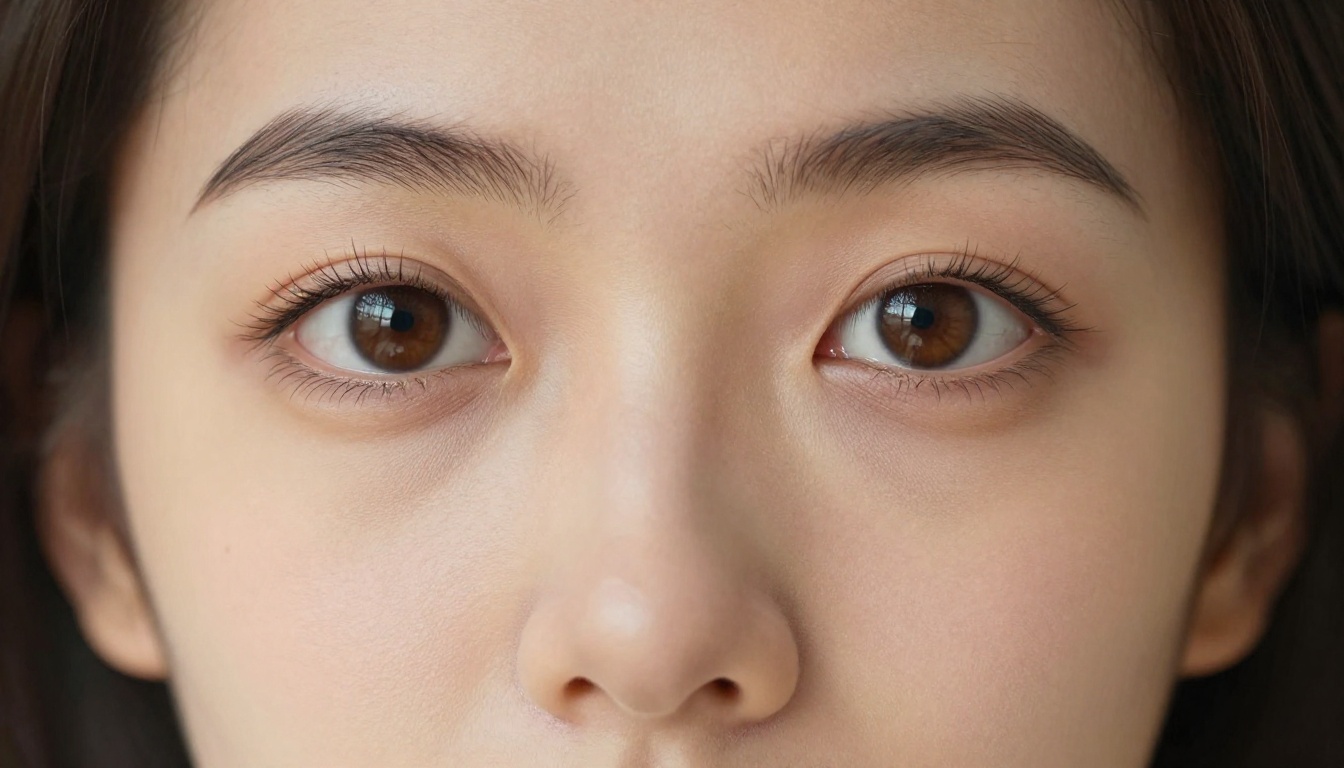
Eyes: "almond-shaped eyes," "wide doe eyes," "hooded eyes with heavy lashes" each produce distinctly different results
Face shape: "heart-shaped face," "strong jawline," "soft round cheeks" directly affect the overall character feel
Hair: Describe texture, length, and color precisely: "long straight black hair with subtle shine," "short wavy copper hair with natural volume"
Expression: "slight confident smile," "serious and focused," "playful smirk" each create entirely different character personalities
Common Problems and How to Fix Them
When the face looks wrong
The most common failure mode in AI waifu generation is distorted facial anatomy. If you get results with odd proportions, asymmetrical features, or visible artifacts, try these fixes:
Increase the reference strength slightly so the model leans more on your source photo's anatomy
Add "symmetric face, anatomically correct proportions" to your prompt
Generate at higher resolution: low-res outputs are more likely to show artifacts on fine facial features
Tip: Use PicassoIA's inpainting tool on specific problem areas like a misaligned eye or an oddly shaped mouth. Painting over just the area you want to fix and regenerating only that region is often faster than redoing the entire image from scratch.
Colors and lighting look off
If the colors feel flat or the lighting does not match the mood you wanted, add lighting descriptors that are very specific: "volumetric light from the upper left," "soft diffused overcast light," "warm golden-hour backlight with rim light on hair." Generic terms like "good lighting" or "well-lit" do not give the model enough directional information.
For color palette control, reference specific film stocks in your prompt: "Kodak Portra 400 warm tones," "Fujifilm Superia muted colors," "high-contrast Velvia saturation."
Output does not match the source photo's face
If the output character looks nothing like your source photo, the reference strength is probably too low. Increase it toward 0.7 to 0.8. If the model does not expose this control (some text-to-image-only models do not), switch to PicassoIA Image Editor Pro or Grok Imagine Image, which are specifically built for image-to-image transformation and read your source photo directly.
Building a Full Character Series
Consistency across multiple images
One of the most frequent questions from waifu creators is how to maintain character consistency across multiple generated images. Here are three approaches that work:
Save your exact seed number: if the model returns a seed value with a successful generation, reusing it with slightly modified prompts keeps the same base character across different scenes
Use the same reference photo consistently: do not switch source images mid-series or you will get drift in the character's face and proportions
Build a character sheet prompt: write a detailed baseline prompt that defines the character's core attributes (hair color, face shape, eye type, clothing style), then append scene-specific details for each individual image
Expanding your waifu with PicassoIA tools
Once you have your base waifu character, PicassoIA's broader toolset opens up a whole creative ecosystem:
Face Swap AI: apply your character's face to different base images for rapid scene variation without regenerating from scratch
Outpainting: expand the canvas beyond the original portrait to reveal more of the world your character inhabits
Super Resolution: upscale your best results to print-quality resolution for merchandise, prints, or high-fidelity digital use
Lipsync: animate your waifu to speak synchronized audio content
P-Video: turn your still character image into a short video clip with natural movement, up to 1080p, with the safety filter disabled by default
Grok Imagine Video: generate clips up to 15 seconds from your character image, with no watermarks, across 8 aspect ratios
The Best NSFW Models for Waifu Creation
If your creative vision includes adult-adjacent content, bikini aesthetics, glamour, or artistic suggestive styles, these are the PicassoIA models that handle it without content restrictions:
Seedream 4.5 The primary recommendation. Accepts adult content, supports image editing, generates in under 3 seconds with exceptional quality and realism.
PicassoIA Image Editor Pro Unlimited generations on Elite/Infinite plans. Generate 1,000 images for free versus around $100 on per-credit models. Results in under 1 second, with a 3-generation free trial requiring no credit card.
Qwen Image 2 Open source, detailed realistic results without content filters.
Grok Imagine Image Transforms any image to bikini or glamour format in a highly realistic way.
Recraft V4 Very realistic results, text-to-image only.
Wan 2.2 Image Highly realistic images from text without content filtering.
Unlike many mainstream platforms that apply aggressive content moderation, PicassoIA gives creators the freedom to define their own aesthetic without arbitrary restrictions. The platform's fastest models deliver results in under 1 second, which means iterating on your character's look costs seconds rather than minutes.
The gap between imagination and image is now measured in seconds, not hours. A single photo, a well-structured prompt, and the right model are all you need to produce a waifu character that would have required a professional digital artist six months ago.
Start with Seedream 4.5 for your first few generations. Get comfortable with how the reference strength slider affects the likeness, experiment with style descriptors, and build your prompt vocabulary through iteration. Once you have a base character you love, use PicassoIA Image Editor Pro to generate unlimited variations without worrying about per-image costs.
The best waifu characters are built through iteration. Each generation teaches you something about how the model responds to your specific photo and prompt combination. Head to picassoia.com/en/all-models, pick your model, and start creating yours today.