Veo 3.1 is not your average text-to-video model. It generates 1080p footage with realistic physics, accurate lighting behavior, and native audio, all from a single text prompt. For creators who want professional-grade output without a film crew or a budget, this changes what is possible. The challenge is not the tool itself. It is knowing how to use it. That means understanding shot composition, lighting language, camera descriptors, and the specific prompt structures that tell Veo 3.1 exactly what kind of cinematic moment you want.
This article breaks down every layer of that process, from shot type selection to prompt engineering to step-by-step usage on the platform. By the end, you will have a repeatable system for generating footage that looks like it was pulled from a professional production.
What Veo 3.1 Actually Does
Before getting into prompting strategies, it helps to know what Veo 3.1 is actually capable of producing. Not all AI video models are equal, and Veo 3.1 sits at the top of the quality tier for a specific set of reasons.
1080p Output by Default
Most models cap at 720p or lower. Veo 3.1 outputs native 1080p resolution, which means your footage holds up on large screens, in social media previews, and in professional edits without upscaling artifacts. If you need something even faster at slightly lower processing overhead, Veo 3.1 Fast delivers similar quality with shorter generation times.
Realistic Physics and Motion
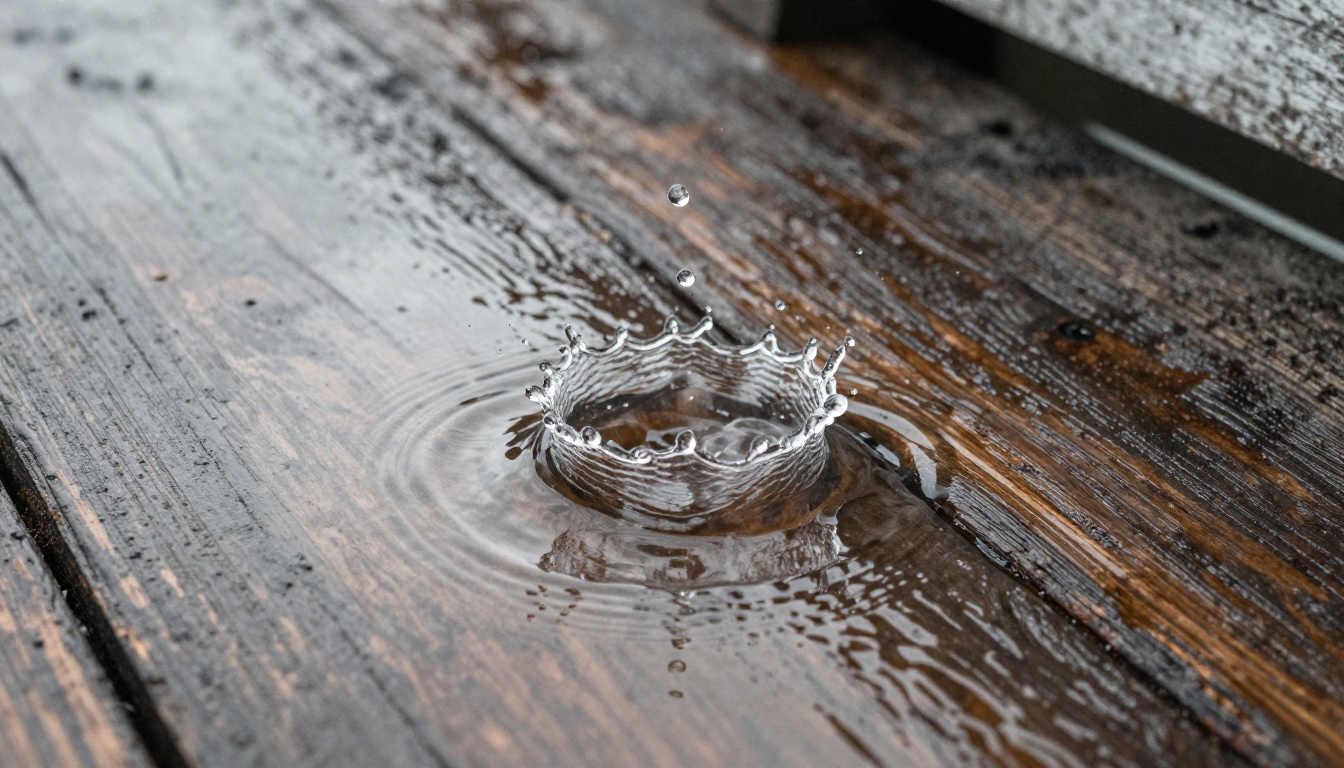
The model has strong physics simulation built in. Objects move with weight. Cloth reacts to wind. Water splashes behave correctly. This is the difference between AI video that looks convincing and AI video that looks synthetic. When you write prompts that describe motion and physical weight, Veo 3.1 responds with footage that feels grounded and real.
Native Audio Support
Unlike its predecessor Veo 3, version 3.1 refines how audio is generated alongside the video. Ambient sound, environmental noise, and tonal mood are all inferred from the visual content of your prompt. This saves a post-production step that most AI video workflows still require separately.
Shot Types That Hit Different
The single biggest difference between cinematic footage and ordinary footage is shot selection. A great model with a poor shot type still produces a mediocre result. Here are the four categories worth focusing on with Veo 3.1.
Wide Establishing Shots
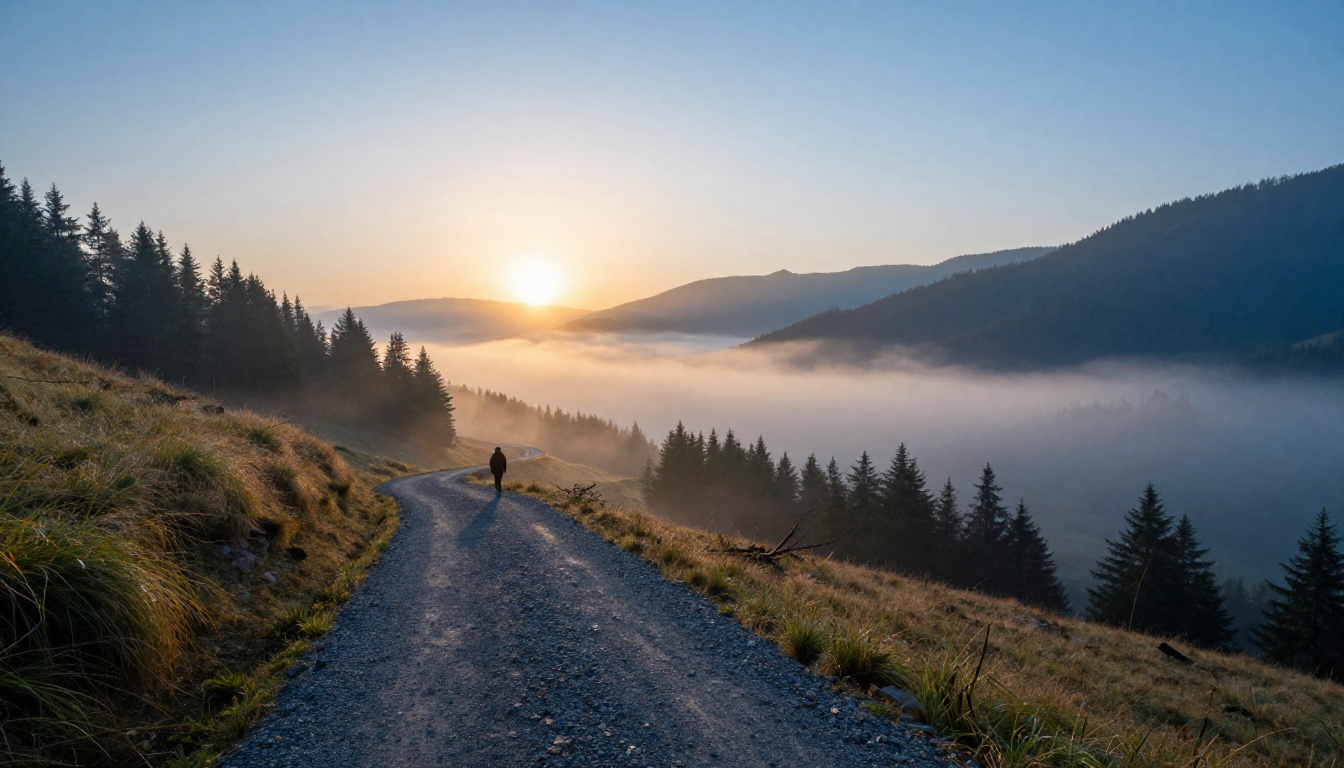
Wide shots set the context. They show the world your subject inhabits. For Veo 3.1, wide establishing shots work best when you include:
- A specific environment with at least two distinct depth layers (foreground and background)
- Atmospheric conditions like fog, haze, or golden hour light
- One point of human or emotional reference (a lone figure, a road, a distant structure)
💡 The more spatial information you give the model, the more immersive the wide shot feels. Do not write "a mountain." Write "a misty valley at dawn with pine-covered slopes and a winding road disappearing into the fog."
Close-Up Character Work
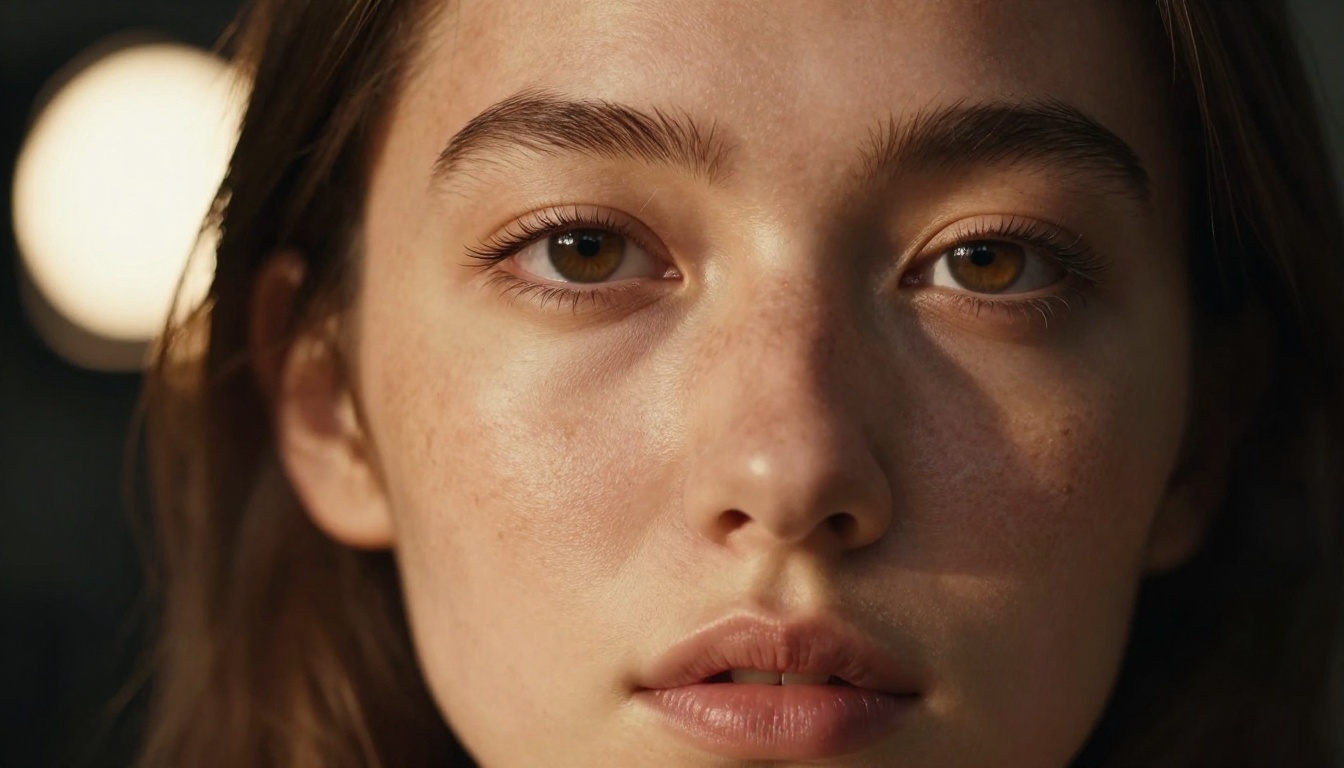
Close-ups are where emotional weight lives. In a Veo 3.1 prompt for a close-up, the most important elements are:
- Lighting angle and quality (Rembrandt, soft side light, backlight)
- Facial micro-details that anchor the realism (freckles, pores, eyelashes)
- Lens focal length to control depth compression (85mm for portraits, 135mm for extreme compression)
The model reads lighting descriptors very literally, so being specific pays off immediately.
Low-Angle Power Framing
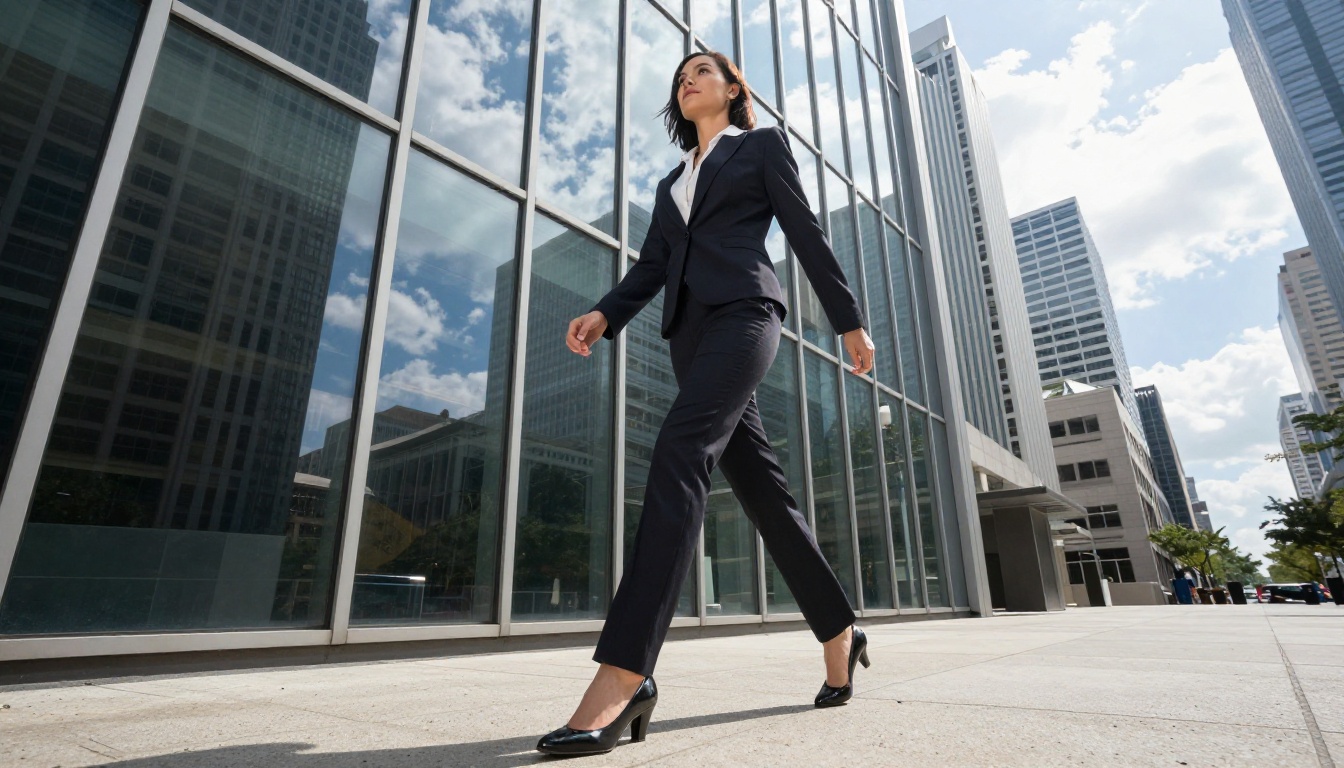
A low-angle shot makes subjects feel dominant, powerful, and monumental. It shifts the viewer's psychological relationship with the subject instantly. To trigger this with Veo 3.1:
- Include "camera positioned at ankle or knee height" in your prompt
- Add a vertical element in the background (buildings, trees, cliffs) so the angle has something to exaggerate
- Specify "wide angle 16mm" or similar to push the perspective distortion
Aerial Perspectives
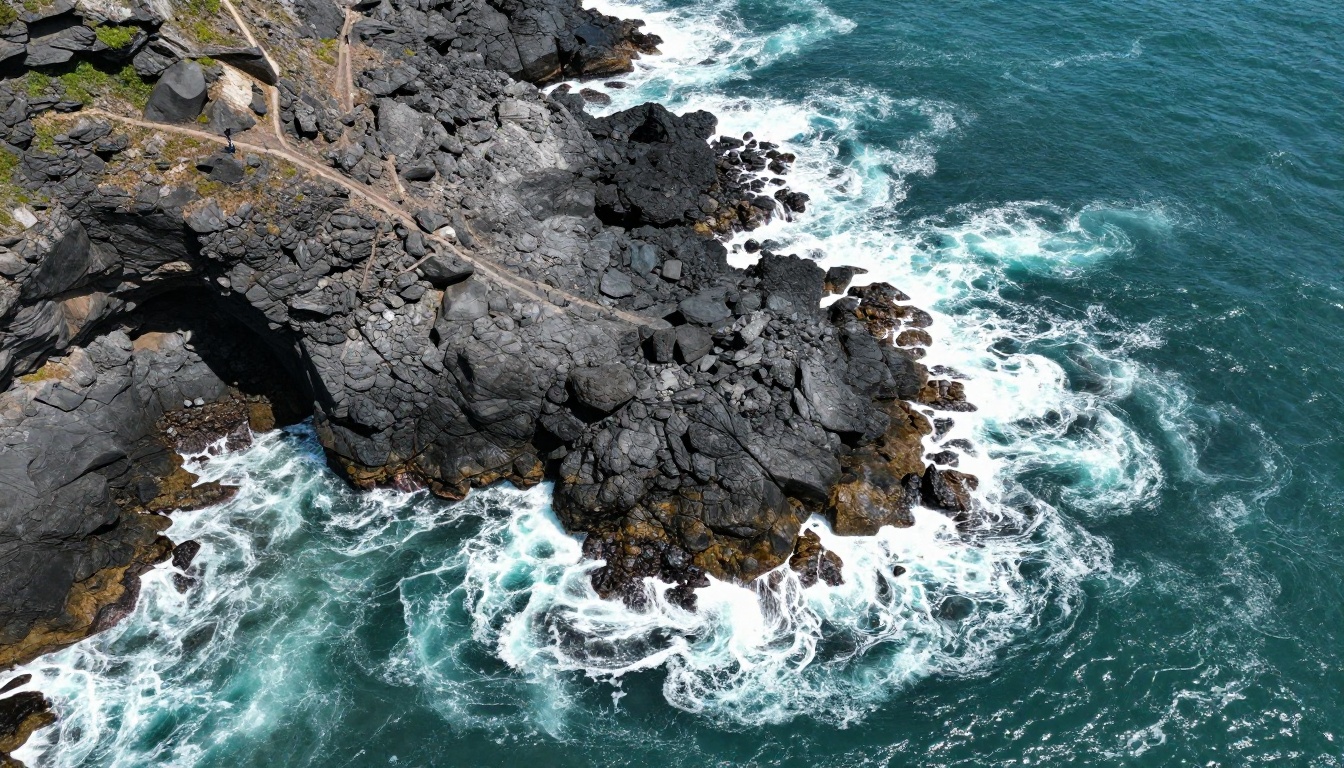
The overhead and drone-style shot creates scale and detachment. It works for establishing geography, showing crowd movement, or emphasizing isolation. Strong aerial descriptors include: "aerial drone perspective," "looking straight down," "200 meters altitude," and specific terrain details that give the overhead view texture and visual interest.
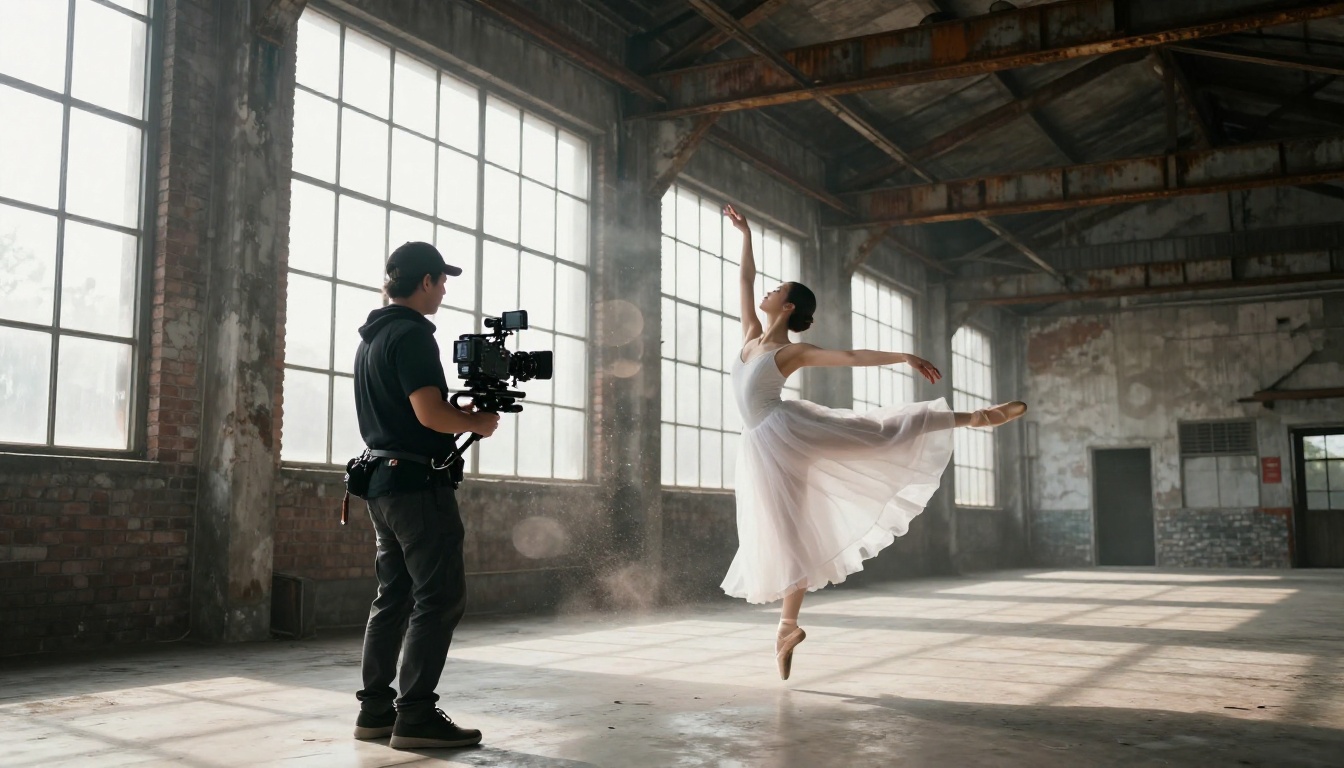
Veo 3.1 is powerful, but it is not a mind reader. The quality of your output is almost entirely determined by the quality of your prompt. Here is the formula that consistently produces cinematic results.
The 4-Part Prompt Structure
Every strong Veo 3.1 prompt contains these four layers:
| Layer | What It Covers | Example |
|---|
| Subject | Who or what, doing what | "A dancer mid-leap in a white dress" |
| Environment | Where, with texture and depth | "Abandoned industrial warehouse, brick walls, rusted beams" |
| Lighting | Source, direction, quality | "Volumetric shaft light from high windows, left side, dust motes" |
| Camera | Angle, lens, focal length, movement | "35mm f/2.0, over-the-shoulder, slow push forward" |
When all four are present, the model has enough information to make cinematographic decisions on your behalf. When any one is missing, the model fills in the gap with something generic.
Lighting Terms That Work
Lighting is the single most powerful element in cinematic photography and video. These are the terms that Veo 3.1 responds to most consistently:
- Rembrandt lighting: Creates a small triangle of light on the shadowed cheek, very dramatic for portraits
- Volumetric light: Light rays visible through atmosphere (dust, fog, smoke)
- Golden hour: Warm, low, directional sun just after sunrise or before sunset
- Practical lighting: Light sources visible within the frame (lamps, candles, screens)
- Soft diffused light: Overcast or indirect, eliminates harsh shadows
- Rim or backlight: Light source behind the subject, creating a halo separation from the background
💡 Always specify direction alongside quality. "Soft light from the left" gives the model far more to work with than just "soft light." Direction is everything.
Camera and Lens Descriptors
These are not optional decorations in your prompt. They change what Veo 3.1 generates at a structural level:
- 14 to 24mm: Ultra-wide, extreme environmental context, visible distortion
- 35mm: Natural human perspective, street photography feel
- 50mm: Standard and neutral, closest to the human eye
- 85mm: Classic portrait compression, shallow depth of field
- 135mm: Extreme compression, isolates subject dramatically from background
- f/1.4 to f/2.0: Very shallow depth of field, creamy background bokeh
- f/8 to f/11: Deep focus, everything sharp from front to back
Add camera movement when you want motion in the clip: "slow dolly push," "steady tracking shot from left," "static locked-off frame," "handheld with slight natural sway."
How to Use Veo 3.1 on PicassoIA
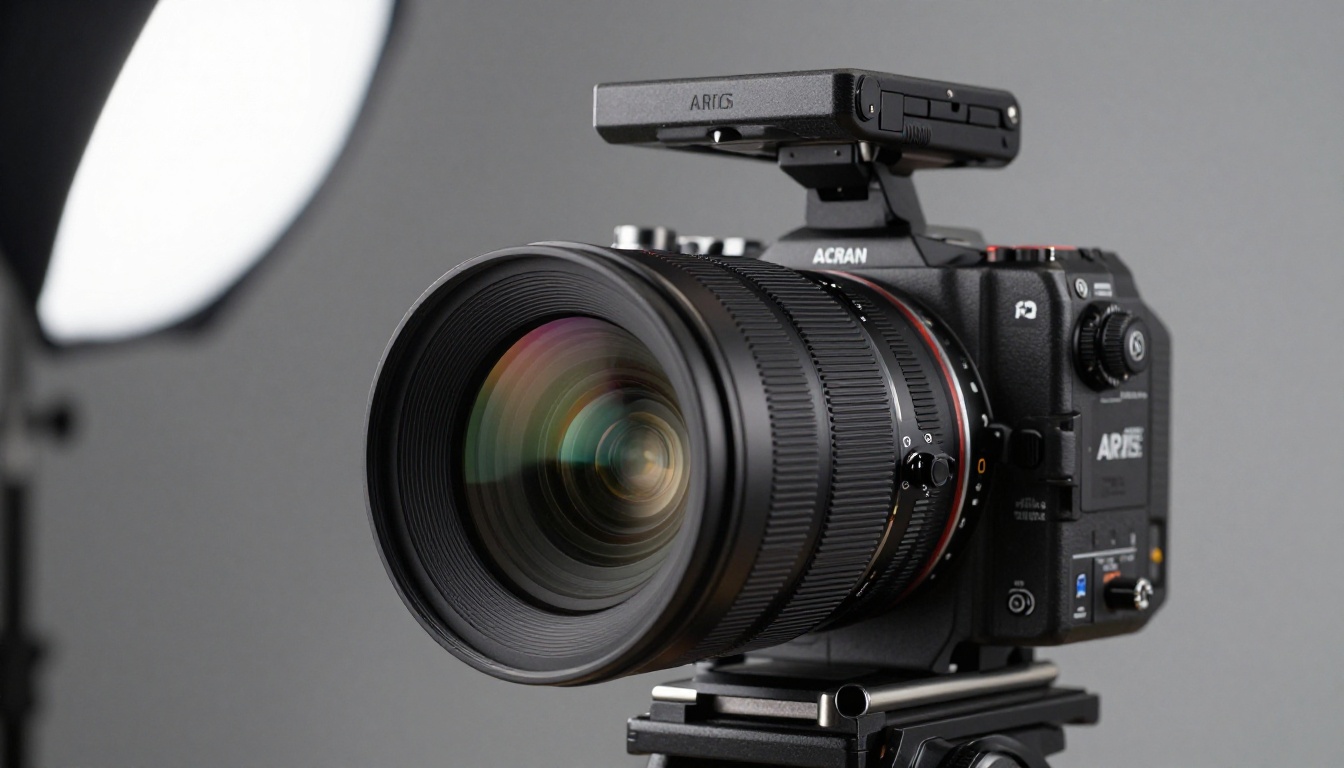
Veo 3.1 is available directly on PicassoIA with no local setup, no API configuration, and no per-session usage caps. Here is how to go from blank prompt to finished cinematic clip.
Step 1: Open the Model Page
Navigate to the Veo 3.1 model page on PicassoIA. The text prompt input field is front and center, alongside the main generation parameters.
Step 2: Write Your Prompt Using the 4-Part Formula
Combine your subject, environment, lighting, and camera descriptors into a single flowing description. Do not use bullet points inside the prompt itself. Write it as a continuous scene description, the way you would narrate a shot to a cinematographer.
Example prompt:
"A young woman walking slowly through a pine forest at golden hour, warm amber light filtering through the tree canopy from the right side and casting long shadows across the forest floor, shot from behind at shoulder height with a 50mm lens, handheld with a natural slight sway, shallow depth of field blurring the trees ahead into soft bokeh."
Step 3: Set Aspect Ratio and Duration
For cinematic output, select 16:9 aspect ratio. Choose a duration between 5 and 10 seconds. Shorter clips are easier to control and look more intentional. Longer clips increase the chance of drift in motion and physics consistency.
Step 4: Generate and Review
Hit generate. Veo 3.1 typically returns results in under two minutes. Review for three things:
- Motion consistency: Does the subject move naturally throughout the clip?
- Lighting accuracy: Is the light doing what you described?
- Composition stability: Does the frame hold steady or drift unexpectedly?
Step 5: Iterate or Export
If the result is close but not right, adjust one variable at a time. Change the lighting descriptor, the camera angle, or add more environmental texture. Do not change everything at once. Small, targeted prompt iterations produce the cleanest improvements.
When you want faster generation with similar visual quality, Veo 3.1 Fast is on the same platform and cuts generation time significantly while preserving most of the 1080p output quality.
Veo 3.1 vs Veo 3 vs Veo 3.1 Fast
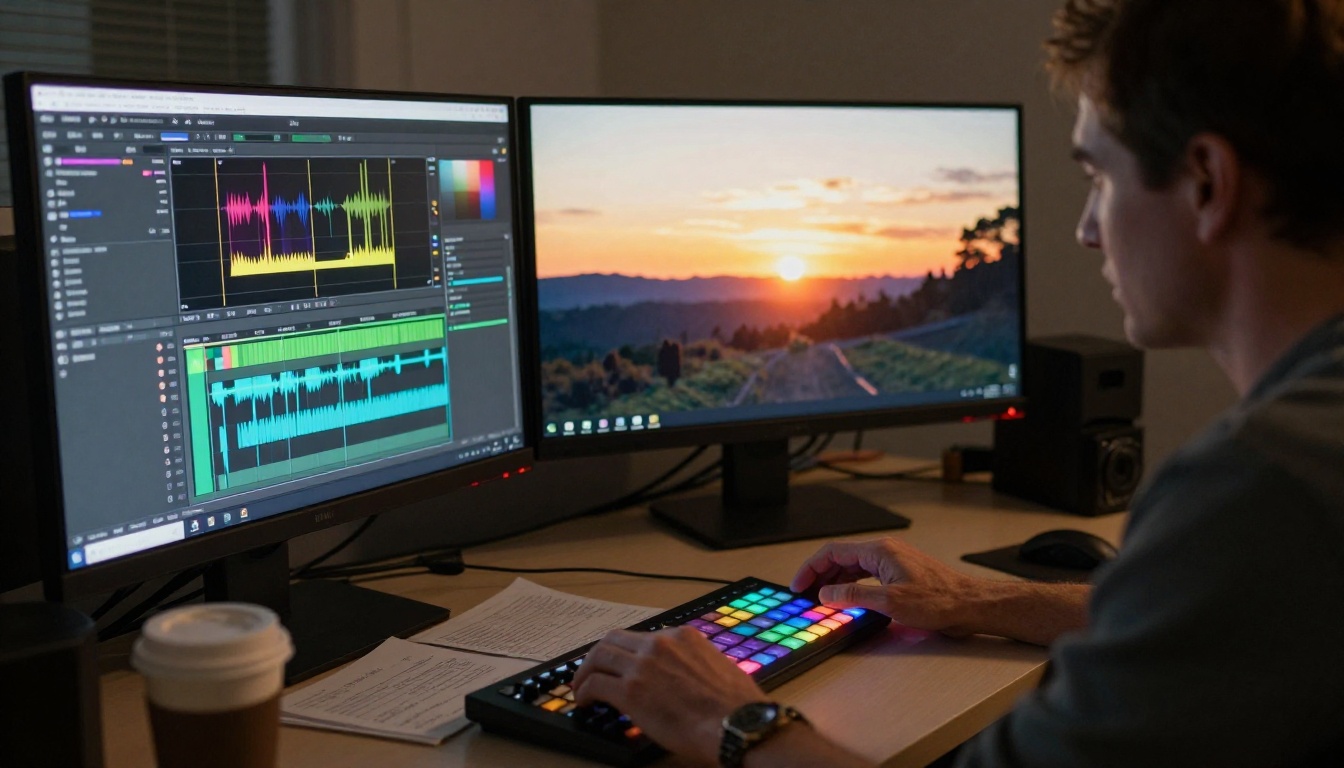
Choosing the right version of the Veo model depends on your project requirements. Here is how the three main options compare:
| Feature | Veo 3 | Veo 3.1 | Veo 3.1 Fast |
|---|
| Resolution | Up to 1080p | Native 1080p | Native 1080p |
| Physics Accuracy | Good | Excellent | Very Good |
| Audio Generation | Yes | Yes, refined | Yes |
| Generation Speed | Standard | Standard | Fast |
| Best For | General use | Cinematic work | Rapid iteration |
💡 Use Veo 3.1 when final quality is the priority. Switch to Veo 3.1 Fast when you are testing multiple prompt variations before committing to a full render.
Color Grading Your Output
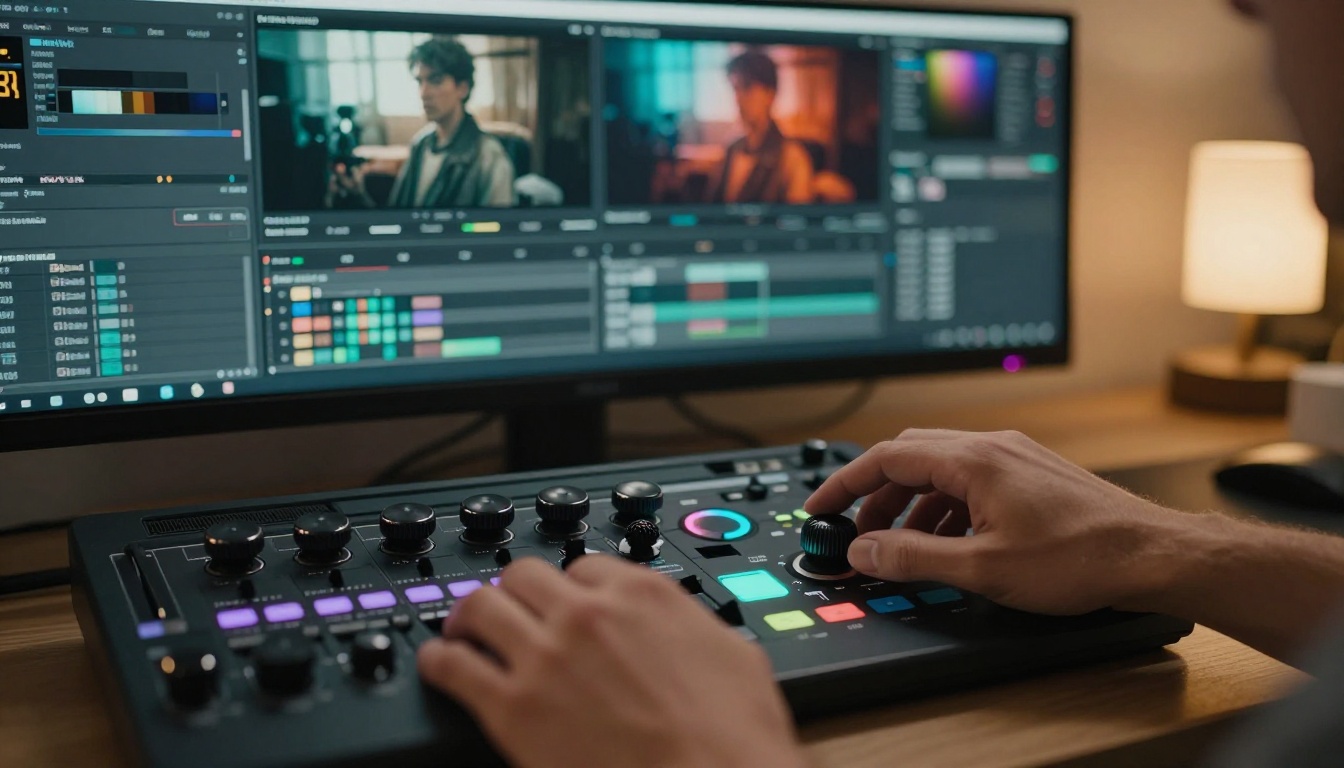
Veo 3.1 delivers footage that already carries a strong visual identity, but color grading takes it further. The output from Veo 3.1 arrives in a natural color profile, giving you headroom to push it in any direction without fighting an aggressive baked-in look.
Cinematic Looks to Try
Teal and Orange remains the dominant cinematic color treatment for a reason. It separates skin tones (orange) from environmental tones (teal), creating visual contrast that immediately feels premium. Apply it by warming highlights and cooling shadows.
Bleach Bypass desaturates and boosts contrast simultaneously, giving footage a gritty, silver-halide texture that works well for urban and dramatic content.
Cross-Process shifts the color channels independently, producing unexpected color casts that feel raw and editorial. It works particularly well with portrait and documentary-style shots from Veo 3.1.
Other Tools to Pair with Veo 3.1
PicassoIA also offers tools that extend what you can do after generation:
- AI Video Enhancement models for upscaling, stabilizing, and restoring footage
- Video Editing tools for stylizing and cutting your clips
- Kling v3 Video as an alternative cinematic model when you want a different motion aesthetic
- Seedance 2.0 for AI video generation with native audio on a different architecture
3 Shot Examples with Full Prompts
These are production-ready prompts you can use directly in Veo 3.1. Each one targets a different emotional register.
Shot 1: Quiet Solitude
"An elderly man sitting alone on a wooden bench in an empty winter park, bare trees surrounding him with frost on the branches catching weak afternoon light, his coat collar turned up, a newspaper folded on the seat beside him, shot from a medium distance with a 135mm telephoto lens compressing the background tree line, static locked-off frame, soft overcast light with no harsh shadows, muted cool color palette, ambient winter silence."
Emotional register: Melancholy, contemplative. Works for documentary, drama, commercial narratives.
Shot 2: Physical Power
"A male athlete sprinting at full speed on an athletics track at dawn, wet rubber track surface reflecting the low horizon sun, shot from a low side angle at knee height tracking alongside him with a 35mm lens, motion blur on his legs communicating raw speed, stadium seating blurred in the background at f/2.0, volumetric morning light from the left with long directional shadows, sound of footfalls and breath."
Emotional register: Energy, ambition, determination. Works for sports brands and motivational content.
Shot 3: Intimate Glamour
"A woman in her thirties sitting at the edge of an outdoor infinity pool at dusk, wearing a minimal swimsuit, legs resting in the still water, looking out toward a distant mountain silhouette catching the last light of day, shot from water level looking up at a slight angle with an 85mm lens, warm golden backlight creating a halo around her hair, the pool water catching pink and orange reflections, soft focus on the background, gentle ambient sound of water movement."
Emotional register: Aspirational, peaceful, luxurious. Works for hospitality, lifestyle, and beauty brands.
Start Shooting Today
The gap between a prompt that produces generic video and one that produces cinematic video is smaller than most people expect. It comes down to specificity. Every vague word in your prompt is a decision you hand off to the model. Every specific detail is a decision you keep for yourself.
Start with the 4-part formula. Pick a shot type that fits your story. Choose a lighting condition that creates the emotional weight you want. Name your lens and your camera position. Then let Veo 3.1 do what it does best.
PicassoIA puts Veo 3.1, Veo 3.1 Fast, Veo 3, and over 80 other video models in a single platform so you can test multiple approaches without switching tools. If you want to compare how Kling v3 Video or Hailuo 2.3 handle the same prompt, you can do it in the same session.
Take one of the example prompts above, modify the subject to something from your own project, and run it through Veo 3.1 on PicassoIA. Iterate once. The results will show you exactly how much is possible with precise, intentional prompting.


