You've generated a stunning AI image, everything looks almost perfect, but the background is wrong, the lighting is off, or you wish two different photos could somehow blend into one. That's exactly where Nano Banana 2 steps in. Built by Google and powered by Gemini 3.1, this model was designed specifically for editing and fusing AI images with nothing more than a text prompt. No layers, no masks, no Photoshop knowledge required.
What Nano Banana 2 Actually Does
Nano Banana 2 is not your typical text-to-image generator. While models like Flux Dev or Imagen 4 focus on creating images from scratch, Nano Banana 2 is built for working with existing images. You bring a photo, you write what you want changed, and the model figures out the rest.
This shifts the entire workflow. Instead of generating dozens of variations hoping one looks right, you start with something close to your vision and refine it precisely with language.
The Fusion Feature
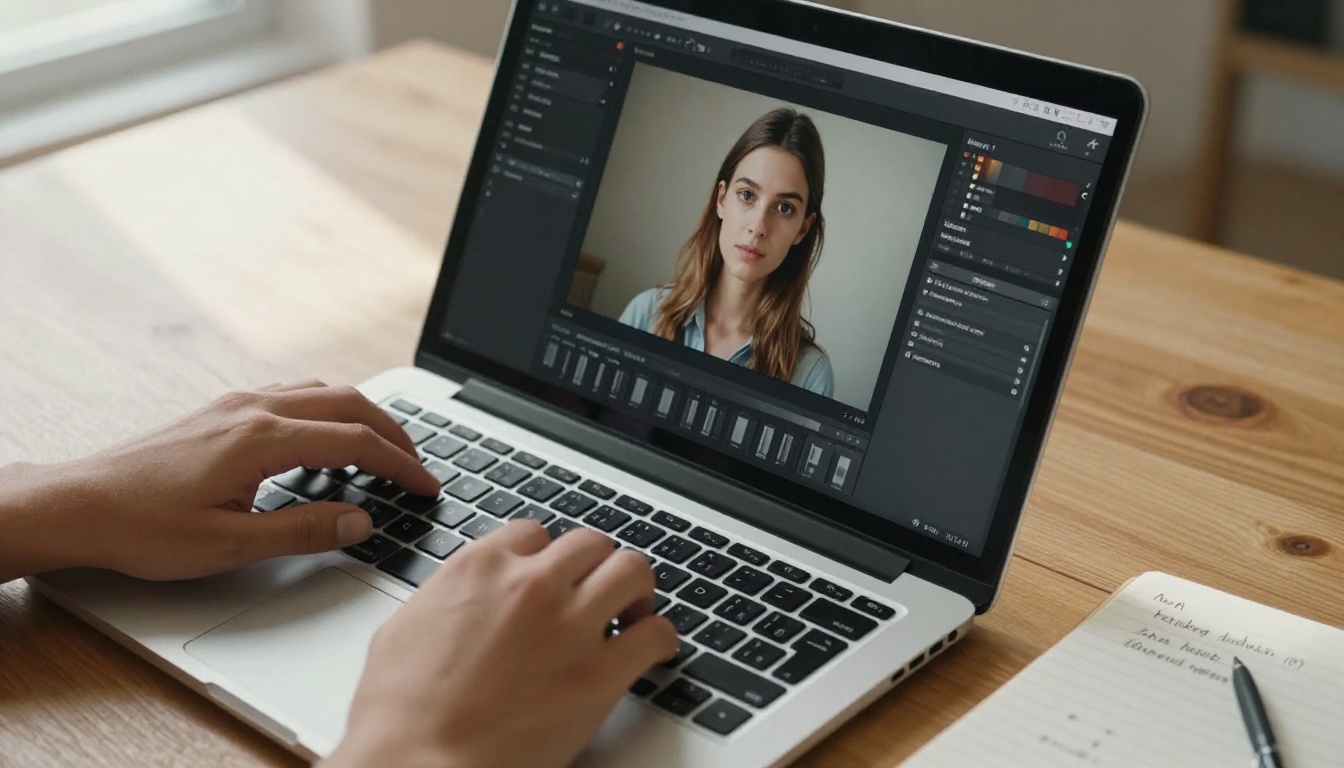
One of the most distinctive capabilities of Nano Banana 2 is image fusion. You can provide two separate images and instruct the model to blend them together in a coherent way. The result is not a simple overlay but a genuinely synthesized scene where both sources contribute naturally.
This is useful for:
- Combining a portrait with a new environment: Place a subject photographed indoors into a beach, forest, or cityscape
- Merging two aesthetic references: Take the lighting from one photo and the composition from another
- Blending product images with lifestyle scenes: Great for e-commerce and social content
💡 Tip: When fusing two images, describe the relationship between them in your prompt. Instead of "merge these," try "place the subject from image 1 into the scene from image 2, matching the natural lighting direction."
Prompt-Driven Editing
Nano Banana 2 responds to natural language descriptions of what you want changed. You don't select areas manually. You simply describe the edit:
- "Change the background to a snowy mountain landscape"
- "Make the lighting warmer and more golden"
- "Remove the object on the left side"
- "Add a soft bokeh effect to the background"
The model interprets your intent and applies the change while preserving what you did not mention. This is one of the core strengths: selective attention. It edits what you ask and leaves the rest intact.
How to Use Nano Banana 2 on PicassoIA
Nano Banana 2 is available directly on PicassoIA with no setup, no API keys, and no local installation. Here's how to get your first edited image in under two minutes.
Step 1: Open the Model
Go to the Nano Banana 2 page on PicassoIA. You'll see the input panel on the left and the output preview on the right. The interface is clean and fast. No account required to try the free tier.
Step 2: Upload Your Source Image
Click the image upload area and select the photo you want to edit. This can be:
For image fusion, you can upload a second reference image as well.
Step 3: Write Your Edit Prompt
This is where most people either get great results or mediocre ones. The prompt is your instruction set. Be specific about:
- What to change: "Replace the background with..."
- What to keep: "Keep the subject's face and clothes unchanged"
- Style or mood: "Warm golden hour lighting, soft shadows"
- Any fusion instructions: "Blend the background from the second image naturally"
💡 Tip: Adding "preserve all other details" at the end of your prompt dramatically improves consistency. The model treats unmentioned areas as protected.
Step 4: Adjust Parameters and Generate
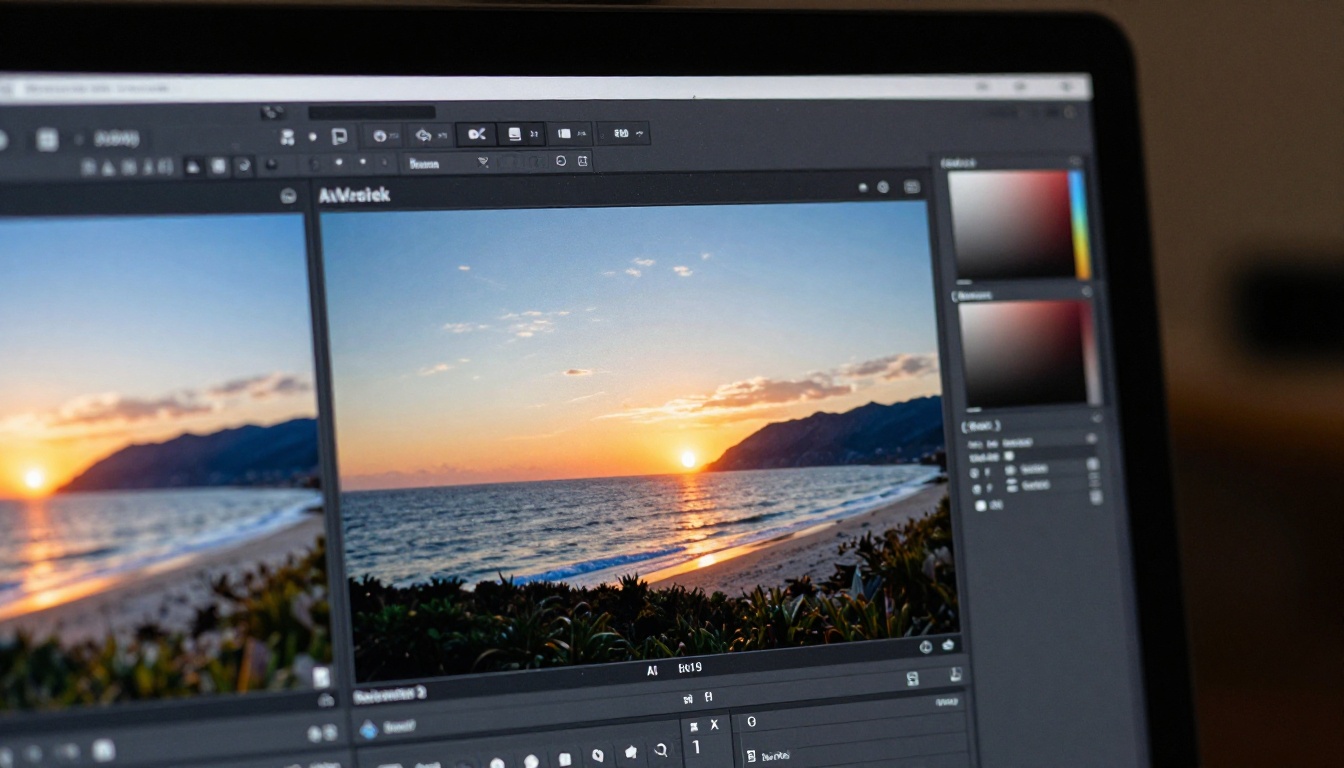
Nano Banana 2 has a few main parameters you can tune:
| Parameter | What It Does | Recommended Value |
|---|
| Guidance Scale | Controls how strictly the model follows your prompt | 7-10 for precise edits |
| Seed | Locks randomness for reproducible results | Set any fixed number |
| Steps | Denoising iterations, quality vs. speed | 30-50 for final output |
Hit generate and wait a few seconds. If the result is close but not perfect, iterate the prompt rather than regenerating with the same text. Small adjustments often produce big improvements.
Step 5: Save and Iterate
Download your result and compare it against your original. Most users find the sweet spot after 2-3 prompt refinements. The trick is to treat each generation as a conversation, not a one-shot request.
Nano Banana 2 vs Nano Banana vs Nano Banana Pro
Google has released several models in this family. Each targets a different use case:
If your goal is editing an existing image, Nano Banana 2 is the right choice. If you need to generate a fresh 4K image from scratch, Nano Banana Pro handles that better. The original Nano Banana is great for quick drafts.
Best Use Cases for Image Editing
Nano Banana 2 fits naturally into several real workflows. Here's where it genuinely performs.
Background Replacement
This is the most common edit request, and Nano Banana 2 handles it with remarkable coherence. Unlike simple background removal tools, it doesn't just cut and paste. It relights the subject to match the new environment.
Try prompts like:
- "Replace the grey studio background with a sun-drenched Amalfi Coast terrace, adjust ambient light to match"
- "Change the background to a modern minimal white office, keep the subject's original lighting"
Style and Mood Changes
You can shift the entire emotional tone of an image without touching the composition:
- Changing flat overcast light to golden hour warmth
- Converting a casual photo feel to editorial magazine aesthetic
- Adding film grain and color cast to mimic analog photography
💡 Tip: Reference specific film stocks in your prompt, "Kodak Portra 400 color grading, slight halation on highlights," for more precise mood control. Nano Banana 2 responds well to photographic language.
Image Fusion and Blending
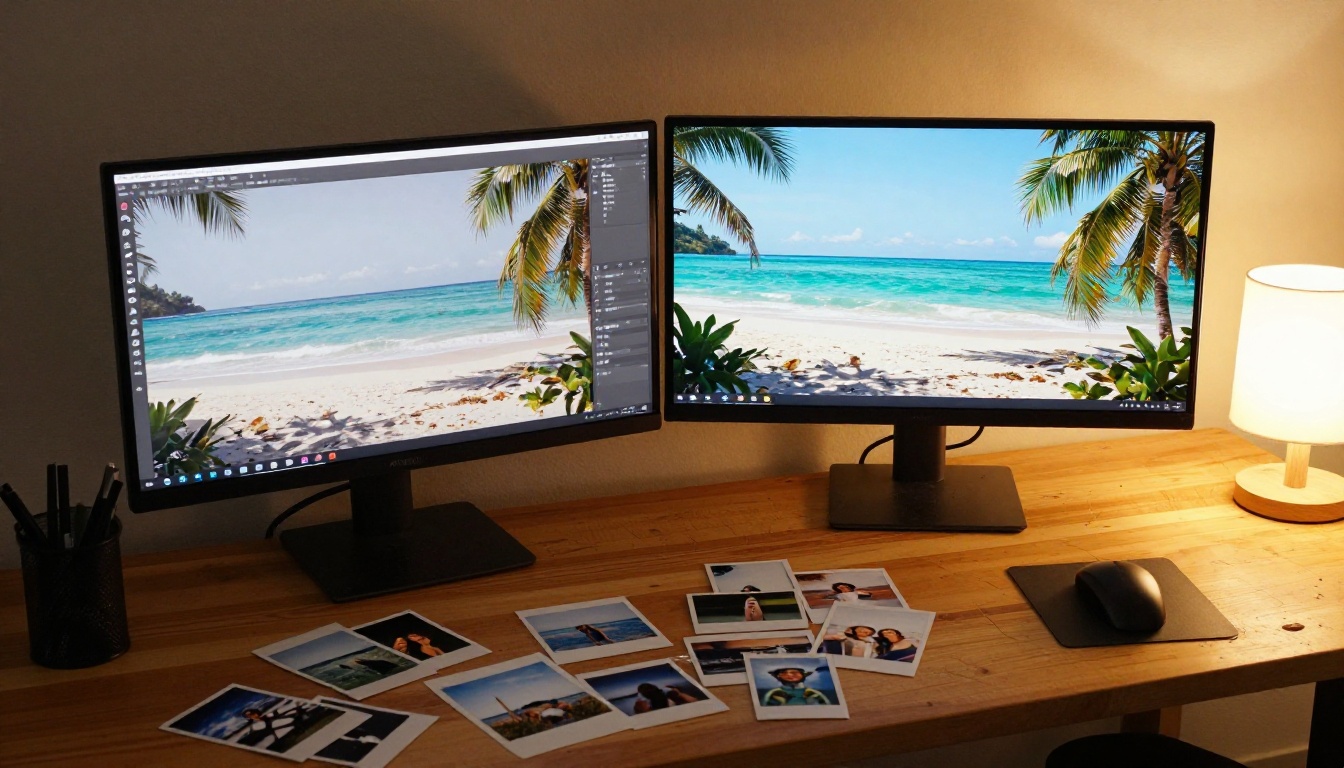
The fusion capability is where Nano Banana 2 truly separates itself from other editing tools. Upload a portrait from one session and a landscape from another, then describe how you want them combined.
This has practical value for:
- Social content creators combining multiple shoot assets
- Photographers replacing skies or adding atmospheric elements
- Marketing teams placing products in aspirational lifestyle contexts
Writing Better Edit Prompts
The difference between a good result and a great one almost always comes down to the prompt. Nano Banana 2 is powerful, but it needs clear direction.
Be Specific About What Changes
Vague prompts produce inconsistent results. Compare these two approaches:
Weak prompt: "Make it look better"
Strong prompt: "Warm the overall color temperature, add soft directional lighting from the upper left, reduce harsh shadows under the chin, keep the subject's face, hair, and clothing completely unchanged"
The second prompt tells the model exactly what to modify and what to protect.
Reference the Original
Nano Banana 2 performs best when you acknowledge the source image in your prompt. Phrases like "while maintaining the original composition" or "keeping the existing subject" signal to the model that you want evolution, not replacement.
Use Negative Prompting
Power users add what they don't want at the end:
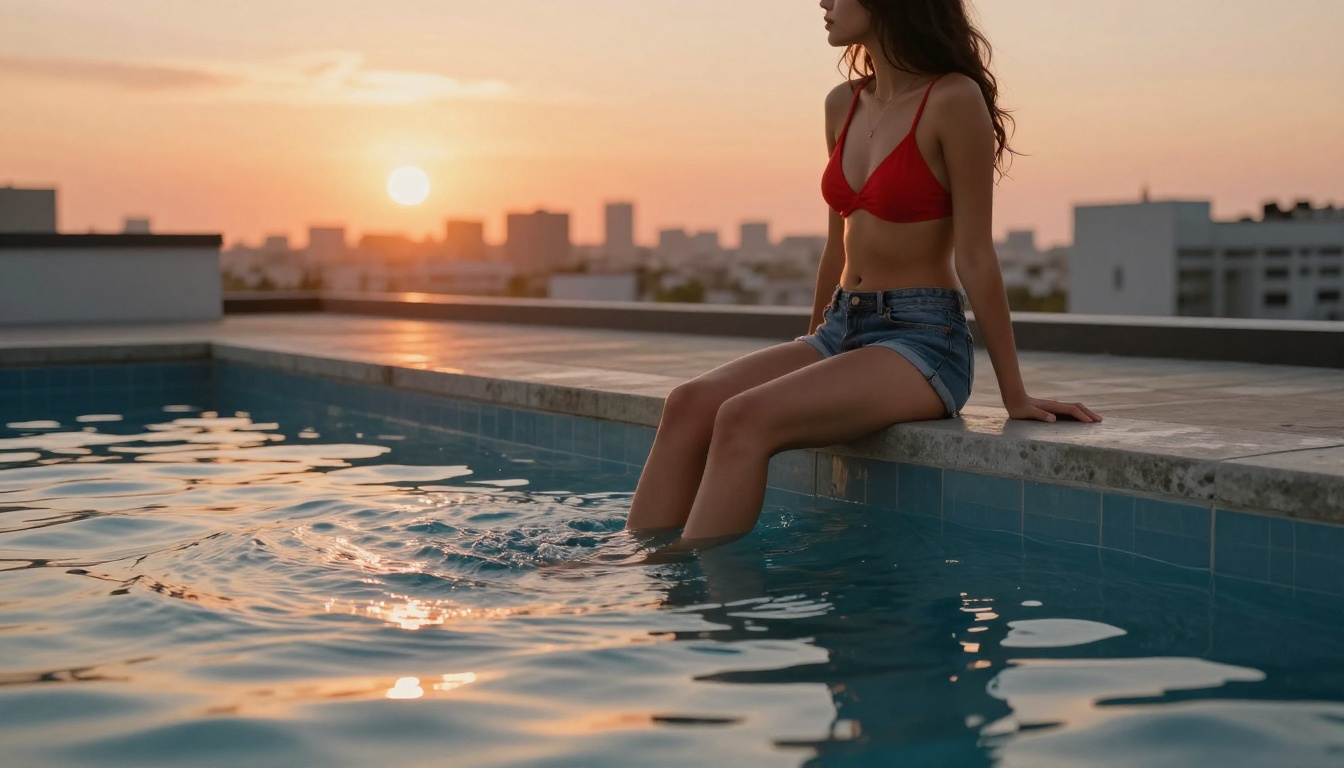
"... do not add any people, do not change the subject's face, avoid over-saturation"
This steers the model away from common hallucinations and helps preserve critical details.
Prompt Length and Structure
A well-structured edit prompt follows this pattern:
- Action: What are you changing?
- Subject protection: What must stay the same?
- Environment and style: What should the new context look, feel, or light like?
- Technical notes: Film stock, lens feel, resolution cues
Keeping each prompt between 40 and 80 words hits the sweet spot. Too short and the model guesses. Too long and it can contradict itself.
Other Editing Models Worth Trying
Nano Banana 2 excels at fusion and natural editing, but the platform offers other models built for specific editing tasks:
Each model has a different approach to editing. Flux Kontext Pro is particularly strong when you need to rewrite specific elements of an image with precise text instructions. P Image Edit is the fastest option if speed matters more than pixel-perfect output.
For portrait retouching and glamour photography workflows, Qwen Image Edit Plus LoRA gives deep style control with LoRA fine-tuning applied during the edit.
Common Mistakes and How to Fix Them
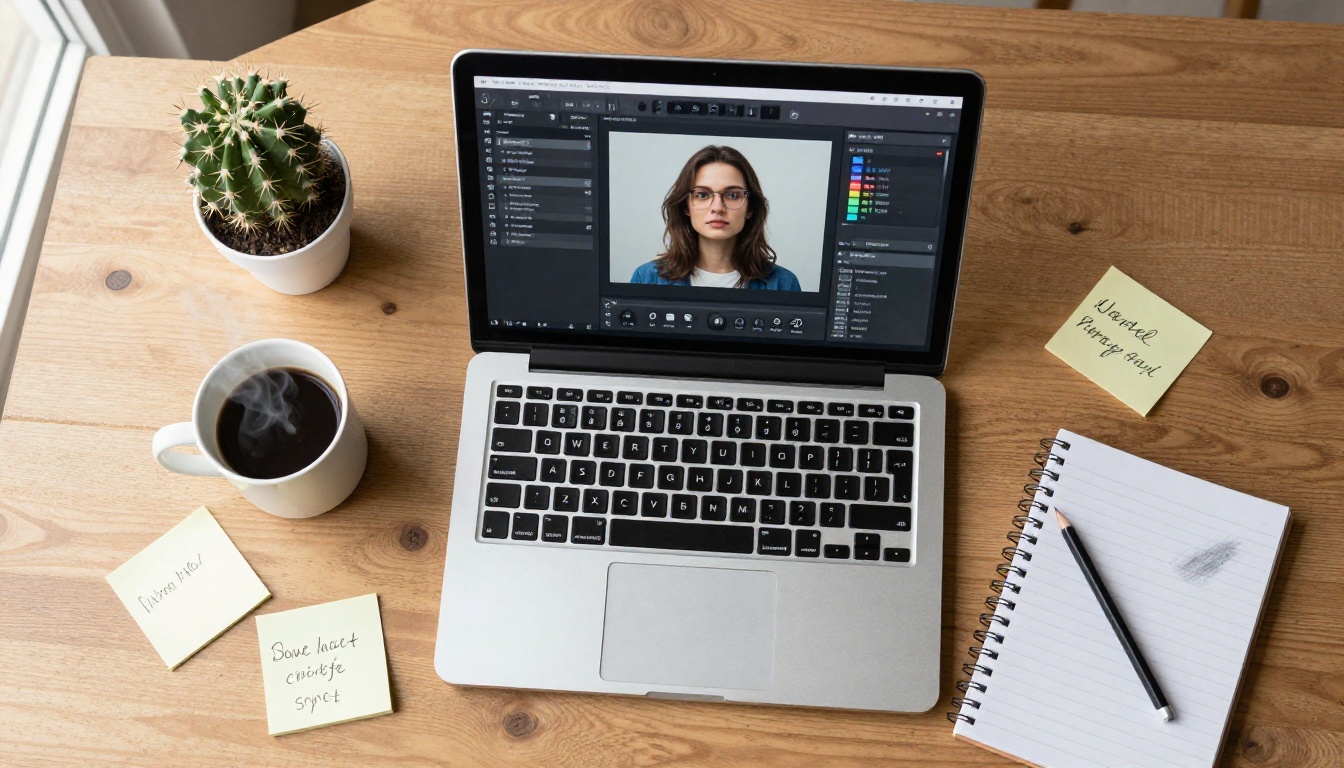
Even with a solid model like Nano Banana 2, there are a few patterns that lead to poor results.
1. Uploading a low-resolution source image
The model can only work with what you give it. A blurry 512px source will produce a blurry 512px edit. Start with the highest quality source you have. If you need to upscale first, use a super-resolution model before editing.
2. Asking for too many changes at once
Trying to change the background, lighting, clothing, and facial expression in a single prompt overloads the model's instruction set. Edit in stages: fix the background first, then adjust the lighting in a second pass.
3. Not using a fixed seed for iteration
When you find a result that's almost right, lock the seed before tweaking the prompt. This lets you make targeted adjustments without losing the good parts of the previous generation.
4. Forgetting to protect the subject
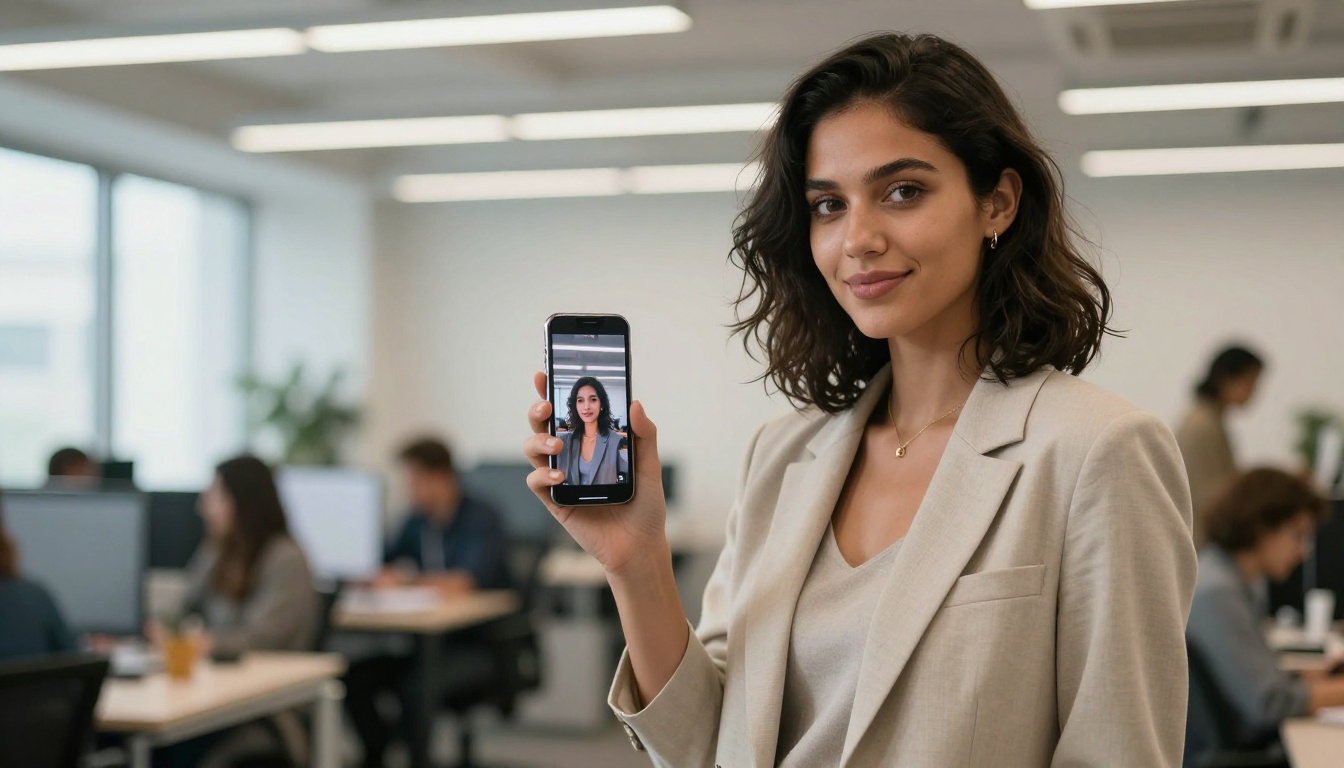
Without explicit protection instructions, the model may alter your subject along with the background. Always include "keep the subject's appearance unchanged" unless you want the subject to change too.
What Gemini 3.1 Changes
Nano Banana 2 runs on Google's Gemini 3.1 architecture, which brings concrete improvements over earlier versions:
- Better instruction following: The model is more accurate at parsing complex, multi-condition prompts
- Improved spatial awareness: It better grasps the positional relationships between elements in the image
- Stronger subject preservation: The model has been specifically tuned to protect areas you didn't ask it to change
- Higher coherence in fusions: When blending two images, the lighting and color grading of the output is more physically consistent
These improvements translate directly to fewer iterations needed and more predictable results from the first generation.
💡 Tip: Because of the stronger instruction following in Gemini 3.1, you can now use more complex conditional prompts like "if the background is dark, add moonlight; otherwise keep the existing ambient light" and the model will interpret this correctly in most cases.

Try It Right Now
The fastest way to see what Nano Banana 2 can do is to run it on an image you already have. Take a photo from your phone, upload it, and write one clear edit prompt. That first result will show you exactly what the model is capable of in your specific use case.
PicassoIA gives you access to Nano Banana 2 alongside over 90 other text-to-image models including Flux Dev, Imagen 4, and Flux Kontext Pro, all accessible from the same platform with no switching cost. You can generate a base image with one model and edit it with another in the same session.
Whether you're a photographer looking to speed up retouching, a content creator building visual assets, or someone experimenting with AI imagery for the first time, the editing workflow with Nano Banana 2 is fast, iterative, and surprisingly precise. Start with one image, write one prompt, and see where it takes you.


