Your app has three seconds to make someone feel at home. Three seconds to signal that this product was built with real people in mind. And nothing communicates a rushed launch faster than a grey silhouette sitting where a personality should be.
AI avatars solve this instantly. Whether you're building a social platform, a dating app, a multiplayer game, or an enterprise tool, letting users create custom AI profile images removes a genuine barrier to engagement. The problem is that most developers don't know where to start, or they try one model, get mediocre results, and move on. This breakdown covers the best AI models for avatar generation, how to use them step by step, and how to write prompts that actually produce the results your app deserves.
Why App Avatars Matter More Than You Think
The grey silhouette problem
The default profile picture is a psychological signal. When users see it, they read "unfinished" or "abandoned." Research on social platforms consistently shows that profiles with real photos or custom avatars receive significantly more interactions than blank ones. In apps where users see each other, the avatar is often the first data point processed before reading a single word of a bio, username, or product listing.
For app developers, this creates a real UX problem. Asking users to upload a real photo creates friction and privacy concerns. Generating nothing creates disengagement. AI avatars are the middle path: personal, attractive, and zero effort from the user's side.
What high retention looks like
Apps that offer in-app avatar generation see measurable differences in onboarding completion rates. When a user creates an avatar during signup, they have made a micro-investment in their profile. That investment translates to return visits. It's not magic, it's just identity. People come back to things that feel like them.
💡 Tip: Offer avatar generation as part of your onboarding flow, not as a buried settings option. The completion rate difference is significant when it's step two in signup versus an optional profile edit no one finds.
The numbers behind user identity
Apps in competitive categories, from fitness to finance, have documented onboarding drop-off at the profile picture step. When that step involves creating a custom AI avatar rather than uploading a photo, the drop-off shrinks. Users who personalize their profile in the first session have consistently higher 30-day retention rates than those who don't. The avatar is not decoration. It's an anchor.
What Makes a High-Quality App Avatar
Resolution, format, and consistency
Not all avatars are created equal. A photorealistic headshot that looks stunning on a desktop display will pixelate badly if you don't handle the output correctly. For most apps, the minimum useful resolution is 512x512 pixels for display, but you should generate at 1024x1024 or higher and scale down for crisp rendering across devices.
Key format considerations by app type:
| App Type | Recommended Size | Format | Style Notes |
|---|
| Social platforms | 400x400px | WebP/JPEG | Realistic portraits work best |
| Gaming | 256x256px | PNG with transparency | Stylized characters encouraged |
| Business tools | 300x300px | JPEG | Clean, professional headshots |
| Dating apps | 512x512px | JPEG | High detail, natural lighting |
| Marketplaces | 200x200px | WebP | Simple, clearly lit portraits |
Style that fits your brand
One of the most common mistakes in app development is allowing wildly inconsistent avatar styles. If one user has a watercolor illustration and another has a photorealistic portrait and a third has a pixel art sprite, the visual cohesion of your entire product breaks down.
Before you pick a model, decide on a visual language. Are you building a realistic app where users want to look like themselves? A stylized platform with a specific aesthetic? A professional tool where everyone needs to look polished and credible? The model you choose should serve that decision, not the other way around.
The Best AI Models for Avatar Creation
The models you use determine everything. Here's what's currently delivering the best results across different avatar use cases.
AI Avatars by Easel AI
The most direct tool for this job is AI Avatars by Easel AI. You feed it a face photo and it generates high-quality avatar variations across multiple styles. The output is designed specifically for profile use, with clean compositions, consistent framing, and strong facial fidelity. If your app needs avatars that actually look like the user, this is the first model you should test.
What sets it apart is the face-preservation quality. Many general-purpose image models blur or subtly "improve" facial features in ways that make the avatar look like a stranger. AI Avatars prioritizes identity retention above stylistic transformation.
Flux Pro and Flux 1.1 Pro
For text-to-image avatar creation where the user describes their look rather than uploading a photo, Flux Pro and Flux 1.1 Pro are the current industry standard. Both models produce photorealistic outputs with exceptional skin texture, lighting accuracy, and facial detail.
Flux Pro handles complex, layered prompts with impressive precision. Flux 1.1 Pro adds generation speed without sacrificing output quality, making it the stronger choice for apps that need to produce avatars in near real-time during onboarding.
💡 Tip: For photorealistic app avatars, include "85mm f/1.8 portrait lens, natural skin texture, studio lighting, photorealistic" in your base prompt. These technical details consistently push output toward realistic rather than illustrated.
Professional Headshot
If your app serves professionals, freelancers, consultants, or anyone who needs a corporate-facing profile, Professional Headshot is purpose-built for exactly that. It takes an existing photo and applies professional portrait conventions: clean backgrounds, polished lighting, appropriate business attire framing.
This is particularly useful for B2B apps, HR platforms, recruitment tools, or any product where users want to look credible without paying for an actual photography session.
Face to Many Kontext
Face to Many Kontext takes a single portrait and generates multiple stylistic variations while keeping the identity consistent. This is ideal for apps that want to offer avatar style packs, where a user can switch between a realistic version, a stylized version, and a professional version, all generated from one source photo.
The identity preservation in Face to Many Kontext is strong enough that the variations feel like the same person in different contexts rather than different AI-generated strangers wearing similar features.
Portrait Series
Portrait Series expands on the same concept, generating a cohesive set of portraits in different styles, lighting setups, and compositions from one input image. For apps with rich profile sections or games with character selection screens, this model produces ready-to-use avatar sets that feel designed rather than randomly assembled.
How to Use AI Avatars on PicassoIA
PicassoIA gives you direct browser access to all the models above without any API setup, GPU, or local installation. Here's the full workflow for generating your first batch of app-ready avatars.
Step 1: Open the AI Avatars model
Go to AI Avatars on PicassoIA. You'll see the model interface with input fields and style options. No account creation is required to test the model and see what quality looks like before committing to any setup.
Step 2: Prepare your input photo
The quality of your input photo directly determines the quality of the output. Use a clear, front-facing portrait with good lighting. Avoid low-resolution images, heavy filters, or photos where the face is partially obscured.
Photo checklist before upload:
- Minimum 300x300 pixels
- Face clearly visible and centered in frame
- Natural or neutral lighting with no harsh shadows
- No sunglasses, hats, or accessories blocking the face
- Single person in frame with minimal background distraction
Step 3: Select your output style
The model offers several style presets. For app use cases, "photorealistic" and "professional" styles produce the most versatile outputs. If you're building a gaming app, the stylized presets can produce character-like results that fit that visual context better.
You can also supplement with a text prompt to steer the output. This is where specificity pays off. "Professional business portrait, navy blazer, clean background" produces a very different result from "casual outdoor portrait, golden hour lighting." Both are correct, they just serve different apps.
Step 4: Download and integrate
Once generated, download the image at the highest available resolution. Run it through a background removal tool if your app uses circular avatar displays or requires transparency. Compress to WebP format for the best balance of quality and file size in a production app environment.
Avatar Styles by App Type
Different apps need fundamentally different avatar aesthetics. Using the wrong style for your platform creates visual dissonance that users feel even when they cannot name the source of it.
Social and dating apps
For social platforms, avatars need to feel personal, warm, and authentic. The Flux Dev model handles this context well, producing natural-looking portraits with flattering but realistic lighting. Avoid anything that looks overly polished or corporate on consumer social apps. It reads as fake, and users in social contexts are highly attuned to that feeling.
Prompt direction for social apps: Focus on natural environments, soft ambient lighting, candid posture. Something like: "Young woman in her twenties, outdoor natural light, casual white shirt, soft bokeh background, 85mm lens, photorealistic" produces exactly the warm, approachable quality these apps need.
Gaming apps
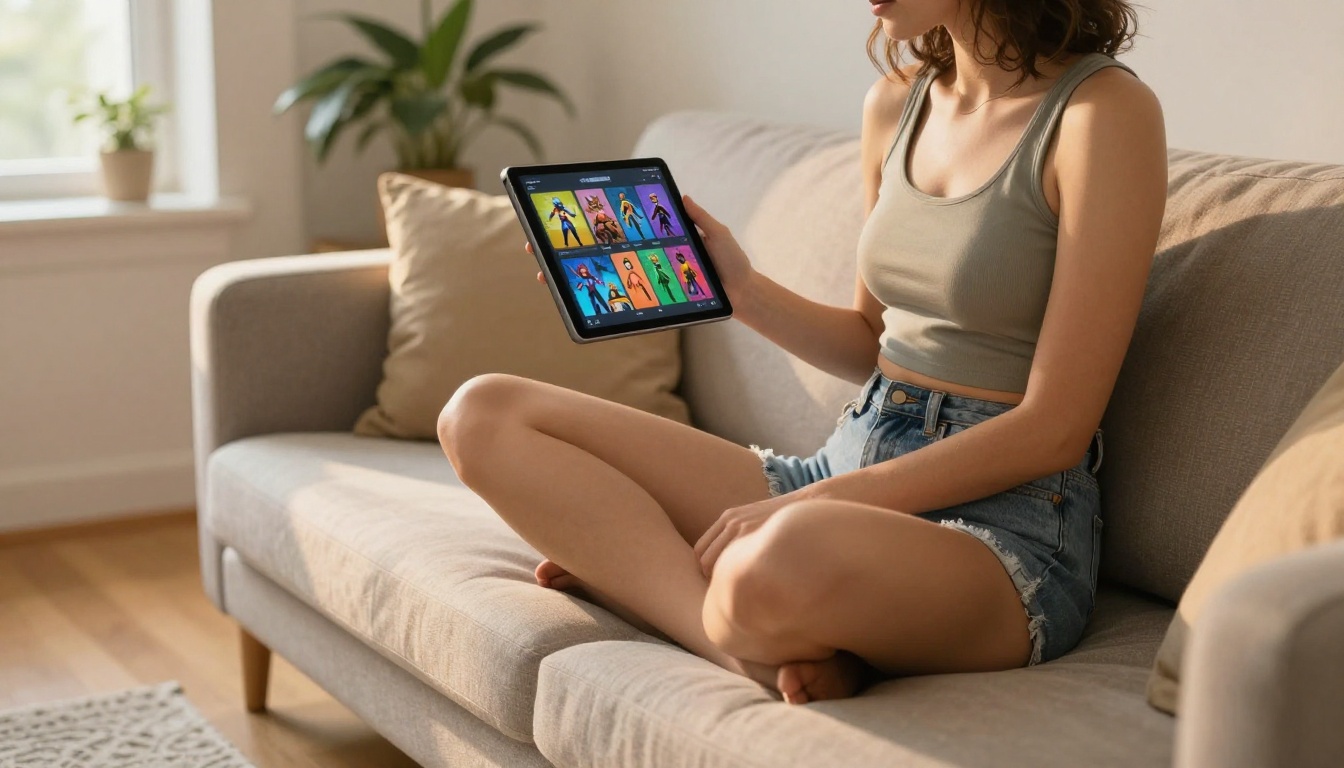
Games have more visual freedom, and users on gaming platforms expect something that doesn't look like a LinkedIn profile photo. SDXL gives you the range to produce stylized portraits that sit between photorealism and illustration, which is exactly where most game art lives.
For games with defined cinematic visual styles, Realistic Vision v5.1 adds a slight dramatic quality that reads as "game art" rather than "photograph." This often fits gaming interfaces more naturally than pure photorealism.
Business and professional tools
Corporate apps, SaaS platforms, HR tools, and B2B products all need the same thing: avatars that look credible without being distracting. The Professional Headshot model was built for exactly this context.
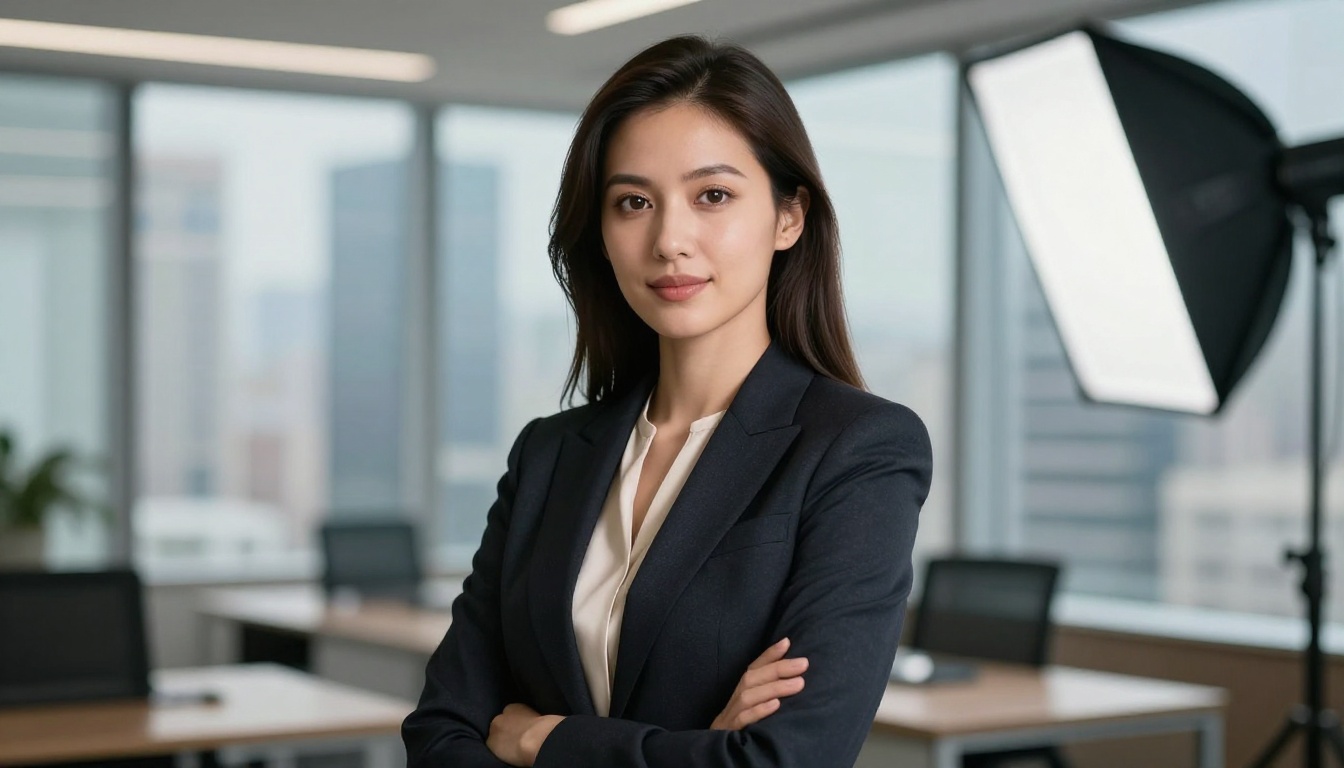
Keep the aesthetic focused: neutral backgrounds, business attire, centered framing, clean directional lighting. Users on professional platforms want to look competent. They're not looking for a dramatic portrait, they're looking for a photo they'd actually put on a business card.
Writing Prompts That Actually Work
The difference between a mediocre AI avatar and a great one is almost entirely in the prompt. The model can only produce what you describe. Vague inputs produce generic outputs every time.
The anatomy of a strong avatar prompt
Every effective avatar prompt follows the same structure: Subject description + Environment/background + Lighting conditions + Camera specs + Quality modifiers.
Working examples for each app type:
Social app avatar:
"Portrait of a woman in her late twenties, outdoor cafe background softly blurred, warm afternoon side lighting, natural skin, casual fitted shirt, 85mm f/1.8 lens, photorealistic, Kodak Portra 400 color"
Gaming avatar:
"Male warrior character, mid-twenties, strong jaw, neutral expression, dark background with subtle ambient light, cinematic 70mm portrait, realistic skin texture, slight film grain"
Professional headshot:
"Business professional woman, early thirties, dark blazer, white shirt, neutral gray background, soft studio octabox lighting, 85mm portrait, crisp professional photo quality"
💡 Tip: Always specify "photorealistic" explicitly. Without it, many models default to a slightly illustrated look that breaks the realism your app users expect.
Mistakes that produce weak outputs
The most common prompting errors and how to correct them:
- Too vague: "A nice person" gives the model nothing to work with. Be specific about age range, expression, clothing, and environment.
- Conflicting styles: Asking for "photorealistic watercolor portrait" confuses the output. Pick one visual direction.
- No lighting detail: Lighting direction and quality is the single biggest lever on portrait quality. Always specify it.
- Missing camera context: Adding "85mm f/1.8" or "50mm f/2.0" shapes the compression and depth-of-field dramatically.
- Overcrowded negative prompts: Massive lists of things to avoid often confuse models more than they help. Keep negatives short and specific to actual problems.

Bringing AI Avatars Into Your App
Generating great avatars is step one. Getting them properly integrated into your product is where most developers lose unnecessary time.
Format and export tips
WebP is the best format for web and mobile apps right now. It cuts file size by 25 to 35 percent compared to JPEG at equivalent visual quality, and it's fully supported across all major browsers and mobile operating systems. Generate at 1024x1024, then resize and compress to your target display size.
For apps with circular avatar crops, generate square (1:1) images whenever possible. The face should occupy at least 60 percent of the frame for circular crops to avoid losing important features to the edge trim.
Quick export checklist:
- Generate at 1024x1024 minimum
- Convert to WebP for production
- Resize to display size after conversion
- Use circular crop safe zones (face occupying 60%+ of frame)
- Strip EXIF metadata before storage
Batch generation at scale
If you need to generate default avatars for a large user base, or build out a diverse range of avatar options for your app's design system, Flux Kontext Pro supports image-to-image editing. This means you can take an existing avatar and systematically vary specific attributes, like expression, background, or lighting, while keeping the core identity stable.
This is the most efficient path to a diverse avatar library without generating everything independently from scratch.
💡 Tip: Build a base prompt template for your app's avatar style, then vary only one or two parameters at a time. This gives you a visually consistent set that still feels diverse enough to represent real users.
Other Models Worth Testing
Beyond avatar-specific tools, several other models on PicassoIA contribute to a complete avatar system for any app:
All of these run directly in your browser through PicassoIA, with no local GPU, no API configuration, and no installation required.
Build Your First Avatar Right Now
If your app is currently serving grey silhouettes or generic placeholder images, the fix is one afternoon of focused work. The models above are live on PicassoIA right now, accessible from any browser, with no setup required before you see your first result.
Start with AI Avatars for photo-based input where users want to look like themselves. Test Flux 1.1 Pro for text-to-portrait generation when users want a custom look. Use Professional Headshot if your app lives in a professional or corporate context. And if you want to offer users an entire set of styles from one photo, Portrait Series and Face to Many Kontext make that effortless.
The avatar is the first thing every user sees when they look at a profile. It's worth spending the time to make it count. Pick your model, run your first generation, and see what your app looks like when every user has an identity worth showing.


