How to Generate AI Images with Gemini 3: What You Need to Know Right Now
Gemini 3 from Google is reshaping what's possible with AI image generation. This article walks through exactly how to use it, what types of prompts work best, how its outputs stack up against other top models, and where platforms like PicassoIA fit when you need more control over your visual results. Whether you're a creative professional, social media manager, or just curious about what Google's AI can do with a single text prompt, this is where to start.
Gemini 3 changes the way anyone can approach visual content creation. Type a sentence, hit generate, and get a photorealistic image in seconds — no design skills required, no expensive software subscriptions. But if you've tried it and felt underwhelmed by the results, the problem probably isn't the model. It's the prompt.
This article breaks down exactly how Gemini 3 handles image generation, what makes it different from previous iterations, and the prompt strategies that separate average outputs from images you'd actually want to use.
What Gemini 3 Actually Does
More Than a Chatbot
Gemini 3 is Google's most capable multimodal AI to date. Where earlier versions excelled at text reasoning and basic image understanding, Gemini 3 integrates image generation natively into its core capabilities. You're not switching tools or APIs — the model itself reasons about your visual request and produces the output.
This matters because Gemini 3 can take context from a conversation. Tell it you're designing a product campaign for a coffee brand, and every image prompt you follow up with inherits that context. The outputs feel more coherent, more intentional.
How the Image Engine Works
Under the hood, Gemini 3's image generation draws from the same research lineage as Imagen 4 Ultra, which produces some of the sharpest photorealistic outputs available from any model today. The difference is that inside Gemini 3, those capabilities are wrapped in a conversational interface, making iteration faster and more intuitive.
The model handles three core types of image requests:
Text-to-image: Write a description, get an image
Image editing: Upload an image, describe the change
Style transfer: Apply a reference aesthetic to a new subject
What Gemini 3 Sees in Your Prompt
When you type a prompt, Gemini 3 isn't just pattern-matching keywords. It builds a scene model — spatial relationships, lighting physics, perspective — before generating. This is why adding camera and lighting information dramatically changes the quality of the output. You're giving the model the physical parameters it needs to construct a plausible scene rather than a generic composite.
Writing Prompts That Actually Work
The Anatomy of a Good Prompt
Most people type one sentence and wonder why the result looks generic. The issue is information density. Gemini 3's image engine needs specificity to perform — and by specificity, I mean more than just "a woman on a beach."
A strong prompt has four elements:
Subject: Who or what is in the image and what they're doing
Environment: Where they are, what surrounds them, specific details
Lighting: Direction, quality, time of day, intensity
Camera details: Lens focal length, angle, depth of field
Here's the difference in practice:
Weak Prompt
Strong Prompt
"A woman on a beach"
"A woman in a white linen dress standing at the shoreline at golden hour, waves at her ankles, shot from low angle with 85mm f/1.8, warm backlight"
"A coffee shop"
"Interior of a small cafe, Edison bulbs overhead, steam rising from espresso cups, afternoon light through frosted windows, Canon 35mm f/2, shallow DOF"
"A mountain landscape"
"Aerial view of snow-capped mountains at dawn, fog filling the valley below, volumetric morning light from the east, drone shot at 400m, f/5.6, photorealistic 8K"
Lighting Is the Cheat Code
Of all the variables in a prompt, lighting has the highest impact on how photorealistic an output looks. Gemini 3 responds strongly to lighting descriptors because they ground the scene in physical reality.
Phrases that consistently improve outputs:
"Volumetric morning light from the left"
"Overcast diffused light, no harsh shadows"
"Rim lighting from behind, golden hour"
"Window light from the right, soft shadows on face"
"Directional afternoon sun at 45 degrees, long shadows"
💡 Add the light direction and quality before describing any other atmosphere detail. It sets the physical logic for the rest of the scene and the model builds everything else around it.
What to Avoid in Prompts
Some phrases actively degrade quality in Gemini 3:
Vague emotion words ("mysterious", "magical", "ethereal") without physical grounding
Stacking too many subjects in one frame
Contradictory lighting ("both bright sunlight and candlelight")
Style words borrowed from illustration ("anime", "watercolor", "digital art") when you want photorealism
Passive subject descriptions ("a person who is happy") instead of active visual cues ("a person smiling with eyes crinkled, head tilted slightly")
If you want photorealism, append "photorealistic, 8K RAW photography, Kodak Portra 400 film grain" to every prompt, consistently. These words act as style anchors.
Gemini 3 vs Other AI Image Tools
Where It Wins
Gemini 3 has a real edge in contextual consistency. If you're building a series of images for a single project, the conversational memory means each iteration stays connected to the original brief without you having to re-explain it. This alone saves significant iteration time for ongoing creative projects.
It also handles text rendering better than most models. Product labels, signs, and titles render legibly in Gemini 3 outputs more reliably than in most text-to-image models, which have historically struggled with accurate letter forms.
Where It Falls Short
Gemini 3 operates inside a conversational interface that introduces some constraints. You have less granular control over generation parameters than you get in dedicated image platforms. There's no native way to specify exact aspect ratios, guidance scales, or sampler settings through the chat interface.
For that level of control, dedicated models like Flux 2 Max or Imagen 4 Ultra — accessible directly through platforms like PicassoIA — give you far more precision over how an image is constructed.
Gemini 3's image generation is convenient, but if you need to produce images at volume, fine-tune generation parameters, or switch between Google's Imagen models and other top models in the same workflow, a dedicated platform is the right move.
PicassoIA hosts Google's full Imagen lineup, meaning you can access Imagen 3, Imagen 4, Imagen 4 Fast, and Imagen 4 Ultra all in one place, alongside 87 other text-to-image models for direct comparison.
Step-by-Step: Generating with Imagen 4 on PicassoIA
Using Google's Imagen models on PicassoIA follows a straightforward flow:
Enter your prompt: Use the structured prompt format from earlier in this article. Specificity is rewarded.
Set aspect ratio: Choose 16:9 for widescreen, 1:1 for social media squares, or 9:16 for Stories and Reels.
Generate and review: The first output tells you how well the model read your prompt. If the composition is off, adjust the camera angle descriptor first — it has the highest leverage.
Iterate: Change one variable at a time. Lighting first, then subject pose, then environment detail. Changing everything at once makes it impossible to diagnose what improved the result.
💡 Use Imagen 4 Fast for rapid iteration on prompt ideas, then switch to Imagen 4 Ultra for your final high-resolution output.
Using Nano Banana for Image Editing
One underrated capability in PicassoIA's Google model lineup is Nano Banana 2. This model specializes in image editing and fusion. Feed it an existing image and a text instruction, and it modifies specific elements while preserving the rest of the composition. For workflows where you generate a base image in Gemini 3 and want to refine specific details, this is the logical next step.
Nano Banana Pro extends this further with 4K output resolution, making it suitable for print-quality assets built on top of Gemini 3's initial generations.
5 Real Use Cases Worth Trying
1. Social Media Content at Scale
Brands and creators who need consistent visual content across platforms are the biggest beneficiaries of Gemini 3's contextual memory. Set the visual brief once, generate dozens of images, maintain a consistent palette and style without re-briefing from scratch every time.
For consistent characters or faces across multiple images, combining Gemini 3's generation with a platform that supports LoRA fine-tuning (like Flux Dev LoRA on PicassoIA) gives you repeatability at scale.
2. Product Photography Concepts
Before shooting physical products, teams can generate photorealistic mockups to test compositions, backgrounds, and lighting setups. A prompt like "product shot of a glass perfume bottle on white marble, soft morning light from the right, 100mm macro lens, 8K RAW" gives a creative director something concrete to react to before any studio time is booked.
3. Portrait and People Photography
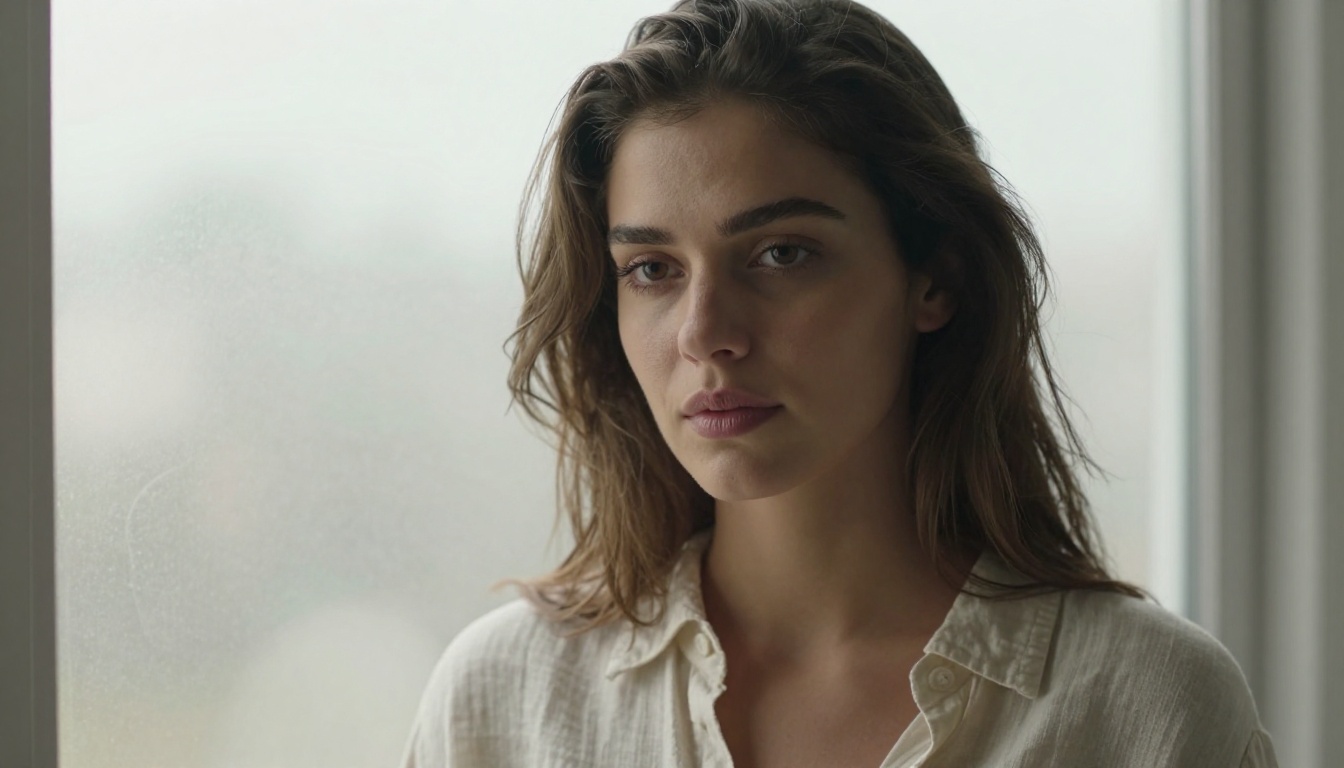
Gemini 3 handles portraits with natural skin tone rendering. For editorial and lifestyle imagery, the outputs rival stock photography — especially when you specify camera details precisely. Adding phrases like "Kodak Portra 400 film emulation, natural skin texture with pore detail, 85mm f/1.4, volumetric window light" consistently produces images with depth and warmth.
4. Landscape and Nature Imagery
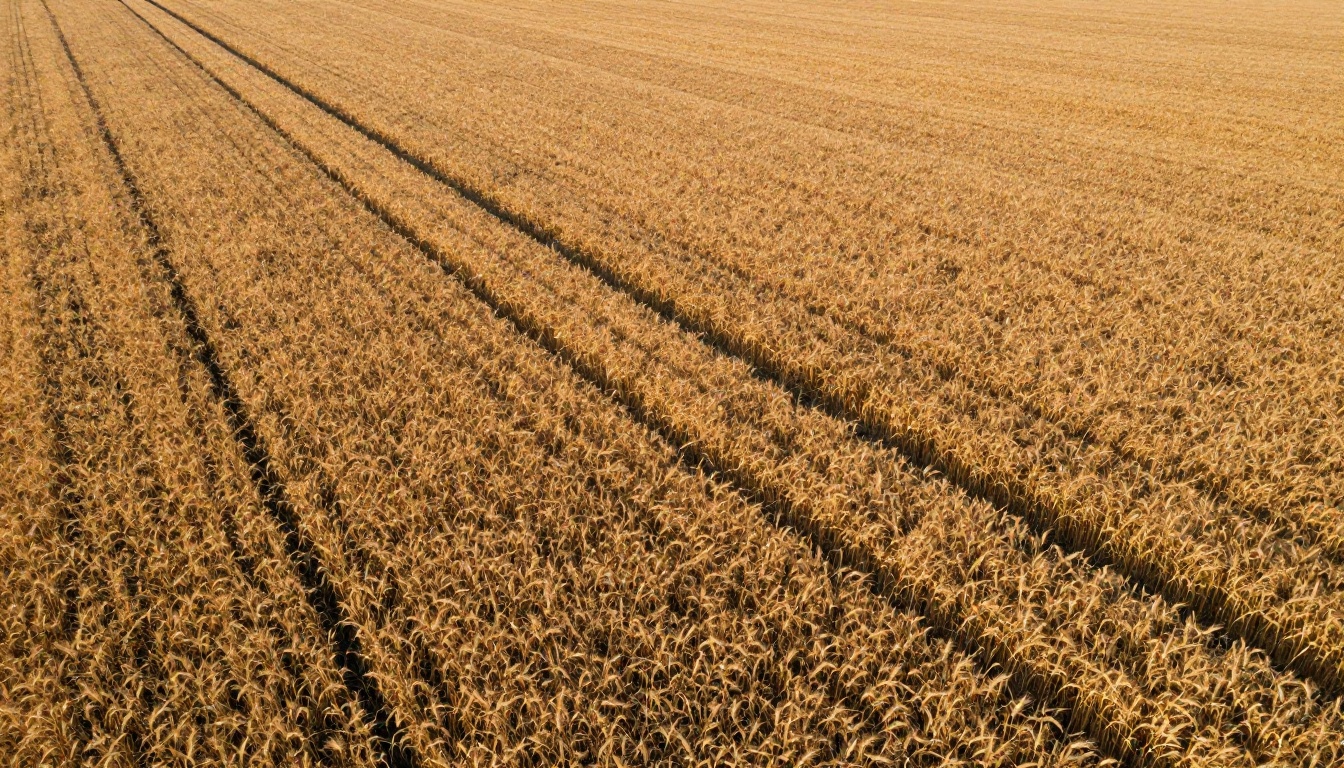
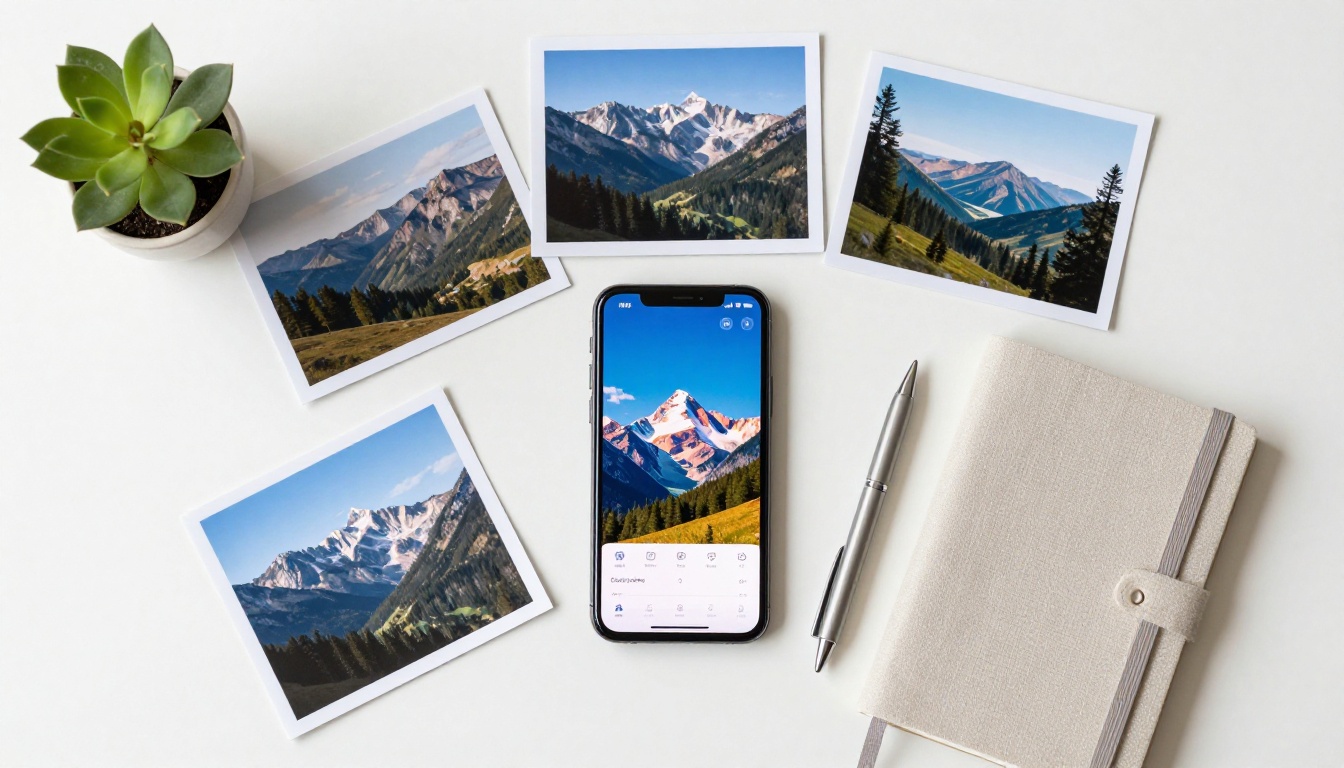
Aerial shots, wide landscapes, and environmental photography are where Gemini 3 excels. Travel content, real estate hero images, and editorial spreads benefit from the model's ability to generate naturally lit, wide-format scenes that look like they were captured on location. Drone perspective prompts ("aerial shot from 200 meters, looking directly down") produce particularly striking results.
5. Glamour and Lifestyle Photography
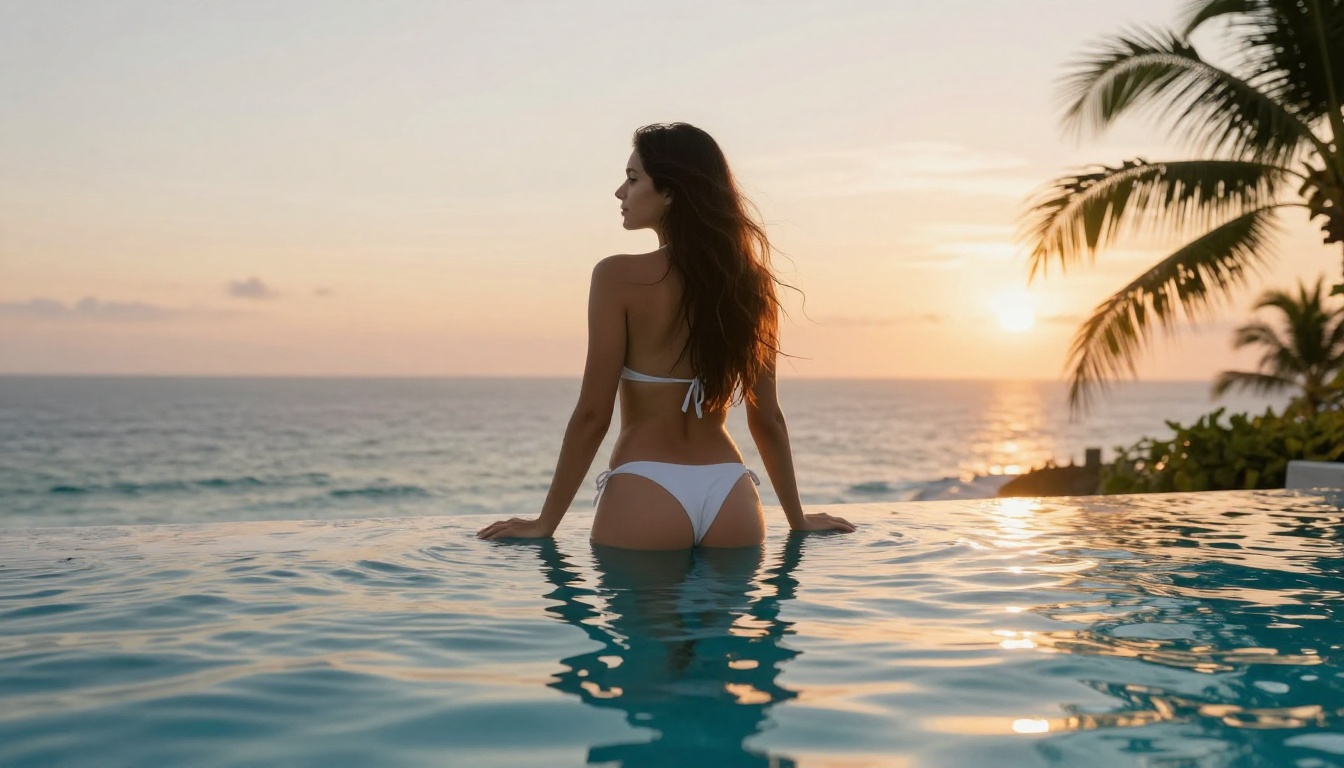
For lifestyle brands — fashion, travel, wellness — Gemini 3 generates aspirational imagery that matches the quality of art-directed photo shoots. The key is specifying the exact setting, the time of day, and the subject's positioning relative to the light source. Infinity pool, rooftop terrace, coastal cliff — paired with precise lighting descriptors, the outputs are genuinely publication-ready.
3 Mistakes That Kill Output Quality
1. Vague Location Context
"In a nice place" gives the model nothing to work with. "On the rooftop terrace of a modernist concrete building overlooking a coastal city at blue hour" gives it everything. The more specific the physical location, the more coherent the background elements become and the less the model has to hallucinate environmental details.
2. Skipping Camera Specs
Camera lens and aperture information isn't just for photographers — it directly informs the model about depth of field, perspective distortion, and background blur intensity. "85mm f/1.4" produces a very different composition than "28mm f/8", even with an identical subject description. This is one of the most impactful single changes you can make to any existing prompt.
3. Over-Prompting Emotion
Words like "mysterious", "moody", "dreamy" are hard for image models to translate because they describe a feeling, not a physical reality. Instead, describe the physical conditions that create that feeling: "overcast flat light, desaturated color palette, fog in the middle distance, shallow depth of field with the subject slightly soft at the edges."
Getting the Best Results Every Time
Build a Prompt Template
The most efficient approach is building a reusable prompt structure that you fill in for each new image. This removes the cognitive load of starting from scratch every time and ensures you never accidentally omit the elements that matter most.
"A barista pouring latte art into a ceramic cup, inside a narrow espresso bar with exposed brick walls, diffused morning window light from the left creating soft shadows on the counter, shot from slightly below counter height with a 50mm f/2.0 lens, background out of focus showing shelves of coffee equipment, Kodak Portra 400 grain, photorealistic 8K RAW"
Iterate Systematically
Don't regenerate the entire prompt when the output isn't right. Change one element, regenerate, evaluate. This isolates the variable that's causing the issue and avoids the trap of guessing what changed between two vastly different prompts. Most experienced users change no more than two words between iterations during the refinement phase.
💡 Keep a running document of your best prompts. The good ones are worth saving — they represent calibrated templates for specific visual styles you can reuse across multiple projects.
Use Multiple Models for Comparison
No single model wins every category. For a given project, try the same prompt on Imagen 4, Flux 2 Max, and Seedream 4 to see which model's interpretation best fits your creative direction. Each model has a distinct aesthetic bias, and what reads as "photorealistic" varies meaningfully between them.
PicassoIA makes this comparison frictionless since all models are accessible in the same interface with the same prompt input.
Start Creating Your Own Images
Gemini 3 puts genuinely impressive image generation inside a tool many people already use daily. The barrier to getting good outputs is almost entirely about prompt quality, and that's something you improve with every generation you run.
If you want to go deeper into Google's image technology with full parameter control, PicassoIA gives you direct access to Imagen 4 Ultra, Imagen 3, Nano Banana 2, and over 90 other text-to-image models in one place. Try your best Gemini 3 prompt across three different models and see exactly where each one performs differently — that comparison alone will sharpen your instincts for what each model does best and when to use it.
The best AI image you've made is probably still ahead of you.