Most AI image generators are spectacular at scenery, portraits, and abstract compositions. Text? That's where things fall apart. If you've ever generated a poster and ended up with "MUSCI FESTAVEL" instead of "MUSIC FESTIVAL," you're not alone. This is one of the most common frustrations in AI image generation, and it has a real solution.
The good news: a handful of models have figured out text rendering. The bad news: most tutorials skip over which ones actually work and why. This article closes that gap.
Why AI Text in Posters Usually Breaks

AI image generators don't "know" what letters are. They learn from billions of images, but text in training data is inconsistently labeled. The model learns visual patterns, not linguistic rules. So when you ask for a poster with "SUMMER SALE" written on it, the model generates something that looks like text rather than actual legible words.
This is why you get:
- Letters that look right at a glance but spell nothing
- Fonts that morph mid-word
- Random characters appearing between correct letters
- Words split incorrectly across lines
The root cause is architectural: standard diffusion models treat text as texture, not structured information.
Diffusion vs. Language-Aware Models
Traditional diffusion models (Stable Diffusion, earlier SDXL) were purely pixel-based. Every output is the result of iterative noise reduction, and text just happens to emerge as a side effect. It was never a design goal.
Newer architectures changed this. Models like Ideogram v3 and Recraft v4 were specifically built to handle typography. They use separate text-understanding components to ensure that the letters in the output match the letters in your prompt.
The result is night-and-day different.
Which Models Actually Render Text Well
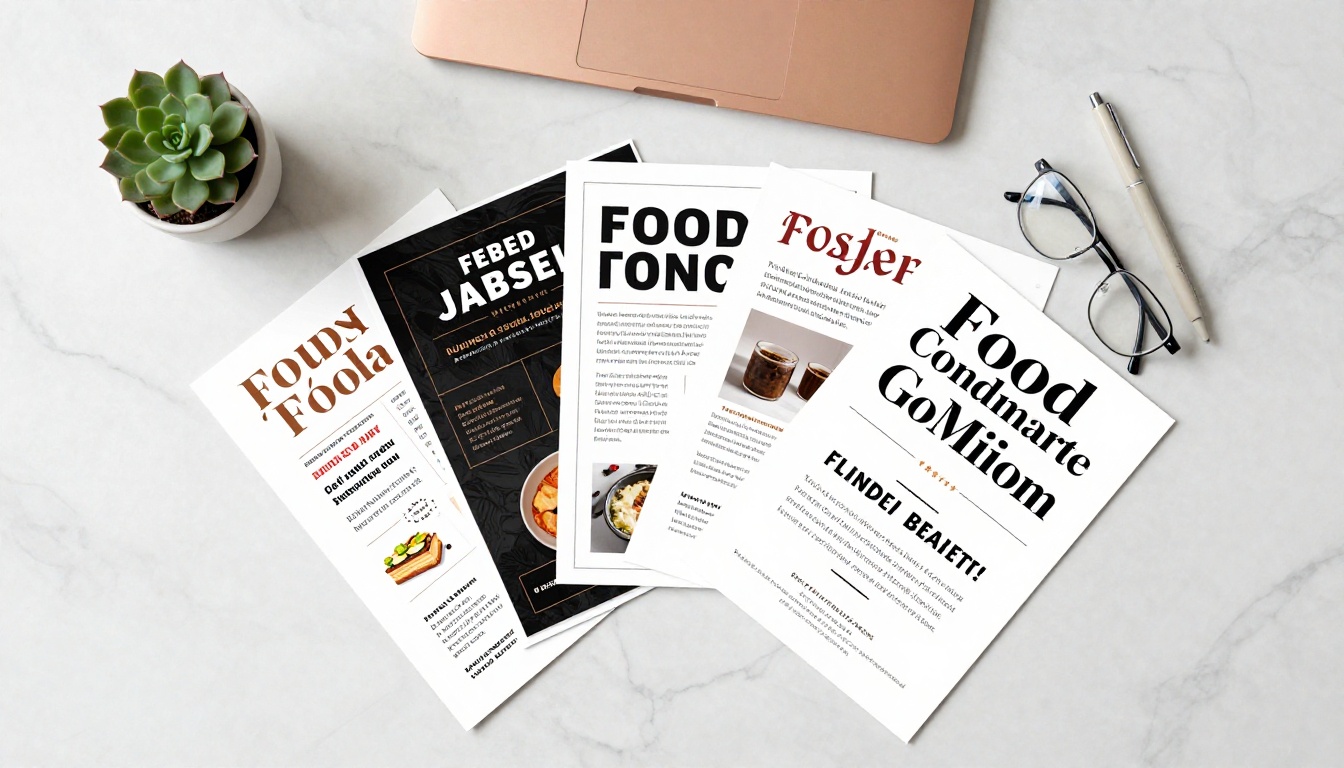
Not all models are equal when it comes to text. Here's a breakdown of what works and what doesn't:
Ideogram: Built for Typography
Ideogram v3 Quality is widely considered the gold standard for AI text rendering. It was built from the ground up with legibility as a core feature, not an afterthought.
What makes it special:
- Accurate spelling: It reads your prompt text and renders it accurately
- Font variety: Sans-serif, serif, display, handwritten, all produced cleanly
- Layout awareness: Understands poster hierarchy, title vs. subtitle sizing
- Color contrast: Automatically places text where it's readable against backgrounds
Ideogram v3 Turbo offers faster generation at slightly reduced quality, still far better than most alternatives.
Recraft: Vector-Quality Typography
Recraft v4 takes a different approach. It was designed for graphic design workflows, which means its text rendering is crisp and consistent. The output tends to look more "designed" and less "generated," which works perfectly for professional posters.
Recraft v3 is slightly older but still produces excellent results, particularly for logo-adjacent poster designs where clean, geometric letterforms matter.
GPT Image: Instruction-Following Text
GPT Image 2 leverages OpenAI's language understanding to parse what you write literally. When you say "the poster should read GRAND OPENING in bold red letters at the top," it follows that instruction with remarkable precision.
GPT Image 1 remains a strong option for straightforward poster requests where you need clean composition alongside clear text.
Flux and Stable Diffusion: Proceed with Caution
Flux Pro and Flux Dev produce beautiful imagery but were not architected for text rendering. You can get lucky with short single words, but multi-word text consistently fails.
Stable Diffusion 3.5 improved text handling over earlier versions, but it still can't match Ideogram or Recraft for legibility. Use it for artistic posters where the text is decorative rather than informational.
Prompts That Actually Produce Clean Text

Model choice matters enormously, but so does how you write your prompt. Even with Ideogram v3, a vague prompt produces mediocre results. Here's the formula that works.
Put Your Text in Quotes
When your prompt contains words that should appear in the image, put them in quotes. This signals to most modern models that those specific words are meant to be rendered, not just used as context.
Bad: A concert poster that says Summer Vibes in bold text
Good: A concert poster with the text "SUMMER VIBES" in bold white sans-serif at the top
This small change consistently improves accuracy across Ideogram v3, Recraft v4, and GPT Image 2.
Specify Placement Explicitly
Don't leave layout to chance. Describe exactly where on the poster each text element appears:
- "Title at the top third of the poster"
- "Subtitle text centered below the main title"
- "Date and venue information at the bottom"
- "Event name in the upper left corner"
Describe the Typography Style
Be specific about what the font should look like:
- Style: sans-serif, serif, script, display, condensed, outline
- Weight: thin, regular, bold, heavy, black
- Case: uppercase, lowercase, title case
- Color: specific descriptive language ("deep navy blue," "bright coral red," "clean white")
Contrast Is Everything
A prompt that ignores background and text color contrast produces unreadable results even with perfect spelling. Always specify legibility:
Concert poster, dark charcoal background, "MIDNIGHT RUN" in large white bold condensed uppercase letters centered at top, high contrast typography, professional poster design
Keep Text Short
This applies to every model currently available: the shorter the text, the more accurate the rendering.
- Best: 1-3 words (event names, product names)
- Good: 4-7 words (short taglines, dates)
- Risky: 8-12 words (longer descriptions)
- Avoid: Full sentences, paragraphs, long addresses
If you need a lot of text on a poster, generate the visual design first, then add text in a separate tool.
Step-by-Step: Your First AI Poster with Clear Text
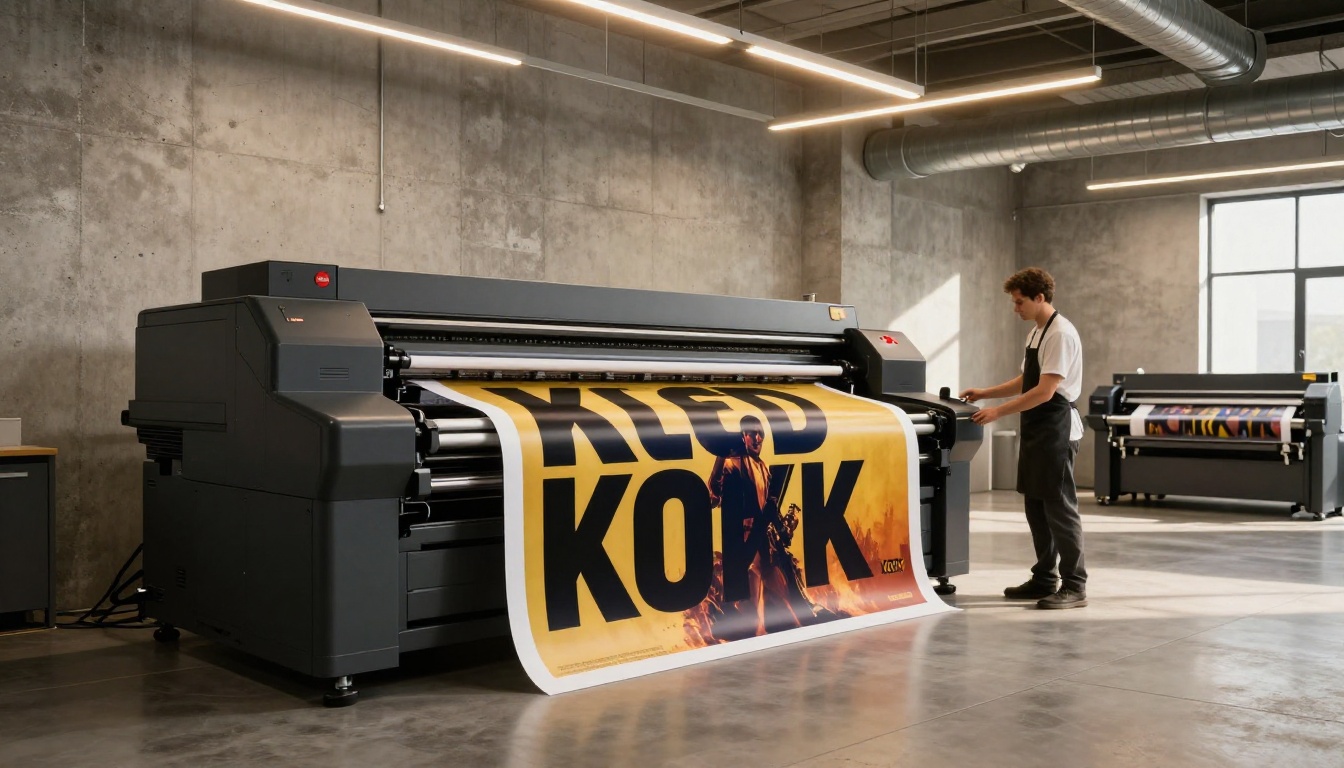
Here's a concrete workflow from zero to finished poster:
Step 1: Define Your Poster's Purpose
Before touching any AI tool, answer:
- What event, product, or message is this poster for?
- What are the 1-3 most important words that must appear?
- What mood should it convey? (professional, playful, luxurious, urgent)
- What color palette fits the brand?
Write these down. They become your prompt ingredients.
Step 2: Choose the Right Model
Based on your poster type:
Step 3: Structure Your Prompt
Use this template:
[Poster type] for [subject], [background description], "[PRIMARY TEXT]" in [font style] at [placement], "[SECONDARY TEXT]" in [smaller font style] below, [mood and atmosphere], [color palette], professional poster design, high contrast typography
Example in practice:
Food festival poster for a summer street fair, warm terracotta background with subtle textured grain, "HARVEST FEST" in bold condensed white uppercase letters centered at top third, "September 14-16" in clean light serif below, golden hour warm tones, earthy and inviting atmosphere, professional event poster design, high contrast readable typography
Step 4: Generate and Evaluate
Run your prompt. Check these specific things:
- Is every letter correct and readable?
- Does the font style match your request?
- Is there sufficient contrast between text and background?
- Is the layout balanced and intentional-looking?
If any answer is no, adjust the relevant part of your prompt and regenerate.
Step 5: Iterate on One Variable at a Time
Don't change everything at once. If the text is correct but the background is wrong, only change the background description. If the font is right but the color is off, only change the color. Systematic iteration gets you to the result faster than starting over.
4 Mistakes That Ruin AI Typography
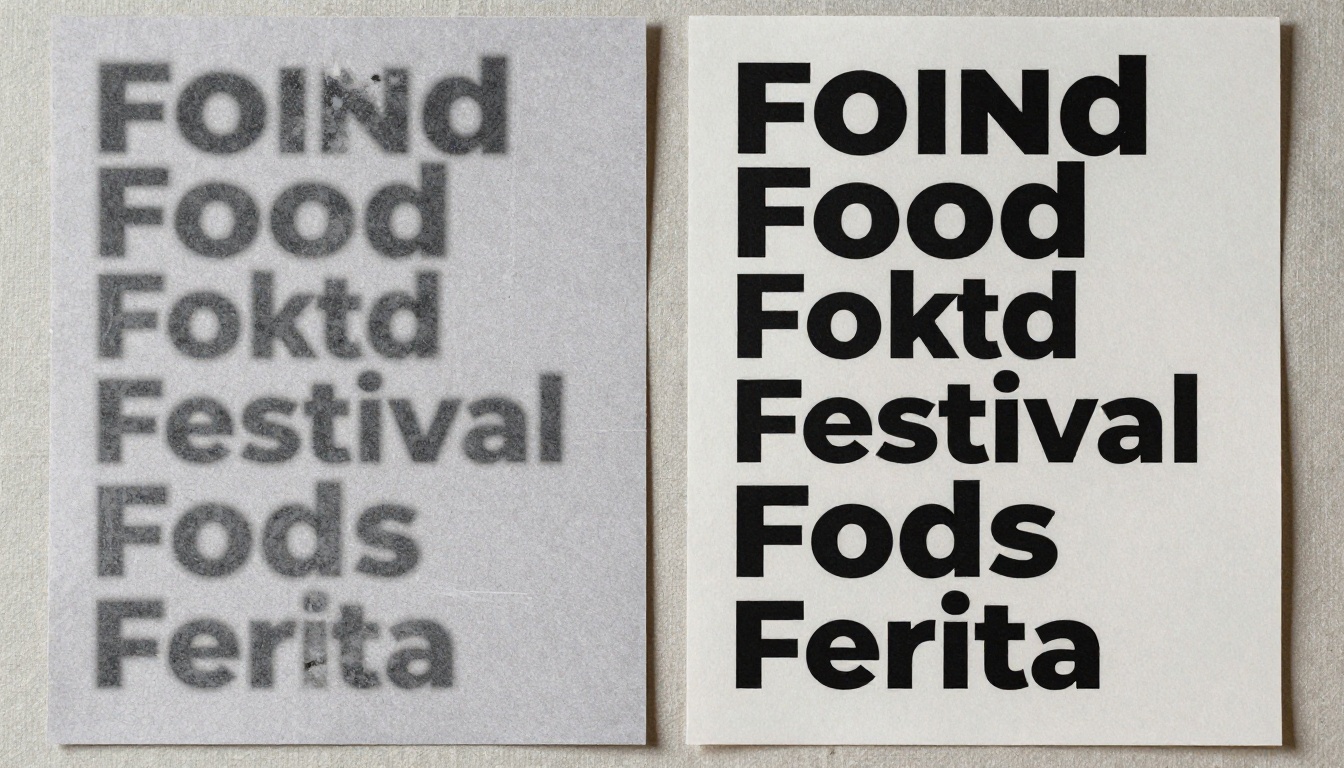
1. Using the Wrong Model for Text
This single mistake accounts for 80% of bad AI poster text. If you're using Flux Dev or SDXL and complaining about garbled text, the fix is switching to Ideogram v3 or Recraft v4. Not adjusting your prompt endlessly.
2. Asking for Too Much Text
Every extra word is another opportunity for the model to hallucinate a letter. If you need a poster that reads "Join us for the Annual Downtown Street Food Festival featuring 40+ vendors from across the region," you're going to have a bad time. Break it down: use AI for the visual design, use a design tool for the dense text.
3. Low-Contrast Color Combinations
White text on light grey sounds fine in theory. In practice, even when the text is spelled correctly, it's unreadable. Specify contrast explicitly: "black text on bright yellow," "white text on deep navy," "cream text on rich burgundy."
4. Ignoring Placement Instructions
If you don't tell the model where the text goes, it decides for you. Often it buries text in a busy area of the image where it gets visually lost. Always specify placement: top, center, bottom, left, right, overlaid on a simple background area.
Getting the Layout Right
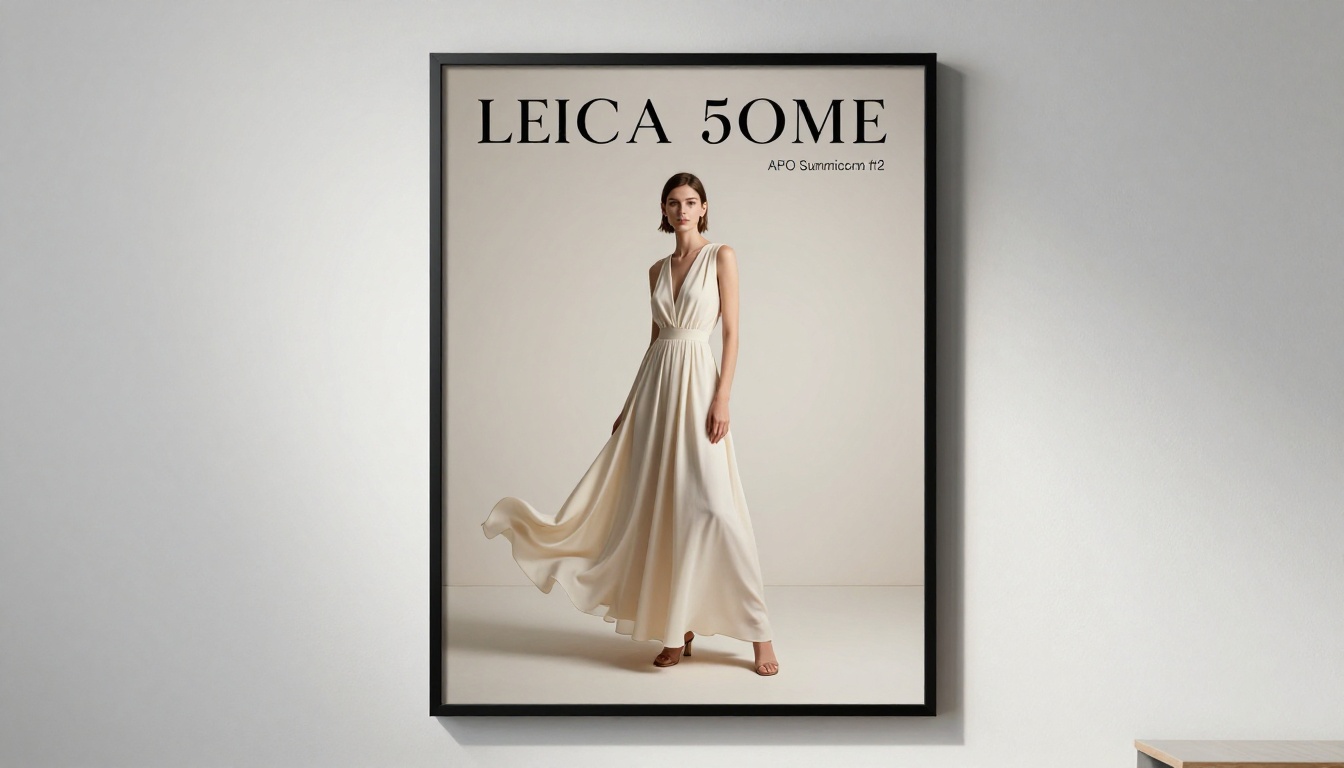
Typography is only one part of a good poster. Layout makes or breaks the overall impression.
The Hierarchy Rule
Every poster needs clear visual hierarchy: one element the eye sees first, one element second, everything else supporting. For AI posters, this means:
- Primary text: largest, highest contrast, most prominent placement
- Secondary text: noticeably smaller, supporting information
- Tertiary: dates, addresses, fine print, website
When writing prompts, reflect this hierarchy. Describe the primary text first and in the most detail. Models generally weight earlier prompt elements more heavily.
Whitespace as a Design Tool
The instinct is to fill the poster with imagery. Resist it. Posters with text need breathing room. Prompt for negative space around text elements:
...clean open space at the top third for text, uncluttered background behind title area...
Background Complexity and Text Legibility
Busy, detailed backgrounds compete with text. The best AI posters for text legibility use:
- Solid or minimal backgrounds: flat color, simple gradient, subtle texture
- Strategic blurring: detailed background but softened in the text area
- Contrasting zones: dark background with light text area, or vice versa
💡 Pro tip: Ask for a "text-safe zone" in your prompt. Try: "gradient from rich imagery on the left to clean dark color on the right, with text positioned on the clean right side." This creates a natural reading area without fighting the background.
Real Uses for AI Posters
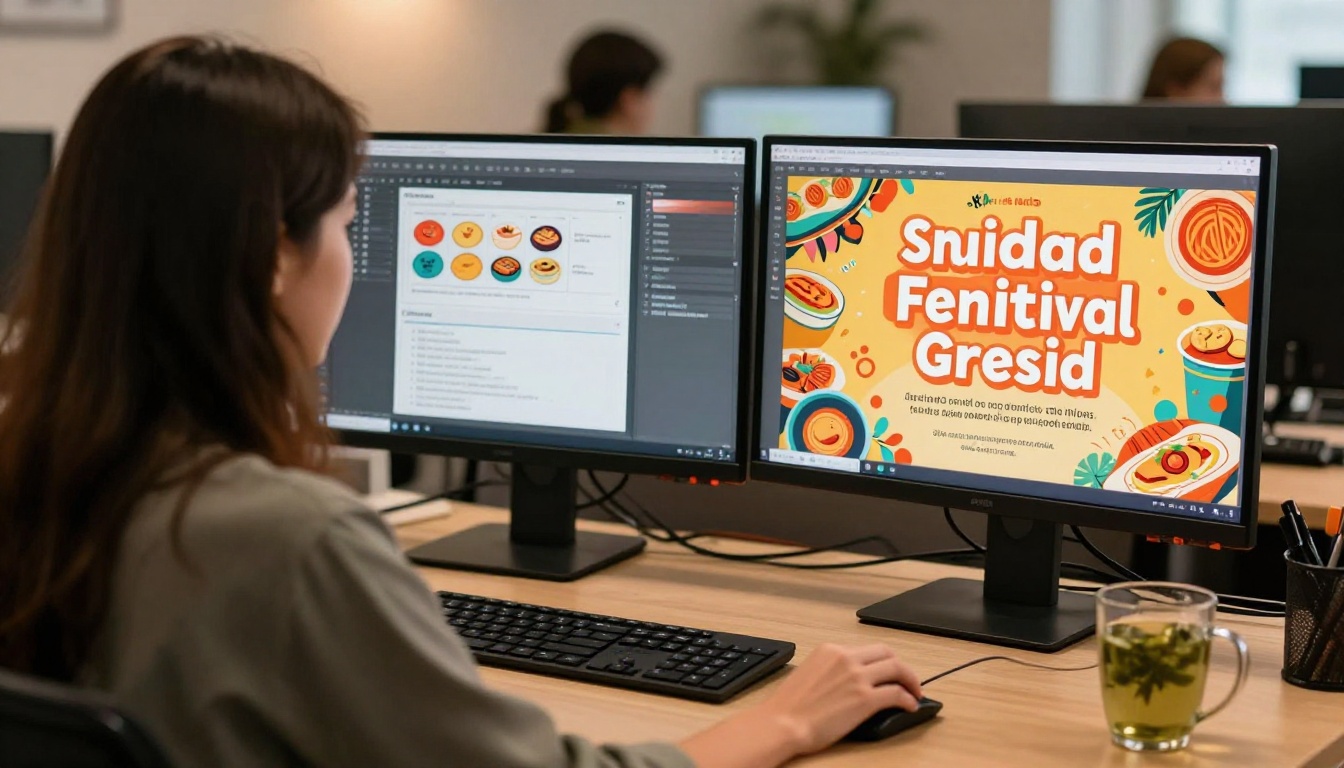
AI poster generation isn't just for experimenting. Here's where clear AI typography pays off in real workflows:
Event marketing: Concert flyers, festival announcements, corporate summit teasers. Generate dozens of variations in minutes, then pick the best for production.
Social media campaigns: Promotional graphics for Instagram, Facebook events, LinkedIn announcements. Consistent style across multiple formats without multiple design briefs.
Product launches: Announcement posters for new products, feature releases, limited editions. Fast turnaround, no designer needed for first drafts.
Restaurant and retail: Daily specials boards, seasonal menu posters, sale announcements. Operators can generate fresh designs without agency costs or long lead times.
Real estate: Open house flyers, property announcement graphics, neighborhood spotlights with address and date text clearly rendered.
In each of these cases, the value comes from speed and iteration. Instead of briefing a designer and waiting days, you generate 20 variations in an hour, shortlist 3, and go to production.
💡 Tip: Use Ideogram v2 for rapid iteration when you need volume. Then switch to Ideogram v3 Quality for your final high-resolution output.
Prompt Templates That Work Right Now
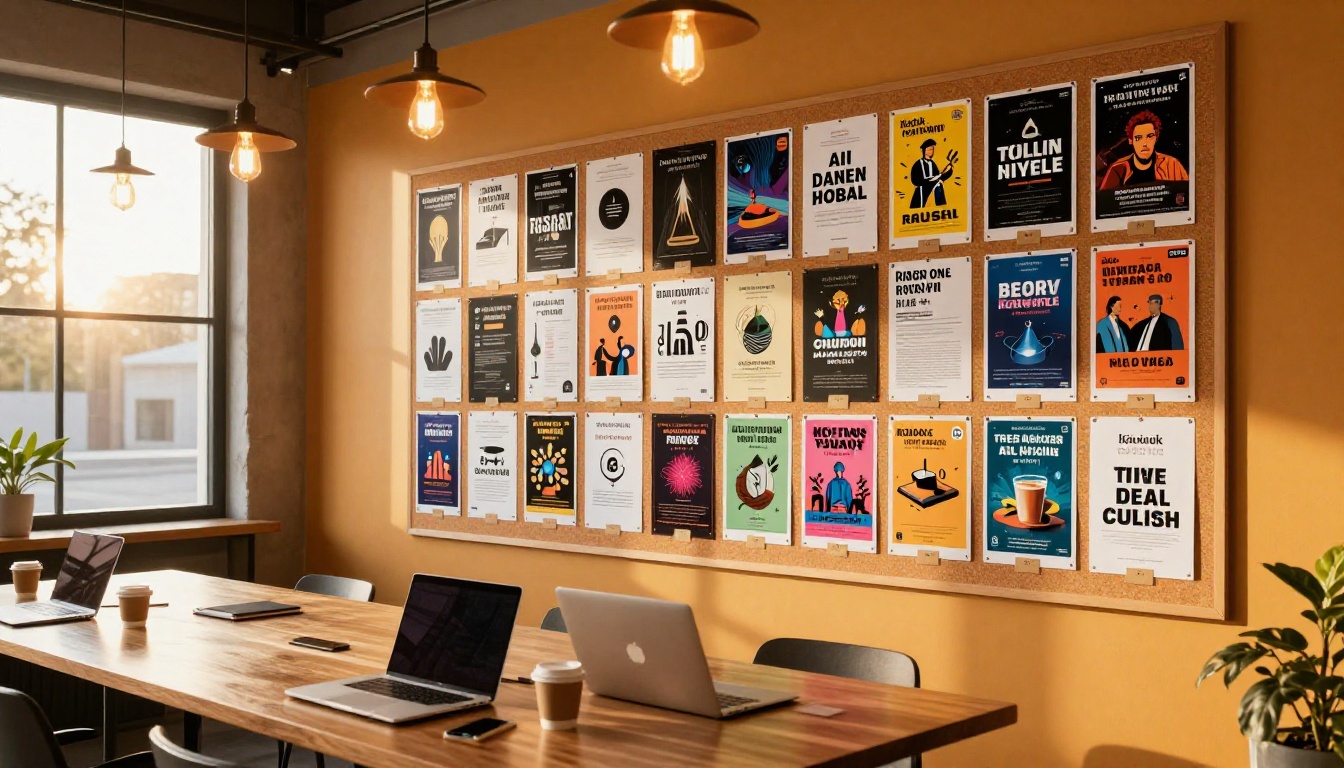
Here are ready-to-use prompt structures for the most common poster types:
Music / Concert Poster:
Dark moody background with atmospheric depth, centered concert poster layout, "BAND NAME" in massive bold white letters at top, "VENUE NAME" in smaller clean sans-serif below center, "DATE" at the bottom in minimal typography, high contrast readable text, professional concert poster
Food Festival:
Warm earthy tones with organic textures, summer festival poster, "FESTIVAL NAME" in bold playful display font centered, food imagery elements softly present in background, clear date and location text below in sans-serif, bright vibrant colors, welcoming and appetizing atmosphere
Corporate Event:
Clean professional layout, deep navy blue background, "EVENT TITLE" in bold white modern sans-serif at top, subtitle text in lighter weight below, company-neutral design, minimal and authoritative, high contrast legible typography
Product Launch:
Sleek minimal product announcement poster, off-white background, product centered in frame, "PRODUCT NAME" in elegant large serif text above, "Available [Date]" in small clean sans-serif below, premium brand aesthetic, editorial product photography style
Each of these templates works best with Ideogram v3 Quality or Recraft v4. Drop in your specific text in quotes, your colors, and your subject, and you'll have a production-ready poster concept in seconds.
Try It for Yourself

The gap between "AI can't do text" and "AI makes beautiful posters with perfect typography" is almost entirely a model selection and prompting problem. Pick Ideogram v3 or Recraft v4, write a specific prompt with your text in quotes, describe placement and contrast, and you'll get results that look professionally designed.
The workflow is faster than briefing a designer. The results are good enough for real campaigns. And the cost is a fraction of traditional design production.
Picasso IA gives you direct access to all of these models in one place, including Ideogram v3, Recraft v4, GPT Image 2, and dozens more text-to-image options. No setup, no separate API keys, no subscriptions to juggle.
Pick your poster idea, open the model of your choice, and run your first prompt today. The typography will surprise you.


