Your background tells the audience everything about your production quality before you say a single word. A messy room, a blank wall, or a pixelated stock photo looping behind you signals one thing to viewers: this creator does not take it seriously. The opposite is equally true. Drop a cinematic, photorealistic scene behind you and your content immediately signals polish, professionalism, and intention. The problem used to be that creating those scenes required a camera crew, a set designer, or at minimum a solid green screen setup. Not anymore.
AI has changed what is possible for solo creators, small production teams, and businesses producing video content at scale. You can now write a text prompt and get back a photorealistic background in seconds. This article walks you through exactly how to do it, which types of backgrounds work best for different video formats, and how to replace your existing video background with something that actually looks good.

Your Background Is Part of Your Brand
The visual environment you place yourself in shapes how viewers perceive your authority, your energy, and your message. This is not a trivial detail. It is one of the fastest signals your content sends.
What a bad background costs you
Think about the last time you watched a YouTube tutorial with an obviously fake virtual background. The hard edges, the slight halo around the subject, the jarring mismatch between lighting and environment. You noticed. Your audience does too.
A poor background does three concrete things to your content:
- It signals low effort to first-time viewers, reducing the chance they subscribe or return
- It kills credibility in business or educational contexts where authority matters
- It creates visual distractions that pull attention away from your actual message
A great background, on the other hand, sets your content apart. It adds a layer of visual storytelling that reinforces your brand. A travel creator with a photorealistic tropical backdrop, a business coach standing in front of a clean modern office, a fitness instructor against an outdoor mountain scene: each environment communicates something before the speaker opens their mouth.
The old way vs. the AI way
| Method | Cost | Time | Quality |
|---|
| Studio rental | High | Scheduling required | High |
| Green screen + stock footage | Medium | 1-2 hours editing | Medium |
| Virtual background (blurred) | None | Instant | Low |
| AI-generated background | Very low | Under 1 minute | High |
AI changes the economics completely. You describe the scene you want and get back a photorealistic image in under a minute.
How AI Background Generation Actually Works
The process is simpler than most people expect. You write a text description of the scene you want, and a neural network trained on billions of real photographs generates an image that matches that description. No photography skills required. No stock photo subscription. No designer.
From text to photorealistic scene
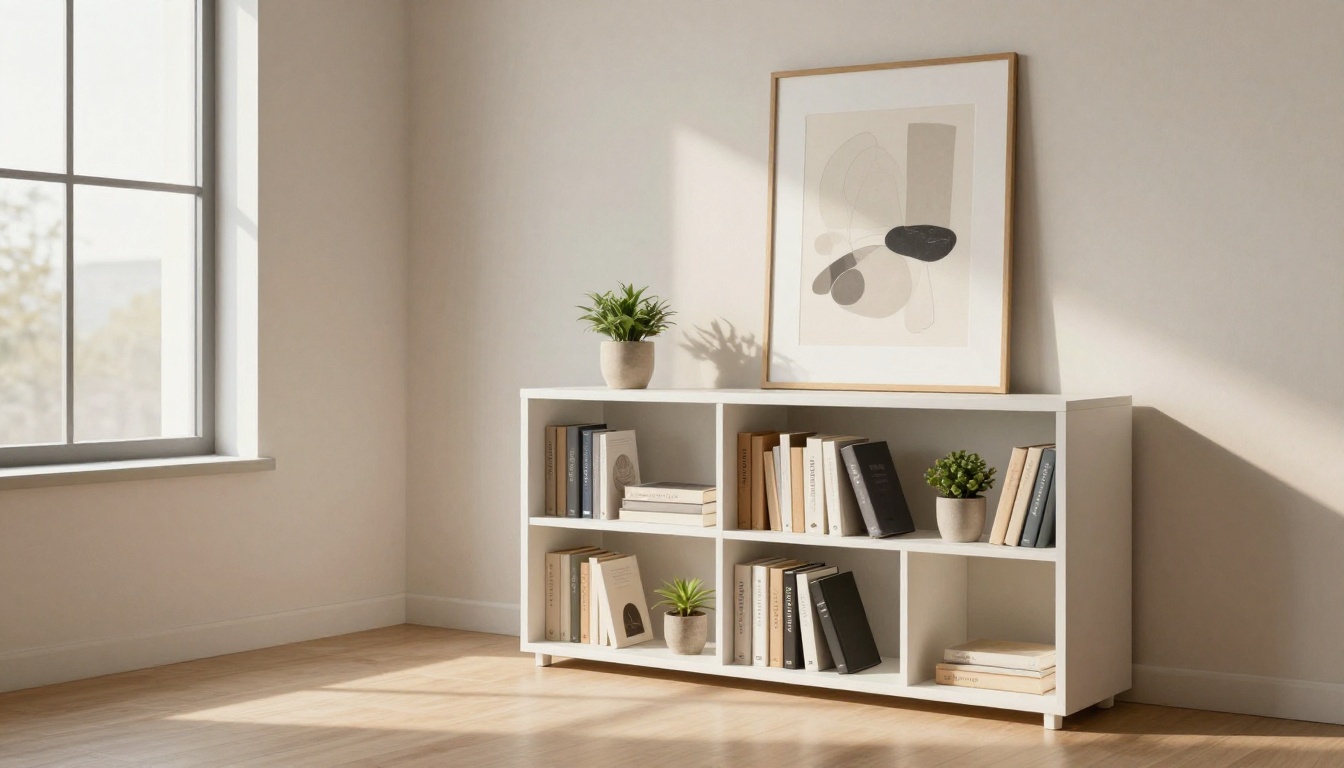
The models used for high-quality background generation are text-to-image systems. You give them a prompt like "modern minimalist office with warm afternoon light, white oak bookshelf, abstract art on the wall" and they produce a photorealistic image of a space that has never physically existed.
What makes these outputs useful for video backgrounds specifically is their resolution and realism. Generated at 1024 pixels wide or higher, with proper 16:9 aspect ratios, they hold up in 1080p and 4K video timelines without looking artificial when the prompt is well-written.
💡 Tip: Always generate backgrounds at 16:9 aspect ratio. This matches standard video formats and avoids cropping or letterboxing issues when compositing.
What makes a background work on video
Not every image works as a video background. The best ones share a few characteristics:
- Empty center space: Visual weight at the edges and depth in the center, leaving room for the video subject
- Consistent lighting direction: If you are lit from the left, your background should also show light coming from the left
- Slight depth of field: A background with natural focus falloff looks more realistic when composited over footage
- Neutral subject area: No competing faces, moving elements, or bold text distracting from the person on screen
The Right Background for Every Video Type
Different content formats call for different visual environments. Matching your background to your content type is one of the highest-leverage decisions you can make for production quality.

YouTube tutorials and talking-head videos
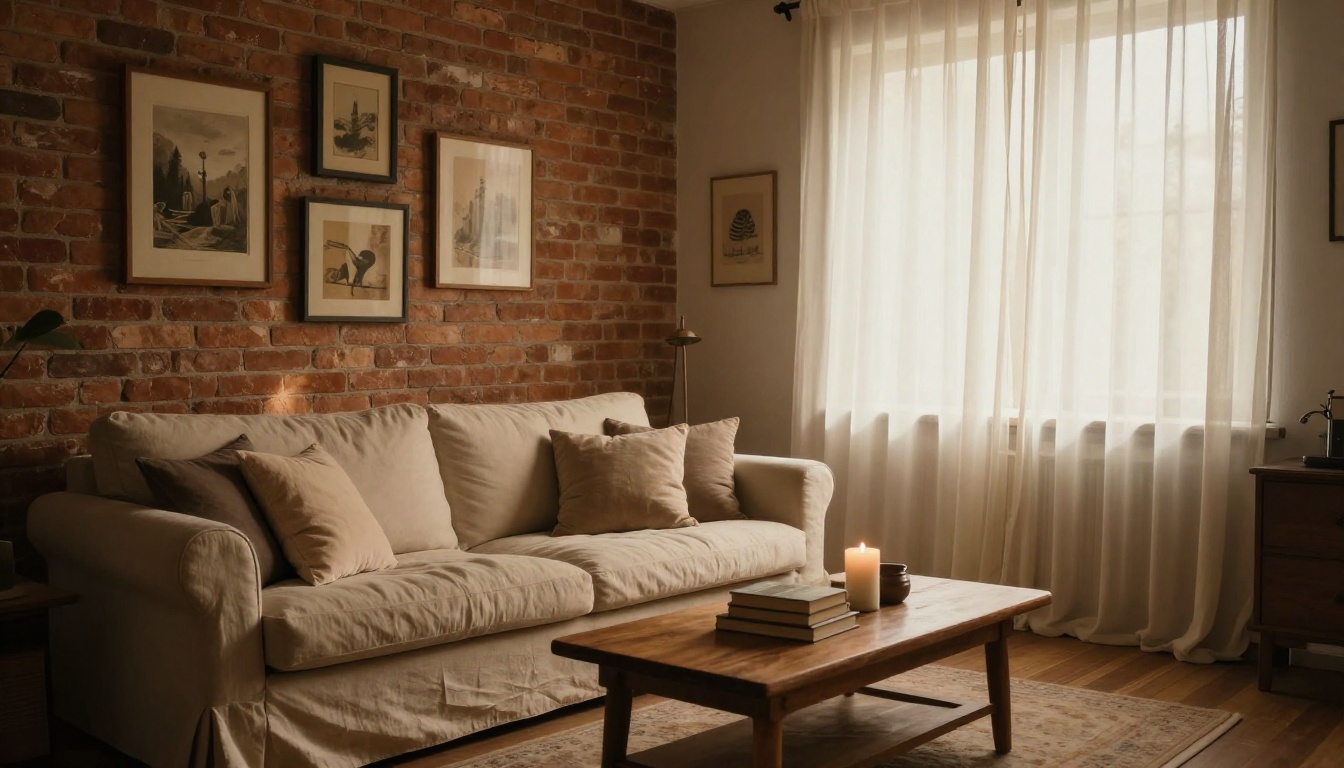
For educational content, the background needs to establish credibility without competing for attention. The best options here are bookshelves to signal knowledge and expertise, clean office spaces for a professional and neutral look, and brick walls with art for a creative but controlled environment.
Keep the color palette warm and neutral. Avoid backgrounds with busy textures or strong patterns that cause visual noise in compressed video files.
Social media reels and short-form content
Vertical video formats for Instagram Reels, TikTok, and YouTube Shorts have different needs. The background must be visually striking immediately, since you have less than two seconds to hold attention before a viewer scrolls past.
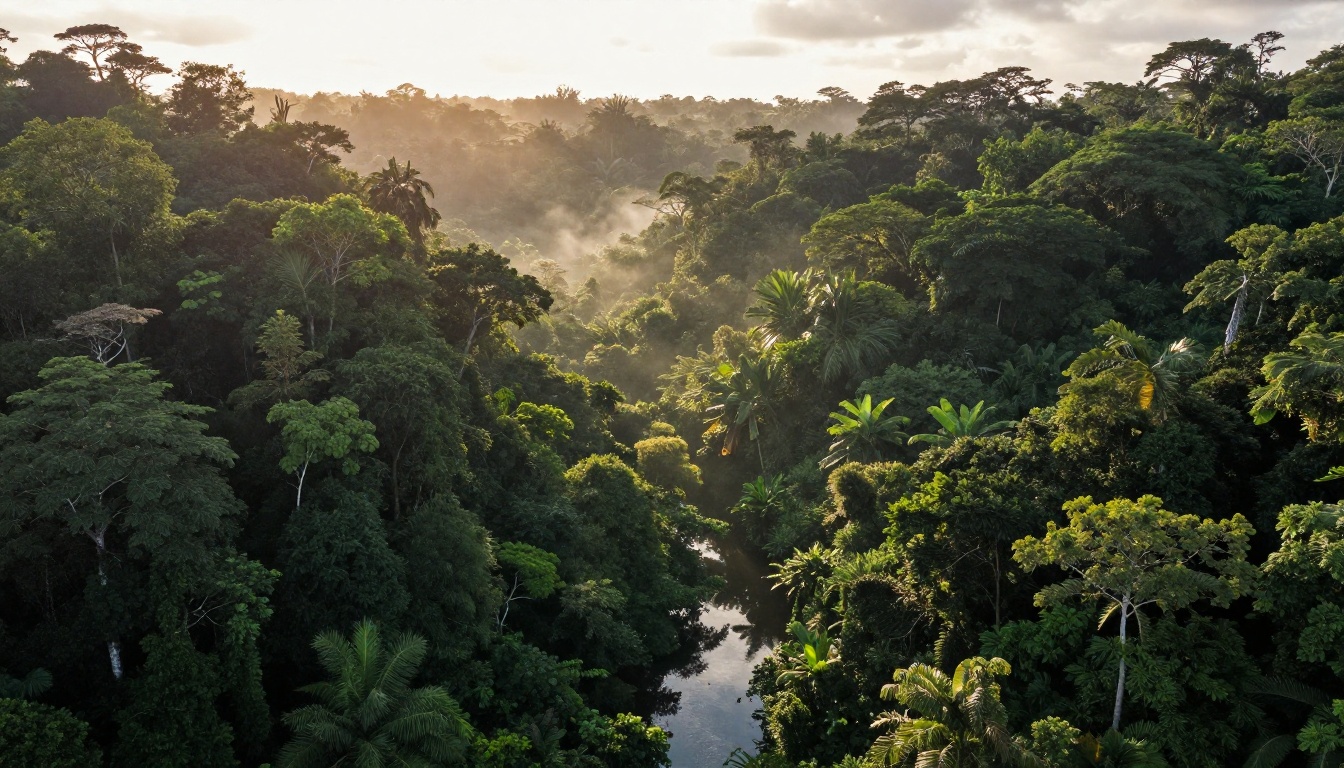
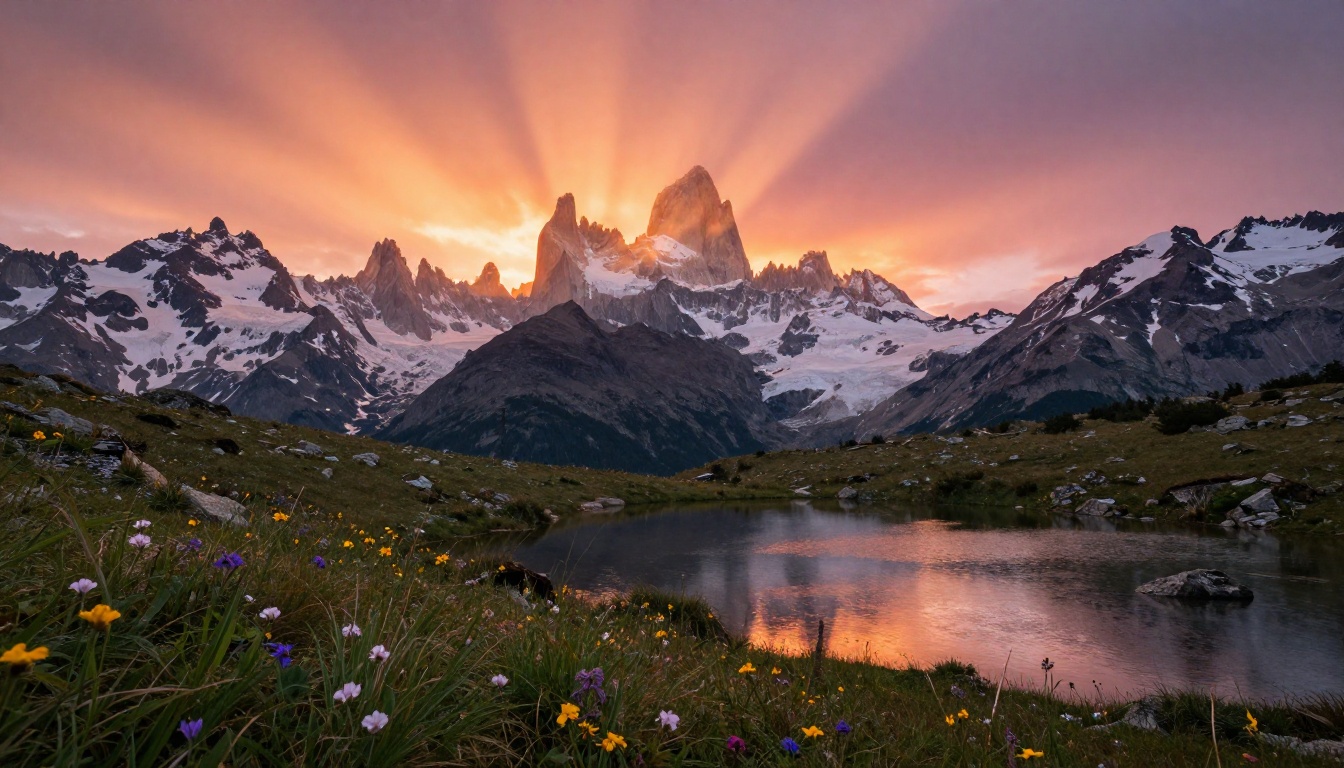
For short-form content, the strongest backgrounds feature strong color contrast (vibrant but not saturated to the point of distraction), natural outdoor environments like beaches, forests, and mountains, and golden hour lighting that makes subjects pop against a warm scene.
Business and corporate video calls
For meetings, presentations, and recorded webinars, the background should communicate one thing above all: competence. Avoid anything too personal or too stylized.
The ideal business backgrounds use glass-wall office environments, clean conference room aesthetics, or city skylines viewed from a professional vantage point. Neutral, tidy, and slightly interesting.
Live streaming and long-form content
Streamers have unique needs. The background must be visually distinctive (so the stream is recognizable at a glance) but not so busy that it causes eye fatigue over a multi-hour session.
💡 Tip: For live streaming, avoid backgrounds with highly saturated reds and greens. These colors compress poorly in streaming codecs and can cause color bleeding artifacts around your silhouette.
Writing Prompts That Get the Background You Want
The difference between a generic AI output and a photorealistic background you can actually use comes down almost entirely to how you write the prompt.
The anatomy of a good background prompt
Every effective background prompt has five components:
- The scene type: "modern office interior", "tropical beach at sunset", "mountain meadow at dawn"
- Lighting description: "warm afternoon light from the left window", "golden hour volumetric rays from east"
- Camera perspective: "eye level shot", "wide angle 24mm", "low angle close to ground"
- Atmosphere and texture: "slight depth of field blur at edges", "film grain", "Kodak Portra 400 color profile"
- Usage instruction: "empty center space for video subject", "no people in foreground"
Prompt examples by background type
Professional office background:
Modern minimalist office interior, white oak bookshelf with small potted plants, framed abstract art on wall, warm afternoon light from left window, eye level 35mm lens, slight depth of field, empty foreground for video subject, photorealistic, 8K RAW photography
Outdoor nature background:
Photorealistic mountain meadow at golden hour, snow-capped peaks, wildflowers in foreground, crystal alpine lake, low angle 24mm wide, volumetric light rays, film grain, Kodak Portra 400, empty center space
Urban city background:
NYC street at dusk, glass skyscrapers, wet pavement reflections, warm tungsten streetlights mixing with cool blue sky, wide angle 28mm, everything sharp, empty foreground, 8K RAW photography
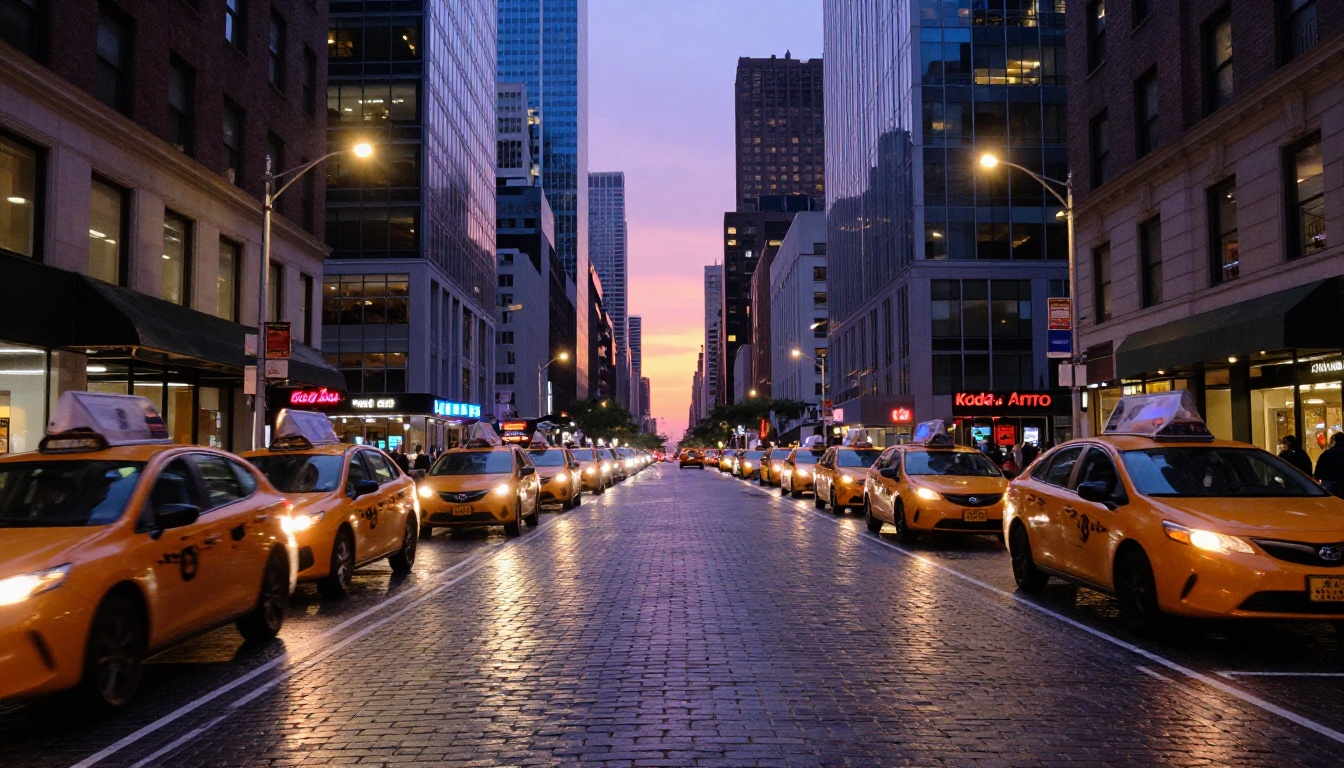
💡 Tip: Add "Kodak Portra 400 color profile, film grain" to any prompt to push the output from looking artificial into looking like photorealistic film photography.
Removing Your Existing Video Background
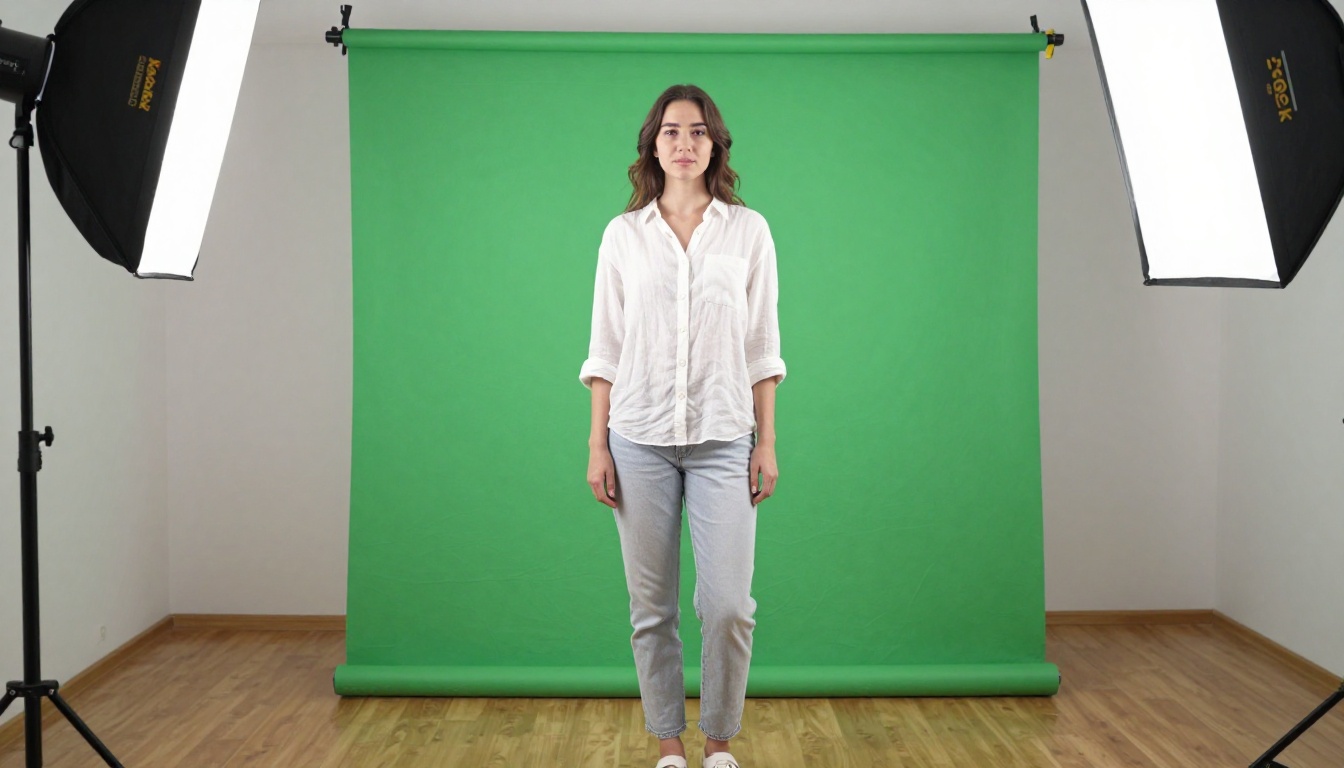
Before you can drop in a new AI-generated background, you need to cleanly remove the existing one. This used to require a physical green screen setup, specific chroma key lighting, and careful post-production work. Now, AI handles it directly from any footage.
AI background removal without a green screen
The Video Remove Background model can strip the background from any video footage frame by frame, even without chroma key equipment. It handles complex edge cases like hair, loose clothing, and motion blur with high accuracy.
This changes the production workflow significantly:
- No need to buy or set up a green screen
- Works on existing footage already recorded in any environment
- Handles outdoor recordings where green screens are not practical
- Processes hair and transparent elements cleanly without manual masking
For single still images used as reference frames or thumbnails, the Remove Background model does the same job for photos in one click.
When to still use a green screen
AI removal works well in most conditions but has some limitations in challenging scenarios:
| Scenario | AI Removal | Green Screen |
|---|
| Indoor controlled lighting | Excellent | Excellent |
| Hair and fine edges | Good | Very Good |
| Moving fast in bright outdoor light | Good | Not practical |
| Low-light footage | Fair | Good |
| Multiple subjects at once | Good | Excellent |
For production environments where absolute edge precision is critical (broadcast, commercial work), a physical green screen combined with AI cleanup gives the best results of both approaches.
If you shoot in 4K or record at high resolution, your AI-generated background needs to match. Most text-to-image models generate at around 1024x576 pixels for 16:9 by default. That holds up fine for 1080p, but will look soft when composited against 4K footage.
Upscaling without losing detail
The Bria Increase Resolution model upscales any image up to 4x while preserving detail, not just interpolating pixels. It actually reconstructs fine texture information rather than blurring it up to a larger canvas.
The Real ESRGAN Video tool applies the same upscaling logic to full video files, so you can upscale a background video clip to 4K rather than just a single frame.
For the sharpest results with the most detail, the Topaz Image Upscale model supports up to 6x upscaling. That takes a 1024px background to over 6000px wide, more than enough for any professional video format currently in production use.
💡 Tip: Upscale your background before compositing it with your video footage. Upscaling after compositing can introduce softening artifacts that undo the sharpness gained in the upscaling step.
The Full Workflow from Start to Finish
For creators who have already filmed content and want to replace the background retroactively, here is the complete process in order:
Step 1: Upload your video to Video Remove Background. The AI processes each frame and outputs a clean transparent-background video clip.
Step 2: Generate your desired background using a detailed text prompt. Include scene type, lighting, camera angle, texture details, and instructions to leave the center space empty. Use 16:9 aspect ratio.
Step 3: If your footage is 4K, upscale the generated background using Bria Increase Resolution to match resolution before compositing.
Step 4: In your video editor (Premiere Pro, DaVinci Resolve, CapCut), place the transparent video layer above the generated background image on the timeline. Match lighting directions for realism.
Step 5 (optional): Apply Video Increase Resolution to the final composite output to upscale the entire finished video to 4K or 8K if needed.
Matching Lighting Between Subject and Background
The most common mistake when compositing AI backgrounds is a mismatch between the subject's lighting and the background's light source. A person lit by cool blue window light standing in front of a warm golden sunset background looks wrong immediately, even if the edge cut is technically perfect.
Practical lighting matching tips
- Check the key light direction: If your background has sunlight from the left, position your own light source on the left when filming
- Match color temperature: Daylight backgrounds (5600K) pair with daylight-balanced key lights; warm indoor backgrounds pair with tungsten or warm LED
- Add a rim light: A light from behind that matches the background's apparent light source makes the composite significantly more convincing
- Slightly soften the background layer: A very sharp AI background can look pasted against natural camera footage. Apply a subtle 2-3px Gaussian blur to the background layer in your editor to integrate the two layers

Build Your Own Background Library
The most efficient creators do not generate one background per video. They build a library of 10 to 20 high-quality backgrounds that match their brand identity and filming conditions, then reuse them across all their content.
Think of it as creating your own set of virtual environments. A travel creator might have five outdoor nature scenes (beach, forest, mountains, desert, waterfall), three urban environments (cityscape, cafe interior, rooftop terrace), and two neutral studio-style backgrounds for product review content.
Each one is generated once, upscaled to 4K if necessary, and reused indefinitely at zero additional cost.
| Background Type | Best For | Recommended Resolution |
|---|
| Nature scenes | Lifestyle, fitness, travel content | 2048px and above |
| Office and studio | Business, education, tech tutorials | 1024px |
| Urban environments | Fashion, vlog, lifestyle content | 2048px and above |
| Abstract textures | Podcast audio, music, interviews | 1024px |
Start Creating Your Own Backgrounds
You now have the full picture: how AI background generation works, which types of scenes perform best for different video formats, how to remove existing backgrounds without a green screen, and how to match lighting for convincing composites.
Head to Picasso IA and use any of the text-to-image models to generate your first background. Start with a single scene that matches your most common filming setup: the lighting conditions you actually record in, the aspect ratio you publish in, and the brand aesthetic you are building.
Write a prompt with all five components: scene type, lighting, camera angle, texture details, and subject space. Generate a few variations. Upscale the best one with Bria Increase Resolution. Then test it against your footage.
Once you see how fast and how good the results are, blank walls and default virtual backgrounds will stop feeling like an option. Your background is part of your content. It deserves the same attention as your audio, your lighting, and everything else you control on screen.


