How to Generate Cartoon Versions of Yourself with AI
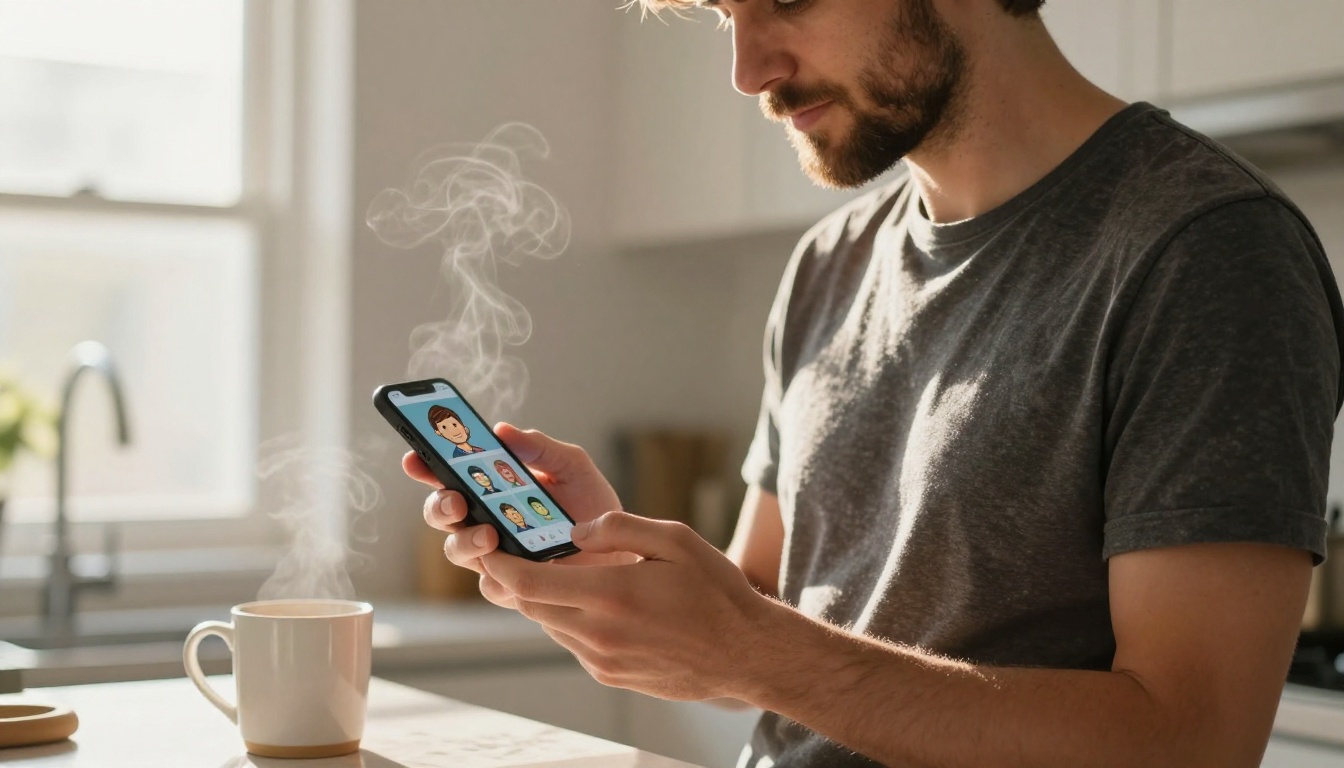
Want to turn your selfies into cartoon versions of yourself? This article shows you exactly how with AI tools, from choosing the right model to writing prompts that actually work. Whether you want anime, comic book, or illustrated portraits, you will find practical steps, real examples, and the best models to try today on PicassoIA.
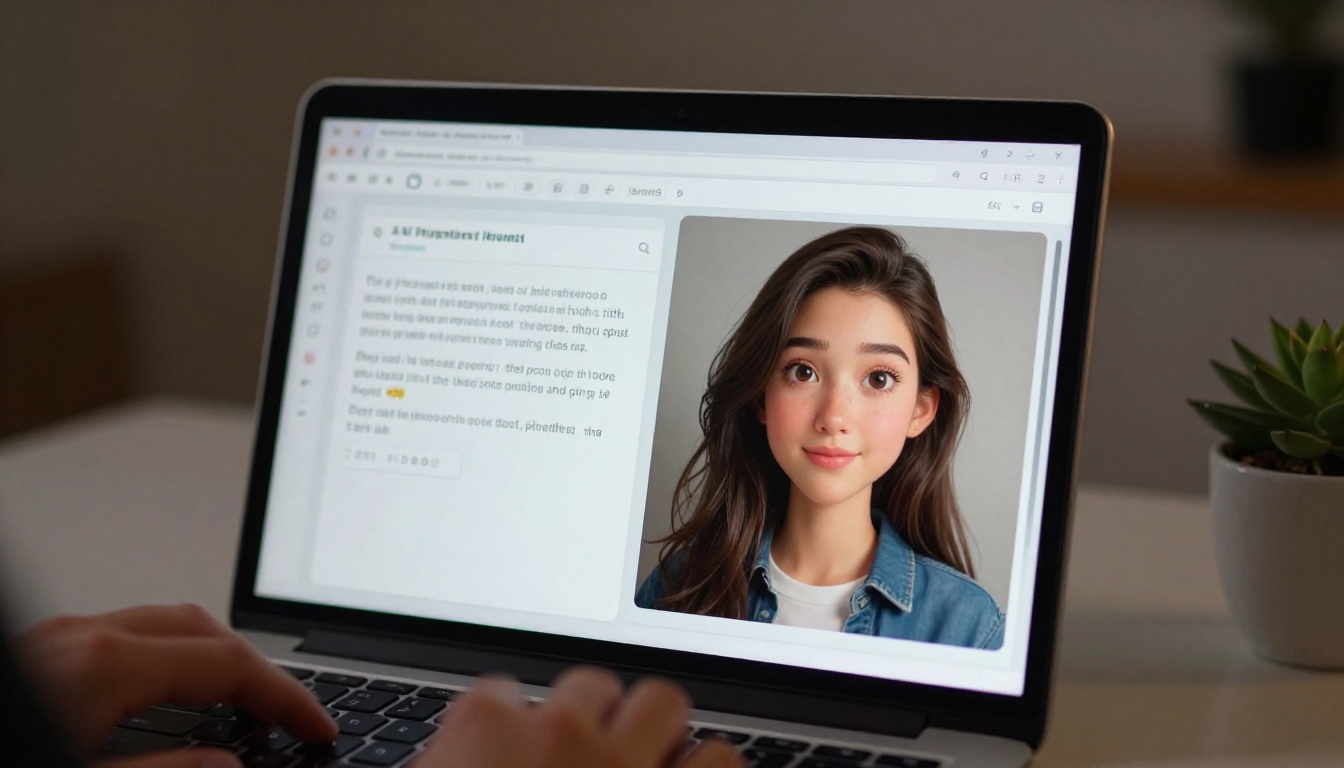
Turning a photo into a cartoon has never been easier. What used to require hours with an illustrator or days learning drawing software now takes about 30 seconds with the right AI model. People are generating cartoon versions of themselves for social media profiles, gaming avatars, personalized gifts, and just because it is genuinely fun to see yourself reimagined as a character from your favorite show or comic universe.
This article breaks down exactly how to generate cartoon versions of yourself, which AI models actually deliver results worth using, how to write prompts that give you the style you actually want, and what mistakes to avoid so you do not waste time on muddy, generic outputs.
Why Cartoon Avatars Are Everywhere Right Now
Everyone Wants a Unique Online Identity
Social media profiles flooded with identical AI headshots have pushed people toward something more expressive. A cartoon avatar stands out. It communicates personality in a way a standard photo cannot, and it gives you creative control over how you present yourself digitally. Whether it is a profile picture on Instagram, a Discord server icon, or a VTuber model sheet, cartoon avatars have become one of the most requested types of AI-generated content.
The Tech Finally Caught Up
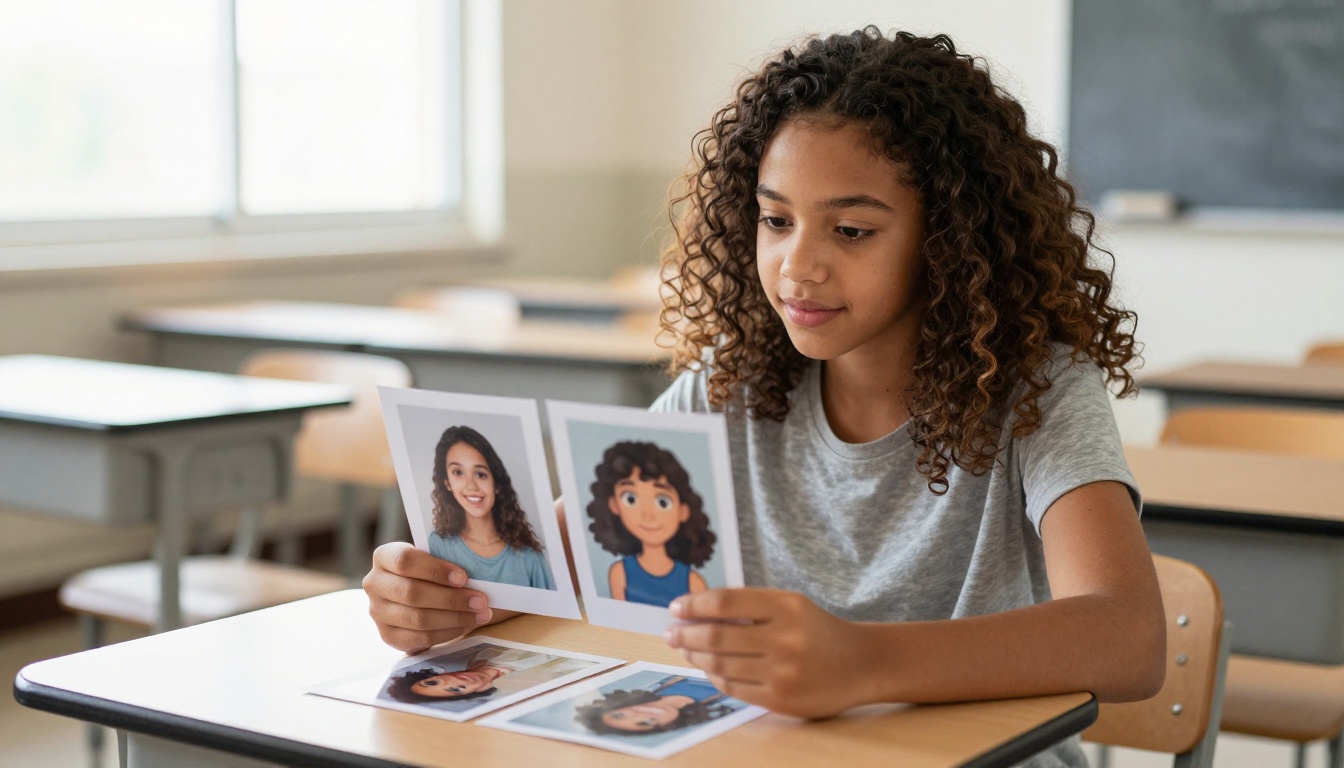
Early AI cartoon tools produced blocky, low-resolution results that barely resembled the source photo. The generation of models available today, particularly those built on Flux Kontext Pro and advanced diffusion architectures, can preserve facial features, skin tone, expression, and even hairstyle while translating an image into a completely different art style. The likeness retention is the real breakthrough.
Real Applications Beyond Just Fun
Cartoon versions of yourself have practical use cases that go far beyond a novelty:
Gaming: Custom avatars for platforms like Steam, Discord, or VTubing setups
Business: Branded profile pictures that feel human but polished and consistent
Content creation: Recurring character imagery for YouTube thumbnails, social posts, and merchandise
Personal projects: Birthday cards, invitations, and personalized gifts with a creative touch
Education: Teachers creating cartoon versions of themselves for classroom materials and presentations
The 3 Main Cartoon Styles You Can Create
Before picking a tool or writing a prompt, decide what style direction you are going for. These three categories cover the vast majority of requests.
Anime and Manga Style
Big expressive eyes, simplified linework, dramatic shading, and often vibrant or pastel color palettes. This is one of the most popular requests and one of the most consistently delivered by current AI models. The Qwen Image Edit Plus LoRA Photo to Anime model on PicassoIA is purpose-built for exactly this transformation, using your source photo as the reference point.
Western Cartoon and Comic Book Style
Think thick black outlines, bold saturated colors, and slightly exaggerated features. This style works particularly well for social media profiles, gaming avatars, and branding because it reads clearly at small sizes. Models like Face to Many Kontext apply this transformation while keeping enough of the original facial structure to maintain a clear likeness.
Semi-Realistic Illustrated Style
A middle ground between photograph and full cartoon. The subject still looks distinctly like themselves but with a clear artistic treatment: smoother skin, slightly simplified features, richer color grading, and a painterly finish. This style works beautifully for professional profile pictures, where you want to look good but distinctly non-generic.
What Makes a Good Source Photo
The quality of your output depends heavily on what you put in. These rules apply regardless of which tool you use:
Factor
What Works
What Fails
Lighting
Even, natural daylight
Heavy shadows, harsh backlighting
Angle
Straight-on or slight 3/4 turn
Extreme angles, tilted head
Resolution
1000px+ wide
Blurry, pixelated images
Background
Clean, simple, one-color
Busy, cluttered scenes
Expression
Neutral or natural smile
Exaggerated grimaces
Framing
Head and shoulders in frame
Full body with tiny distant face
💡 A selfie taken near a window on a cloudy day gives you the most even, flattering light for AI processing. Avoid bathroom mirrors, dark rooms, and aggressive filters from other apps.
The background matters more than most people expect. A cluttered background confuses the model about what is the subject and what is not. A plain wall, a blurred room, or an outdoor setting with a clear sky behind you all work well.
How to Use Cartoonify on PicassoIA
PicassoIA has a dedicated model for this exact use case: Cartoonify. It is specifically designed to convert portrait photos into cartoon-style imagery while preserving facial likeness. Here is the full workflow.
Step 1: Prepare Your Photo
Before you upload anything, crop your photo so your face fills most of the frame. Head and shoulders is the ideal framing. Remove any heavy filters or extreme editing from the source image since the model needs to read natural facial features accurately.
Step 2: Upload to Cartoonify
Go to the Cartoonify model page on PicassoIA. Upload your chosen selfie or portrait. The model accepts common formats including JPEG, PNG, and WEBP.
Step 3: Add a Style Prompt
You can refine the output with a text prompt describing the exact cartoon style you want. This is where most people leave results on the table by being too vague.
Weak prompt: "cartoon version of me"
Strong prompt: "cartoon portrait, thick comic book outlines, vibrant saturated colors, expressive eyes, clean white background, professional quality illustration"
Step 4: Generate and Iterate
Hit generate. The model processes in seconds. If the first result is not quite right, do not just regenerate with identical settings. Change one variable at a time: the style keywords in your prompt, the strength of the style transfer, or the crop of the source photo. Small changes produce noticeably different results.
Step 5: Download in Full Resolution
Once you have a result you like, download it at full resolution. PicassoIA outputs are ready for any use: social profiles, print, merchandise, or further editing in another application.
💡 Generate 3 to 5 variations before committing to one. Slight differences between generations can produce dramatically different likeness retention and style quality. Always pick the one where the facial recognition is strongest.
AI Avatars: A Full Set from One Photo
If you need more than a single cartoon image, the AI Avatars model generates a consistent set of stylized portraits from a single face photo. This is the right tool when you need:
A matching set of profile pictures for different social platforms
Character sheets for gaming, VTubing, or creative projects
A library of portraits showing different moods, angles, or lighting setups
The model analyzes your facial structure and generates multiple variations while maintaining a recognizable, consistent identity across all outputs. You get between 4 and 12 images per session, all built around the same character.
Portrait Series: One Photo, Many Styles
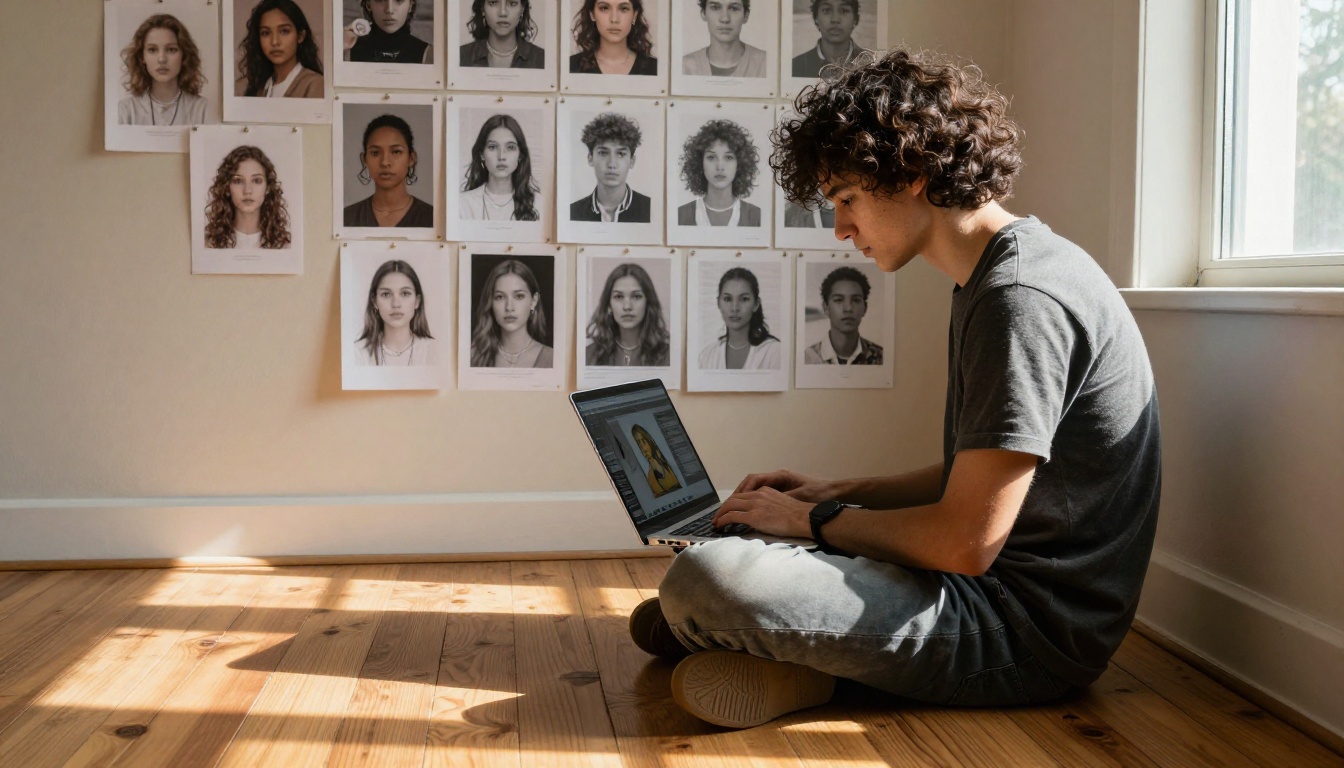
Want to see yourself across 10 different artistic styles without uploading your photo 10 separate times? The Portrait Series model handles this in a single session. It takes one photo and generates a sequence of stylized portraits, each in a distinct artistic treatment.
When Portrait Series Makes Sense
You want to compare styles side by side before committing to one
You are building a content library for social media and want genuine variety
You want to give someone a unique gift set with their portrait across multiple art styles
What Styles Does It Cover
The model covers a broad range: oil painting, watercolor, ink sketch, comic book, anime, photorealistic illustration, and more. Each output in the series preserves the core facial structure while applying an entirely different visual language.
Writing Prompts That Actually Work
If you are using a text-to-image model rather than a direct photo-to-cartoon converter, prompt quality determines everything. Here is a structured approach.
"Portrait of a young woman with curly red hair, anime style, soft cel shading, big expressive eyes, clean white background, high quality illustration"
"Comic book style cartoon of a man with short dark hair and beard, thick black outlines, bold primary colors, heroic pose, cel-shaded, vibrant"
"Illustrated portrait of a teenage girl with freckles, warm color palette, soft studio lighting, charming expression, painterly finish"
💡 Avoid phrases like "turn this into a cartoon." The model needs specific information about style, color, and quality. The more detail you provide, the closer the output matches your actual vision.
Getting a Consistent Character Across Multiple Images
One of the real challenges with cartoon avatars is consistency. If you generate the same character twice using different runs, the output often looks like two different people. Here is how to solve that problem.
Use the Same Base Photo Every Time
The simplest and most reliable fix. If every generation starts from the same source image, the model works from identical facial data each time. Even small differences in the source photo, like different expressions or lighting, will shift the character's appearance in the output.
Save Successful Prompts Exactly
When a generation nails the likeness and style you want, copy that exact prompt and save it somewhere accessible. Minor wording changes can shift the output significantly. Reusing the same prompt is the fastest path to consistent results.
Use Ideogram Character for Multi-Scene Consistency
The Ideogram Character model is specifically designed to maintain character identity across multiple generations. If you need your cartoon avatar to look the same in 20 different poses, backgrounds, or scenarios, this is the right model for that workflow.
Common Mistakes and How to Fix Them
The Cartoon Does Not Look Like You
This usually means the image-to-image influence is set too low, or the text prompt is overriding the facial features from the source photo. With Flux Kontext Fast, you can adjust the balance between prompt weight and image fidelity directly. Reduce the prompt influence to let the source photo do more of the work.
Outputs Look Different Every Time
Each generation is non-deterministic by default. To get consistent results across multiple runs, set a fixed seed value in the model settings. This locks the random generation factor so reruns start from the same point and produce more similar outputs.
The Background Is Distracting or Wrong
If the generated cartoon has a busy or unwanted background, run it through the Background Removal model to cut the subject out cleanly. Then place the cartoon on any background you want, whether that is a solid color, a scene, or a branded template.
The Resolution Is Too Low for Print or Merchandise
Standard AI outputs are typically web-ready but not always print-ready. Run the finished cartoon through a super-resolution upscaling model before sending it to a printer or merchandise platform. This doubles or quadruples the pixel density without blurring the illustration.
💡 Three-step workflow for a print-ready cartoon: Generate the cartoon, remove the background, run through super-resolution. That is all you need.
Who Actually Uses Cartoon Avatars
Real people, real use cases beyond the obvious social profile picture:
Twitch streamers use them as channel point reward animations, sub badges, and emotes
Podcast hosts use illustrated portraits for show artwork and episode thumbnails
Teachers create cartoon versions of themselves for worksheets, presentations, and classroom materials
Parents turn family photos into cartoon portraits for home prints, storybooks, or personalized birthday cards
Small business owners use a cartoon founder as a brand mascot, which feels more approachable than a corporate headshot
Game developers use AI cartoon portraits for NPC character concepts and reference sheets
Start Creating Your Cartoon Avatar Now
The fastest way to find the cartoon style that works for you is to run a few experiments. PicassoIA has every model mentioned in this article available right now, with no software to install and no art skills required.
Start with Cartoonify for a quick first result using your photo directly. Then try Face to Many Kontext to see yourself in multiple art styles in one session. If you need a consistent avatar set for multiple platforms, AI Avatars gives you a full library of matching portraits in a single generation.
The only way to know which style suits you is to actually try it. Upload a photo, run the model, and see what comes back. It takes less time than reading this article. Head over to PicassoIA and see your cartoon self for the first time.