Bad food photos are a slow sales leak. Every blurry, flat, or uninspiring image of your dish, menu item, or packaged product quietly pushes potential customers away before they ever hit "add to cart." The good news: you no longer need a professional photographer, a studio, or a $3,000 camera setup to produce images that make people hungry. With modern AI image generation, you can produce photorealistic, appetite-triggering food photos in minutes, from a text prompt, with zero equipment.
This is how to do it right.
Why Bad Photos Kill Revenue
The data most sellers ignore
Restaurant owners and ecommerce brands consistently underestimate the impact of photography on conversion rates. In repeated A/B tests across the food delivery and CPG (consumer packaged goods) space, product images are the single biggest driver of purchase decisions, above price, above reviews, and above description copy.
Think about the last time you ordered food online. You scanned thumbnails. You clicked the one that looked best. You didn't read the description first.
Your customers do the exact same thing.
What "bad" actually means
Bad food photography isn't just out-of-focus shots. The real killers are subtler:
- Flat lighting that makes food look dull and matte
- Cluttered backgrounds that distract from the hero dish
- Wrong color temperature that makes warm food look cold
- No texture cues that prevent the viewer from "feeling" the food
- Inconsistent style across a menu or product catalog
AI-generated images solve all of these when you prompt them correctly.
What Makes a Food Photo Convert
The psychology of appetite appeal
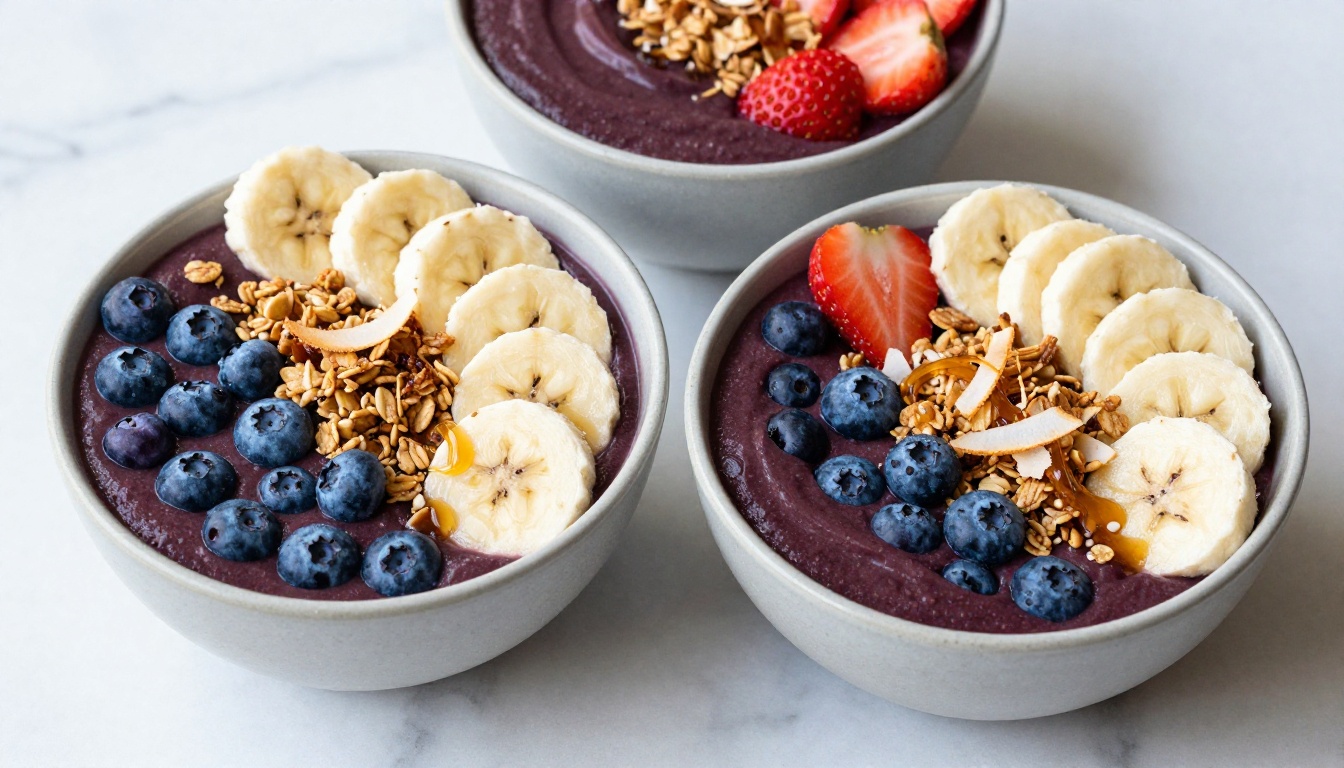
The best food photos share a set of visual signals that trigger a specific neurological response: anticipated pleasure. These signals are:
- Moisture and gloss on surfaces (tells the brain: fresh, just cooked)
- Steam or condensation (hot food, cold drink: temperature is appetizing)
- Visible texture (crunch, softness, creaminess communicated through surface detail)
- Color contrast between components (stimulates visual interest)
- Portion suggestion (not too little, not intimidating)
When you write prompts for AI food images, you are essentially scripting these signals directly.
The three shot types that drive clicks
| Shot Type | Best For | Composition Angle |
|---|
| Hero Shot | Menus, landing pages, ads | 45-degree front angle |
| Flat-Lay | Social media, recipe blogs | 90-degree overhead |
| Product Packshot | Ecommerce, retail, DTC brands | 30-degree 3/4 angle |
Each serves a different purpose, and each requires a different prompt structure.
The Right AI Models for Food Photography
Not all models produce photorealism
Photorealism is not guaranteed with every AI image model. Some models excel at illustration, concept art, or stylized outputs that look beautiful but won't pass as a real photograph. For food sales content, you need a model that produces accurate textures, natural lighting, and zero uncanny-valley artifacts.
These models consistently deliver on PicassoIA:
Flux 1.1 Pro Ultra is the top-tier choice for maximum detail. It handles fine textures like herb leaves, sauce drips, and bread crust exceptionally well. If you're producing hero images for a premium brand, this is your default.
GPT-Image 1.5 by OpenAI brings a different strength: prompt adherence. If you have a specific plating style, color palette, or brand requirement to hit, this model follows instructions with precision. It's ideal for catalog work where consistency across SKUs matters.
Imagen 4 from Google excels at lighting realism. Highlights, shadows, and ambient occlusion on food surfaces look physically correct, which matters when simulating natural window light or studio setups.
Realistic Vision v5.1 is the workhorse for everyday commercial content. It produces clean, photographic results with consistent quality, making it perfect for high-volume menu photography or social media content batches.
For product-specific workflows
If you're shooting packaged goods rather than plated dishes, the product-focused models on PicassoIA offer specialized capabilities:
- Product Shadow: Adds realistic drop shadows and contact shadows to product images, critical for ecommerce listings that require the product to "sit" naturally in a scene
- Product Packshot: Generates clean, commercial-grade product shots on white or light backgrounds, optimized for Amazon, Shopify, and retail platforms
- Product Cutout: Precisely removes backgrounds from product images for transparent PNG output
- Generate Background: Places your product into a contextually appropriate scene, whether a kitchen counter, a restaurant table, or a picnic spread
How to Write Prompts That Work
The anatomy of a food prompt
A weak prompt produces a generic result. A strong prompt produces a specific, sales-ready photograph. The structure that consistently works:
[Subject + State] + [Surface/Environment] + [Lighting Conditions] + [Camera & Lens] + [Texture Details] + [Style Modifier]
Weak prompt: "a burger on a table"
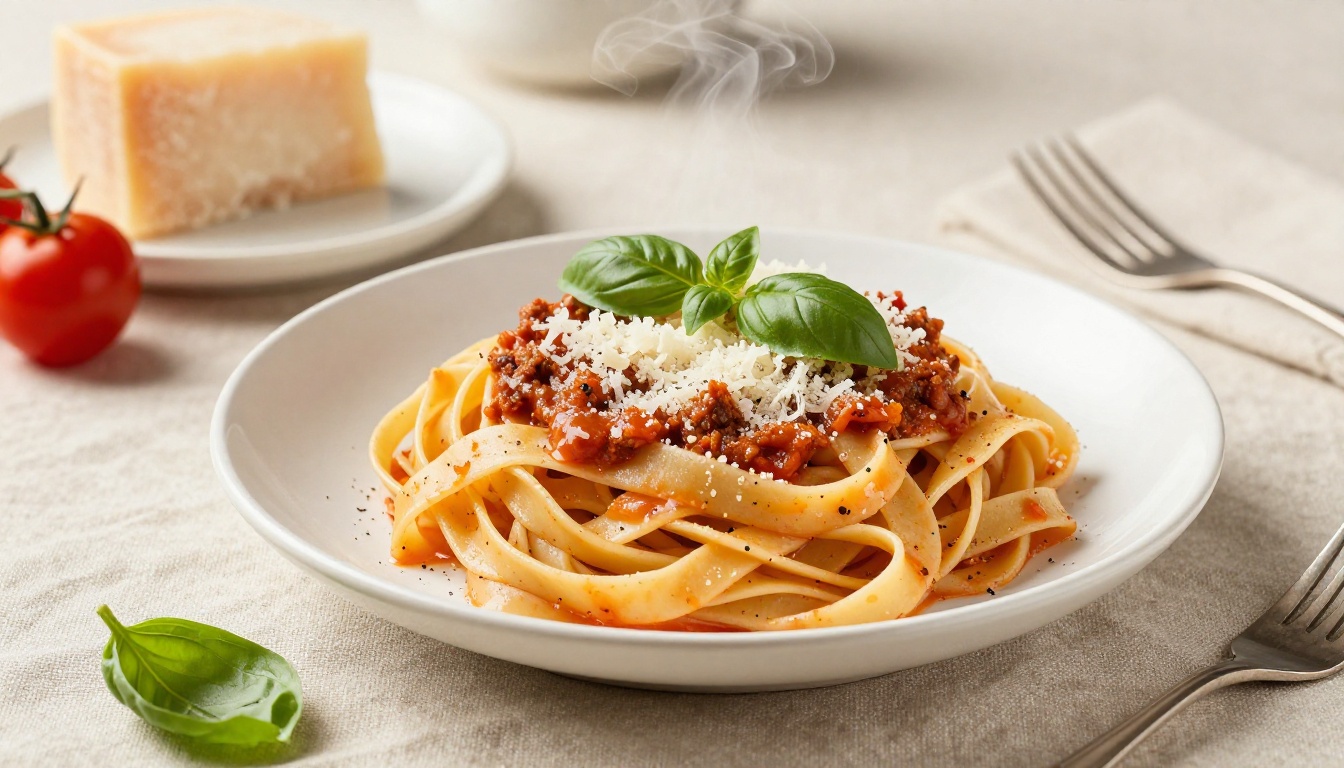
Strong prompt: "Close-up of a juicy wagyu cheeseburger with melted cheddar dripping over toasted brioche bun, placed on a worn dark oak cutting board, volumetric afternoon light from upper left creating warm shadow gradients, shot with Canon 5D Mark IV 85mm f/2 lens, visible sesame seeds, glistening sauce, steam rising from patty, Kodak Portra 400 film grain, RAW 8K photography"
The second prompt tells the AI exactly what to do: the subject, the surface, the light source, the camera, the texture cues, and the style. Every element is a sales signal.
Lighting is your most powerful variable
Light is not background information in food photography. It is the primary tool that communicates texture and temperature. Here's what each lighting direction does:
| Light Direction | Effect | Best For |
|---|
| From upper-left | Warm, natural, window feel | Everyday food, lifestyle |
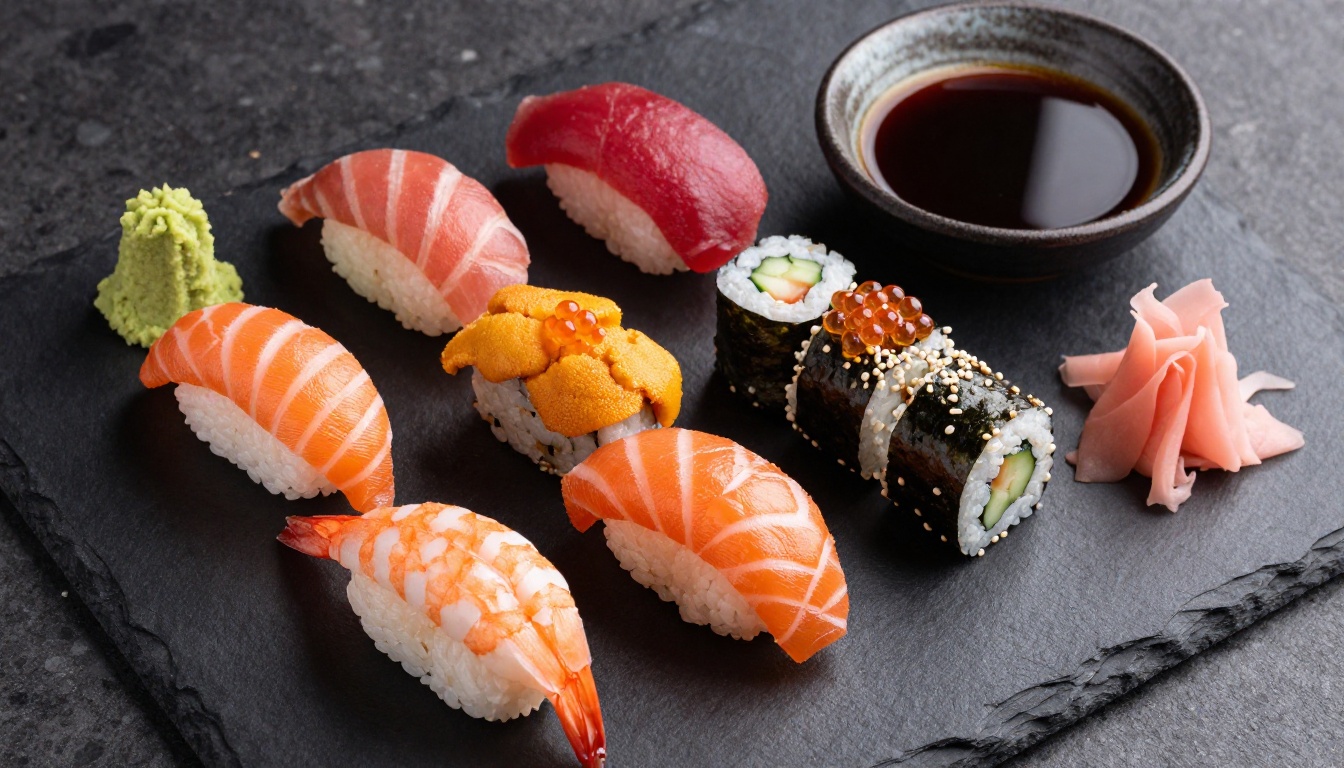
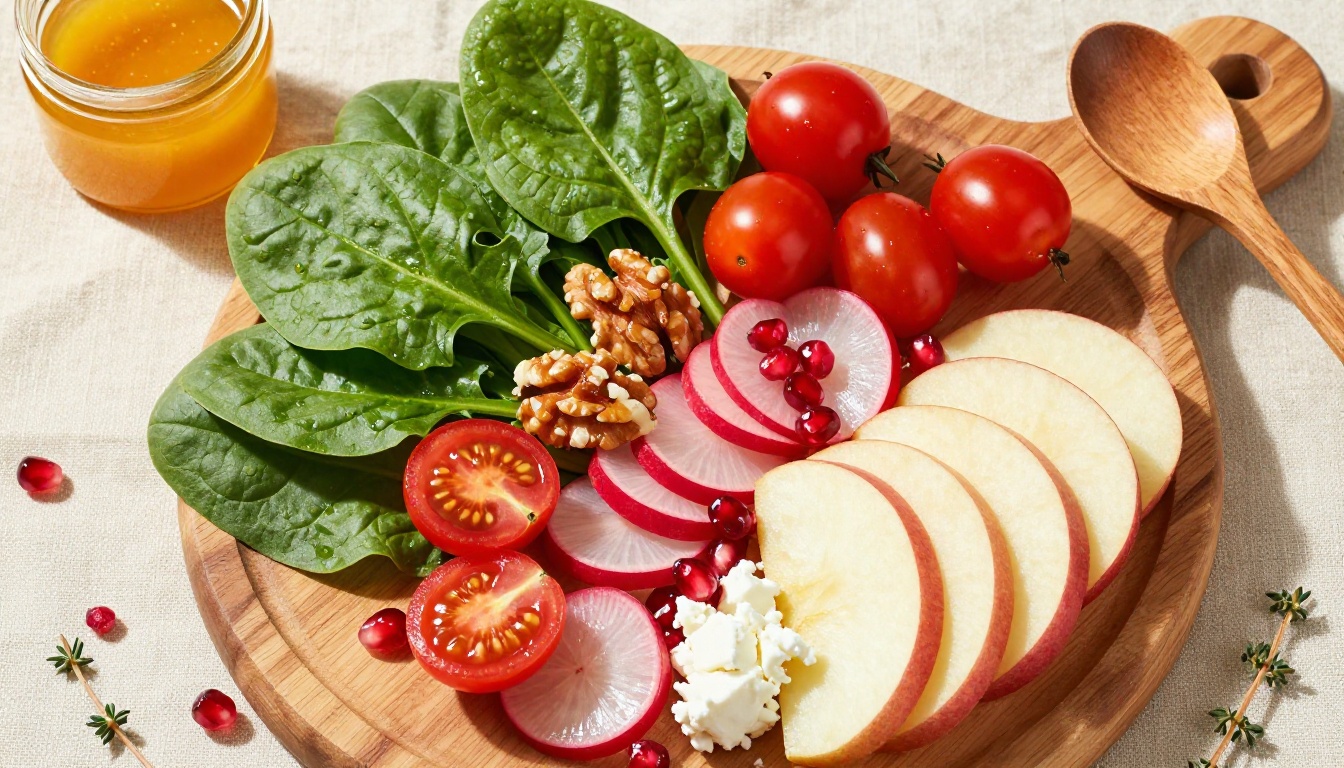
| From directly above | Even, clean, editorial | Flat-lays, sushi, salads |
| From behind (rim light) | Dramatic, steam visible | Hot drinks, soups, broth |
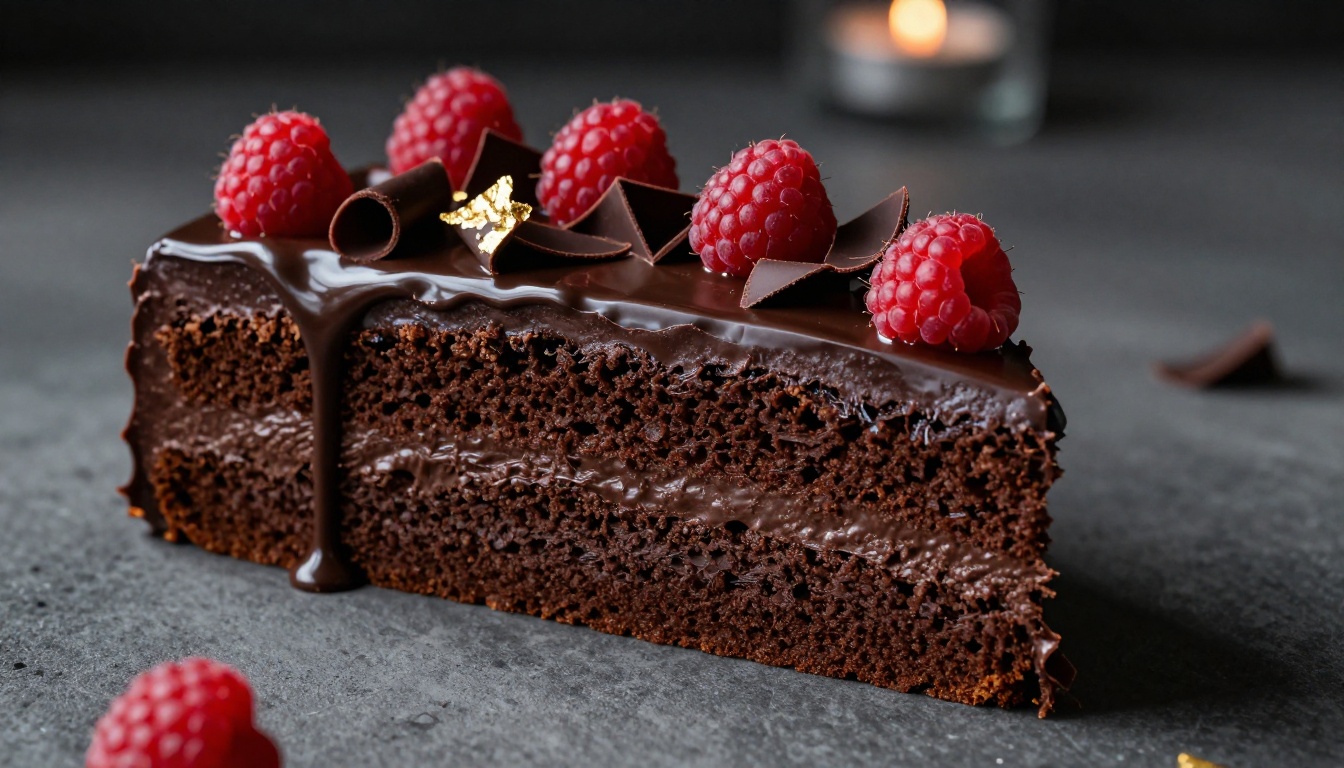
| Rembrandt (45-degree side) | Moody, contrast-heavy | Desserts, dark chocolate |
Always specify lighting direction explicitly in your prompt. "Well-lit" is not a lighting instruction.
Power words to include in prompts
These terms activate photorealistic food rendering in AI models:
volumetric light, film grain, Kodak Portra 400shallow depth of field, bokeh backgroundmoisture droplets, steam wisps, glistening surfacephotorealistic, RAW 8K photography, --style rawnatural shadows, micro-detail, hyperrealistic textures
💡 Pro tip: Avoid the word "delicious" or "appetizing" in prompts. These are subjective descriptors that AI models treat as noise. Describe the physical reality of what makes food look good instead.
Product Backgrounds and Shadows
Why context sells
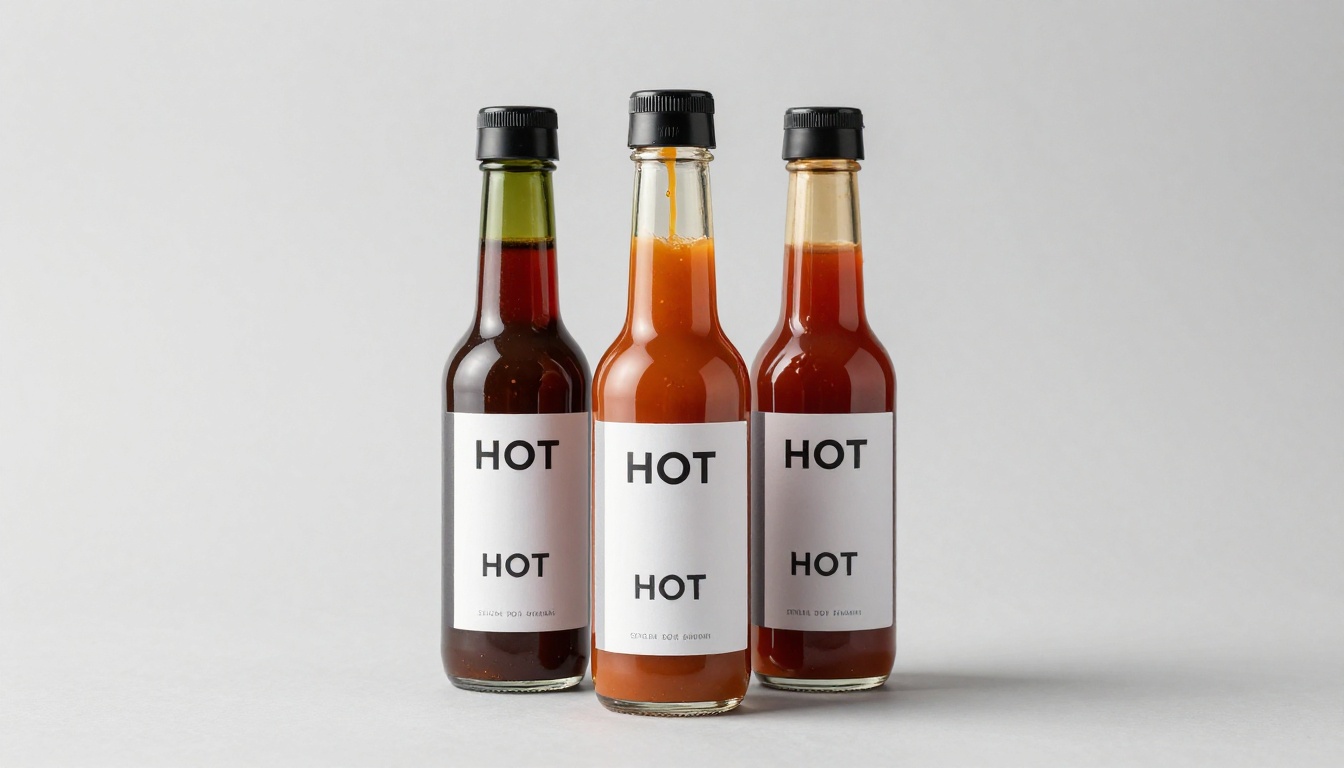
A product floating on a white background tells customers nothing about experience. A sauce bottle placed on a marble kitchen counter beside fresh ingredients says: this belongs in a quality kitchen. Context creates aspiration, and aspiration drives purchase.
The Generate Background model on PicassoIA lets you place any product photo into a contextually appropriate scene with photorealistic results. You can move the same product from a clean studio look to a rustic wooden table to a modern restaurant countertop without any manual editing.
For ecommerce listings where white backgrounds are required, Product Packshot produces Amazon-compliant, high-contrast images directly. And Product Shadow adds the natural contact shadow that prevents products from looking "cut and pasted" into a scene.
Shadow types and when to use them
Not all shadows serve the same purpose. Using the wrong one undermines the realism of an otherwise strong image:
- Drop shadow: Lifts the product off the surface, creates a floating effect. Good for packaging on white backgrounds
- Contact shadow: Connects the product to the surface. Essential for product photography that needs to look physically real
- Soft ambient shadow: Creates dimension without drama. Best for lifestyle and editorial food content
How to Use Flux 1.1 Pro Ultra for Food Photography
Flux 1.1 Pro Ultra is the current gold standard for photorealistic detail in AI image generation. For food photography specifically, it handles three things better than competing models: surface texture, specular highlights (the gloss on a sauce, the sheen on a glaze), and shadow gradients that give depth to plated dishes.
Here's how to get the best results with it on PicassoIA:
Step 1: Open Flux 1.1 Pro Ultra at picassoia.com and navigate to the text-to-image section.
Step 2: Set your aspect ratio to 16:9 for hero banners and social content, or 1:1 for Instagram grid posts and marketplace thumbnails.
Step 3: Write a structured prompt following the anatomy above. For food content, always include: the dish name, the surface, the light source, at least one camera spec, and two texture cues.
Step 4: Run at least 3 variations using different seeds. Food prompts produce significantly different results across seeds, and the first output is rarely the strongest.
Step 5: Upscale your best result using P-Image Upscale for print-ready resolution or retina display quality.
💡 Workflow note: For ecommerce catalogs, use Flux Kontext Pro to generate consistent multi-angle views of the same dish or product. It maintains object identity across prompts, which matters for brand consistency.
Editing and Refining Your Food Images
When generation is the starting point
Even with the best model and prompt, your first output will often need one or two adjustments. The most common issues with AI food photography:
- Color accuracy on specific ingredients (AI sometimes invents plating that looks great but wrong for the brand)
- Text artifacts if your prompt mentioned a label or package
- Overcrowded composition when too many elements are requested
For these refinements, Flux Kontext Pro supports image editing via instruction-based prompts. You can request specific changes such as removing a garnish or changing a plate color without regenerating the entire image.
Upscaling for print and large-format display
Social content at 1024px looks fine on a phone screen. Restaurant signage, print menus, and digital billboards demand significantly higher resolution. P-Image Upscale scales AI-generated food images by 2x to 4x while preserving and even sharpening texture detail.
For banner ads and hero images above 2400px wide, always upscale before export. The difference in perceived quality is significant.
3 Prompt Mistakes That Cost You Sales
1. Vague subject descriptions
"A bowl of soup" produces a generic bowl of soup. "A steaming bowl of miso ramen with soft-boiled egg, nori sheet, bamboo shoots, and sliced pork chashu, dark broth with visible shimmer, low-angle front view" produces a specific, craveable image.
The more precisely you describe the dish, the closer the output is to what customers actually order.
2. Ignoring background storytelling
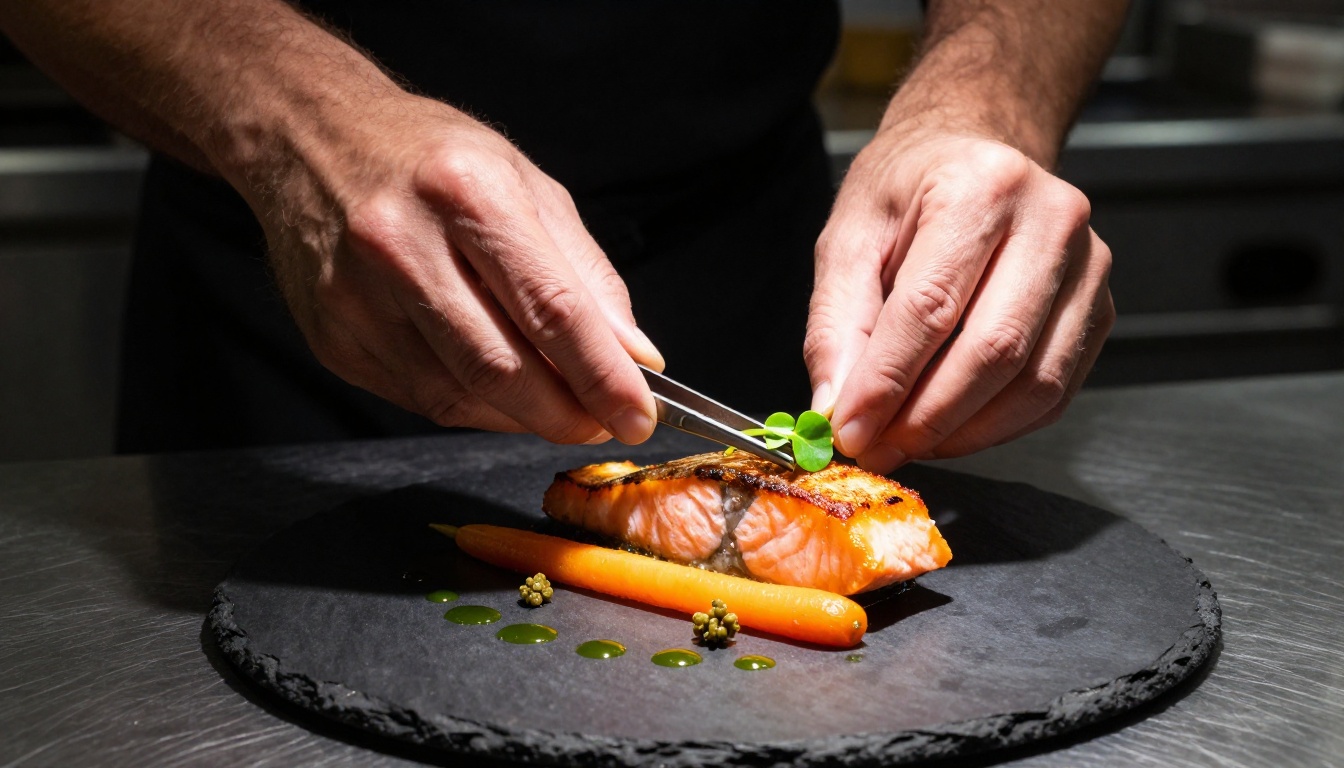
The background of a food photo isn't negative space. It's context that tells a story about the occasion, the quality level, and the brand personality. A rustic wooden board says "artisan." Matte black slate says "fine dining." A marble slab says "premium grocery." Pick deliberately.
3. Missing the texture signal
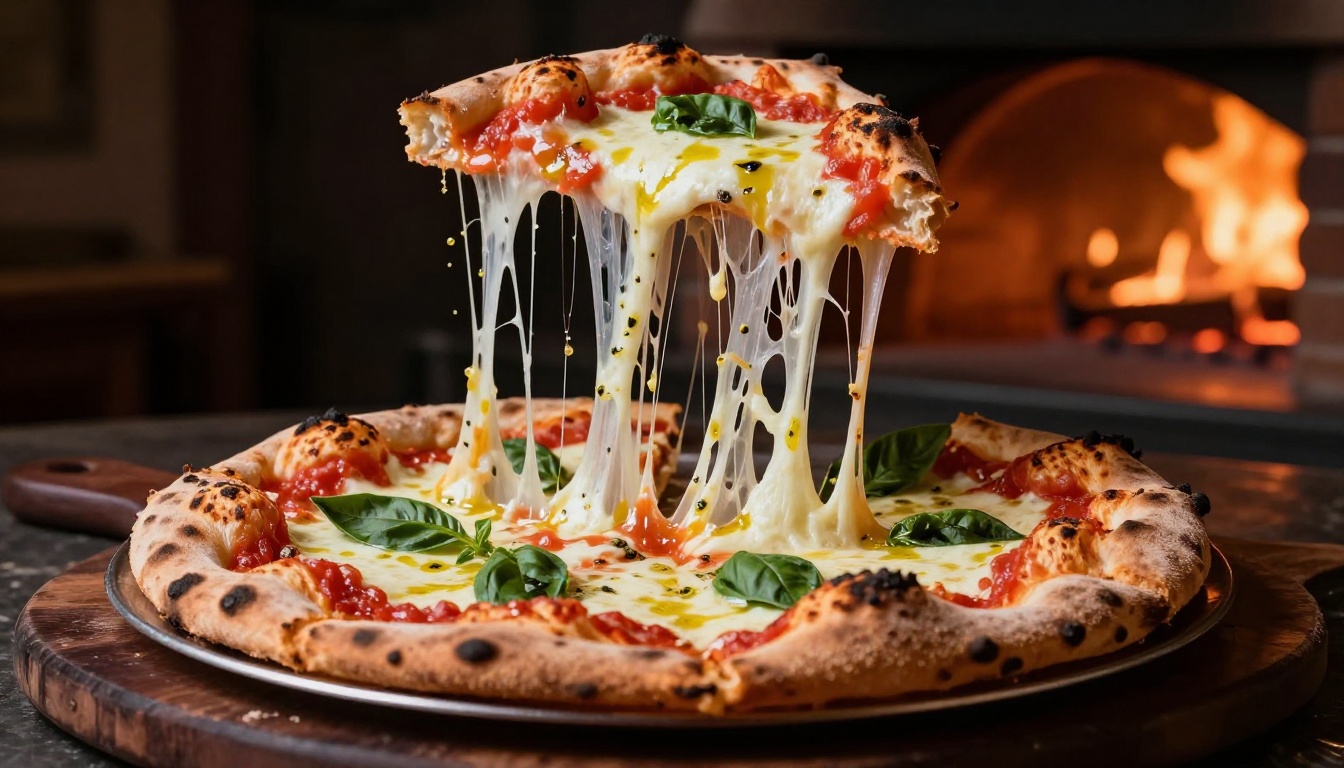
Texture is how the eye communicates to the brain what food feels like: smooth, creamy, crunchy, flaky, crispy. Include specific texture language in your prompt: "visible sesame seeds," "glistening honey drizzle," "crispy caramelized crust with visible air pockets," "laminated flaky pastry layers."
The Full Workflow at a Glance
Here is the repeatable process for producing sales-ready food photos with AI:
- Define the shot type: Hero, flat-lay, or product packshot
- Choose the right model: Flux 1.1 Pro Ultra for detail, GPT-Image 1.5 for prompt precision, Imagen 4 for lighting realism
- Write a structured prompt: Subject + Surface + Lighting + Camera + Texture + Style
- Generate 3-5 variations: Different seeds produce dramatically different compositions
- Refine with editing tools: Use Flux Kontext Pro for targeted edits
- Add context if needed: Use Generate Background to place products in scenes
- Upscale for final output: Use P-Image Upscale for print-ready resolution
💡 Speed benchmark: An experienced user can produce a full set of 10 catalog images across multiple dishes and product angles in under 90 minutes on PicassoIA. A professional photography shoot for the same catalog would take one to two full days.
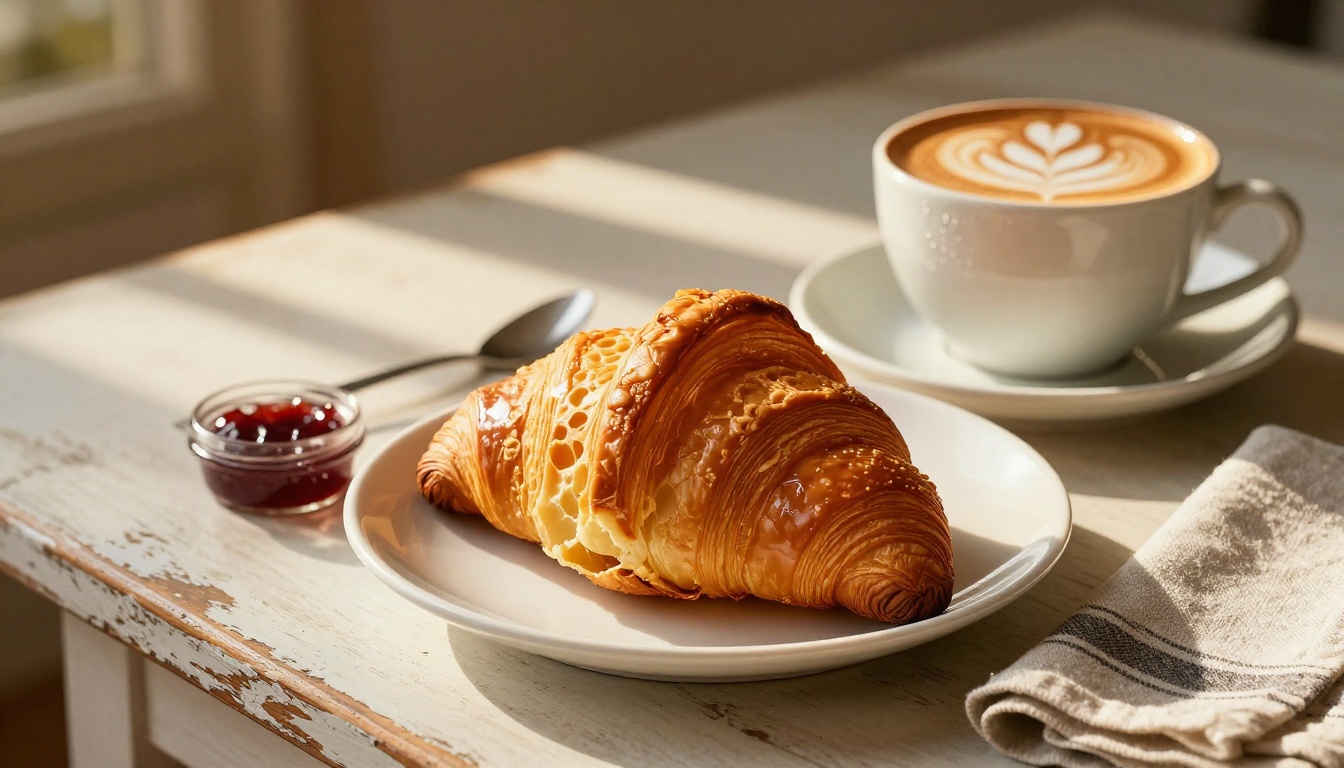
Start Creating Food Photos That Sell
The gap between restaurant brands and street food operators, between premium DTC products and generic listings, has always been photography. That gap is closing fast. AI image generation puts the same visual production quality that used to require a full creative team behind every single seller who knows how to write a prompt.
You now have the framework: the shot types, the models, the prompt structure, the editing workflow. None of it requires a camera, a studio, or a photographer on retainer.
Everything you need is available right now on Picasso IA. Pick a dish. Write a structured prompt. Generate three variations. Pick the strongest one. Upscale it.
Then watch what happens to your click-through rate.


