Lip-synced video used to require a film crew, a sound engineer, and post-production software that cost thousands of dollars. Today, you can do it in a browser with a single audio file and a short video clip. Kling Lip Sync, developed by Kuaishou's AI lab, is one of the most accurate mouth-sync models available right now, and it runs on PicassoIA with no software installation required.
This article walks through exactly how to generate lip-synced videos with Kling, what the model does well, where it has limitations, and how it compares to the other lipsync tools available on the platform.
What Kling Lip Sync Actually Does
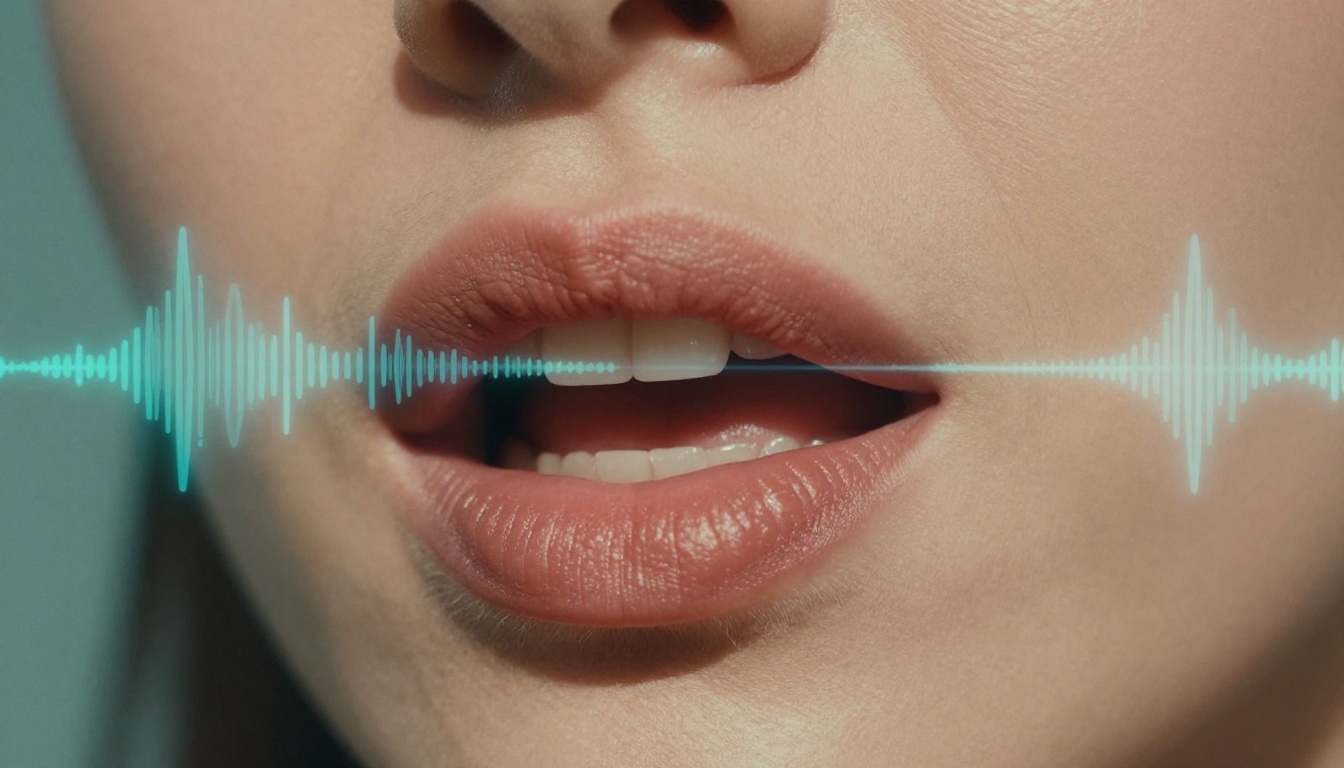
Before touching any tool, it helps to know what you are asking the model to do. Kling Lip Sync does not simply overlay audio onto video. It reads the audio track, identifies phoneme sequences, then modifies the mouth region of the person in the video frame by frame so that the lip movements match the speech precisely.
The result is a video where the speaker appears to be saying exactly what the new audio track contains, even if the original video held different speech or no speech at all.
The Technology Behind Mouth Movement
Kling uses a combination of facial landmark detection and generative video diffusion to produce realistic mouth animations. It maps 68+ facial landmark points around the mouth, jaw, and chin region on every frame. Then it generates new pixel content in that region that matches the expected phoneme shape for each sound in the audio.
This is not a simple warp or morph. The model regenerates the mouth area using learned distributions of real speech movements, which is why results tend to look natural even with fast or emotionally expressive speech.
The real difference between a model like this and older approaches: older tools moved the jaw up and down. Kling moves the entire mouth region with correct shapes for vowels, consonants, and transitions between sounds. That distinction is immediately visible in the final output.
What Files You Need to Get Started
Running Kling Lip Sync is straightforward. You need:
- A video file containing a visible face, ideally facing forward or at a slight angle
- An audio file with the speech you want synced (MP3 or WAV work well)
That is it. No transcripts, no annotations, no manual frame selection. The model handles the rest automatically.
💡 Pro tip: The video does not need to have any speech in it originally. You can use a video of someone nodding, looking at the camera, or even standing still, and Kling will animate the lips to match whatever audio you provide.
Why Kling Stands Out for Lipsync
There are now more than a dozen lipsync models across various platforms. So why specifically use Kling?
Frame-by-Frame Precision
Most lipsync tools struggle with two things: fast speech and head movement. When a subject speaks quickly, the model needs to generate rapid phoneme transitions without creating visual blur or "jelly mouth" artifacts. When the head moves, the model needs to track the face across changing positions and still place the correct mouth shape in the right location.
Kling Lip Sync handles both of these cases with consistent frame-level accuracy. The tracking stays locked to the face even through moderate head turns, and fast speech does not degrade quality noticeably. For content where precision matters, this makes it one of the most reliable choices available.
How It Compares to Other Models
Here is a quick comparison of lipsync models available on PicassoIA:
Kling sits in a sweet spot: it is not the fastest, but it produces results with fewer artifacts than most faster models. For content where quality matters, that trade-off is almost always worth it.
How to Use Kling Lip Sync on PicassoIA
Using Kling Lip Sync on PicassoIA takes three steps. There is no account software to install, no desktop app, no rendering queue to manage yourself.
Step 1 - Upload Your Video File
Go to the Kling Lip Sync model page on PicassoIA and upload your source video. The video should meet these criteria:
- Face visibility: The subject's face should be clearly visible, ideally front-facing or within a 45-degree angle
- Minimum resolution: 480p or higher produces cleaner results
- Length: Shorter clips (under 60 seconds) process faster and with higher consistency
- Stable framing: Shaky footage reduces sync accuracy because the tracker has to work harder
If your video has a lot of camera movement, consider stabilizing it using a video processing tool before running lipsync.
Step 2 - Add the Audio You Want Synced
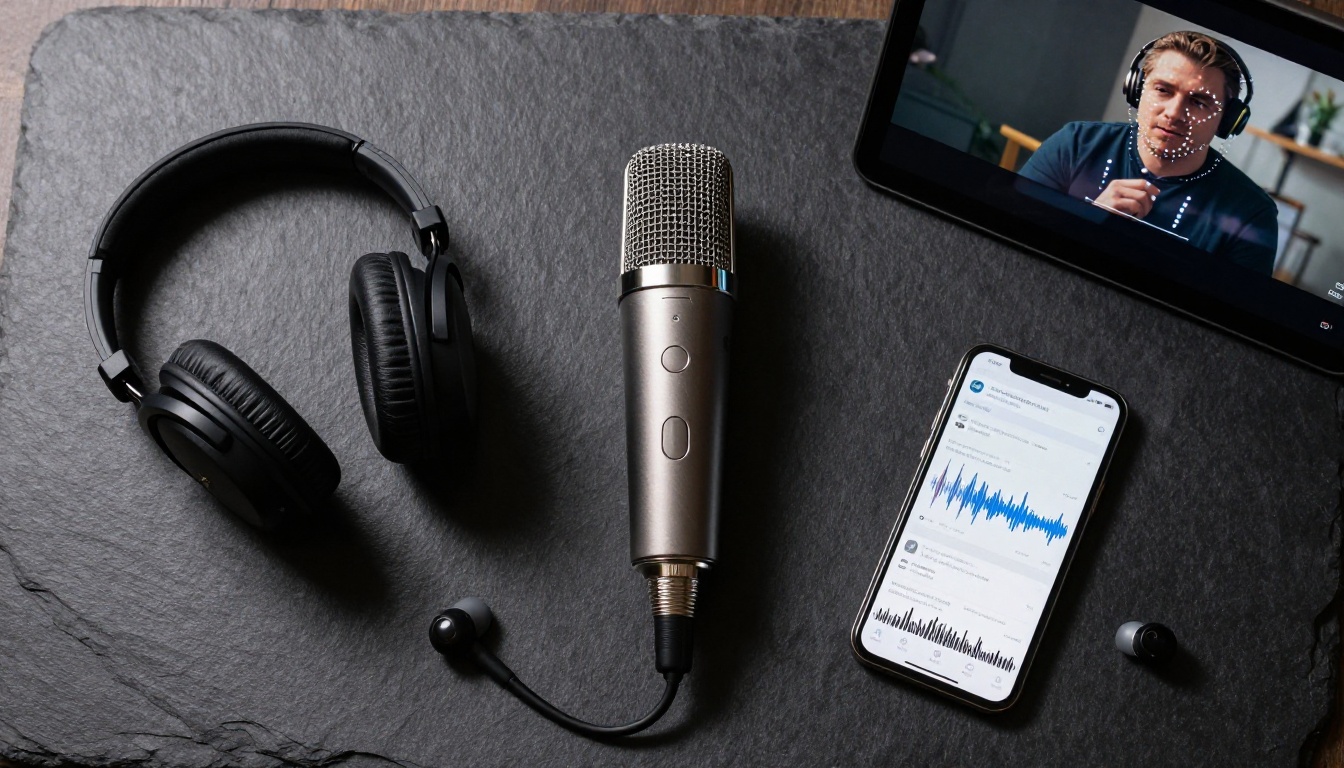
Upload your audio file alongside the video. A few things to keep in mind for better results:
- Clean audio: Background noise reduces the model's ability to detect phoneme boundaries correctly
- Matching length: If the audio is longer than the video, the output will be trimmed to match. If shorter, the last frame holds
- Voice clarity: Clear, well-articulated speech produces more accurate lip shapes than mumbled or heavily accented speech
💡 Tip: Record your audio in a quiet room with a decent microphone. Even a smartphone microphone in a low-echo environment produces good results. The model's accuracy depends significantly on how clearly it can parse your speech sounds.
Step 3 - Run the Model and Download
Once both files are uploaded, click run. The processing time depends on video length, but most clips under 30 seconds complete in under two minutes. When finished, you will see a preview in the interface and a download button for the final video file.
The output is delivered as an MP4 file with the original mouth region replaced and the new audio track embedded. You can then use this directly in your projects or run it through additional processing steps if needed.
Real Use Cases for Lip-Synced Videos
Lipsync is not just a novelty. It is a practical production tool with real workflows behind it.
Content Creators and Social Media
If you create videos in multiple languages for different audiences, lip-syncing translated audio to your existing footage means you do not have to re-record yourself in every language. You record once, translate the script, generate a voice-over using a text-to-speech model, then sync the audio to your video using Kling Lip Sync.
The result: your face, your expressions, your video, in French, Spanish, Portuguese, or any other language your audience speaks. For creators targeting international markets, this collapses a multi-day production task into an hour of work.
Marketing Videos and Ads
Marketing teams use lipsync to quickly adapt spokesperson footage for different campaigns. Instead of booking a presenter for a new recording session, you update the script, generate new audio, and sync it to existing presenter footage.

This workflow works especially well for:
- Product update videos where the script changes but the visual delivery stays the same
- Regional variations of ads with different call-to-actions
- A/B testing different scripts using the same presenter footage
The consistency of the visual performance across versions is actually a benefit here. When testing ad copy, you do not want visual variation to muddy your results.
Dubbing Videos into Other Languages
Language dubbing is one of the strongest use cases for Kling Lip Sync. Traditional dubbing requires the voice actor to match the original speaker's timing, which is time-consuming and expensive. With AI lipsync, you generate the translated audio first, then sync the mouth movements to that audio automatically.
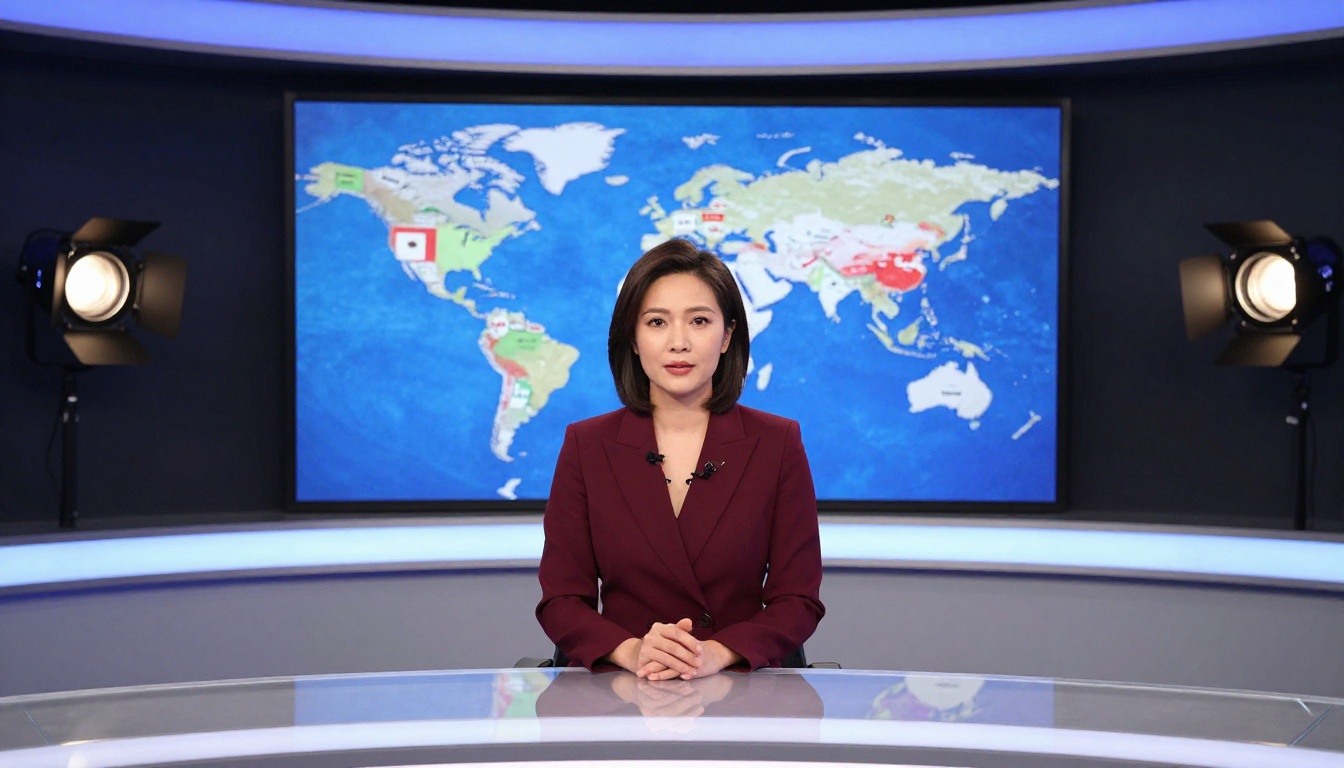
For longer videos or broadcast-quality dubbing requirements, HeyGen Lipsync Precision and HeyGen Video Translate also handle multi-language dubbing with high accuracy, supporting over 150 languages.
Other Lipsync Models Worth Trying
Kling Lip Sync is excellent, but depending on your use case, other models may suit your workflow better.
Sync Lipsync 2 Pro
Lipsync 2 Pro from Sync.so is built for speed without major quality compromises. It is a strong choice when you need to process many clips quickly, such as in batch content creation workflows. The output quality is slightly below Kling in complex motion scenarios, but for clean, forward-facing talking head footage, the difference is minimal.
There is also Lipsync 2 as a baseline option if you want a lighter and faster alternative for straightforward sync jobs.
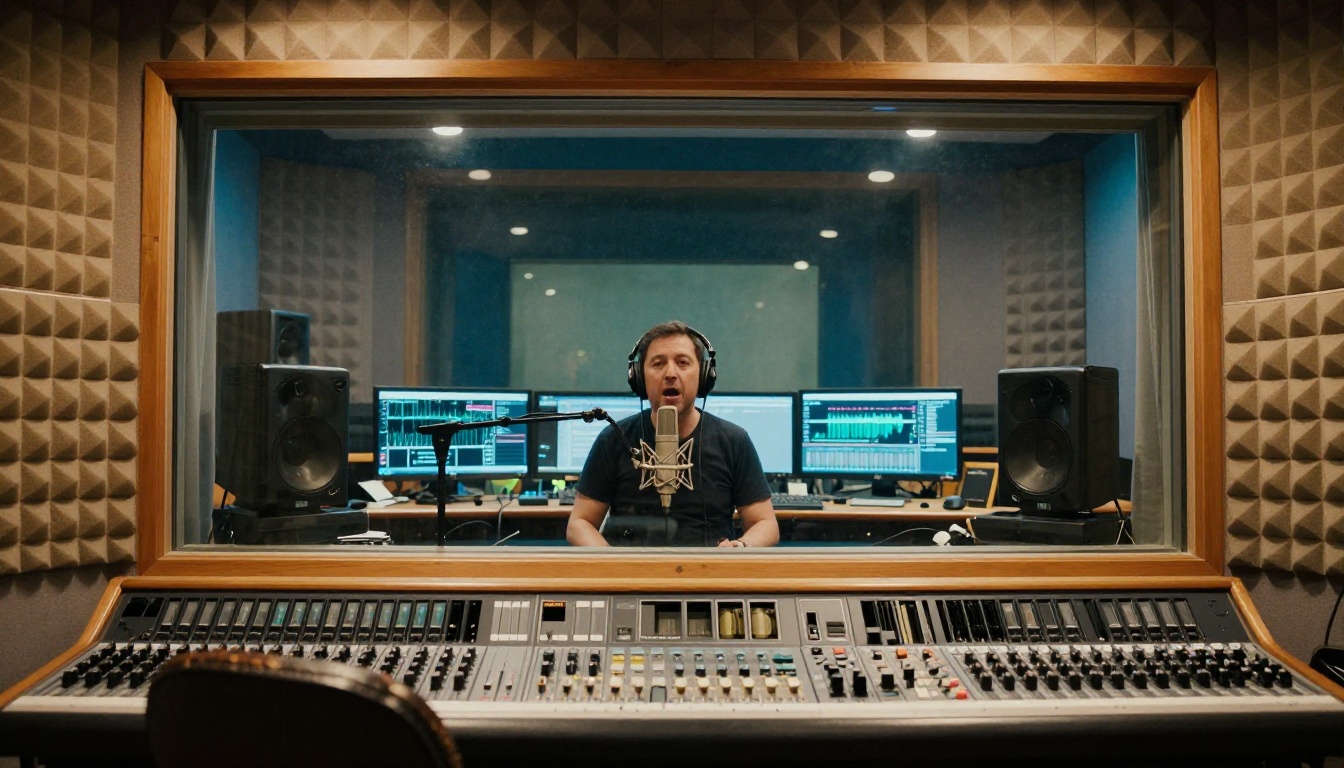
HeyGen Lipsync Precision
Lipsync Precision is HeyGen's highest-accuracy model. It processes slower than the others but produces results that hold up to close inspection, including broadcast playback. If your output is going to be displayed on a large screen or scrutinized by a detail-focused audience, this is the model to use.
There is also Lipsync Speed for cases where turnaround time matters more than frame-perfect precision.
Bytedance Omni Human 1.5
Omni Human 1.5 takes a different approach: it can animate a static photo into a talking video, not just modify existing footage. Upload a single portrait image and an audio file, and it generates a realistic talking head video from scratch. This is useful when you do not have source video at all, just a headshot or a still photo.
The original Omni Human model is also available if you want to compare output quality between versions.
Tips for Better Lipsync Results
Two factors have more impact on lipsync quality than anything else.
Audio Quality is the Biggest Factor
The model reads phonemes from your audio to determine what mouth shapes to generate. If the audio is unclear, phoneme detection is less accurate, and the lip movements will look slightly off. This is the single most controllable variable in your workflow.
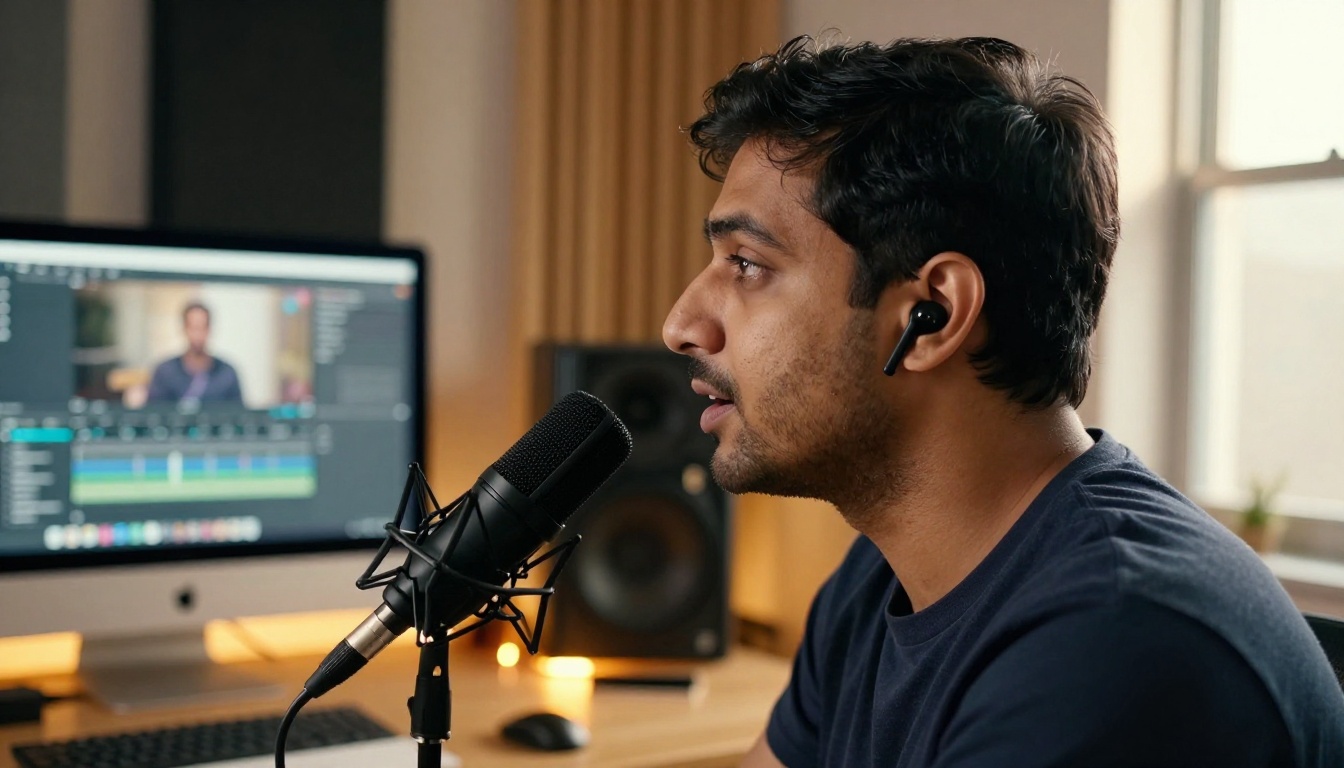
Record in a quiet space. Reduce echo by recording in a small room or near a wall with soft furnishings. Use a pop filter to reduce plosive sounds. Export at 44.1kHz or 48kHz WAV if possible. These steps cost nothing and improve output quality noticeably.
💡 Quick fix: If your existing audio has background noise, you can use a speech-to-text model on PicassoIA to transcribe the content first, then re-generate clean audio using a text-to-speech model before running lipsync. Clean input always produces cleaner output.
Video Requirements That Actually Matter
Not all video works equally well with lipsync. Here are the factors that genuinely affect output:
| Factor | Ideal | Will Still Work |
|---|
| Face angle | Front-facing (0-15 degrees) | Up to 45-degree side turn |
| Lighting | Even, no harsh shadows on face | Moderate shadows, side lighting |
| Resolution | 720p or higher | 480p minimum |
| Motion blur | Sharp focus on face | Slight motion blur acceptable |
| Obstructions | No glasses, masks, or beard covering lips | Thin beard or small glasses OK |
Heavy beards that cover the lip line are the most common issue. The model generates mouth movement beneath the beard, but the result looks less natural because the beard does not move with the lips. Using footage without beard coverage produces significantly cleaner results.
Start Creating Your Own Talking Videos
You now know what Kling Lip Sync does, how to use it, and what to watch out for. The fastest way to feel confident about its output quality is to run it on a clip yourself.
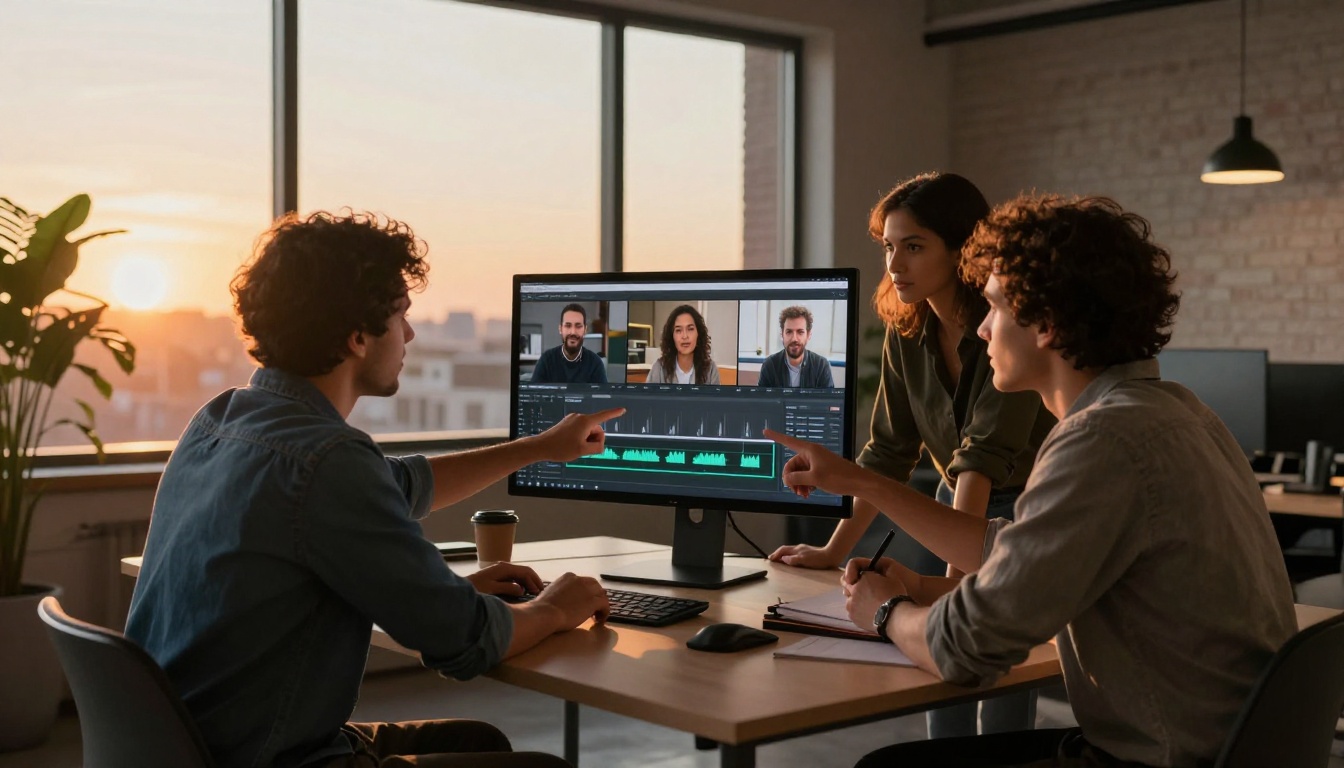
PicassoIA gives you access to Kling Lip Sync alongside a full range of lipsync models, including Lipsync 2 Pro, Lipsync Precision, Omni Human 1.5, and Video Translate, all in one place with no setup required.
Start with a short clip you already have, add a new audio track, and see what the output looks like. Once you have seen how accurate the sync is on real footage, the range of ways to put this to work in your own content workflow becomes obvious fast.
Try Kling Lip Sync on PicassoIA and produce your first synced video in minutes.


