A practical breakdown of how Qwen Image 2 Pro handles adult-themed image generation, which AI models are truly uncensored, and how to write prompts that produce suggestive, photorealistic results. Includes step-by-step setup, model comparisons, and proven NSFW prompt structures for glamour, boudoir, and artistic content.
Qwen Image 2 Pro sits in an interesting position in the AI image generation space. It was built primarily for precise text rendering and tight prompt adherence, but its architecture also handles suggestive and adult-themed content with fewer restrictions than most mainstream models. If you have been running into safety walls on popular platforms, this is worth your attention.
What Qwen Image 2 Pro Does
Developed by Alibaba's Qwen team, Qwen Image 2 Pro is a text-to-image model designed around one core problem that has plagued AI art tools for years: making generated content actually match what you describe. While that precision was built for professional use cases like product mockups and poster design, it translates directly into NSFW work because the model follows your prompt closely instead of sanitizing your intent at the inference stage.
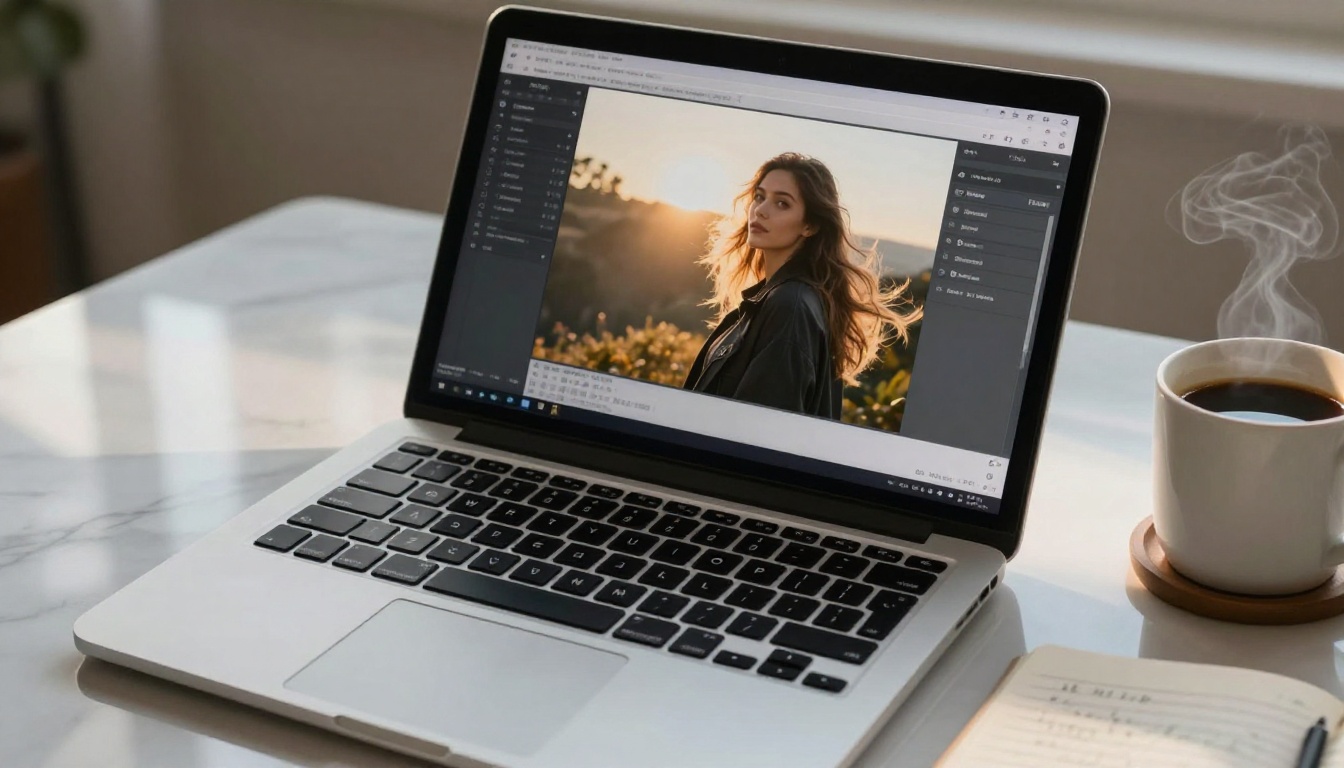
It accepts a text prompt, an optional reference image, nine aspect ratio presets, negative prompts, seed control for reproducible results, and auto prompt expansion for when you want the model to enrich a short description. On PicassoIA, you can run it directly in your browser with no account required and no software to install.
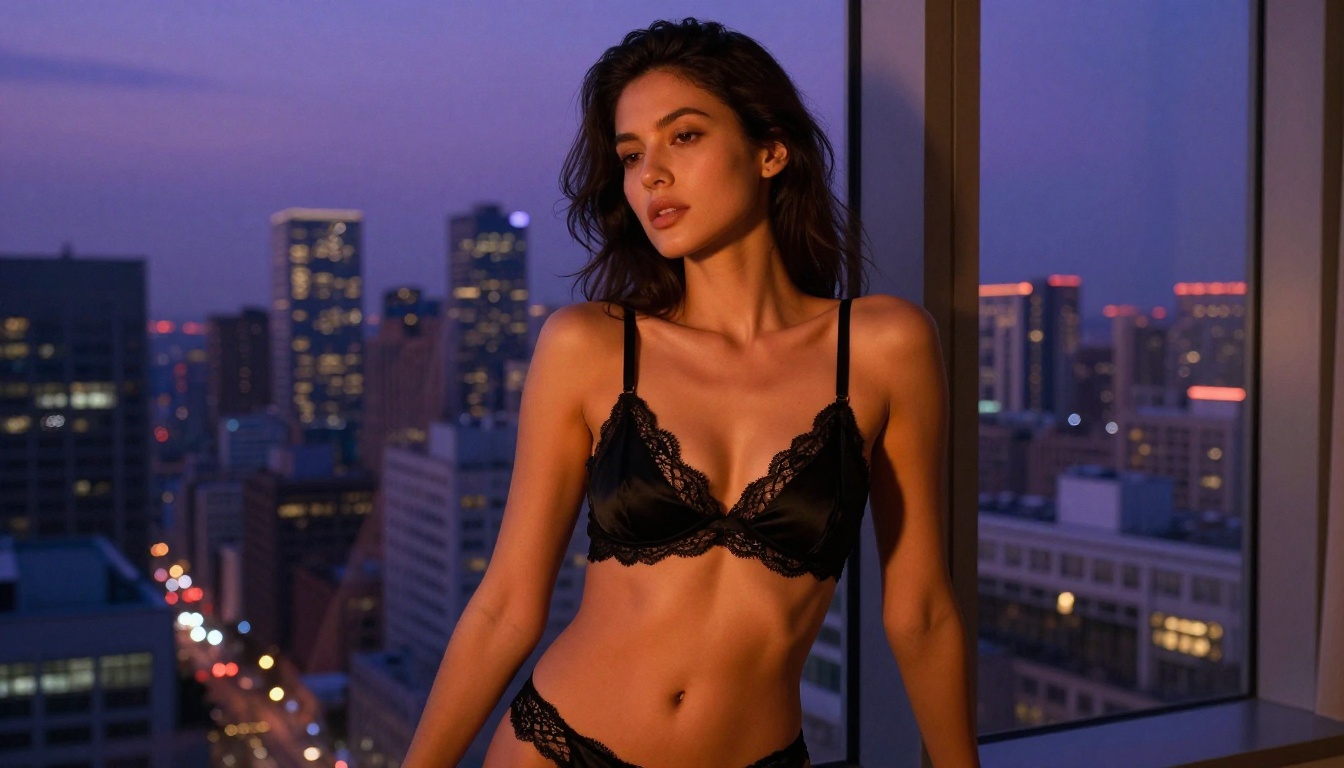
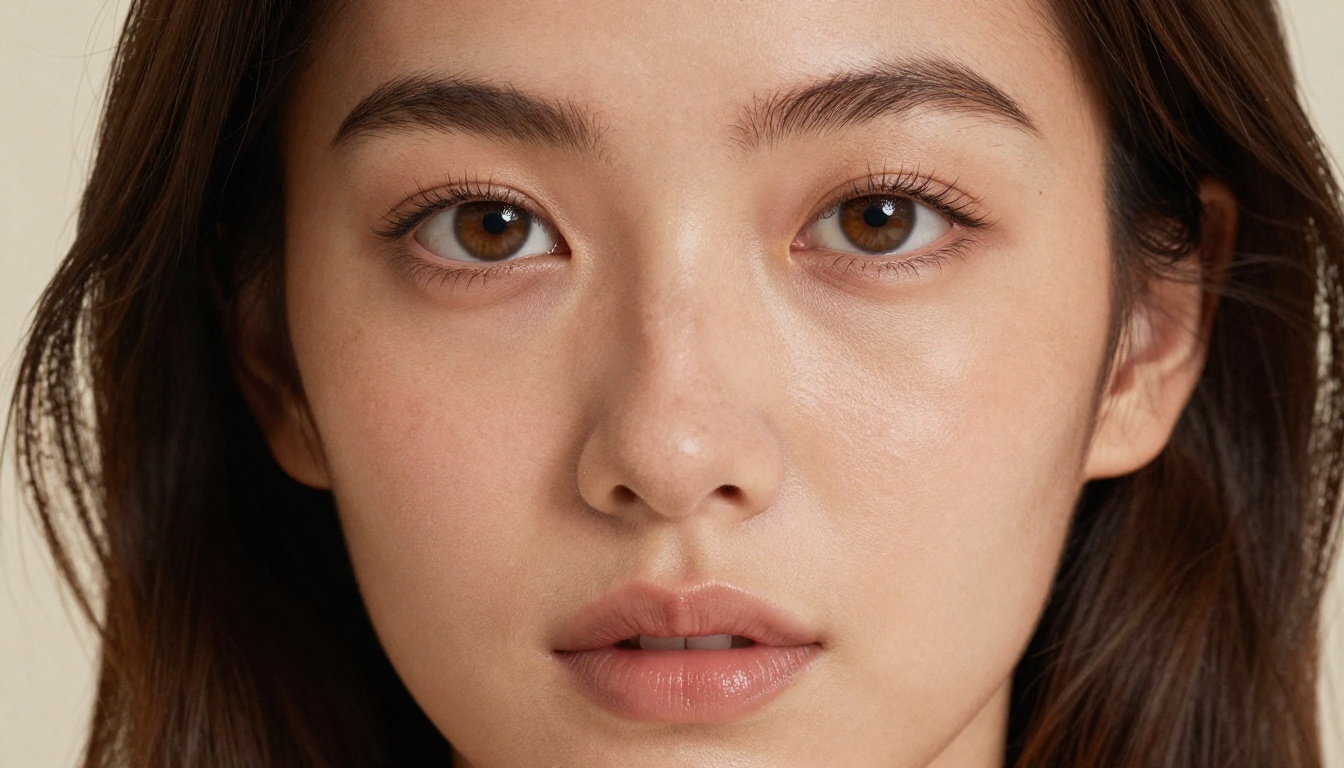
The output sits in the high-photorealism range: skin texture, depth of field, natural lighting, and fabric rendering all respond to detailed prompt language. That responsiveness makes it one of the more controllable models for adult content where specifics like pose, clothing material, and lighting direction actually need to show up in the final image.
Not a content filter bypass
It is worth being direct here: Qwen Image 2 Pro is not a jailbreak tool. It is a model with different defaults and a different training distribution. The result is that certain content categories that are blocked outright on other platforms pass through without issue. That distinction matters because it affects how you prompt and what to expect from each generation.
What photorealistic means at this level
The model renders skin texture, depth, and lighting with a fidelity that competes with dedicated photorealistic models. Muscle definition, fabric folds, hair strand separation, and realistic shadows all respond to prompt cues in a way that most NSFW-focused models do not match. If your goal is glamour photography rather than illustration, this is one of the stronger options available without paying for a dedicated API or commercial license.
Why Most Platforms Block Adult Content
The majority of consumer-facing AI image tools apply safety filters at multiple stages: the prompt classifier, the output classifier, and sometimes at the model level itself. A prompt containing words like "lingerie," "bikini," or "nude" gets flagged before inference even begins. The result is either a refusal, a watered-down output, or an error message with no useful feedback.
This is a deliberate product decision, not a model limitation. The underlying model weights often carry far broader capability than what the application exposes to users. What you are interacting with on mainstream platforms is a curated interface layered over the actual model.
Where the filtering actually happens
Safety systems on mainstream platforms operate at the application layer. Midjourney's public servers, DALL-E via the ChatGPT interface, and Adobe Firefly all apply classifier policies before and after inference. An adult-adjacent prompt can fail even when the model itself would handle it without issue, purely because the platform's word list or output review system catches it first.
The model underneath is almost never the bottleneck. The bottleneck is the product policy of the company running it.
The difference on open-access platforms
Platforms like PicassoIA give more direct access to model inference with fewer application-layer filters. That means the model's actual capability determines the output, not a classifier policy applied afterward. This is the practical reason why the same prompt produces different results depending on where you run it, even when the underlying model is identical.
For NSFW image generation, this platform difference matters more than the specific model choice. The best model on a restrictive platform will still fail on content that an average model passes on an open platform.
Best Models for NSFW Images on PicassoIA
PicassoIA hosts over 90 text-to-image models. For NSFW and adult-adjacent content, a handful consistently outperform the rest. Here is where to focus.
Start with Seedream 4
Seedream 4 from ByteDance is the strongest starting point for NSFW image generation. It produces outputs up to 4K resolution, handles body proportions with rare accuracy, and follows detailed prompt descriptions for pose, lighting, and composition without sanitizing them.
Single-sentence editing lets you iterate on an existing output without regenerating from scratch, which speeds up the refinement loop significantly when working with adult content that needs minor adjustments. You generate a base image, download it, re-upload it with a one-line change description, and the model applies only that change while preserving everything else.
Why Seedream 4 leads for NSFW:
4K output: print-ready without post-processing upscaling
Reference image support: carry a character or style across multiple generations
No watermarks: clean downloads ready for any use
Sequential generation: produce up to 15 related images in one session
Multi-resolution: 1K, 2K, or 4K depending on production needs
💡 Tip: Set size to 2K for the best balance between generation speed and quality. Use 4K only when you specifically need print resolution, since it adds generation time without visible quality differences at screen sizes.
Qwen Image 2 Pro for detail and control
Qwen Image 2 Pro shines when your prompt specifies precise details about lighting, texture, clothing material, and body positioning. Its tight prompt adherence means a detailed prompt for a specific scene gets interpreted literally rather than generalized. For NSFW work, this is a significant advantage because you can specify exactly what appears in the frame without the model reinterpreting your intent in a safer or more generic direction.
The model also accepts a reference image, so you can upload an existing generation and describe changes to it. That image-to-image pipeline is useful for editing outputs, adjusting lighting conditions, or changing clothing elements in an existing composition without rebuilding from scratch.
Seed control lets you reproduce results exactly. Set a seed on a generation you like, then vary the prompt slightly to make controlled iterations from that same base image. This is useful when you have a pose or environment that works and want to explore clothing or lighting variations.
Qwen Image for fast iteration
Qwen Image (the faster version) trades some detail depth for dramatically lower generation times. At approximately 3-4 seconds per image, it is well-suited for rapid prompt testing where you are exploring compositions and lighting concepts before committing to a full-resolution generation on the Pro version.
The workflow: test your concept on Qwen Image fast, refine the prompt through 5-10 quick iterations, then port the final prompt to Qwen Image 2 Pro or Seedream 4 for the production-quality output.
How to Use Qwen Image 2 Pro on PicassoIA
Getting results out of Qwen Image 2 Pro on PicassoIA takes about two minutes to set up. No account, no installation, no API key required.
Step 2. Write your prompt in the text field. For NSFW content, be specific: describe the person, their pose, their clothing or state, the environment, and the lighting. More detail gives the model more to work with and produces more controlled outputs.
Step 3. Set your aspect ratio. For portrait-oriented content, use 9:16. For wide shots like bedroom or beach scenes, use 16:9. For square social formats, 1:1.
Step 4. Add a negative prompt to exclude elements you do not want: cartoonish, illustration, CGI, watermark, blurry, low quality, text overlay, bad anatomy, extra limbs.
Step 5. Turn off Auto Prompt Expansion when your prompt is already detailed. This option enriches vague prompts, but for NSFW work where you want precise control over what appears in the image, leaving it on will soften your intent.
Step 6. Set a seed if you want to reproduce a result or make incremental variations from the same base composition. Leave it empty for a random generation.
Step 7. Click Generate. Results arrive in 8-10 seconds.
Parameters that matter most
Parameter
Recommended Setting
Why
Aspect Ratio
9:16 or 16:9
Matches portrait or landscape framing for figure work
Auto Prompt Expansion
Off
Keeps your specific intent intact, not AI-generalized
Negative Prompt
CGI, cartoon, illustration, watermark
Locks output to photorealistic only
Seed
Set manually
Reproduce poses or create controlled variations
Reference Image
Optional
Lock in character or lighting style across gens
Match Input Image
On (when using reference)
Preserves the composition ratio of the reference
Writing Prompts That Actually Work
The single biggest factor between a mediocre output and a genuinely photorealistic NSFW result is prompt structure. Qwen Image 2 Pro follows detailed prompts closely, so the quality of your description directly determines what appears in the image.
The anatomy of a strong NSFW prompt
Every effective prompt for this type of content has the same core components:
Subject description: age range, physical characteristics, expression, hair color and length
Clothing or state: specific fabric type, fit, coverage level, color
Pose and body position: standing, reclining, three-quarter turn, back to camera, arms at sides
Environment: bedroom, outdoor beach, studio, rooftop, hotel balcony, pool terrace
Camera and lens: "85mm f/1.4", "wide angle 24mm", "macro 100mm close-up"
Film stock or texture: "Kodak Portra 400", "Fujifilm Pro 400H", "RAW 8K"
Style flags: "photorealistic", "natural skin texture", "no CGI", "no illustration"
💡 Prompt tip: Start with the subject, build outward to environment, then specify lighting last. Front-loading your subject description gives it the most weight in the generation. Work from the inside out, not from the scene in.
Negative prompts that eliminate bad outputs
Negative prompts are your quality control layer. These exclusions consistently improve NSFW generations across Qwen Image 2 Pro:
cartoon, illustration, CGI, 3D render, anime, digital art, watermark, text overlay,
blurry, out of focus, low resolution, bad anatomy, extra limbs, deformed,
unrealistic proportions, plastic skin, airbrushed, oversaturated
The bad anatomy and deformed exclusions are particularly important for figure work, where limb count and body proportions are the most common failure modes across all text-to-image models.
5 proven prompt structures
1. Beach glamour:
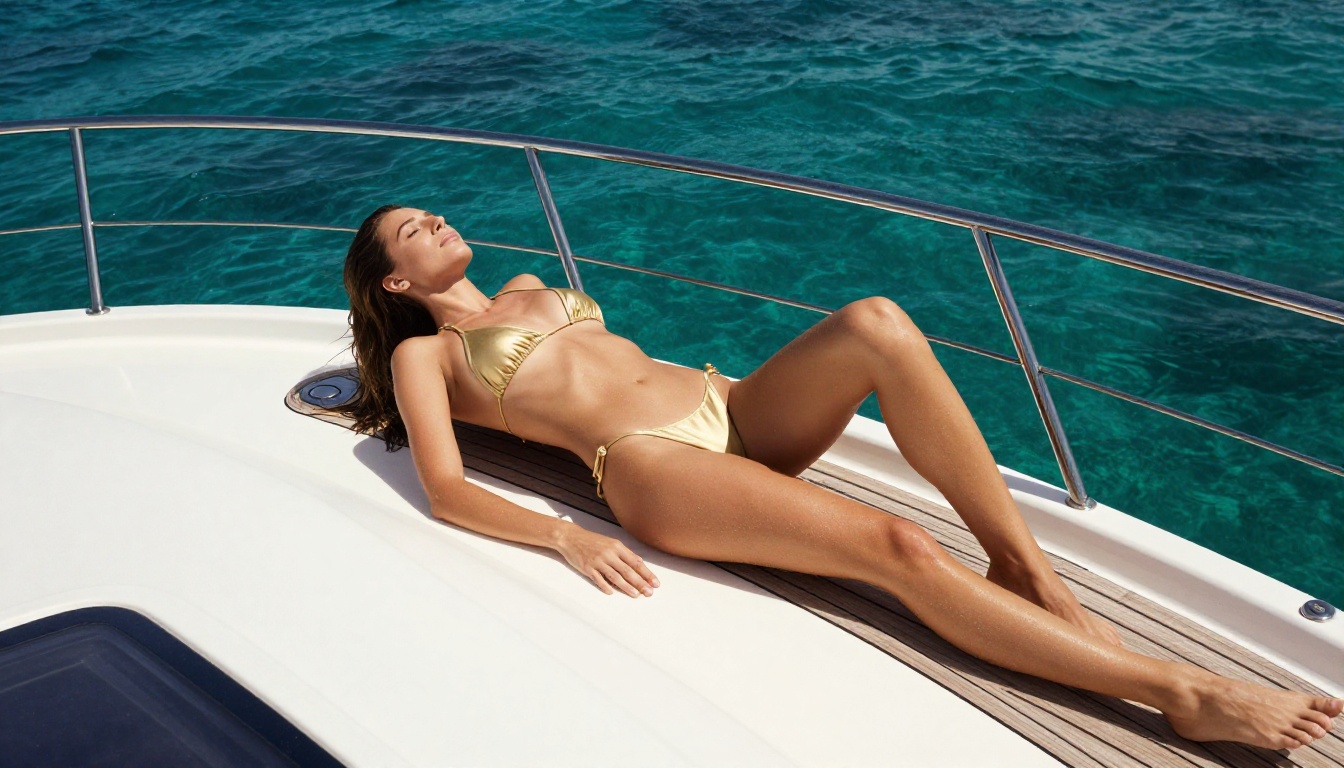
A 26-year-old woman in a minimalist white string bikini standing at the edge of a turquoise Caribbean beach, late afternoon golden light from the left, Canon EOS R5 85mm f/1.4, natural skin texture with tan lines visible, Kodak Portra 400, photorealistic, RAW 8K --ar 16:9
2. Bedroom boudoir:
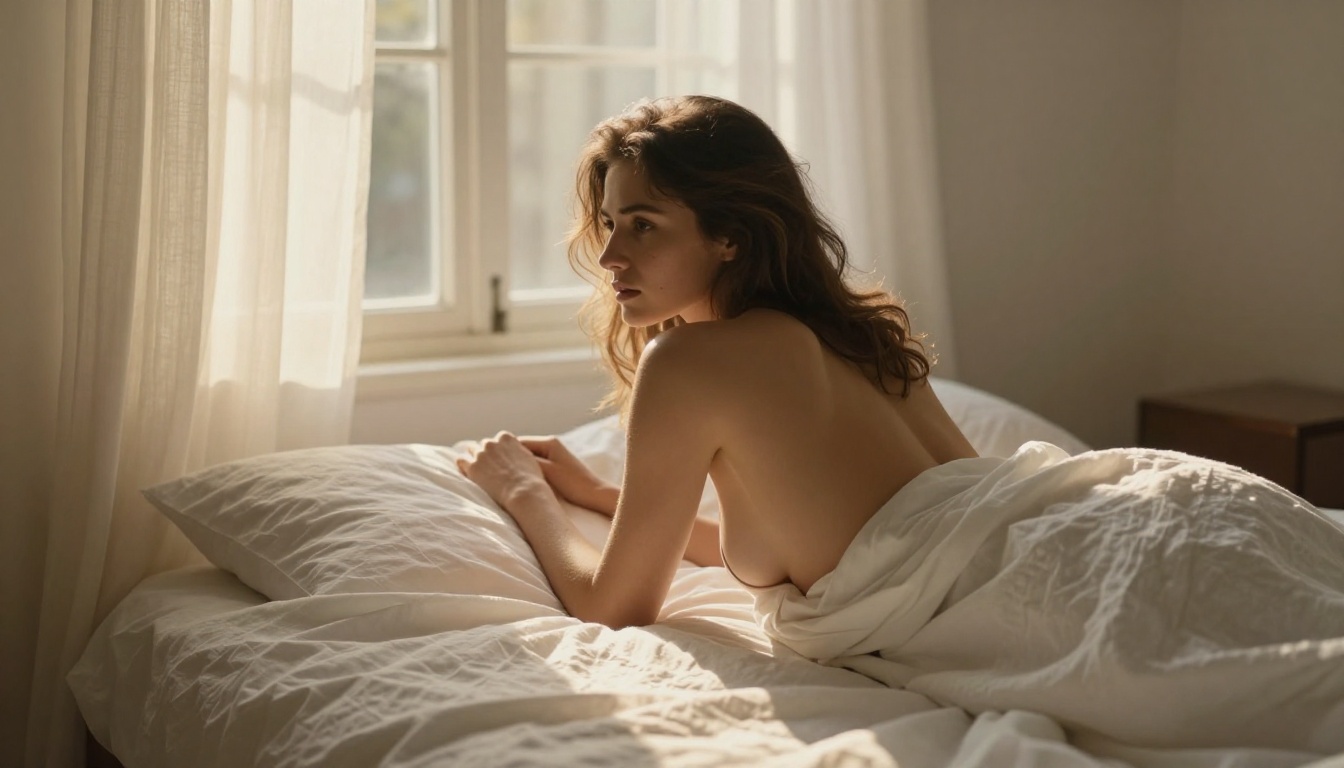
A woman in her late 20s posed on white linen bedding, soft diffuse morning light from a large window to the left, wearing black silk lingerie, back to camera at three-quarter angle, Leica M11 75mm f/2, individual thread texture visible in sheets, Fujifilm 400H film grain, photorealistic --ar 9:16
3. Rooftop at dusk:
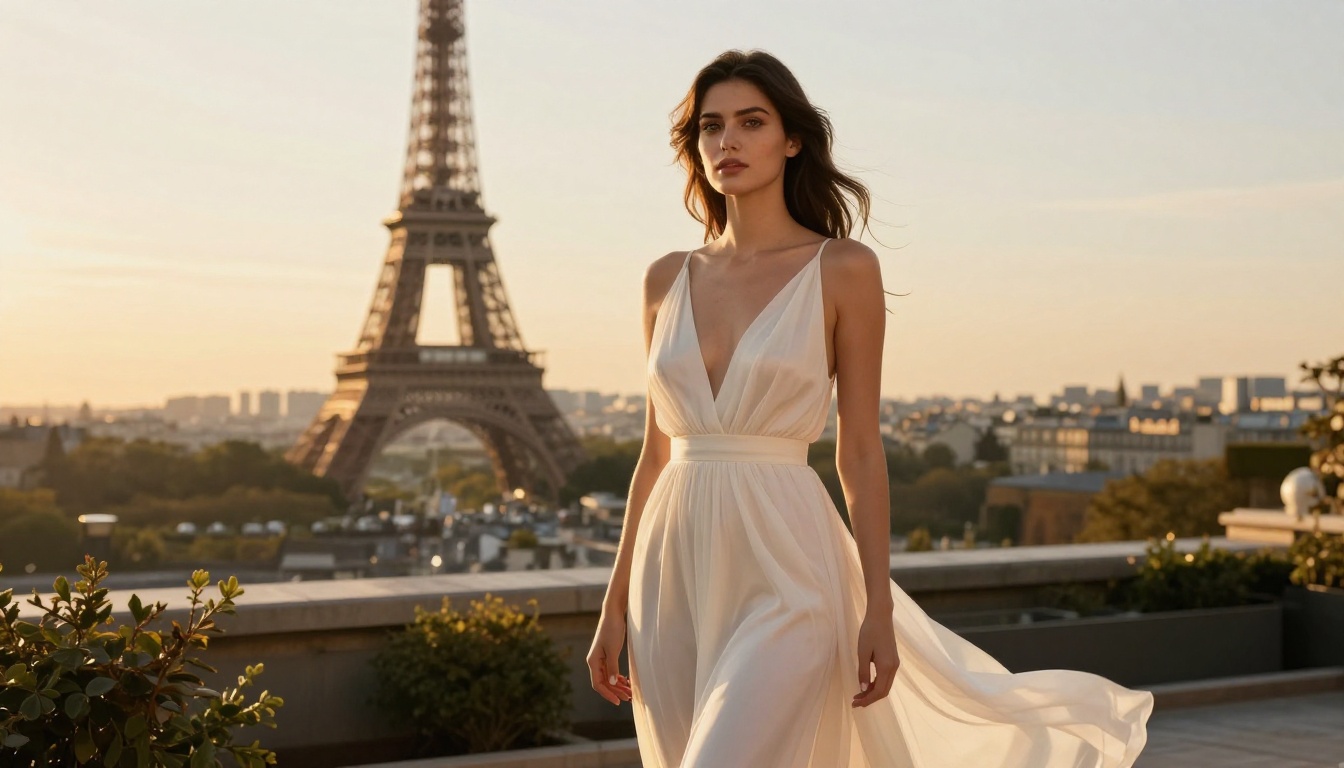
A woman in a sheer chiffon wrap standing on a city rooftop at dusk, warm backlight from the setting sun creating a rim-light silhouette, Paris cityscape blurred in background, full-length composition, Nikon Z9 85mm f/1.4, natural hair movement in the breeze, photorealistic 8K --ar 16:9
4. Pool close-up:
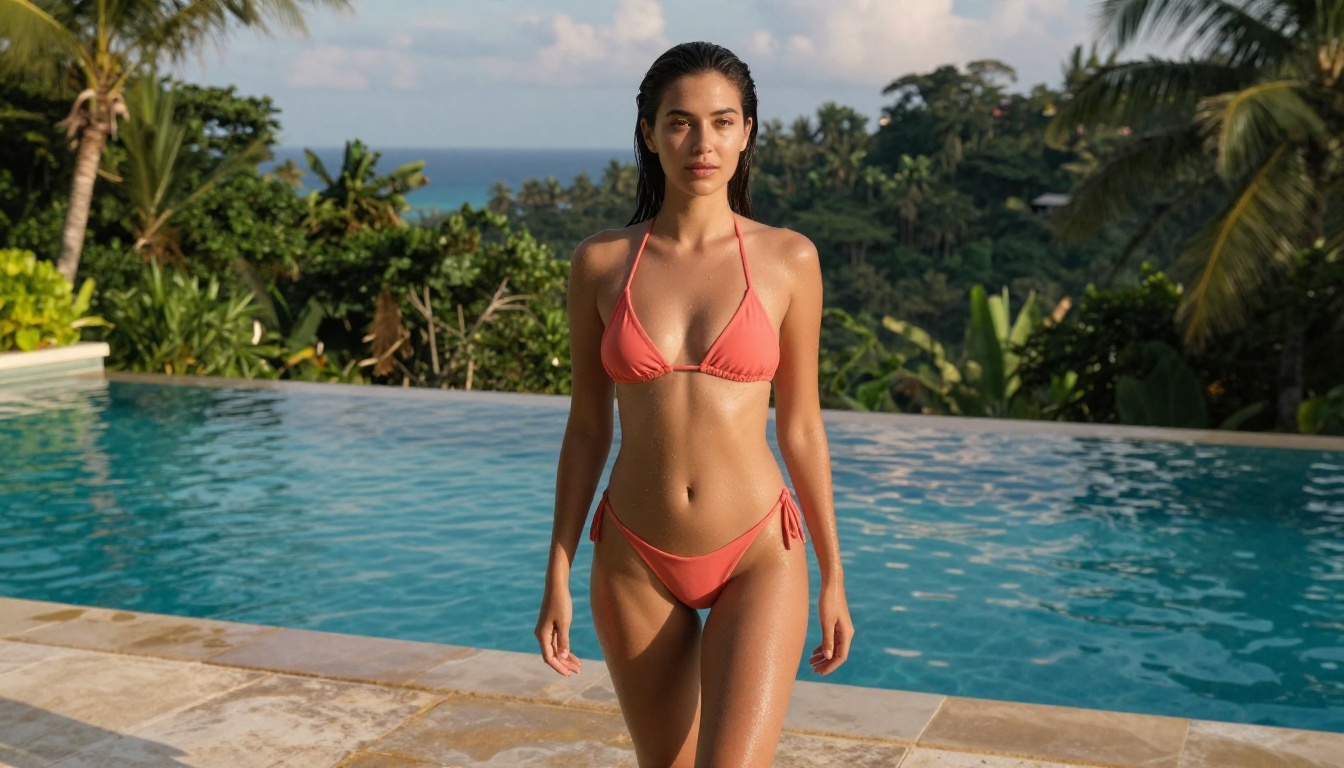
Close-up medium shot of a woman in a coral bikini at a tropical infinity pool, wet skin with water droplets on shoulders and collarbone, direct noon overhead sunlight creating defined shadows, natural tan, Canon RF 50mm f/1.2, Fujifilm Velvia 50, photorealistic --ar 16:9
5. Studio portrait:
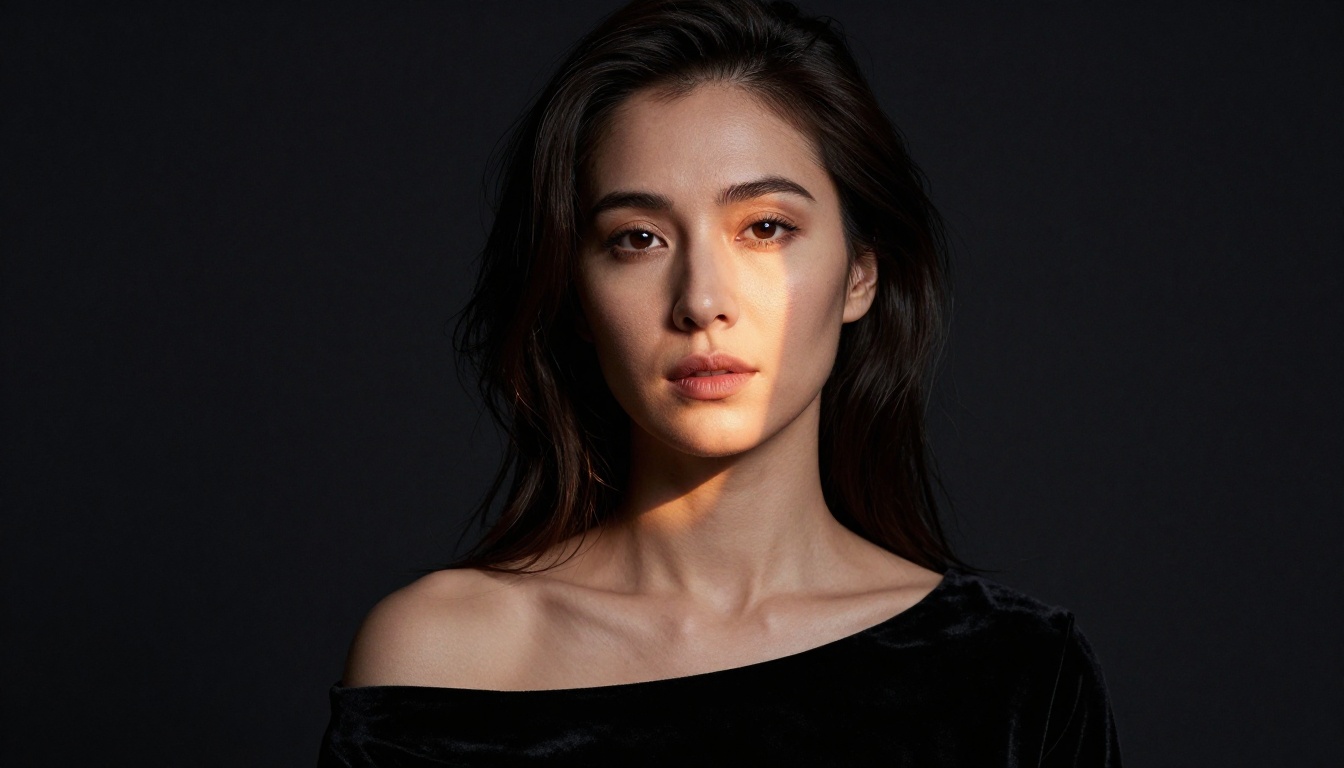
Dramatic Rembrandt lighting portrait of a woman in her early 30s wearing off-shoulder black velvet, single tungsten source from upper right, dark studio background, visible skin pore detail, strong brow, Hasselblad 80mm f/2.8, Ilford Delta 3200 grain, photorealistic 8K --ar 16:9
Seedream 4: You want the highest resolution and are working on full-body compositions where anatomical accuracy matters. This is your production model.
Qwen Image 2 Pro: You have a detailed, specific prompt and want tight adherence to exact pose, lighting, and clothing descriptions. Use it when precision matters more than speed.
Qwen Image: You are in the prompt-testing phase and want to see how a scene concept looks before committing to a higher-quality generation.
For most NSFW workflows, the ideal sequence is: Qwen Image for fast testing, Qwen Image 2 Pro for a refined version with tight prompt control, then Seedream 4 for the final 4K production output.
Common NSFW Prompting Mistakes
Even with a capable model, certain habits consistently produce bad outputs. Avoid these:
Vague subject descriptions. "A beautiful woman" gives the model nothing to work with. Specify: age range, hair color and length, body type, expression, and skin tone. The more specific you are, the more the model can match your intent.
No lighting specification. Without lighting direction, models default to flat, even light that removes depth and realism. Always specify your light source: "golden hour from the left," "overhead studio softbox," "window light from right," "single tungsten lamp."
Auto Prompt Expansion on detailed requests. This feature generalizes your intent toward safer, more generic outputs. For NSFW prompts, it often waters down the description. Write the full detail yourself and leave it off.
Forgetting negative prompts. Anatomy errors in figure generation are common without them. Add bad anatomy, deformed, extra limbs to every NSFW generation as a baseline.
Requesting explicit content.Qwen Image 2 Pro handles suggestive and adult content within the non-explicit range: glamour, boudoir, artistic nudity with implied rather than shown content. Prompts pushing for graphic sexual content will either fail or produce distorted outputs. The model's strength is in photorealistic glamour photography, not pornographic material.
Using short prompts. Qwen Image 2 Pro is built to follow detailed instructions. A 15-word prompt will produce a generic output. A 60-75 word prompt with specific pose, clothing, environment, lighting, and camera details will produce exactly what you described.
Iterating With the Reference Image Feature
One underused capability in Qwen Image 2 Pro is the reference image input. Once you have a generation you like, upload it as a reference and describe only the changes you want. The base composition, character, and lighting carry over while only the specified elements change.
This is more controlled than regenerating from scratch and reduces the number of full generations needed to converge on your ideal output.
Practical iteration workflow:
Generate a base image with your full scene description on Qwen Image 2 Pro
Download the result if it is 80% or more of what you want
Upload it as the reference image in a new generation
Write a short prompt describing only the changes: "same scene, change outfit to black bikini, adjust light to golden hour from the left"
Enable Match Input Image so the aspect ratio stays consistent with the original
Generate with the reference active
This workflow is particularly useful when building a series of images with consistent character and environment but varied poses or styling. It functions as a lightweight character-locking system without requiring LoRA training.
For Seedream 4, the equivalent is single-sentence editing: upload the output image and type one instruction. The model applies that instruction while preserving everything else. Both approaches speed up the refinement loop significantly compared to full-prompt regeneration from a blank start.
The fastest way to get strong results is to start with one of the five prompt structures above, run it on Seedream 4 for an initial 4K output, then refine specific elements using Qwen Image 2 Pro's reference image pipeline. Within 10-15 generations you will have a working prompt formula calibrated to your specific content goals.
If you want to see the full library of available models for image generation, visit picassoia.com/en/all-models where over 90 text-to-image models are listed with example outputs and descriptions, so you can compare results before committing to a generation.
The output quality ceiling with these models is significantly higher than what most people assume is possible from free, browser-based tools. A well-structured prompt on Qwen Image 2 Pro produces results that are genuinely difficult to distinguish from professional photography. The only variable is how specific and deliberate your prompt is.
Pick one of the prompt structures above, paste it into Qwen Image 2 Pro, and see what the model produces. Then adjust from there.