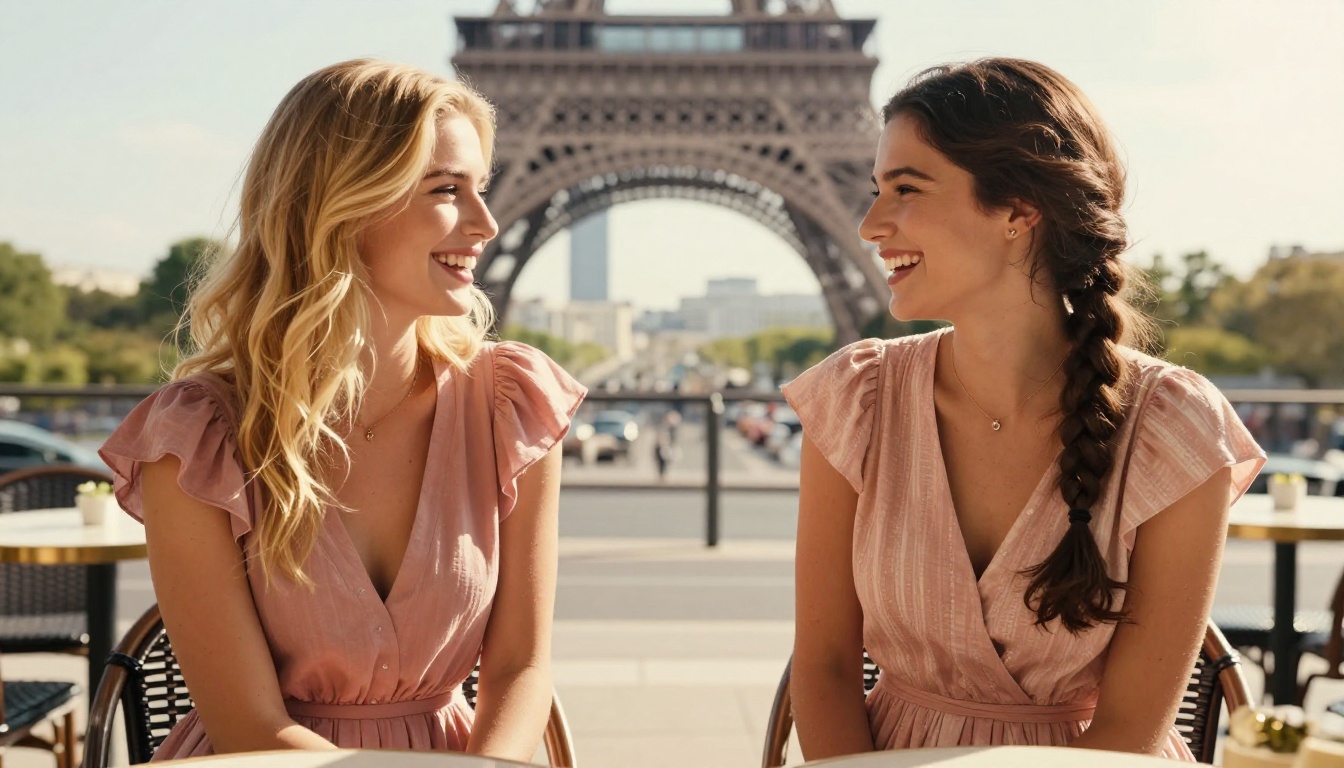
How to Generate Realistic Adult AI Art That Actually Looks Real
Tired of AI-generated images that look fake, waxy, or overly filtered? This article breaks down the exact prompting strategies, model choices, and parameter settings that produce genuinely photorealistic adult AI art, from skin texture to lighting to composition. No filler, no fluff. Just what works.
Most people trying to generate realistic adult AI art hit the same wall: results that look like plastic mannequins, skin that glows like a video game character, or lighting so artificial it kills any sense of believability. The gap between what you visualize and what the model produces comes down to three things: model selection, prompt structure, and parameter tuning. This article covers all three in practical terms.
Why Most Realistic AI Art Fails
Before fixing the problem, you need to know what causes it.
The Model Mismatch Problem
Not every text-to-image model is built for photorealistic human figures. General-purpose models produce painterly, illustrative, or stylized outputs by default. When you force a prompt like "photorealistic woman, 8K, beautiful" onto a model trained mostly on artistic imagery, you get something that looks impressive from a distance but falls apart on any close inspection of skin, eyes, or hands.
The models designed specifically for portrait realism operate differently. Realistic Vision v5.1 was fine-tuned precisely to address the failure points common in generic models: waxy skin texture, incorrect facial structure, and artificial-looking lighting. Flux Dev brings 12 billion parameters to bear on detail fidelity, which translates to sharper skin pores, more believable hair strands, and natural shadow gradients across the body.
The Vague Prompt Problem
Typing "beautiful woman, realistic, 8K" is not a prompt. It is a suggestion to the model that it will interpret as broadly as possible. Models fill in the gaps based on their training data averages, which produces average-looking results. To generate something with genuine photographic quality, your prompt needs to function like a detailed brief to a photographer: subject, pose, environment, lighting direction, lens, and film stock.
Choosing the Right Model
The single highest-leverage decision you make before writing a single word of your prompt is model selection.
Flux Dev for Maximum Detail
Flux Dev is currently one of the strongest open-weights models for photorealistic human figures. Its 12B parameter architecture captures fine-grained detail that smaller models miss: individual hair strands, subtle skin variation, the way fabric drapes against a body. It supports img2img, so you can start from a reference photo and redirect it with a prompt for iterative refinement.
Flux Dev parameter settings for realism:
Parameter
Recommended Value
Effect
Guidance
3.0–4.5
Lower = more natural, less over-processed
Inference Steps
35–50
More steps = finer skin and edge detail
Aspect Ratio
16:9 or 4:5
Cinematic or portrait framing
Go Fast
Off for final renders
Full bf16 precision
Realistic Vision v5.1 for Portraits
Realistic Vision v5.1 was built specifically for human portraiture. Its built-in VAE delivers richer color depth, and the model handles facial structure and skin texture better than most general-purpose models. For portrait-focused adult AI art where the face needs to be the centerpiece, this is often the more reliable choice.
The model accepts negative prompts, which is crucial for adult realism. A strong negative prompt actively suppresses the artifacts that make images look AI-generated.
SDXL runs at native 1024×1024 resolution and includes an optional refiner pipeline that sharpens high-detail outputs. Its inpainting capability lets you fix specific problem areas, such as a hand that came out wrong or a background element that looks off, without regenerating the entire image.
For adult AI art, SDXL's LoRA support opens up style consistency across a series. You can apply a fine-tuned LoRA weight to maintain a consistent look, lighting style, or body type across multiple generations.
The Anatomy of a High-Realism Prompt
A prompt that produces genuinely photorealistic adult AI art has five layers. Each layer adds a dimension of control that moves the output away from the generic and toward the specific.
Layer 1: Subject and Physical Description
Start with what the person looks like. Be specific: skin tone, hair color and texture, eye color, build. Avoid adjectives like "beautiful" or "gorgeous" that have no photographic meaning. Instead, describe what makes them look that way.
💡 Bad: "beautiful woman with nice skin"
Good: "woman with warm olive skin, faint freckles across her nose, long dark wavy hair with natural volume, dark brown eyes"
Layer 2: Pose and Attire
Describe the exact pose and clothing. If the subject is seated, describe how. If standing, describe weight distribution. For adult content within non-explicit boundaries, attire like swimwear, lingerie, or a slipped shoulder is described precisely: the fabric, the fit, where it sits on the body.
💡 Tip: Terms like "off-shoulder," "draped," "slightly open," and "fitted" give the model spatial information it can act on. Generic terms like "sexy outfit" produce generic results.
Layer 3: Environment and Background
The environment determines lighting and sets the emotional register of the image. A sunlit beach villa, a candlelit bathroom, a rooftop at dusk, or a Scandinavian interior all produce completely different images of the same subject.
Be specific about the architectural or natural elements in the background and their focus level. "Blurred tropical garden behind floor-to-ceiling windows" is an instruction. "Outdoors" is not.
Layer 4: Lighting Direction and Quality
Lighting is the single most important factor separating a photorealistic result from an AI-looking one. Natural light has direction, quality, and color temperature. When you describe it precisely, the model renders it accurately.
Lighting Type
Prompt Phrasing
Effect
Morning window light
"soft volumetric morning light from the left"
Warm, directional, shadow detail
Golden hour
"warm amber sunset light from the right"
Luminous skin, natural flare
Dappled outdoor
"filtered sunlight through palm leaves"
Organic light patterns
Candle or indoor
"warm candle-lit ambiance, sconce on right"
Intimate, moody atmosphere
Overcast daylight
"bright diffuse overcast light"
Soft, even, no hard shadows
Always specify the direction (left, right, from behind, from above) and the time of day or source type.
Layer 5: Camera and Film Specifications
This layer is what separates basic prompts from professional outputs. Specific camera and lens details tell the model how to render depth of field, perspective distortion, and grain.
High-realism camera phrase stack:
Canon EOS R5 with 85mm f/1.4 prime lens
shallow depth of field, creamy bokeh
Kodak Portra 400 film grain
photorealistic RAW 8K photography
Using film stock names like Kodak Portra 400 or Fujifilm Provia 100F introduces realistic grain and color science that models have learned from actual photography.
How to Use Realistic Vision v5.1 on PicassoIA
Since Realistic Vision v5.1 exists specifically for photorealistic human subjects, here is a step-by-step workflow for generating adult AI art with it.
Start with RAW photo, as the model responds strongly to this prefix. Follow with your full five-layer prompt structure.
Example:
RAW photo, a portrait of a young woman with caramel skin and long dark hair, wearing an off-shoulder ivory sundress, sitting on a wooden terrace overlooking the ocean, warm golden hour light from the right side, visible skin texture and natural lip detail, Canon EOS R5 85mm f/1.4, shallow depth of field, Kodak Portra 400 film grain, photorealistic 8K
Step 3: Set Your Negative Prompt
Paste the standard realism negative prompt to suppress AI artifacts:
Resolution: 512×768 for portrait or 768×512 for landscape
Step 5: Seed Control
Once you get a result you like, note the seed number. Reusing it lets you iterate on the prompt while keeping the same underlying composition and figure structure.
How to Use Flux Dev for High-Fidelity Results
Flux Dev handles detail at a level that makes it the preferred model when you want the highest fidelity output, particularly for larger crops and print-quality results.
Setting Up Flux Dev for Adult Art
On Flux Dev, unlike Stable Diffusion variants, you do not separate positive and negative prompts in the same way. Instead, fold any exclusions directly into the positive prompt using natural language.
💡 Flux Dev tip: Phrase exclusions naturally. Instead of a negative prompt field, write: "avoiding any artificial skin smoothing or plastic appearance, natural skin texture throughout."
Guidance scale for adult portraits: Set between 3.0 and 3.5 for the most natural-looking results. Higher guidance above 5 tends to make Flux outputs look over-processed.
Inference steps: 40–50 for final production images. Draft ideas at 28 steps and then do a final pass at 50 when you find a composition you like.
img2img workflow: Upload a reference photo of a lighting setup or composition you want to replicate, then set prompt_strength to 0.65–0.75. This preserves the structural elements of your reference while transforming the appearance.
Common Mistakes That Kill Realism
Using Superlatives Instead of Descriptions
Words like "stunning," "gorgeous," "sexy," and "perfect" are noise to the model. They have no photographic meaning. Replace every superlative with a concrete description of what that word implies.
Instead of: "gorgeous woman with perfect skin"
Write: "woman with smooth warm skin, faint natural blemishes, subtle highlight on cheekbones from window light"
Wrong Aspect Ratio for the Subject
Portrait subjects need portrait ratios. Generating a head-and-shoulders composition in 16:9 forces the model to fill extra horizontal space, which often results in odd background choices or stretched compositions. Use 4:5 or 9:16 for tight portraits, and 16:9 only when the environment is part of the story.
Over-Specifying Impossible Details
Prompts that contradict each other confuse the model. "Sunlit outdoor scene at midnight with warm afternoon light" forces the model to reconcile incompatible conditions. Pick one coherent time of day and stick to it throughout the prompt.
Ignoring Hand Placement
Hands are consistently the hardest body part for any model to render correctly. When your subject is in a pose where hands are central to the composition, add explicit hand descriptions: "hands resting in lap" or "one hand partially hidden behind her back" reduces the chance of distorted fingers.
💡 Fix bad hands with inpainting: If a result is perfect except for the hands, use SDXL's inpainting tool to fix just that region without regenerating the full image.
Prompt Modifier Reference Table
Use these proven modifier stacks as building blocks for your own prompts.
Category
High-Impact Modifiers
Skin texture
visible skin pores, fine skin texture, natural complexion, subtle blemishes
85mm f/1.4, 50mm f/1.8, 135mm f/2 telephoto, shallow depth of field
Film stock
Kodak Portra 400, Fujifilm Provia 100F, film grain, analog texture
Camera body
RAW photo, Canon EOS R5, Nikon Z9, Sony A7R IV, Leica M11
Realism tags
photorealistic, 8K UHD, high detail, natural photography
Iterating Toward a Perfect Result
No single prompt produces the ideal result first try. Professional adult AI artists run dozens of seed variations before committing to a final composition. Here is the iteration process that works.
Round 1: Structure Test
Run the prompt with go_fast: true or low steps to evaluate composition, pose, and scene placement. You are not judging skin quality yet.
Round 2: Detail Pass
Once you have a composition you like, lock the seed and run at full steps with go_fast: false. This is where skin texture, lighting detail, and fine edge work actually render.
Round 3: Problem-Fix Pass
Identify any specific problem areas: wrong hand position, unnatural background element, color cast in shadows. Address each with either a prompt adjustment or, for spatial issues, an inpaint pass with SDXL.
Round 4: Speed Drafting with Flux Schnell
Use Flux Schnell for rapid drafting across multiple prompt variations. It produces clean usable results in under 5 seconds per image, making it ideal for quickly testing 10 or 20 prompt combinations before committing to a full detail pass on Flux Dev.
Start Creating Now
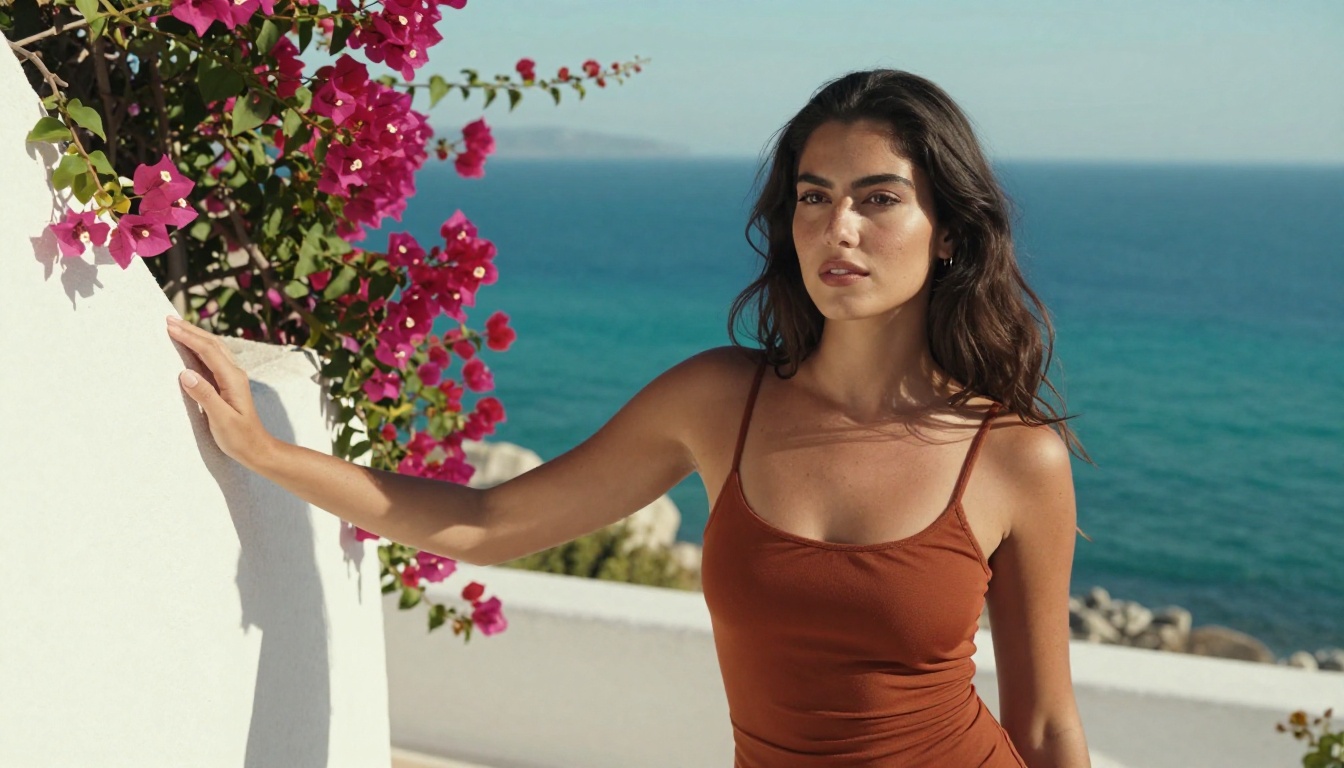
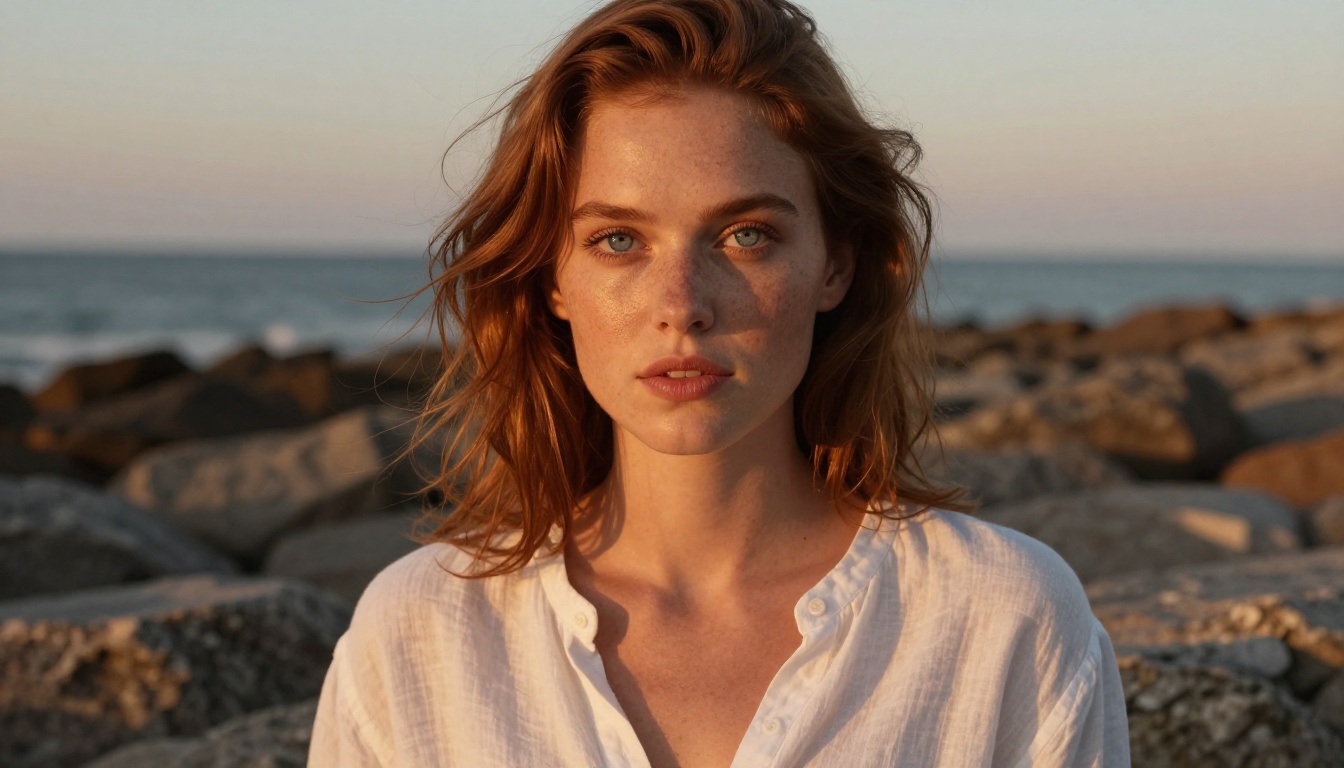
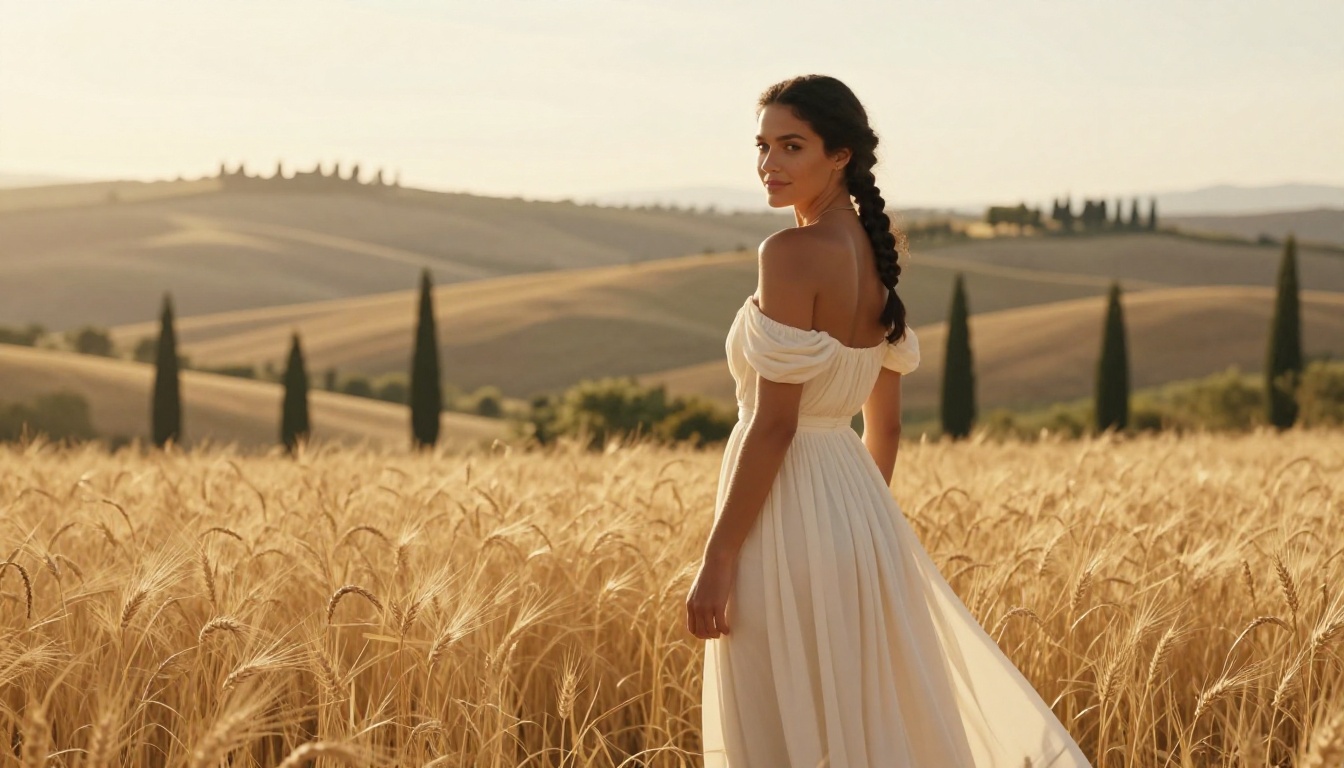
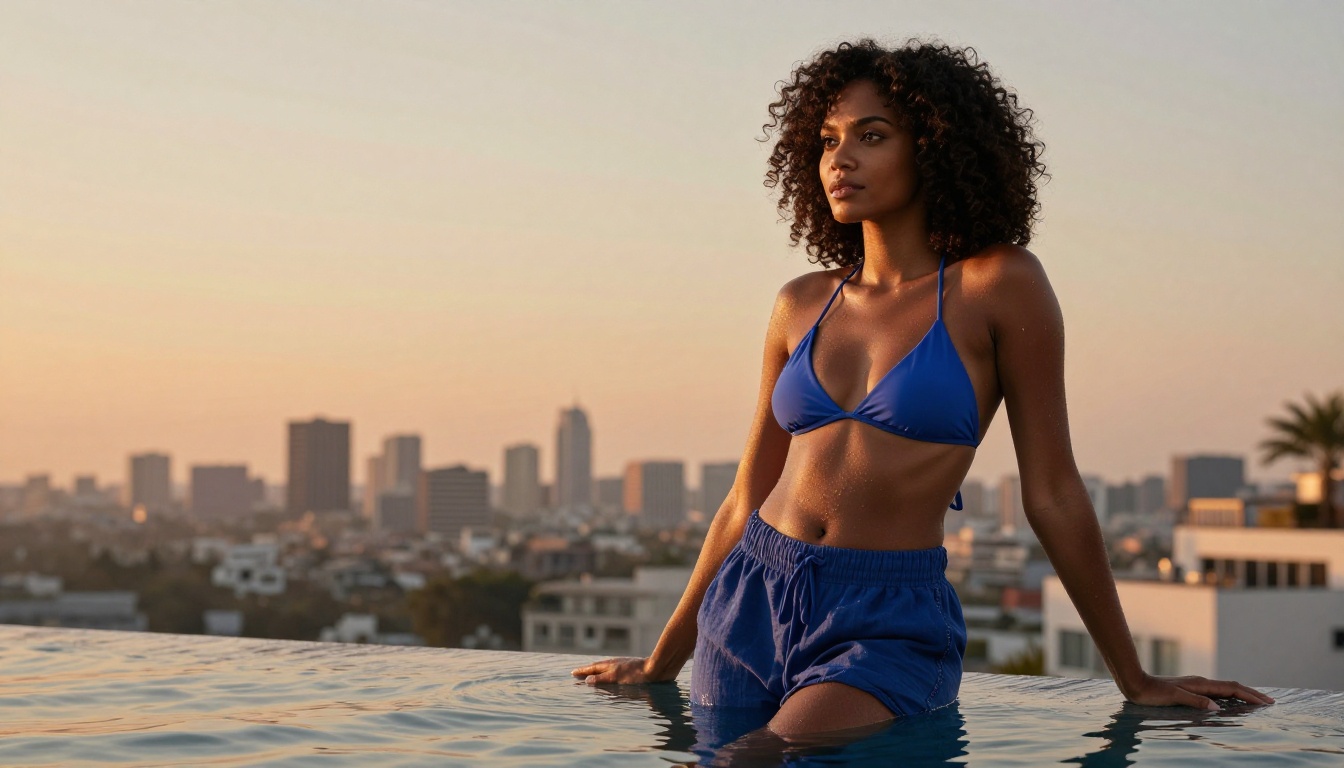
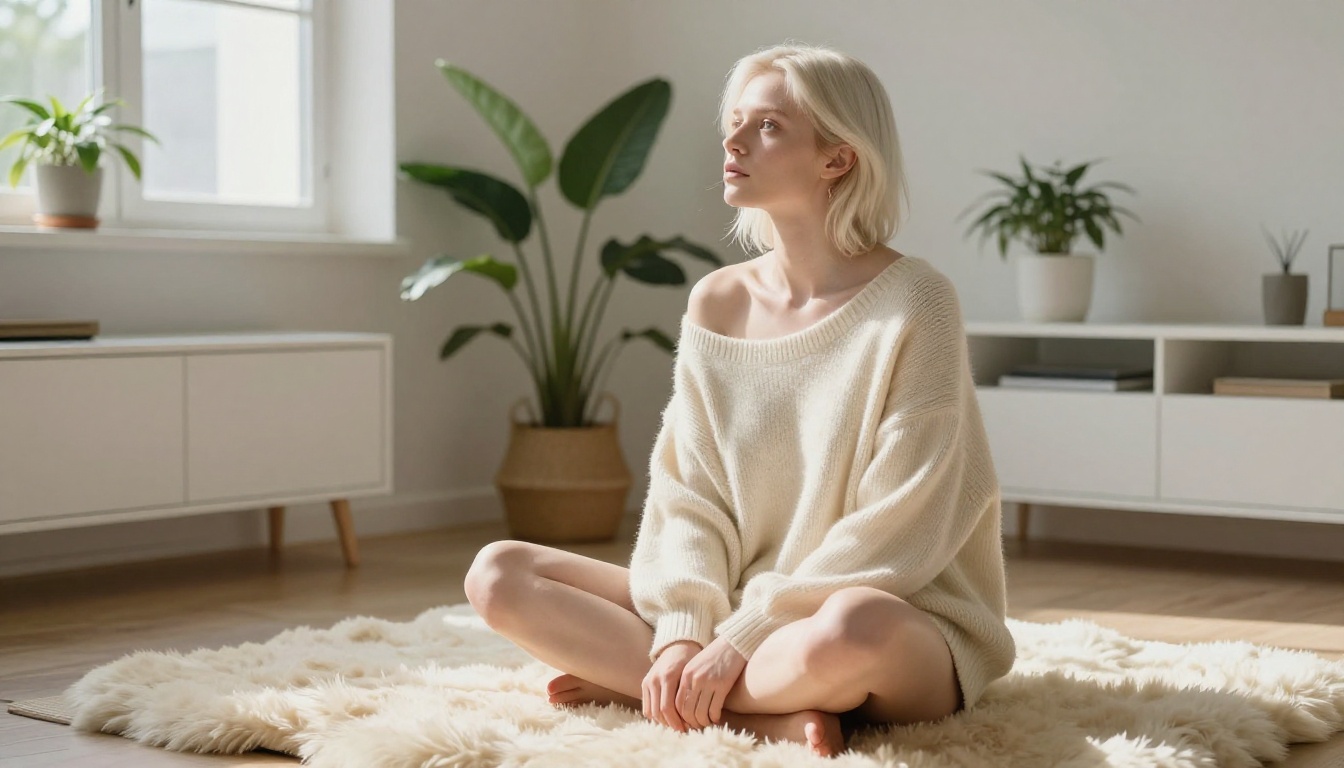
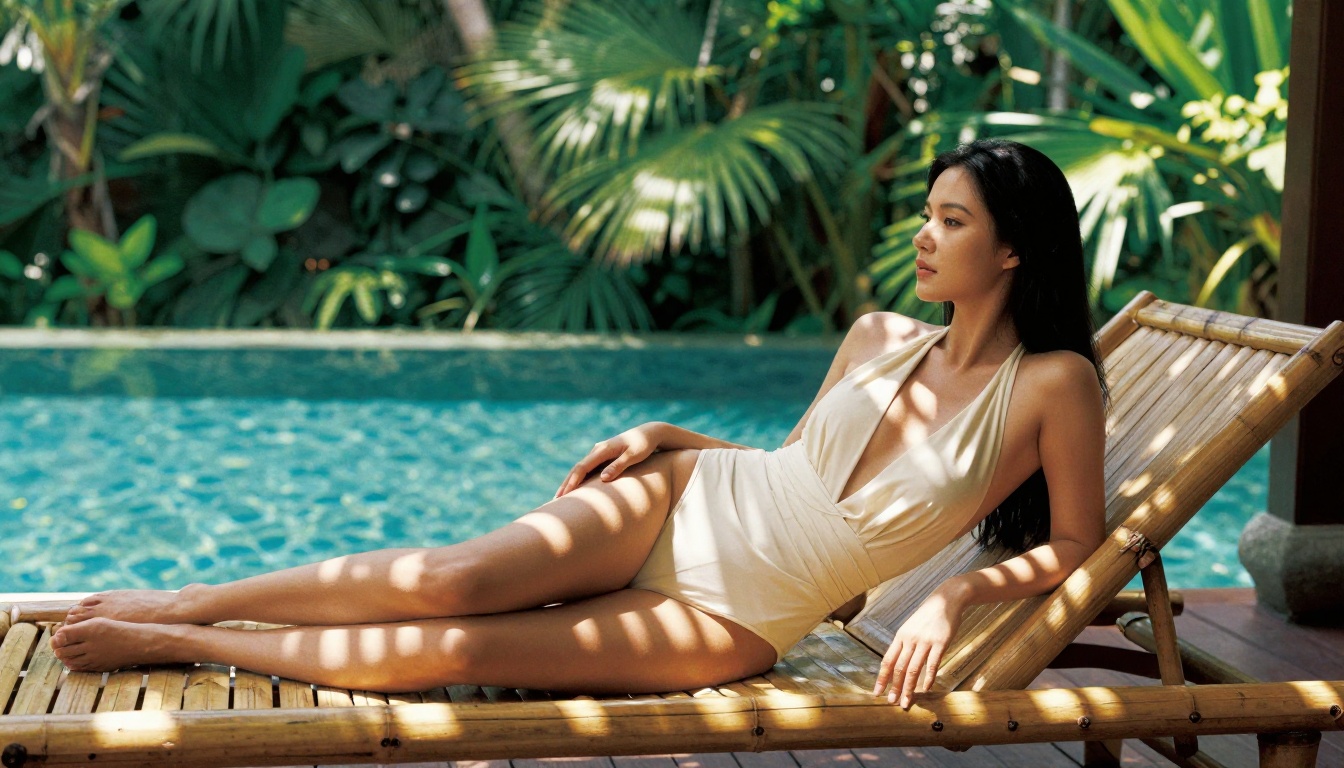
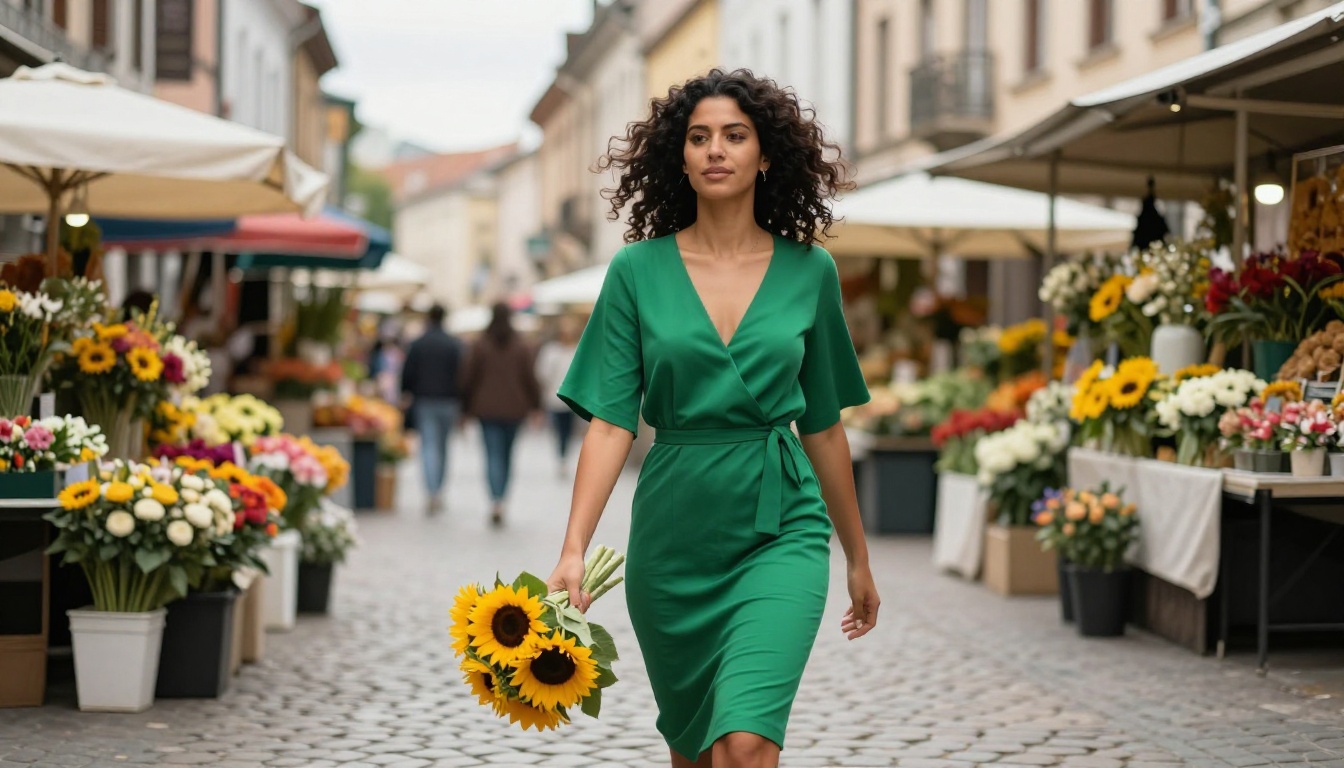
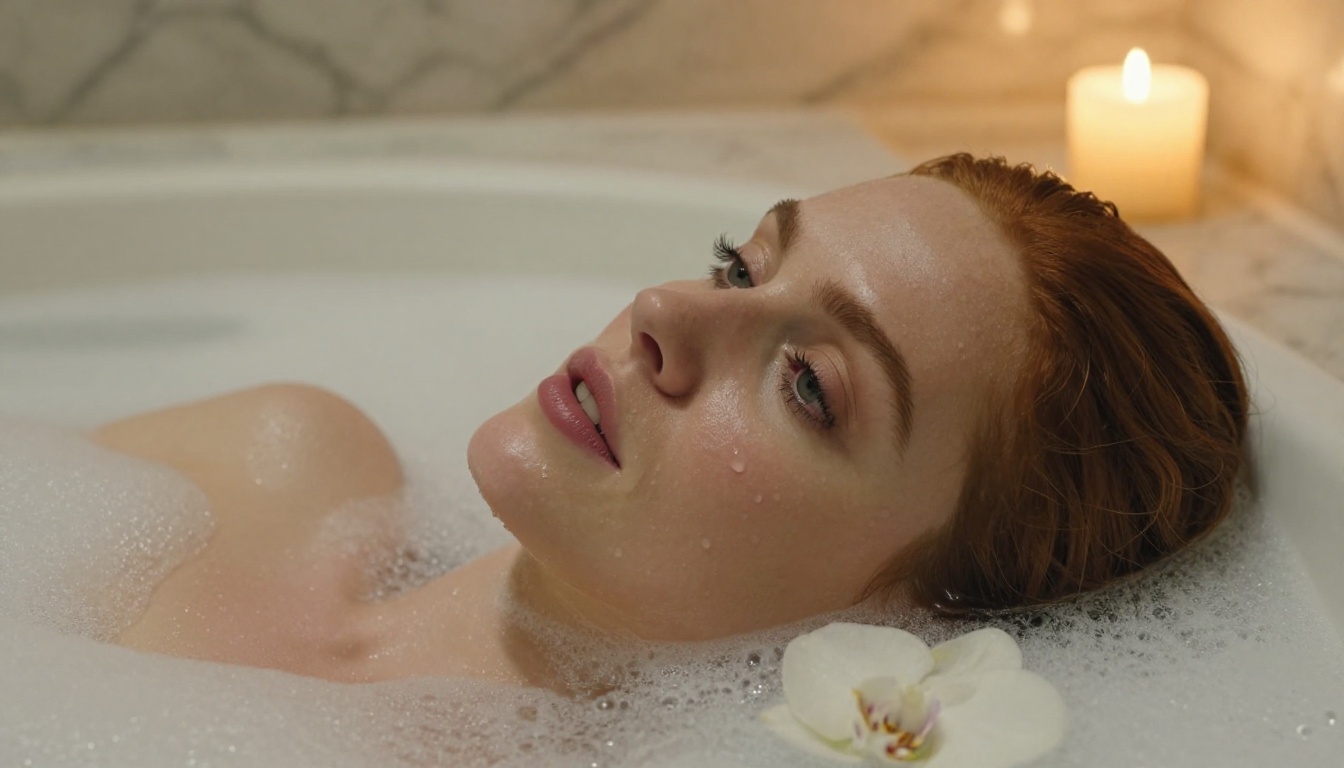
The gap between a plastic-looking AI image and something genuinely photorealistic is not a mystery. It is the result of applying specific model knowledge, structured prompts, and systematic iteration. Every image in this article was produced using the exact methods described here.
PicassoIA has all four models covered in this article available to use right now, with no credit caps or setup required. Start at Realistic Vision v5.1 for portrait-first work, or go straight to Flux Dev for maximum detail fidelity. Use one of the five-layer prompt templates above, adjust the lighting and environment to your vision, and run a few seed variations. The results will tell you more than any article can.