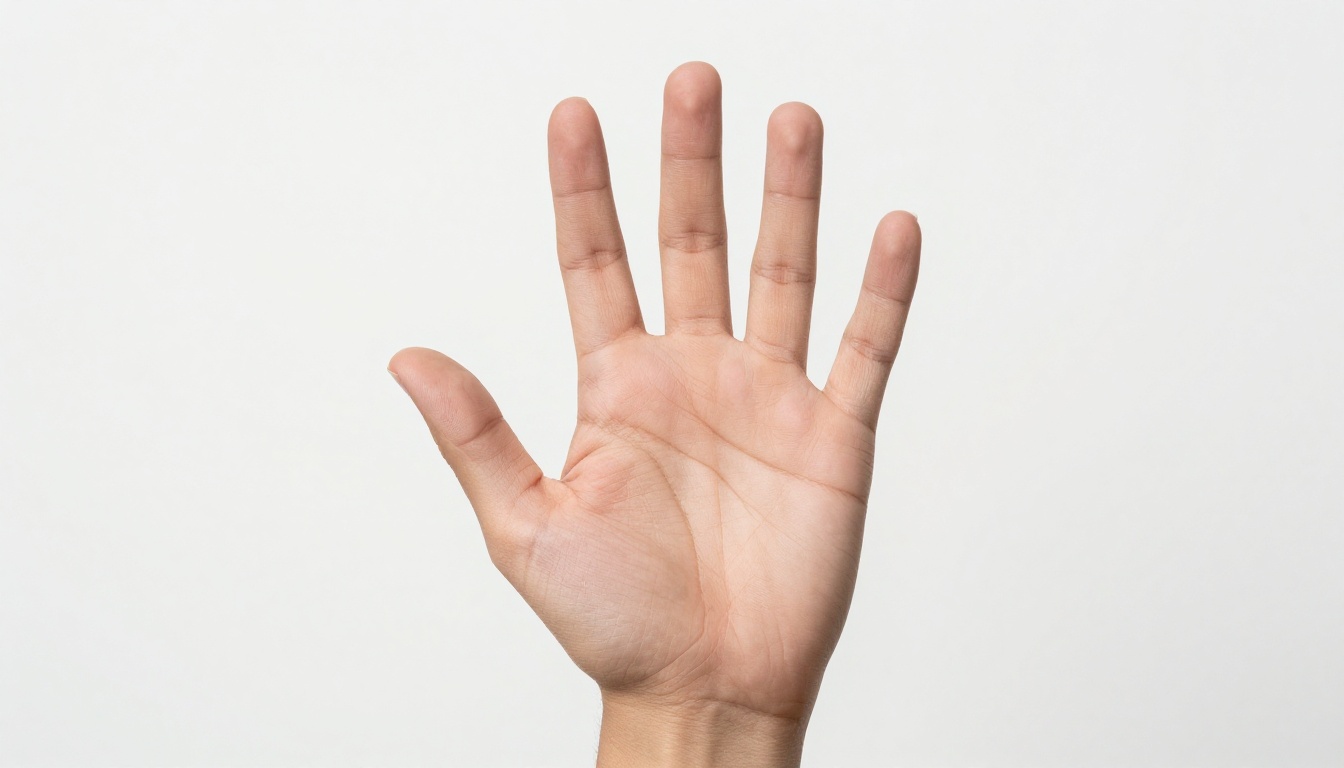
How to Generate Realistic Hands with AI (Without the Creepy Finger Problem)
Getting hands right in AI-generated images is one of the hardest challenges in prompt engineering. This article breaks down exactly why AI fails at finger anatomy, and how to fix it with smarter prompts, the right model selection, inpainting workflows, and ControlNet pose control for perfect results every time.
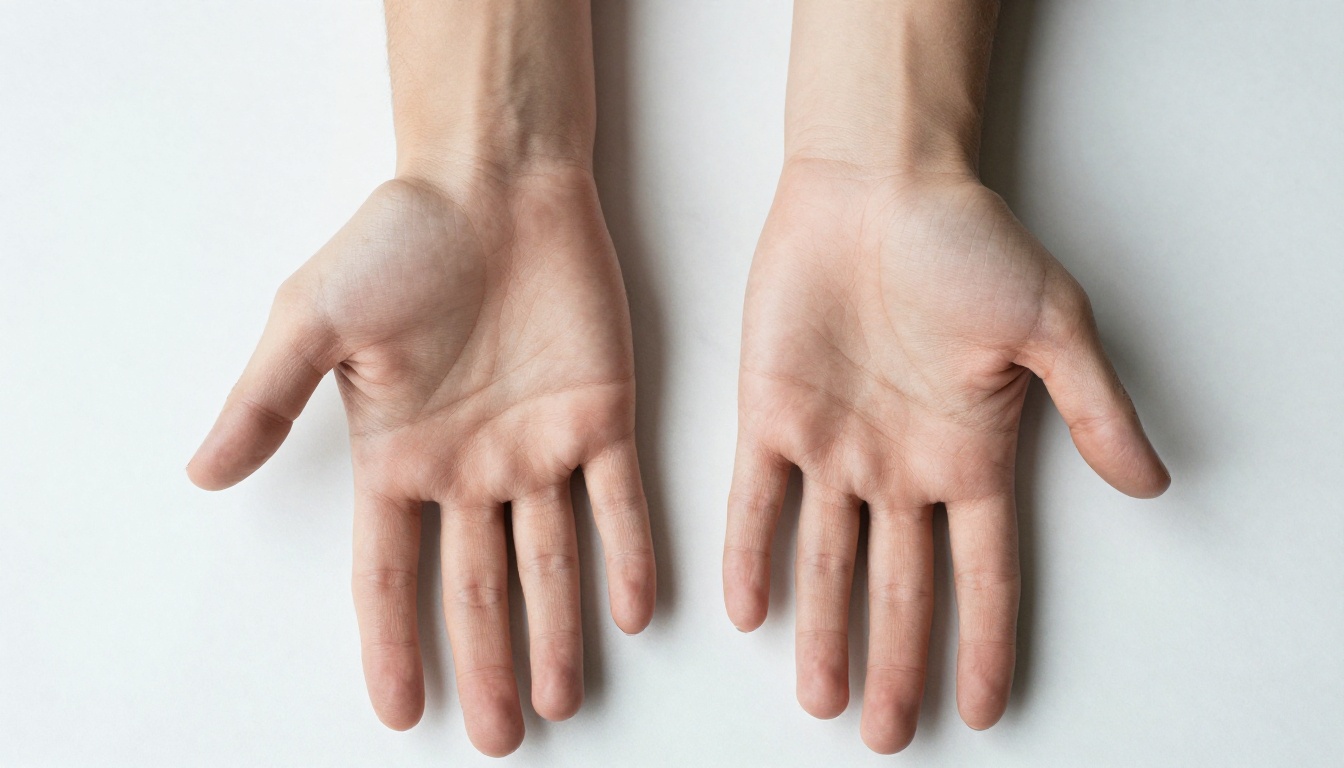
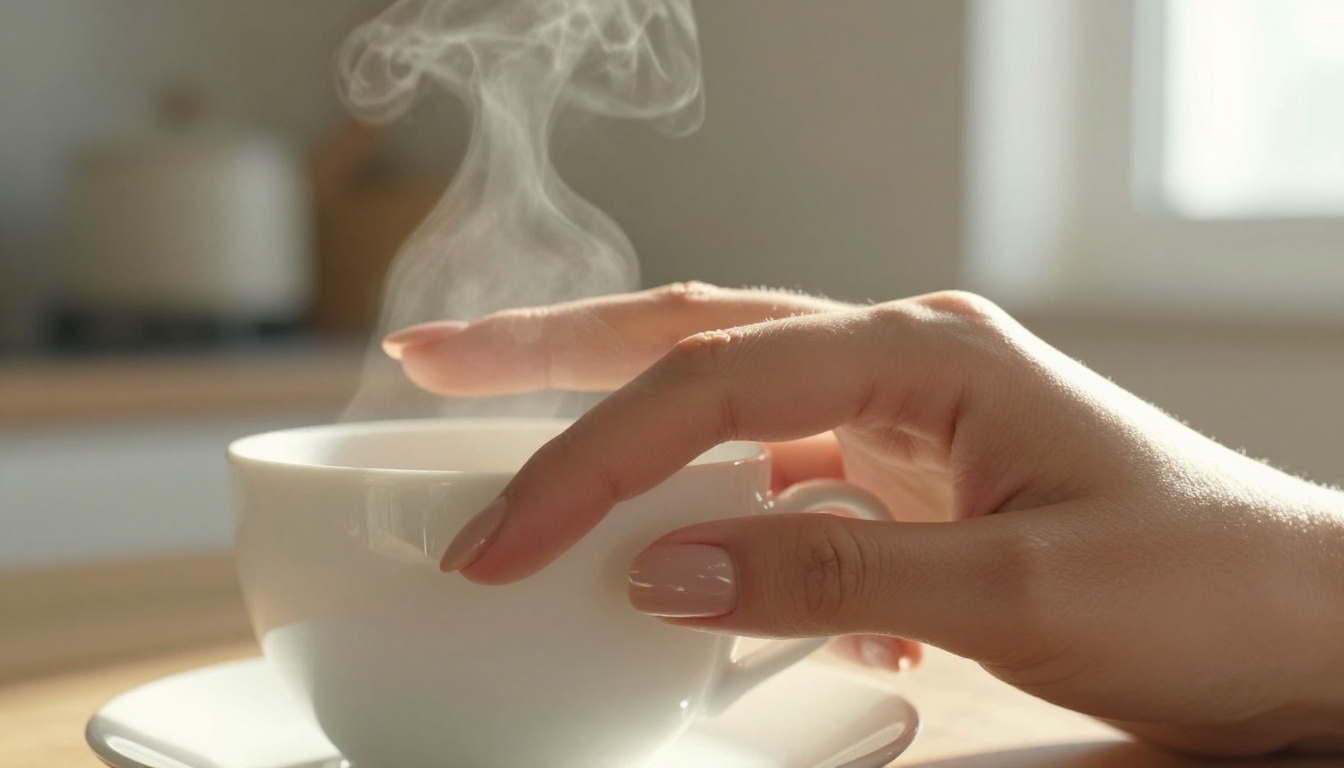
If you've spent time generating images with AI, you already know the problem. Faces come out flawless. Backgrounds look like they were shot on a RED camera. But the moment hands appear in the frame, something breaks. Extra fingers, fused knuckles, impossible wrist angles, palms that look melted. This is not a random glitch. It happens for specific, fixable reasons, and once you know them, generating realistic hands with AI becomes something you can actually control.
This is the article I wish existed when I first ran into this problem. No filler. No obvious advice. Just the real mechanics behind why AI fails at hands, which models handle it best, and exactly how to fix it when it goes wrong.
Why AI Hands Are So Hard
The math behind finger generation
Diffusion models are trained on billions of images scraped from the internet. The problem is that hands appear in a staggering variety of poses, lighting conditions, and angles, and very few of those training images were labeled with precise anatomical metadata. The model learned to produce something that looks like a hand in context, but it never truly learned how many fingers a hand has, how joints bend, or how knuckles create shadow.
The result is a model that generates "hand-shaped regions" that pass visual inspection at a glance but fall apart on closer examination. It is pattern matching, not anatomy. The model samples from a probability distribution of what hands look like, not from a rule system that enforces correct finger counts.
Why five fingers is so hard to get right
Five is a weirdly specific number. When a diffusion model samples from the latent space, it is not counting. It is producing textures and shapes that look hand-like based on statistical patterns in its training data. Sometimes you get four fingers. Sometimes seven. Sometimes three that merge into a stump near the knuckle. The model does not have an internal rule that says "five fingers, stop." It has statistical tendencies that can be pushed in the right direction with the right inputs.
This is precisely why prompt engineering matters so much for hands specifically. You are not describing what you want as much as you are steering probability distributions toward the correct anatomical region. Understanding that shift changes how you write prompts.
How hand complexity compounds
Most difficult subjects in AI image generation are difficult because of detail density. Hands combine multiple sources of difficulty simultaneously: complex topology (five fingers with three joints each), high variability in pose and angle, intricate skin texture requirements, and the fact that even a small deviation from correct anatomy is immediately obvious to the human eye.
Faces are hard too, but we have entire training runs dedicated to face generation. Hands have received far less specialized attention, which is why they remain a persistent weak point even in state-of-the-art models.
The 5 Root Causes of Bad AI Hands
Understanding the specific failure modes helps you apply the right fix faster. Here are the five main ways AI hand generation breaks down:
Failure Mode
What It Looks Like
Root Cause
Extra fingers
6 to 8 fingers per hand
Low-confidence sampling in the finger region
Fused fingers
Fingers merge into webbing
Ambiguous depth cues in training data
Wrong perspective
Hand at an impossible angle
Conflicting pose signals in the prompt
No knuckle detail
Smooth, doll-like skin
Prompt lacks texture specificity
Distorted palm
Palm too wide or narrow
Poor compositional anchoring
Each of these has a different fix. Extra fingers respond best to negative prompts. Fused fingers improve with ControlNet-based models that enforce edge structure. Wrong perspective requires compositional restructuring of your prompt to give clearer spatial information. Texture issues are solved almost entirely by being radically specific about skin detail in your positive prompt.
The biggest mistake people make is treating all hand failures as the same problem and applying the same generic fix. Once you identify which failure mode you are dealing with, the solution becomes much more targeted.
Prompt Engineering for Perfect Hands
Anatomy keywords that actually work
The most reliable way to improve hand quality is to front-load your prompt with anatomical specificity. Vague prompts produce vague results. The model needs strong, clear signal about what you expect from the hand region.
These keywords consistently improve hand quality across most models:
"anatomically correct hands" signals that you want realistic proportions, not stylized approximations
"five fingers" is blunt but effective, especially on weaker models that tend to drift
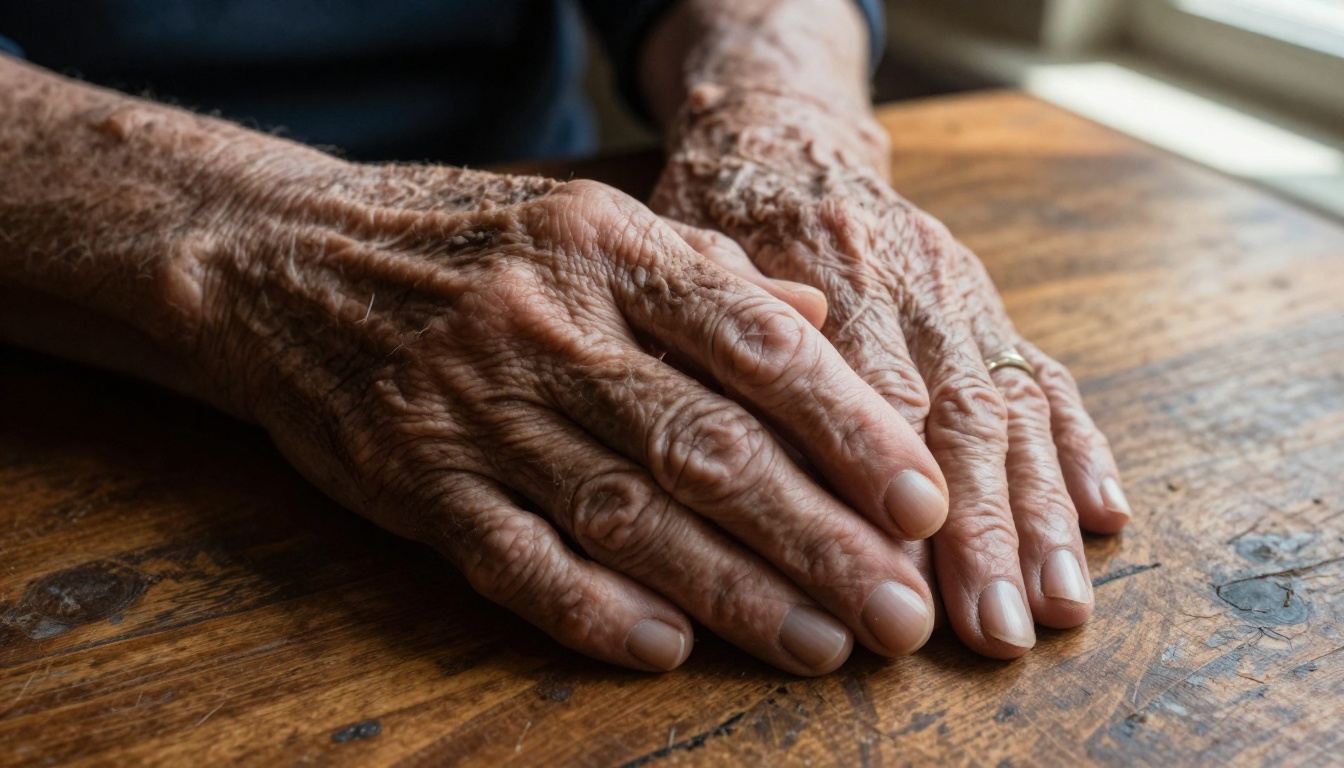
"visible knuckle lines" pushes fine detail into the finger joints and prevents the smooth, featureless look
"natural skin texture with pores" activates photorealistic surface rendering in the skin region
"realistic nail shape" prevents the smooth, featureless fingertip problem where nails disappear into skin
"visible palm creases" adds anatomical authenticity to palm-facing shots and close-up compositions
"correct finger proportions" helps with the common issue where fingers are all the same length
"skin texture at knuckles" specifically targets the area most often rendered as smooth plastic
Negative prompt strategies
Negative prompts are your second line of defense and often the most impactful single change you can make. When you tell the model what NOT to generate, you are trimming the probability space away from the most common failure modes.
A strong negative prompt for hands:
extra fingers, fused fingers, malformed hands, distorted hands, extra limbs, poorly drawn hands, bad anatomy, missing fingers, mutant hands, six fingers, seven fingers, eight fingers, deformed, disfigured, webbed fingers, merged fingers
Tip: Put the most critical negative terms first in the list. Most sampling approaches weight earlier tokens more heavily in the negative prompt, so leading with "extra fingers" and "fused fingers" tends to be more effective than burying them at the end.
[Subject description with explicit hand mention], five fingers, anatomically correct hands, [hand pose with anatomical terms], visible knuckle lines, natural skin texture with pores, realistic nail shape, [specific lighting description], [camera and lens], photorealistic, 8K RAW photography
The hand description should come early in the prompt, not buried at the end. Models pay significantly more attention to the first half of a prompt. If your hand description comes after two sentences of scene setting, it gets proportionally less influence over the output.
Best Models for Realistic Hands
Not all AI models handle hand generation equally. Some are far better trained for anatomical realism, either because of larger parameter counts, more curated training data, or specific fine-tuning on human subjects.
Flux 2 Max consistently produces the best hand anatomy because of its larger parameter count and more robust training dataset. When you are generating a portrait where hands are prominent and visible, the extra generation time is worth it.
Realistic Vision v5.1 is the strongest alternative when speed matters. It was specifically fine-tuned on photorealistic human subjects, which means hand anatomy received focused attention during the training process. For close-up hand photography styles, it often outperforms larger general-purpose models.
How to Use Flux 2 Max on PicassoIA
Flux 2 Max is the recommended starting point for anyone serious about generating realistic hand anatomy. Here is a step-by-step workflow on PicassoIA:
Step 1: Open the model
Navigate to Flux 2 Max on PicassoIA and click the generate button to open the prompt interface.
Step 2: Write a hand-specific prompt
Use the template structure from the prompt engineering section above. Here is a working example you can copy directly:
A woman's hand resting on a wooden table, five fingers, anatomically correct hands, fingers slightly curved in a relaxed position, visible knuckle lines and skin creases, natural skin texture with pores, realistic nail shape with defined cuticles, warm morning light from the left casting soft shadows between fingers, shallow depth of field, Canon EOS R5, 85mm f/1.8, photorealistic 8K RAW photography
Step 3: Set your negative prompt
Copy this directly into the negative prompt field:
extra fingers, fused fingers, malformed hands, bad anatomy, mutant hands, six fingers, deformed, missing fingers, poorly drawn hands, webbed fingers, merged fingers, distorted hands
Step 4: Set resolution correctly
For hand-focused images, generate at 1280x720 (16:9) minimum. Below 512 pixels wide, the model cannot represent individual finger separation accurately because there are simply not enough pixels to encode the detail. More pixels in the generation area means more signal for finger anatomy.
Step 5: Use multiple seeds
Hand generation has higher variance than face generation. Standard professional practice is to generate 4 to 8 images per prompt and select the best result. Most successful workflows treat hand generation as a selection problem, not a single-shot problem.
Tip: Use Flux Schnell for rapid seed testing across many variations, then switch to Flux 2 Max once you identify a seed and composition that produces the anatomy you want.
Step 6: Evaluate anatomy systematically
When reviewing results, check in this order: finger count first, then knuckle definition, then nail shape, then skin texture, then overall proportions. Catching the wrong finger count immediately saves time before you evaluate anything else.
Fix Bad Hands with Inpainting
When you get a great image overall but the hands are wrong, inpainting is almost always faster than starting over. Inpainting lets you mask just the problem area and regenerate it with a targeted prompt, while preserving the face, background, and everything else you got right.
When inpainting is the right call
The face and background are perfect but one hand has six fingers
You have fused fingers in one area but the rest of the image is excellent
The hand lighting does not match the rest of the scene
You need to change a hand gesture without rebuilding the entire image
Inpainting hands with Flux Fill Pro
Flux Fill Pro is specifically designed for this workflow. Here is how to use it:
Upload your generated image to Flux Fill Pro on PicassoIA
Use the mask tool to paint over the problematic hand or just the affected fingers
Write a targeted inpainting prompt: "anatomically correct hand, five fingers, realistic skin texture with visible knuckle lines, natural lighting matching the scene"
Set inpainting strength between 0.65 and 0.80 (lower preserves context, higher gives more regeneration freedom)
Generate 3 to 5 variants and pick the result that best matches the surrounding image
The context of the surrounding image actually helps the inpainting model. Flux Fill Pro reads the lighting direction, color palette, and photographic style of the existing image and tries to match the inpainted hand to that context. This is why inpainting often produces more natural-looking results than generating the same hand from scratch.
ControlNet for Precise Hand Poses
When you need a specific hand pose, such as a pointing finger, a gripping fist, an open palm, or a pinch gesture, freeform prompting alone often does not give you enough control. ControlNet gives you structural authority over the generation by using a reference image or edge map to constrain the output.
How ControlNet works for hands
ControlNet uses structural information extracted from a reference image to guide where shapes appear in the generated output. For hands, this means you can use a photograph, sketch, or even a screenshot of a 3D hand model in exactly the pose you want, and the model will generate your requested image while preserving that structural layout.
Using Flux Canny Pro for hand pose control
Flux Canny Pro uses edge detection from a reference image to preserve structural outlines. Here is the workflow:
Find or photograph a reference hand in the pose you need (a phone selfie of your own hand works perfectly)
Set ControlNet strength between 0.6 and 0.8 (higher values stay closer to the reference structure)
Write your full positive prompt normally, including your anatomy keywords and photorealism descriptors
The model generates a photorealistic hand that follows the edge map of your reference image
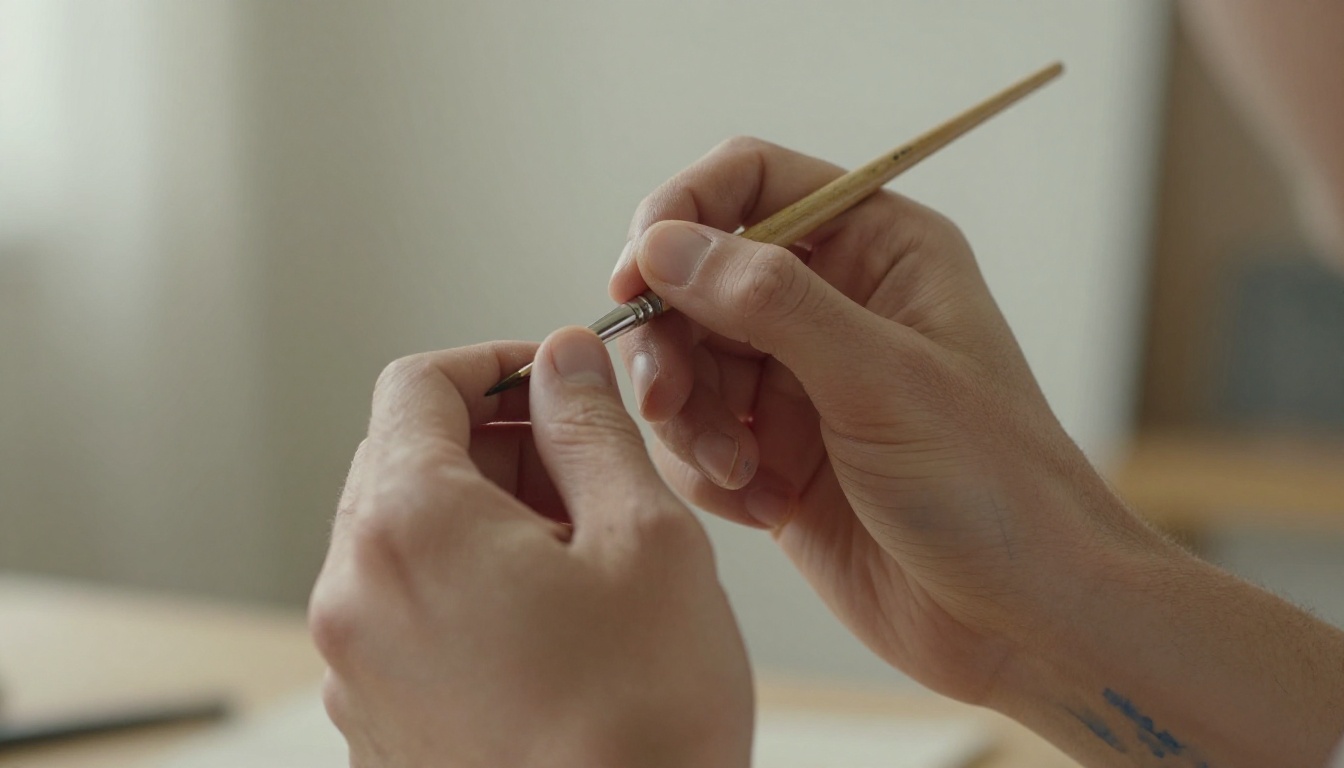
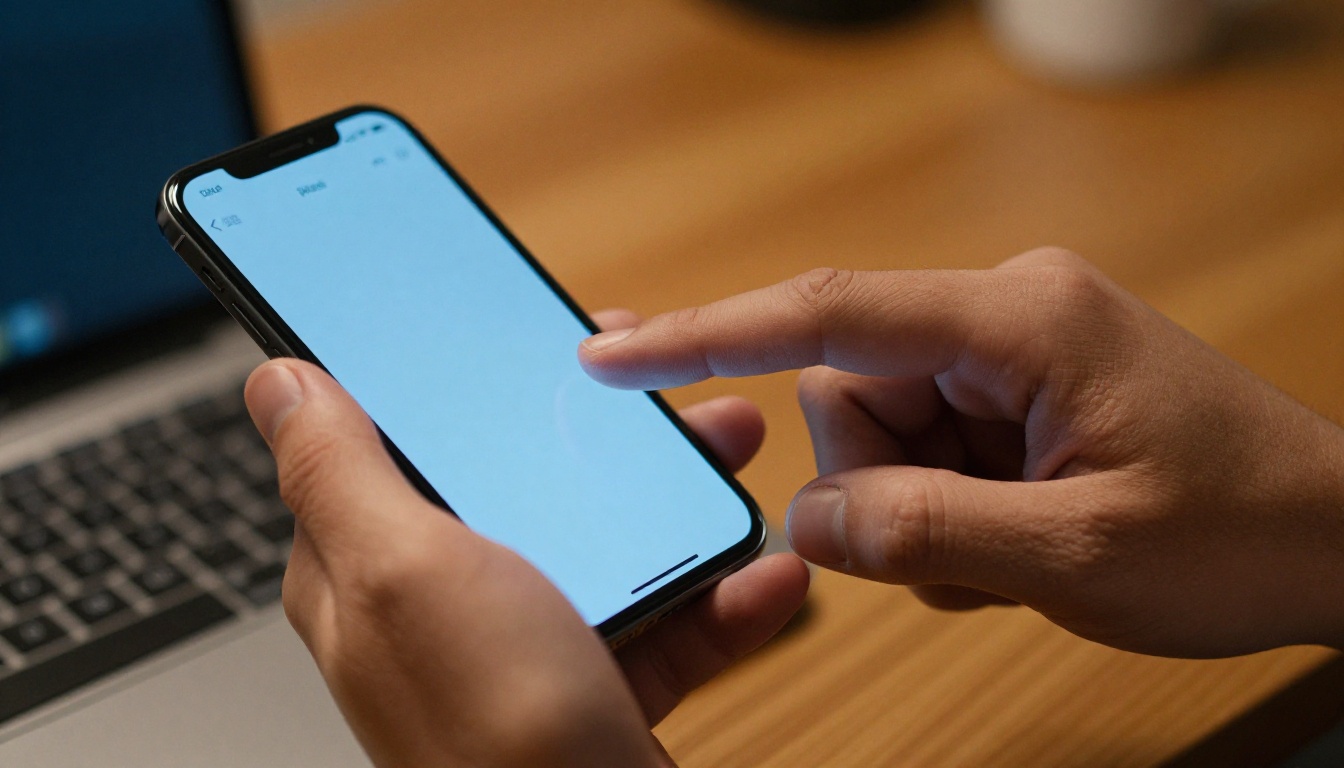
This approach is especially effective for hands interacting with objects. Gripping a pen, wrapping fingers around a glass, or holding a phone become dramatically easier because the model has a structural skeleton to follow rather than guessing from description alone.
Common Mistakes That Kill Hand Quality
Before moving on, these are the most frequent errors that cause hand generation to fail even when the rest of the prompt is solid:
Putting hand descriptions at the end of the prompt. Models weight early tokens more heavily. If your hand description comes after a long scene setup, it receives less influence over the output. Move it to the first sentence.
Skipping negative prompts entirely. Without negative prompts, the model is free to sample from its worst tendencies. Extra fingers and fused digits are the natural result.
Generating at low resolution. At 512x512, a hand in a full-body shot occupies so few pixels that the model cannot represent individual finger separation. Generate at 1280x720 minimum, or crop to the hand area if resolution is constrained.
Prompting for complex hand interactions immediately. Two hands touching, hands holding small intricate objects, and hands in front of faces are significantly harder than a single hand in a simple resting pose. Build difficulty gradually.
Expecting one generation to be the final result. Professional AI workflows for hands almost always involve batching followed by inpainting. Plan for iteration, not perfection on the first try.
Try It Yourself on PicassoIA
Now that you have the full picture of what drives hand quality in AI image generation, the most valuable thing you can do is run the experiments yourself.
Start with Flux 2 Max and the prompt template from the sections above. Run 6 seeds with the negative prompt active. Notice which seeds produce the cleanest anatomy, and observe how small changes in word order and specificity shift the results.
When you hit a great overall image with a flawed hand, go directly to inpainting with Flux Fill Pro. When you need a precise pose that prompting alone cannot deliver, bring in Flux Canny Pro with a reference image. For photorealistic character shots where hand quality is critical, Realistic Vision v5.1 remains one of the most consistent options available.
PicassoIA gives you access to all of these models in one place, with no local GPU required, no setup, and no command-line configuration. Write your prompt, pick your model, and iterate.
The difference between bad AI hands and realistic AI hands is almost never the tool. It is the prompt structure, the model selection, the negative prompt discipline, and the willingness to iterate until the result is right. You now have all of that in place.