You do not need a camera, a green screen, or a recording studio to publish a polished talking head video in 2027. A single photo and a line of audio is all it takes. AI lipsync models have reached the point where the mouth movement, head motion, and blink timing are convincing enough that most viewers cannot tell the difference from a recorded clip. This article walks through exactly how to generate talking heads for free, which models produce the most realistic results, and what to watch out for before you publish.
What a Talking Head Video Actually Is
A talking head video is any clip where a face fills most of the frame and appears to speak directly to the audience. Think news anchor, YouTube tutorial, product explainer, or online course intro. The format has been around for decades, but AI changed two things: you no longer need a real person on set, and the cost dropped to zero.
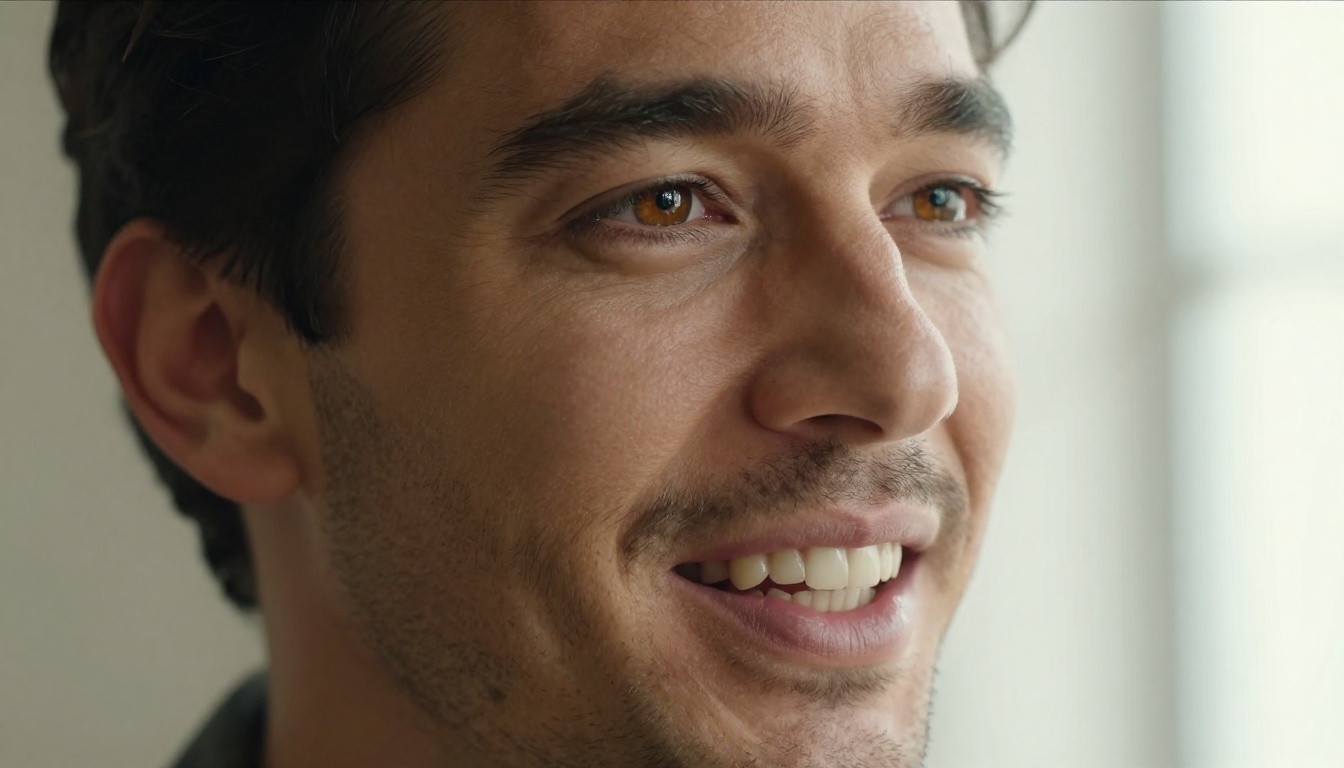
Today's AI talking head generators work by animating a source image using an audio file. The model predicts how the lips, jaw, cheeks, and eyes should move given the phonemes in the audio, then renders those movements onto the original photo with enough temporal consistency to look like natural motion.
Why Creators Are Ditching Traditional Video
The practical advantages are hard to argue with:
- No camera anxiety. People who hate being on camera can still build a video-first channel.
- Language scaling. Dub the same avatar into Spanish, French, or Japanese without hiring talent in each market.
- Speed. A 60-second clip that would take a full filming day to produce can be ready in under 5 minutes.
- Cost. Most of the models covered in this article are free or offer generous free tiers.
The 3 Things That Make One Look Real
Before picking a tool, it helps to know what separates a convincing talking head from an uncanny one:
- Lip sync accuracy at the phoneme level, not just syllable level. "P" and "B" sounds should close the lips completely.
- Natural head motion. A face that never moves looks dead. Subtle nods, tilts, and micro-shifts matter.
- Eye behavior. Blink timing, gaze direction, and natural drifts make or break realism.
The best free models in 2027 nail all three. The weakest ones get only the first.
The lipsync and avatar space is crowded, but only a handful of models are worth your time if realism is the goal. Below is a breakdown of what is available and what each one does well.
Lipsync Models That Animate a Photo
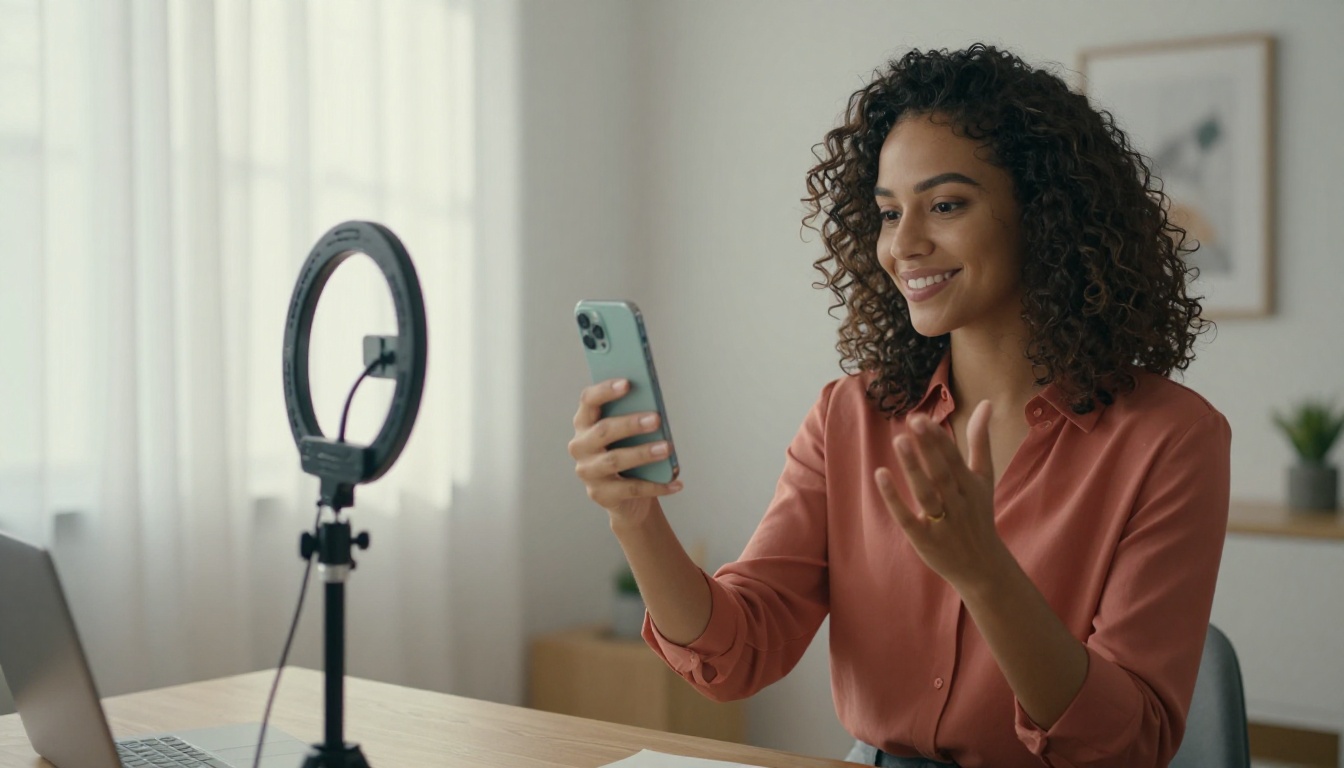
These models take a still image plus audio and output a video where the face appears to speak. No acting required, no studio lighting needed.
Omni Human 1.5 by ByteDance is the strongest free option right now. It produces natural head motion alongside lipsync, handles both front-facing and slightly angled photos, and deals well with varied skin tones. The original Omni Human is also available and works well for shorter clips.
Fabric 1.0 by VEED is purpose-built for single-photo animation. Its strength is in preserving the original photo's aesthetic, so the output does not feel like a different person.
React 1 by Sync adds realistic lipsync to an existing video, which is useful if you want to retime or revoice footage you already have. Lipsync 2 and Lipsync 2 Pro from the same team focus on precision phoneme matching and are worth running if you need tight sync on fast speech or technical terminology.
Kling Lip Sync by Kwaivgi and Pixverse Lipsync both handle the mouth-to-audio matching well and integrate naturally with their respective text-to-video ecosystems.
Avatar Tools That Skip the Camera Entirely
If you want a full AI avatar rather than animating a real photo, two models stand out:
Avatar IV by HeyGen creates polished talking avatar videos where the AI presenter delivers your script directly. You provide the text, pick the avatar style, and the model handles the rest. Video Agent from the same team goes further and packages the avatar into a structured video with cuts and b-roll.
Kling Avatar v2 by Kwaivgi focuses on face-to-video animation with strong motion consistency across longer clips.
Dreamactor M2.0 by ByteDance is designed to animate characters with full-body motion, but its facial animation quality transfers well to talking head use cases too.
How to Use Omni Human 1.5 on PicassoIA
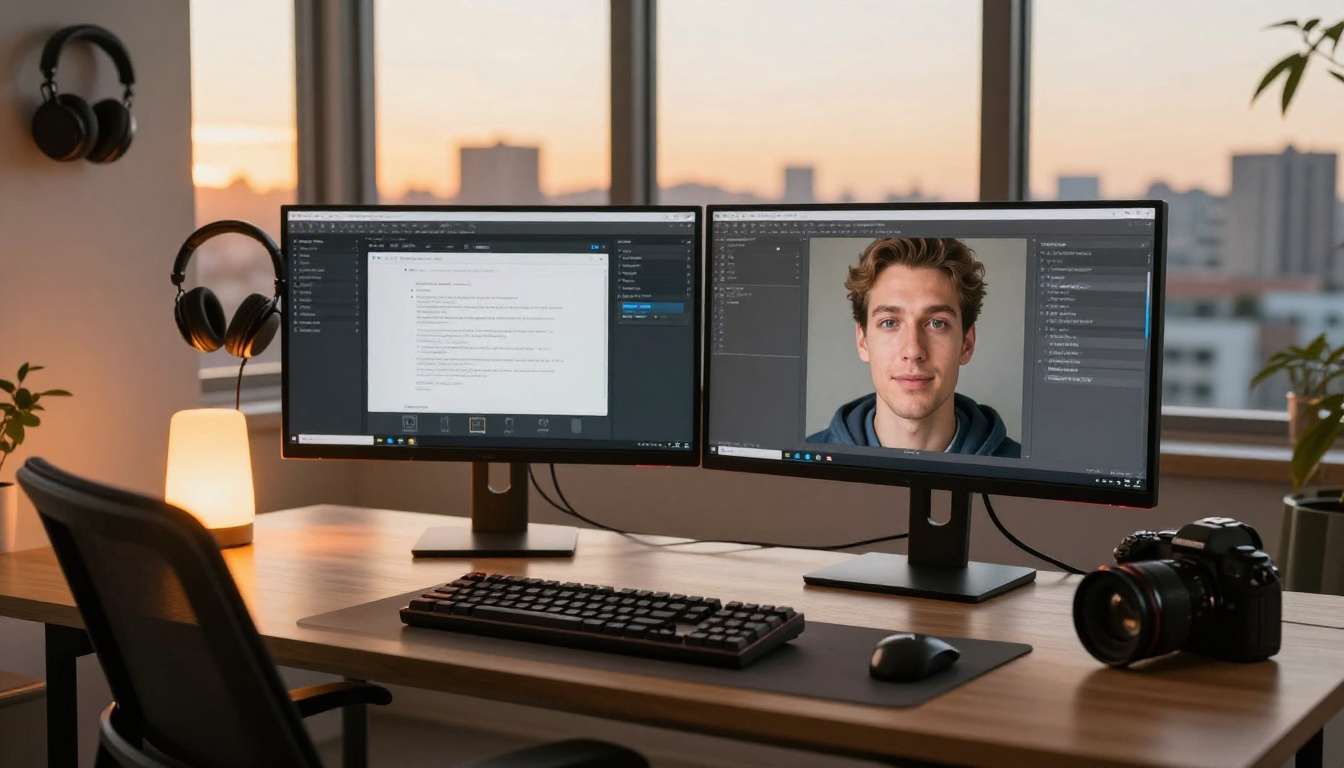
Omni Human 1.5 is the recommended starting point for anyone generating talking heads for free. Here is the exact workflow.
Step 1: Pick Your Base Photo
The photo quality determines 80% of the final result. Use these guidelines:
- Resolution: 512px minimum on the short side. 1024px or higher is ideal.
- Angle: Front-facing or up to 30 degrees off-center. Extreme profiles produce weak results.
- Lighting: Even, diffused light. Avoid harsh shadows across the nose or chin.
- Expression: Neutral or slight smile. Wide-open mouths in the source photo confuse the model.
- Background: Simple or slightly blurred. Busy backgrounds are preserved but can distract.
Pro tip: If you do not have a photo you are happy with, use a text-to-image model first to generate a photorealistic portrait, then feed that into Omni Human 1.5. The model does not care whether the face is real or AI-generated.
Step 2: Prepare Your Audio
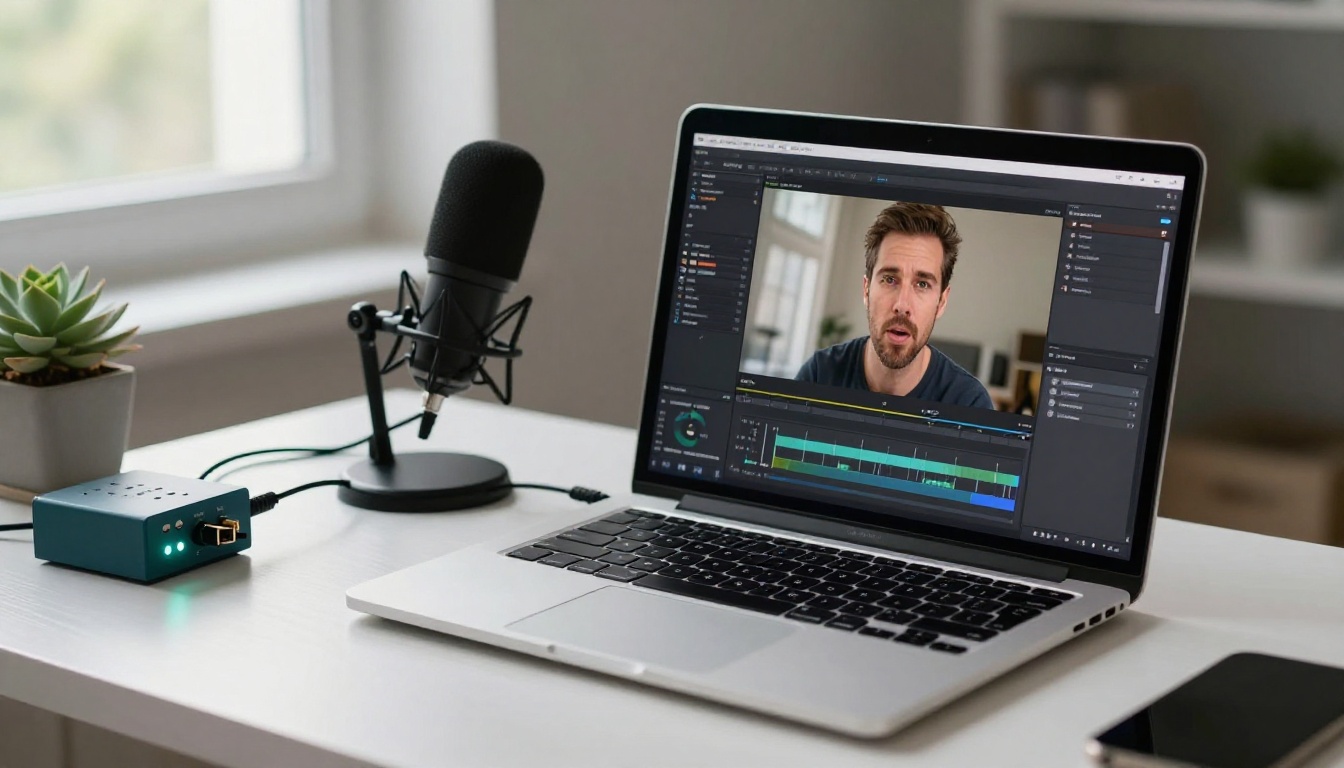
The audio file drives the entire animation. A few non-obvious rules:
- Format: MP3 or WAV, mono or stereo both work.
- Length: Keep initial tests under 30 seconds while you dial in the look.
- Clarity: Background music, reverb, and noise all degrade lipsync accuracy. Use a clean, dry vocal track.
- Pace: Normal conversational speed produces the best results. Very fast speech or whispering can throw the phoneme detection off.
If you do not have recorded audio, use a text-to-speech model first. Combine it with a lipsync model afterward for a fully synthetic pipeline with no recording at all.
Step 3: Run the Model
- Open Omni Human 1.5 on PicassoIA.
- Upload your source photo in the Image input field.
- Upload your audio file in the Audio input field.
- Leave the default motion strength at the mid setting for your first run.
- Click Generate and wait. Clips under 30 seconds typically process in 2 to 4 minutes.
- Preview the result. Watch the lip corners, not just the center of the mouth.
What to Do If It Looks Off
| Problem | Likely Cause | Fix |
|---|
| Lips do not close on "B" and "P" sounds | Noisy audio | Clean the audio track and re-run |
| Head is completely still | Motion strength too low | Raise motion strength to 0.7 or higher |
| Face warps at the edges of the mouth | Extreme angle in source photo | Use a more front-facing photo |
| Background flickers | Model struggling with complex bg | Crop photo to tighter face framing |
| Audio and mouth are slightly offset | Audio has leading silence | Trim the silence before the first word |
Tip: Run a 5-second test clip before committing to a 2-minute generation. It saves time and lets you fix issues before they compound.
Comparing the Best Free Lipsync Models
Not every model is built for the same use case. Here is how the top options stack up:
The takeaway: Omni Human 1.5 is the best starting point for pure talking head generation. Lipsync 2 Pro is the better pick when you are revoicing or dubbing existing footage and phoneme accuracy is critical.
5 Prompts That Produce Great Talking Heads
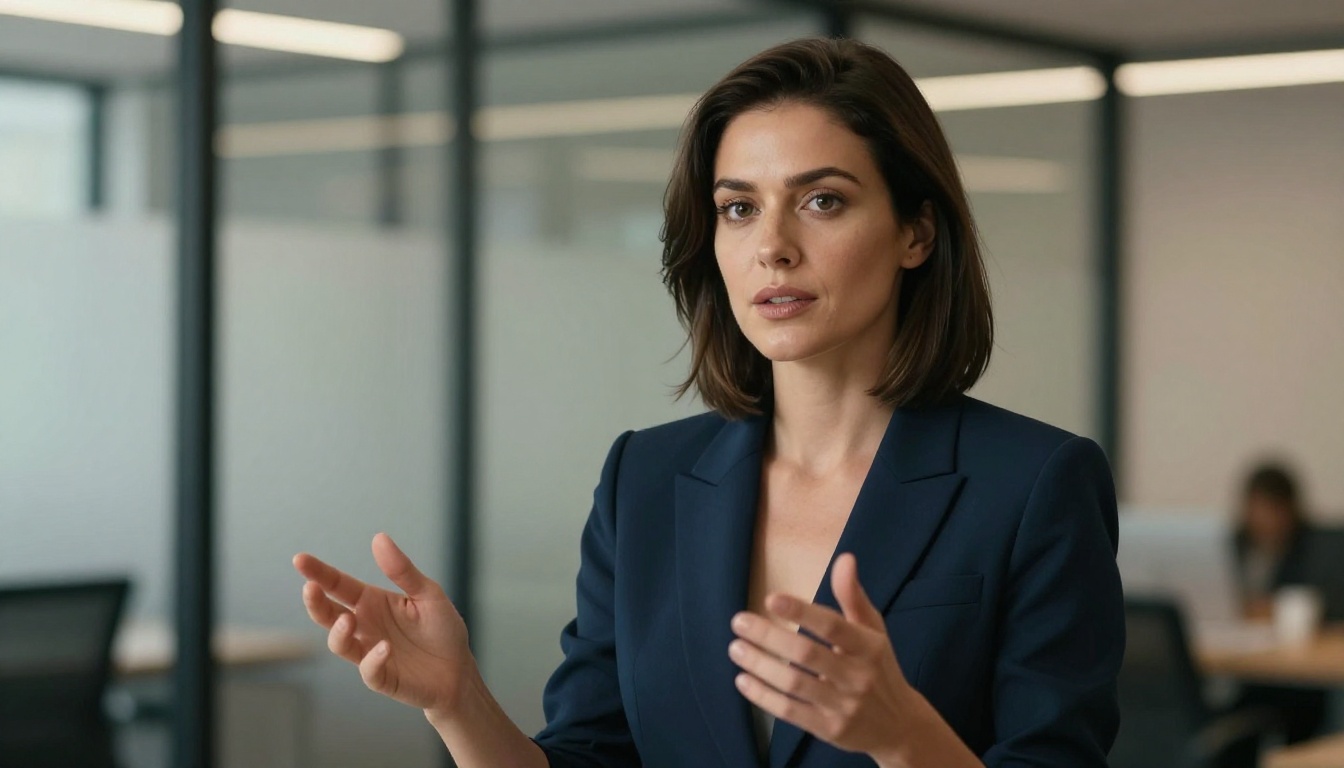
If you are generating the base portrait with an AI image model before animating it, these prompt structures consistently produce photos that work well with lipsync models:
-
Professional presenter: "Portrait of a [ethnicity] woman in her 30s, slight smile, front-facing, soft studio lighting, neutral grey background, photorealistic, 85mm lens, shallow depth of field"
-
Casual creator: "Young man in a casual shirt, direct eye contact, warm natural window light from left, home office background softly blurred, Kodak Portra 400 style, front-facing portrait"
-
Corporate spokesperson: "Professional man in a navy blazer, confident neutral expression, slight 15-degree angle, clean white background, editorial portrait, 8K photorealistic"
-
Educator or instructor: "Woman in her 40s with glasses, warm approachable expression, bookshelves softly blurred behind, natural daylight, front-facing headshot"
-
Brand avatar: "Gender-neutral person, smooth even skin, direct camera gaze, plain gradient background in light blue, clean commercial portrait style, highly detailed photorealistic"
Note: The "front-facing" instruction is the single most impactful addition. It alone cuts bad lipsync output in half.
What Free Tier Limits Look Like
Free access is real, but it is not unlimited. Knowing what to expect prevents frustration mid-project.
Resolution and Duration
Most free tiers cap output at 720p and limit clip length to 30 to 60 seconds per generation. For social media clips, YouTube Shorts, or course previews, this is usually more than enough. Longer explainer videos or high-resolution broadcast content typically require a paid plan.
Watermarks and Credits
Some models add a subtle watermark on free output. Check the preview at full resolution before committing to a final edit. Models accessed through PicassoIA tend to have cleaner free-tier output than standalone apps because the API layer abstracts most branding restrictions.
Credit systems vary. Most models on PicassoIA consume a small number of credits per generation, and new accounts receive enough credits to run 10 to 20 full-length test clips before needing to top up.
When to Use Which Model
Picking the right tool depends on what you are starting with and what you need at the end:
Starting from a photo and audio file: Use Omni Human 1.5 first. If the result needs tighter lip precision, switch to Lipsync 2 Pro.
Starting from a text script only: Use a text-to-speech model to generate audio first, then pipe into Omni Human 1.5 or Fabric 1.0.
Dubbing existing video into another language: Use Lipsync Precision by HeyGen or Video Translate, both of which handle 150-plus languages.
Building a fully AI avatar presenter with no real photo: Start with Avatar IV or Dreamactor M2.0 to create the base character, then animate it with a lipsync model.
Syncing audio to a video you already have: React 1 or Kling Lip Sync are the most reliable options.
Workflow tip: The most efficient pipeline is: generate portrait with a text-to-image model, generate voice with a text-to-speech model, animate with a lipsync model. All three steps can be done for free within the same platform. No file transfers, no account juggling.
The Realism Gap Is Closing Fast
Eighteen months ago, free AI talking heads had telltale signs: stiff neck, unnatural blink rates, smeared mouth corners. Today, models like Omni Human 1.5 and Kling Avatar v2 are shipping output that passes casual viewer inspection. The gap between free and paid is mostly about clip length and resolution now, not about visual quality.
For solo creators, small teams, and anyone who wants to produce professional video content without the overhead of filming, the free tier is genuinely viable. The tools exist. The workflow is short. The barrier is knowing where to start.
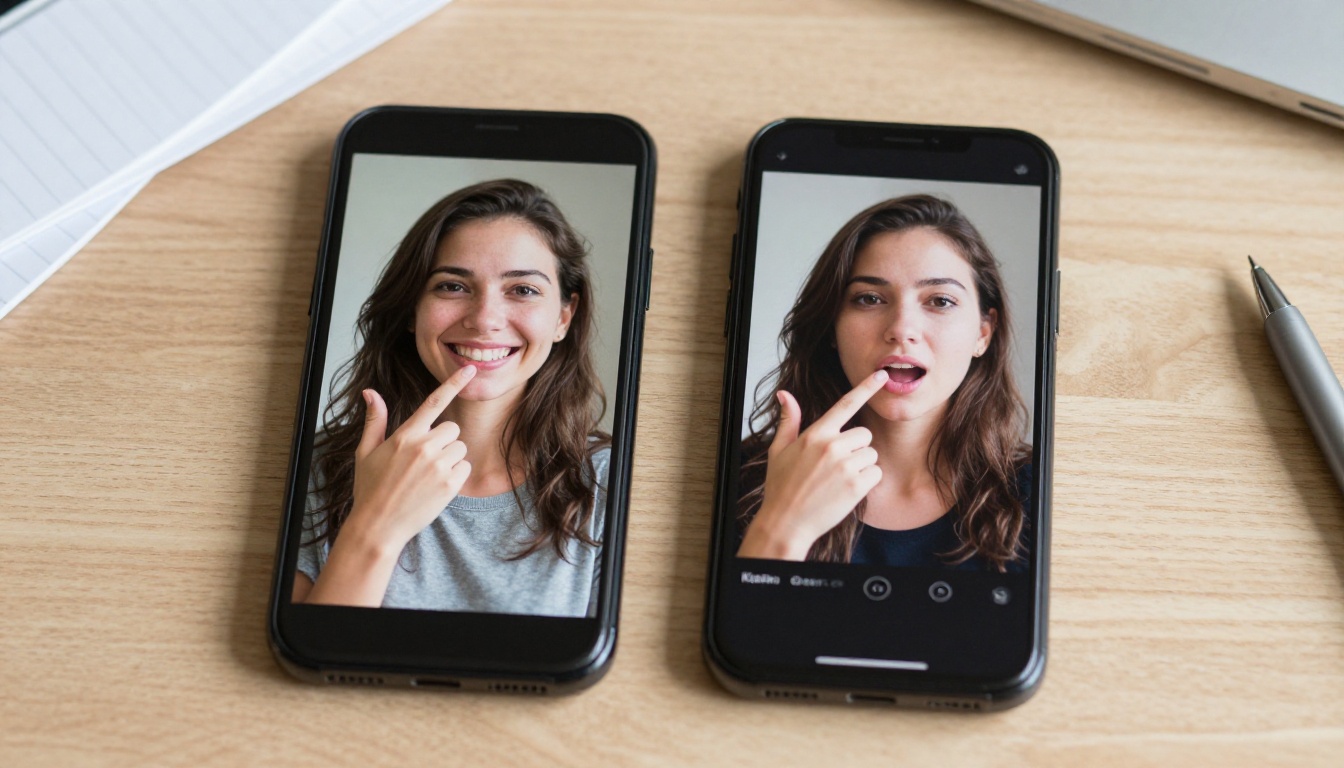
Try It Now
The fastest way to understand what these models can do is to run one. Pick a photo you like, record or generate 10 seconds of audio, and run it through Omni Human 1.5. The whole process takes under 5 minutes and costs nothing. From there, try a different model on the same input and compare the outputs side by side. That single experiment will tell you more than any article can.
PicassoIA gives you access to every lipsync model covered here, plus the text-to-image and text-to-speech tools you need to build a complete synthetic video pipeline from scratch. If you have a script and an idea for a face, you have everything you need to publish a talking head video today.


