Seedream 5.0 produces inconsistent results when prompts are vague and settings are left at default. This article covers prompt structure, guidance scale, inference steps, negative prompts, seed control, and a step-by-step workflow for getting publication-quality images every time.
Seedream 5.0 is fast, capable, and surprisingly sharp when you know how to talk to it. When you don't, it gives you muddy portraits, flat compositions, and backgrounds that look like they were generated in 2022. The difference has almost nothing to do with luck and everything to do with how you structure your input. This article covers the exact settings, prompt patterns, and workflow habits that separate forgettable AI images from ones that stop the scroll.
Why Seedream 5.0 Produces Inconsistent Results
What the model was trained on
Seedream 5.0 is ByteDance's flagship text-to-image architecture, trained on a massive corpus of high-resolution imagery with a strong photorealistic bias. That training means it performs exceptionally well when prompts follow photographic language. The moment prompts get vague, abstract, or contradictory, the model starts averaging across its training distribution rather than committing to a clear output.
The gap between simple and structured prompts
The single biggest cause of weak output is prompt brevity. "A woman at a beach" gives the model almost no signal to work with. Lighting condition, camera angle, time of day, subject expression, background detail: every missing element is a decision the model makes for you, and it doesn't always make the right one.
💡 Think of your prompt as a film brief to a director of photography. The more specific, the more intentional the result.
Prompts That Actually Work
The anatomy of a strong prompt
The most consistent Seedream 5.0 outputs come from prompts built in layers:
Subject (who or what is in the scene)
Action or pose (what are they doing)
Environment (where, with how much detail)
Lighting (direction, quality, color temperature)
Camera specifics (angle, lens focal length, depth of field)
Texture and atmosphere (mood, material detail, film grain)
This structure feeds the model exactly the kind of data it was trained on, and the output reflects it immediately.
Weak prompt: "A woman standing in a field"
Strong prompt: "A woman in her late 20s with auburn hair, wearing a floral sundress, standing in a sunlit wheat field at golden hour, shot from a low angle with a 50mm f/1.8 lens, warm volumetric backlight, visible individual hair strands, shallow depth of field, photorealistic, Kodak Portra 400"
The difference in output quality between these two prompts is dramatic and consistent.
Stack 3 to 4 of these at the end of every prompt. They cost nothing in token length and consistently improve output quality.
What to skip in your prompt
Some terms actively hurt output quality with Seedream 5.0:
"Hyper-realistic": Tends to produce over-sharpened, plastic-looking skin
"Best quality, masterpiece": Boilerplate from older diffusion models that adds noise here
Style conflicts: Combining "oil painting" and "photorealistic" in the same prompt confuses the model
Long adjective lists: "beautiful, gorgeous, stunning, amazing woman" wastes tokens and dilutes specificity
Specificity always outperforms superlatives.
Settings You Need to Adjust
Guidance scale sweet spot
The guidance scale (also called CFG scale) controls how strictly the model follows your prompt versus using its own creative interpretation. For Seedream 5.0:
Below 5: Output looks dreamy and loose, often ignoring prompt details
5 to 7: Balanced output, good for creative exploration
7 to 9: Sharp adherence to prompt, best for photorealistic portraits and architecture
Above 10: Output becomes over-saturated and artifacted, edges look crunchy
For most use cases, 7.5 is the practical sweet spot. Go to 8 or 9 when you need tight control over compositional details.
Inference steps and quality
More steps equal more refinement, but with diminishing returns after a certain point:
Steps
Output Character
10 to 15
Fast draft, visible noise
20 to 25
Solid quality for iteration and testing
30 to 40
Publication-ready, recommended for final output
50+
Marginal improvement over 40, significantly slower
For prototyping prompts, run at 20 steps. When you find a prompt you like, push to 35 for the final generation.
Aspect ratio for every use case
Aspect ratio is one of the most overlooked settings. Seedream 5.0 was trained on diverse aspect ratios, and using the wrong one for your subject actively hurts composition:
1:1 for social media square posts and product shots
16:9 for cinematic landscapes, desktop wallpapers, scene-setting images
9:16 for mobile-first content and vertical portraits
4:3 for editorial-style photography and blog headers
3:2 for classic photography framing, portraits, street scenes
Always set your aspect ratio before writing your prompt, since compositional language ("wide-angle landscape", "tight portrait frame") should match the ratio you select.
How to Use Seedream 5 Lite on PicassoIA
Seedream 5 Lite is available directly on PicassoIA, giving you immediate access to ByteDance's Seedream 5 series without any setup or API configuration. Here is a step-by-step workflow for getting the best out of it on the platform:
Step 1: Open the model page
Navigate to Seedream 5 Lite on PicassoIA and click "Generate" to open the creation interface.
Step 2: Write your prompt using the layered structure
Use the Subject + Action + Environment + Lighting + Camera approach described earlier. Paste your complete structured prompt into the text field.
Step 3: Set your aspect ratio
Select the ratio that matches your intended output before adjusting any other parameters. PicassoIA shows the aspect ratio selector prominently in the interface.
Step 4: Adjust guidance scale
Set CFG to 7.5 for most use cases. If you are generating portraits requiring tight detail control, push to 8.5.
Step 5: Set inference steps
For final output: 35 steps. For iterating and testing prompt variations: 20 steps.
Step 6: Enter a negative prompt
Add your negative terms in the negative prompt field. Details on the most effective terms are in the next section.
Step 7: Fix your seed for iteration
Once you find a composition you like, note the seed number and lock it for subsequent generations. This lets you modify the prompt incrementally without losing the compositional base.
Step 8: Generate and evaluate
Run the generation. Compare against your brief. Adjust one variable at a time, not multiple simultaneously. This is how you isolate what is working.
💡 PicassoIA also offers Seedream 4.5 and Seedream 4 if you want to compare across model versions. Each has a slightly different stylistic bias worth testing for your specific subject matter.
Negative Prompts Done Right
The most effective negative terms
Negative prompts tell Seedream 5.0 what to avoid. Used correctly, they filter out the most common AI artifacts before they appear in your output:
bad anatomy, uneven eyes, asymmetrical face, multiple people
For landscape and architecture work, focus on:
people in background, unrealistic sky, HDR over-processing,
oversaturated colors, flat lighting
When to leave negative prompts empty
If your positive prompt is already highly specific and structured, negative prompts can actually reduce creative range. For abstract or artistic outputs where you want the model to interpret freely, start with an empty negative prompt and only add terms if specific unwanted elements appear in early generations.
Negative prompts are a correction tool, not a default setting.
Seed Control and Consistency
How seeds work
Every Seedream 5.0 generation uses a seed number to initialize its random noise pattern. Using the same seed with the same settings produces a nearly identical base composition. Change the prompt while keeping the seed locked, and you can iterate on subjects and details while maintaining the same spatial layout.
This is especially powerful for workflows that require consistency across multiple outputs:
Product photography with consistent background treatment across SKUs
Character consistency across multiple scene variations
A/B testing prompt language with identical compositional starting points
Using seeds to iterate
The most efficient Seedream 5.0 workflow looks like this:
Generate a batch of 4 images with random seeds at 20 steps
Identify the composition and spatial arrangement you prefer
Note the seed number of that image
Lock the seed, push steps to 35, and refine the prompt
Generate 2 to 3 final versions with minor prompt adjustments
This approach gets you to a high-quality final output in roughly 6 to 8 total generations rather than 20 to 30 random attempts.
💡 When comparing models, Flux 1.1 Pro and Flux 1.1 Pro Ultra handle seed-based iteration very similarly, making them useful benchmarks when evaluating Seedream 5.0 output quality side by side.
Before and After: Real Results Compared
Portrait photography
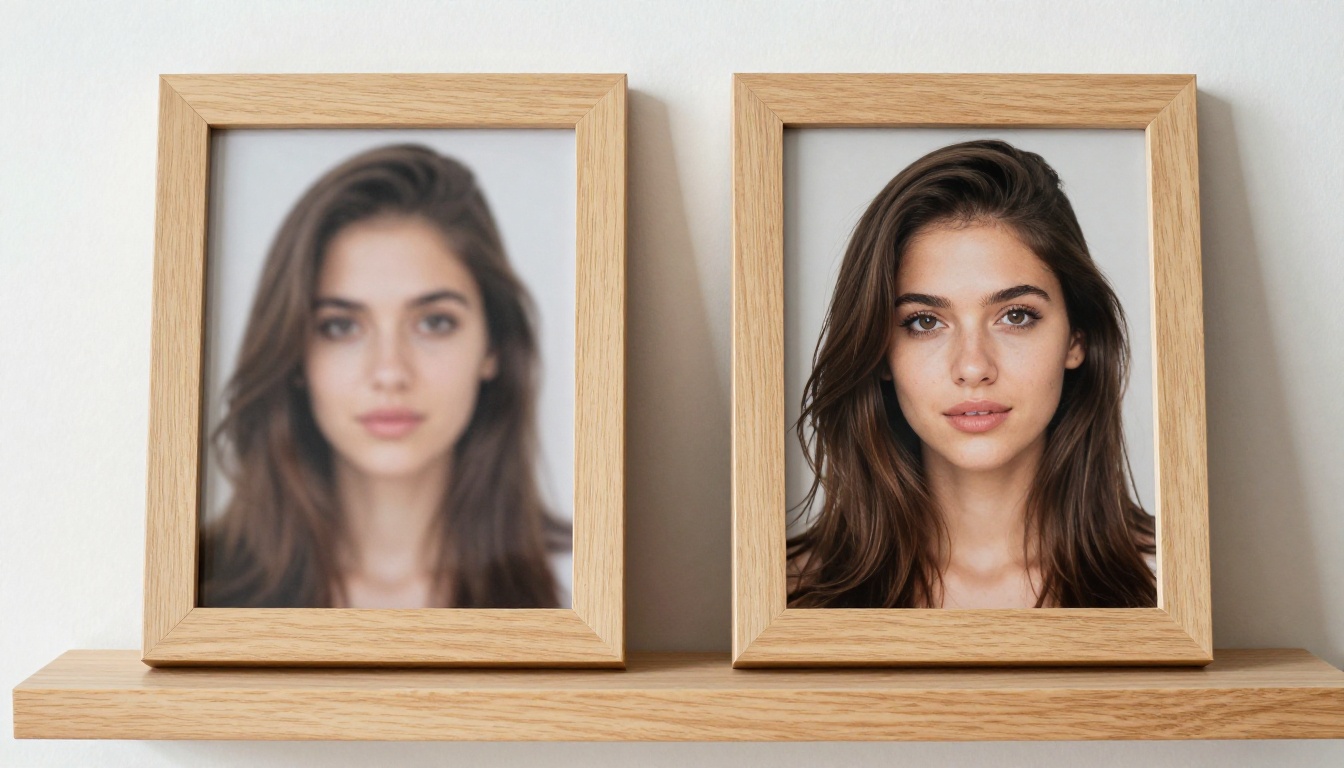
The improvement between an unstructured and a structured Seedream 5.0 prompt for portrait subjects is consistent across tests.
Unstructured prompt result:
Flat, even lighting with no directional quality
Generic background with no spatial depth
Skin rendering with slight plasticity
Composition that centers the subject with no dynamic framing
Structured prompt result:
Directional golden-hour light from one side, creating natural shadow and highlight
Background with natural bokeh depth
Skin texture showing visible pores and organic surface detail
Off-center framing with foreground depth element
The subject in both cases is identical in description. The output quality difference comes entirely from how that description is phrased and structured.
Landscape and architecture
For environmental shots, Seedream 5.0 responds especially well to time-of-day specificity:
"Morning light with low-angle sun casting long shadows across cobblestone" outperforms "daytime urban scene" every time
"Blue hour with city lights beginning to activate" gives cinematic moody results without needing to prompt for "cinematic" directly
Atmospheric precision in prompts converts directly to atmospheric precision in output.
Seedream 5.0 vs. Other Models on PicassoIA
Seedream 5.0 occupies a specific position in the current text-to-image landscape. Here is how it stacks up against other models available on PicassoIA:
Seedream 5.0 is not the top performer in any single category, but it delivers a strong combination of speed, photorealism, and prompt adherence that makes it highly practical for volume creative work and iteration-heavy projects.
Try It Yourself on PicassoIA
Everything described in this article is accessible right now through PicassoIA, without any technical setup or API keys. Seedream 5 Lite is ready to run with the exact prompt structures, settings, and workflows covered here.
If you want to see how Seedream 5.0 compares against other models in the same workflow, PicassoIA also offers Flux 2 Dev, Qwen Image 2 Pro, and Seedream 3 side by side. Testing the same structured prompt across multiple models is one of the fastest ways to understand what each one does well and where each falls short.
Write one strong prompt, apply the settings from this article, and run it. The results speak for themselves.