If you've typed a creative prompt into ChatGPT, DALL-E, or Adobe Firefly and watched it get refused, you already know the problem. Most mainstream AI image tools run your requests through content filters so aggressive they block bikinis, artistic nudity, and even suggestive fashion photography. You're not doing anything wrong. The platform just assumes the worst.
The good news? There are legitimate AI image platforms that let you create without those walls. This article shows you the exact models to use, how to access them for free, and what to type to get the results you actually want.
Why Mainstream AI Tools Block Everything
The Censorship Built Into Popular Platforms
ChatGPT's image tools, Midjourney, and similar platforms have one thing in common: they were built for enterprise and public use, which means their content filters are set to the strictest possible defaults. Even if your request is no more provocative than a Sports Illustrated cover, the algorithm flags it.
These platforms have their reasons. Advertisers, corporate clients, and app stores all pressure them to apply conservative moderation. The result is a system that blocks legal, artistic, and perfectly reasonable creative requests from real users.
What "Uncensored" Actually Means
"Uncensored AI images" doesn't mean illegal content. It means AI platforms that don't apply arbitrary content filters to legal adult imagery: bikini photography, artistic nudity, glamour portraits, and suggestive creative work that falls well within the law.
The best uncensored platforms use model-level control rather than blanket keyword blocking. You set the tone of your prompt; the model respects your creative intent without second-guessing you.
💡 The distinction matters: uncensored AI generation is about creative freedom within legal boundaries. Every platform listed here operates legally and lets you create content you own.
The Best Free NSFW AI Models Right Now
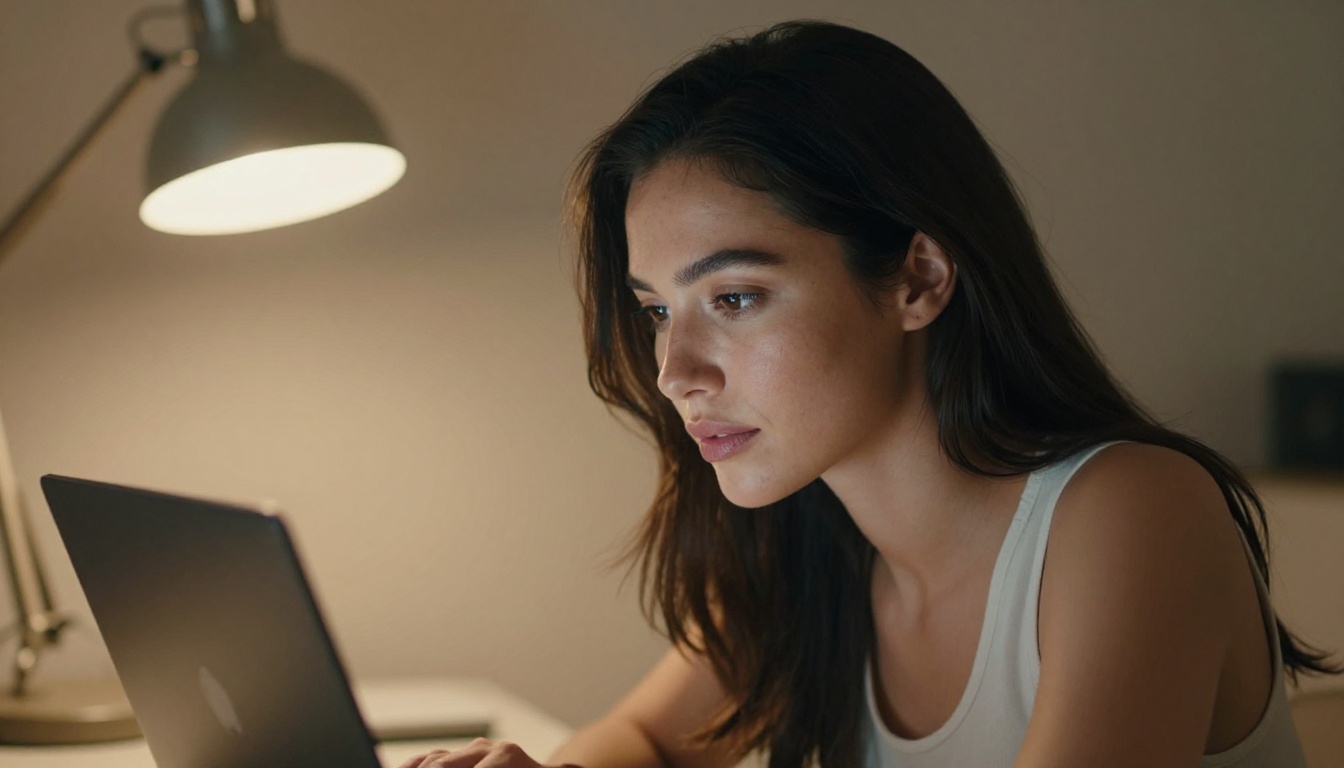
Seedream 4.5 is the One to Start With
Seedream 4.5 is the top-performing NSFW text-to-image model available on PicassoIA right now. It accepts adult prompts directly, supports image editing after generation, and produces results in under 3 seconds. The realism is exceptional at this speed.
One critical note: ByteDance released a newer version called Seedream 5 Lite, but that model does not support NSFW content. Stick with Seedream 4.5 for uncensored work.
What makes it the best pick:
- Accepts adult content natively, no workarounds needed
- Generates in under 3 seconds per image
- Supports editing after generation, not just text-to-image
- Ultra-realistic skin, lighting, and texture output
PicassoIA Image Editor Pro: Unlimited Generations
PicassoIA Image Editor Pro is an img2img model, meaning it takes a source image and transforms it based on your prompt. Its biggest advantage isn't quality, it's volume.
With an Elite or Infinite plan, you get unlimited generations. Want 1,000 images? That's 1,000 images at no extra cost. Compare that to models like Nano Banana 2, where generating that volume would run around $100. It also delivers results in under 1 second, and includes a 3-generation free trial with no credit card required.
💡 Best use case: If you need to iterate rapidly on a concept, generate variations of a base image, or produce large batches of content, Image Editor Pro is the most cost-efficient tool on the market.
The Full Ranked List
Here's how the top NSFW models compare on PicassoIA right now:
How to Use Seedream 4.5 on PicassoIA
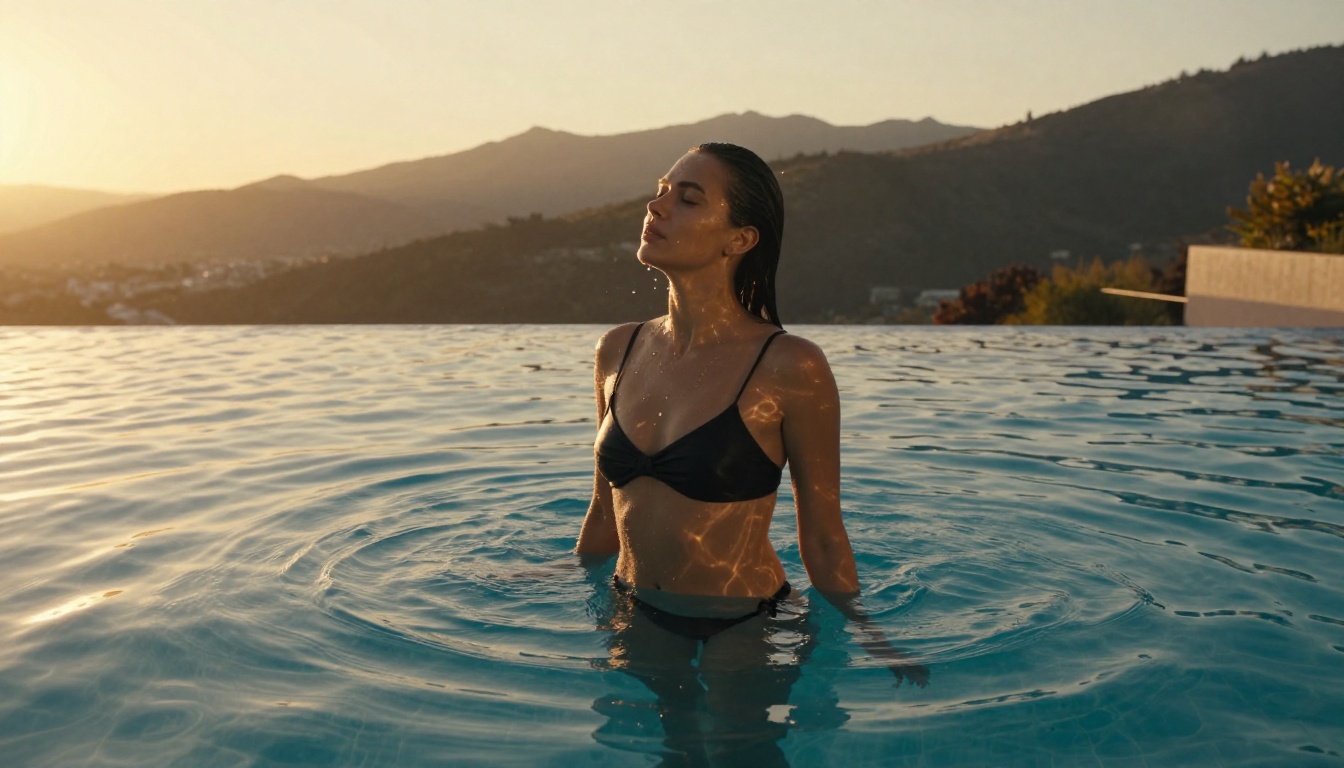
No Credit Card Required
- Go to picassoia.com/en/collection/text-to-image/bytedance-seedream-45
- Create a free account (no credit card required for the trial)
- Type your prompt in the text field
- Select your preferred aspect ratio (16:9 for landscape, 9:16 for portrait)
- Hit "Generate" and wait 2-3 seconds for your result
Writing Prompts That Actually Work
The quality of your output depends almost entirely on how you write your prompt. Seedream 4.5 responds well to descriptive, specific language.
Structure your prompt like this:
[Subject description] + [clothing/style details] + [environment] + [lighting] + [camera settings] + [mood]
Example prompt:
"A woman with sun-kissed skin wearing a white bikini, standing by an infinity pool at sunset, warm golden light from the left, shot on 85mm f/1.4, Kodak Portra 400 film tone, photorealistic, 8K"
What to include in every prompt:
- Specific lighting direction ("warm light from left", "volumetric morning rays")
- Camera lens details ("85mm f/1.8", "50mm f/2.0")
- Film emulation ("Kodak Portra 400", "Fuji Superia 400")
- Environment detail (pool, beach, studio, rooftop)
- A single mood word (relaxed, confident, editorial, intimate)
Fixing Common Prompt Problems
| Problem | Fix |
|---|
| Image looks painted or illustrated | Add "photorealistic, RAW photography, 8K" |
| Faces look distorted | Add "detailed face, sharp focus, 85mm portrait lens" |
| Body proportions are off | Add "natural body proportions, realistic anatomy" |
| Background is too busy | Add "shallow depth of field, bokeh background" |
| Lighting looks flat | Add "directional light, volumetric shadows, golden hour" |
Upscale and Sharpen Your Results
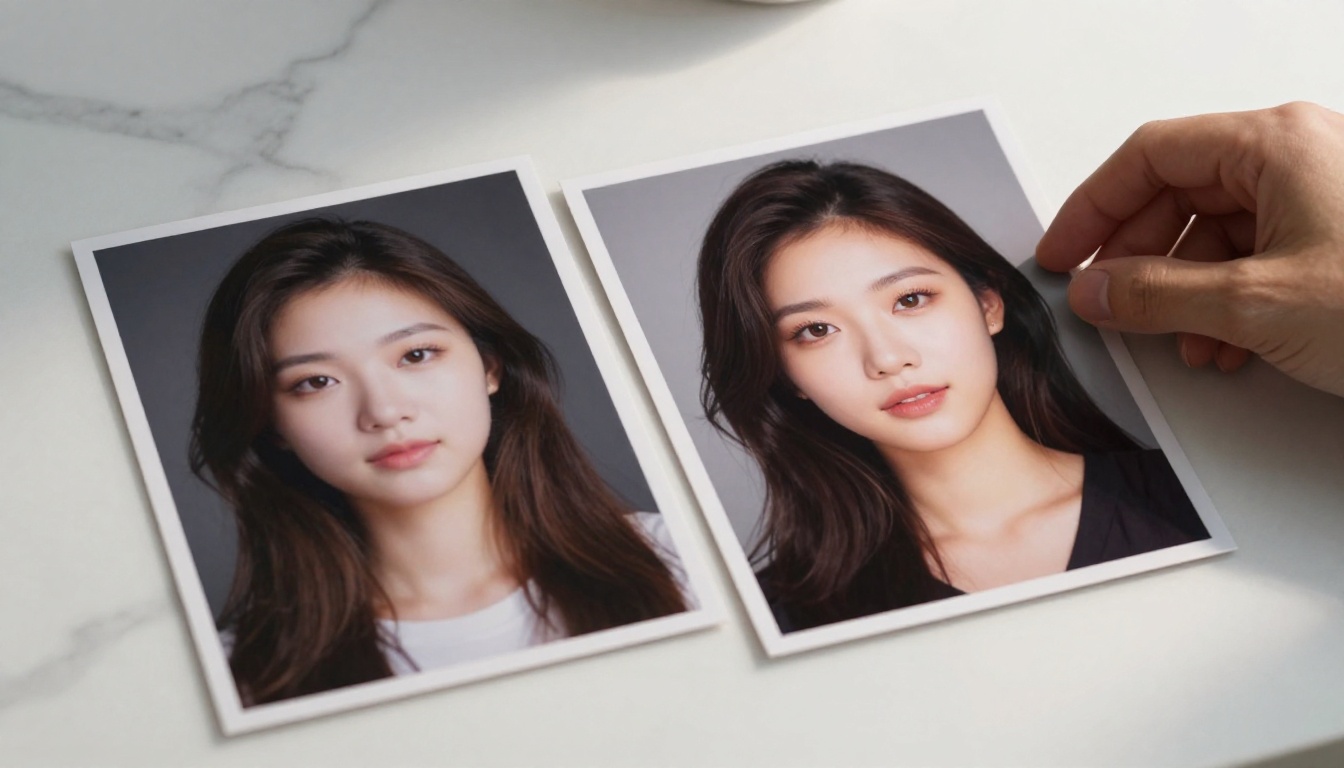
Even great AI-generated images benefit from upscaling. Most models output at 1024x1024 or 1024x576 by default. For print, detailed review, or high-resolution display, you need more pixels.
The Best Upscalers on PicassoIA
PicassoIA has several dedicated upscaling models that work on any image, including NSFW-generated content:
- Clarity Pro Upscaler: Photorealistic upscaling with detail enhancement. Best for portraits and fine skin texture.
- Real ESRGAN: Free 4x upscaling, reliable and fast for general images.
- Crystal Upscaler: Specialized for portrait photography, upscales to 4x with skin detail preservation.
- Image Upscale by Topaz: Up to 6x enlargement, the highest quality option for final output.
- P-Image Upscale: Sharp results in about 1 second, best for fast iteration passes.
💡 Workflow tip: Generate your base image with Seedream 4.5, then run it through Crystal Upscaler for portraits or Image Upscale by Topaz for maximum detail. The two-step approach produces output that holds up at full resolution.
When to Use Each Upscaler
For portraits: Crystal Upscaler preserves facial features and skin texture better than generic upscalers. It was designed specifically for this use case.
For speed: P-Image Upscale does the job in under a second. Use it during the iteration phase when you don't need maximum quality yet.
For final delivery: Topaz Image Upscale at 6x is the highest-fidelity option available. Use it when the image is finalized and ready for output.
Visual Effects and Style Editing
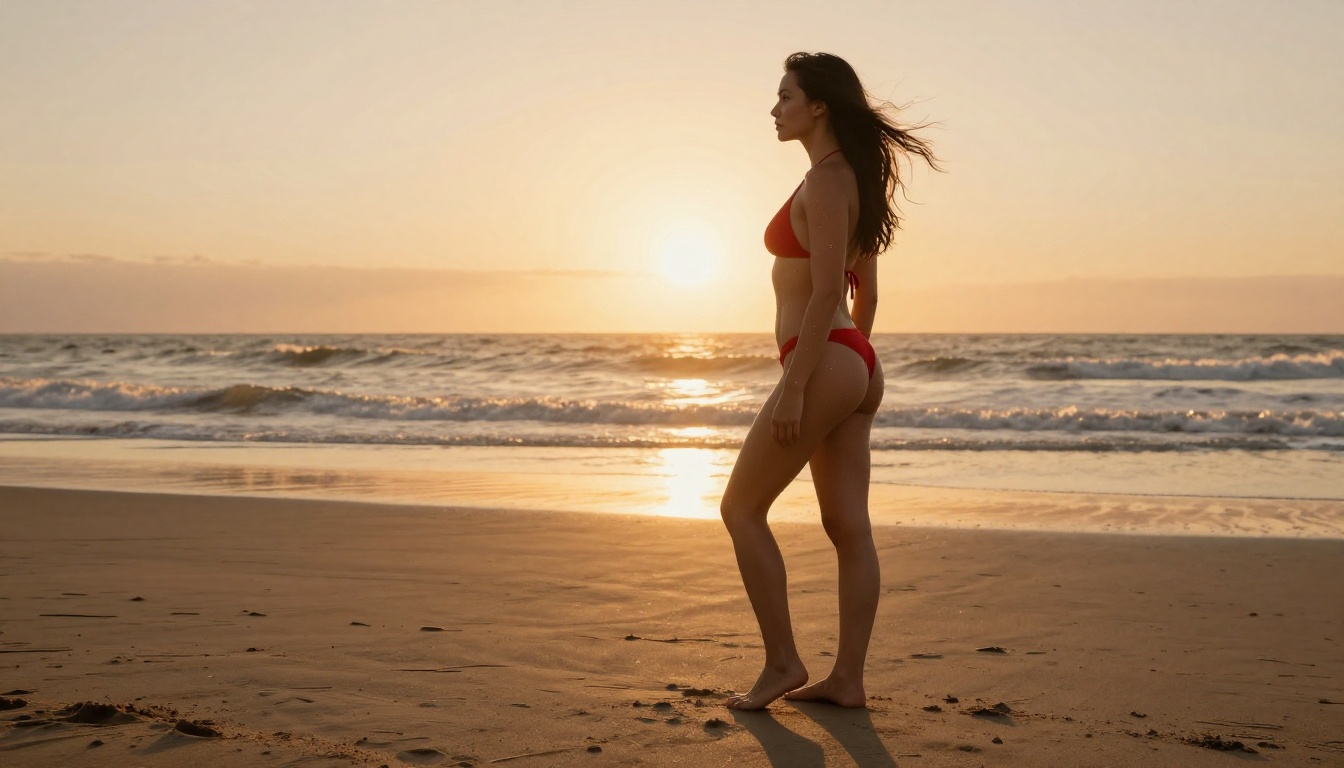
Beyond generation and upscaling, PicassoIA's image editing tools let you rework generated images without starting from scratch.
Inpainting: Fix Specific Areas
Inpainting lets you select a region of your image and regenerate just that part. If the background looks wrong, the lighting on one side falls flat, or you want to change a clothing detail, you can fix it without regenerating the whole image. This preserves the parts that worked and only touches what needs changing.
Outpainting: Expand the Frame
Outpainting extends the canvas beyond the original edges of your image. If your subject is cropped too tight, you can expand left, right, up, or down and let the AI fill in the additional space consistently. This is particularly useful for converting a 9:16 portrait image to a 16:9 widescreen composition.
Background Removal and Replacement
PicassoIA includes a background removal tool that works accurately on human subjects. Once you have a clean cutout, you can place the subject against any custom background or export the transparent PNG for compositing. This works well for putting generated subjects into real photo backgrounds.
Free vs Paid: What You Actually Get
What the Free Tier Covers
PicassoIA's free tier is more generous than most competing platforms:
- A set number of credits to start, no credit card required
- Access to most models including NSFW-capable ones
- 3 free generations on Image Editor Pro without any payment
- Full resolution downloads
The free tier is enough to test every model on this list and evaluate results before committing to a plan.
When Upgrading Makes Sense
The paid plans (Elite and Infinite) unlock:
| Feature | Free | Elite / Infinite |
|---|
| Image Editor Pro generations | 3 trial | Unlimited |
| Monthly credit allocation | Limited | Much higher |
| Queue priority | Standard | Priority |
| Video generation | Limited | Full access |
If you're generating more than 20-30 images per session regularly, the unlimited Image Editor Pro access on paid plans pays for itself quickly compared to per-generation pricing on other platforms. Generating 1,000 images through a pay-per-use model like Nano Banana 2 costs around $100. Through Image Editor Pro on an Infinite plan, that same volume costs nothing extra.
5 Mistakes That Kill Your Image Quality
1. Prompts That Are Too Short
"A beautiful woman on a beach" produces generic results. Seedream 4.5 and similar models reward specific prompts. Describe the lighting, the lens, the mood, and the environment. Short prompts produce average images. Longer, more specific prompts get the output you're actually picturing.
2. Picking the Wrong Model for the Job
P-Image is fast (under 1 second) but may not match the realism of Seedream 4.5 for complex scenes. Recraft V4 is text-to-image only and won't accept a reference image. Grok Imagine Image excels at image-to-image conversions. Using the right tool for the specific task makes a bigger difference than any single prompt tweak.
3. Ignoring Aspect Ratio
Most models default to 1:1 square output. If your target is a widescreen wallpaper, social media banner, or specific layout, set the aspect ratio before generating. Trying to crop a square to 16:9 afterward wastes the composition and cuts subject framing.
4. Skipping the Upscale Step
A 1024x576 image looks fine on a small screen but falls apart at full resolution. If you're using generated images for anything beyond quick viewing, add an upscale pass with Real ESRGAN or Crystal Upscaler. It takes about 10 seconds and the visual difference is significant.
5. Using Seedream 5 Lite for NSFW
This is worth repeating. Seedream 5 Lite blocks adult content at the model level. If your prompts are getting refused when you expected them to work, check which model version you've selected. Use Seedream 4.5 specifically for uncensored image generation.
What Other Models Can Do for Your Work
Qwen Image 2 for Open-Source Flexibility
Qwen Image 2 is an open-source model that creates or edits images without content filters. It handles both text-to-image and image editing, making it versatile for mixed workflows. The realism is strong, and its open-source nature means the moderation approach is minimal.
Grok Imagine Image for Conversions
Grok Imagine Image works particularly well for converting existing images. Upload a reference photo and prompt it to change clothing, style, or setting. It's especially consistent for swimwear and bikini-style conversions on realistic reference photos.
P-Image for Speed Iterations
When you're iterating quickly and want results in under 1 second, P-Image is the fastest NSFW-capable text-to-image model available. Use it for rapid concept testing before committing a refined prompt to Seedream 4.5 for the final output.
Try It Yourself Right Now
The tools in this article are live and accessible now, most with free credits and no credit card required to start. You don't need a subscription to test Seedream 4.5, Image Editor Pro, or the upscalers.
A simple workflow to try today:
- Go to Seedream 4.5 and run 2-3 prompts using the structure described above
- Take a result you like into Image Editor Pro to push it further
- Run the final image through Crystal Upscaler for a sharp detail pass
Each of those three steps is free to try. Once you see what the output looks like at full quality, you'll have a clear picture of whether this fits your creative workflow.
For the full catalog of 90+ image models, video models, and more, visit picassoia.com/en/all-models and filter by what you need.


