Running Flux 2 on your own hardware means no rate limits, no fees, and full control over every parameter. This article walks through two installation paths, ComfyUI for a visual no-code workflow and Hugging Face Diffusers for scripted control, plus VRAM optimization for 8 GB cards, and how to access Flux 2 Pro without any local setup at all.
Running a state-of-the-art text-to-image model directly on your own machine changes everything about how you work. No usage caps, no queues, no subscription fees eating into every experiment. Flux 2 from Black Forest Labs is one of the most capable open-weight image generation models available today, and installing it locally is more accessible than most people expect. This article walks through the full process, from system requirements to your first generated image.
What Flux 2 Actually Is
Flux 2 is the second generation of the Flux architecture, built by Black Forest Labs, the team behind some of the most photorealistic open-weight models available today. It builds on the original Flux.1 family with improved prompt adherence, better anatomical accuracy in human subjects, and sharper detail rendering at standard resolutions. The model uses a transformer-based diffusion architecture that differs fundamentally from the U-Net designs found in older Stable Diffusion models.
The model lineup
The Flux 2 family ships in several distinct variants, each targeting a different hardware tier and use case:
For local installation, flux-2-dev and flux-2-klein-4b are your primary targets. The Pro, Max, and Flex variants run exclusively via API and are not distributed as downloadable weights.
Why run it locally
There are concrete reasons beyond cost savings. Local inference means your prompts and generated images never leave your machine, which matters for commercial work with sensitive subjects. You control every sampling parameter directly. You can batch-process hundreds of images overnight without worrying about per-generation pricing. And for fine-tuning on custom datasets or attaching LoRA adapters, local installation is the only viable path.
What Your Machine Needs
Before downloading anything, verify your hardware and software stack against these requirements. Mismatched dependencies cause the majority of common installation failures.
GPU and VRAM requirements
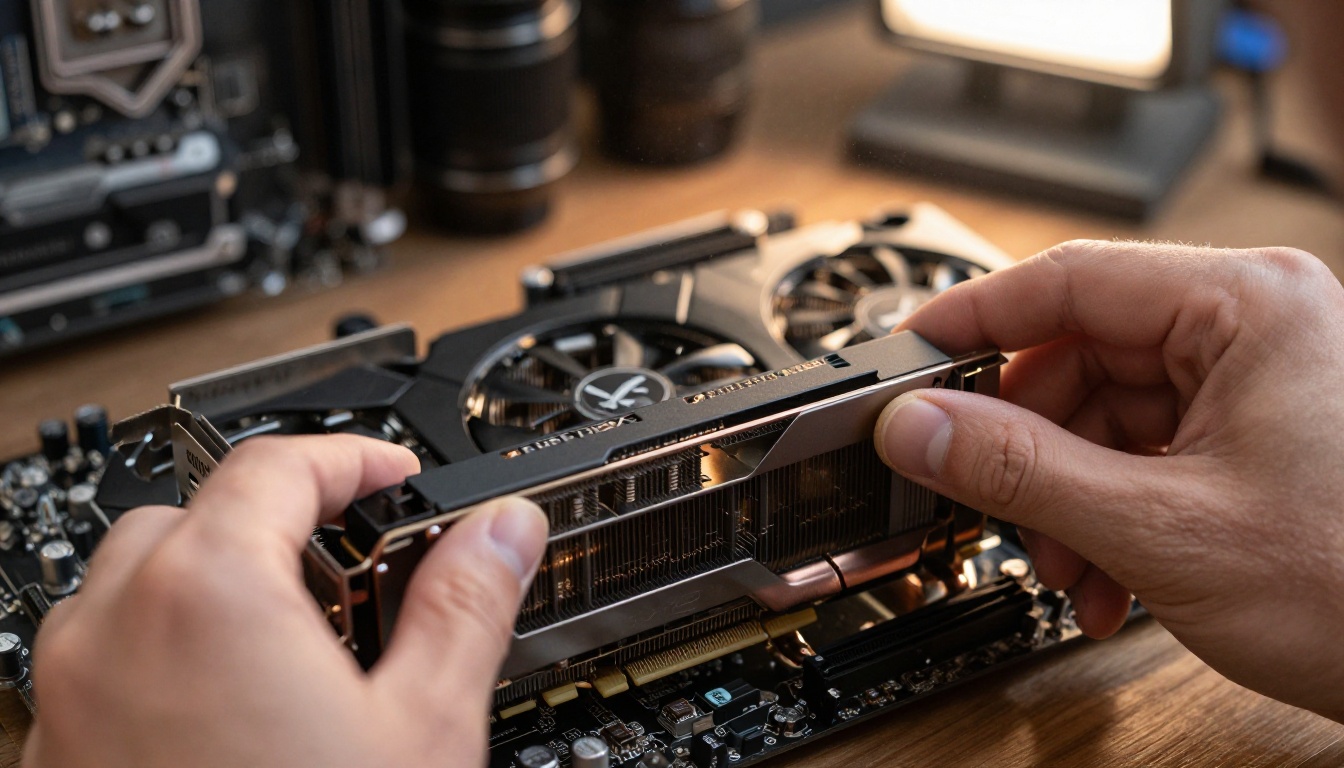
Flux 2 is computationally demanding. Here is the honest breakdown:
Minimum viable setup:
NVIDIA GPU with at least 8 GB VRAM (RTX 3070, RTX 4060 Ti, or equivalent)
AMD GPUs work via ROCm on Linux, but driver support on Windows is inconsistent. Expect more troubleshooting compared to CUDA setups.
Apple Silicon (M1/M2/M3/M4) can run quantized Flux 2 variants via the MLX framework. Generation times run 2–4x slower than a comparable NVIDIA card, but image quality is equivalent.
💡 Tip: If your GPU has exactly 8 GB VRAM, use GGUF Q4_K_S quantization. Quality drops slightly but the model runs without memory errors on most prompts.
Python, CUDA, and drivers
Your software stack needs to be aligned before any Python package installation works correctly:
NVIDIA driver: Version 525 or newer. Verify with nvidia-smi in a terminal.
CUDA Toolkit: Version 11.8 or 12.x. Match the version to your PyTorch build.
Python: 3.10 or 3.11 work best. Avoid 3.12 until library support stabilizes.
Git: Required for cloning repositories.
On Windows, install CUDA via the NVIDIA developer portal. On Ubuntu 22.04 or later, the runfile installer avoids package conflicts with pre-installed drivers.
Two Paths to Local Installation
Two well-supported methods exist for running Flux 2 locally. Neither is objectively better, and the right choice depends entirely on how you work.
ComfyUI (the visual way)
ComfyUI is a node-based graphical interface for running diffusion models. You connect nodes on a visual canvas to build generation pipelines. No Python scripting is required after the initial setup. It is the fastest path from zero to a working Flux 2 installation for most people.
Choose ComfyUI when:
You want a visual, non-code workflow
You plan to experiment with different samplers and scheduling configurations
You want to share or import community workflows as JSON files
Hugging Face Diffusers (the code way)
The diffusers library is the standard Python API for running diffusion models programmatically. You write inference scripts and have full control over every parameter, from precision dtype to custom schedulers.
Choose Diffusers when:
You are building an application or automation pipeline
You need batch processing with custom business logic
You want to fine-tune or train LoRA adapters on custom data
Installing Flux 2 via ComfyUI
This is the recommended path for most users who want working results quickly without writing code.
Set up ComfyUI on Windows or Linux
Step 1: Clone the ComfyUI repository and enter the directory:
git clone https://github.com/comfyanonymous/ComfyUI
cd ComfyUI
Step 2: Install PyTorch with CUDA support. Use the selector at pytorch.org to get the correct command for your CUDA version. For CUDA 12.1:
Step 3: Install the remaining ComfyUI dependencies:
pip install -r requirements.txt
Step 4: Launch the server:
python main.py --gpu-only
Open http://127.0.0.1:8188 in your browser. ComfyUI is now running.
💡 Tip: On Windows, the portable standalone release from the official ComfyUI GitHub page includes Python and PyTorch pre-installed. It starts with a single double-click and avoids most environment setup issues entirely.
Download the Flux 2 checkpoints
Flux 2 weights are hosted on Hugging Face. You need a free account and must accept the model license agreement on the model page before the download will succeed.
💡 Tip: After a working install, run pip freeze > requirements.txt to pin your versions. The diffusers library updates frequently and occasional breaking changes affect the Flux pipeline API.
import torch
from diffusers import FluxPipeline

pipe = FluxPipeline.from_pretrained(
    "black-forest-labs/FLUX.2-dev",
    torch_dtype=torch.bfloat16
)
pipe.enable_model_cpu_offload()

prompt = "A photorealistic portrait of a woman in soft natural light, film grain, 8K"

image = pipe(
    prompt,
    height=1024,
    width=1024,
    guidance_scale=3.5,
    num_inference_steps=28,
    max_sequence_length=512,
    generator=torch.Generator("cpu").manual_seed(42)
).images[0]

image.save("flux2_output.png")
Run it with:
python generate.py
The first run downloads approximately 24 GB of model weights. Subsequent runs load from cache in around 30 seconds on a modern NVMe SSD.
Running Flux 2 on Low VRAM Hardware
Not everyone has a 24 GB GPU. These two strategies let you run Flux 2 on 8–12 GB cards without losing the core image quality that makes the model worth using.
Quantized GGUF models
GGUF is a quantization format adapted from the llama.cpp ecosystem that now works with image diffusion models. It reduces model precision from 16-bit floats to 4-bit or 8-bit integers, cutting VRAM requirements by 50–75%.
Community-quantized GGUF files for Flux 2 are available on Hugging Face. The practical tradeoff at each quantization level:
File
VRAM Usage
Quality
flux2-dev-Q8_0.gguf
~10 GB
Near-lossless
flux2-dev-Q4_K_S.gguf
~6 GB
Good, slight softening
flux2-dev-Q3_K_M.gguf
~5 GB
Acceptable for quick tests
In ComfyUI, install the ComfyUI-GGUF custom node extension, then load the .gguf checkpoint file exactly as you would load any .safetensors checkpoint. No other workflow changes are needed.
CPU offloading and fp8 precision
Two additional memory reduction strategies that stack well together:
Sequential CPU offloading (slower but works on 8 GB cards):
pipe.enable_sequential_cpu_offload()
💡 Tip: Combine GGUF Q4_K_S with enable_model_cpu_offload() for the best balance on 8 GB cards. Expect generation times of 3–5 minutes per 1024x1024 image, which is perfectly viable for iterative personal work.
How to Use Flux 2 on PicassoIA
If you want to try Flux 2 before committing to a full local setup, or if you need access to the cloud-only Pro and Max variants, PicassoIA offers all Flux 2 models directly in the browser with no installation required.
Running Flux 2 Pro without local setup
flux-2-pro and flux-2-max are not available as downloadable weights. They run exclusively via cloud API. PicassoIA provides browser access to both, along with flux-2-flex for flexible output dimensions and flux-2-klein-4b for fast generation.
Set your preferred dimensions and inference steps (28 is the sweet spot for dev variants)
Click Generate
Download or share the result directly from the interface
For quality that matches running flux-2-dev locally on a 24 GB GPU, the PicassoIA implementation produces equivalent results with zero setup time.
Prompt tips that work across all variants
Flux 2 responds well to natural language prompts. You do not need weighted brackets or token stacking. Write what you want as a clear, specific sentence.
What works well:
Explicit lighting description: "soft morning light from the left, volumetric"
Subject action and position: "a woman standing at a kitchen counter, looking down at her hands"
Stacking more than three or four distinct subjects in one prompt
Prompts exceeding 300 tokens (the T5 encoder supports up to 512 but quality degrades past 300)
Vague emotional descriptors without visual grounding ("melancholy" alone gives the model nothing to render)
💡 Tip: For flux-2-klein-4b, keep guidance scale between 2.5 and 4.0. Higher values oversaturate colors on the smaller model.
Start Generating Right Now
Whether you followed the ComfyUI path, wrote a Diffusers script, or opened flux-2-pro on PicassoIA, you now have everything you need to work with Flux 2.
The real value of having Flux 2 running locally, or through a platform like PicassoIA, is iteration speed. Write a prompt, see a result in under a minute, refine the description, and generate again. That tight feedback loop is where actual skill in prompt writing and parameter tuning develops.
PicassoIA gives you instant access to flux-2-dev, flux-2-pro, flux-2-max, flux-2-flex, and the efficient flux-2-klein-4b, with no CUDA configuration, no 24 GB weight download, and no virtual environment setup. It is the fastest way to benchmark what each variant actually produces before deciding whether a full local installation is worth it for your workflow.
Start with a prompt that matters to you. Run it on flux-2-dev, then compare it against flux-2-klein-4b. Note what changes between the two. That comparison tells you exactly what hardware investment is justified for your specific use case, without any guesswork.