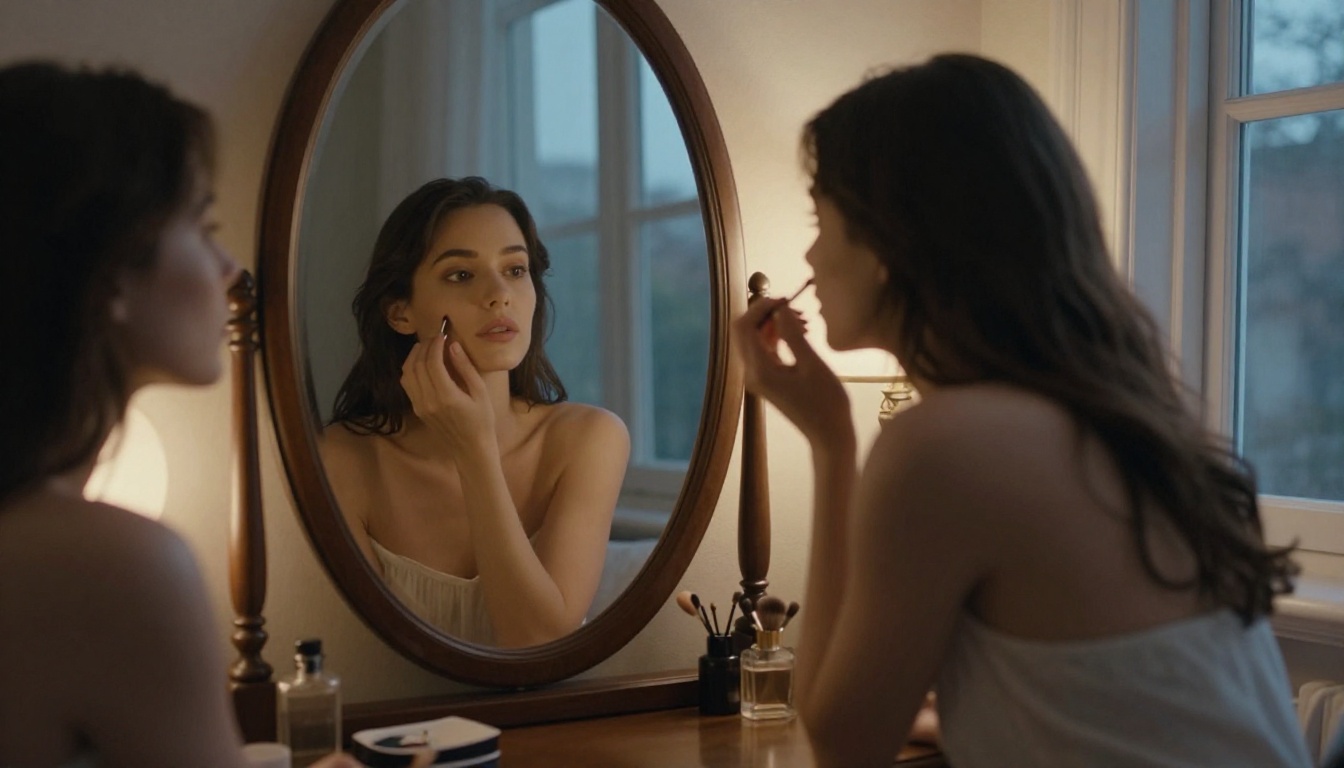
How to Make AI Generated NSFW Photos Look Real: The Full Breakdown
Getting AI-generated NSFW photos to look truly photorealistic takes more than just a good prompt. This article covers the exact models, settings, and prompt formulas that separate believable from obviously artificial results, including skin texture tricks, lighting setups, and how to use super-resolution to push quality to the next level.
Making AI-generated NSFW photos look real is harder than it sounds. Most people paste a basic prompt into a generator and get images that feel obviously artificial: plastic skin, dead eyes, symmetrical faces that look like mannequins, lighting that belongs in a video game render. The gap between "generated" and "photographed" is still wide, but it is closable. With the right model, a precisely structured prompt, and a few post-processing moves, the results can stop people in their tracks.
This article covers the full process, from model selection to prompt architecture to the specific language that signals "real photograph" to an AI.
Why Most AI NSFW Photos Look Fake
The tell is almost always the same. Something is slightly off. You cannot always name it immediately, but it registers. Usually it is one of these things.
The Telltale Signs
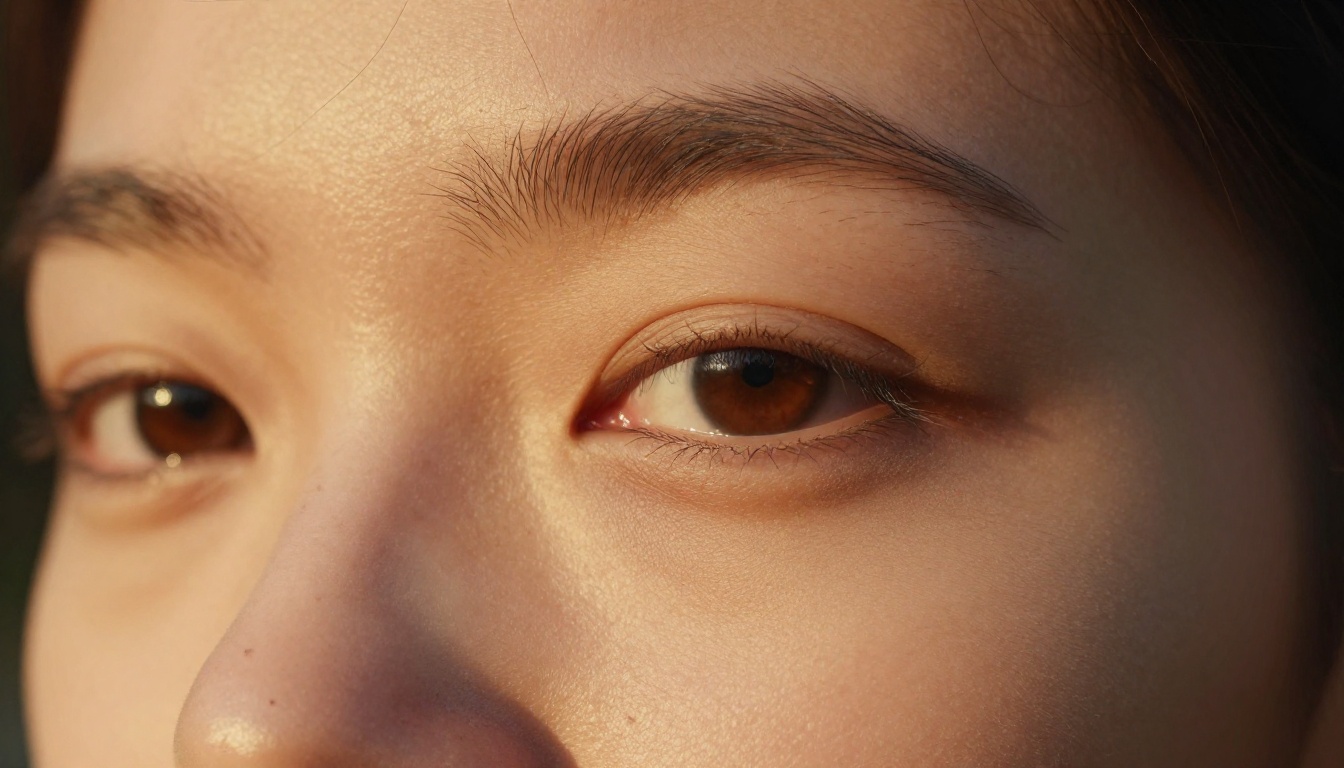
Skin looks like polished rubber. Real skin has texture, pores, sebaceous variation, and micro-imperfections. Default AI output gives you an even, smooth surface that reads as synthetic.
Lighting has no source. Real photos have a clear light origin: a window, a lamp, the sun. AI-generated images frequently use ambient light that comes from everywhere and nowhere, flattening the image.
Eyes are glass. The iris lacks the biological randomness of a real eye. Catchlights are either missing or placed with mathematical precision.
Hands are a giveaway. Too many or too few fingers, weird proportions, uncanny knuckle placement.
Hair is too perfect. Every strand falls in place. Real hair has flyaways, shine variation, and directional inconsistency.
What the AI Is Getting Wrong
The core issue is that most models are trained to produce aesthetically pleasing outputs, not photographically accurate ones. There is a difference. Aesthetically pleasing means clean, smooth, symmetrical, well-lit. Photographically accurate means imperfect, textured, directional, and constrained by the physics of optics.
The fix requires you to explicitly overwrite the model's defaults in your prompt.
Picking the Right Model
Not every model handles photorealism equally. Some are trained on artistic datasets that tilt toward illustration. Others are specifically fine-tuned for hyperrealistic human subjects.
For NSFW photography realism specifically, Realistic Vision v5.1 and RealVisXL v3.0 Turbo are purpose-built. They were fine-tuned on photographic datasets with specific attention to skin detail. The flux-1.1-pro-ultra model adds top-tier resolution and scene coherence, making it the best choice when the final image needs to be absolutely convincing.
Models to Skip for This Use Case
flux-schnell is fast, but it sacrifices fine-grained detail for speed. SDXL base without ControlNet tends to over-smooth skin. Pixel art and animation-oriented models are obviously wrong for this task.
💡 Rule of thumb: If a model's showcase images look like they could be magazine photos, it will handle realistic NSFW work well. If they look like concept art or game assets, skip it.
The Prompt Formula That Actually Works
This is where most people get it wrong. They describe what they want to see and nothing else. A realistic photograph prompt needs to describe the photograph itself, not just its subject.
Anatomy of a Realistic Prompt
A prompt built for photorealism has six components:
Subject with precise physical description (age approximation, hair, posture, expression)
Environment and background (specific location with depth and context)
Lighting conditions (light source, direction, intensity, color temperature)
Camera specifications (lens focal length, aperture, sensor format)
Texture and micro-detail descriptors (skin pores, fabric weave, hair flyaways)
Film and photography style marker (Kodak Portra 400, RAW format, film grain)
Here is a basic versus advanced prompt comparison:
Basic (generates plastic-looking results):
"beautiful woman, beach, realistic"
Advanced (generates photographic results):
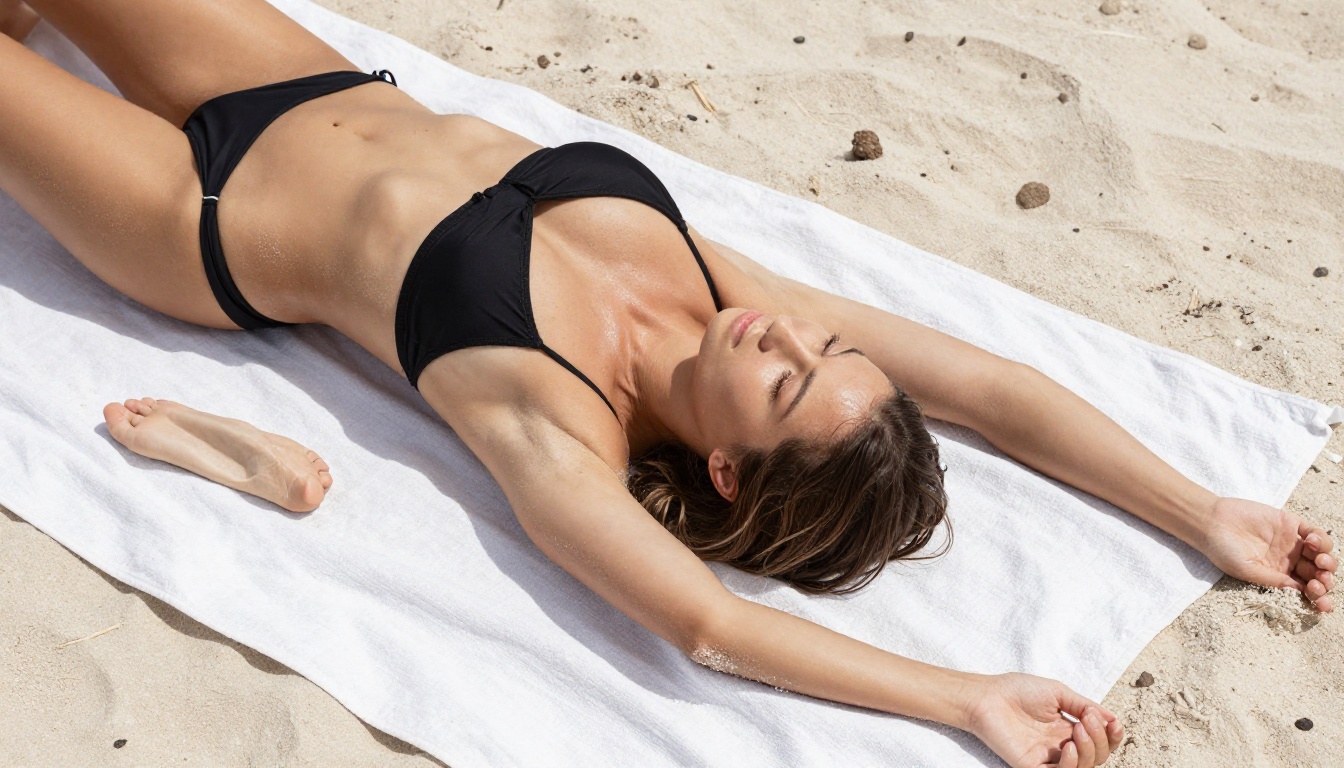
"A woman in her late twenties lounging on a white linen towel at an overcast beach, soft diffused light from all directions eliminating harsh shadows, wearing a black bikini, skin glistening with sunscreen, every grain of sand on her forearm visible, 85mm lens equivalent, aerial perspective from directly above, natural skin tone variation from sun exposure, Kodak Portra 400 film grain, 8K RAW photography, photorealistic --ar 16:9 --style raw"
The difference is not word count. It is the specificity of the photographic context.
The LSI Keywords That Signal Realism
Weaving these terms into your prompt directly affects how the model interprets "realism":
photorealistic, 8K RAW, film grain
Kodak Portra 400, RAW photography, documentary photography
Natural perspective, closest to how the eye actually sees
85mm
Flattering portrait compression, shallow DOF
100mm macro
Extreme close-up detail, no distortion
For full-body shots: 50mm f/1.8. For face close-ups: 85mm f/1.4 or 100mm macro. For environmental context: 35mm f/2.0.
Pair the focal length with an aperture value. A wide aperture (f/1.4 to f/2.8) gives you bokeh and shallow depth-of-field that reads as "real camera." A closed aperture (f/5.6 to f/8) makes everything sharp, as in commercial studio work.
Resolution and Post-Processing
Even a well-prompted image sometimes needs a quality pass after generation.
When to Use Super Resolution
If the generated image shows softness in fine-detail areas such as hair, fabric texture, or distant background elements, running it through a super resolution upscaler can recover those details. A 2x upscale from a 1024px output produces a 2048px image where pores, hair strands, and fabric weave become visible at a level the original cannot reach.
Picasso IA offers Super Resolution models that can upscale up to 4x while preserving photographic grain and natural texture. Use these on your final selected image, not on every iteration.
Inpainting for Fixes
Hands are still a weak point even for the best models. When you get an image where everything is perfect except the hands, use Inpainting to regenerate only that region. The approach: mask the hand area, write a focused prompt for just that section, regenerate. This lets you keep a great image instead of scrapping it entirely.
Similarly, if a face has a stray artifact or an eye looks off, Inpainting can fix a 10% problem in an otherwise 90% perfect image.
💡 Iteration strategy: Do 5-10 quick generations with flux-2-pro or flux-dev to find the right composition and lighting. Then switch to flux-2-max or flux-1.1-pro-ultra for the final high-resolution output.
How to Create Realistic NSFW Photos on PicassoIA
PicassoIA gives you direct access to all the models discussed above, with no installation and no hardware requirements. Here is the step-by-step workflow.
Step 1: Choose Your Model
Navigate to the Text-to-Image collection on PicassoIA. For photorealistic NSFW work, start with Realistic Vision v5.1. It was purpose-built for this style of output and handles skin texture better than most general models.
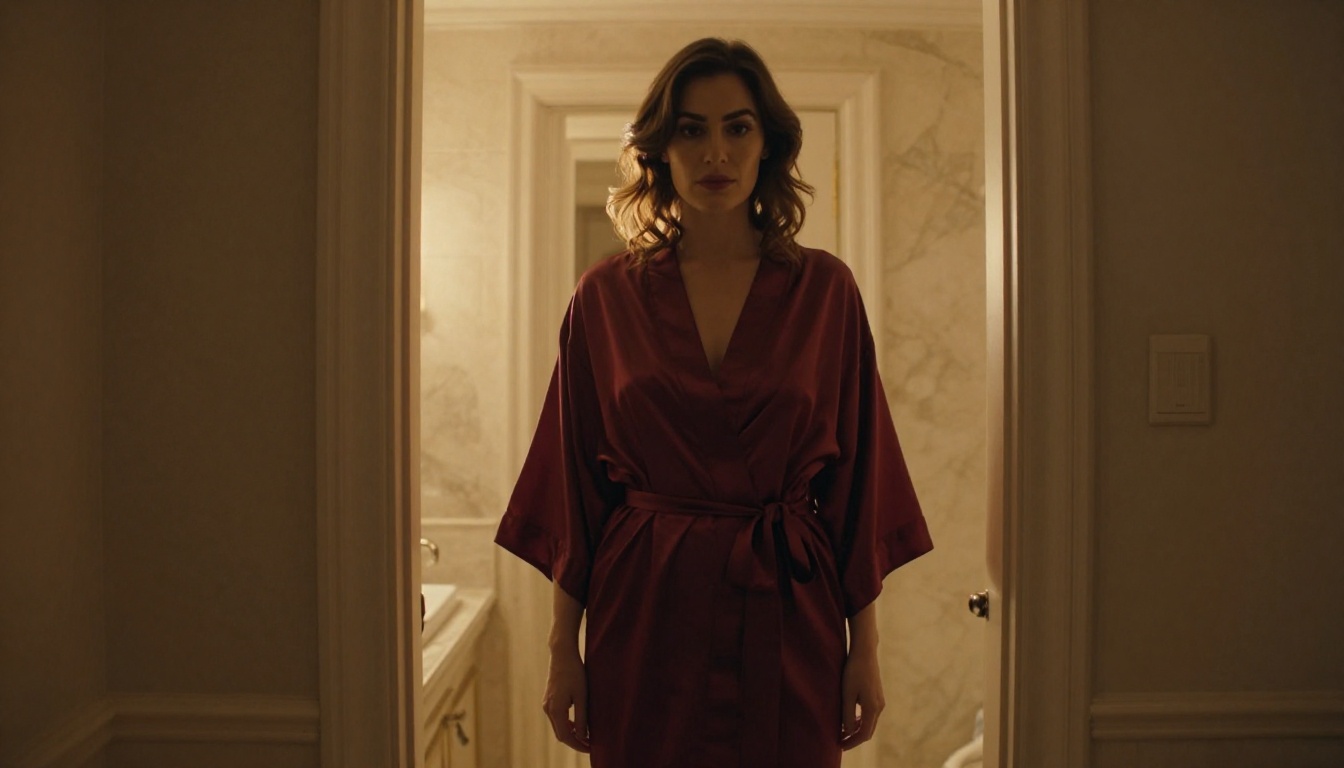
"A woman in her late twenties standing in a minimalist hotel room, warm bedside lamp light from the right casting a soft glow across bare shoulders, wearing a silk robe loosely tied, intimate and tasteful, marble bathroom visible through a doorway in the background, 50mm f/1.8, natural skin pores, visible collarbone detail, soft bokeh background, Kodak Portra 400 film grain, 8K RAW photography --ar 16:9 --style raw"
Negative prompt (if supported): "plastic skin, smooth airbrushed, digital art, 3D render, CGI, oversaturated, neon, cartoon"
Step 3: Set Parameters
Aspect ratio: 16:9 for cinematic feel, 9:16 for mobile-portrait format
Steps: Higher steps (40-50) on final output, lower (20-25) for iteration
CFG Scale: 7-9 for natural-looking results. Above 12 makes images over-processed.
Seed: Save seeds for variations when you find a composition you like
Step 4: Upscale the Result
After choosing your best output, run it through Picasso IA's Super Resolution models. A 2x upscale takes a strong image and pushes it into territory where the fine skin texture, hair detail, and fabric rendering become genuinely indistinguishable from a photograph.
💡 Order of operations: Prompt variations first. Refine the best one with Inpainting if needed. Upscale the final version. Never upscale during iteration, it wastes time.
Step 5: Use ControlNet for Consistency
If you need a specific body position or pose, SDXL Multi ControlNet LoRA lets you feed a reference pose image. The model will match the body structure while applying your full photorealistic prompt. This solves the common problem of getting great skin and lighting but losing the composition you wanted.
Common Mistakes and Fast Fixes
Most realism failures trace back to a handful of repeatable mistakes.
Mistake
Why It Looks Wrong
Fix
No lighting specification
Flat, ambient, sourceless light
Add: "warm light from upper-left, directional"
Vague skin description
Polished rubber texture
Add: "visible pores, natural skin imperfections, fine body hair"
No camera specs
No depth or optical realism
Add: "85mm f/1.4, shallow depth of field, bokeh"
Missing film style marker
Digital, over-clean look
Add: "Kodak Portra 400, film grain, RAW photography"
💡 Quick test: Generate the same subject twice: once with your current prompt, once with all six components added. The difference in skin quality alone will be significant.
Now You Have Everything
The gap between an obvious AI image and a photo you cannot place comes down to three things: the right model, a prompt that describes the camera and light, and micro-detail language that forces the model out of its smooth defaults.
Picasso IA puts all of this in one place. Start with Realistic Vision v5.1 for portraits, flux-1.1-pro-ultra for complex cinematic scenes, and RealVisXL v3.0 Turbo for full-body shots. Use the Super Resolution tools to push your final output to print-quality resolution.
Take the prompt formula from this article, run your first generation, and see what happens when the AI stops trying to look good and starts trying to look real.