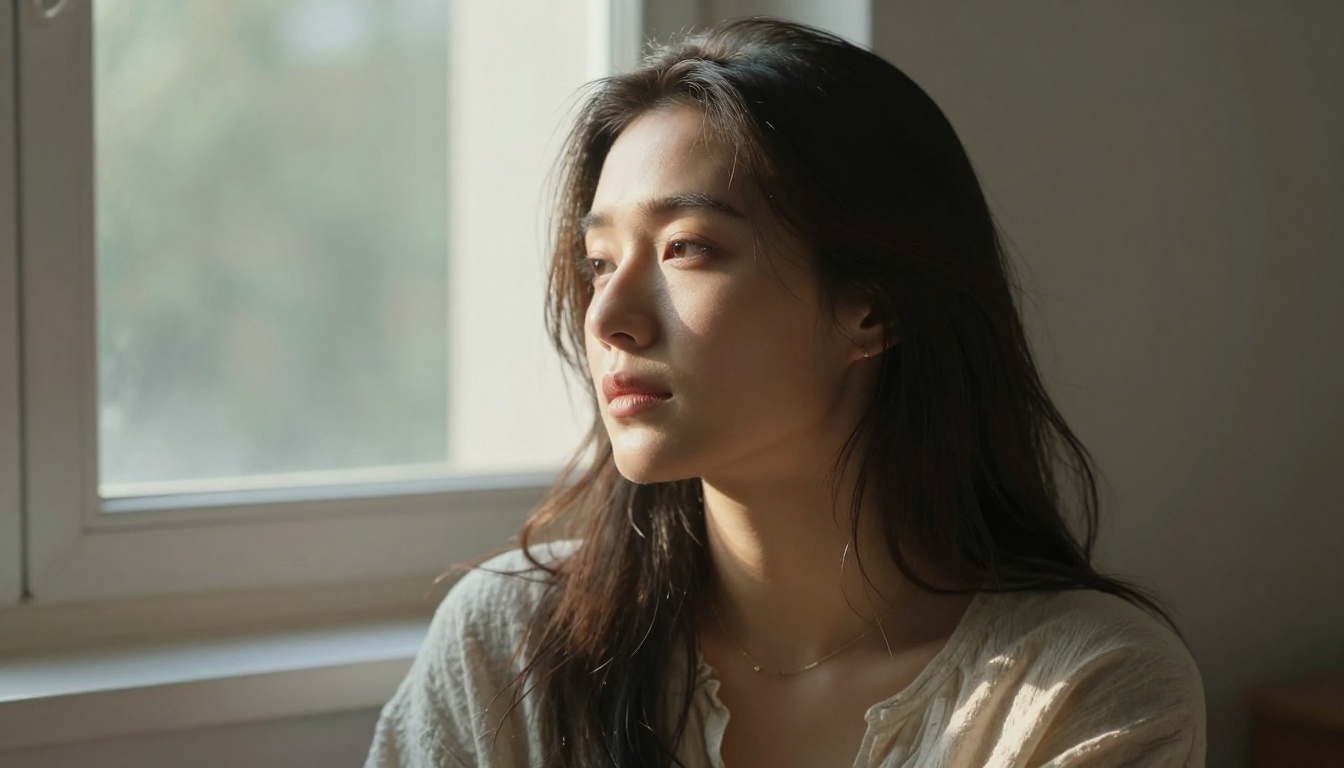
You've seen them. An AI portrait that reads as fake within a second: plastic skin, impossibly symmetrical features, lighting that seems to come from nowhere in particular. The gap between "AI-generated" and "photographed by a human" is real, but it's narrower than most people think once you know what's causing the problem.
This article walks through exactly what separates a convincing AI portrait from an obvious fake, which models produce genuinely realistic results, and how to write prompts that behave more like photography briefs than vague art requests. If your AI selfies have been giving themselves away, the answers are almost always in the details you're skipping.
Why Most AI Selfies Look Fake
The plastic skin problem
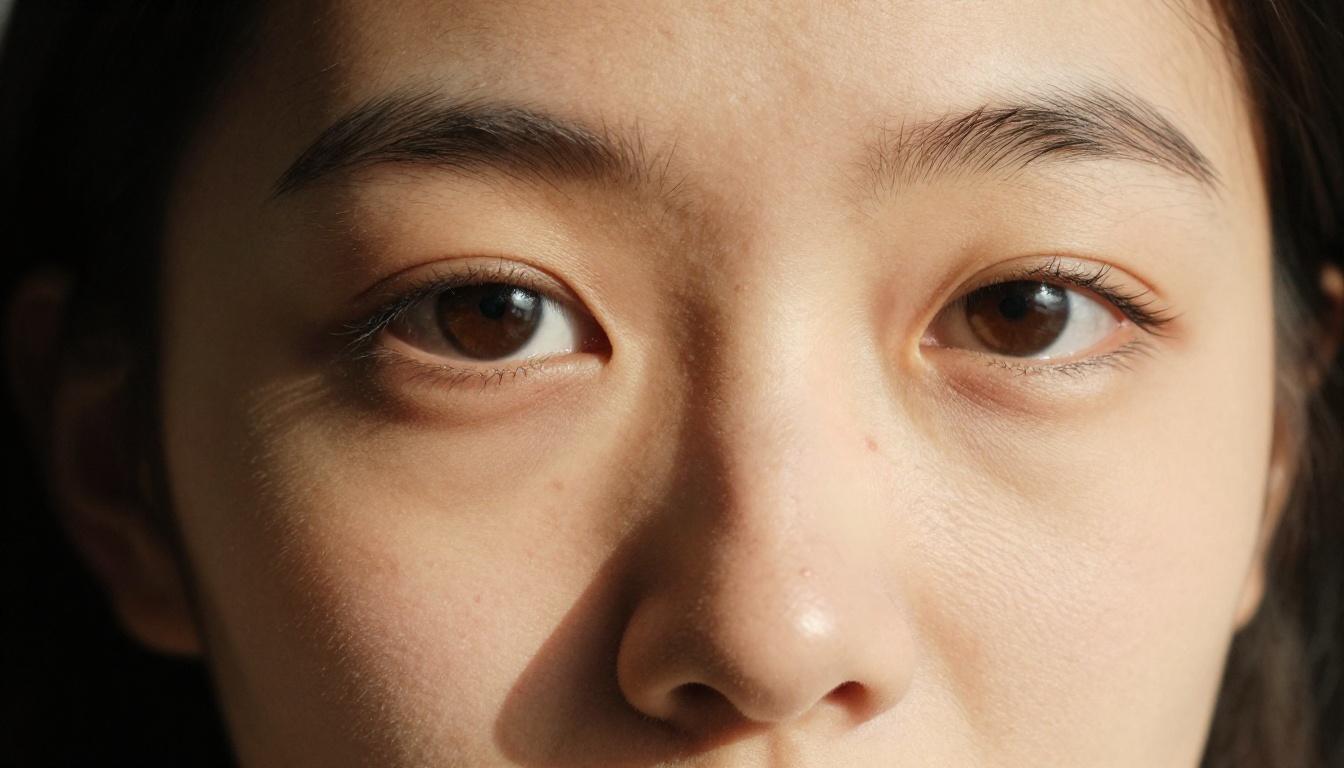
AI models trained on internet images often ingest heavily retouched photos. The result is that default outputs trend toward smoothed, airbrushed skin with no pores, no micro-texture, and no subtle imperfections. Real skin has pores. It has fine vellus hair. It reflects light differently across the nose, cheeks, and forehead.
The fix lives in the prompt. Specifically calling out pore detail, skin texture, subsurface scattering, and natural imperfections tells the model you want photography, not illustration.
Tip: Add phrases like "visible pores, natural skin texture, slight sebum sheen on nose, fine facial hair, subtle freckles" to your portrait prompts. These micro-detail instructions shift the output dramatically.
Lighting that doesn't match the scene
Nothing breaks the illusion faster than lighting that ignores physics. If a subject is supposedly standing outdoors at sunset, but her face is lit from directly in front with no shadows, the result reads as fake immediately.
Real portraits follow lighting logic. The sun comes from a specific angle, casting shadows on the opposite side of the face. Indoor window light creates a gentle gradient from bright to shadow. Studio lighting has directionality and quality, hard vs. soft, warm vs. cool.
When you specify your light source with precision, the model aligns every element accordingly. Skin sheen, shadow direction, catch-lights in the eyes, all of it snaps into coherence.
Eyes that feel off
The "uncanny valley" in AI portraits often lives in the eyes. Iris detail that's too uniform, catch-lights that don't match the stated light source, pupils that are slightly misaligned. These are small things that human brains detect in milliseconds.
Specifying catch-light placement, iris color and pattern detail, and natural eye moisture in your prompt forces the model's attention to these areas and dramatically improves the result. Even adding "catch-light from natural sky source in upper-left of pupil" can shift an AI portrait from obviously fake to genuinely convincing.
The Right Models for Realistic Portraits
Not all AI image models are built the same way. For photorealistic selfies, model selection matters as much as prompt quality.
Flux 1.1 Pro Ultra for maximum detail
Flux 1.1 Pro Ultra is one of the strongest options for photorealistic portrait generation currently available. It outputs at up to 4 megapixels with exceptional detail retention in skin, hair, and fabric texture. It responds very well to photography-specific prompting language, lens focal lengths, f-stop values, and lighting setups.
It handles the skin and eye detail problem better than most models at its tier because it was trained with a significant proportion of high-quality photography. When you give it a photography brief, it behaves like one.
Realistic Vision v5.1 for natural skin
Realistic Vision v5.1 was built specifically for lifelike photo output. It excels at natural skin tones, realistic hair rendering, and avoiding the plasticized look that plagues generic models.
If your priority is a selfie that could pass as a phone photo, this model is worth prioritizing. Its outputs have a slightly more casual, organic quality that suits the selfie aesthetic far better than models optimized for commercial imagery.
RealVisXL v3.0 Turbo for everyday portraits
RealVisXL v3.0 Turbo delivers photorealistic results at high speed. The turbo variant is particularly good for iterating through variations quickly, which is valuable when you're dialing in a specific look or angle before committing to a final generation.
It handles a wide range of lighting conditions without degrading quality, making it reliable for outdoor, indoor, and studio-style selfie scenarios.
Writing Prompts That Actually Work
The anatomy of a good portrait prompt
A weak prompt: "Beautiful woman taking selfie, realistic"
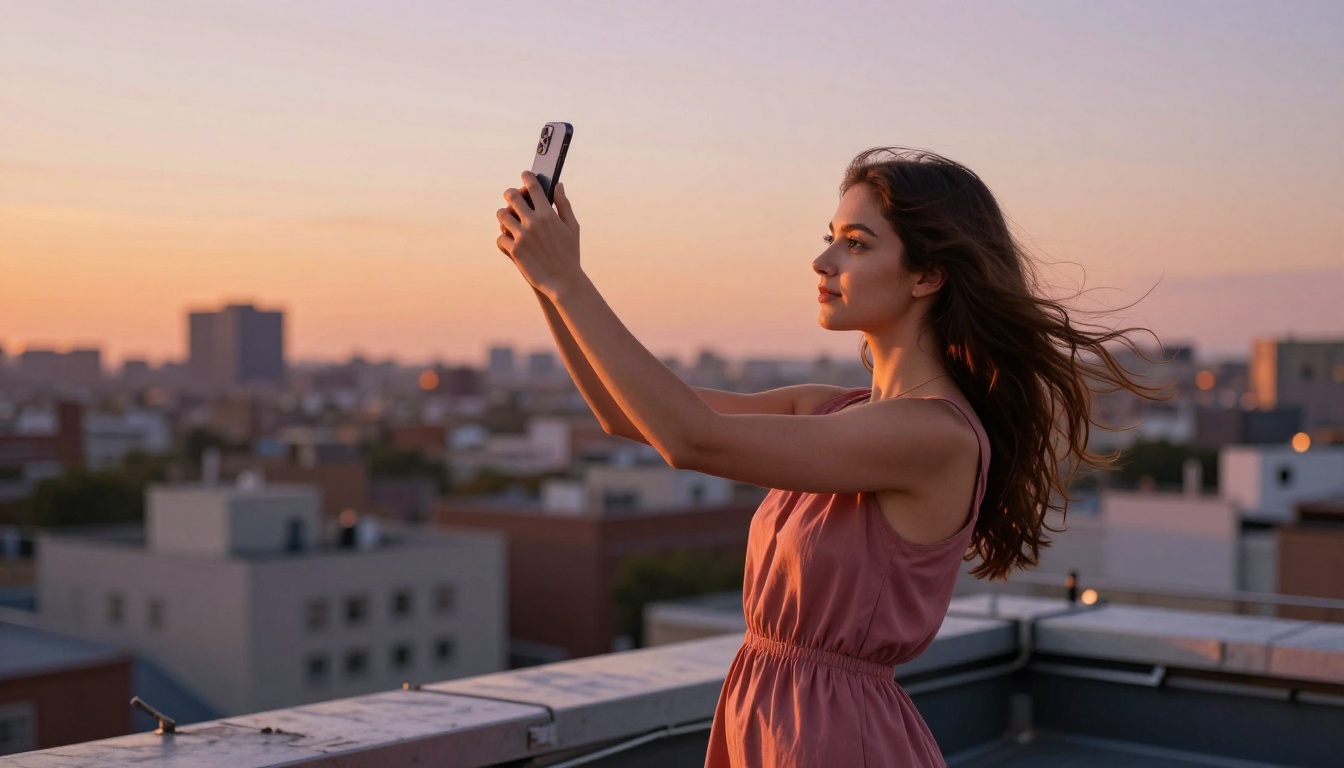
A strong prompt: "Young woman in her mid-twenties taking a selfie outdoors during golden hour, 85mm f/1.4 lens, warm directional sunlight from the left creating Rembrandt lighting, shallow depth of field, visible pore detail, natural skin texture with slight sebum sheen on nose, hair strands catching backlight, photorealistic, Kodak Portra 400 film grain"
The difference is specificity. The strong prompt gives the model a photographer's brief rather than a vague aesthetic wish. Every element you define is one less creative decision left to chance.
Prompt structure for realistic AI selfies:
- Subject: Age range, expression, outfit, hair condition
- Environment: Where they are (be specific, not just "outdoors")
- Lighting: Source direction, quality, color temperature in Kelvin
- Camera: Focal length, aperture, shooting angle
- Skin detail: Pores, texture, natural imperfections
- Film stock reference: Kodak Portra 400, Fuji 400H, Ilford HP5
Camera and lens details matter
This is one of the most consistently overlooked aspects of portrait prompting. Specifying camera settings doesn't just affect sharpness. It shapes the entire aesthetic logic of the image.
- 85mm f/1.4: Classic portrait compression, creamy bokeh, slightly flattering facial proportions
- 35mm f/2.0: More environmental context, slightly wider, feels like a phone camera shot
- 50mm f/1.8: Closest to natural human vision, balanced and neutral
- 28mm f/2.8: Wide-angle phone camera equivalent, slight perspective distortion
The aperture value controls depth of field. A lower number (f/1.4) means more background blur and stronger subject separation. A higher number (f/8) means everything stays in focus, which is how most phone cameras shoot in daylight.
Tip: For selfies specifically, use 28mm or 35mm lenses in your prompt. Selfies are typically captured with wide-angle front-facing cameras. This creates perspective distortion that makes the output read as a phone photo rather than a studio portrait.
Lighting is everything
Real photographers obsess over light because it defines both the mood and believability of a photo. AI portrait models respond identically.
Types of lighting to specify:
- Golden hour: Warm, directional, orange-tinted light from low on the horizon
- Overcast diffused: Soft, even, no hard shadows, naturally flattering for skin
- Window light: Single-direction source creating natural shadow gradients across the face
- Studio octabox from left: Controlled, even, classic professional headshot quality
- Backlit with rim light: Subject lit from behind with a thin highlight on hair and shoulders
Avoid vague terms like "good lighting" or "natural lighting." Be specific about direction, distance, and color temperature.

Pose and Angle Tips
Phone angles that work
The angle at which a selfie is captured changes everything about how a face reads in the final image. Most real selfies are shot from slightly above eye level, which produces a more flattering, natural appearance. Straight-on or below eye-level shots tend to feel more intense or distorted.
Effective angles to define in prompts:
- "Phone held at slight upward angle, low-angle perspective on face" (flattering, natural)
- "Overhead angle, camera positioned 30 degrees above eye level" (Instagram-classic selfie framing)
- "Eye-level, direct camera contact, neutral relaxed expression" (honest, authoritative feel)
Body language in AI selfies
A portrait that reads as believable shows a person who looks like they're actually doing something, not posing for a painting. Specify natural, imperfect body language in your prompt.
- Hair slightly blown by a breeze
- Slight squinting from bright ambient light
- Natural relaxed jaw, not rigidly closed or exaggerated
- Slight bend in the arm holding the phone
- Clothing showing natural movement and weight
These micro-details accumulate into something that reads as a captured moment rather than a generated image. The imperfections are what make it convincing.
How to Use Flux 1.1 Pro Ultra on PicassoIA
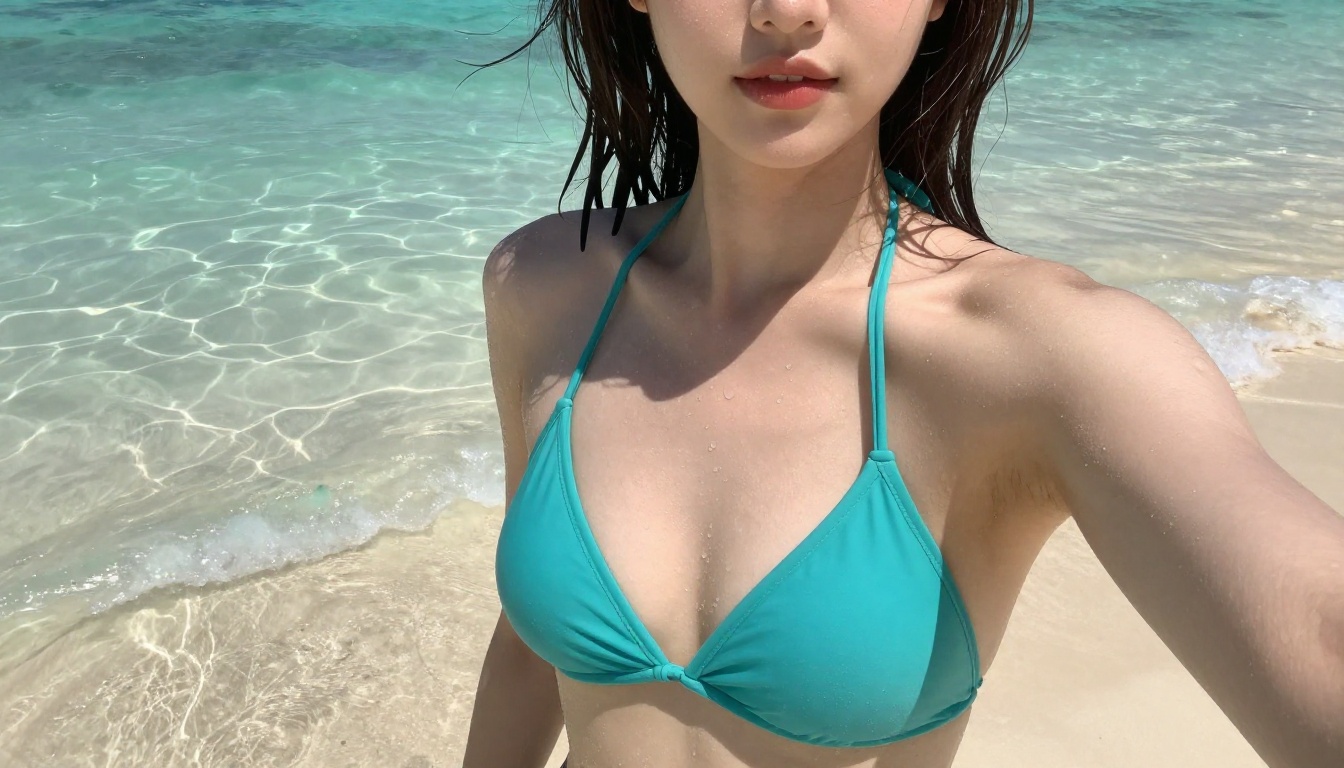
Flux 1.1 Pro Ultra is available directly on the PicassoIA platform and is one of the most capable portrait models currently accessible without a professional API setup. Here's how to get the best results from it.
Step-by-step portrait generation
Step 1: Open Flux 1.1 Pro Ultra on PicassoIA
Step 2: In the prompt field, use the portrait structure above. Begin with the subject description, then environment, then lighting, then camera specs, then skin texture specifics.
Step 3: Set the aspect ratio. For portrait selfies, 4:3 or 1:1 works well for a phone-photo aesthetic. Use 16:9 when you want to include environmental context in the background.
Step 4: Set output resolution to maximum. Flux 1.1 Pro Ultra supports up to 4MP output, which preserves the skin and hair micro-detail that makes portraits feel real.
Step 5: When refining, identify the single element that's off and adjust only that part of the prompt. Changing the lighting description won't affect the skin texture spec, and vice versa. Surgical prompt edits outperform wholesale rewrites.
Parameters to tweak
| Parameter | What to Adjust | Effect on Output |
|---|
| Aspect Ratio | 1:1 or 4:3 | Phone-photo framing and proportion |
| Output Resolution | Maximum available | Preserves skin and hair micro-detail |
| Lighting description | Add source angle and Kelvin temp | Adds physical coherence to shadows |
| Negative prompt | "cartoon, airbrushed, plastic skin, CGI" | Pushes output toward photography |
Tip: Always include a negative prompt: "airbrushed, plastic skin, cartoon, illustration, CGI, digital art, 3D render, overly smooth, retouched". This actively steers the model away from the most common failure modes.
Fixing Common Problems
Fixing weird hands
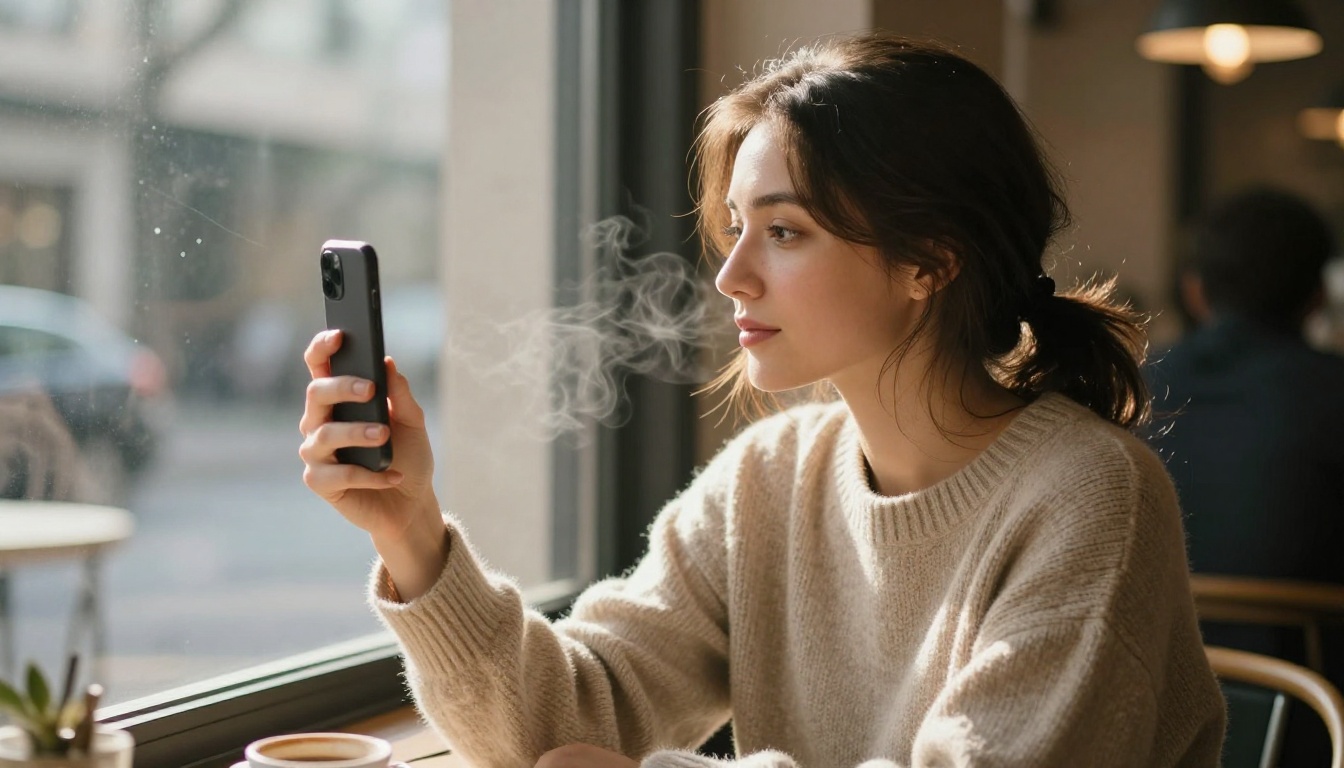
Hands remain one of the harder elements for AI models to render correctly. In selfies, hands appear when the subject holds the phone. Some approaches that help:
- Specify "hand partially visible gripping phone, natural relaxed grip, five fingers" rather than leaving it undefined
- Use Flux Kontext Pro to edit just the hand area on an otherwise strong image
- Inpainting lets you fix a specific region without regenerating the entire portrait
If hands are consistently problematic, crop the image so only the wrist or lower arm is visible. Many convincing selfies don't show the full hand.
When colors look off
Color issues in AI portraits often come from the model defaulting to over-saturated, Instagram-filter-style tones. For a realistic photo look:
- Specify "muted, natural color palette, slight desaturation in highlights"
- Reference a specific film stock: "Kodak Portra 400 color grading, warm shadows, cool highlights"
- Avoid asking for "vibrant" or "colorful" in portrait prompts
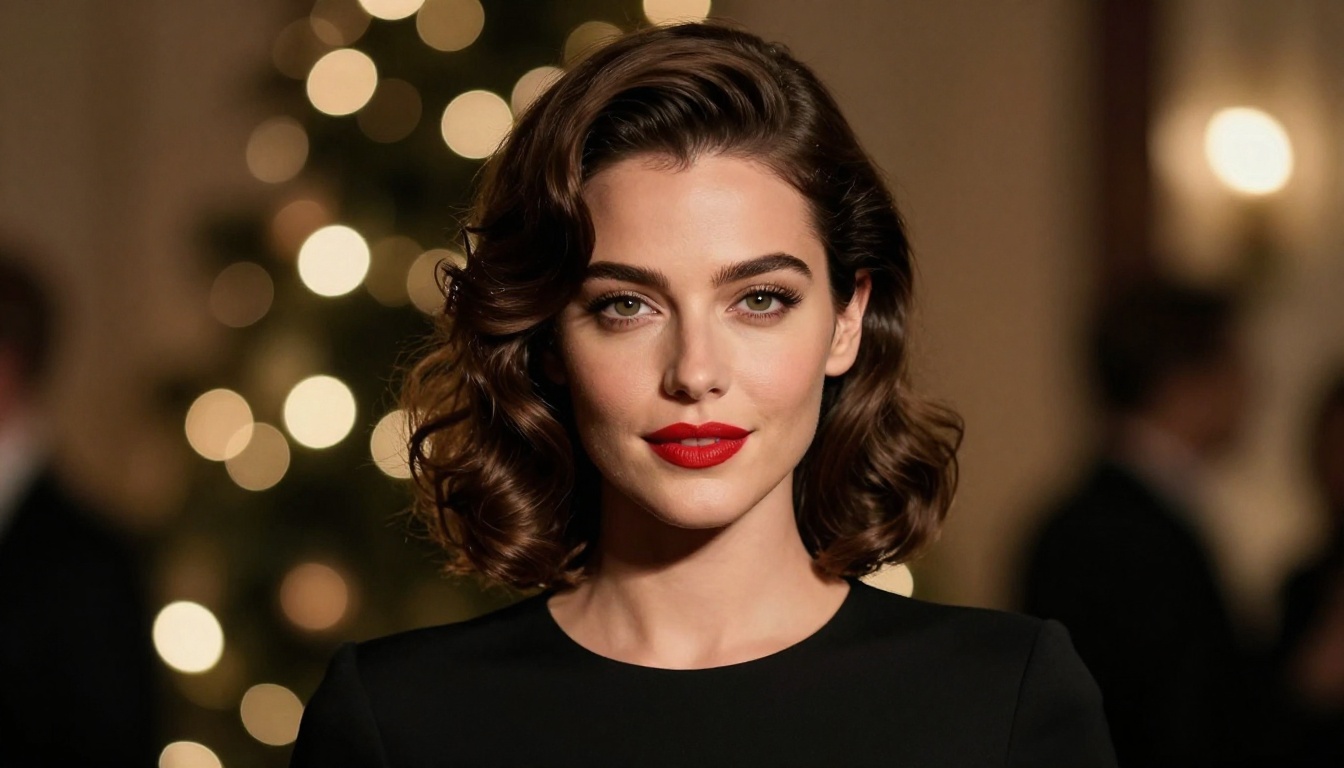
If the output has solid composition but wrong color, Qwen Image Edit Plus LoRA and P Image Edit both allow targeted color corrections through a simple text prompt, without touching the parts that are already working.
Going Further with Portrait Editing
Super resolution for final polish
Once you have a strong base portrait, upscaling with a super-resolution model sharpens skin detail, hair strands, and eye micro-texture to a level that looks like it came off a high-end camera sensor.
The Super Resolution models on PicassoIA can upscale portraits 2x to 4x while preserving and amplifying texture. This step is especially valuable for close-up selfies where the face fills most of the frame, since the additional resolution brings out fine details that weren't visible at native output size.
Inpainting to fix details
Inpainting lets you select a specific region of an image and regenerate just that area. For AI selfies, this is most useful for:
- Eyes: Regenerate just the eye area with more precise detail prompts for iris, catch-light, and moisture
- Skin patches: Fix uneven texture or artifacts in specific areas
- Hair: Regenerate flyaways or strands that didn't render correctly
- Background elements: Clean up background without touching the face at all
Flux Kontext Max is particularly effective for this type of targeted editing, allowing text-directed changes to specific regions of an existing image. The combination of a strong initial generation from Flux 1.1 Pro Ultra followed by targeted inpainting on weak areas consistently produces better results than relying on a single generation pass.
5 Mistakes That Always Give AI Portraits Away
Here's what separates outputs people share from ones that go straight to the trash folder:
- Vague lighting descriptions: "Natural light" is meaningless to an AI model. "Diffused overcast light from above-left at 6500K" gives the model a precise physics problem to solve.
- No film stock reference: Film stock references (Kodak Portra 400, Fuji Velvia, Ilford HP5) shift the entire color science of the output toward photograph aesthetics and away from rendered imagery.
- Forgetting the environment: Selfies have context. A person doesn't float in a void. Specify where they are even when the background is blurred. The environment affects how light wraps around the subject.
- Asking for perfection: Perfect skin, perfect symmetry, perfect everything reads as fake. Introduce intentional imperfections. A small scar, a slightly asymmetrical smile, pores. These are the details that signal "photographed" rather than "generated."
- Rewriting the whole prompt on failure: Identify the one thing that's wrong and fix that one thing. Wholesale rewrites lose what was already working.
Think Like a Photographer, Not an Artist
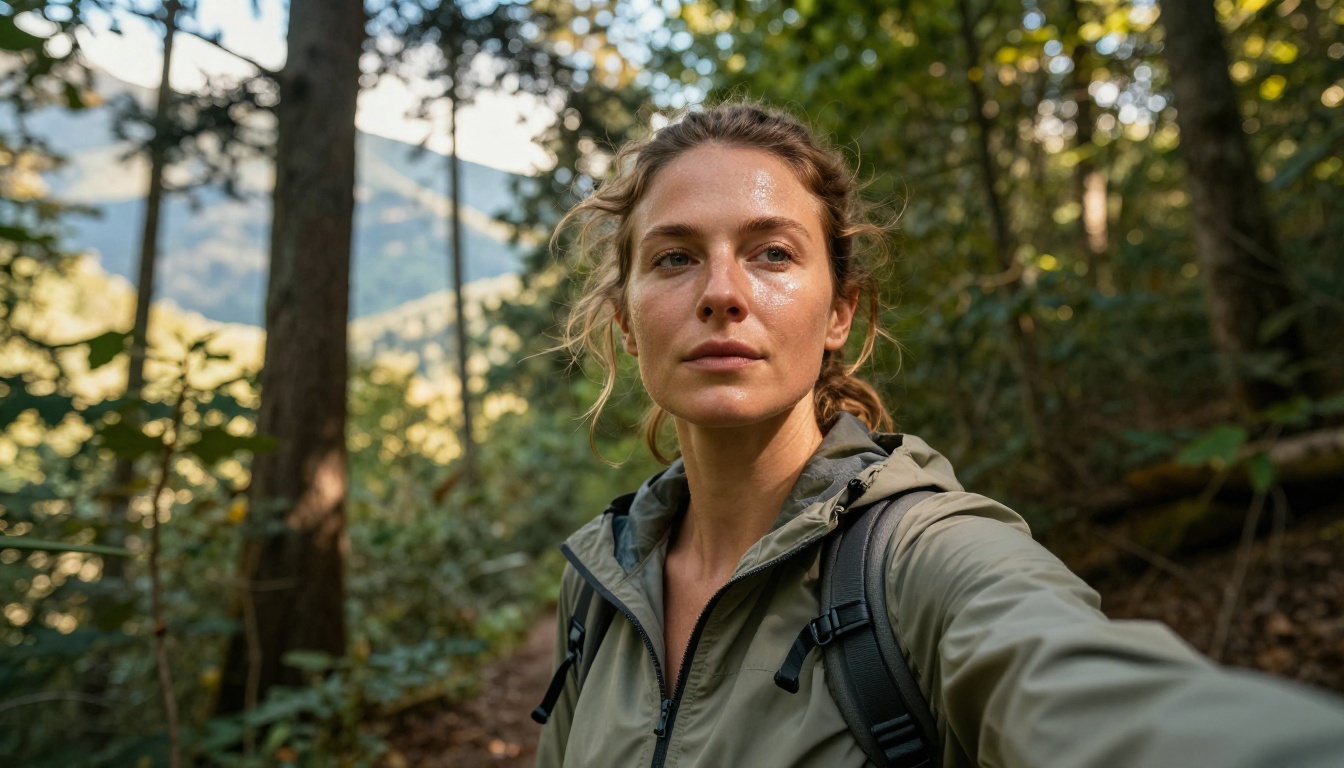
A useful reframe for this whole process: approach AI selfie generation the way a photographer thinks about a shoot, not the way someone describes a painting.
Photographers think about:
- Where the light is coming from and what it's doing to the face
- What lens they're using and how it affects depth and perspective
- What the subject is naturally doing in the moment
- How the environment interacts with the subject through reflected light
AI image models were trained on real photography. When you give them inputs that mirror how photographers think about their craft, the outputs align accordingly. The models capable of producing portraits that pass as real photographs, including Flux 1.1 Pro Ultra, Realistic Vision v5.1, and Imagen 4 Ultra, are already technically capable of the output you're after.
The variable is almost entirely in the prompt.
Create Yours on PicassoIA
The fastest way to see the difference between a generic and a photorealistic AI selfie is to run both side by side. Take a vague prompt, then rebuild the same concept with lens specs, a specific light source, a film stock reference, and detailed skin texture instructions. The gap between the two outputs will be immediately obvious.
PicassoIA gives you access to over 90 text-to-image models in one place, including Flux 1.1 Pro Ultra, Realistic Vision v5.1, RealVisXL v3.0 Turbo, and Imagen 4 Ultra. Super-resolution upscaling and inpainting are available in the same session, so you can generate, refine, and finalize without switching tools.
Pick one of the portrait-focused models, use the prompt structure from this article, and see how specific you can get. The difference between an AI image that fools people and one that doesn't is almost always in the details you tell the model.