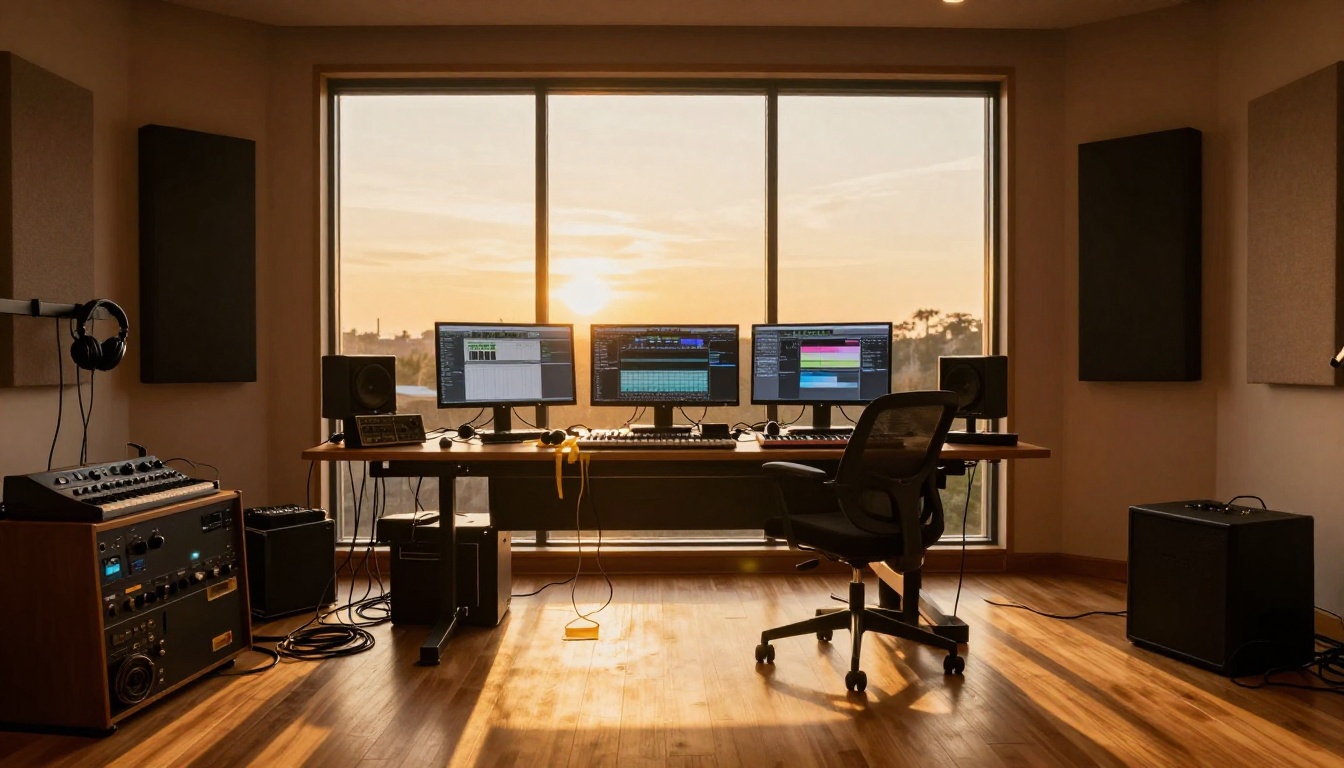
You don't need a DAW, instruments, or years of music theory to produce an original track anymore. Stable Audio 2.5 from Stability AI takes a text prompt and returns a full music file, complete with rhythm, melody, and atmosphere. The result is not a MIDI stub or a royalty-free loop. It is a generated audio composition shaped entirely by your description. This article walks you through how the model works, how to write prompts that produce solid results, and how to run it directly on PicassoIA without any setup.

What Stable Audio 2.5 Actually Does
Most text-to-image models map words to visual tokens. Stable Audio 2.5 applies the same core approach to sound. Stability AI trained it on a large dataset of high-quality audio paired with descriptive text, so it learned to connect words like "cello", "minor key", or "120 BPM" with their sonic equivalents. The model uses a latent diffusion process operating in the audio domain: it compresses audio into a compact latent space, applies guided diffusion using your text prompt, then decodes the result back into a stereo audio file.
The Text-to-Audio Pipeline
When you submit a prompt, the model runs several diffusion steps, iteratively refining a noise signal into coherent audio. The number of steps affects quality and generation time. More steps generally produce cleaner output, and PicassoIA handles this automatically so you don't need to configure anything manually.
The output is a stereo WAV or MP3 file at 44.1kHz, which is standard CD quality. You can drop it directly into a video editor or DAW without resampling. No format conversion needed, no bitrate workarounds.
Output Length and Audio Quality
Stable Audio 2.5 can generate tracks up to 90 seconds in a single pass. That is long enough for a full intro-verse loop, a complete ambient piece, or a podcast transition set. For longer compositions, generate multiple segments and stitch them together in any audio editor.
The audio is notably clean compared to earlier open-source music models that tended to produce muddy mids and digital artifacts. Version 2.5 shows clear instrument separation and a more natural dynamic range. Drums don't bleed into pads, strings retain their texture, and bass lines have defined attack and decay. The stereo field is also wider and more cohesive than what first-generation audio diffusion models produced.

Writing Prompts That Actually Work
The single biggest factor in output quality is your prompt. Vague prompts produce generic audio that sounds like placeholder elevator music. Specific, structured prompts produce tracks that are actually useful.
Genre and Mood Descriptors
Start with the genre and add a mood adjective. These two alone narrow the model's search space dramatically.
| Prompt Opening | What It Signals to the Model |
|---|
| "Lo-fi hip hop, melancholic" | Boom bap drums, dusty samples, minor chords |
| "Cinematic orchestral, triumphant" | Brass swells, choir pads, building dynamics |
| "Reggaeton, energetic, club" | Dembow rhythm, synth bass, dance floor energy |
| "Acoustic folk, introspective" | Fingerpicked guitar, sparse arrangement, vocal space |
| "Dark jazz, smoky, late night" | Muted trumpet, upright bass, brushed snare |
💡 Mood descriptors do more work than genre alone. "Jazz" is vague. "Dark jazz, smoky, late night, minor seventh chords" tells the model exactly what emotional register to target.
Instrument and Tempo Specifics
After genre and mood, add instruments and tempo. The model responds well to named instruments and BPM values because these are directly represented in its training data.
Strong prompt structure:
[Genre] + [Mood] + [Named Instruments] + [Tempo in BPM] + [Optional texture or era reference]
Example:
"Synthwave, nostalgic, analog synthesizer lead, pulsing bass, 100 BPM, 1980s aesthetic, tape saturation"
The decade reference and texture descriptor push the model toward a specific sonic character rather than a generic approximation. Adding these details costs nothing and consistently produces more coherent output.
More working examples:
"Ambient electronic, calm, ethereal synthesizer pads, slow evolving texture, 70 BPM, reverb-drenched, meditative""Drum and bass, aggressive, heavy breakbeat, distorted bass, 174 BPM, industrial texture""Bossa nova, warm, classical guitar, soft brushed percussion, 90 BPM, Brazilian summer afternoon"
What to Avoid in Your Prompts
Several common mistakes consistently produce weak output:
- Vague adjectives only: "happy music" or "relaxing song" gives the model almost no acoustic information
- Conflicting genres: "jazz metal" can produce interesting experiments but usually outputs incoherent audio
- Lyrics or vocal requests: Stable Audio 2.5 generates instrumental and ambient music, not songs with lead vocals
- Narrative descriptions: "a song about heartbreak" gives no acoustic information whatsoever
💡 Rule of thumb: If your prompt could describe a painting rather than a sound, rewrite it with sonic specifics.

How to Use Stable Audio 2.5 on PicassoIA
PicassoIA hosts Stable Audio 2.5 alongside over a dozen other music AI models, all accessible from a single platform without API credentials, local GPU setup, or software installation.
Step 1: Open the Model Page
Go to the Stable Audio 2.5 model page on PicassoIA. You'll see the prompt input field, a duration slider, and generation controls. No account configuration or downloads are required to run your first generation.
Step 2: Write Your First Prompt
Type your prompt into the text field. For a first test, use something specific and structured:
"Ambient electronic, calm, ethereal synthesizer pads, slow evolving texture, 70 BPM, reverb-drenched, meditative atmosphere"
This hits genre, mood, instruments, and tempo in a single sentence. It gives the model enough directional signal to produce something coherent immediately.
Step 3: Set Duration and Generate
Use the duration slider to set how long the track should be. For quick testing, 30 seconds gives a fast feedback loop. For usable output to put into a project, aim for 45 to 60 seconds. Click generate and the model runs server-side, so no GPU hardware is needed on your end.
💡 Generate two or three variations of the same prompt before committing. Small differences in the random seed produce noticeably different results from an identical text input. You're running the same creative brief through different interpretations.
Step 4: Download and Use Your Track
When generation finishes, you get a playable audio file in the browser. Download it as WAV or MP3. The file is ready for direct use in a video editor, podcast production software, or as a backing track for live recordings or voiceovers.

Comparing Music AI Models on PicassoIA
Stable Audio 2.5 is not the only option on PicassoIA. Picking the right model depends on what you are actually trying to produce.
Stable Audio 2.5 vs MiniMax Music 2.6
MiniMax Music 2.6 and its predecessor MiniMax Music 2.5 are optimized for full songs with vocals, lyrics, and structured song formats (verse, chorus, bridge). Stable Audio 2.5 focuses on instrumental and ambient generation where prompt specifics control the sonic texture rather than song structure.
| Feature | Stable Audio 2.5 | MiniMax Music 2.6 |
|---|
| Vocals | No | Yes |
| Lyrics input | No | Yes |
| Instrumental texture control | High | Moderate |
| Max generation length | 90 seconds | Full song format |
| Best use case | Soundscapes, scoring, background | Full pop song production |
| Prompt style | Sonic descriptors | Lyric and genre |
If you need a full song with verses, chorus, and a hook, MiniMax Music 2.6 or MiniMax Music 01 are the right choices. If you need a cue, a loop, or a textured background piece, Stable Audio 2.5 gives you better direct prompt control.
When to Pick Google Lyria 3 Pro
Google Lyria 3 Pro produces longer-form compositions with rich orchestral and harmonic complexity. If your project needs classical, cinematic, or jazz arrangements where instrumental interplay matters, Lyria 3 Pro delivers more nuance in those genres. For straightforward electronic, ambient, or pop-adjacent styles, Stable Audio 2.5 is faster and gives you tighter direct prompt control.
Google Lyria 3 is also worth testing for modern pop and experimental music where you want harmonic complexity without over-production. For restyling an existing song into a new genre, the MiniMax genre restyle model handles that specific workflow better than any of the above.
💡 See all 10+ AI music models including ElevenLabs Music at picassoia.com/en/all-models.

Real Uses for AI-Generated Music
The practical question isn't whether AI music sounds convincingly real. It's whether it solves a problem you actually have. Here's where Stable Audio 2.5 genuinely delivers.
Content Creators and Video Makers
Background music is one of the biggest friction points for video creators. Stock library licensing is expensive and often restricts monetization on social platforms. AI-generated music sidesteps both problems. You describe the exact emotional energy you need for a particular scene and generate it in under a minute.
A tutorial video needs something calm and unobtrusive: "Minimal piano, soft, slow 60 BPM, instrumental, unobtrusive background". A travel video needs something expansive: "Epic cinematic, sweeping strings, building tension, 90 BPM, outdoor adventure atmosphere". No license negotiations, no volume ducking issues from pre-existing commercial songs.
Background Tracks for Podcasts
Podcasters who want signature intro or transition music now have a faster path. Describe the tone of your show in sonic terms and iterate quickly. A true crime podcast might use: "Suspenseful orchestral, sparse, slow strings, dark piano notes, tension building, 55 BPM". A personal finance show might try: "Corporate jazz, upbeat, alto saxophone, light percussion, confident mood, 100 BPM".
The generated track belongs entirely to your production workflow. No attribution requirements, no rights clearance processes.
Demo Ideas and Personal Projects
Musicians who want to hear an arrangement idea without recording it can use Stable Audio 2.5 as a fast sketching tool. Describe an arrangement, listen to what the model interprets, and use it as an acoustic reference when recording the real thing. It's faster than programming a full MIDI arrangement and more useful than humming into a voice memo.
Producers working on sample packs can also use it to fill gaps in their library. Need a specific percussion loop in a niche style? Generate several variations, sample what you like, and process them as you would any recorded material.
Add Voiceovers to Your AI Songs
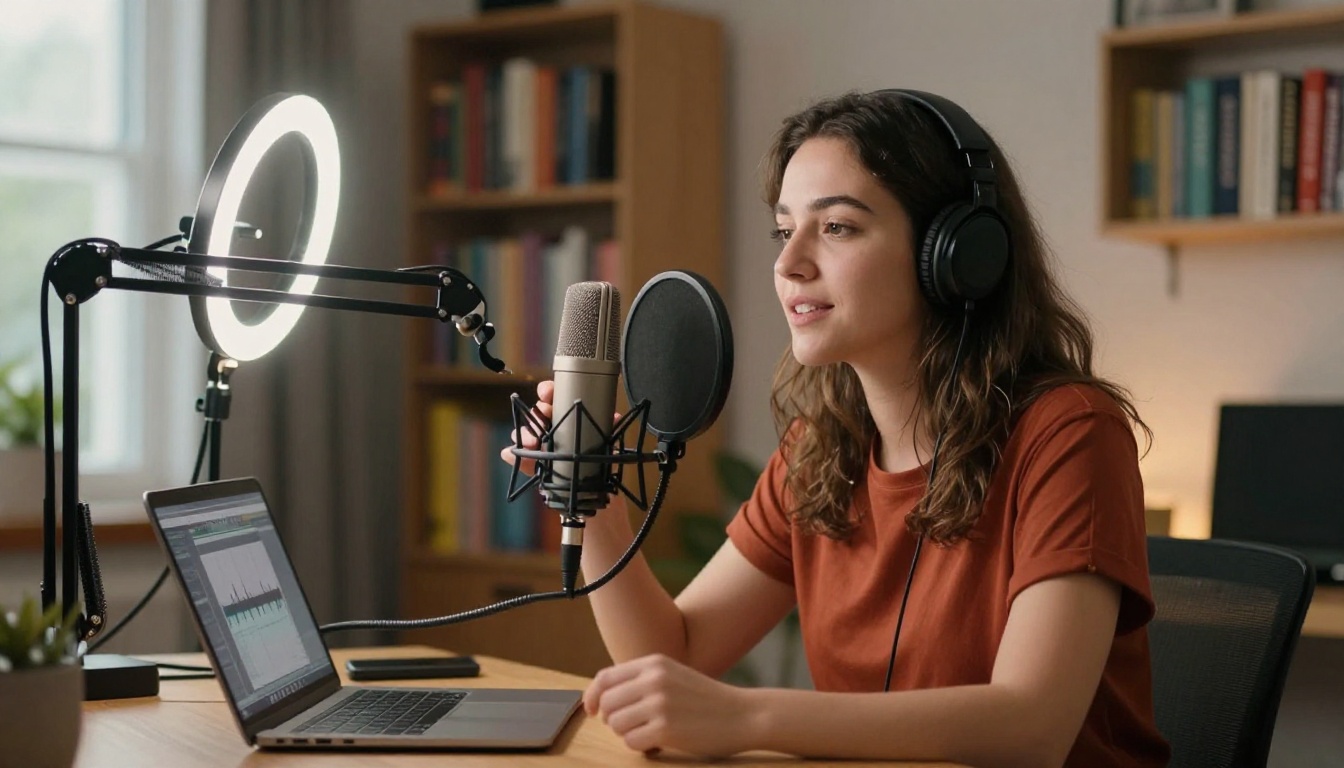
Music alone is rarely the final product. If you're producing video content, advertisements, or podcast episodes, you'll pair your AI track with spoken audio. PicassoIA's speech models let you generate professional voiceovers without any recording equipment.
Best TTS Models for Music Projects
MiniMax Speech 2.8 HD produces studio-quality audio output that sits cleanly in a mix without sounding robotic. It's the right choice when voice quality matters as much as the music beneath it, particularly for commercial audio or narrated video productions.
For multilingual content and emotional range, ElevenLabs V3 handles voice styles and nuanced expression across a wide range of applications. If you need a voice that sounds genuinely emotive rather than neutrally correct, V3 consistently delivers that.
Google Gemini 3.1 Flash TTS covers 70+ languages with 30 available voices, making it the practical choice for international content distribution where a single voice model needs to cover multiple markets.
💡 Production tip: When mixing a voiceover over an AI music track, add "soft", "unobtrusive", and "background" to your music generation prompt. This builds in the headroom the voiceover needs without manually lowering the music volume in post.
Speech-to-Music Production Workflow
A full audio production workflow using only PicassoIA tools:
- Generate the backing track with Stable Audio 2.5, prompting for the mood and pacing of your script
- Generate the voiceover with Speech 2.8 HD or ElevenLabs V3, using your written script
- Download both files and combine them in any free audio editor (Audacity, DaVinci Resolve's Fairlight, or CapCut)
This produces broadcast-ready audio entirely from text inputs. No studio booking, no voice actor scheduling, no music licensing.
Transcribing Your Audio Automatically
Once you've produced audio, the reverse workflow becomes useful: turning spoken content back into text. This matters more than it sounds for music and content workflows.
How Speech-to-Text Fits a Music Workflow
If you've recorded vocals, a podcast segment, or a spoken introduction that you want to caption or repurpose as written content, PicassoIA has strong transcription options ready to use.
OpenAI GPT-4o Transcribe handles complex audio with background noise, accents, and overlapping speech with high accuracy. It's the right tool when transcription accuracy is non-negotiable, such as for legal content, accessibility captions, or subtitle generation for monetized videos.
GPT-4o Mini Transcribe offers a faster alternative for clear audio with minimal background noise. For voiceover transcription where the audio was generated by a TTS model and is therefore already clean, the Mini version is both faster and fully sufficient.
Google Gemini 3 Pro handles long audio files with high accuracy and is particularly strong for structured speech like interviews or monologues where temporal accuracy matters.
💡 Practical tip: After generating a voiceover with a TTS model, run it through GPT-4o Mini Transcribe to get an automatic transcript. Edit the transcript, regenerate the audio with corrections, and you've done revision passes without re-recording anything.
Transcription use cases in music and content production:
- Auto-generating subtitles for videos with AI voiceovers
- Converting recorded song lyrics into editable text for revision
- Creating article drafts from recorded spoken content
- Accessibility captioning for podcast episodes
Start Making Your Own AI Tracks Today
Every tool in this article is available on PicassoIA without multiple platform subscriptions, local hardware requirements, or API configuration. You write a prompt, click generate, and hear the result within seconds.
Start with Stable Audio 2.5 for instrumental and ambient music. When you need full songs with vocals, move to MiniMax Music 2.6 or MiniMax Music 01. Pair your audio with voiceovers from Speech 2.8 HD or ElevenLabs V3. Transcribe anything you record with GPT-4o Transcribe.
The full audio production stack is already built on PicassoIA. What's left is writing the first prompt and hitting generate.
Browse all AI music models on PicassoIA