Your phone is already more powerful than most film studios were two decades ago. Point it at the right subject, feed the footage through the right AI video model, and you get results that used to require a six-figure production budget. That gap between "phone footage" and "cinematic video" is closing fast, and the people closing it are not Hollywood crews with gaffer tape and light stands. They're solo creators working with smartphones and AI tools.
This article walks you through exactly how to make cinematic AI videos on your phone: which AI video models to use, how to shoot footage worth enhancing, and how to put it all together in a workflow that actually produces stunning results.
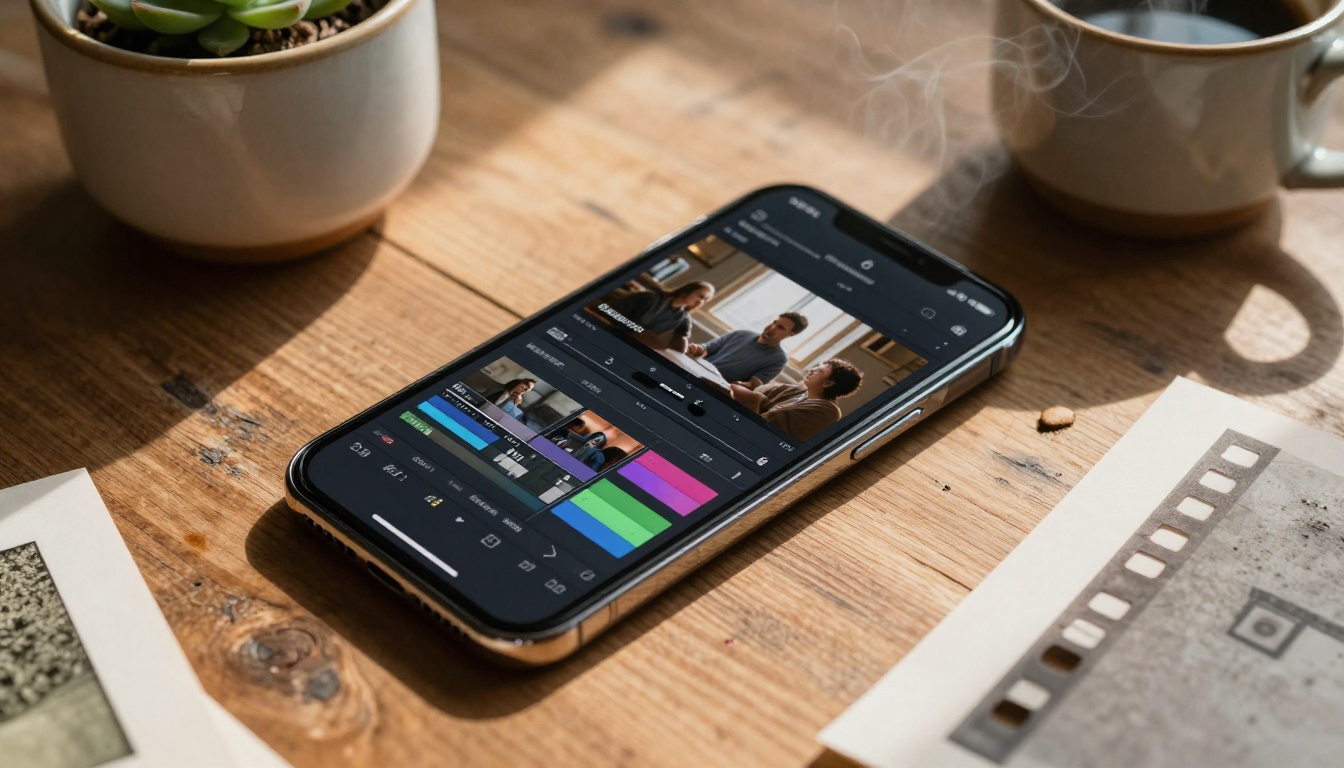
Why Phone Video Hit a Turning Point
For years, "cinematic phone video" was mostly marketing language. The footage looked fine on social media but fell apart on a big screen. Three things changed that:
- Computational photography matured. Apple ProRes, Google's video processing, and Samsung's AI scene detection now handle things that used to require dedicated cameras and color science.
- AI video models arrived at scale. Models like Kling v3 Video and Veo 3.1 can generate or enhance 1080p footage with cinematic motion that would have seemed impossible two years ago.
- Accessible platforms put these models in reach. You don't need API keys or coding knowledge to run state-of-the-art AI video generation.
The result is a workflow where your phone captures the raw material and AI handles the heavy lifting.
What Actually Makes Video "Cinematic"
Before touching any AI tool, it helps to know what you're actually aiming for. "Cinematic" is not a filter or a preset. It's a set of specific visual qualities:
| Quality | What It Means | How AI Helps |
|---|
| Shallow depth of field | Blurred backgrounds isolating subjects | AI can simulate optical bokeh in post |
| Controlled motion | Smooth, intentional camera movement | AI stabilization and motion control |
| Color grading | Specific tonal treatment beyond "natural" | AI color models apply film looks precisely |
| Frame rate | 24fps for that film "feel" | AI can convert 60fps to cinematic 24fps |
| Lighting quality | Soft, directional, motivated light | AI enhancement can clean and clarify |
| Composition | Deliberate framing with visual intent | This one stays on you |
The takeaway: AI handles most of the technical side. Your job is composition, timing, and light selection.
The AI Models Powering Mobile Creators
The text-to-video and image-to-video model landscape has expanded dramatically. Here are the specific models worth knowing for mobile creators.
Kling v3 Video: Cinematic Motion at 1080p
Kling v3 Video from Kwai is one of the most capable models available for cinematic video generation. It handles complex motion, realistic physics, and maintains character consistency across frames in ways that earlier models struggled with. If you want to generate a b-roll shot from a text prompt, like a slow dolly push through a misty forest at dawn, Kling v3 Video produces it at a quality level that would slot naturally into a professionally shot film.
Kling v2.6 is its slightly faster sibling, excellent for rapid iteration when you're testing prompt ideas before committing to a full render. Kling v2.5 Turbo Pro sits in between, with strong cinematic motion output at competitive generation speeds.
Veo 3.1: Google's 1080p Text-to-Video
Veo 3.1 from Google generates 1080p video from text prompts with a particularly strong understanding of real-world lighting and physics. It excels at naturalistic scenes: people in motion, outdoor environments, and footage that reads as genuine rather than synthetic. Veo 3 is also available with native audio generation, which matters when you want ambient sound baked directly into the output.
Tip: For travel and documentary-style mobile content, Veo 3.1 is often the best starting point. Its naturalistic output blends seamlessly with real phone footage.
Pixverse v5 and Hailuo 2.3
Pixverse v5 handles stylized cinematic content extremely well. If your mobile video project has a strong visual identity, such as moody noir aesthetics or high-contrast dramatic looks, Pixverse v5's output tends to be visually punchy in a way that stands out.
Hailuo 2.3 from Minimax delivers consistent 1080p results with strong motion fidelity. It's particularly reliable for portrait and face-forward content, making it a solid pick for creators who want to include themselves in AI-generated sequences.

Seedance 1 Pro and LTX 2.3 Pro
Seedance 1 Pro from ByteDance is built specifically for 1080p output and handles complex scenes with multiple elements in motion without the "melting" artifacts that plague lower-tier models. It's a strong pick for narrative sequences where visual consistency from frame to frame is critical.
LTX 2.3 Pro from Lightricks pushes into 4K territory, which matters if you plan to crop into footage in post or display on large screens. Its generation speed is also competitive with models that produce lower resolutions.
Gen 4.5 and Wan 2.6 T2V
Gen 4.5 from Runway remains a reliable workhorse for cinematic motion generation. Its strength is camera movement control: you can specify dolly shots, crane movements, and tracking shots in the prompt and get consistently faithful results.
Wan 2.6 T2V offers HD video generation with strong temporal consistency, meaning your footage does not drift or flicker between frames. For b-roll and establishing shots, it's one of the more reliable options available across the platform.
Shooting Techniques That Still Matter
AI can enhance, extend, and transform footage. It cannot fix a shot that has no merit to begin with. These fundamentals still apply regardless of which AI model you're running afterward.
Stabilization and Movement
Phone footage without stabilization looks like phone footage. Before you reach for any AI tool, handle this at capture:
- Enable your phone's built-in stabilization every time. Cinematic Stabilization modes on recent iPhones and Pixel devices produce noticeably smoother footage than standard video modes.
- Move your body, not just the camera. Slow, deliberate walking shots create organic movement that feels intentional rather than accidental.
- Lock off the shot when uncertain. A clean static shot is always more usable than shaky movement. You can add motion later with AI video tools; you cannot remove bad motion cleanly in post.
Lighting: The One Thing AI Can't Fake
Good light is non-negotiable. AI video enhancement tools can reduce noise, increase apparent sharpness, and adjust color. They cannot add quality light that was not there at capture. Three lighting scenarios that work reliably for mobile:
- Golden hour. The hour after sunrise and before sunset delivers warm, directional light that flatters virtually everything. It's the default cinematic look for a reason.
- Overcast days. Flat cloud cover acts like a giant softbox. Skin tones look clean, shadows are soft, and colors stay accurate without harsh contrast.
- Open shade. Position your subject in shade while they face toward open sky. The reflected skylight produces even, diffused illumination without the harshness of direct midday sun.
Tip: Your phone's exposure lock (tap and hold on most devices) prevents automatic brightness adjustment mid-shot. Use it every time you're working in mixed or directional light.
Framing Rules Worth Breaking
The rule of thirds is a baseline, not a ceiling. Some of the most striking phone video compositions break conventional framing deliberately:
- Dead center symmetry works in architectural, portrait, and reflection shots
- Extreme negative space pulls the viewer's eye to a single isolated subject
- Ground-level angles transform ordinary environments into dramatic landscapes
- Sharp foreground elements with subjects placed in mid-ground blur create immediate depth without any post-processing

How to Use Kling v3 on PicassoIA
Kling v3 Video is available on PicassoIA without complex setup. Here's how to get cinematic results fast:
Step 1: Write a precise text prompt
Vague prompts produce generic results. Instead of "mountain road at sunset," write: "slow dolly shot forward along an empty mountain road at golden hour, pine trees lining both sides, long shadows across asphalt, shallow depth of field, cinematic 24fps." Specificity is everything.
Step 2: Set your output resolution
Select 1080p. The difference between 720p and 1080p is visible on any modern screen, and Kling v3 handles 1080p without significant quality trade-offs.
Step 3: Specify motion type
Kling v3 Video responds well to motion direction cues embedded in the prompt. Phrases like "static wide shot," "slow push in," "tracking left to right," and "handheld intimate" each produce meaningfully different output.
Step 4: Start with 5-second clips
They generate faster, let you validate the visual direction, and are often exactly the right length for b-roll. Extend to 10 seconds once you've confirmed the prompt works the way you want.
Step 5: Generate multiple variations
Run 3 to 5 versions of each prompt. Small wording changes, like swapping "cinematic" for "documentary" or adding "overcast light" instead of "golden hour," produce noticeably different outputs. The first result is rarely the strongest.
Step 6: Download and integrate
Generated clips download as standard MP4 files. Import them directly into your phone's editing app alongside your real footage.

Color Grading on Your Phone
Color grading is where phone footage goes from "looks good" to "looks cinematic." The goal is not to make the image appear processed. It's to give it a deliberate visual identity that reads as intentional.
Three grading moves that consistently work:
- Lift your blacks slightly. Pull the darkest shadow tones up a small amount. This creates the faded-film look associated with cinematic content and prevents the crushed blacks that phone cameras produce by default.
- Reduce saturation selectively. Lower overall saturation by 15 to 20 percent, then add back saturation only in the warm tones (orange, yellow). Skin tones stay rich while everything else desaturates toward a film palette.
- Add a warm highlight tint with a cool shadow contrast. Subtle amber in the highlights paired with a blue-green tint in the shadows is the classic cinematic split-tone that reads as "film" rather than "video."
Most mobile editing apps, including Lightroom Mobile, CapCut, and DaVinci Resolve for iPad, offer enough color control to execute these moves precisely. Desktop software is not required.
AI Video Enhancement After Shooting
Once you have footage worth working with, several AI tools can push it further without any additional shooting.
The AI Enhance Videos category includes upscaling tools that take 1080p phone footage and output a cleaner, sharper result by recovering detail the original sensor compressed away. Super Resolution models operate on a frame-by-frame basis, giving precise control over which sections of your footage receive the enhancement treatment.
For footage with exposure inconsistencies, such as blown highlights from a sudden bright background or crushed shadows in interior shots, AI restoration models can recover significant detail from both ends of the dynamic range.
Creators working with voiceover or narration can use Text to Speech models to generate studio-quality voice tracks from scripts, paired with Lipsync tools if on-camera talent is involved. This adds a layer of production quality without requiring a dedicated recording setup.
5 Mistakes That Kill Your Cinematic Look
These are the errors that separate footage that reads as "cinematic" from footage that reads as "phone video," even after AI processing.
1. Shooting at the wrong frame rate
Most phones default to 30fps. This looks natural on screen, but not cinematic. Shoot at 24fps when your camera app allows it. For slow motion, shoot at 120fps and convert down to 24fps in post. Viewers perceive the difference immediately, even if they cannot articulate why.
2. Using digital zoom
Phone optical zoom is limited. Digital zoom introduces compression artifacts that no AI tool can fully recover. Get physically closer to your subject or accept a wider composition rather than reaching for zoom.
3. Ignoring audio
Cinematic video with bad audio reads as amateur regardless of how good the picture is. Onboard phone microphones handle quiet environments reasonably well but fail in wind, crowds, and distance scenarios. A basic clip-on lavalier microphone immediately upgrades the perceived production quality of everything you shoot.
4. Over-relying on AI to rescue bad footage
AI video enhancement is powerful within limits. Footage shot in very low light with severe noise, badly motion-blurred clips, and severely over or underexposed material all have recoverable ceilings that are lower than creators expect. Shoot the best footage possible at capture, then let AI make it better, not save it from being unusable.
5. Inconsistent visual language
A video that mixes golden-hour warmth in one clip with harsh midday blue-white tones in another reads as disorganized. Commit to a visual style and maintain it across your shoot day. AI color tools help normalize clips in post, but consistency at capture always wins.
Pick Up Your Phone and Start Now
The workflow described here, shooting on phone, generating b-roll with AI, grading on mobile, is not a compromise. It's a legitimate production pipeline that solo creators are using right now to produce content that competes with footage shot on cameras costing thousands of dollars.
PicassoIA puts Kling v3 Video, Veo 3.1, Pixverse v5, Seedance 1 Pro, Hailuo 2.3, LTX 2.3 Pro, and Gen 4.5 all in one place. Pick a model, write a specific prompt, and see what comes back. Then iterate. The results consistently surprise creators who haven't worked with this generation of AI video tools yet.
Shoot something today. Let AI make it cinematic. See how far a single phone and the right models can take you.