Cinematic motion is the difference between a video that feels real and one that feels generated. Kling 3.5 closes that gap with physics-aware rendering, temporal coherence that holds across 10 seconds, and a level of motion control that previous models could only approximate. If you have been frustrated by jitter, unnatural body movement, or camera drift in AI video, Kling 3.5 is the reason to try again.
What Kling 3.5 Does Differently
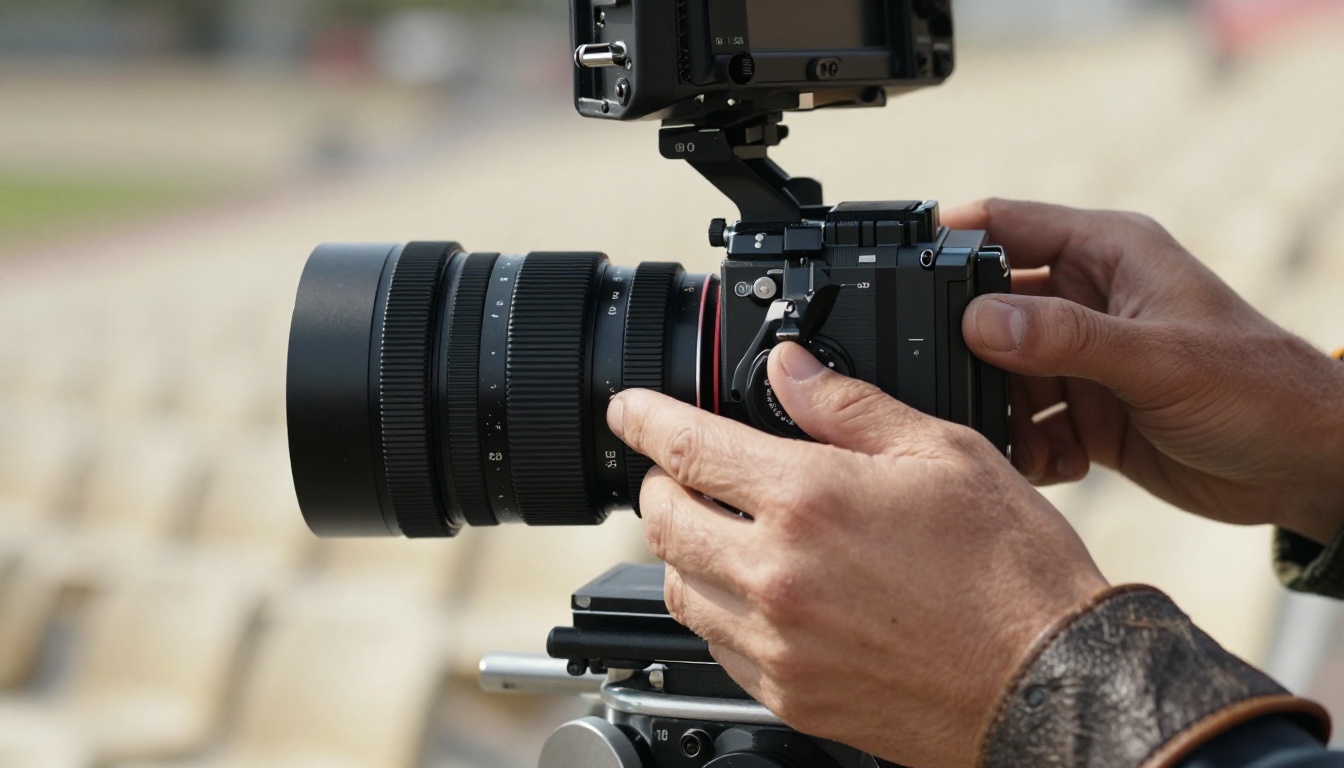
Most AI video models treat motion as a frame interpolation problem. Kling 3.5 does not. It models the physical properties of objects in the scene, which means cloth folds correctly when a character walks, water ripples from the point of impact, and a camera on a dolly arc follows the geometry of the shot.
This shift matters for anyone trying to produce footage that does not immediately read as machine-made.
Physics-Aware Motion Rendering
Physics simulation in Kling 3.5 operates at the object level, not the pixel level. The model has been trained to recognize scene elements like fabric, hair, leaves, and water and apply motion rules specific to each material. A jacket sleeve reacts differently to arm movement than a silk scarf does, and Kling 3.5 produces that distinction without requiring you to specify it.
The practical result: you spend less time fighting the output and more time directing it.
Temporal Consistency Over Long Shots
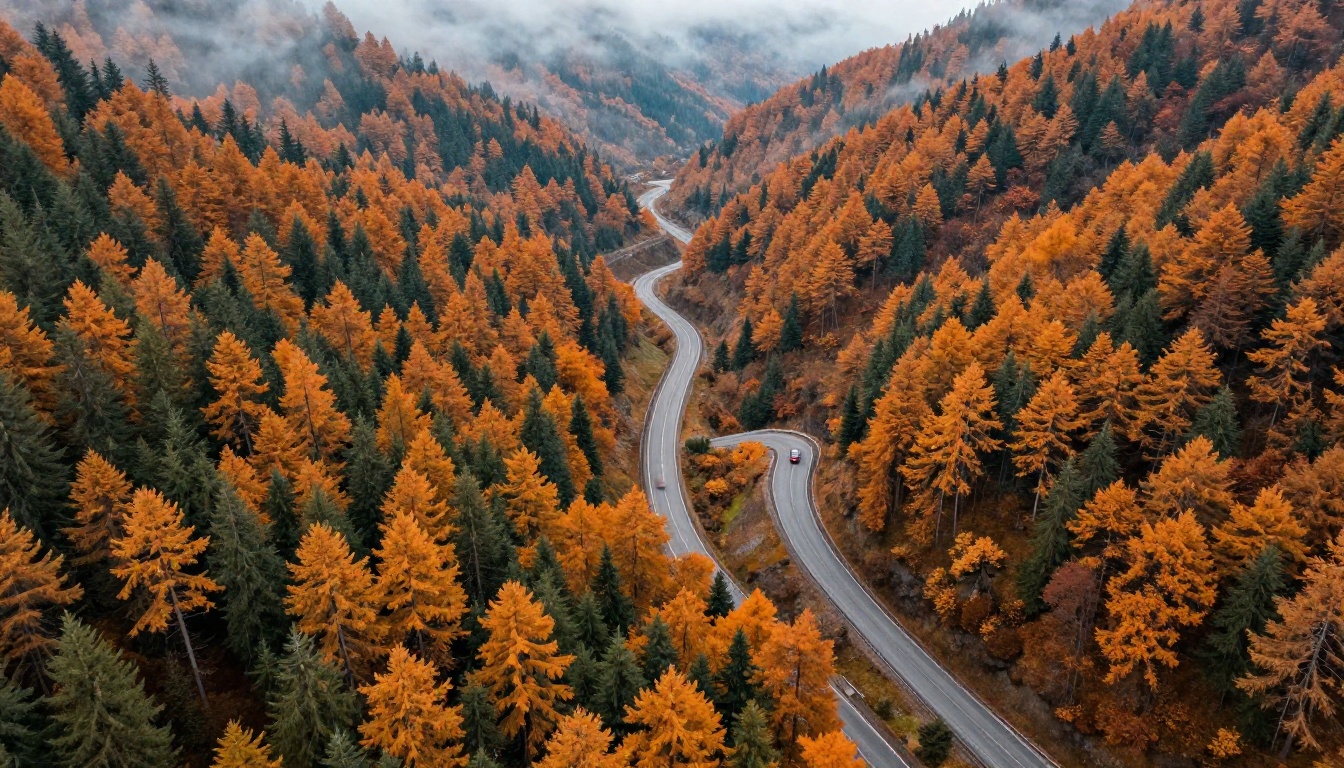
Earlier Kling versions struggled to maintain subject identity past the five-second mark. Faces would drift, objects would morph, and backgrounds would accumulate artifacts. Kling 3.5 addresses this with an improved temporal coherence layer that tracks object identity across the full generation window.
For filmmakers, this means a 10-second take can carry a real story beat without the subject collapsing mid-shot.
| Version | Max Duration | Temporal Coherence | Physics Sim |
|---|
| Kling 2.1 | 10s | Moderate | Basic |
| Kling 2.6 | 10s | Good | Improved |
| Kling 3.5 | 10s | Excellent | Advanced |
💡 Tip: For shots longer than 5 seconds, use a single strong subject anchor in your prompt. One clear focal point gives the model a reference it can maintain over time.
Choosing Your Starting Frame
Whether you start from a text prompt or an image, your input frame defines everything: composition, lighting direction, focal depth, and the range of motion that feels physically plausible. Getting this right before you touch the video settings is the fastest way to improve output quality.
Static Images That Work Best
Not all photographs translate equally into video. Kling 3.5 performs best with images that have:
- Clear depth separation between foreground and background elements
- Ambient motion cues like windswept hair, leaning posture, or partially blurred action
- Strong directional lighting that gives the model shadow reference points to work with
- Single dominant subject rather than a busy scene with multiple competing focal points
Flat, overexposed images produce flat motion. A photograph with natural film grain and tonal depth gives the model far more to work with.
Camera Position in Your Source Image
The camera angle embedded in your source image determines what motion paths feel natural. A low-angle shot naturally suggests an upward push or a slow rising crane. An aerial top-down shot opens the door for a pull-back or orbit. A close-up portrait invites a slow dolly-in with shallow rack focus.
Think of your source image as a locked-off camera position. Your motion prompt tells the model where that camera travels from there.
Writing Prompts That Move
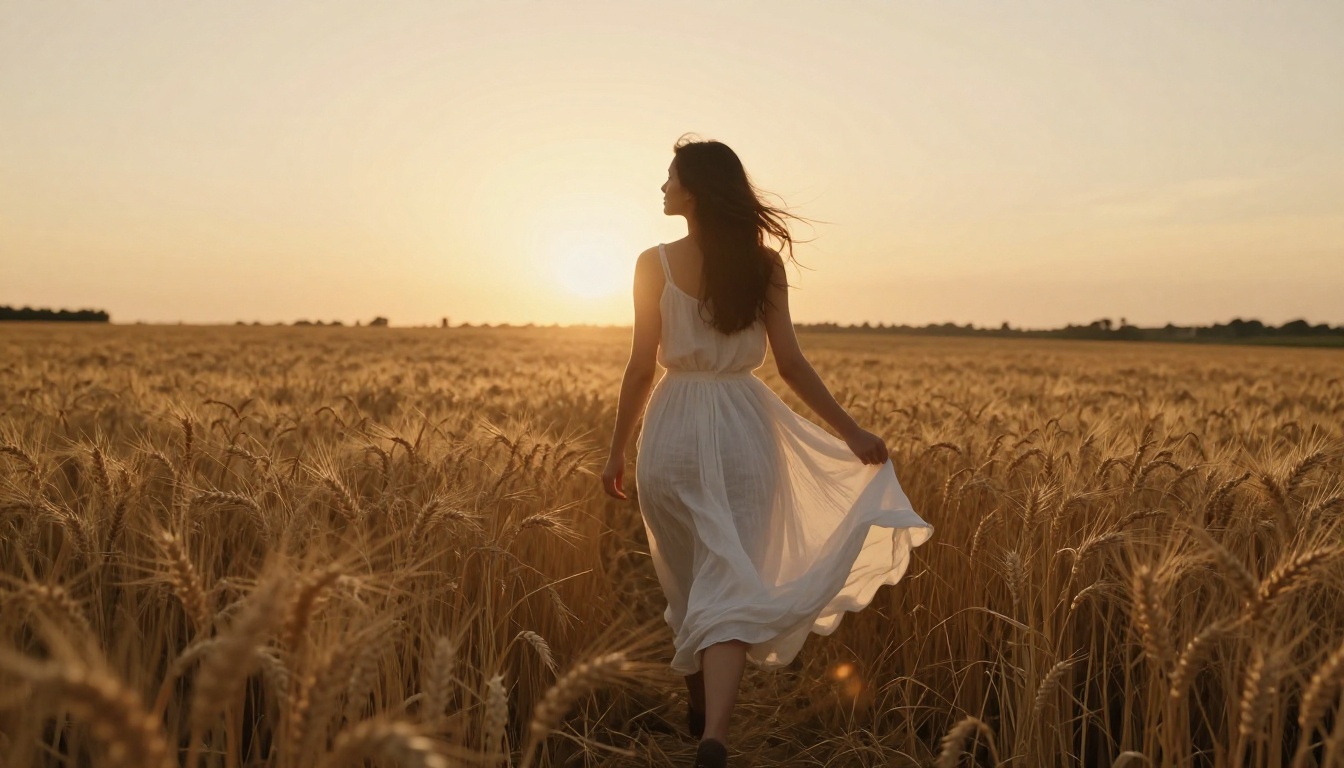
The single biggest lever in Kling 3.5 is your motion prompt. Most users write subject descriptions. The model wants action descriptions. The difference between "a woman standing in a wheat field" and "a woman turns slowly toward camera as wind moves through the wheat field around her, gentle left-to-right breeze, camera holds steady" is the difference between an image that twitches and a shot that breathes.
Motion Verbs That Work
Strong motion prompts use specific, directional verbs. Here are categories that reliably produce clean results:
Subject motion:
- rotates slowly toward camera (not "turns")
- steps forward into frame (not "walks")
- raises hand to shield eyes from sun (not "looks up")
- exhales visibly in cold air (atmospheric detail that grounds the shot)
Environmental motion:
- leaves fall in arcing paths left to right
- smoke rises and disperses horizontally
- water surface ripples outward from center
- cloth billows away from subject on the upstroke
Combined motion:
- subject moves while background holds static
- foreground elements drift while subject stays sharp
The rule is specificity. Vague verbs produce vague motion. Directional verbs with a clear physical path give the model something to solve.
Describing Camera Trajectories
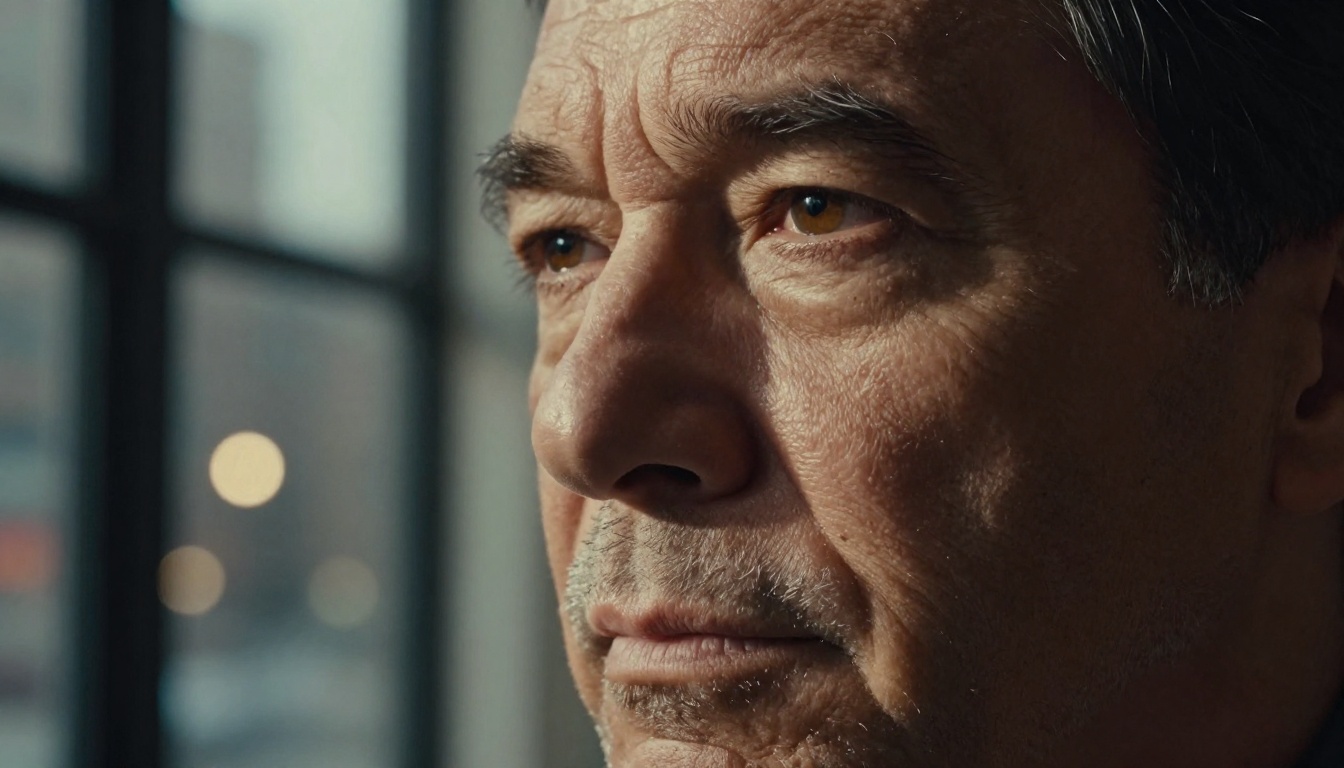
Camera motion and subject motion are separate instructions in Kling 3.5. Mixing them clearly in a single prompt is a skill that separates average outputs from professional ones.
Structure your prompt in two parts:
- What the subject is doing
- What the camera is doing independently
Example: "A man in a gray coat stands at the edge of a cliff, coat caught by the wind, breathing slowly. Camera performs a slow push-in from mid-shot to close-up, focal plane shifting from coat texture to his face."
This structure works because it gives the model two separate motion tracks to generate, each with its own timing.
Camera Moves That Feel Real

Kling 3.5 supports a wide range of camera movement types when instructed correctly. The model does not have a named parameter for shot type, so you describe the movement in natural language and the model interprets it.
Dolly Shots and Push-Ins
A dolly shot moves the camera through space toward or away from the subject without changing the focal length. This is different from a zoom, which changes the lens angle while the camera stays still. In Kling 3.5, you specify this by describing physical camera movement:
- Camera dolly push-in from 5 meters to 2 meters over 8 seconds
- Slow backward camera pull, subject growing smaller in frame
- Camera tracks forward through foreground elements, subject remains centered
Dolly shots in Kling 3.5 produce background parallax, which is the subtle shift in the relationship between near and far elements as the camera moves. This parallax is one of the clearest markers of real depth in a shot, and Kling 3.5 handles it well when you describe the movement explicitly.
Pan, Tilt, and Roll
Panning and tilting are the simplest camera moves to describe and the ones Kling 3.5 executes most reliably:
| Move | Prompt Phrasing |
|---|
| Pan left | camera pans slowly left across the scene |
| Pan right | camera sweeps right, following the subject |
| Tilt up | camera tilts upward from ground level to reveal the sky |
| Tilt down | camera tilts down from the rooftop to street level |
| Dutch roll | slight clockwise camera roll as the subject moves |
For smooth pans, add a speed qualifier. "Slow," "gradual," and "steady" produce smoother motion than "quick" or "fast," which can introduce temporal artifacts.
Rack Focus for Emotion
Rack focus is the shift of the focal plane from one depth to another within a single shot. It is one of the most emotionally resonant camera effects in cinema, and Kling 3.5 can execute it when prompted with the right structure:
"Begin with focus on the foreground coffee cup, sharp and detailed. Over 4 seconds, shift focus to the background figure standing by the window, who becomes sharp as the cup falls to soft bokeh."
Name the start point, end point, and timing. Kling 3.5 reads this as a temporal instruction and applies the focus shift across the generation window.
💡 Tip: Rack focus works best when there is genuine depth separation in your source image. If foreground and background sit at similar distances, the model has nothing to shift between.
Slow Motion and Timing Control
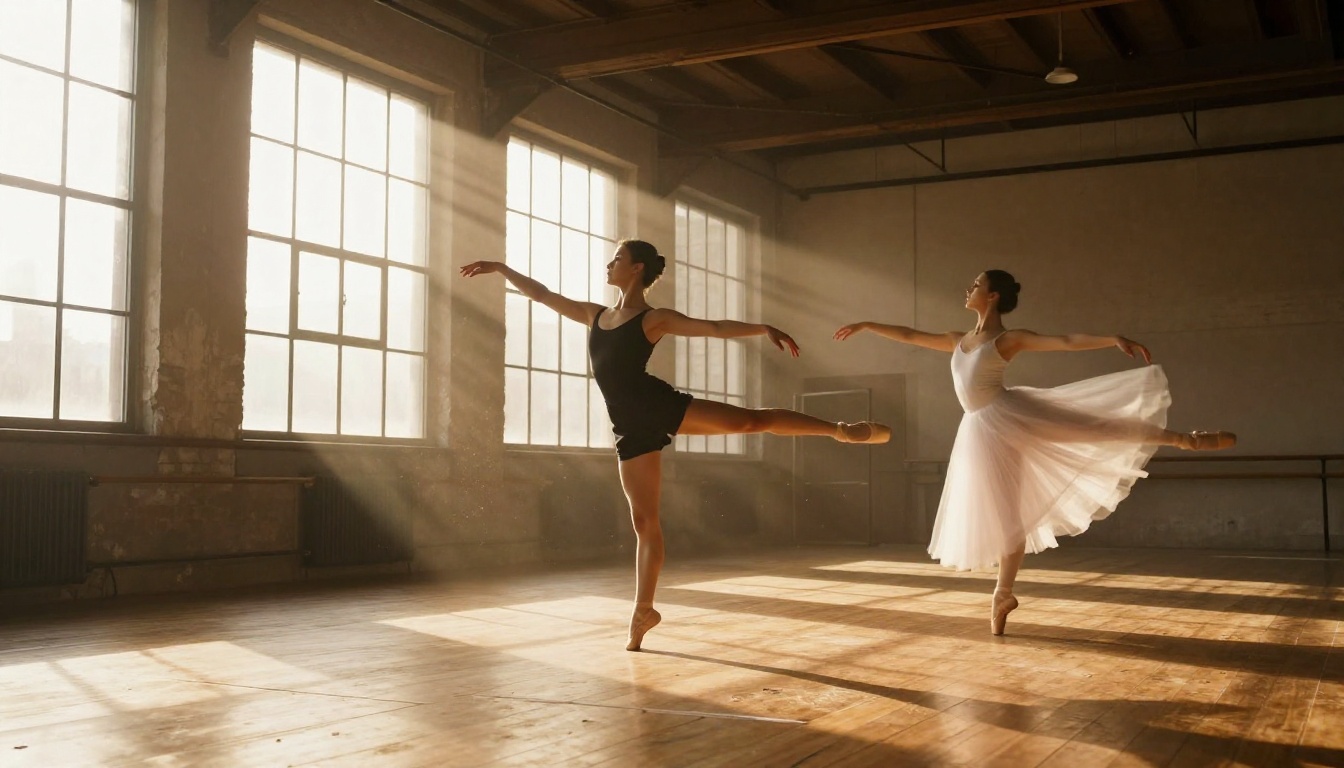
Kling 3.5 does not have a native slow-motion parameter in the traditional sense. It controls apparent speed through prompt instruction and generation duration. Working within this constraint produces results that match or exceed dedicated slow-motion capture.
How to Get Slow Motion in Prompts
Slow motion in Kling 3.5 comes from three approaches:
1. Duration extension with sparse action
Generate a 10-second clip with a subject action that would naturally take 2-3 seconds. The model stretches the action to fill the generation window, which produces apparent slow motion.
"A drop of water falls from a leaf tip into a still pool below. The impact creates an expanding ring of ripples. Shot takes 10 seconds at 24fps."
2. Explicit slow-motion language
Phrases like "ultra-slow motion," "high-speed capture feel," and "time-dilated movement" prompt the model to produce more frames of transition between states.
3. Detail-heavy motion descriptions
The more detail you add to a motion sequence, the slower the model tends to render it. Describing the exact arc of a falling object, the ripple sequence it creates, and the light interaction on the surface forces the model to resolve each stage carefully.
Frame Rate and Clip Duration
Kling 3.5 generates at 24fps by default. For content distributed on social platforms, this is the correct setting. For content that needs a broadcast or theatrical feel, requesting outputs at 24fps with clean temporal consistency between frames is the correct workflow.
Artifacts in Kling 3.5 output are almost always temporal rather than spatial. A single frame may look perfect while the frame that follows contains a minor positional error. This accumulates into visible jitter. The fix is prompting for slower, more deliberate movement rather than trying to stabilize the output in post.
How to Use Kling on PicassoIA
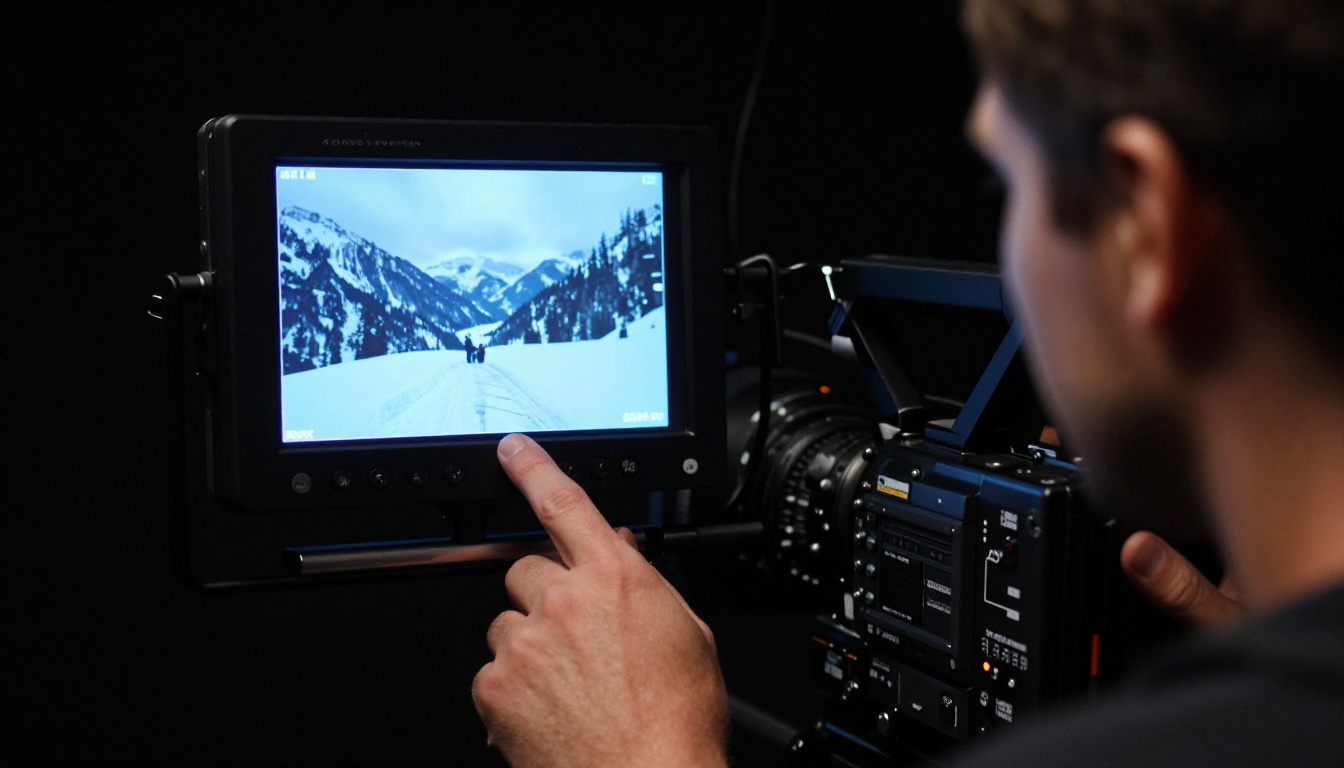
Kling v3 Video, Kling v3 Motion Control, and Kling v3 Omni Video are all available directly on PicassoIA, alongside the earlier Kling v2.6, Kling v2.6 Motion Control, and Kling v2.5 Turbo Pro. You do not need a separate KwaiVGI account. Everything runs from a single interface.
Step-by-Step: Your First Shot
Step 1: Choose your model
Navigate to the Kling v3 Motion Control page on PicassoIA. This variant gives the most direct access to camera trajectory control.
Step 2: Upload your source image
For image-to-video, upload a high-resolution photograph or AI-generated image. The model reads depth, lighting, and composition from this source.
Step 3: Write your motion prompt
Follow the two-part structure: subject motion first, camera motion second. Keep the prompt between 60 and 120 words for best results.
Step 4: Set your duration
10 seconds is the maximum and the best choice for complex shots. Shorter clips work for simpler actions.
Step 5: Generate and review
The first generation is rarely the final version. Review the motion path, temporal consistency, and any artifact accumulation. Adjust your prompt based on what you observe, not what you hoped for.
Model Selection by Shot Type
If you want to compare Kling 3.5 against other top cinematic models, PicassoIA also hosts Ray 3.2, Gen 4.5, Veo 3, and Pixverse v6 in the same interface for direct comparison.
Fixing Jitter and Artifacts
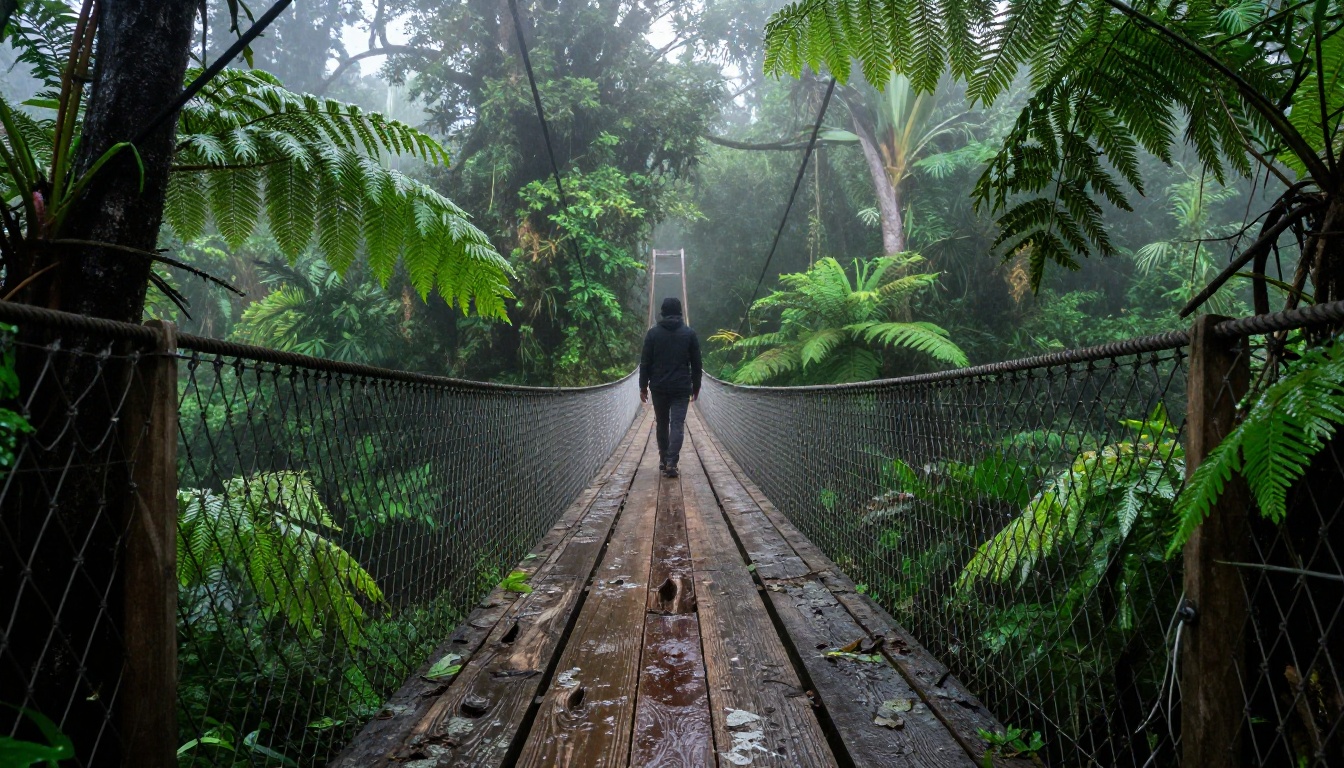
Every AI video model produces artifacts. Knowing which artifacts come from which causes gives you a structured path to fixing them rather than a random retry loop.
Common Motion Failures
Subject drift: The character's face or body shape changes between frames. Cause: insufficient subject anchoring in the prompt. Fix: add specific physical details to the subject description, such as "narrow jaw, brown eyes, gray wool coat with visible weave," so the model has more reference points to maintain.
Camera shake when smooth motion was requested: Jitter appears even after requesting a "steady camera." Cause: the motion speed is too high for the duration. Fix: slow the camera movement description and extend the clip duration.
Background morphing: The environment changes shape or color across the clip. Cause: underspecified background in the prompt. Fix: add three to five concrete background details to give the model a stable environment to maintain.
Motion blur accumulation: Progressive blurring toward the end of the clip. Cause: temporal error accumulation. Fix: shorten the clip duration or reduce the complexity of subject motion in the later portion of the prompt.
The Retry Strategy
A structured retry sequence saves time and credits:
- Identify the specific failure (subject, camera, or background)
- Adjust only the part of the prompt that addresses that failure
- Keep all other parameters identical
- Generate once and evaluate before making additional changes
Changing multiple variables simultaneously makes it impossible to know which adjustment fixed the problem. Systematic one-variable changes build a prompt that is reliable, not just lucky.
💡 Tip: Save every prompt version that produces an improvement, even a minor one. These become the base prompts for your next project and build a personal library of what actually works.
How Kling 3.5 Stacks Up
Kling 3.5 is the strongest model currently available for physics-accurate subject motion. But it is not the only tool worth knowing. Here is how it compares to other top models on PicassoIA:
| Model | Best For | Weakness |
|---|
| Kling v3 Video | Subject physics, long coherence | Slower generation time |
| Ray 3.2 | HDR color fidelity, atmosphere | Complex character motion |
| Gen 4.5 | Fast image-to-video turnaround | Lower temporal stability |
| Veo 3 | Native audio and video sync | Less motion control |
| Pixverse v6 | Action and dynamic scenes | High-detail subjects |
| Wan 2.7 I2V | Realistic image animation | Cinematic lighting depth |
| Video 01 Director | Camera control precision | Physics accuracy |
The right model depends entirely on your shot type. For a sweeping landscape pull-back with atmospheric haze, Ray 3.2 is the stronger choice. For a close-up character reaction with realistic fabric movement, Kling v3 Motion Control is the correct tool for the job.
For audio-synced video content, Veo 3 and Seedance 2.5 both produce native audio alongside the video, removing the need for a separate sound design step. And for animating a still portrait into a breathing, subtle motion clip, Kling v1.6 Pro remains one of the most reliable options on the platform.
Your Shot Is Ready
Cinematic motion in AI video is no longer a matter of hoping the model produces something usable. With Kling 3.5, it is a matter of directing the model with the same intentionality you would bring to a camera operator on set: clear subject instructions, specific camera movement, deliberate environmental detail, and a structured approach to reviewing and refining the output.
PicassoIA gives you access to Kling v3 Video, Kling v3 Motion Control, Kling v3 Omni Video, and the full range of competing cinematic models in one place. Start with a strong source image, write a two-part motion prompt, and generate your first shot. The results will tell you exactly what to adjust next.
Browse every available model at picassoia.com/en/all-models and pick the one that fits your shot.


