Cinematic motion is not about having an expensive camera. It never was. It is about intentionality: knowing exactly where the camera moves, why it moves, and what emotion that movement produces. For decades, that knowledge lived inside people: cinematographers who spent years learning the language of film. Veo 4 is the first AI video model that genuinely speaks that language.
This piece is about how to use it. Not the theory of AI video. Not a broad-stroke overview. The specific prompt structure, motion vocabulary, and depth tricks that produce video you would actually cut into a real project.
What Veo 4 Does Differently
Most AI video generators produce motion, but not intentional motion. A subject might drift across a background. The camera might appear to slightly bob or sway. But these movements look accidental. They do not read as deliberate cinematic choices. Veo 4 changes this in three concrete ways.
Physics-Aware Rendering
Veo 4's motion model understands physical relationships. When a camera dollies past a foreground object, the foreground moves fast and the background moves slow. That parallax is automatic. When a character lifts an arm, the clothing folds in response to gravity and movement, not randomly. When water catches light, the specular highlights track with the camera angle.
This sounds minor, but it is the single biggest reason Veo 4 output looks cinematic. It is why a prompt like "slow dolly push toward the actor" produces a shot that feels like Veo 3.1 output at its best, rather than a frozen subject on a moving background.

Native Audio That Does Not Drift
Veo 4 generates audio natively alongside the video, and more importantly, the audio stays synchronized with physical events. Footsteps land on contact. Water sounds shift with camera distance. This sync is temporal: the model treats audio and visual as a unified output, not two separate streams that you hope line up in post.
Competing systems like Seedance 2.5 and Hailuo 2.3 have also improved their audio-video sync significantly. But Veo 4's handling of spatial audio, where the stereo field shifts as subjects move left and right of frame, is still ahead of the field.
Cinematic Camera Moves Veo 4 Actually Handles
Not all camera movements translate equally well into AI video prompts. Some are rock solid. Some require very specific phrasing to trigger. Here is what actually works.
Dolly Shots and Slow Push-ins
The dolly push is Veo 4's strongest move. A slow horizontal dolly or a forward push into a scene produces reliable parallax separation between foreground and background. The key is specifying speed and start-to-end reference points.
Works well:
- "Slow dolly-in starting from 3 meters back, ending in medium close-up on the subject's face"
- "Camera pushes slowly forward through tall grass toward a distant farmhouse"
- "Lateral dolly left, tracking the figure walking down the alley"
Does not work:
- "Dolly" with no direction, speed, or endpoint
- "Move the camera" with no spatial specification

💡 Tip: Pair dolly prompts with a foreground object. "Camera dollies right past a lamp post, revealing a crowd in the background" gives the model a spatial anchor that produces stronger parallax than a dolly in empty space.
Aerial and Overhead Perspectives
Aerial shots in Veo 4 produce some of its most visually impressive output. The model has strong training data for drone-style movement, and it handles altitude convincingly: objects diminish in apparent size at the right rate, and shadows track correctly with angle.
Effective aerial prompts:
- "Bird's-eye top-down aerial view drifting slowly over a dense forest canopy"
- "Drone pulls back and rises simultaneously from a cliffside to reveal the full coastline below"
- "Aerial crane shot rising from street level to rooftop height, city expanding below"
The rising crane reveal is particularly effective. Veo 4 produces convincing vertical motion that feels physically grounded, even when the altitude change is dramatic.

Models like Ray 3.2 and Kling v3 Video also handle aerial motion well, but Veo 4's environmental consistency across long aerial moves is more stable frame-to-frame.
Tracking Shots That Follow Subject
Following a moving subject is harder for AI models than static-scene camera moves, because it requires the model to simultaneously animate the subject and move the camera at a matching rate. Veo 4 handles this better than earlier Google models.
Proven tracking formulas:
- "Camera tracks alongside the cyclist at the same speed, maintaining a constant frame distance, shallow depth of field"
- "Over-the-shoulder follow shot behind the runner through a narrow alley, camera staying 2 meters back"
- "Side-tracking shot following the car from left to right, background blurred by motion"
The depth-of-field specification is critical for tracking shots. Telling Veo 4 that the background should be blurred helps it commit to the subject-follows-camera relationship rather than rendering everything in sharp detail, which can produce an uncanny video game appearance.

Prompt Architecture for Motion
The single biggest factor in Veo 4 output quality is how you structure your prompt. Most people write prompts like a description of a static image. Cinematic motion requires a different kind of prompt: one that describes change over time.
The 5-Part Prompt Formula
Every strong Veo 4 motion prompt follows this structure:
| Part | Element | Example |
|---|
| 1 | Scene setup (who, what, where) | "A woman in a red coat standing on a train platform" |
| 2 | Lighting conditions | "Overcast morning light, soft even shadows" |
| 3 | Camera starting position | "Wide shot from ground level, 10 meters away" |
| 4 | Motion description (what moves, how) | "Camera slowly dollies toward her as the train arrives on the right" |
| 5 | End state or mood | "Ending in a close-up on her expression, warm bokeh background" |
The motion description in Part 4 should always describe movement as a sequence with direction and pace. Words like "slowly", "steadily", "gradually" help Veo 4 understand that this should be a smooth, controlled movement rather than a cut or jump.
Motion Words That Actually Work
Certain vocabulary consistently triggers better motion in Veo 4:
Camera movements:
- Dolly in / Dolly out (horizontal forward or backward)
- Lateral dolly left / right (sideways slide)
- Crane up / Crane down (vertical rise or descent)
- Slow push toward (forward with deliberate pace)
- Orbit around (circular movement around a subject)
- Pull back to reveal (backward movement with expanding frame)
Motion qualities:
- Steadily, smoothly, with subtle drift
- Gradually accelerating, decelerating to a stop
- Gentle camera sway for handheld feel without instability
What to avoid:
- "Zoom in" triggers an optical zoom rather than a physical dolly
- "Fast movement" without direction produces erratic camera shake
- "Epic shot" and similar vague quality adjectives describe nothing

💡 Pro tip: Write your motion description in present continuous tense: "the camera is slowly orbiting the figure" rather than "orbit the figure." This temporal framing helps the model render the action as an ongoing process, not a state change.
Slow Motion and Speed Ramping
Slow motion is where Veo 4 separates itself from nearly all other AI video generators. The model produces genuinely convincing high-frame-rate slow motion without the stuttering or warping artifacts common in other systems.
How to Trigger Slow Motion
Veo 4 responds to slow motion prompts at the generation level. You do not need to post-process or time-remap. The model natively renders at the described speed.
Effective slow motion prompts:
- "Extreme slow motion: water crown forming as droplet hits the surface, at 1000fps equivalent"
- "Slow motion athlete jumping, clothing rippling in decelerated air movement, 120fps look"
- "Slow push-in on falling autumn leaves, each leaf individually spinning at 60fps"
The fps equivalent framing is particularly useful. Veo 4 interprets it as a quality reference for motion blur and frame density, producing output with the right amount of temporal smoothness for each stated speed.

Temporal Consistency: What It Means
Temporal consistency is the measure of how stable objects and lighting remain across frames. A temporally inconsistent video will have objects that flicker, change color slightly, or morph in shape from frame to frame. This is the most common defect in AI video.
Veo 4 improves temporal consistency through what appears to be a latent-space anchoring mechanism: key scene elements are fixed in a persistent representation that the model references across all generated frames. The practical result is that a shadow cast in frame one stays consistent in shape and direction through frame 90, even if the camera is moving.
Ways to encourage temporal consistency:
- Keep lighting descriptions simple and directional: "single light source from the upper left"
- Avoid prompting for multiple subjects in motion simultaneously
- Use "static background" explicitly when you want the camera to move but the scene to stay still
- Reference "no flickering", "stable", or "consistent lighting" as quality modifiers
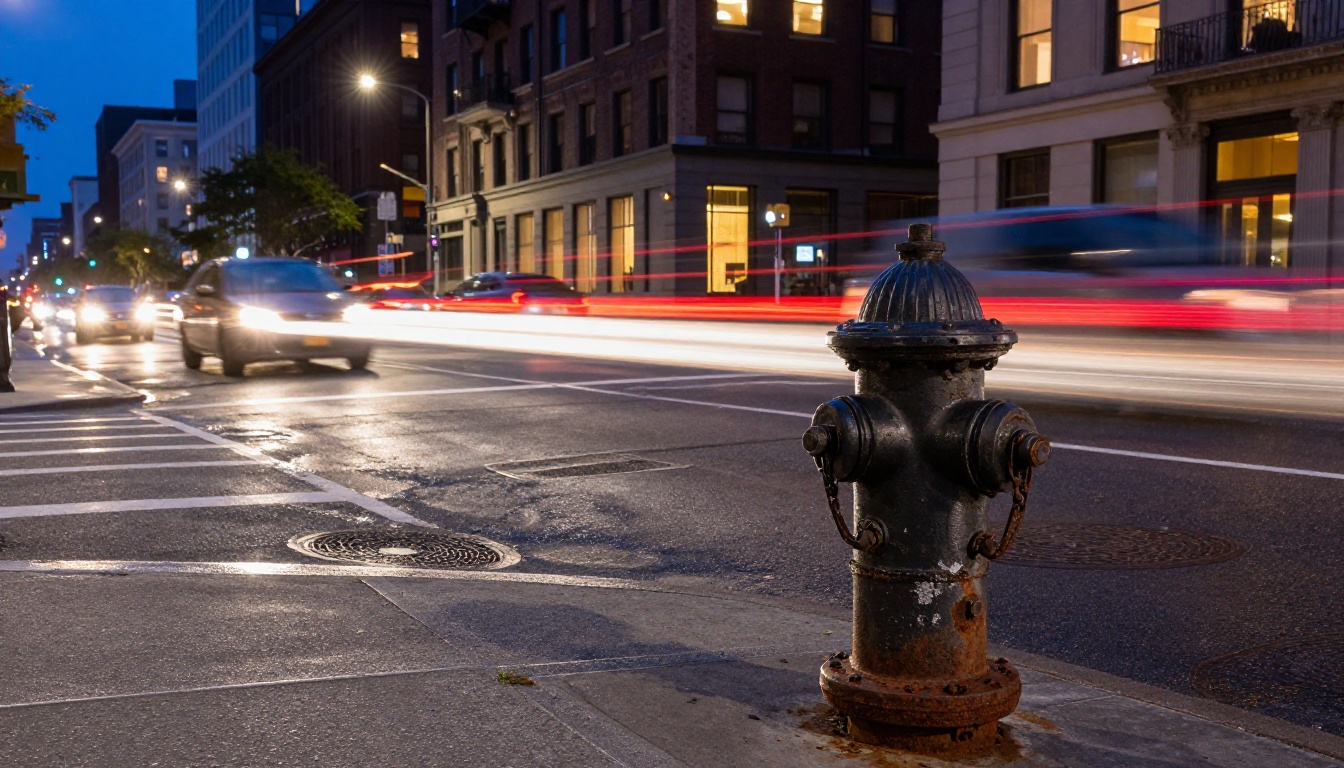
Parallax and Depth of Field in Veo 4
Parallax and depth of field are what separate a cinematic shot from a flat one. Veo 4 handles both well when prompted correctly.
Layering Your Depth
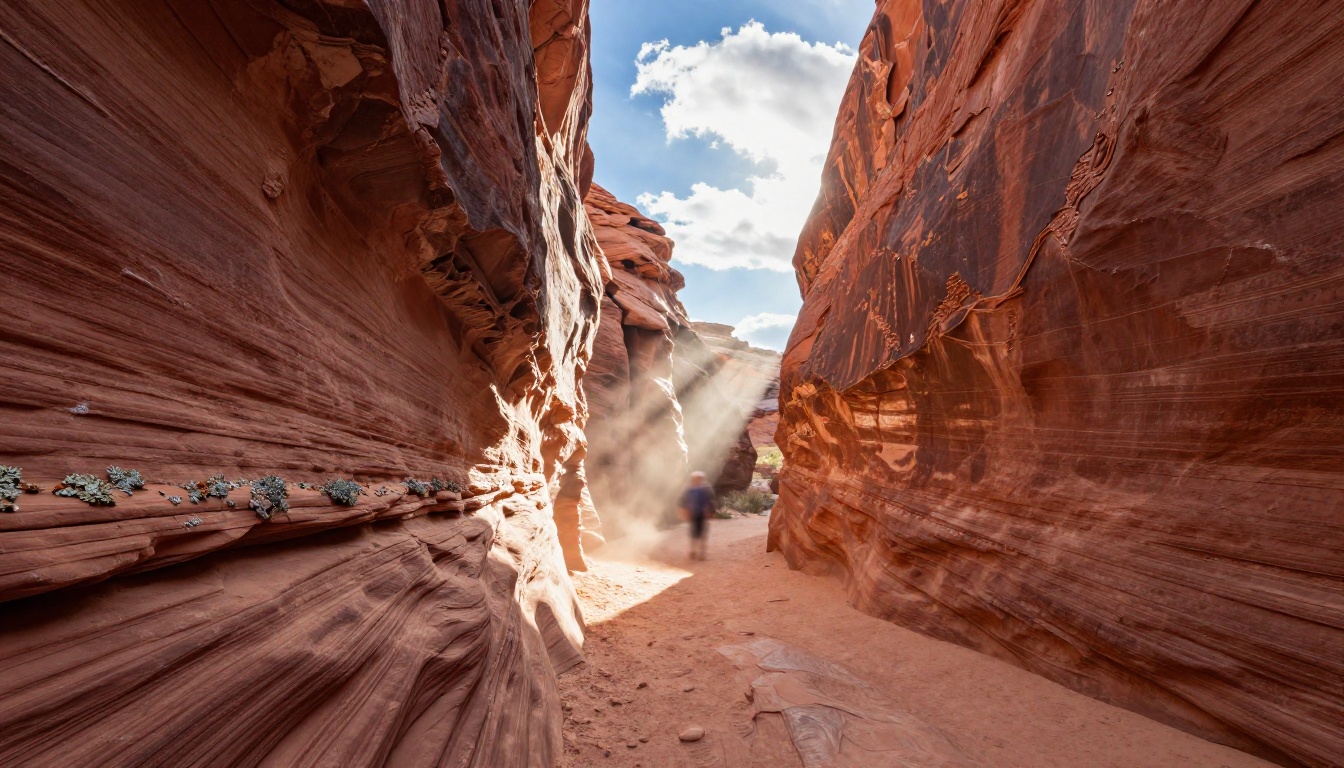
Parallax happens when foreground elements move across the frame faster than background elements as the camera moves. In real photography, this is automatic physics. In AI video, you have to describe the spatial layers explicitly.
Layered depth prompt structure:
- Name the foreground element and its distance: "a wooden fence post at 1 meter"
- Name the midground subject: "a person standing at 5 meters"
- Name the background: "a hillside at 50 meters"
- Specify camera movement: "camera dollies left"
When all four layers are explicit, Veo 4 renders parallax separation accurately. Foreground elements sweep past quickly. The midground subject remains roughly centered. The background drifts slowly.
Rack Focus Sequences
Rack focus, where the camera shifts sharpness from one depth plane to another while both stay in frame, is advanced cinematic territory for AI. Veo 4 handles it when prompted with explicit before-and-after focal planes.
Rack focus prompts that work:
- "Rack focus from sharp foreground flower petals to a soft-focus couple in the background, transition taking 2 seconds"
- "Focus pull: begins sharp on the lock mechanism at 1 meter, slowly pulls to a woman's face at 3 meters"
- "Bokeh shift: foreground window condensation drops blurred, then sharpens, background street softens"
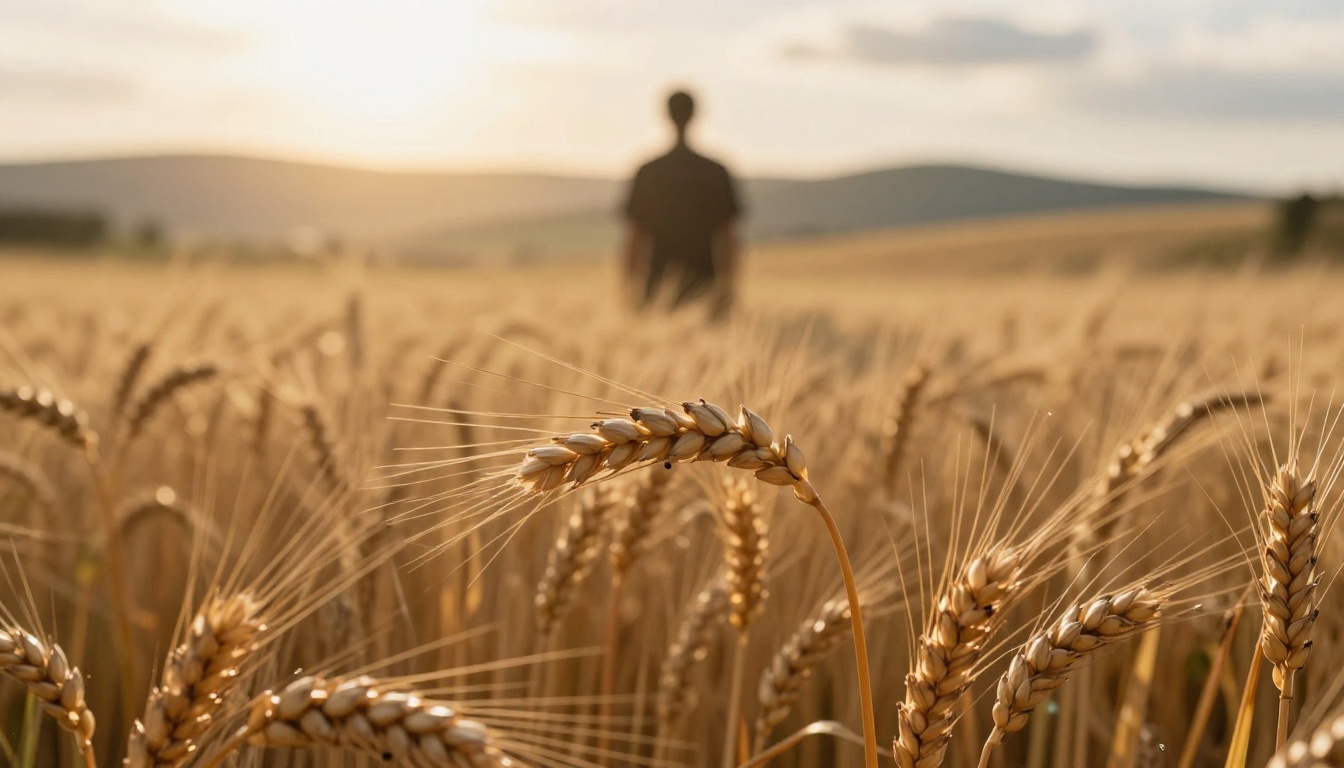
💡 Key insight: Rack focus transitions are most convincing when you specify the duration of the pull. "2-second focus transition" tells Veo 4 this is a deliberate, paced creative choice, not an error to be smoothed over.
Veo 3.1 on PicassoIA: Closest Available Right Now
Veo 4 is not yet available on PicassoIA as a selectable model. The closest equivalent from Google's Veo series currently on the platform is Veo 3.1, which shares the same underlying motion architecture and produces cinematic quality output using the same prompt language described above.
How to Use Veo 3.1 on PicassoIA
- Go to Veo 3.1 on PicassoIA
- Write your prompt following the 5-part formula above: scene, lighting, camera start, motion description, end state
- Set the output duration to the maximum available (longer clips give the motion more time to read)
- Review the generated video for temporal consistency before downloading
- If parallax depth reads as flat, add explicit foreground, midground, and background layers to your prompt and regenerate
Veo 3.1 Fast is also available for quicker iterations, producing slightly lower resolution but with the same motion vocabulary. Veo 3.1 Lite is the fastest and most affordable option for sketching motion ideas before committing to a full Veo 3.1 run. Veo 3 remains solid for motion-heavy clips where you want native audio sync alongside the visual.
Settings That Produce Cinematic Output
| Setting | Recommended | Why |
|---|
| Duration | Maximum available | Motion needs time to read |
| Aspect ratio | 16:9 or 2.39:1 | Widescreen formats reinforce cinematic feel |
| Style modifier | "Photorealistic, film grain, Kodak look" | Overrides any default stylized output |
| Prompt length | 80 to 120 words | Short enough to be coherent, long enough to control motion |
How Veo 4 Compares to Other Models
Veo 4 is not the only strong option for cinematic motion. Here is how it stacks up against the top performers currently available on PicassoIA:
| Model | Cinematic Motion | Slow Motion | Temporal Consistency | Audio Sync | Best For |
|---|
| Veo 3.1 | Excellent | Very Good | Excellent | Native | Film-quality output |
| Kling v3 Video | Very Good | Good | Very Good | Native | Commercial spots |
| Gen 4.5 | Very Good | Good | Excellent | None | VFX-adjacent work |
| Ray 3.2 | Good | Very Good | Good | Native | Fast cinematic clips |
| Sora 2 | Excellent | Excellent | Very Good | Limited | High-fidelity motion |
| Kling v3 Motion Control | Very Good | Good | Very Good | Native | Precise camera paths |
| Seedance 2.5 | Good | Good | Good | Native | Long-form content |
| LTX 2.3 Pro | Good | Very Good | Good | None | 4K resolution output |
Veo 4's edge sits in the combination of temporal consistency and audio sync. Most competing models are strong in one or the other, not both. For pure camera motion control with explicit movement specification, Kling v3 Motion Control is the closest competitor, offering a dedicated camera trajectory interface rather than relying entirely on prompt language.
3 Mistakes That Kill Cinematic Motion
Vague Motion Language
"Epic camera movement" tells Veo 4 nothing useful. Neither does "cinematic shot." The model needs specifics: direction, speed, start position, end state. Every variable you leave unspecified is a variable the model fills in randomly, which is how you get shots that look almost right but miss the intention entirely.
Fix it: Replace every vague quality adjective with a concrete motion description. "Epic" becomes "slow 180-degree orbit." "Cinematic" becomes "dolly push at 30fps equivalent with shallow depth of field."
Ignoring Aspect Ratio
Most AI video defaults to 1:1 or standard 16:9 square output. True cinematic work happens in widescreen, and the aspect ratio affects how motion reads. A dolly shot in 1:1 looks like a social media clip. The same shot in 2.39:1 anamorphic looks like a film.
Fix it: Specify "2.39:1 aspect ratio" or "anamorphic widescreen" in your prompt. Even if the output clips to 16:9, the model will compose the shot with widescreen spatial logic: horizontal motion reads wider, depth fields are more compressed.
Too Much Motion at Once
Prompting for camera movement, subject movement, and environmental movement simultaneously (wind, water, crowd) overloads the temporal consistency system. The model produces each motion element acceptably in isolation, but the interactions between them degrade frame-to-frame stability fast.
Fix it: Pick one moving element per shot and hold everything else still. A camera dolly through a static scene is more cinematic than a static camera on a scene where everything is moving. Separate complex motion into individual clips and assemble them in edit.
Start Producing Film-Quality Shots
The gap between AI video that looks like a prototype and AI video that belongs in a real production is almost entirely a prompt craft problem. Veo 4 has the underlying capability to produce tracking shots, dolly moves, slow motion, parallax, and rack focus sequences that hold up to professional scrutiny. What it needs from you is precision: named distances, described lighting, sequential motion instructions, and explicit depth layers.
Veo 3.1 on PicassoIA is where to start today. The same prompt language applies directly, and the model produces output that demonstrates what Veo 4's architecture is capable of. Beyond Veo, the platform also offers Kling v3 Motion Control for precision trajectory work, Gen 4.5 for VFX-quality stability, and Pixverse v6 for fast cinematic iteration.
If you have been treating AI video as a slot machine where you type something and hope for the best, the models listed here, used with the prompt structure above, will change that. Cinematic motion is learnable. Start experimenting at picassoia.com/en/all-models.


