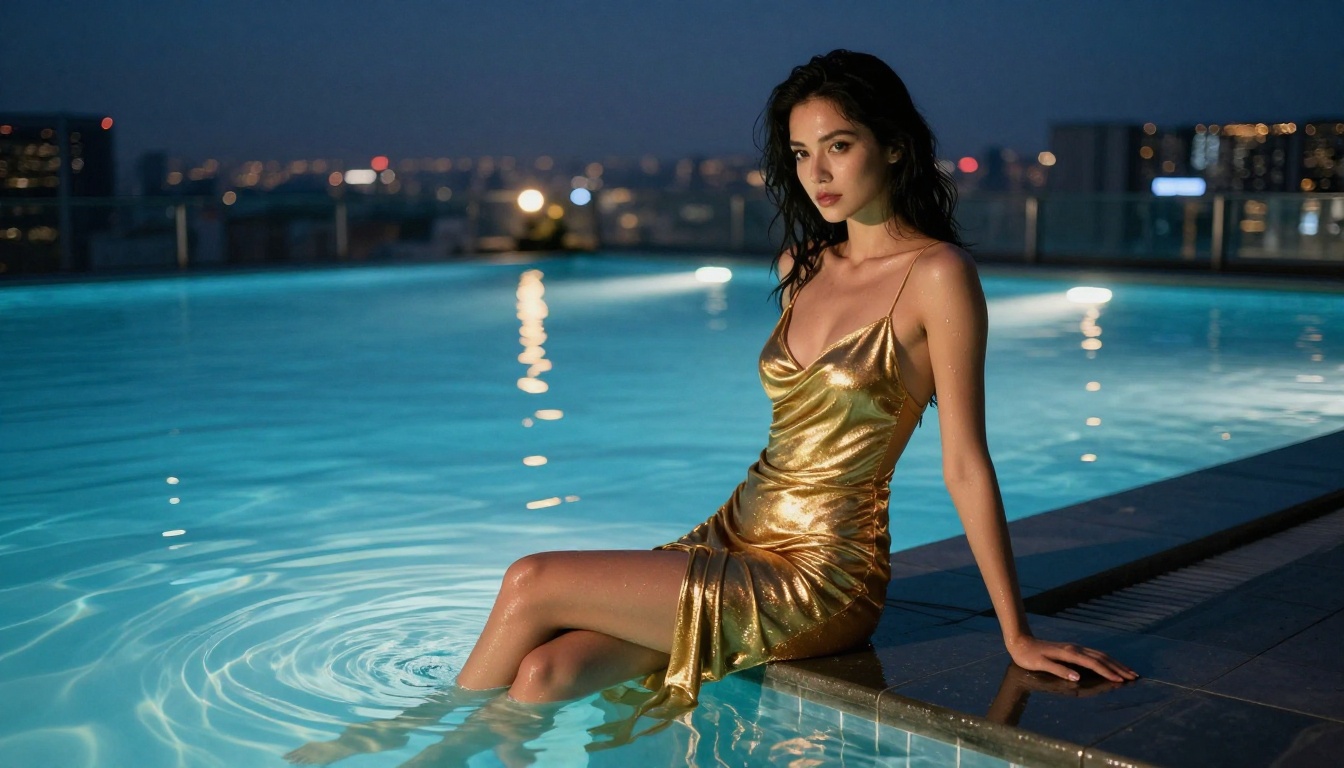
Stable Diffusion 3.5 has raised the bar for photorealistic NSFW AI art generation. This article breaks down exact prompt structures, CFG scale settings, model comparisons, and step-by-step instructions to help you create stunning, suggestive images right now, whether you are running it locally or using a browser-based platform.
The arrival of Stable Diffusion 3.5 Large marked a turning point for AI art creators who want photorealistic, sensual images without the frustrations of older models. This third-generation architecture delivers unprecedented skin texture fidelity, natural lighting simulation, and prompt adherence that older checkpoints simply could not match. Whether you are working in a local setup or running everything in a browser, the workflow for producing high-quality NSFW AI art has never been more accessible or visually convincing.
Why SD 3.5 Changed the NSFW Art Scene
Previous versions of Stable Diffusion were powerful but inconsistent. Anatomy would break down. Faces would distort. Skin tones looked plasticky. SD 3.5 fixed nearly all of that with its MMDiT (Multimodal Diffusion Transformer) architecture, which handles spatial coherence far better than the original UNet approach.
The three main variants each serve a different purpose for NSFW work:
The Large variant is what you want for final-quality sensual photography. The Turbo version cuts generation time by roughly 60% with only a marginal quality drop, making it ideal for prompt testing before committing to a full render.
The Architecture Difference That Matters
The MMDiT backbone processes text and image tokens in a unified attention space. In practical terms, this means your prompt descriptions of lighting, fabric texture, and body positioning are interpreted with much higher fidelity. A phrase like "volumetric morning light from the left, silk texture catching highlights" will actually render that way rather than approximating it.
This also means negative prompts are less critical than with SDXL or SD 1.5, though they still help refine output.
What the Settings Actually Do
Getting your generation parameters right makes the difference between a muddy output and a stunning image. Here is what each setting controls for NSFW photorealistic work:
CFG Scale
CFG (Classifier-Free Guidance) controls how closely the model follows your prompt versus creative interpretation. For photorealistic NSFW art:
CFG 3.5 to 4.5: Looser, more natural and painterly feel
CFG 5 to 6: The sweet spot for photorealistic results
SD 3.5 was trained at lower CFG values than previous models. Running it at CFG 7 the way you would with SD 1.5 will produce oversaturated, burned-out results.
Sampling Steps
SD 3.5 Large converges faster than older models:
20 steps: Acceptable for testing
28 to 35 steps: Best quality-to-time ratio
40+ steps: Diminishing returns unless using DPM++ 2M Karras
For the Turbo variant, 8 to 12 steps are sufficient due to its distilled architecture.
Resolution and Aspect Ratio
SD 3.5 was natively trained at 1024x1024. For NSFW photography, these resolutions produce the best results:
1152x896 for landscape and environmental shots
896x1152 for portrait and figure photography
1024x1024 for beauty and close-up shots
Going beyond 1.5 megapixels without a tiled upscaler will introduce artifacts. Use Super Resolution tools after generation to reach 4K output.
How to Write Prompts That Actually Work
Prompt structure for SD 3.5 differs from older Stable Diffusion versions. The model responds better to natural language than keyword-stuffed prompts.
The Four-Part Prompt Formula
A prompt that consistently delivers high-quality NSFW output follows this structure:
Subject description: Age appearance, body type, expression, clothing state
Environment: Location, furniture, props, time of day
Lighting specification: Direction, quality (hard/soft), color temperature
Technical qualifiers: Lens, film stock, resolution
💡 Tip: Be specific about lighting direction. "Warm light from the left" produces dramatically better skin texture rendering than generic "good lighting."
Example prompt that works:
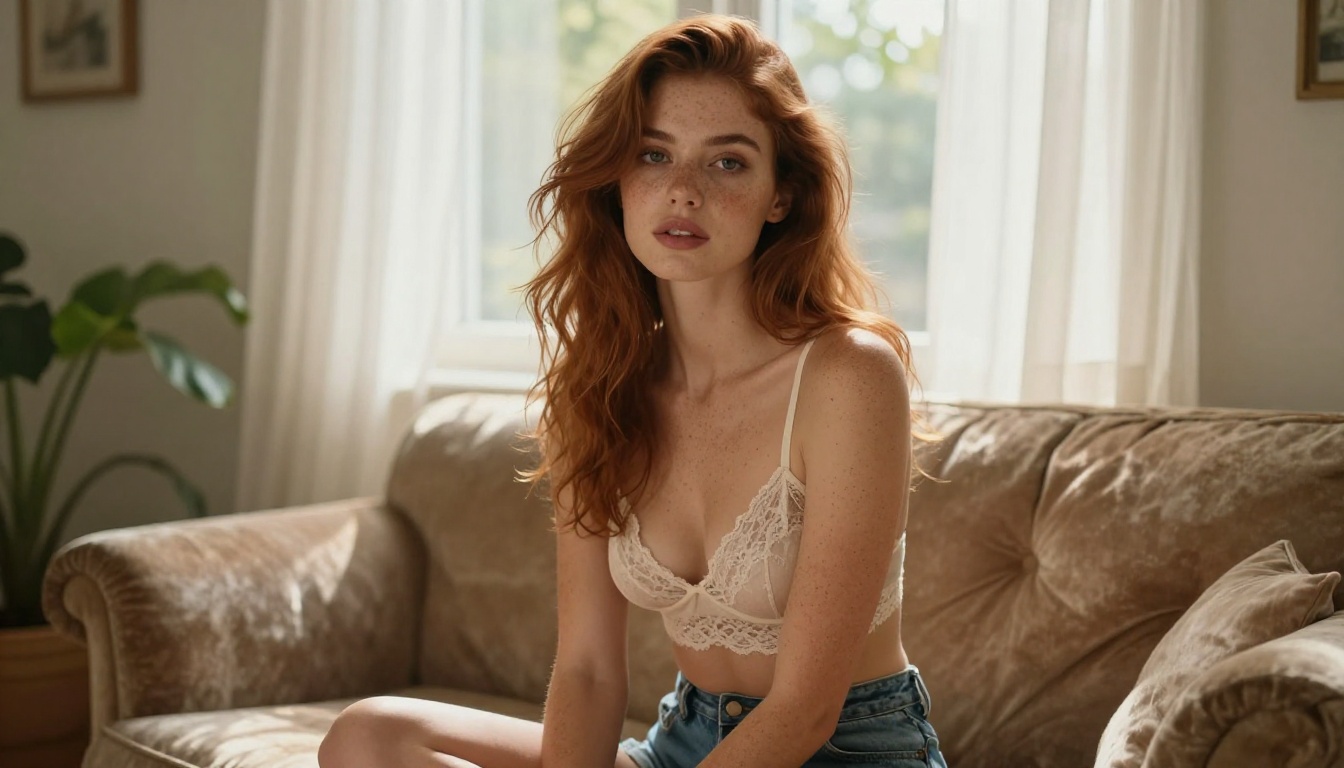
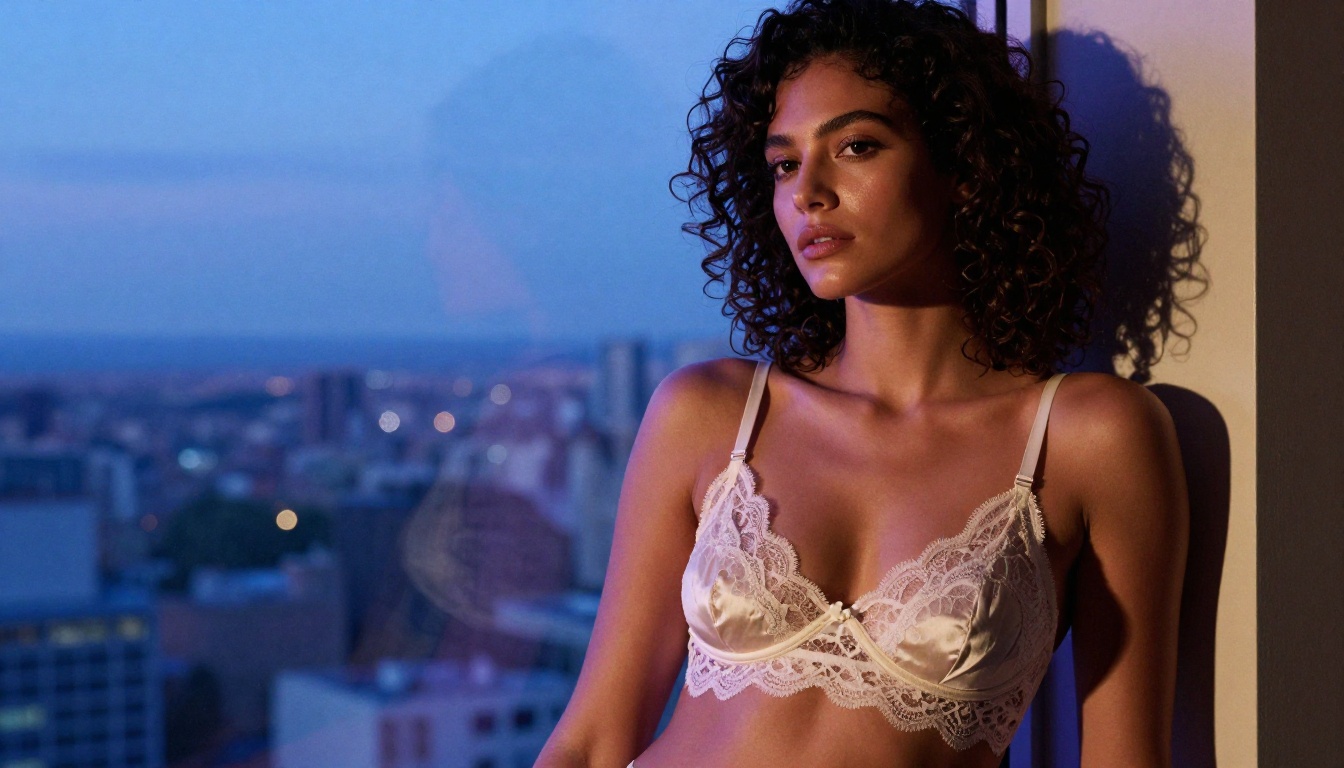
young woman with auburn hair, wearing lace bralette, sitting on vintage velvet sofa, afternoon sunlight through sheer curtains creating soft shadows, 50mm f/2.0, Kodak Portra 400 film grain, photorealistic 8K
Example prompt that fails:
sexy beautiful woman, perfect body, high quality, realistic, nsfw
The second example gives SD 3.5 nothing to work with spatially. The model needs environmental anchors to produce coherent anatomy.
Negative Prompts Still Help
Even though SD 3.5 is more robust, a focused negative prompt reduces common issues:
cartoon, 3D render, painting, illustration, anime, bad anatomy, deformed hands, blurry, low quality, JPEG artifacts, overexposed, plastic skin
Keep negative prompts concise. Overloaded negative prompts with 50+ terms can degrade output quality in SD 3.5.
Trigger Words for Photorealism
These terms reliably push SD 3.5 toward photorealistic output:
Running SD 3.5 locally requires a powerful GPU and significant technical setup. PicassoIA removes that barrier entirely, letting you access Stable Diffusion 3.5 Large and its variants directly in your browser with no installation required.
Step 2: Write your prompt
Use the four-part formula described above. Paste your subject, environment, lighting, and technical qualifiers into the prompt field.
Step 3: Set your aspect ratio
For figure photography, select 9:16. For environmental shots, use 16:9. For close-up beauty shots, use 1:1.
Step 4: Adjust the guidance scale
Set CFG to 5 for the first test. If the image looks flat, increase to 5.5. If it looks over-baked, drop to 4.5.
Step 6: Generate and iterate
Run the first generation. If you like the composition but want better detail, reseed with the same seed and add more lighting specifics. If you want a different pose or setting, change the environment description.
💡 Tip: Use SD 3.5 Large Turbo to test 5 to 10 prompt variations quickly, then switch to SD 3.5 Large for your final high-quality render.
Comparing SD 3.5 Against Other Models for NSFW Work
SD 3.5 is not the only option. Depending on what you want, other models on PicassoIA may serve specific use cases better.
For pure photorealism with correct anatomy, SD 3.5 Large and RealVisXL v3.0 Turbo are your top two choices. SD 3.5 wins on prompt flexibility. RealVisXL wins on skin texture out of the box.
When to Use SDXL Instead
SDXL has a massive LoRA ecosystem. If you are working with specific character styles, artist aesthetics, or specialized body types that have dedicated LoRA weights, SDXL gives you more customization options than SD 3.5. The tradeoff is that you need to find and apply the right LoRA rather than relying purely on prompt text.
5 Common Mistakes That Ruin Results
Most poor NSFW AI art outputs trace back to a small set of recurring errors.
1. Running High CFG Values from Older Workflows
Copying settings from SD 1.5 workflows (CFG 7 to 9) into SD 3.5 produces harsh, oversaturated images. SD 3.5 works best at CFG 4 to 6. This is the single most common mistake when switching from older models.
2. Vague Subject Descriptions
"Beautiful woman" tells the model nothing useful. Include hair color, body type, clothing state, and emotional expression. The more spatial information you provide, the more anatomically correct the output.
3. Ignoring Lighting Direction
Lighting is everything in figure photography, both real and AI-generated. A prompt without lighting direction defaults to flat, dull illumination. Always specify where the light source is and its quality (hard, soft, diffused, or directional).
4. Over-Specifying Negative Prompts
Long negative prompts (40+ terms) can suppress things you actually want. Keep negatives focused on 10 to 15 core terms: bad anatomy, blurry, artifacts, cartoon, and similar.
5. Wrong Resolution for the Subject
SD 3.5 was not trained on very high resolutions. Generating at 2048x2048 or above without tiled generation causes body distortion. Stick to the native range and upscale afterward with Super Resolution tools.
Controlling Specific Body Features
Fine-grained body control is one area where SD 3.5 has significantly improved. The model responds well to detailed positional language.
Pose Descriptions That Work
Rather than generic pose names, describe what each body part is doing:
"sitting cross-legged on a velvet sofa, hands resting on knees, leaning slightly forward"
"lying on her back with both arms above her head, one knee slightly raised"
"standing in three-quarter profile facing right, one hand resting on a doorframe"
This level of positional specificity dramatically reduces anatomy errors.
Camera Angle Vocabulary
The angle you specify determines the entire spatial composition:
ControlNet works by feeding a reference image (a pose skeleton, depth map, or edge map) into the generation process alongside your text prompt. The model then generates content that matches both the text and the structural reference.
Practical ControlNet workflow for NSFW figure art:
Adjust ControlNet weight between 0.6 and 0.8 for best results
Higher ControlNet weight (0.9+) locks the pose rigidly but may reduce skin texture quality. Lower weight (0.4 to 0.5) gives the model more creative freedom but may drift from the reference pose.
Upscaling and Post-Processing
A solid 1024x1024 output is just the starting point. For professional-quality NSFW AI art, the post-processing pipeline matters as much as the initial generation.
Super Resolution for Fine Detail
Super Resolution tools on PicassoIA upscale images 2x to 4x while recovering fine detail rather than simply interpolating pixels. A 1024px figure shot upscaled to 4096px shows visible improvement in:
Individual hair strand separation
Skin pore texture at close range
Fabric weave detail in clothing
Eye sharpness and iris clarity
Inpainting for Targeted Fixes
Inpainting lets you fix specific problem areas without regenerating the entire image. If the hands are awkward, if a particular facial feature needs adjustment, or if you want to change a clothing item, inpainting regenerates only the masked region while preserving the rest.
This workflow produces near-perfect results:
Generate the base image
Identify any anatomy issues or areas to improve
Mask those areas in an inpainting tool
Write a specific prompt for just that region
Regenerate only the masked area at high strength (0.7 to 0.85)
💡 Tip: For hand correction specifically, use a close-up inpainting pass at 512x512 resolution. SD 3.5 handles hand anatomy much better at smaller crop sizes.
Start Creating Right Now
Accessing Stable Diffusion 3.5 Large requires no GPU, no installation, and no technical setup. PicassoIA runs it in the cloud with a simple prompt interface that puts all the power of SD 3.5 behind a clean, accessible UI.
If SD 3.5 is not your preferred aesthetic, the platform also has SD 3.5 Large Turbo for faster iteration, RealVisXL v3.0 Turbo for ultra-realistic skin rendering, and Flux 1.1 Pro if you want richly saturated glamour aesthetics. The full collection of 91 text-to-image models means you can switch between styles without changing tools or workflows.
Start with SD 3.5 Large Turbo to rapidly test your prompt concepts, then switch to SD 3.5 Large for your final renders. Pair with Super Resolution for 4K output and inpainting for targeted corrections. That three-tool workflow covers everything you need to produce professional-quality sensual AI photography without any local infrastructure.
The prompt work is what separates forgettable outputs from stunning images. Apply the four-part formula, keep your CFG between 4 and 6, specify your lighting direction, and SD 3.5 will do the rest. Head to PicassoIA and drop your first prompt in right now.