One photo. That's it. That's all you need to create an uncensored AI video that moves, breathes, and looks like it was shot on a professional camera. The barrier to creating stunning image-to-video AI content has never been lower, and if you know which models to use and how to prompt them correctly, your results will be indistinguishable from real footage.
This isn't theoretical. Thousands of creators are already doing this daily, turning portrait photos, glamour shots, and artistic images into fluid, cinematic AI video clips. The process is faster than most people expect, and the quality, with the right approach, is genuinely impressive.
Here's exactly how it works.
What Image-to-Video AI Actually Does
From still photo to motion clip
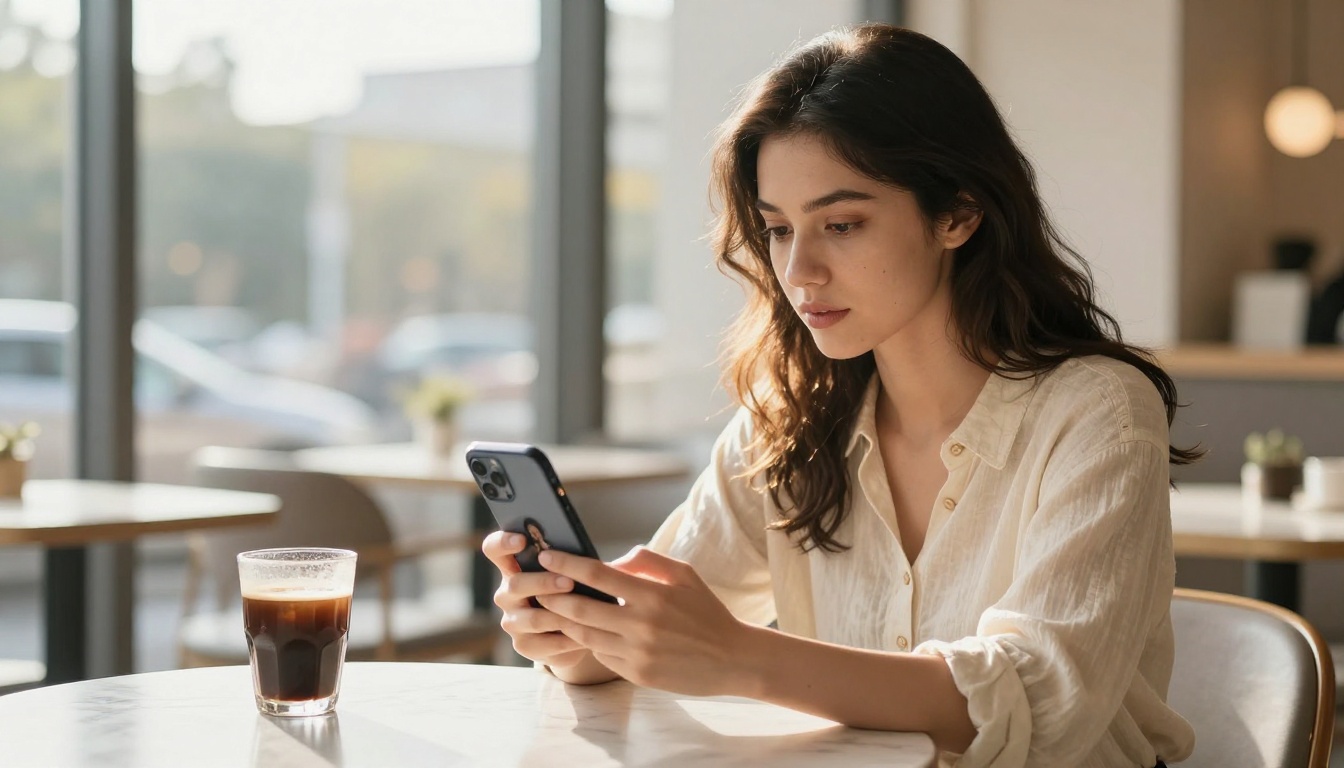
When you feed a photo into an image-to-video AI model, the system doesn't just "animate" the image in a simple sense. The model analyzes the spatial composition: where the subject is, the depth of the scene, the lighting direction, and the implied physics of clothing, hair, and environment. It then generates a sequence of frames that follow plausible real-world motion within those constraints.
The result is a short video clip, typically 2 to 8 seconds long, where the subject in your original photo begins to move naturally. Hair shifts with a breeze. Eyes blink or glance sideways. A torso breathes. Water ripples. Fabric flows. The AI fills in all the motion data that the original photo implied but didn't show.
Modern image-to-video models like Seedance 2.0 and LTX-2.3-Pro do this with remarkable accuracy, preserving the subject's facial identity and body proportions while adding fluid, physically coherent movement.
Why one photo is enough to start
Earlier generation models required multiple reference images, precise masks, and complex setup workflows. Today's top image-to-video models need just one input image. The AI extrapolates the full 3D scene geometry from that single frame.
The quality of your output depends much more on the quality of your input photo and your motion prompt than on the number of source images. A single well-lit, high-resolution portrait will produce better results than three blurry, poorly composed photos.
💡 Pro tip: A photo taken at eye level with natural lighting, where the subject fills most of the frame, gives the model the most to work with. Avoid extreme angles or photos with heavy compression artifacts.
Choosing the Right Photo
What makes a perfect source image
Not all photos work equally well for AI video generation. The model needs enough visual information to make confident decisions about depth, lighting, and motion direction. Photos with the following qualities consistently produce better output:
- Clear subject separation from the background (the model needs to know what should move and what shouldn't)
- Natural, directional lighting that implies a light source (flat studio lighting can produce flat, lifeless animation)
- Minimal motion blur in the original photo (blurry inputs confuse the motion synthesis)
- High resolution (1024px minimum on the shortest side) for clean detail preservation
- Visible body language that suggests a natural pose about to move
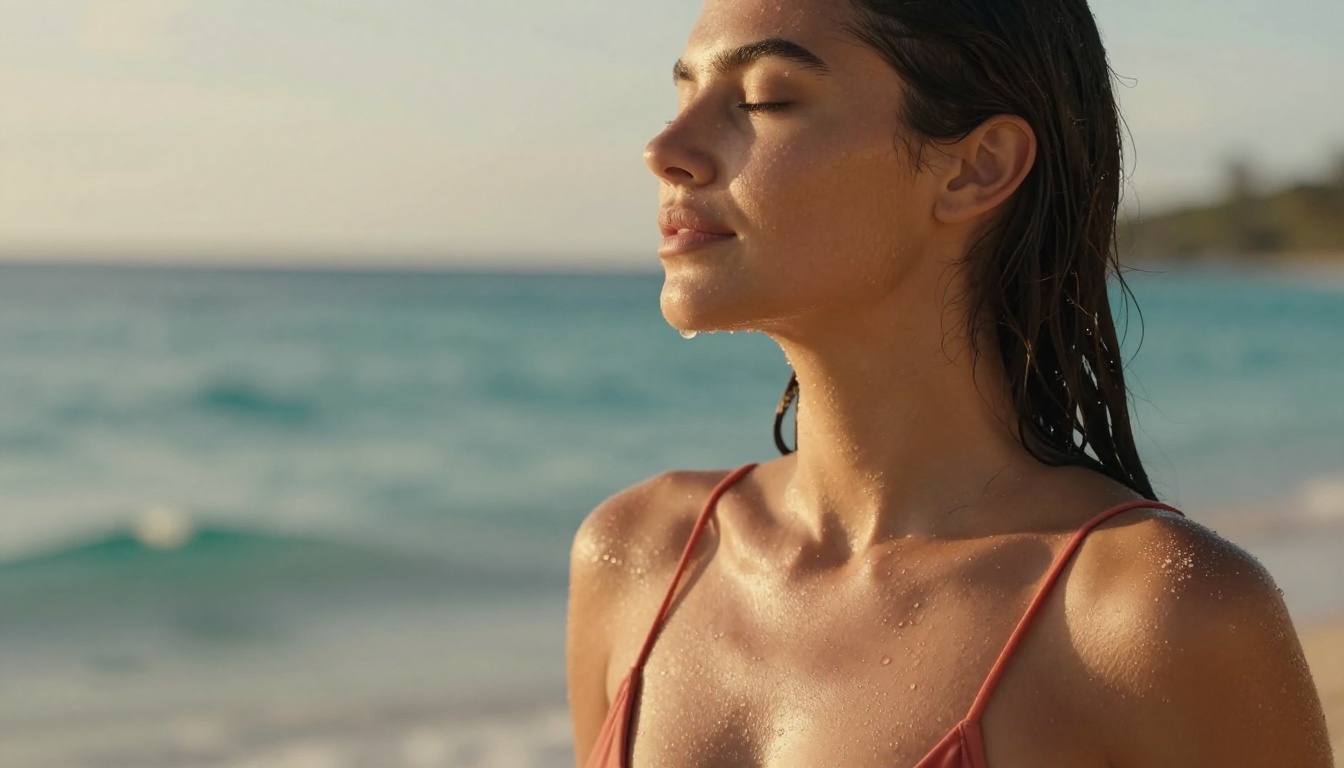
Glamour shots, professional portraits, beach photos, and lifestyle images tend to perform exceptionally well. The model responds to visual richness.
3 mistakes that ruin your results
Mistake 1: Using heavily filtered or processed images. Aggressive Instagram-style filters, extreme sharpening, or heavy skin smoothing remove the natural texture data the AI needs. The model reads pores, fine hairs, and fabric texture as depth cues. Strip those away and you get plasticky, artificial motion.
Mistake 2: Picking photos where the background is too complex. A cluttered, busy background behind your subject forces the model to make difficult decisions about what moves and what stays static. A clean, slightly blurred background (like natural bokeh from a wide aperture) dramatically improves results.
Mistake 3: Ignoring the subject's gaze direction. If your subject is looking directly at the camera with a completely neutral expression, the model has very little to work with in terms of implied motion direction. A slight head tilt, a gaze off to one side, or a body turned at an angle gives the AI a trajectory to work from.
| Photo Quality Factor | Impact on Output |
|---|
| Natural lighting direction | High: drives shadow motion and depth |
| Background simplicity | High: prevents artifacts at edges |
| Image resolution | Medium: affects fine detail preservation |
| Subject expression | Medium: guides facial motion generation |
| Camera angle | Medium: determines parallax simulation |
The Best AI Models for This
Text-to-video models that accept images
The naming can be confusing: these are technically "text-to-video" models, but the best ones accept an image as an additional conditioning input alongside your text prompt. The image locks the starting frame, and the prompt describes the motion.
Here are the top performers available on PicassoIA:
Seedance 2.0 is currently one of the strongest image-to-video models available. It handles fine fabric motion and hair physics extremely well. The native audio capability means it can sync ambient sound to the generated motion. For glamour and portrait content, this is the first model to try.
Seedance 2.0 Fast is the speed-optimized version. Output quality is slightly reduced but generation time drops significantly. Ideal for testing multiple prompt variations before committing to a full-quality run.
Gen-4.5 by Runway excels at subject consistency. It's particularly strong at maintaining facial identity across video frames, which is critical when working with portrait or close-up photos where face detail matters.
LTX-2.3-Pro offers excellent control over motion speed and style. Its prompt adherence is notably strong, meaning what you describe tends to actually happen in the output.
Grok Imagine Video is particularly strong for dynamic motion sequences. If you want more dramatic movement rather than subtle naturalistic animation, this model handles it well.
Comparing output quality
Different models have different strengths. Here's how to think about it:
The practical workflow: start with Seedance 2.0 Fast to test your prompt, then switch to Seedance 2.0 or Gen-4.5 for your final output.
Writing Motion Prompts That Work
The anatomy of a good motion prompt
Your motion prompt is a description of what happens in the video. The model doesn't read intentions, it reads instructions. The difference between a weak and strong prompt often comes down to three things: specificity, physical grounding, and mood.
A weak prompt: "woman moving"
A strong prompt: "woman slowly turns her head from left to right, a warm breeze gently lifts her hair, fabric shifts softly with the movement, eyes close briefly then reopen, soft golden light shifts on her skin"
The strong version tells the model exactly what body parts move, in what direction, at what speed, and what environmental factors to simulate. Every additional detail is an instruction.
Key elements of a strong motion prompt:
- Direction: Specify which way things move (left to right, upward, toward camera)
- Speed: Use specific qualifiers ("slowly", "gently", "rapidly")
- Body parts: Call out exactly what moves (hair, eyes, shoulders, fabric)
- Environment: Include ambient motion (breeze, light shift, water ripple)
- Duration feel: Words like "gradually" or "subtle" guide the tempo
Prompt examples that get results
Here are prompt structures that consistently produce high-quality results for portrait and glamour content:
For subtle, natural movement:
"Subject breathes naturally, chest rising and falling, eyes blink slowly twice, a gentle breeze moves hair slightly to the right, fabric shifts softly"
For more dynamic motion:
"Subject slowly raises one hand to brush hair back from shoulder, turns head slightly toward camera, lips part in a subtle smile, warm light catches the movement"
For atmosphere and environment:
"Warm sunlight shifts slightly as clouds pass, dappled light plays across skin and fabric, background foliage sways gently in a soft breeze, subject's gaze moves slowly from distance to camera"
💡 Tip: Avoid prompts that describe impossible physics or require the subject to change fundamental appearance. The model is animating your photo, not creating a new character.
How to Create Your Video on PicassoIA
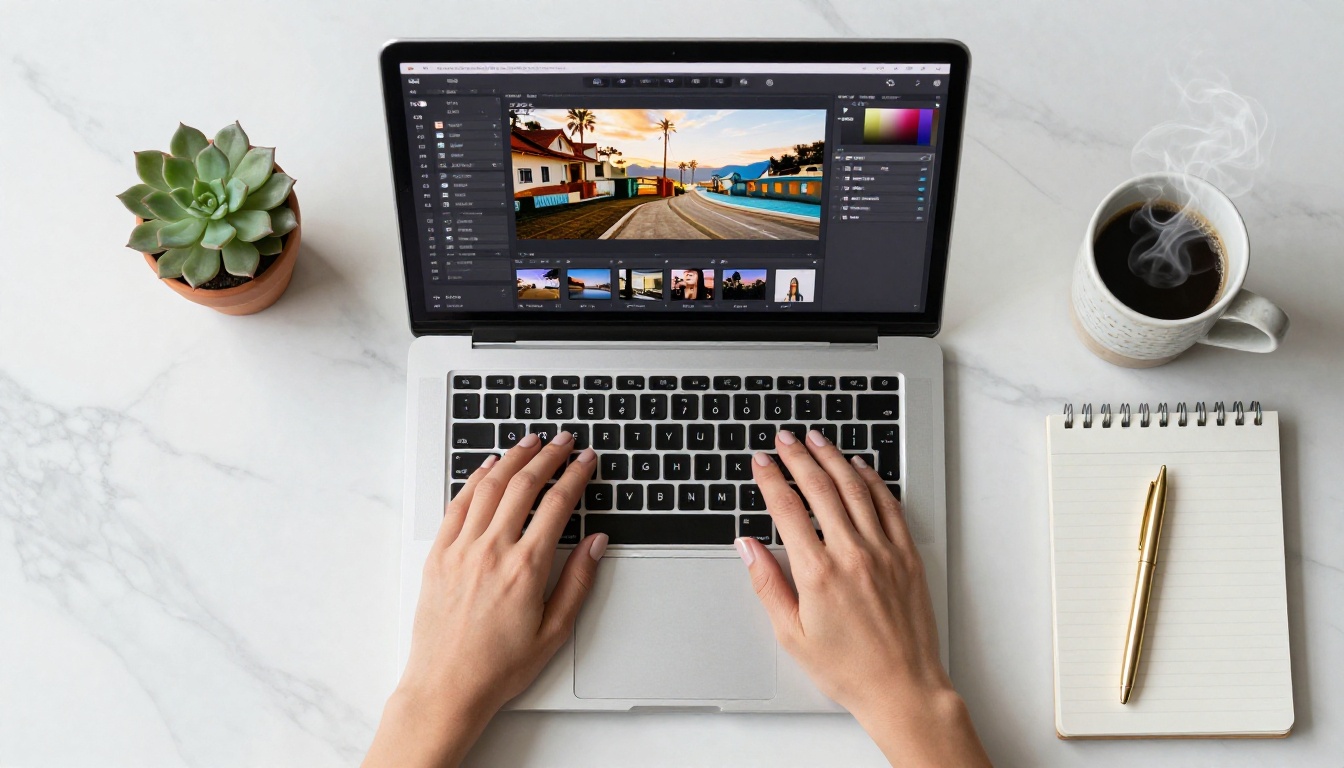
Step 1: Upload your image
Open PicassoIA and navigate to any of the image-to-video models listed above. Each model page has an image upload area, typically labeled "Input Image" or "Reference Image." Click to upload or drag your photo directly.
The platform accepts JPG, PNG, and WEBP formats. For best results, upload at the highest resolution available. The model will resize internally, but starting with more information is always better.
Step 2: Set your prompt and parameters
After uploading your image, write your motion prompt in the text field. Use the anatomy described above: direction, speed, body parts, environment.
Key parameters to adjust:
- Duration: Start with 4 to 5 seconds. Longer clips are harder to keep coherent.
- Motion scale: If the model offers this, keep it at medium. High motion scale can produce warping artifacts.
- Seed: If you get a result you like but want to refine it, note the seed number and use it again with a modified prompt.
- CFG Scale (if available): Higher values make the output follow the prompt more strictly. Around 7 to 9 is a good starting range.
Step 3: Generate and review
Click generate and wait. Generation time varies by model and server load, typically 30 seconds to 3 minutes.
When your video arrives, check for these quality indicators:
- Edge consistency: Do the subject's edges stay clean throughout the clip, or do they blur and shimmer?
- Face stability: Does the subject's face maintain identity and expression correctly?
- Physics plausibility: Does fabric, hair, and environmental motion follow natural rules?
- Temporal coherence: Does the video play smoothly from frame to frame, or are there sudden jumps?
If the output has issues, adjust the prompt and regenerate. Two or three iterations is usually enough to find a strong result.
Getting Smooth, Realistic Motion
Settings that matter most
Beyond the prompt, specific parameter choices dramatically affect output quality:
Negative prompt: Most models accept a negative prompt field. Use it. Fill it with: "distortion, morphing, warping, flickering, artifacts, blurry face, extra limbs, unnatural movement" This gives the model explicit instruction about what to avoid.
Aspect ratio: Match the aspect ratio of your input image exactly. Mismatches force the model to crop or letterbox, introducing black bars or unwanted cropping.
Video length: Shorter is almost always better for quality. A perfect 4-second clip beats a glitchy 8-second one.
Guidance strength (image conditioning): This controls how closely the output stays to your original photo. Keep it between 0.8 and 1.0. Lower values allow the model to drift away from your original image, which rarely ends well.
Fixing common output problems
Problem: Subject's face morphs or distorts
Fix: Increase the image conditioning strength. Add "consistent face, stable identity" to your positive prompt. Add "morphing, distorted face" to your negative prompt.
Problem: Background shifts or shimmers when it shouldn't
Fix: Add "static background, stable environment" to your positive prompt. Use a simpler background photo if the issue persists.
Problem: Motion is too fast or jerky
Fix: Add "slow motion, gentle, gradual, smooth movement" to your prompt. Reduce the motion scale parameter if available.
Problem: The AI added motion you didn't want
Fix: Use a seed from a previous generation you liked and reduce prompt ambiguity. Be more specific about what does and doesn't move.
Problem: Video quality looks lower than the original photo
Fix: This is normal. AI video generation compresses detail for temporal coherence. Use a video upscaler after generation to restore sharpness.
💡 Tip: Save every generation, even the failures. Knowing why a particular output failed helps you write better prompts faster.
After Generation: What to Do with Your Video
Downloading and saving your clip
PicassoIA generates your video and makes it available for direct download. Save your video immediately after generation. Platforms typically store generated content for a limited period.
Save your videos with descriptive file names that include the model name and key prompt elements. This sounds tedious but becomes valuable when you have dozens of clips and want to reproduce a particular style.
Organize your source photos alongside their output videos. Being able to return to the exact input photo and regenerate with a refined prompt is more valuable than any single output.
Upscaling for better quality
Raw AI video output, even from the best models, benefits from post-processing upscaling. The AI video enhancement models available on PicassoIA can double or quadruple the effective resolution of your clip, restore lost sharpness, reduce compression artifacts, and smooth temporal inconsistencies.
The workflow: generate your clip at standard resolution, then run it through an AI video enhancement model for a final quality pass. The difference in output quality is significant. What looks like a good clip at 720p can become a stunning clip at 4K after proper upscaling.
This two-step approach, generate then enhance, is how professional creators get results that don't look like AI output.
What These AI Models Actually Do Well
Where results shine
The strongest use cases for single-photo AI video generation are:
- Portrait and beauty content: Subtle natural motion in close-up portraits is incredibly convincing. Hair movement, breathing, blinking, and subtle expressions are the sweet spot of current models.
- Fashion and lifestyle: Fabric motion in fashion context is one of the things these models do exceptionally well. Silk, chiffon, and linen in outdoor settings with natural breeze simulation produce near-photoreal results.
- Outdoor nature settings: Models perform well when the background contains naturally animated elements like water, foliage, and atmospheric light.
- Golden hour and sunset light: The warm, directional quality of magic hour light responds especially well to AI motion synthesis because the strong lighting direction gives the model clear cues.
Realistic limits to know
What doesn't work well yet:
- Complex multi-person scenes with interaction
- Fast, dramatic full-body athletic movement
- Very long clips (beyond 8 seconds, quality degrades significantly in most models)
- Extreme close-ups of hands with detailed finger movement
- Content requiring precise lip sync to dialogue
The technology is advancing rapidly. What was impossible 12 months ago is now routine. But knowing the current limits helps you plan shots that will succeed rather than chasing results the technology isn't ready for.
The single-photo format is powerful precisely because it puts you in control of the input. You choose the composition, the lighting, the subject, the mood. The AI handles the animation layer. That division of creative control plays to both human and AI strengths.

Start Creating Today
The gap between knowing this is possible and actually producing results comes down to one thing: trying it. Pick any portrait or lifestyle photo you have, write a specific motion prompt using the structures above, and run it through Seedance 2.0 or Gen-4.5 on PicassoIA.
The first result probably won't be perfect. The second will be better. By the third iteration, you'll have a strong understanding of how your specific type of content responds to different prompts and settings.
PicassoIA gives you access to the full range of current image-to-video AI models, from the fast iteration tools like Seedance 2.0 Fast to the quality-focused LTX-2.3-Pro and Grok Imagine Video, all in one place without switching platforms or managing API keys.
One photo. That's where it starts.


