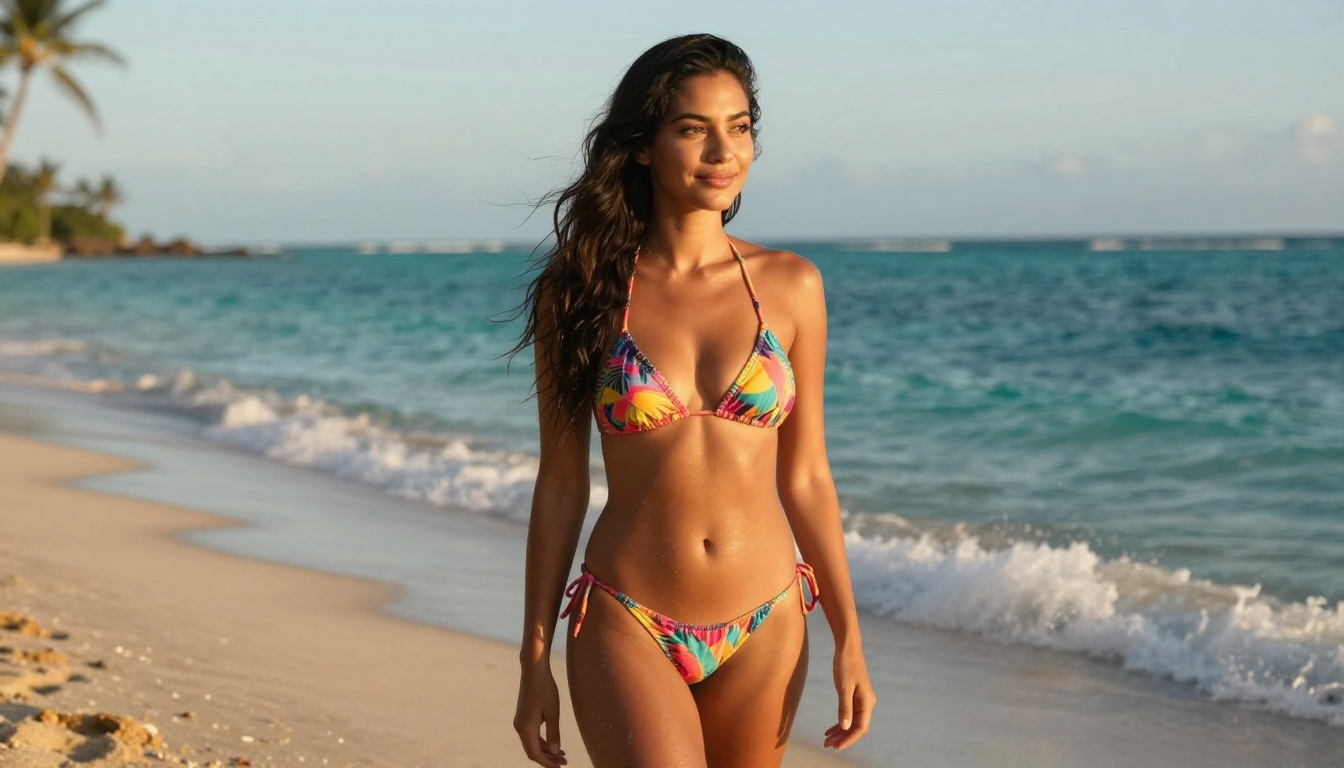
A thorough walkthrough for setting up Juggernaut XL on your local machine to generate NSFW AI images. Includes hardware specs, ComfyUI and Automatic1111 installation, model download from Civitai, safety filter removal, CFG scale settings, negative prompts, and troubleshooting for OOM errors and black image outputs.
The Juggernaut XL checkpoint has become the default choice for people who want photorealistic, uncensored AI imagery from a local setup. Running it on your own machine means zero API limits, no content filters imposed by a cloud service, and full control over every parameter. This article walks through everything: hardware requirements, software installation, model download, configuration, and prompt writing, so you can get Juggernaut XL generating high-quality NSFW images on your own GPU.
What Is Juggernaut XL
Juggernaut XL is a fine-tuned SDXL checkpoint developed by RunDiffusion. It builds on Stability AI's base SDXL architecture and retrains it on a carefully selected dataset emphasizing photorealistic human skin texture, anatomy, and natural lighting. The result is a model that significantly outperforms vanilla SDXL for portrait and figure photography.
Why It Became the NSFW Standard
Three specific qualities pushed Juggernaut XL to the top of the NSFW AI art community:
Skin realism: It renders pores, subsurface scattering, and realistic lighting on skin in a way most checkpoints struggle to replicate
Anatomy consistency: Hands, fingers, and body proportions hold up far better than with base checkpoints
No built-in restrictions: Unlike cloud-based generators, the local version places zero hard filters on what you can generate
Creators working with adult content adopted it quickly because the outputs look less like "AI art" and more like real photographs. That gap in realism matters when the goal is believable, attractive imagery.
The tradeoff is that Juggernaut XL requires the same VRAM as SDXL but delivers significantly better results for portrait and figure photography out of the box.
Hardware You Actually Need
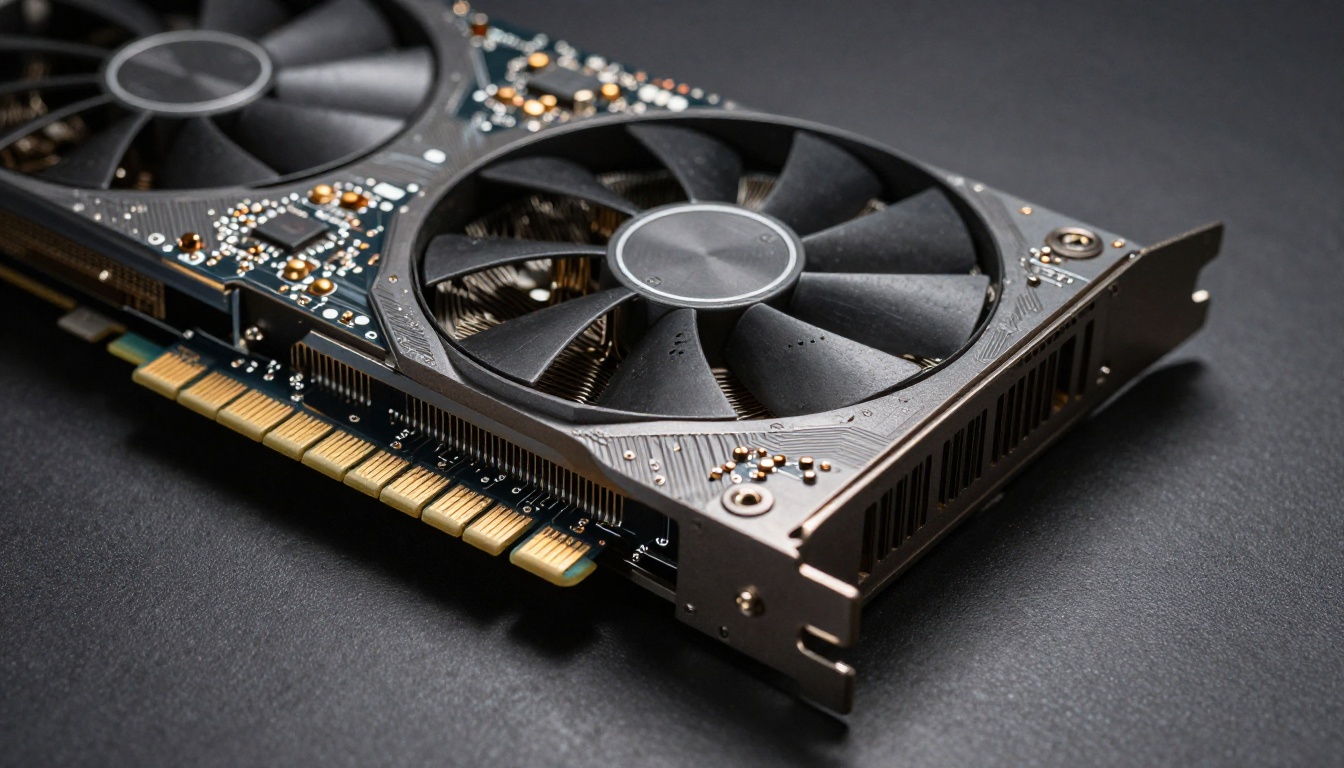
Before downloading anything, check whether your system can handle a full SDXL-class checkpoint. Running these models locally is resource-intensive, and there are real differences between "it will run" and "it will run well."
Minimum vs. Recommended Specs
Component
Minimum
Recommended
GPU VRAM
8 GB
12 GB or more
System RAM
16 GB
32 GB
Storage
20 GB free
50 GB SSD
GPU Model
RTX 3060
RTX 3080 / RTX 4070+
OS
Windows 10 / Ubuntu 20.04
Windows 11 / Ubuntu 22.04
You can run Juggernaut XL at reduced quality on 8 GB of VRAM using --medvram or --lowvram flags, but expect slower generation times and occasional crashes on complex prompts.
VRAM Requirements Breakdown
VRAM is the single biggest bottleneck. Here is how your card determines your options:
6 GB VRAM: Possible only with aggressive memory optimizations. Expect 768x512 max resolution and slow inference.
8 GB VRAM: 512x512 or 768x768 without issues. 1024x1024 is possible but risky.
12 GB VRAM: The sweet spot. Full 1024x1024 generation, stable and fast.
16 GB+ VRAM: Multiple images in a batch, Hi-Res Fix without breaking a sweat.
💡 Tip: If you are on an 8 GB card and hitting OOM errors, enable --xformers in your launch flags. It significantly reduces VRAM usage with minimal quality loss.
CPU and Storage Considerations
CPU matters less than GPU for image generation, but it affects load times, file I/O, and model switching. Any modern 6-core CPU (Ryzen 5 or Intel i5 10th gen or newer) handles the workload fine. Storage speed matters more: loading a 6.5 GB model from a spinning hard drive takes noticeably longer than from an NVMe SSD. Put your models folder on your fastest drive.
Software Setup: Two Paths
There are two main interfaces for running Juggernaut XL locally. Both work well. The difference is in how much control you want and how comfortable you are with visual node-based workflows versus a traditional form-based UI.
Automatic1111 WebUI
AUTOMATIC1111's Stable Diffusion Web UI is the most widely used interface for local image generation. Installation on Windows:
Install Python 3.10.x (not 3.11 or 3.12, as some extensions have compatibility issues)
Install Git
Open a terminal and run:
git clone https://github.com/AUTOMATIC1111/stable-diffusion-webui.git
cd stable-diffusion-webui
Place your Juggernaut XL .safetensors file inside the models/Stable-diffusion/ folder
Run webui-user.bat on Windows or webui.sh on Linux/Mac
The browser interface opens at http://127.0.0.1:7860
For NSFW output, open webui-user.bat and add this to the set COMMANDLINE_ARGS= line:
--no-half-vae --xformers --api
No additional steps are needed to "enable" NSFW. The local version runs without content filters by default.
ComfyUI Installation
ComfyUI uses a node-based visual workflow that gives more granular control over the generation pipeline. It is faster for experienced users and has better support for chaining workflows with tools like ControlNet.
Installation:
Download the ComfyUI standalone package from the official GitHub repository
Extract and place your model in ComfyUI/models/checkpoints/
Run run_nvidia_gpu.bat on Windows or python main.py on Linux
Interface opens at http://127.0.0.1:8188
💡 Tip: ComfyUI's default workflow already includes a KSampler node. Set the sampler to DPM++ 2M Karras and steps to 30 for strong photorealistic results with Juggernaut XL.
Downloading the Model
Where to Get Juggernaut XL
The official source is Civitai (civitai.com). Search for "Juggernaut XL" and look for the version by RunDiffusion. As of the latest releases, Juggernaut XI (version 11) is the most refined iteration, with improved anatomy and better response to NSFW prompts.
Download the .safetensors version, not .ckpt. The safetensors format loads faster and is safer since it cannot execute arbitrary code on your machine.
File sizes by version:
Version
Size
Notes
Juggernaut XL v9
~6.5 GB
Stable, widely used
Juggernaut XL v10
~6.6 GB
Better lighting handling
Juggernaut XL v11
~6.6 GB
Best anatomy, recommended
VAE and LoRA Add-ons
The base Juggernaut XL model performs well on its own, but two additions improve output quality for NSFW imagery:
VAE (Variational Autoencoder): Download sdxl_vae.safetensors from Stability AI's HuggingFace repository and place it in models/VAE/. Set it in Automatic1111 under Settings > VAE. It fixes washed-out colors and soft skin textures.
LoRA add-ons: LoRA files layer fine-tuned styles on top of the base checkpoint. Popular NSFW-oriented LoRAs include:
Skin detail enhancers that sharpen pores and subsurface texture
Lighting style packs for editorial, glamour, and studio looks
Specific aesthetic packs for different photography styles
Place LoRAs in models/Lora/ and activate them in your prompt with <lora:filename:0.8> syntax.
Configuration for NSFW Output
Once the model is installed and the UI is running, a few settings make a significant difference in output quality for NSFW content.
Disabling Safety Filters
In Automatic1111, the NSFW filter is disabled by default in local installations. No extra steps needed. If you see black images, check these:
Make sure you are NOT using --safe in your launch flags
Verify your model file is actually Juggernaut XL and not a censored SDXL variant
Confirm the VAE is properly set if colors look washed out or desaturated
In ComfyUI, there is no safety filter in the local build at all.
CFG Scale and Sampling Steps
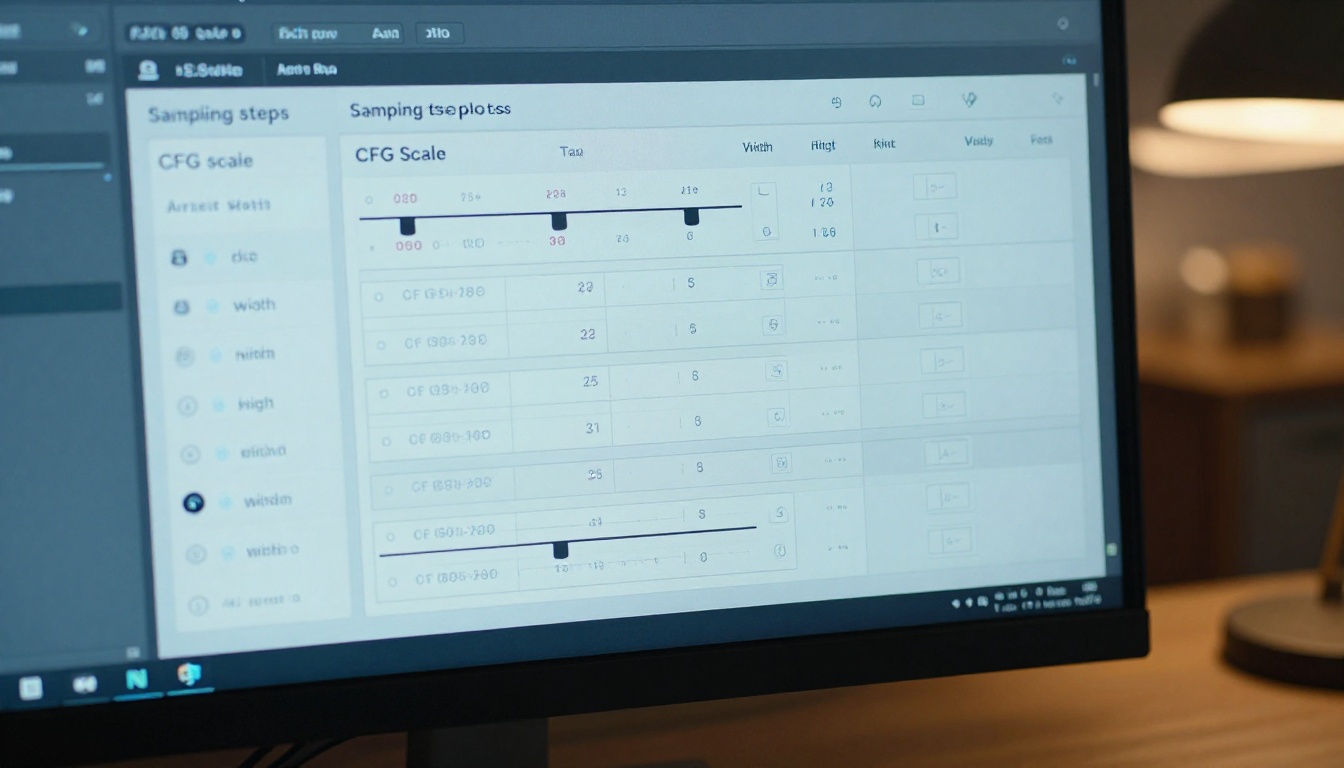
CFG (Classifier-Free Guidance) scale controls how strictly the model follows your prompt. For NSFW outputs:
CFG Scale
Effect
4 to 5
Looser, more creative, softer results
6 to 7
Balanced realism and prompt adherence
7 to 9
Strong adherence, can over-saturate
10 or above
Often introduces artifacts and body deformities
Recommended: CFG 7 with DPM++ 2M Karras sampler at 30 to 35 steps. This combination consistently produces the sharpest, most realistic outputs with Juggernaut XL.
Negative Prompts That Work
A strong negative prompt is non-negotiable. This is a solid base to start from:
(worst quality, low quality:1.4), (bad anatomy:1.3), deformed, ugly, blurry,
watermark, text, signature, poorly drawn hands, extra fingers, mutated,
disfigured, bad proportions, cropped, out of frame, jpeg artifacts
💡 Tip: Use parentheses with weight multipliers like (bad anatomy:1.3) to increase the penalty on specific issues. This is far more effective than simply listing terms without weights.
Writing NSFW Prompts for Juggernaut XL
Prompt structure matters more than raw content. A well-structured prompt produces dramatically better results than a disorganized one, even with identical keywords.
Prompt Structure That Works
Follow this order for maximum effectiveness:
Subject and action: What the person looks like and what they are doing
Clothing or state: Specific descriptions of garments or states of dress
Setting and environment: Where the scene takes place
Lighting: Direction, quality, and color temperature of light
Camera details: Lens type, angle, depth of field
Quality tags: Photorealistic, RAW photo, 8K, film grain
Example prompt:
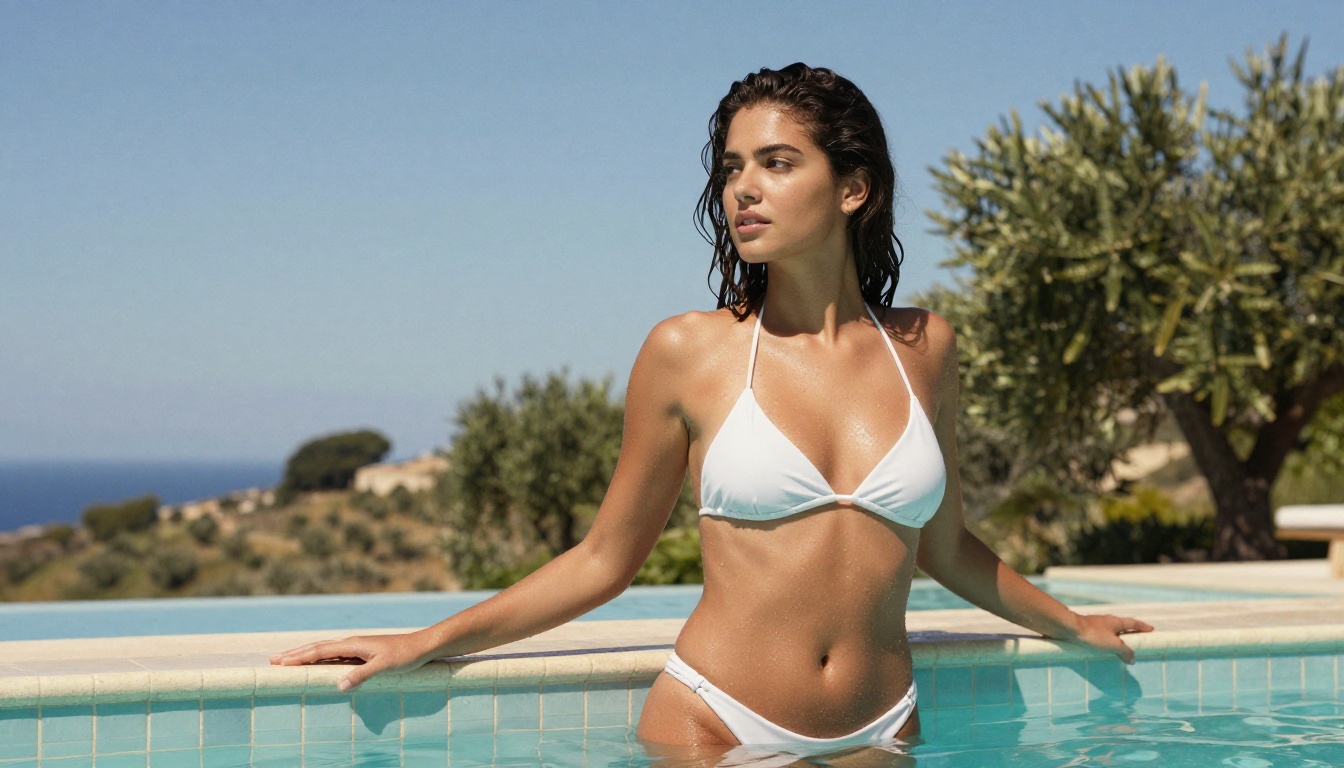
beautiful woman, 25 years old, long dark hair, wearing white bikini,
standing by a rooftop pool, golden hour sunlight from left, warm skin tones,
85mm lens, f/2.0 depth of field, RAW photo, photorealistic, 8K UHD,
Kodak Portra 400 film grain, highly detailed skin
Style Tags and Quality Boosters
These tags consistently improve output quality with Juggernaut XL:
RAW photo — activates the model's photorealistic training data
photorealistic — reinforces realism throughout the output
film grain — adds organic analog texture to skin and surfaces
shallow depth of field — isolates subject from background
volumetric lighting — creates genuine depth in the scene lighting
Kodak Portra 400 — adds warm analog tone characteristic of portrait film
8K UHD, highly detailed — pushes detail rendering in skin and fabric
Avoid vague terms like "beautiful" or "hot" as standalone quality tags. They do very little on their own. Specific, descriptive language about lighting and camera settings always produces better results.
Troubleshooting Common Errors
Out of Memory (OOM) Crashes
OOM crashes happen when image size or batch count exceeds your available VRAM. Fixes in order of impact:
Lower image resolution from 1024x1024 to 768x768
Reduce batch size to 1
Add --medvram to your launch flags
Enable xformers: add --xformers to your launch flags
For persistent issues on complex prompts, upgrade to a higher VRAM card
Black or Corrupted Images
Black images usually indicate one of three problems:
The VAE is missing or set to the wrong file. Install the correct SDXL VAE.
The model file is corrupted. Re-download the .safetensors from Civitai.
A safety flag is active. Check your launch flags and remove --safe if present.
Corrupted or splotchy images often point to a CFG value that is too high. Drop CFG to 7 and retry.
Slow Generation Speed
On a mid-range GPU, 30 steps at 1024x1024 should take roughly 20 to 40 seconds. If generation is significantly slower:
Verify xformers is installed correctly by checking the terminal output at startup
Check GPU usage in Task Manager or via nvidia-smi. If GPU usage reads near 0%, PyTorch CUDA is not configured correctly and the process is running on CPU.
For AMD GPUs, ROCm support requires a separate installation process and has limited Windows compatibility compared to NVIDIA
SDXL-Class Models You Can Try Right Now
If setting up a local environment sounds like more work than you want right now, or if you want to test different SDXL-class models before committing to a full local install, several platforms let you run them directly in the browser without any setup.
PicassoIA hosts a wide range of text-to-image models including SDXL from Stability AI, RealVisXL v3.0 Turbo which is specifically optimized for photorealistic portraits, and DreamShaper XL Turbo for faster outputs at comparable quality. For generation beyond SDXL's capabilities, Flux Dev and Flux 1.1 Pro push realism even further with significantly improved anatomy and lighting handling.
These run in your browser with no installation, no VRAM requirements, and no complex configuration. It is a fast way to iterate on prompts and develop your style before investing time in a full local setup.
What to Build Once You Are Running
Getting Juggernaut XL running is the first step. Once the model is generating images reliably, here is where to go next:
Batch generation: Queue 20 to 50 images with varied seeds to find the best outputs before committing to upscaling
Hi-Res Fix: In Automatic1111, enable Hi-Res Fix at 1.5x upscale for sharper 1536x1536 images generated from a 1024x1024 base
ControlNet: Add the SDXL ControlNet LoRA variant to control pose and body composition with precision using reference images
Img2Img: Feed an existing reference photo and let the model restyle it while preserving the original composition
The local setup gives you full control over all of these workflows. No rate limits, no content restrictions, just the model and your prompts.
💡 Want to skip the setup entirely? Try SDXL, RealVisXL v3.0 Turbo, or Flux 1.1 Pro Ultra on PicassoIA right now with no setup required. Type your prompt, hit generate, and see results in seconds.