Running your own NSFW AI image generator locally is one of the most powerful creative setups you can build right now. No subscriptions. No moderation. No one looking over your shoulder. Just you, your GPU, and complete control over every pixel that comes out of the model.
Why Go Local?
Privacy Others Ignore
Every image you generate on a cloud platform gets logged. Usage data, prompt history, IP addresses, account records. Even platforms that claim otherwise store metadata. When you run a local NSFW AI image generator on your own PC, nothing leaves your machine. The prompts stay in RAM, the outputs go to your local disk, and no server ever touches your creative process.
This matters more than most people admit. Whether you are a digital artist, a creative professional, or simply someone who values autonomy, owning your generation stack removes a third party from the equation entirely.
No Content Filters
Online platforms run moderation layers on top of their models. Some block specific body parts. Others reject prompts with certain words. Many auto-flag accounts for generating mature content even when the platform technically permits it.
Local generation skips all of this. Open-source models like Stable Diffusion 3.5 Large and Flux Dev run without any content moderation layer by default. You load the model, write the prompt, and the model generates.
What Hardware You Actually Need
GPU: The Only Number That Matters
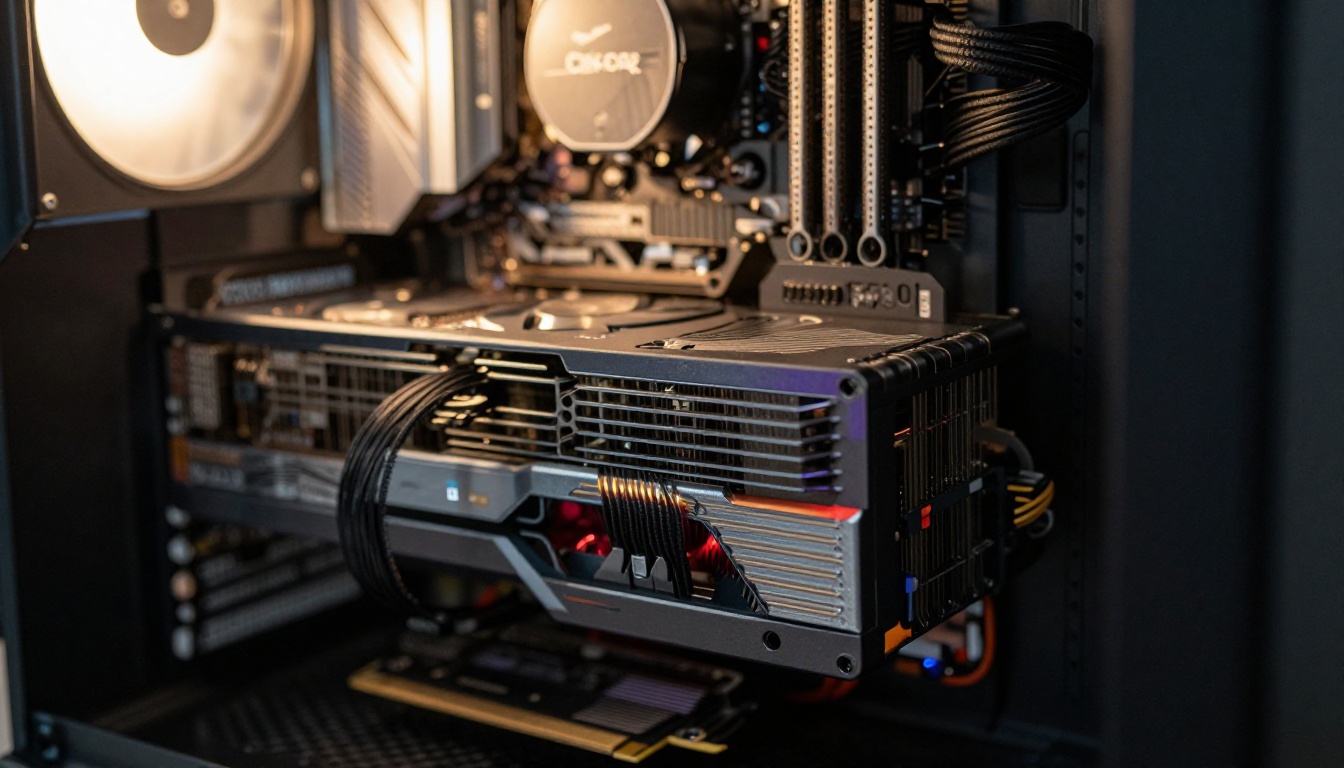
Running any AI image generation model locally requires a dedicated GPU with enough VRAM to hold the model weights in memory. This is non-negotiable. If your GPU does not have enough VRAM, the model either will not load at all or will fall back to CPU generation, which takes hours per image.
Here is a practical breakdown:
| GPU VRAM | What You Can Run |
|---|
| 4 GB | SD 1.5, small LoRA models (slow) |
| 6 GB | SDXL at reduced quality, Flux Schnell with quantization |
| 8 GB | SDXL full quality, most LoRA models |
| 12 GB | Flux Dev, Stable Diffusion 3.5 Medium |
| 16 GB+ | Flux 1.1 Pro quality, SD 3.5 Large, batched generation |
| 24 GB+ | Flux 2 Max, highest fidelity models, fast batches |
💡 Minimum recommendation: An NVIDIA RTX 3060 with 12 GB VRAM gives you access to the majority of open-source NSFW models with reasonable generation speeds of 15 to 30 seconds per image at 512x512.
RAM and Storage
Beyond the GPU, your system RAM needs to be at least 16 GB to avoid bottlenecks when loading and swapping model weights. 32 GB is the comfortable sweet spot for running large models alongside other applications.
Storage is where people underestimate requirements. Each model checkpoint weighs between 2 GB (quantized) and 23 GB (full precision). If you plan to run multiple models or fine-tunes, allocate at least 500 GB of fast SSD storage exclusively for AI model files. An NVMe SSD dramatically reduces model loading times compared to a standard SATA drive.
3 Models Worth Running Locally
Stable Diffusion SDXL
SDXL remains one of the most well-supported open-source models for mature content generation. The base checkpoint is relatively modest at around 6.5 GB, and it runs cleanly on 8 GB VRAM GPUs without quantization. The community has built thousands of NSFW LoRA fine-tunes specifically for SDXL, covering everything from photorealistic portraiture to artistic styles.
What makes SDXL particularly practical is its prompt adherence. It interprets natural language descriptions reliably, which matters when you are writing detailed character prompts. Pair it with a refiner checkpoint for higher quality final outputs.
Flux Dev and Flux Schnell
Flux Dev and Flux Schnell from Black Forest Labs represent a generational leap in open-source image quality. Flux models produce significantly more photorealistic skin textures, lighting, and anatomical accuracy than SDXL at comparable prompt complexity.
The tradeoff is size and VRAM. Flux Dev in full BF16 precision weighs 23 GB. However, community-quantized versions (NF4, Q8) bring this down to 6 to 11 GB with minimal quality loss, making it accessible on mid-range GPUs.
Flux Schnell runs in 4 inference steps versus Flux Dev's 20 to 50, making it roughly 5 to 10 times faster. The quality drop is noticeable but acceptable for rapid iteration and prompt testing before committing to a full-quality generation run.
RealVisXL for Photorealism
RealVisXL v3.0 Turbo is a fine-tuned version of SDXL specifically trained on photorealistic imagery. If your goal is generating images that look like real photographs rather than AI art, RealVisXL is the go-to choice. It handles skin tones, hair details, and environmental lighting with substantially higher accuracy than the base SDXL checkpoint.
It pairs extremely well with ControlNet for pose guidance and with photorealistic LoRA packs for specific aesthetics.
How to Set Up Your Local Environment
ComfyUI vs AUTOMATIC1111
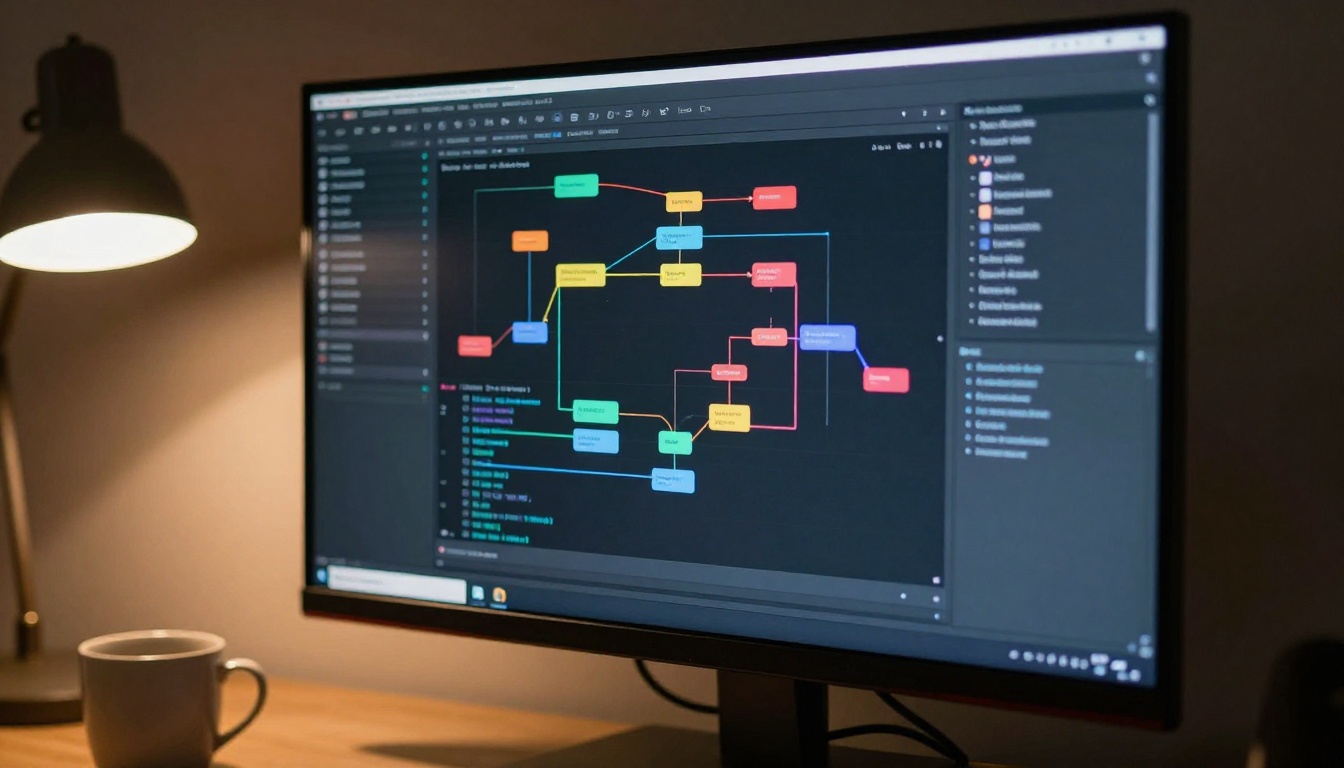
Two frontends dominate local AI image generation: ComfyUI and AUTOMATIC1111 (also called Stable Diffusion WebUI). Both are free and open-source. The choice between them depends on how you prefer to work.
| Feature | ComfyUI | AUTOMATIC1111 |
|---|
| Interface | Node-based graph workflow | Tab-based web UI |
| Learning curve | Steeper | Easier for beginners |
| Performance | Faster, more memory efficient | Slightly slower |
| Flux support | Excellent (native) | Via extensions |
| NSFW models | Full support | Full support |
| LoRA loading | Drag-and-drop nodes | Checkbox in UI |
💡 Recommendation: If you are setting up for the first time, start with AUTOMATIC1111 to understand the basics, then move to ComfyUI once you want more control over the generation pipeline.
Download and Place Model Weights
After installing your frontend of choice, the workflow for adding a model is always the same:
- Download the model checkpoint file (.safetensors or .ckpt) from a community repository such as CivitAI or HuggingFace
- Place the file in the correct folder inside your frontend's directory:
- AUTOMATIC1111:
models/Stable-diffusion/
- ComfyUI:
models/checkpoints/
- Restart the UI or refresh the model list
- Select the model from the dropdown and start generating
For NSFW-specific models, most are fine-tuned checkpoints with no additional setup required. You just load them as you would any other model.
NSFW LoRA Models Explained
What LoRAs Actually Do
A LoRA (Low-Rank Adaptation) is a small fine-tune file, typically between 50 MB and 500 MB, that modifies a base model's behavior in targeted ways. Instead of replacing the entire checkpoint, a LoRA adds a learned bias that steers the model toward specific visual styles, characters, or content types.
For NSFW generation, LoRAs serve a few specific purposes:
- Style LoRAs: Push the model toward a specific photorealistic or artistic style
- Anatomy LoRAs: Improve the model's handling of body proportions and fine details
- Character LoRAs: Lock in the appearance of a specific aesthetic archetype
- Content LoRAs: Enable mature output on base models that produce conservative results by default
The beauty of LoRAs is stacking. You can combine two or three LoRAs simultaneously, adjusting the weight of each between 0.0 and 1.0, to blend their effects. A style LoRA at 0.7 combined with an anatomy LoRA at 0.4 gives you control that no single checkpoint can match.
Adding LoRAs to Your Pipeline
In AUTOMATIC1111, LoRAs are activated directly in the prompt using the syntax <lora:filename:weight>. Place the .safetensors file in models/Lora/ and reference it in any prompt.
In ComfyUI, LoRA loading is handled via a dedicated LoraLoader node inserted between the checkpoint loader and the conditioning nodes. You can chain multiple LoraLoader nodes in sequence to stack effects.
💡 Pro tip: Always test a new LoRA at weight 0.5 before committing. Too high a weight on an aggressive LoRA can distort anatomy and produce artifacts. Start conservative, then increase gradually.
The Cloud Alternative
When Cloud Beats Local
Running locally has real advantages, but it also has real costs: hardware investment, power draw, setup time, and ongoing maintenance. For many users, the most practical path is using a cloud platform that already has the best models loaded and ready.
Flux 1.1 Pro and Flux 1.1 Pro Ultra are available without any installation. These are better models than what most local setups can run, generating at resolutions and quality levels that require 24+ GB VRAM locally. With Flux 2 Pro and Flux 2 Dev also on the platform, you get access to the absolute cutting edge without touching your own hardware.
Step-by-Step on PicassoIA
Using any text-to-image model on PicassoIA takes under two minutes:
- Open the model page, for example Flux Dev or Stable Diffusion 3.5 Large
- Type your prompt in the text field. Be specific: describe subject, lighting, camera angle, and mood
- Adjust settings such as aspect ratio (16:9 for widescreen, 1:1 for square), inference steps, and guidance scale
- Click Generate and wait 5 to 15 seconds
- Download your image directly from the result panel
No GPU required. No model downloads. No dependency conflicts. The platform handles inference on its own servers and you receive the result in your browser.
💡 Best models for photorealistic content on PicassoIA: Flux 1.1 Pro Ultra, RealVisXL v3.0 Turbo, and Realistic Vision v5.1 consistently produce the most photorealistic outputs.
Local vs Cloud: The Real Comparison
Speed and Cost Over Time
The economics shift significantly depending on volume. If you generate fewer than 100 images per month, cloud generation is almost certainly cheaper than buying a GPU. If you generate thousands of images weekly, local hardware pays for itself within a few months.
| Factor | Local Setup | Cloud Platform |
|---|
| Upfront cost | $400 to $1,500 GPU | Free to start |
| Per-image cost | ~$0.001 electricity | Per-credit pricing |
| Setup time | 2 to 5 hours | 0 minutes |
| Model quality ceiling | Limited by VRAM | Top-tier models available |
| Privacy | 100% local | Server-side |
| Speed at scale | Fast after setup | Consistently fast |
When to Use Each
Use local generation when:
- You need absolute privacy with zero cloud dependency
- You are iterating rapidly through hundreds of variations
- You want to run fine-tuned LoRA combinations not available on cloud platforms
- You have the hardware already and want zero per-image cost
Use cloud generation when:
- You want the highest quality models without hardware investment
- You need results immediately without setup friction
- You are testing prompts before committing to a local workflow
- You are generating occasional high-quality images rather than volume batches
Start Generating Without Installing Anything
The fastest way to see what modern AI image generation can do is to open a model and start writing prompts. PicassoIA has over 91 text-to-image models ready to use right now, from Flux 2 Max at the top end to lightweight options like Flux Schnell for rapid iteration. The DreamShaper XL Turbo model is another strong option for stylized photorealistic output without the heavy hardware requirements.
If you have decided to set up locally, you now have everything you need: the right GPU targets, the best model choices for your VRAM, the correct folder structure for AUTOMATIC1111 and ComfyUI, and a clear picture of when the local setup actually wins over cloud.
For the moments when your GPU falls short or you want results without friction, the cloud models are already loaded and waiting. Pick a model, write a prompt, and see what your setup can produce.


