How to Set Up Uncensored AI Image Generation Locally
Running uncensored AI image generation locally puts you in full control. No content filters, no subscription limits, no data privacy concerns. This article walks you through hardware requirements, software installation, model selection, and safety filter removal so you can generate anything you imagine on your own machine.
Running AI image generation on your own hardware is one of the most significant shifts in creative freedom available today. No cloud service filtering your prompts. No monthly token limits. No content policy email saying your image was blocked. When you run the stack locally, the only limit is your GPU, your imagination, and the model you choose.
This article walks you through exactly what it takes to get uncensored local AI image generation running, from the hardware you need to disabling safety filters in the most popular UIs.
What "Local" Actually Means
When you run an AI image generator locally, the entire inference process happens on your machine. The model weights load into your GPU's VRAM, your CPU handles preprocessing and sampling coordination, and the output image never leaves your network. No API call goes to any server. No image is scanned, logged, or reviewed.
This is fundamentally different from cloud-based generation. On platforms like Midjourney or DALL-E, every prompt is processed on their servers and subject to their content moderation policies. Local setups remove that layer entirely.
The Two Dominant Frameworks
Two local inference frameworks dominate the space:
AUTOMATIC1111 (A1111): The most widely used. Browser-based UI, massive extension ecosystem, simpler setup for beginners.
ComfyUI: Node-based graph workflow. More complex, but far more powerful for building custom pipelines.
Both support the same model formats. Your choice depends on how much control you want over the generation pipeline.
Hardware Requirements
Before installing anything, verify your hardware. Running models locally on insufficient hardware is the most common cause of frustration for new users.
GPU VRAM Is Everything
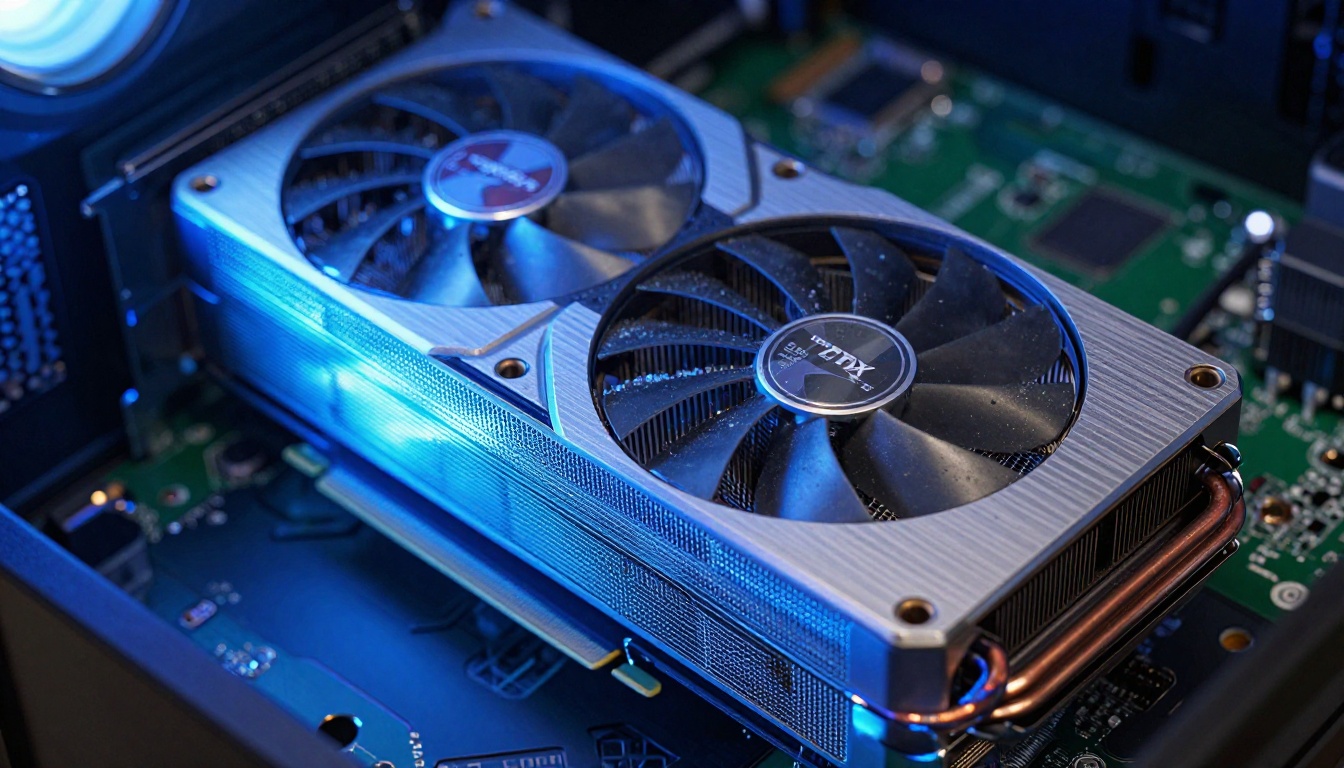
VRAM is the hard constraint. Models must fit entirely in GPU memory during inference. If they don't, the generation either falls back to CPU (extremely slow) or crashes entirely.
Model Type
Minimum VRAM
Recommended VRAM
SD 1.5 checkpoints
4 GB
6 GB
SDXL checkpoints
8 GB
12 GB
Flux Dev / Schnell
12 GB
16 GB+
SD 3.5 Large
16 GB
24 GB
💡 Note: These are approximate values. Actual usage depends on resolution, batch size, and whether you're running ControlNet or LoRAs alongside the base model.
For most NSFW generation use cases, an RTX 3080 (10 GB) or RTX 4070 (12 GB) covers the majority of popular checkpoint models. An RTX 4090 (24 GB) handles everything including Flux and SD 3.5 Large without compromise.
AMD GPUs work but require additional configuration using ROCm on Linux. On Windows, AMD support through DirectML is functional but slower and less stable.
CPU and RAM
CPU is not the bottleneck for GPU-accelerated inference, but RAM matters for model loading and OS overhead.
Minimum: 16 GB system RAM
Recommended: 32 GB system RAM
CPU: Any modern quad-core (Intel i5/Ryzen 5 or better)
If your GPU VRAM is insufficient, the system will offload computation to CPU RAM and system memory (often called "CPU offload" mode). This works but generates at 1-5 iterations per second instead of 20-60+ on a proper GPU.
Storage
Model files are large. Budget storage accordingly:
SD 1.5 checkpoints: 2-7 GB each
SDXL checkpoints: 6-13 GB each
Flux Dev model: ~23 GB
SD 3.5 Large: ~16 GB
A dedicated SSD with 500 GB to 1 TB is a practical starting point if you plan to collect several models. HDD storage works but model load times will be noticeably slower.
Installing AUTOMATIC1111 WebUI
AUTOMATIC1111 requires Python 3.10.x and Git. Using 3.11 or 3.12 can cause dependency conflicts with some extensions. Stick to 3.10.
Windows Setup
Install Python 3.10 from the official Python site. During installation, check "Add Python to PATH."
Install Git from git-scm.com.
Open a terminal (PowerShell or CMD) in the folder where you want to install the WebUI.
The first run downloads all dependencies automatically. This takes 10-20 minutes depending on your internet speed. After it finishes, the WebUI opens at http://127.0.0.1:7860 in your browser.
💡 Important: On some checkpoints, the safety checker is baked into the model itself, not the UI. Switching to an unrestricted checkpoint (see below) bypasses it entirely without touching the WebUI configuration.
ComfyUI as an Alternative
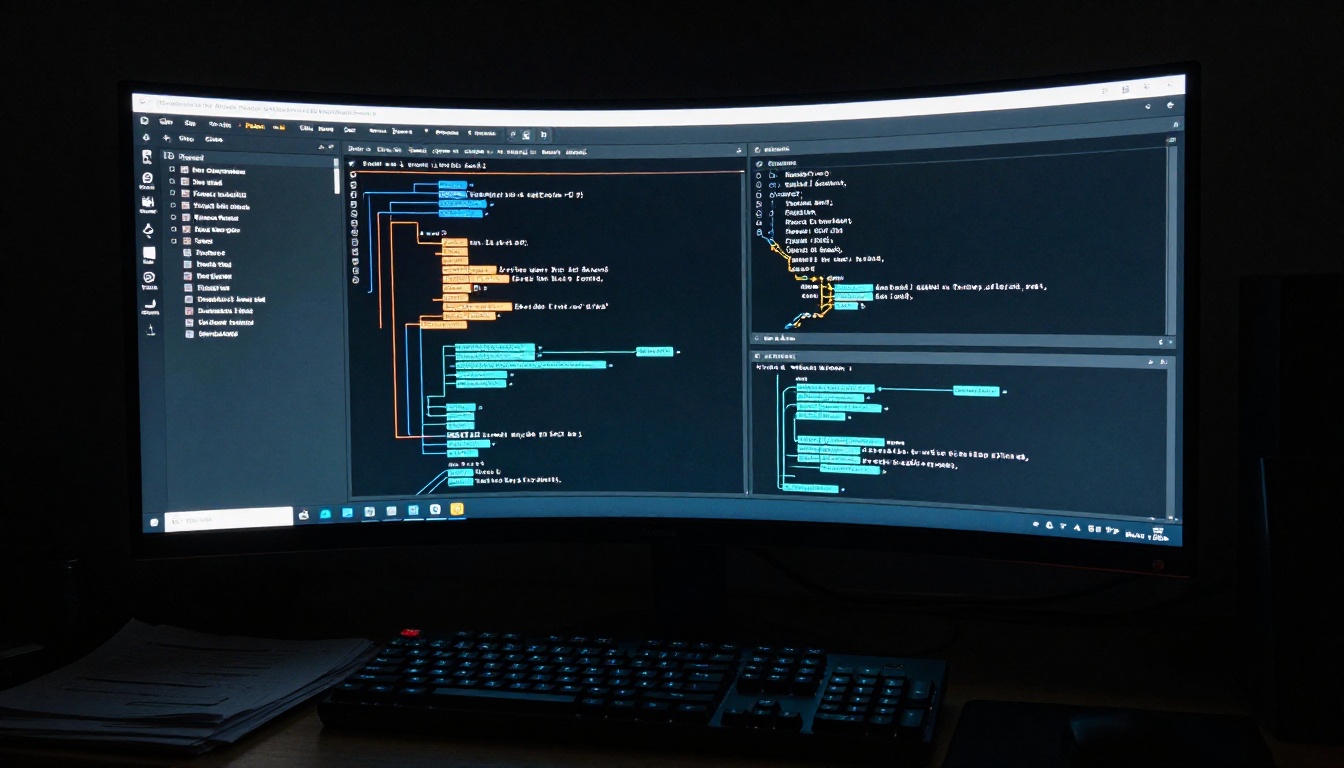
ComfyUI takes a different approach. Instead of a traditional settings panel, it uses a node graph where each processing step is a visual block connected to the next. This sounds intimidating but becomes an advantage once you understand it.
Why Some People Prefer ComfyUI
No hidden processing steps: Every operation in the pipeline is visible as a node. Nothing happens behind the scenes.
More efficient: ComfyUI is faster than A1111 for the same hardware and model, particularly for batch generation.
ControlNet is easier to set up: Adding pose control, depth mapping, or reference image conditioning is drag-and-drop rather than buried in settings.
No safety checker by default: ComfyUI ships without any content filtering layer. What you prompt is what you get.
On Windows, the portable standalone version (available on the ComfyUI GitHub releases page) requires no Python installation at all. Download, extract, run.
Place your model checkpoint files in the ComfyUI/models/checkpoints/ folder. LoRA files go in ComfyUI/models/loras/. ComfyUI detects them automatically on the next launch.
Choosing the Right Model
The checkpoint model you use matters more than any setting or parameter. The base model defines the style, the anatomy accuracy, and whether the safety checker is present at all.
Best Checkpoints for Realistic Output
Community-trained unrestricted checkpoints have been optimized specifically for photorealistic and NSFW-capable outputs. The most popular families in 2025 are:
Flux Dev and Flux Schnell represent the current state of the art in open-weight text-to-image generation. They require more VRAM (12-16 GB) but produce images that are significantly sharper and more anatomically accurate than SD 1.5 or SDXL models.
Stable Diffusion 3.5 Large is another strong option for high-resolution work with excellent prompt following.
Where to Get Them
Civitai is the primary community hub for fine-tuned checkpoints, LoRAs, and embeddings. Most unrestricted models are available there with detailed user notes on what they produce best.
HuggingFace hosts official model weights for Flux, Stable Diffusion, and other base architectures. Access to some gated repositories requires creating an account and accepting the model's license terms.
Prompt quality is the difference between a generic output and something genuinely impressive. The model only generates what you describe in enough detail.
Positive Prompt Structure
Good prompts follow a loose hierarchy: subject and action, environment, lighting, camera, quality modifiers.
For photorealistic results:
[subject description], [clothing/pose details], [environment/setting],
[lighting type and direction], [camera and lens], [film stock],
photorealistic, 8k, high detail, sharp focus, RAW photo
Example:
beautiful woman with dark hair, wearing a strappy black dress,
standing on a rooftop at dusk, golden hour backlight creating
rim light on shoulders, shot on Sony A7 85mm f/1.8,
Kodak Portra 400, photorealistic, 8k
Negative Prompts to Avoid Common Issues
Negative prompts tell the model what to avoid. These are near-universal for quality improvement:
cartoon, anime, illustration, painting, drawing, 3d render, cgi,
deformed, bad anatomy, extra limbs, missing fingers, blurry,
low resolution, watermark, text, logo, ugly, distorted
💡 Tip: For SD 1.5 models, embedding EasyNegative or bad_prompt_version2 as a textual inversion token in your negative prompt dramatically reduces anatomical errors without any manual prompt engineering.
CFG Scale and Sampling Settings
Two settings that most beginners leave at defaults but should not:
CFG Scale: Controls how strictly the model follows your prompt. Values of 5-7 produce more natural, varied results. Values above 10 often cause oversaturation and distortion.
Sampling steps: More steps mean more refined output up to a point. For most models, 20-30 steps is the practical ceiling. Flux Schnell and SDXL Lightning 4step are distilled models designed to run in 4-8 steps with no quality loss.
What Local AI Actually Produces
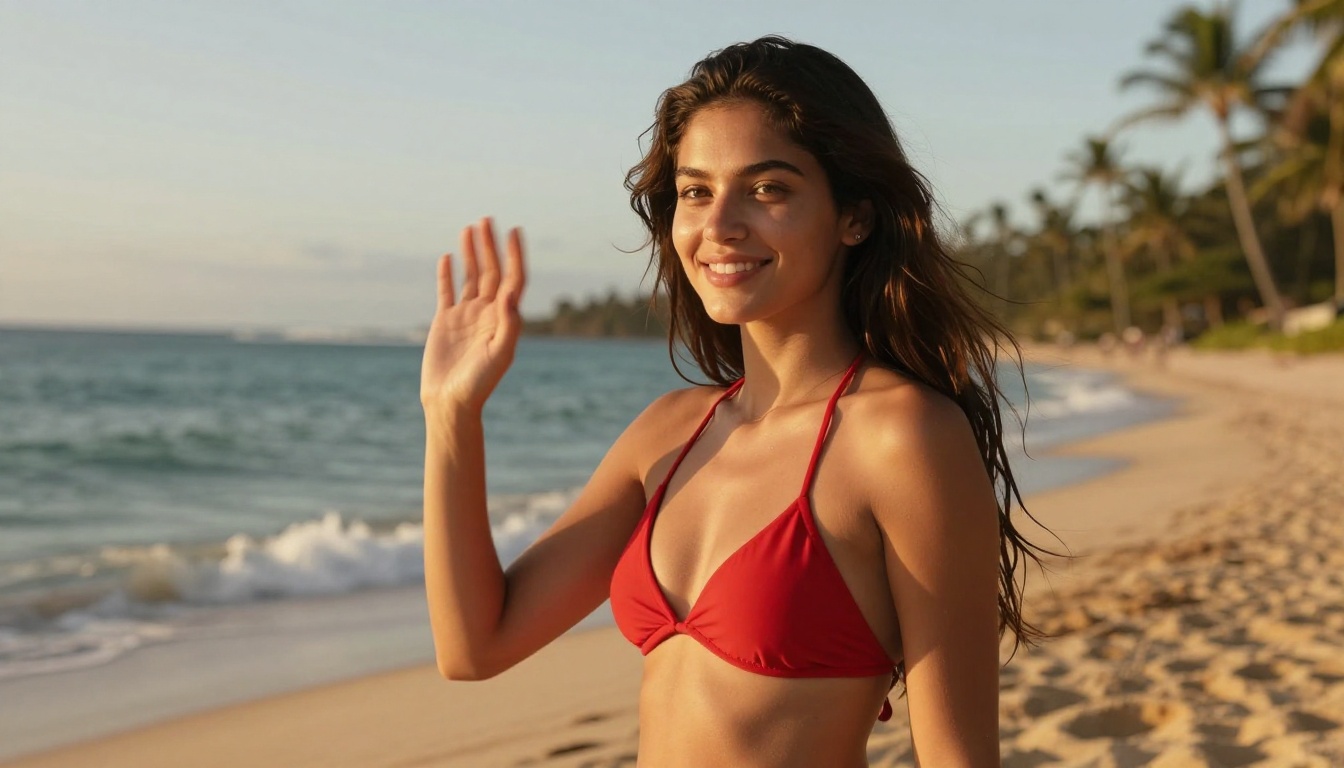
With the right checkpoint, settings, and prompt structure, local AI generation produces photorealistic images indistinguishable from professional photography. The image above shows what's possible with proper setup: detailed subject description, explicit lighting direction, and a film stock reference in the prompt.
The WebUI makes iteration fast. Generate a batch, refine the prompt, adjust the seed, and regenerate. Most experienced users iterate 5-15 times before settling on a final output.
Common Errors and Fixes
Even with a clean install, a few errors come up repeatedly.
"CUDA out of memory": Your VRAM ran out. Solutions in order of preference: lower the resolution, enable --medvram or --lowvram flags in A1111's launch args, or switch to a smaller model.
Black or gray images: The safety checker fired. This happens when using base SD models with the checker still active. Switch to an unrestricted checkpoint or disable as described above.
"model.safetensors is not a valid file": The download was corrupted. Delete and re-download the checkpoint. Verify the file size matches what the source lists.
Extremely slow generation (1-2 it/s): You're running on CPU. Check that PyTorch was installed with CUDA support. In A1111's console output, confirm you see Using device: cuda on startup.
Missing LoRA trigger words: Many LoRAs require a specific trigger word in your prompt to activate. Check the model's page on Civitai for the trigger word list.
When Local Setup Isn't Practical
Local generation is ideal when you have the hardware. But not everyone has a high-VRAM GPU available, and some workflows (mobile, travel, low-power machines) make local setups impractical.
For those cases, PicassoIA provides cloud access to many of the same models used in local setups, including Flux and Stable Diffusion variants, without requiring installation or a local GPU.
Models Available Right Now
PicassoIA's text-to-image collection includes the models that serious users rely on most:
The advantage of using PicassoIA alongside a local setup is speed and model variety. Instead of downloading 20+ GB model files and waiting for local generation, you can test different models quickly in the browser to decide which ones are worth downloading locally.
Start Creating Now
Whether you're running a full local stack with an RTX 4090 or testing prompts between local sessions, the process of getting genuinely unrestricted image generation going is more accessible in 2027 than it has ever been. The models are open-weight, the tools are free, and the community is enormous.
If you haven't run your first local generation yet, the fastest path forward is: pick a GPU that fits your budget, install ComfyUI with the portable version, grab Realistic Vision v5.1 or RealVisXL from Civitai, and drop it in the checkpoints folder. Your first generation will run within 20 minutes of setup.
Want to skip the installation entirely and start generating right now? Try Flux Dev, Flux Schnell, or Stable Diffusion 3.5 Large directly on PicassoIA with no installation required. The same prompt structure described in this article works identically on the cloud platform, so you can test and iterate before committing to a full local download.