How to Set Up Uncensored AI Locally for +18 Content
Running AI locally puts you in full control of what you create. No content policies, no cloud surveillance, no monthly fees. This article walks through the exact steps, hardware requirements, and best models for setting up a private, uncensored AI image generator on your own machine, including the top open-source options that produce stunning +18 results.
Running AI on your own hardware is the most direct path to complete creative control. No content policies blocking your prompts, no cloud servers logging what you generate, no subscription tiers locking you out of the good features. If you want to create +18 content with AI, local installation is the clearest solution, and in 2027 it has never been more accessible.
The ecosystem of open-source models has matured dramatically. Tools that once required a PhD in Linux to install now run in a few terminal commands. Models that used to produce muddy, unrealistic outputs now rival commercial platforms in photorealism. And the hardware requirements, while still real, have dropped to the point where a mid-range gaming PC can run serious image generation workloads.
This is a practical breakdown of how to do it. No hype. No vague theory. Just the actual steps, hardware requirements, best models, and real configuration tips.
Why Local AI Changes Everything for +18 Content
Cloud-based AI platforms operate under strict terms of service. That is not a complaint, it is just a structural reality. Platforms serving millions of users cannot afford to serve unrestricted adult content by default. So they add filters, moderation layers, and content classifiers.
When you run AI locally, none of that applies. The model runs entirely on your hardware. There is no API call going to an external server, no content moderation layer scanning your prompt, and no usage policy that restricts what you can generate.
Privacy with No Cloud Logs
Every prompt you send to a cloud API is potentially logged. Most platforms store prompt data for safety monitoring, model improvement, or legal compliance purposes. When you generate locally, your prompts stay on your machine.
For anyone generating adult content, this is significant. You are not building a behavioral profile on a cloud server. You are not worrying about account flags or bans. The generation happens entirely between your GPU and your hard drive.
No Filter Restrictions
Filters in cloud AI are applied at multiple layers:
At the prompt level (keywords trigger refusals)
At the image level (output is scanned before delivery)
At the account level (patterns trigger bans)
Running locally removes all three. The model processes exactly what you describe, with no intermediary making judgment calls. You can push stylistic boundaries, explore suggestive compositions, and generate content that cloud platforms would refuse, all without interruption.
What You Need Before Starting
The barrier to entry is real but manageable. Here is what the setup actually requires.
Hardware Requirements
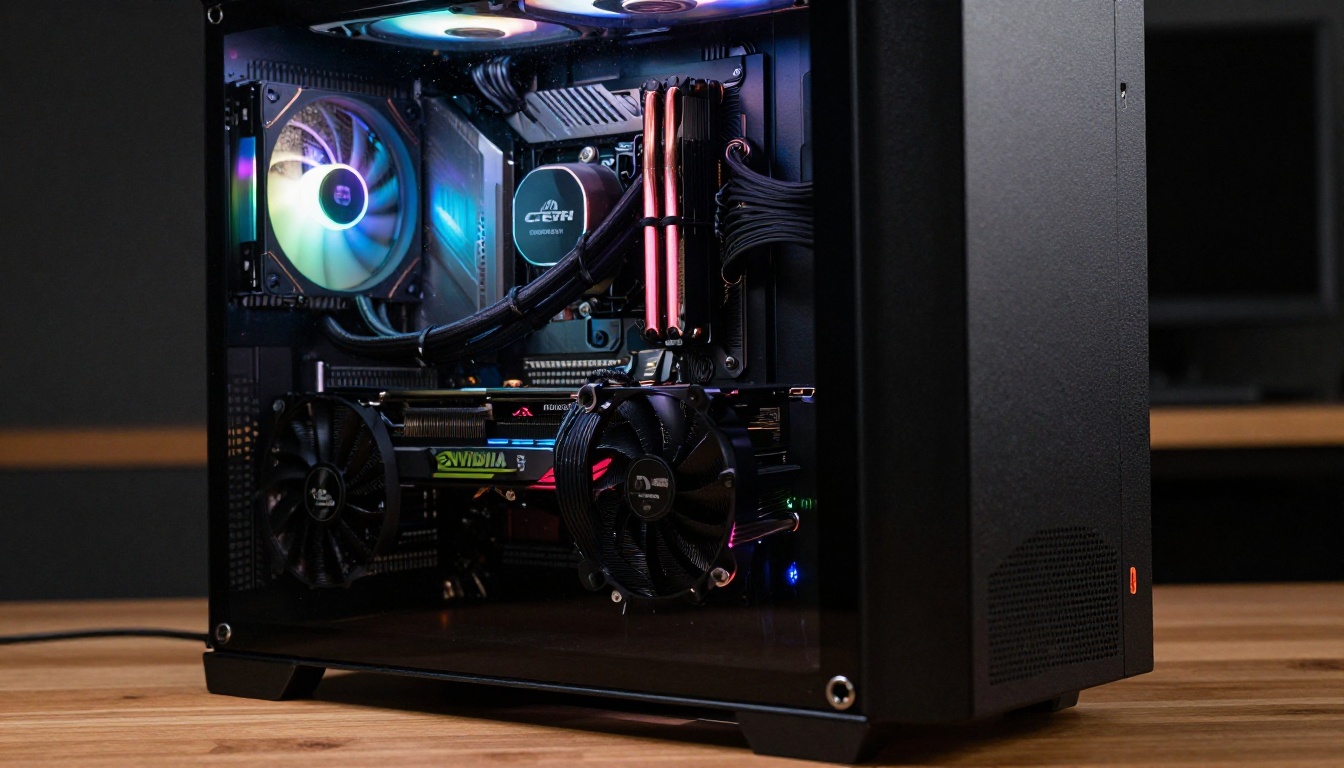
Your GPU is the single most important factor. AI image generation uses VRAM, not regular RAM.
Component
Minimum
Recommended
GPU VRAM
6 GB
16 GB+
System RAM
16 GB
32 GB
Storage
50 GB SSD
500 GB NVMe
CPU
Any modern 8-core
Ryzen 7 / i7+
💡 VRAM is everything. A 6 GB GPU can run lighter models at lower resolutions. 12 GB opens up most SDXL-class models. 24 GB+ gives you full 1024x1024 generation with no compromises.
NVIDIA GPUs have the broadest driver support for local AI workloads. AMD GPUs work but require extra configuration (ROCm drivers on Linux). Apple Silicon M-series chips handle local AI well via Metal, though VRAM sharing works differently.
Software Prerequisites
You need three things installed before any model can run:
Python 3.10+ (check with python --version)
CUDA Toolkit 12+ (NVIDIA users, from nvidia.com)
Git (for cloning repositories)
On Windows, the simplest path is installing Python from the Microsoft Store, CUDA from NVIDIA's developer portal, and Git from git-scm.com. Takes about 20 minutes total.
Top Models for Local +18 AI Art
Not every open-source model runs uncensored out of the box. Some have safety checkers baked in that need to be disabled. Others ship with no restrictions at all. Here are the ones worth running.
Flux Dev and Its Variants
The Flux family from Black Forest Labs represents the current state of the art for local photorealistic generation. Flux Dev produces images with exceptional human anatomy, realistic skin texture, and accurate lighting. The model responds well to detailed prompts and handles suggestive compositions cleanly.
Flux Schnell is the faster variant. It sacrifices a small amount of quality for dramatically faster generation times, making it ideal for iterating on prompts quickly before committing to a full-quality render with Flux Dev.
Flux 2 Pro pushes quality even further, with improved handling of complex poses and multi-figure compositions, which matters significantly for adult content scenarios.
💡 Flux models require the safety checker to be disabled in the pipeline config. Look for safety_checker=None or set nsfw_filter=False in your generation script.
Stable Diffusion 3.5 and SDXL
Stable Diffusion 3.5 Large is Stability AI's flagship model. It produces stunning photorealistic results and has strong community support, meaning there are thousands of LoRA adapters and fine-tunes available that specialize in specific styles, bodies, and aesthetics.
SDXL is the older workhorse that still performs exceptionally. It has the richest ecosystem of community fine-tunes, meaning you can load specialized checkpoints that have been specifically trained on +18 content.
Stable Diffusion 3.5 Large Turbo is the distilled version, running at roughly 4x the speed with minimal quality loss, which makes it practical for high-volume generation sessions.
Realistic Vision and RealVisXL
Realistic Vision v5.1 is a community fine-tune specifically optimized for photorealistic human subjects. It handles skin, hair, eyes, and natural lighting better than the base models out of the box. For portrait-style adult content, this is one of the strongest options in the ecosystem.
RealVisXL v3.0 Turbo brings the same photorealism philosophy to the SDXL architecture, adding speed via turbo distillation. Good balance of quality and generation time.
Step-by-Step Local Setup
The fastest path to a working local AI setup in 2027 is through ComfyUI or Automatic1111 (A1111). Both are open-source WebUI interfaces that let you load models and generate images through a browser-based interface.
Installing ComfyUI
ComfyUI is the current standard for advanced users. It uses a node-based workflow that gives you granular control over every step of the generation process.
# Clone the repo
git clone https://github.com/comfyanonymous/ComfyUI
cd ComfyUI

# Install dependencies
pip install -r requirements.txt

# Run the server
python main.py
Open http://127.0.0.1:8188 in your browser. That is your local generation interface. No account. No cloud. Everything runs on your machine.
Loading Models and Disabling Filters
Download model checkpoint files (.safetensors or .ckpt format) from Hugging Face or CivitAI and place them in the ComfyUI/models/checkpoints/ folder. The interface will detect them automatically on reload.
To disable safety checking in Python-based pipelines:
For ComfyUI, simply do not load the safety checker node in your workflow. It is opt-in, not opt-out.
Configuring NSFW Settings
Most restrictions in local SD setups come from two places:
The CLIP model that processes your text prompt (some versions have concept suppression baked in)
The VAE decoder which converts latent space to pixels (rarely an issue)
The fix for item one: use an uncensored CLIP tokenizer. The most commonly recommended option is the open_clip variant available on Hugging Face, which has no prompt-level restrictions.
💡 If your prompts are being silently modified or certain words produce blank images, you are hitting CLIP-level filtering. Switch to a different CLIP model in your pipeline config.
Getting the Best +18 Results
Technical setup is only half the equation. The other half is knowing how to prompt for the results you want.
Prompt Crafting for Adult Content
Local NSFW AI responds very well to specificity. Vague prompts produce vague results. Detailed prompts produce exactly what you describe.
Strong prompt structure:
[Subject description] + [Clothing/state of dress] + [Setting and environment]
+ [Lighting direction] + [Camera angle and lens] + [Quality modifiers]
Practical example:
Portrait of a woman in her late twenties, wearing a silk slip dress,
seated on a velvet chaise lounge, soft window light from the left,
85mm f/1.4 bokeh, Kodak Portra 400, photorealistic, 8K
The more specific you are about lighting direction, fabric texture, skin details, and camera settings, the closer your output matches your mental image.
Negative Prompts That Matter
Negative prompts tell the model what to avoid. For NSFW work, these are critical for quality control:
Always include anatomy-related negatives. AI models still struggle with hands and complex poses, and the negative prompt is your best tool for reducing those issues without post-processing.
CFG Scale and Sampling Settings
CFG Scale (Classifier-Free Guidance) controls how closely the model follows your prompt.
CFG Value
Behavior
3 to 5
More creative, less literal
7 to 9
Balanced, good starting point
12+
Very literal, can over-saturate
For adult content, start at 7 to 8 and adjust based on how well the model interprets your prompts.
Sampling Steps:
20 to 25 steps: Good for quick iteration tests
30 to 40 steps: Full quality generation
50+ steps: Diminishing returns for most models
Best samplers for photorealism: DPM++ 2M Karras, Euler Ancestral, DDIM.
Using LoRA Adapters for Specific Styles
LoRA (Low-Rank Adaptation) files are small model add-ons that shift the base model's output toward a specific style, aesthetic, or subject type. They are one of the most powerful tools in local AI for adult content.
A LoRA trained on photorealistic pin-up photography will push your base model's outputs toward that exact aesthetic without retraining the entire model. You can stack multiple LoRAs and adjust their weights to blend styles.
Where to find NSFW LoRAs:
CivitAI (large community library, requires account for explicit content)
Hugging Face (search community models)
Loading LoRAs in ComfyUI: Place .safetensors LoRA files in ComfyUI/models/loras/ and use the LoRA Loader node in your workflow.
Effective LoRA weighting:
Weight
Effect
0.3 to 0.5
Subtle stylistic influence
0.6 to 0.8
Strong stylistic pull
1.0
Full intensity, can look artificial
Stacking two LoRAs at 0.4 weight each usually gives better results than one at 0.8. The blend feels more natural and avoids the over-cooked look that high single-LoRA weights produce.
When Cloud Makes More Sense
Local AI is powerful, but it has real tradeoffs. Generation speed depends entirely on your hardware. A 6 GB GPU can take 3 to 5 minutes per image at 1024x1024. The models consume significant disk space (5 to 15 GB each). And the setup process, while simpler than it used to be, still requires technical comfort with terminals and configuration files.
For many users, a cloud-based platform solves these friction points while still offering significant creative latitude.
Generation is fast regardless of your PC specs. Images render at full 1024x1024+ resolution. You can switch between 91+ models instantly. And the platform supports NSFW content in its designated category, meaning you get real creative latitude without the setup overhead.
How to Use Flux Dev on PicassoIA for +18 Images
PicassoIA has Flux Dev available directly in the platform's text-to-image collection. Here is how to use it for photorealistic +18 content:
Step 2: In the prompt field, enter a detailed description following the structure above. Include lighting, camera angle, fabric texture, and quality modifiers.
Step 3: Set your aspect ratio to 16:9 for landscape compositions or 9:16 for portrait framing.
Step 4: Set inference steps to 30 to 40 for full quality output.
Step 5: Generate and iterate. Small prompt adjustments produce significant result differences. Treat the first generation as a draft, then refine from there.
You can also pair Flux Dev with Flux 1.1 Pro Ultra for the highest-resolution output PicassoIA offers, or use Realistic Vision v5.1 if you want a model specifically tuned for photorealistic human portraiture.
💡 For body-focused compositions, RealVisXL v3.0 Turbo consistently produces the most anatomically accurate results on the platform.
Local vs. Cloud: A Direct Comparison
Factor
Local Setup
PicassoIA Cloud
Privacy
Full, no logs
Platform policy applies
Speed
Depends on GPU
Fast, consistent
Content freedom
Unlimited
NSFW category supported
Setup time
1 to 3 hours
Zero
Cost
Hardware investment
Credits or subscription
Model variety
Manual download required
91+ ready models
Resolution ceiling
GPU VRAM limited
High resolution standard
Neither approach is objectively better. Local is right if privacy is non-negotiable and you have the hardware. Cloud is right if you want speed, variety, and zero maintenance overhead.
Start Creating Right Now
Whether you go local or cloud, the barrier to generating high-quality +18 AI content has never been lower. The models are better than they have ever been. The tools are easier to use. And the results, with proper prompting and configuration, are genuinely impressive.
If you want to skip the local setup and start generating immediately, PicassoIA gives you access to the same professional-grade models that power local NSFW workflows, including Flux Dev, SDXL, Flux 1.1 Pro, and Stable Diffusion 3.5 Large, with no installation required.
Pick a model. Write a detailed prompt. Generate. Refine. The creative process is identical whether you are running it locally on a custom rig or through the platform. What matters is the quality of your vision and the specificity of your description. Open a model page and put that into practice.