The gap between a voice and the lips that move with it is something the human brain catches in milliseconds. You do not need to study neuroscience to understand this. You simply know when it is wrong. For creators working with AI avatars, that split-second mismatch kills an otherwise polished video. The good news: getting perfect lip sync on an AI avatar is no longer a technical challenge reserved for VFX studios. It is now a workflow problem with a clear solution, and this article walks through exactly how to fix it.
Why Lip Sync Matters More Than You Think
Most creators focus on how the avatar looks. They spend time selecting the right face, outfit, and background. But audiences forgive a slightly off visual before they forgive a misaligned mouth. Our brains are wired to match faces to sound because we have spent our entire lives doing it in real conversations.
The audience notices mismatch instantly
Psychologists call this the McGurk effect: when visual and audio cues conflict, the brain tries to reconcile them. The result is discomfort. For video content, that discomfort translates directly into viewers dropping off and trusting the content less. Whether you are building a corporate training avatar, a customer-facing chatbot presenter, or a content creation channel, your retention numbers reflect your sync quality.
What causes desync in AI avatars
Three things break lip sync in AI-generated video. First, poor audio quality that phoneme detection algorithms cannot parse cleanly. Second, a mismatch between the frame rate of the source video and the timing of the audio clip. Third, using a lipsync model that is not designed for the type of face or vocal delivery you have. Solving these three problems is the entire playbook.
How Lip Sync Actually Works
Before touching any tool, it helps to know what is happening under the hood. Every modern lipsync AI operates on the same basic principle: it analyzes the phonemes in your audio file, maps them to the corresponding mouth shapes (called visemes), and adjusts the pixel regions around the avatar's mouth frame by frame to match.
The role of phoneme detection
Phonemes are the smallest units of sound in speech. The word "hello" contains five phonemes: /h/, /ɛ/, /l/, /oʊ/. A lipsync model reads these, identifies their duration, and applies the corresponding mouth shape to the video at the exact timestamp. The better the audio, the more accurately the model can detect phoneme boundaries. This is why clean audio is not optional. It is the foundation everything else builds on.
Frame rate and timing alignment
The second technical piece is frame rate. If your source video runs at 30fps and your audio was generated with timing assumptions for 24fps, you will see drift over longer clips. Always check that your exported audio and your video share the same timing baseline. Most professional lipsync tools handle this internally, but knowing about it means you can diagnose a problem when you see one.
Your Audio File Is Everything
Poor audio is the single most common reason lip sync fails. Before uploading anything to a lipsync tool, your audio needs to pass three checks.
Format and quality requirements
Use WAV or FLAC at 44.1kHz or 48kHz. These lossless formats preserve the fine timing information that AI models need. MP3 at 128kbps introduces micro-artifacts at phoneme boundaries that cause jitter. If you generated your voice with a text-to-speech model, export at the highest bitrate available. Most tools default to high quality, but always verify.
💡 Pro tip: If you are generating speech with Speech 2.8 HD or ElevenLabs v3, download the audio in WAV format before feeding it into any lipsync pipeline.
Clean speech vs. background noise
Lipsync models detect phonemes. Background music, echo, room reverb, and noise all compete with the speech signal. Run any audio through a noise reduction pass before using it. Even a mild room tone under a voiceover can reduce phoneme detection accuracy by a measurable amount. Tools like ElevenLabs Dubbing handle multi-language dubbing with clean isolation baked in, but for standalone audio files, you manage this yourself.
The Best Lipsync Models on PicassoIA
PicassoIA has 12 dedicated lipsync models across different use cases. Here is how to match the right one to your specific task.
For photo-to-talking-video
If you are starting from a still image rather than a video, Omni Human 1.5 by ByteDance is the current benchmark. It takes a single photo and a voice clip and generates a fully animated talking video with accurate lip movement. Its predecessor, Omni Human, is still available for lighter workloads, but the 1.5 version handles more complex facial angles and expressions with noticeably better realism.
💡 P Video Avatar by PrunaAI is another solid option for creating talking avatar videos directly from photos, with fast inference times that make it practical for high-volume use cases.
For syncing voice to existing video
If you already have a video clip and need to replace or synchronize the lip movement to new audio, Lipsync 2 Pro by Sync is the top pick. It delivers frame-accurate alignment across both close-up and medium-distance shots. For cases where speed matters more than maximum precision, Lipsync 2 handles the same task at faster processing times.
React 1, also by Sync, adds realistic lip movement to any input video and works particularly well with footage that has variable lighting conditions.
For speed and simplicity
Lipsync Speed by HeyGen is built for rapid turnaround. It processes shorter clips in seconds, which makes it ideal for content creators who need to iterate through multiple voice takes before committing to a final version. Kling Lip Sync by Kwaivgi is another fast-processing option, particularly useful for short-form content like social media clips where render time is a real constraint.
Fabric 1.0 by Veed takes a different approach: it is designed specifically to make photos talk, with a focus on natural secondary expression around the eyes and cheeks alongside accurate lip movement.
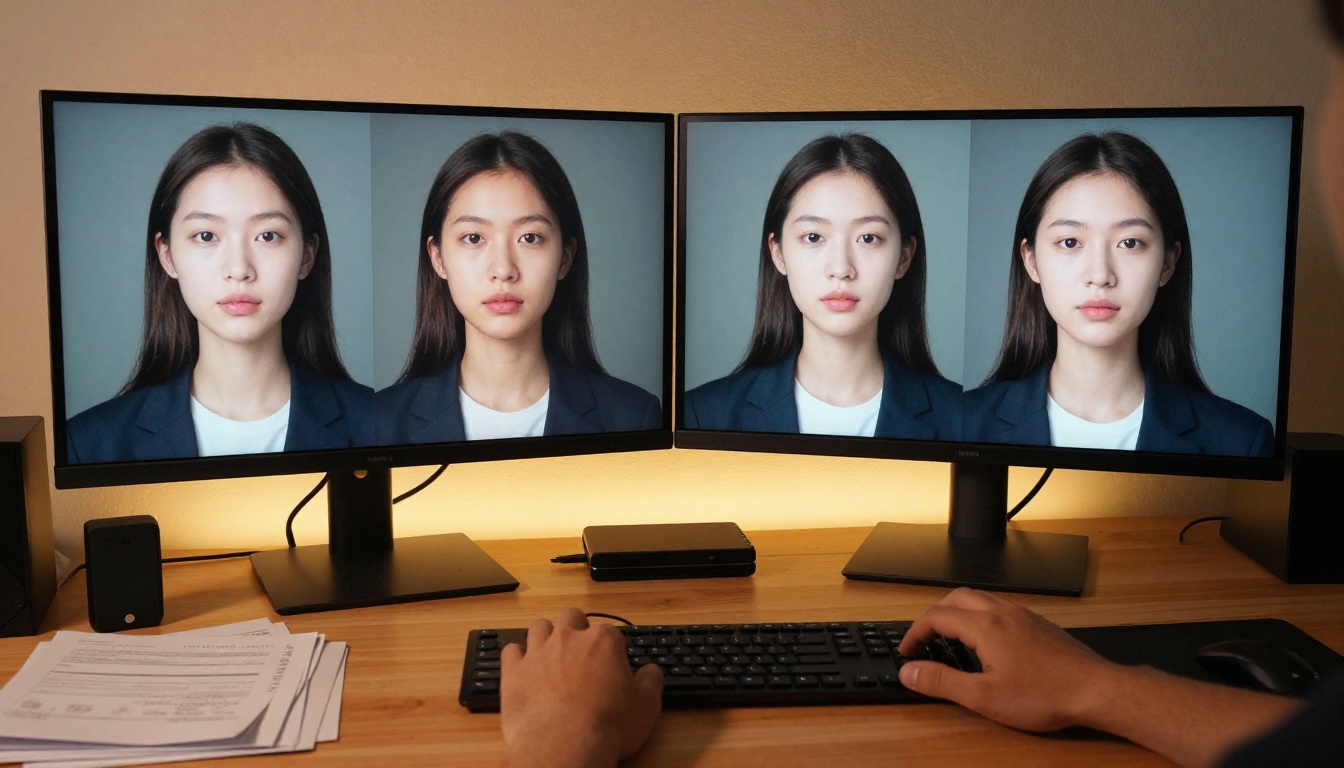
Step-by-Step: Using Lipsync Precision on PicassoIA
Lipsync Precision by HeyGen is a reliable starting point for most lipsync projects. It prioritizes accuracy over speed, which makes it the right choice when the final output will be seen by a large audience.
Prepare your source materials
You need two files: a video clip of your avatar (MP4, minimum 720p resolution, 24-30fps) and an audio file (WAV or FLAC, 44.1kHz). If you are generating the voice from a TTS model, do that first. Chatterbox by Resemble AI gives you emotion-controlled voice output with natural prosody. MiniMax Speech 2.8 HD delivers studio-quality voice with minimal processing artifacts. Generate your audio, export it clean, then move to the next step.
Upload and configure
Open Lipsync Precision on PicassoIA. Upload your video as the source. Upload your audio as the voice input. Check the following settings before running:
- Sync mode: choose "precise" over "fast" for professional outputs
- Face detection: leave on auto unless your avatar has an unusual angle
- Output resolution: match your source video resolution, at minimum 720p
💡 If your avatar has a non-frontal face angle (side view or three-quarter turn), use Lipsync 2 Pro instead. It handles off-axis faces better than most models in the category.
Export and review
Once processing completes, download the output and do a full playback at 1x speed before delivering. Check these three things:
- First 2 seconds: this is where most models show the highest error rate as they calibrate to the face
- Consonant stops: sounds like "p", "b", and "m" require full lip closure. If these look open, try a different model
- Sentence endings: energy drops at the end of sentences and some models fail to close the mouth cleanly after the final word
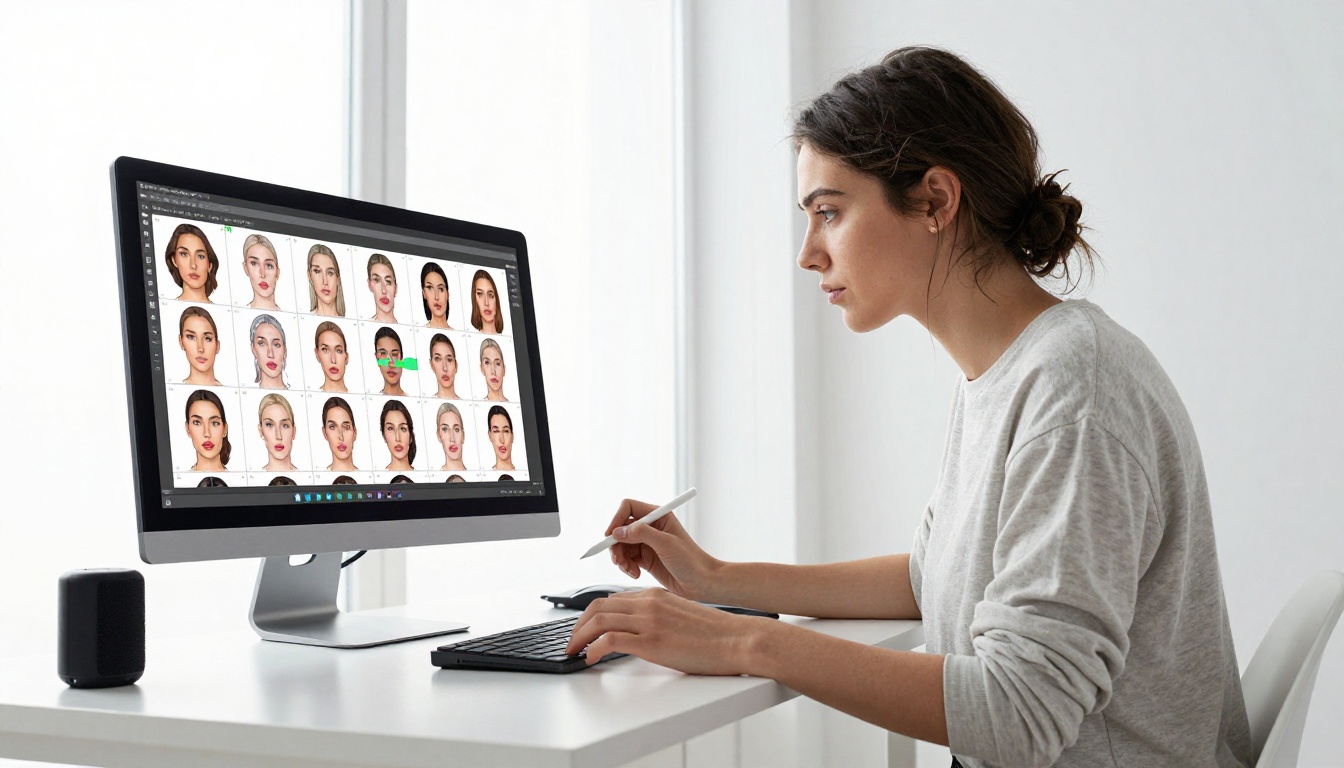
Voice Generation Before Lipsync
The quality of your lipsync output is heavily influenced by how natural your voice sounds. A monotone or robotic TTS voice with unnatural pauses creates lip movement that looks mechanical even when the sync itself is technically accurate.
Picking the right TTS model
For English content, ElevenLabs v3 produces some of the most human-sounding output available, with fine emotional range across different delivery styles. For multilingual content, v2 Multilingual covers 30+ languages with consistent quality across all of them. For real-time or high-throughput pipelines, Inworld Realtime TTS 2 runs with low latency without sacrificing naturalness.
For voice cloning workflows where you want the avatar to sound like a specific person, MiniMax Voice Cloning and Qwen3 TTS both allow you to design or clone a voice before feeding it into the lipsync pipeline.
Matching speech rhythm to avatar
Natural speech has rhythm. It has pauses between clauses, slows down to emphasize words, and speeds up in casual sections. When writing your script, use punctuation deliberately. Commas create short pauses. Periods create longer ones. These rhythm cues carry into the audio and make the lip sync movement look genuinely animated rather than mechanically timed. A script that reads naturally out loud will always produce better lipsync results than one that was written to be read silently.
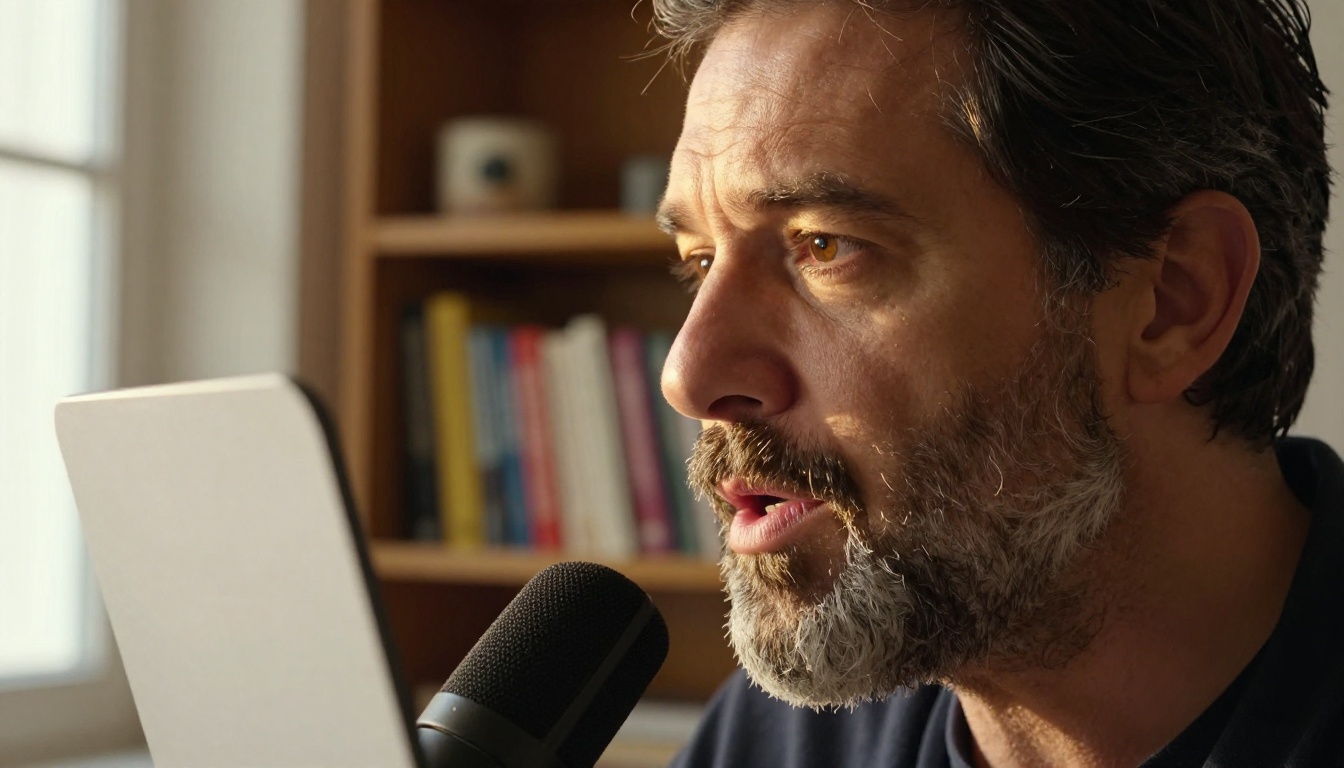
5 Mistakes That Break Your Sync
Even with good tools and clean audio, these five mistakes derail results for most beginners.
- Using compressed MP3 audio: The micro-artifacts at phoneme boundaries cause jitter in the lip movement. Always use WAV or FLAC.
- Mismatched frame rates: If your source video and your audio have different timing baselines, drift accumulates over longer clips. Check before running.
- Background noise in the audio: Any non-speech sound competes with phoneme detection. Clean the audio before uploading.
- Wrong model for face angle: Not every model handles side-profile or downward-angled faces well. Match the model to your shot.
- Skipping the review at 1x speed: Processing artifacts are easy to miss at 0.5x playback. Always review at normal speed before delivering.
💡 If your sync looks correct on close-up shots but breaks on wide shots, the model is losing face tracking at low resolution. Upscale your source video with a super-resolution model before running lipsync.
Dubbing in Multiple Languages
One of the most powerful applications of lipsync technology is multilingual dubbing. You film or generate one avatar, then replace the audio with translations and re-sync the lips for each language version.
Video Translate by HeyGen handles this end-to-end. It takes a source video and a target language, generates a dubbed audio track, and re-syncs the lip movement automatically. It supports 150+ languages, which makes it the go-to choice for international content distribution. For independent dubbing workflows where you control the translated audio separately, Lipsync Precision handles any language audio you provide without requiring a specific input language.
Pixverse Lipsync is another option that syncs any video to audio instantly, with no language restrictions on the input audio. It is fast and requires minimal configuration, which makes it a practical pick for teams running localization at scale.
💡 For the best multilingual results, generate your translated audio with ElevenLabs Dubbing, which preserves the speaker's original voice characteristics across languages. Then feed that audio into a dedicated lipsync model for the visual alignment step.

What Perfect Sync Actually Looks Like
Perfect lip sync is not just technically correct. It is also expressive. The best AI avatar lipsync outputs show not only accurate mouth shapes but also the subtle muscle tension around the cheeks and jaw that accompanies natural speech. Models like Omni Human 1.5 and Lipsync 2 Pro increasingly capture this secondary motion, and it is what separates "technically synced" from "genuinely believable."
You want your viewer to forget they are watching an AI avatar. That happens when the audio, the lips, and the subtle facial muscle movement all tell the same story at the same moment.
Fabric 1.0 by Veed and React 1 by Sync both emphasize this secondary expression layer, making them strong choices when emotional realism matters as much as technical accuracy.
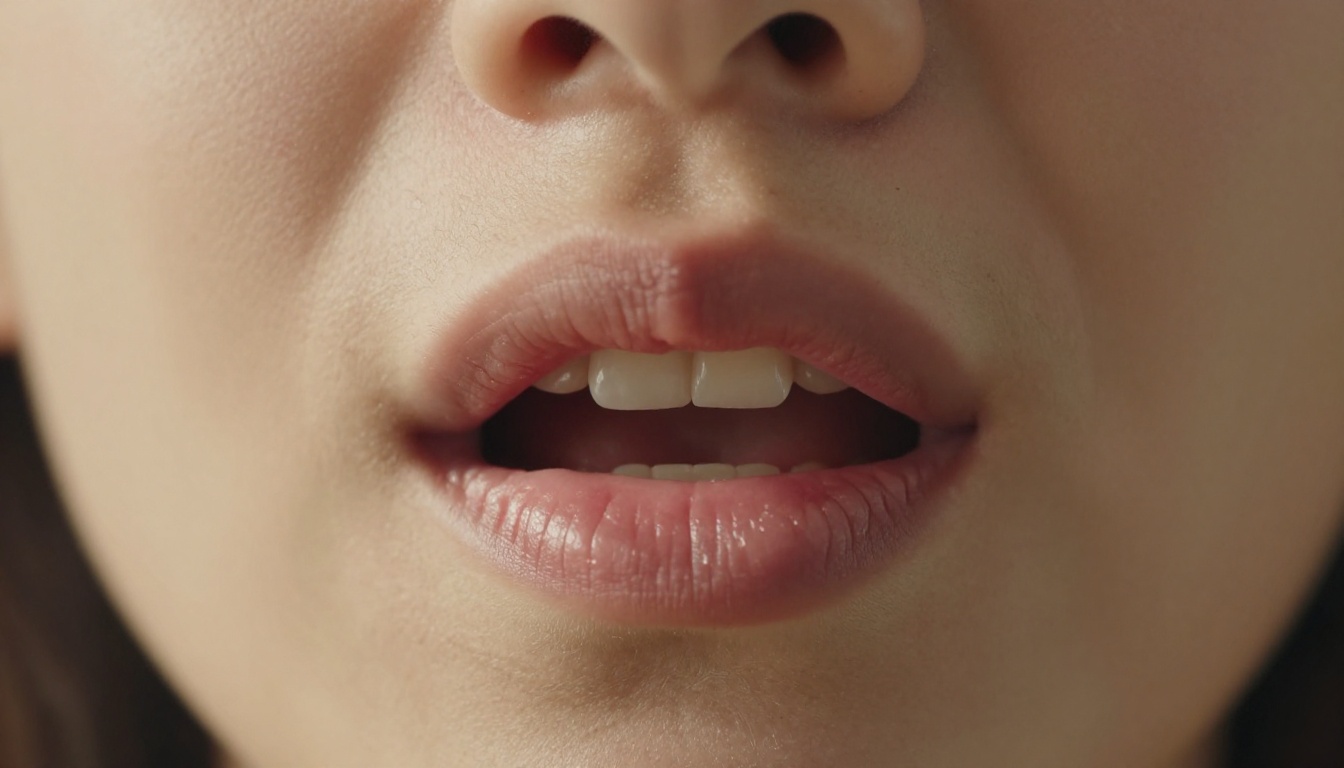
Build Your First Synced Avatar Now
Every model referenced in this article is available directly on PicassoIA. You can start with a single photo and a sentence of text, run it through Omni Human 1.5 with a voice from MiniMax Speech 2.8 HD, and have a fully synchronized talking avatar video in minutes. The entire pipeline from audio generation to final synced video lives in one place.
For creators who want to push further, the combination of voice cloning via Qwen3 TTS or MiniMax Voice Cloning with a high-accuracy lipsync model gives you personalized avatar voices that sound exactly like the original speaker. This is what makes AI avatar content feel genuinely personal rather than generated.
The workflow is clear. The tools are all there. Pick an avatar, pick a voice, and run the sync.


