Static photos have always captured a single moment. But in 2027, that single moment can breathe, move, and play out as a full video clip in seconds, thanks to AI image-to-video models that have gotten dramatically better. Whether you want to animate an old family portrait, bring a product shot to life, or create social content without a camera crew, the tools are now fast, accessible, and free to use.
What Photo-to-Video AI Actually Does
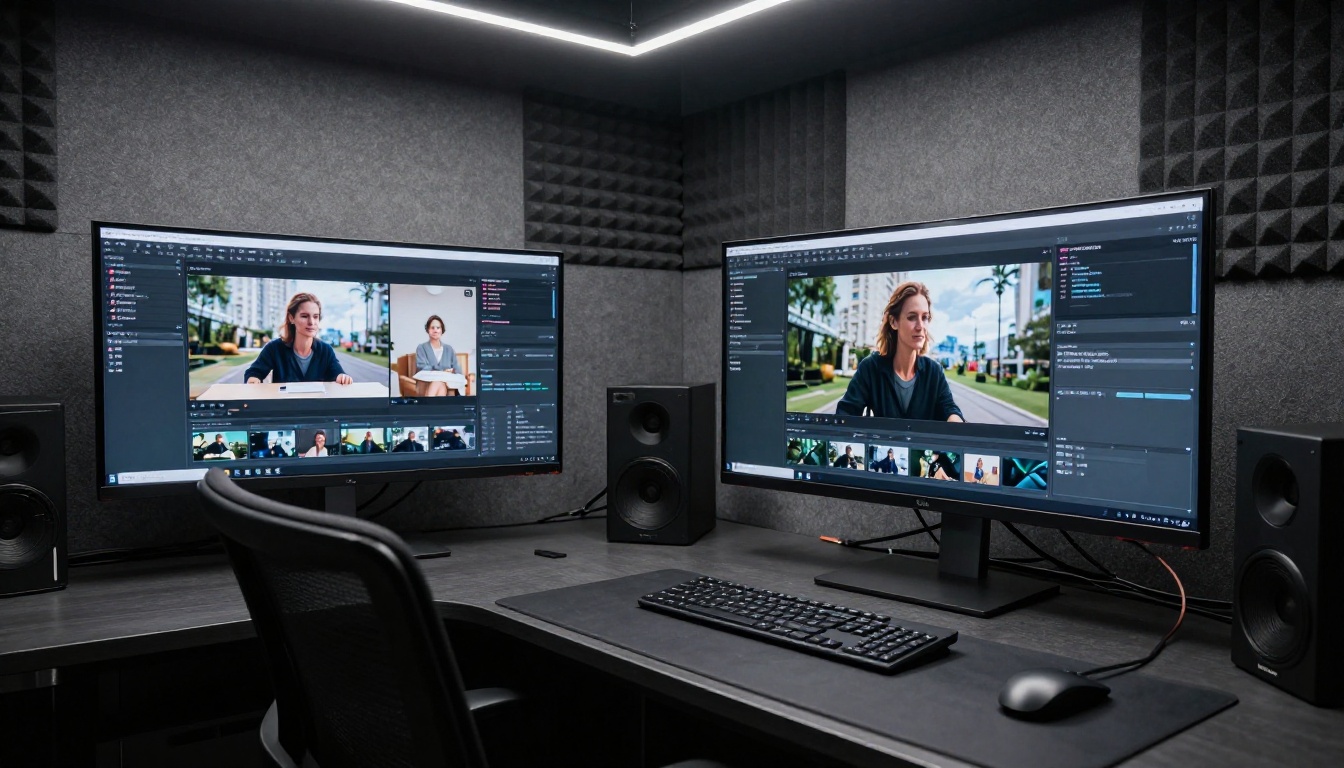
Photo-to-video AI is not the same as adding a filter or applying a slow-motion effect in a video editor. The models are generating new frames of video that did not exist in the original image. They predict how subjects in a photo would realistically move based on patterns learned from millions of videos.
The Tech Behind It
Modern image-to-video models use a class of AI called diffusion transformers combined with temporal attention mechanisms. In plain terms: the model looks at your photo, decides what motion is plausible for the subjects and setting, and generates a sequence of frames that flows naturally from the original image.
The result is not a zoom or a Ken Burns pan. It is a fully generated video where hair can blow in the wind, water can ripple, and facial expressions can shift naturally. The quality depends entirely on which model you use and how good your source photo is.
Why 2025 Changed Everything
Before 2024, photo-to-video tools produced jerky, unnatural results with obvious artifacts. Today, models like P Video Animate, Wan 2.7 I2V, and Kling v2.1 produce clips that can pass for real footage at a glance. Generation time has also dropped from minutes to seconds on the fastest models.
The Best Models for Animating a Photo
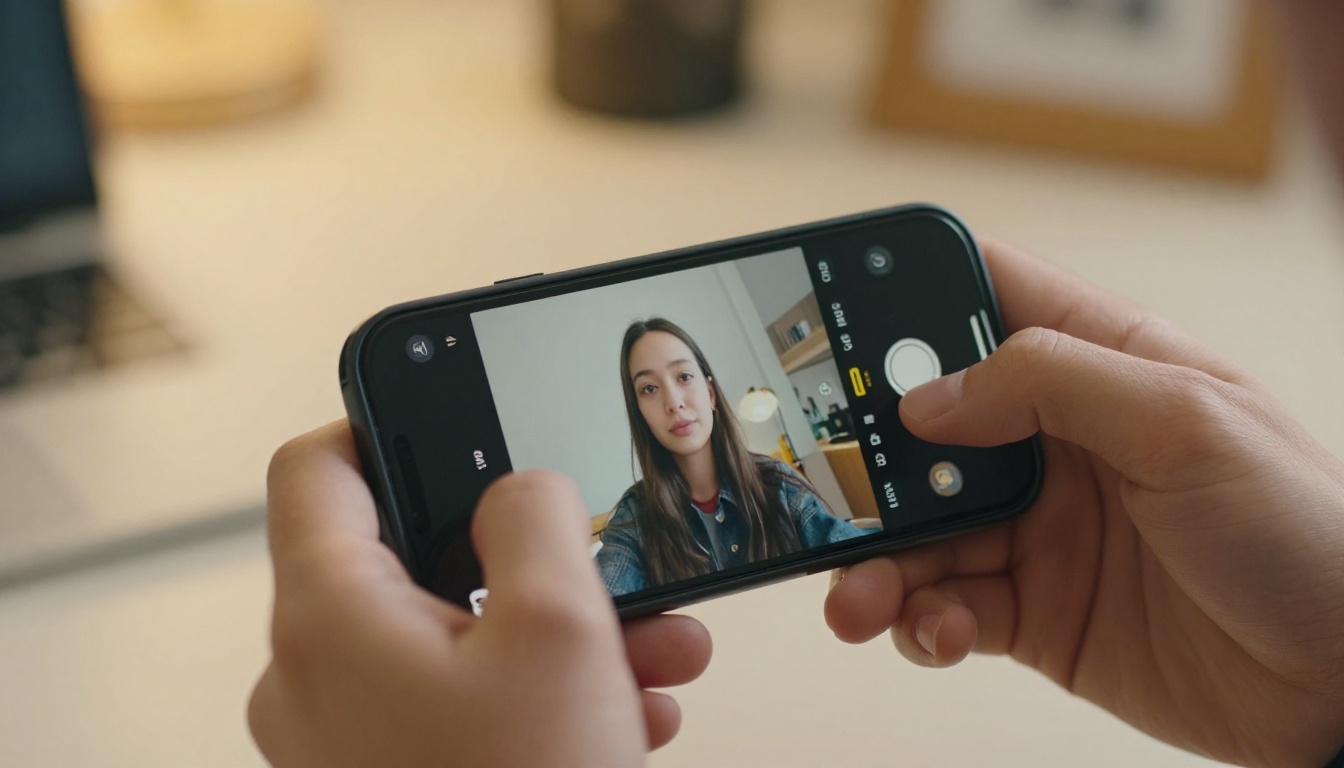
Not all photo-to-video models perform the same way. Some are built for cinematic quality, others for speed, and some for audio-synced output. Here is a breakdown of the top options available right now on PicassoIA.
P Video Animate: Built for This Exact Task
P Video Animate is purpose-built for turning still photos into video. Upload your image, describe the motion you want, and it generates a 5-second clip with smooth, realistic movement. It handles portraits particularly well, producing natural head movements, blinking, and breathing animation without distortion.
Best for: Portrait animation, single-subject photos, social content
Wan 2.7 I2V: Cinematic Results
Wan 2.7 I2V is one of the highest-quality image-to-video models available. It excels at preserving the details in your source photo while adding fluid, natural motion. Landscape photos, architectural shots, and group scenes all animate with impressive coherence.
Best for: High-quality outputs, landscape and scene animation, maximum detail preservation
Kling v2.1: Portrait Specialist
Kling v2.1 from Kwai VGI is known for producing especially convincing human animations. Facial expressions, hair movement, and body motion all look natural. It generates 720p video and handles complex scenes with multiple subjects reliably.
Best for: Human portraits, group photos, facial animation fidelity
Wan 2.6 I2V: Speed With Quality
Wan 2.6 I2V delivers fast generation without sacrificing too much quality. If you are working through a batch of photos and need results quickly, this is the model to reach for first.
Best for: Fast iteration, batch workflows, testing motion concepts
Grok Imagine Video 1.5: Audio-Ready Output
Grok Imagine Video 1.5 from xAI produces image-to-video clips with native audio baked in. When a video with ambient sound is the goal, this model delivers that in a single generation step.
Best for: Content that needs audio, social media clips, immersive output
How to Use P Video Animate on PicassoIA
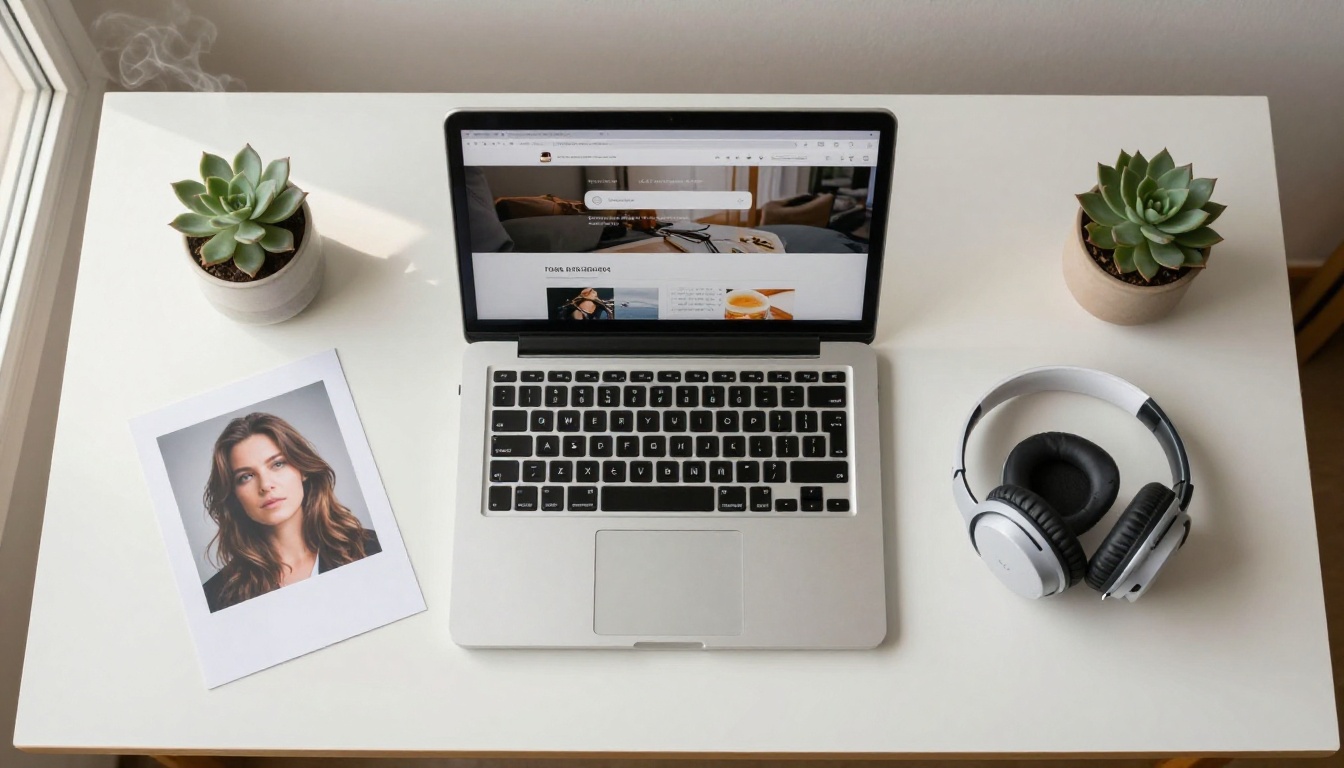
P Video Animate is the most direct path from photo to video on the platform. Here is the exact process.
Step 1: Choose the Right Source Photo
Not every photo animates equally well. These characteristics produce the best results:
- Sharp focus on the main subject: Blurry photos cause artifacts in the generated video
- Good lighting: Natural or even studio lighting works better than harsh shadows or blown highlights
- Simple background: Complex backgrounds can distort when motion is applied
- At least 512x512 resolution: Low-resolution photos lose detail in the output video
💡 Portrait photos where the subject fills most of the frame tend to produce the most impressive animations. The model has more detail to work with and the motion appears more natural.
Step 2: Write a Motion Prompt
This is where most people underperform. The motion prompt describes what should happen in your video, not what is in the photo. The model already sees the photo. Tell it what to do.
Weak prompt: "A woman smiling"
Strong prompt: "The woman slowly turns her head slightly to the right, her hair shifting gently with the movement, a soft breeze causes a few strands to drift across her face, she blinks naturally once, volumetric soft morning light from the left"
The prompt should describe:
- Subject motion: What body parts move and how
- Camera movement: Gentle dolly-in, slow pan, static hold
- Environmental effects: Wind, light shifts, water ripples, crowd movement in the background
- Atmosphere: Lighting quality, mood, temperature feel
Step 3: Set Your Parameters
On P Video Animate, the main settings to configure are:
- Duration: 5 seconds is the default and recommended length for social content
- Resolution: Use the highest resolution your photo supports
- Motion Strength: Start at medium. Too high creates exaggerated, unnatural movement
Step 4: Generate and Evaluate
Generation typically takes 20 to 60 seconds depending on server load. When the video appears, watch it through once at full speed, then frame-by-frame if needed. Check for:
- Subject face or body distortion in the middle frames
- Background warping or flickering artifacts
- Unnatural speed changes in the motion
If any of these appear, adjust the motion prompt and try again. A more specific motion description usually resolves artifact issues.
More Models Worth Using
Beyond P Video Animate, PicassoIA hosts several other image-to-video models that handle different photo types and use cases particularly well.
Ovi I2V: Videos With Audio From Any Photo
Ovi I2V from Character AI generates videos from photos and includes native audio output. Scenes with natural settings, such as outdoor environments, benefit most from the audio layer, which adds ambient sound that matches the visual content automatically.
Hailuo 2.3: High-Resolution Portrait Animation
Hailuo 2.3 from MiniMax delivers 1080p output with sharp facial detail preservation. Portrait photos where high resolution matters, such as prints or professional headshots being converted for media use, animate with strong detail retention using this model.
Kling v3 Video: Cinematic Motion Control
Kling v3 Video offers cinematic-quality video generation with precise motion control. For photos where you want a specific camera movement, such as a slow dolly-in or a gentle orbital pan around a subject, this model provides the most accurate interpretation of directional motion prompts.
Seedance 2.5: Long-Form Animation
Seedance 2.5 from ByteDance supports up to 10 seconds of animation per clip. When 5 seconds is not enough to tell the visual story you have in mind, Seedance 2.5 provides the extra time without losing coherence across the clip.
Picassoia Video: Free and Unlimited
Picassoia Video is the platform's own free, unlimited video generator. No credits required. It accepts image inputs and produces clean results suitable for social media and personal projects without any cost barrier.
💡 Use Picassoia Video to test your motion prompts at no cost. Once you have a prompt that produces the motion style you want, apply it to a premium model for the final polished output.

Getting Better Results Every Time
The difference between a convincing photo-to-video animation and a broken one usually comes down to a few controllable factors.
Photo Quality Is Everything
AI models cannot invent detail that is not there. A low-resolution, poorly-lit, or heavily-compressed photo will produce a video with the same limitations, plus whatever artifacts the model introduces during animation.
The ideal source photo:
- Shot in natural or controlled studio lighting with no hard shadows on the subject
- High resolution: 1024px on the shortest side, minimum
- Minimal JPEG compression: Use original files when possible, not screenshots
- Single focal plane: If the subject is sharp and the background is soft (bokeh), the model has a clear hierarchy to animate
Writing Motion Prompts That Actually Work
The biggest factor after photo quality is the motion prompt. These patterns produce consistently strong results:
Use specific body part motion: "her right hand raises slowly toward her chin" works better than "she moves"
Specify timing: "over the first two seconds the wind picks up gradually" gives the model a temporal structure to follow
Add environmental physics: Water surface reflections shifting, light filtering through leaves, dust motes visible in a sunbeam. These details make the motion feel grounded and realistic.
Keep the camera mostly static: Models produce cleaner results with subtle camera motion (gentle breathing zoom, 2 to 3 degree pan) compared to dramatic camera movements.
3 Common Mistakes
- Animating group photos with many faces: The more faces in frame, the higher the chance of distortion. Use single-subject or two-person photos for the cleanest results.
- Requesting too much motion: Asking for "dancing" or "jumping" from a still portrait usually produces distorted frames. Subtle movements animate far more convincingly.
- Ignoring the background: A static photo with a complex background such as a crowded street or detailed interior often produces background warping. Solid or blurred backgrounds work best.
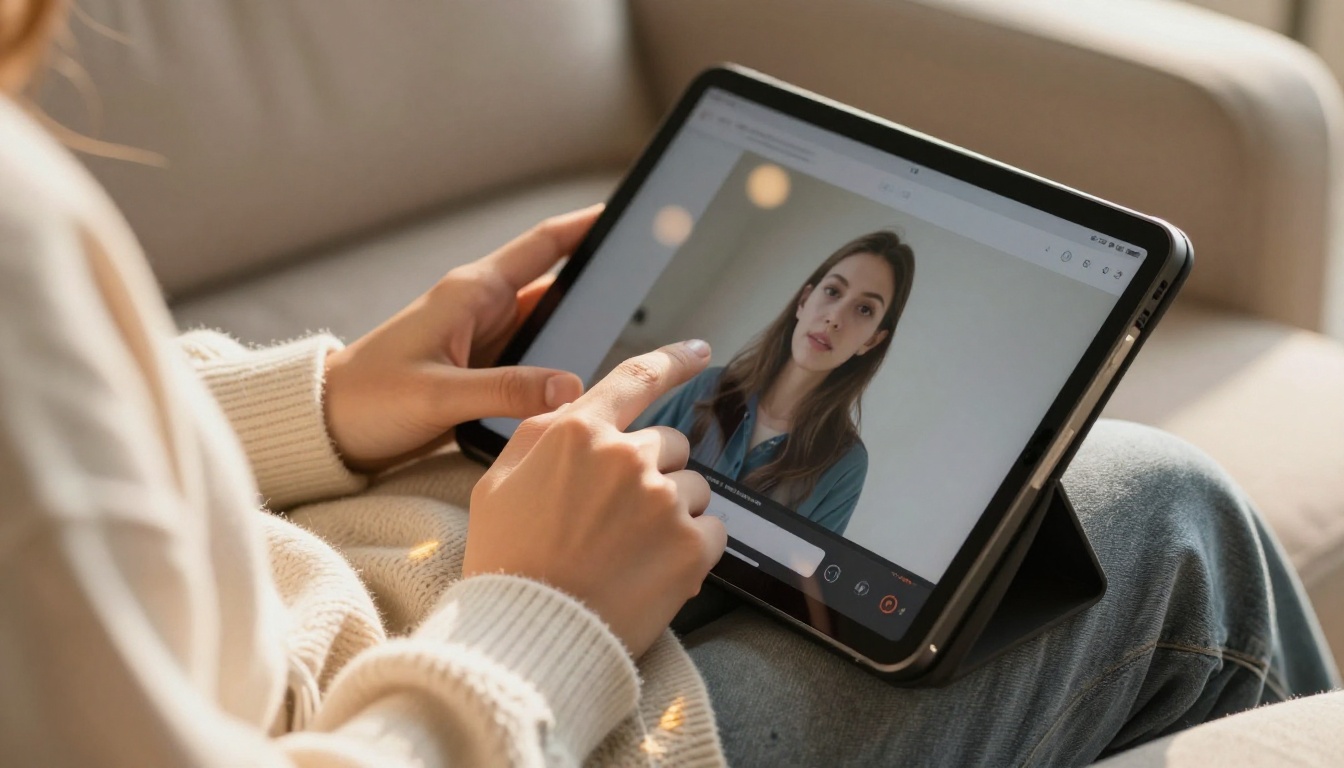
What You Can Do With the Output
Photo-to-video AI is not just a novelty. The output is genuinely useful across a range of real applications.
Social Media Content Without a Camera
Short-form video platforms reward frequency. A single photoshoot can produce a week of content when each image is animated into a 5-second clip. Portrait animations perform especially well on platforms where talking-head content is the default, offering the visual energy of video without requiring a camera setup or studio time.
Preserving Family Photos
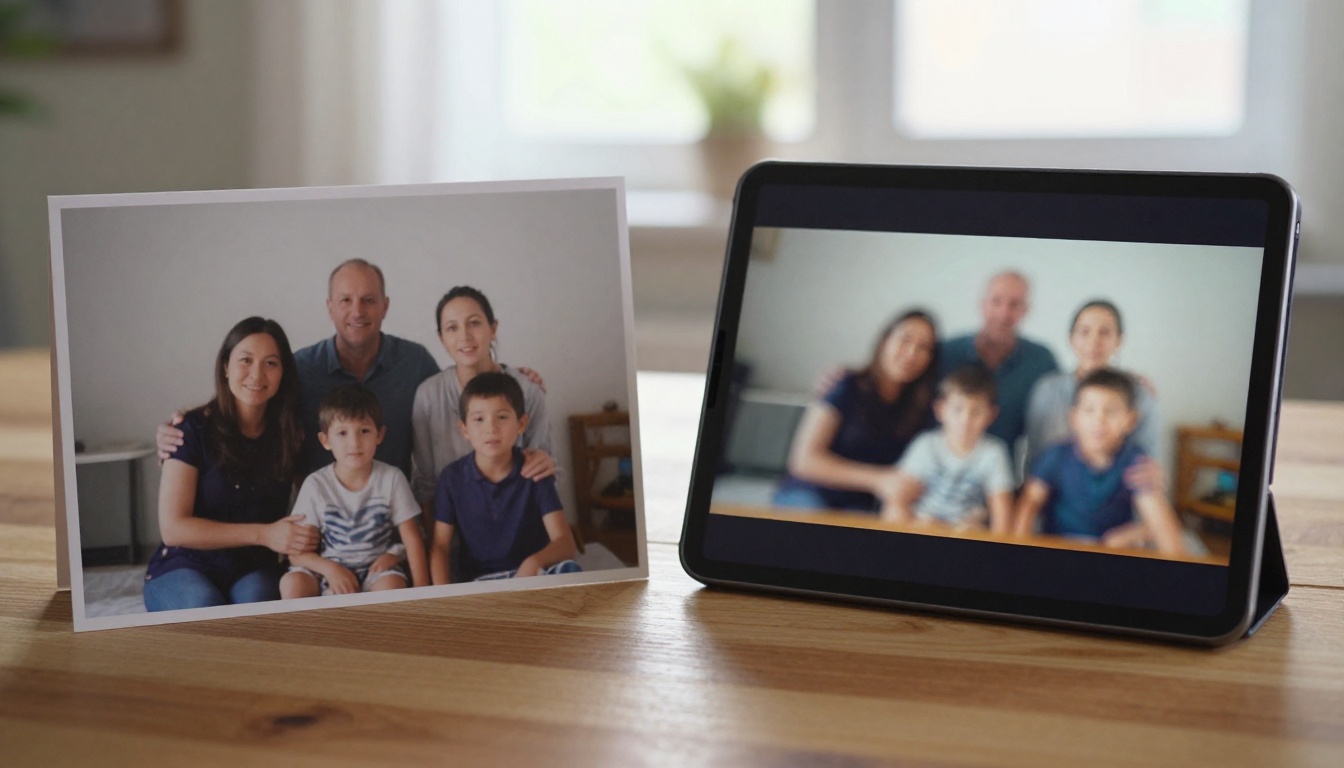
Old family photographs, scanned prints, and archival images that have no accompanying video footage can be animated to give them new emotional weight. Grandparent portraits, childhood photos, and historical family images all respond well to gentle animation, breathing new life into frozen moments that would otherwise stay flat on a page.
Product and Brand Content
Product photos can be animated to show subtle movement: fabric flowing, steam rising from a cup, a perfume bottle catching the light as it slowly rotates. This type of content converts significantly better in paid advertising than static images, and it requires no additional photography session.
Creative and Artistic Projects
Illustrators, photographers, and designers use photo-to-video AI to create animated loop content, title cards, and ambient visual elements for films, podcasts, and websites. The photorealistic quality of current models means the output integrates naturally with live-action footage.
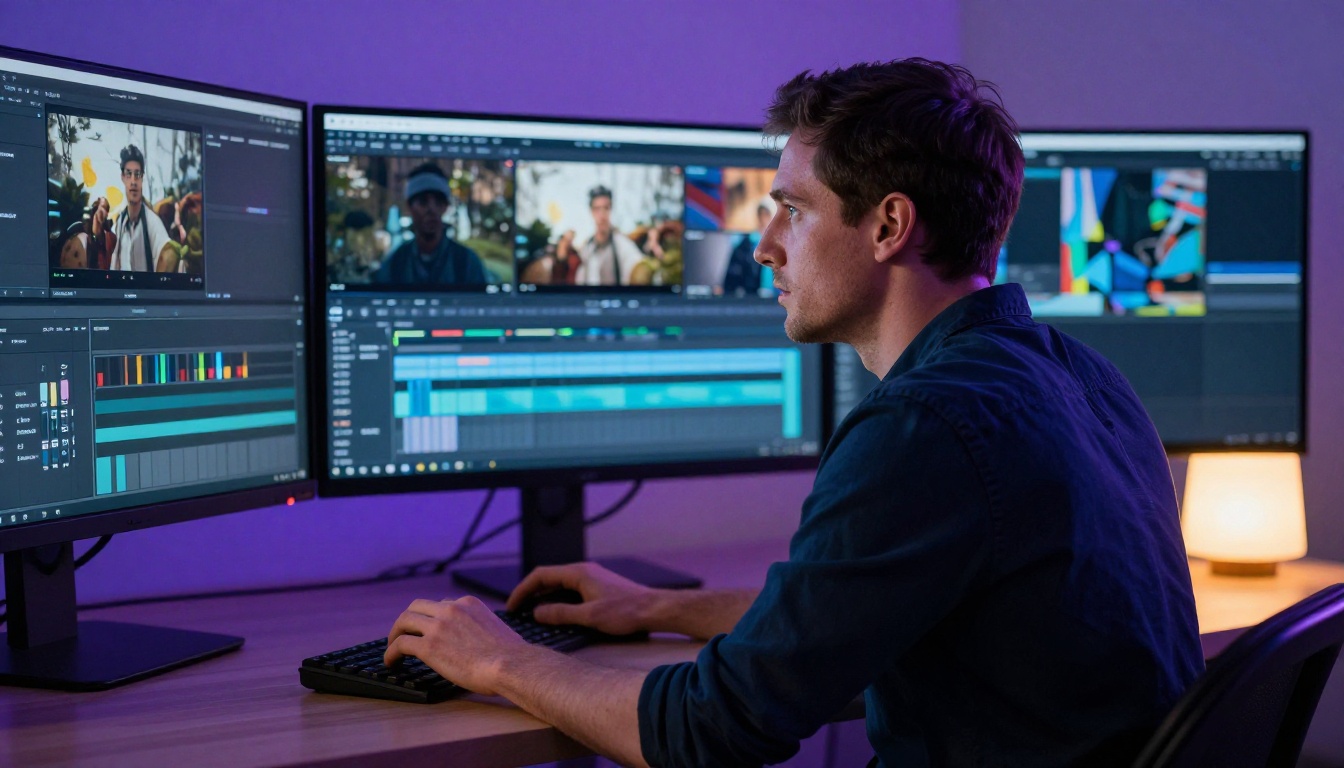
Choosing the Right Model for Your Photo Type
Different photos call for different models. This table maps common photo types to the model that handles them best on PicassoIA.
| Photo Type | Recommended Model | Why |
|---|
| Single portrait | P Video Animate | Purpose-built for portrait animation |
| Landscape or scene | Wan 2.7 I2V | Best scene-level detail preservation |
| Group photo | Kling v2.1 | Handles multiple faces reliably |
| Old or scanned photo | Hailuo 2.3 | Strong restoration plus animation |
| Product shot | Kling v3 Video | Precise motion control |
| Any photo (free) | Picassoia Video | Free, unlimited, no credits |
Sharing Your AI Videos
Once you have a video you are happy with, PicassoIA lets you download the MP4 file directly. From there, the file works in every standard editing tool, social media platform, and content management system.
For social media, keep these specs in mind:
- Instagram Reels and TikTok: 9:16 vertical ratio performs best. If your source photo is 16:9 horizontal, crop to vertical before uploading to the photo-to-video model, or add the horizontal clip to a vertical canvas in your editor.
- YouTube Shorts: The same 9:16 recommendation applies.
- LinkedIn and Twitter: 16:9 horizontal clips perform well and match the default orientation of most photos.
If you need audio on the output, either add it in post-production using any standard video editor, or use models with built-in audio generation like Grok Imagine Video 1.5 or Ovi I2V, which generate ambient sound automatically.
For longer clips, Seedance 2.5 and LTX 2.3 Pro support extended durations that give you more flexibility in editing.
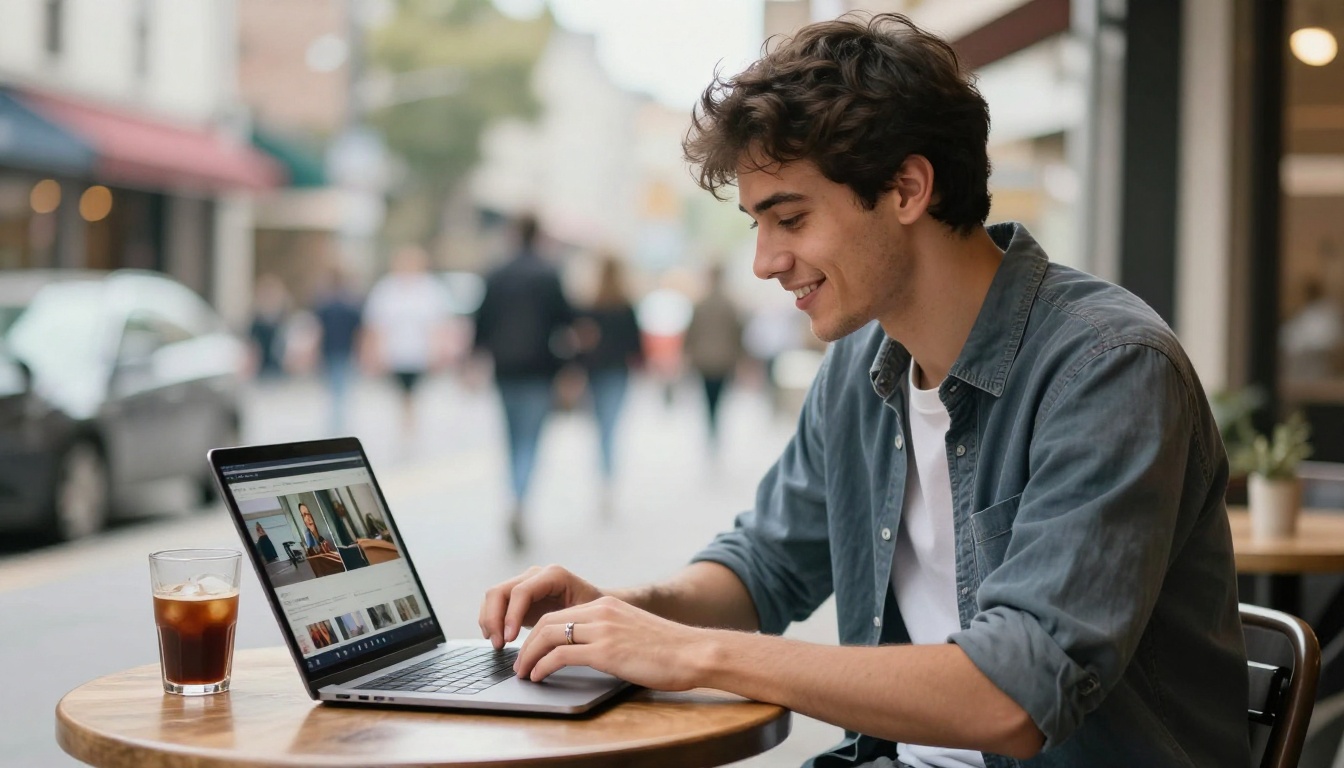
Upscale Before You Animate
If your source photo is lower resolution than ideal, running it through a super-resolution model before animating it significantly improves the video quality. PicassoIA's super-resolution tools upscale images 2x to 4x using AI, recovering detail and sharpness that helps the animation model produce cleaner frames.
The workflow is simple: upscale first, then animate. A 512x512 photo upscaled to 1024x1024 before being fed to an image-to-video model will produce noticeably sharper results than sending the low-resolution original directly. You can find the full range of super-resolution and image-to-video models at picassoia.com/en/all-models.
Why the Number of Models Matters
PicassoIA gives you access to over 87 video generation models in one place. That breadth matters because no single model is best for every photo. A portrait specialist like P Video Animate may handle a headshot better than a cinematic model like Wan 2.7 I2V, which in turn handles landscape animation better than a portrait-focused model. Having access to all of them, without switching platforms or managing API keys, is what makes the workflow practical at scale.
The platform also includes models for every downstream need: super-resolution upscaling for low-quality source photos, face swap tools for replacing subjects, video effects for adding stylistic layers to the output, and AI music generation for creating original audio tracks that fit the mood of the animated clip.
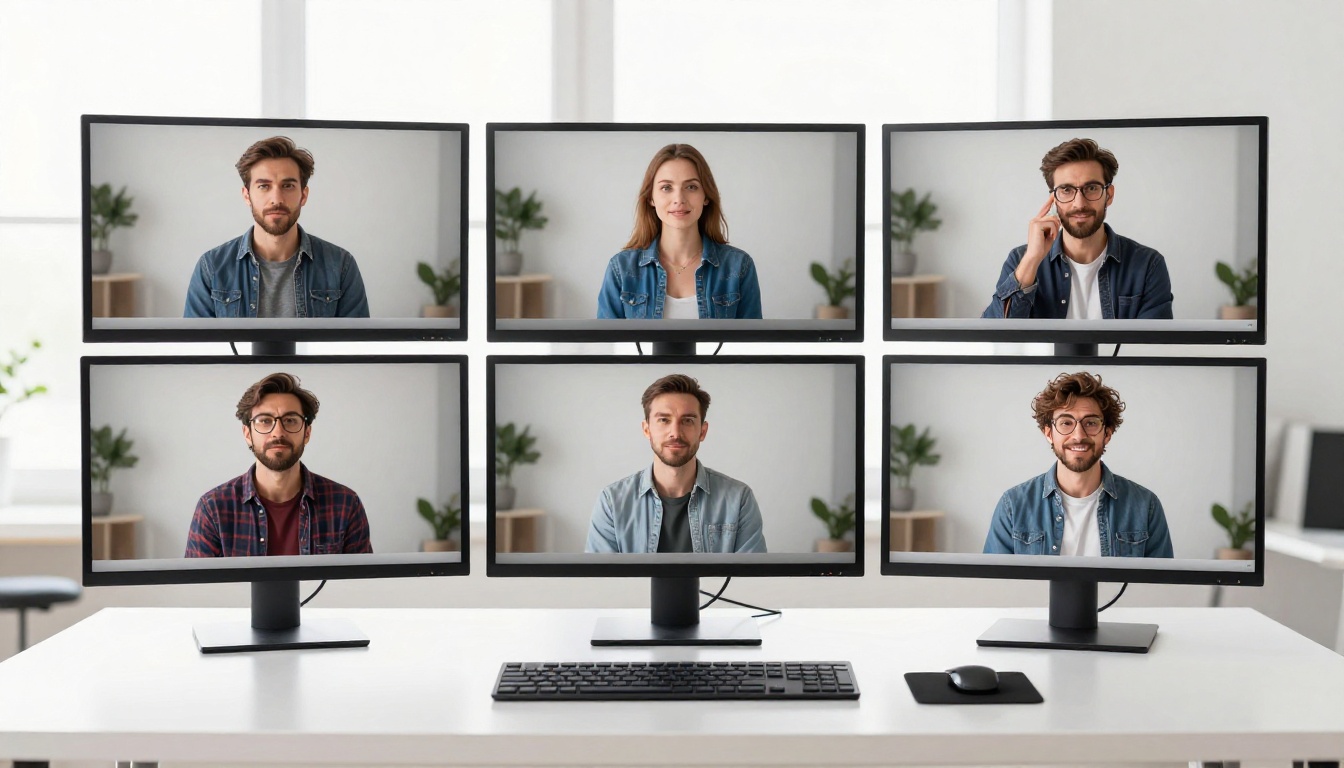
Start With Your Own Photos
Every model mentioned in this article is available on PicassoIA. You can browse over 87 video generation models, including free options with unlimited generations. No video editing experience is required. Paste your photo, write a motion description, and generate.
The fastest way to start: open P Video Animate, upload any portrait photo, and type a simple motion prompt like "subtle head movement to the right, soft hair motion, natural blinking, gentle breath motion visible in the shoulders, warm window light from the left." That single prompt will produce a clip that is dramatically more engaging than the static photo it came from.
For scene-level animation, take a landscape photo and try Wan 2.7 I2V with a prompt like "gentle wind causes the grass to sway slowly, clouds drift from right to left at walking pace, golden hour light shifts slightly warmer over five seconds, camera holds completely still."
Your photo library already contains hundreds of potential videos. The AI handles the rest, and the results are ready to share in under a minute.


