A perfect waifu image freezes a moment in time. The lighting hits just right, the expression is exactly what you wanted, and the composition pulls people in. But the second someone watches a video clip of the same character breathing softly or glancing off-screen with hair drifting in the breeze, the still image feels incomplete by comparison.
That gap between static and animated is where AI image-to-video technology has quietly made something remarkable possible. You do not need a 3D rigging setup, frame-by-frame animation work, or a studio budget to bring a waifu portrait to life. A single high-quality image is enough. What follows is a direct breakdown of how to turn a still waifu into a video, from choosing the source image to hitting the generate button.
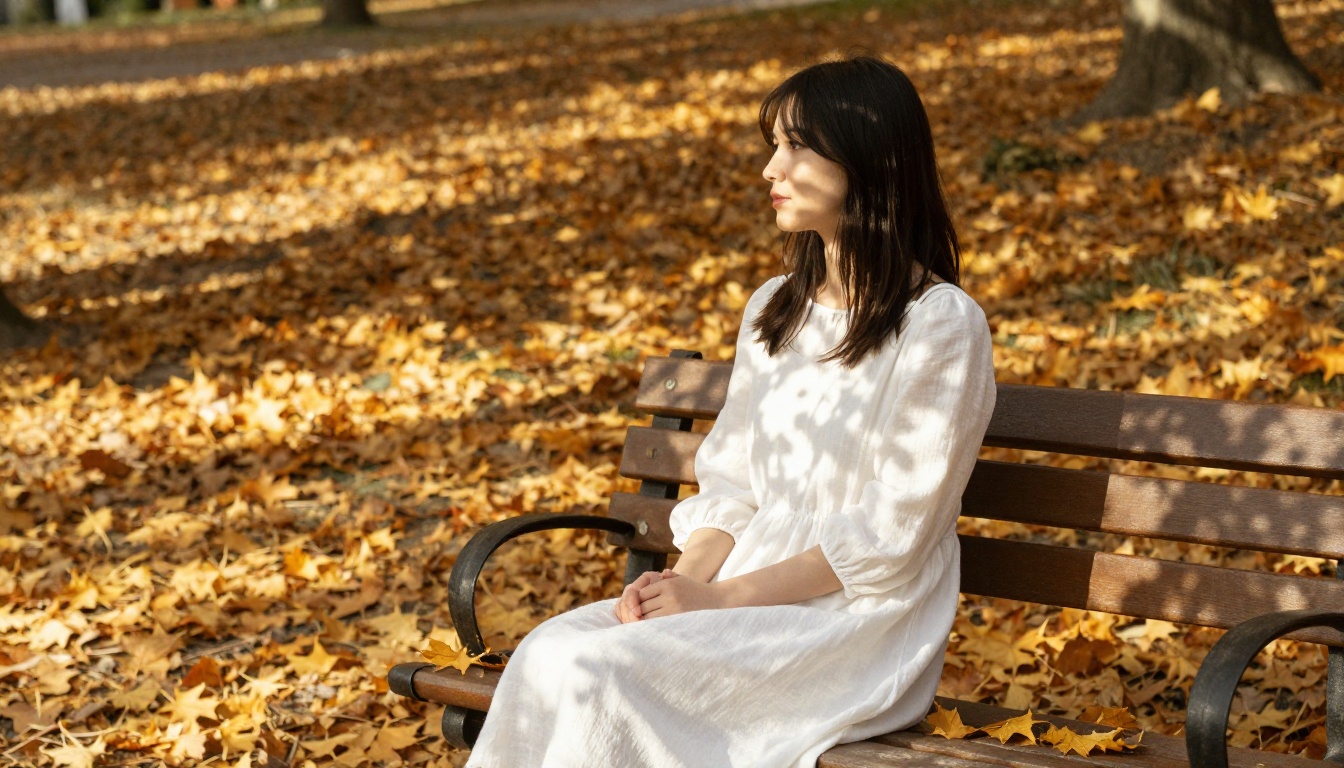
The Case for Animated Waifus
What viewers expect now
Short-form video platforms have reset expectations. Audiences scroll past static images faster than ever, and animated character clips perform disproportionately well in terms of shares and saves. A looping 5-second video of a waifu with subtle hair motion and a gentle blink gets more traction than a perfectly composed still. The mechanics of why are straightforward: movement triggers attention-retention responses that static content cannot produce.
For creators who build around character personas, virtual companions, or original character designs, animation opens distribution channels that images simply cannot access. Reels, TikTok, YouTube Shorts, and Discord all favor motion content. An animated waifu is not a luxury upgrade. It is a format shift.
What makes a waifu image animatable
Not every image animates well. The AI models that handle image-to-video generation work by predicting plausible motion from visual cues in the source frame. A cluttered background with hard edges gives the model conflicting signals. A dark, low-contrast image loses detail in motion. A character pose with extreme foreshortening confuses spatial prediction.
The images that animate best share a few qualities: clean separation between subject and background, natural body orientation that suggests a resting state or gentle ongoing movement, and consistent, well-distributed lighting without blown highlights or crushed shadows. Portrait-oriented shots with a clear focal subject perform better than wide ensemble compositions.
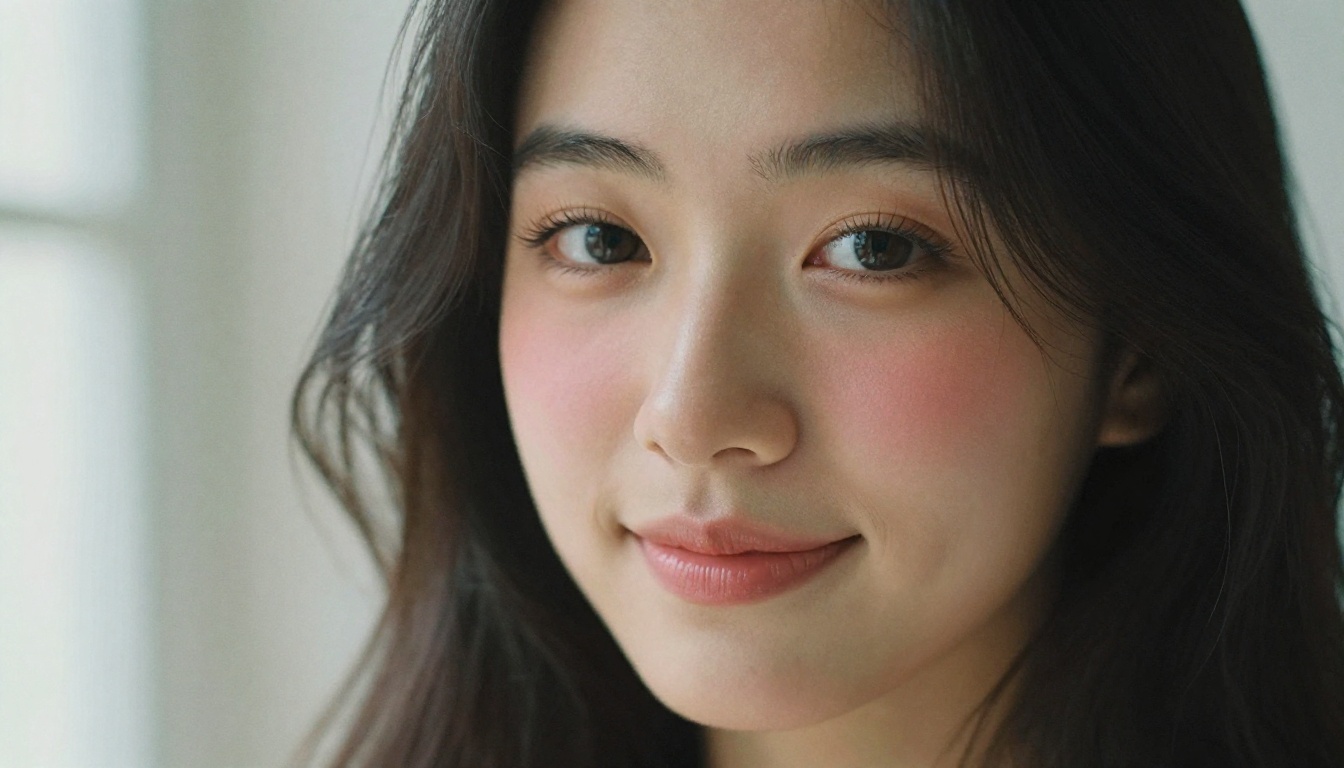
Creating the Right Source Image
Image resolution and format
AI video models consume the input image as the literal first frame of the output. Low-resolution inputs produce blurry, artifact-heavy results. The minimum worth working with is 720p. For models that support 1080p or 4K output, starting with a high-resolution source preserves detail in facial features, hair strands, and fabric textures that would otherwise smear in motion.
Export your source image as a PNG or high-quality JPEG at the native resolution of your generation tool. Avoid heavy JPEG compression, which introduces block artifacts that the video model will then animate, making them more visible rather than less.
Pose and composition for motion
The starting pose of a still image becomes frame zero of your video. Think about what natural motion would extend from that pose. A character seated with hands in their lap suggests gentle breathing, a slight head turn, or a soft fabric breeze. A character mid-stride suggests continued walking. A character looking off-screen suggests an eyeline return toward the camera.
The most reliably successful motion prompts work with poses that have obvious physical continuation. Avoid highly compressed or abstract poses that leave the model guessing about basic body structure. Standard portrait compositions, three-quarter body views, and profile shots all animate more predictably than overhead perspectives or extreme facial close-ups without body context.
Lighting and color for clean animation
Dramatic lighting with strong side shadows can animate beautifully, but it requires precision in the motion prompt to keep shadow behavior consistent. Flat, even lighting is more forgiving for beginners. The sweet spot when generating source images yourself is soft directional light with visible depth but no harsh shadows. Kodak Portra 400-style warm tones with natural skin rendering give AI video models the most consistent color baseline to work from.
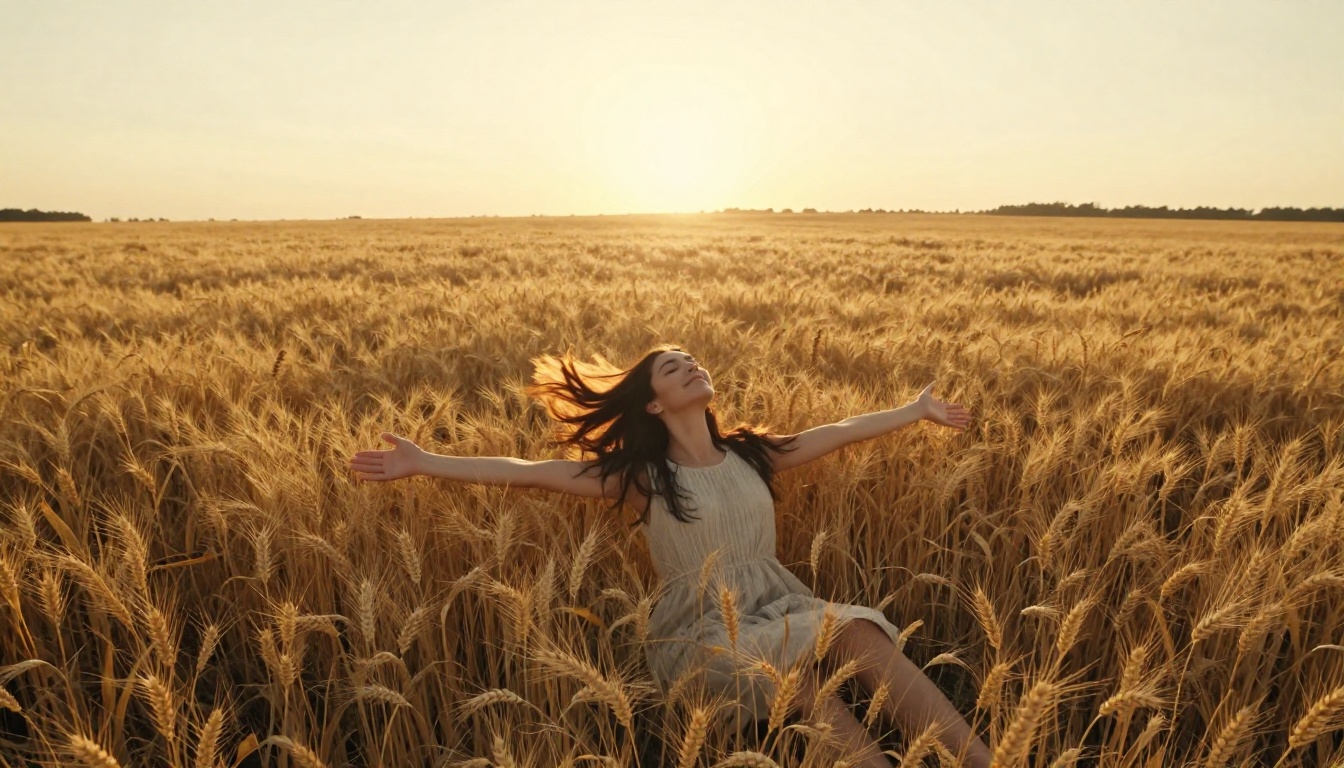
Best Models for Generating Waifu Images
If you are starting from scratch rather than importing an existing image, the quality of your source depends entirely on which generation model you use. PicassoIA's text-to-image library includes several models that produce the clean, photorealistic character portraits that animate best.
Seedream 5 Pro by ByteDance delivers sharp 2K portraits with exceptional facial structure consistency. It handles complex hair textures well and produces natural skin tones that hold up in animation without drifting between frames.
Dreamina 3.1 is built for cinematic 4MP photos with strong lighting control. The outputs have a film-grade quality that pairs exceptionally well with cinematic video motion prompts.
Ideogram Character maintains character consistency across multiple generations. If you need several source images of the same waifu at different angles before animating, this model is built specifically for that workflow.
Flux Kontext Fast allows image-level editing after generation, so you can refine a pose, adjust lighting, or swap outfit details before passing the image into a video model.
Qwen Image 3 is a strong choice for photorealistic renders with fine detail. It handles fabric textures, jewelry, and accessory details in a way that animates cleanly without producing uncanny results.
| Model | Best For | Output Quality |
|---|
| Seedream 5 Pro | Sharp 2K portraits | ★★★★★ |
| Dreamina 3.1 | Cinematic lighting | ★★★★★ |
| Ideogram Character | Consistent character across shots | ★★★★☆ |
| Flux Kontext Fast | Editable source images | ★★★★☆ |
| Qwen Image 3 | Photorealistic textures | ★★★★☆ |
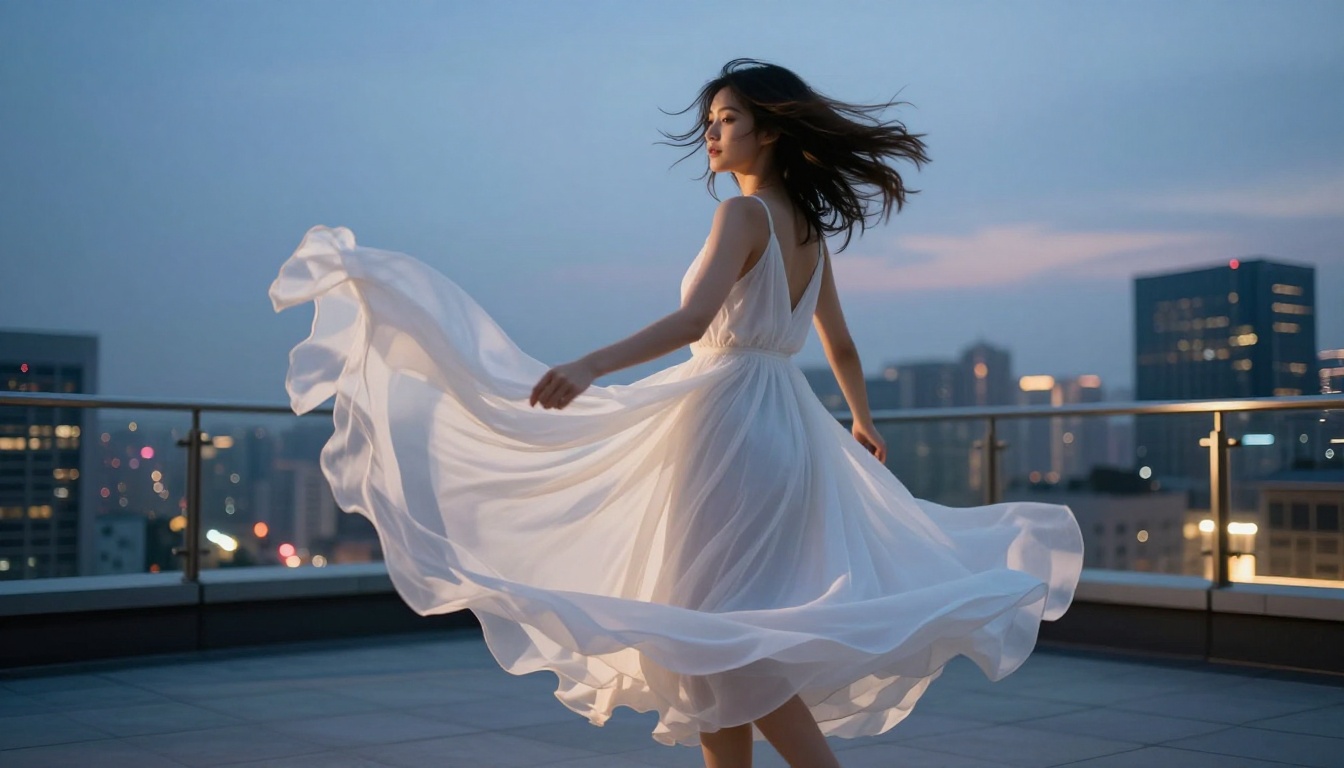
How to Animate a Still Waifu on PicassoIA
Step 1: Prepare your image
Upload your waifu image to PicassoIA at picassoia.com. If you are generating from scratch, use one of the text-to-image models listed above. For existing images, use the platform's upload function to bring your file in. Confirm that the image is at least 720p and that no part of the character is cropped at the edges, particularly hands and shoulders.
Step 2: Select an image-to-video model
Navigate to the text-to-video section of the platform and choose a model optimized for image-to-video (I2V) animation. These models take your still as the first frame and generate the remaining frames based on your motion prompt. The model selection changes the output speed, resolution ceiling, motion style, and the degree of creative interpretation the AI applies to your source.
Step 3: Write your motion prompt
The motion prompt is the most important input in the entire workflow. It describes what happens after frame zero. Specificity directly correlates with output quality. "Waifu moves" is nearly useless. "Her dark hair shifts slightly in a gentle breeze while she breathes slowly, fabric of her dress rippling softly, camera holds steady" gives the model structured physical events to generate from.
Step 4: Generate and iterate
Run the generation. If the output has drift, artifacts on the face, or unnatural limb movement, adjust the motion prompt. Reduce the amount of movement described. Lock the camera position in the prompt. Increase the motion weight if the output is too static. Most models allow you to rerun with the same image and a modified prompt without losing source quality.
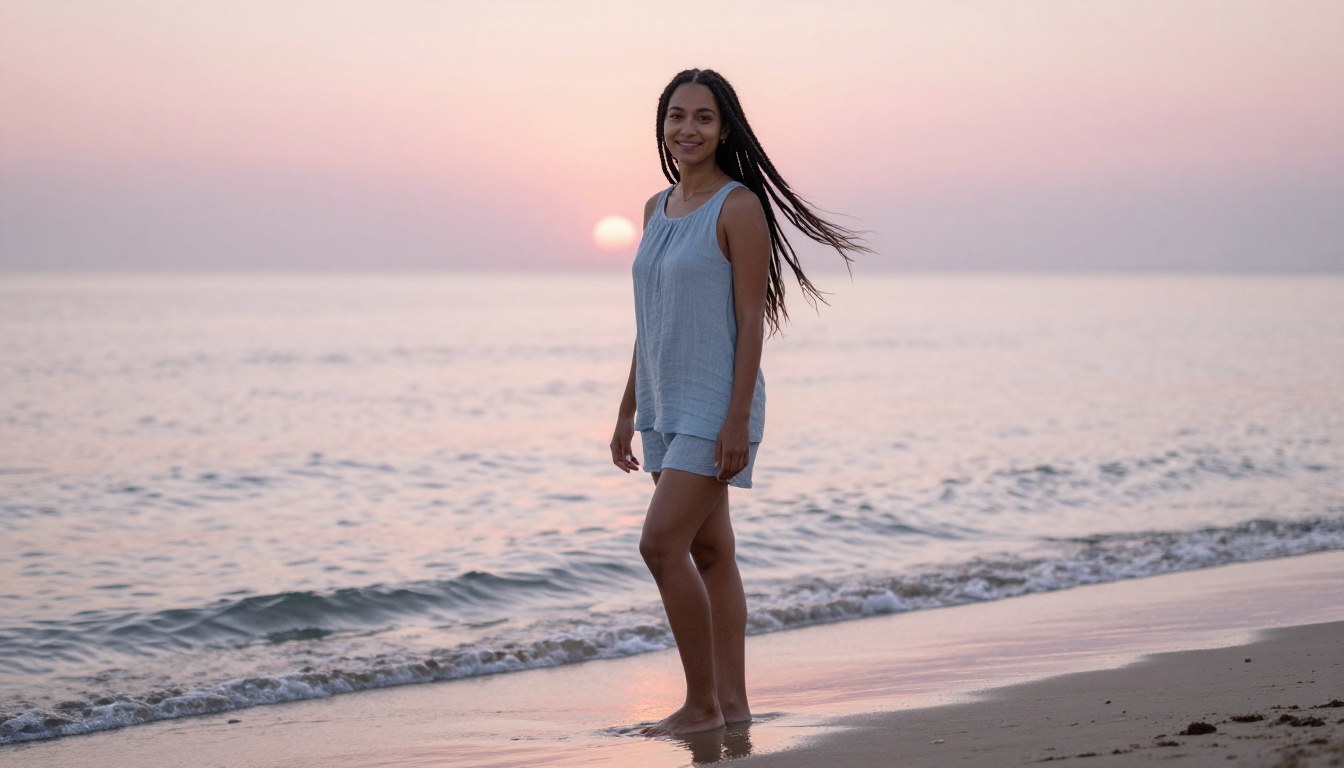
Best Video Models for Waifu Animation
PicassoIA's text-to-video library includes over 120 models. For waifu animation from a still image, these are the ones that deliver the most consistent, high-quality results.
Wan 2.7 I2V
Wan 2.7 I2V is one of the most precise image-to-video models available. It animates directly from your source image without heavy creative drift. Hair and fabric motion are clean and physically plausible. It is the safest starting point for first-time waifu animation.
Seedance 2.5
Seedance 2.5 handles up to 30-second outputs with native audio support. For waifu content that needs atmospheric sound layered in, this model covers both motion and audio in a single generation pass. The facial expression fidelity is among the best in the library.
Kling v3 Motion Control
Kling v3 Motion Control gives you camera path control on top of character motion. You can specify a slow pan right while the character breathes and looks upward. The motion control layer adds cinematic precision that general I2V models cannot match.
P Video Animate
P Video Animate is optimized specifically for animating photos into video. Its default motion profile adds subtle life to a still without requiring a detailed prompt. For creators who want fast, clean results with minimal prompt writing, this model delivers reliable outputs consistently.
Dreamactor M2.0
Dreamactor M2.0 specializes in character animation with expressive facial control. It is the top choice when your waifu video needs a visible emotional arc: a subtle smile appearing, eyes closing slowly, or a gentle exhale. Expression timing is more intentional with this model than any other in the library.
💡 Model selection tip: Start with Wan 2.7 I2V for clean, low-drift results. Switch to Dreamactor M2.0 when facial expression is the primary focus. Use Kling v3 Motion Control when camera movement matters as much as character movement.
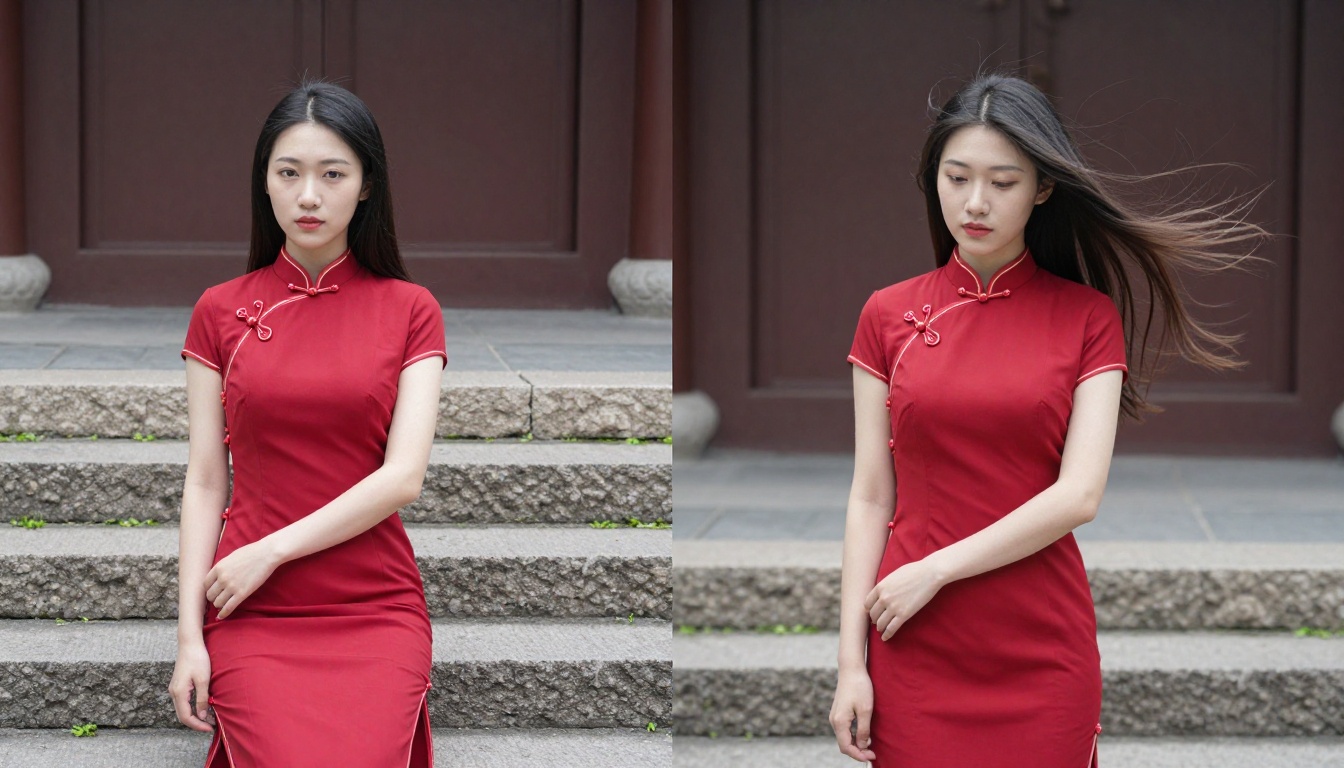
Writing Motion Prompts That Work
Natural movement first
The most convincing waifu animations start with physically small movements. A full body walk cycle is much harder for the AI to produce cleanly than a standing character with breathing motion, subtle hair shift, and a slight head tilt. Build from small to large. Hair drifting in a breeze is easier than a hair toss. A single glance is easier than a full head turn. Adding secondary motion such as fabric ripple, loose accessories swaying, and surface reflections moving makes the primary character motion read as more natural without asking the model to produce complex pose changes.
Hair and fabric physics matter most
Hair and fabric are the most readable motion signals in waifu animation. Stiff, unanimated hair immediately reads as a failed generation even when the face looks perfect. In your motion prompt, always describe hair behavior explicitly: "long black hair drifts slowly to the left in a steady indoor breeze" or "short layered hair lifts slightly and settles back." The same applies to clothing. A flowing dress rippling in wind reads as alive in a way that rigid clothing never does.
Camera movement adds production value
Even a static character animation feels more cinematic with camera movement described. Common high-value camera moves include:
- Slow dolly push: Camera moves gradually toward the subject over 5 seconds
- Gentle pan: Camera sweeps left or right while the character holds their position
- Slight tilt up: Camera angle slowly tilts from chest level to face level
Any one of these adds a professional quality that separates deliberate waifu animation content from casual one-click tests.
💡 Prompt formula: [Subject state at frame zero] + [Primary movement description] + [Secondary movement: hair and fabric] + [Camera movement] + [Lighting continuity note]
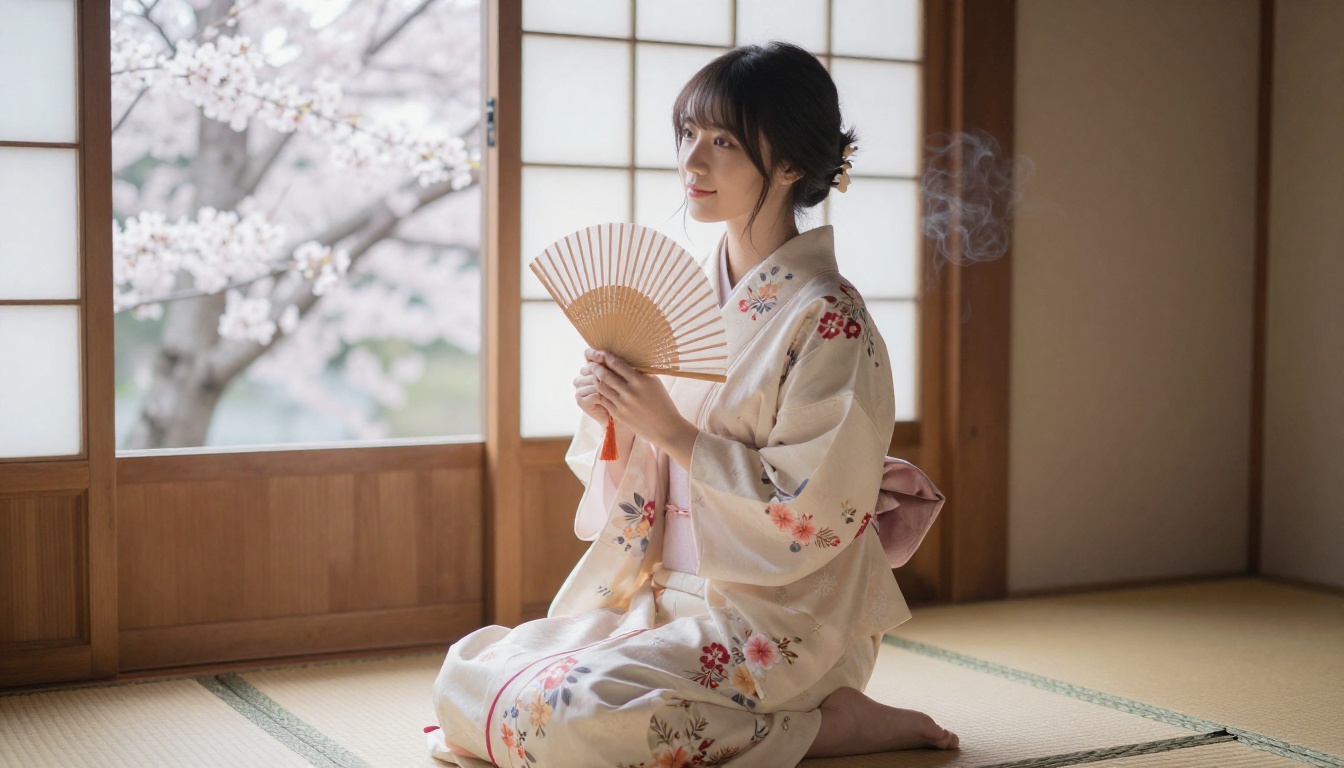
Common Problems and Fast Fixes
Face drift and distortion
The most common problem in waifu animation is facial drift: the face changes shape, the eyes misalign, or the skin tone shifts mid-clip. This usually happens when the motion prompt asks for too much movement relative to the image composition. Add "face remains still and consistent" to the end of your prompt. Reduce the motion weight slider. Use a model specifically optimized for portrait animation like Dreamactor M2.0 rather than a general text-to-video model.
Limb flicker and artifact frames
Arm and hand positions at the edges of the frame confuse many models because the spatial relationship is ambiguous from a single still. If your source image shows hands near the frame edge, crop to a tighter composition before animating. For full-body images, stick to upper-body animations in the prompt and avoid asking the model to move the lower body or feet, where it has the least visual information to work from.
Resolution mismatch
Generating a 480p video from a 2K source image wastes the source quality and produces a result that looks worse than if you had generated from a lower-resolution input. Match your output resolution setting to your source. For waifu animation shared on social media, 720p is the floor. For anything meant to be showcased in a content hub or portfolio, 1080p is the standard to hit.
💡 Quick settings checklist: Source image at 720p minimum, output resolution matches source, motion prompt under 120 words, camera movement explicitly named, hair and fabric physics described, face stability instruction included at the end.
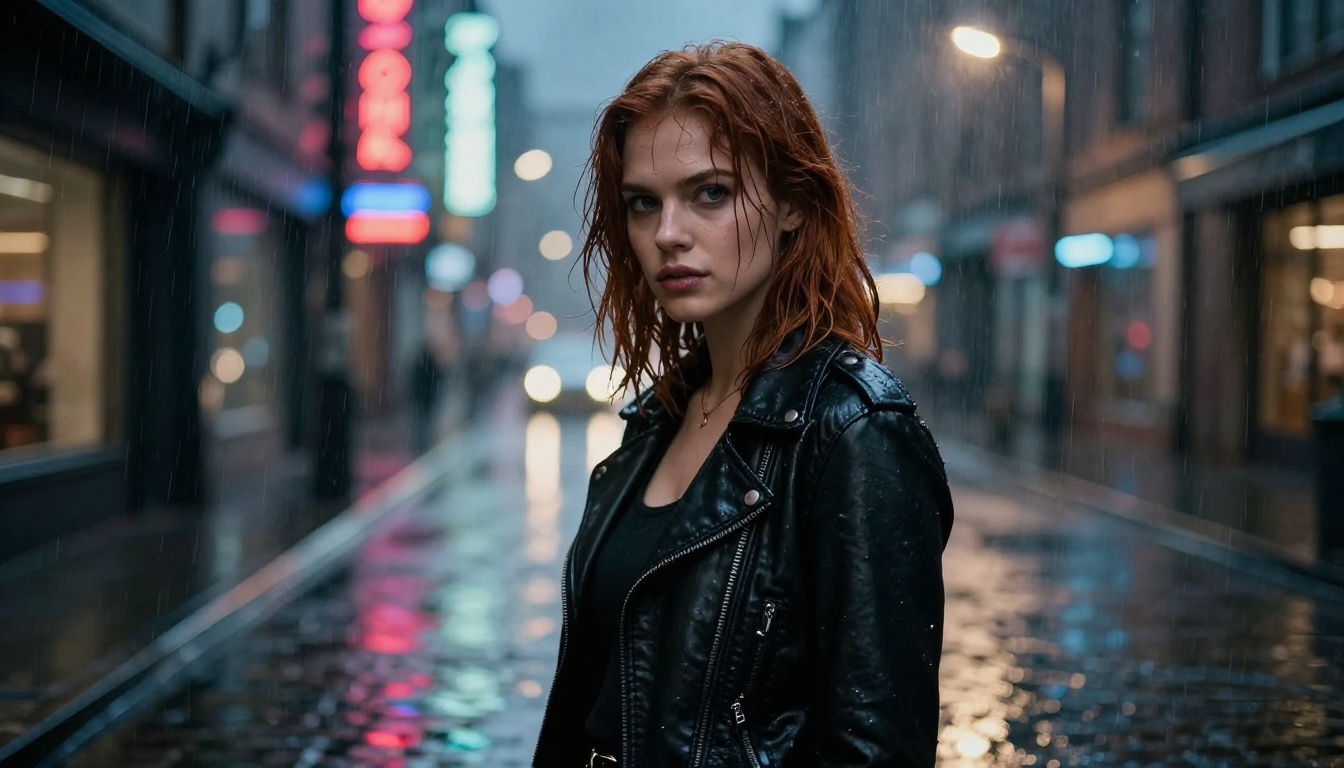
PicassoIA offers several supporting tools that fit naturally into a waifu animation workflow.
LTX 2.5 Fast produces 4K video from text prompts in seconds. If you want to generate a reference video scene before animating your character into it, this is the fastest way to establish a background environment.
Kling v3 Video adds synced cinematic motion to text or image prompts. For waifu content that needs choreographed movement, this model handles it without breaking character consistency across frames.
Wan 3 generates cinematic video from text and handles complex scene compositions. Useful when you want to animate a waifu against a generated environment rather than the original image background.
For creators who want to start without any credit budget, PicassoIA Video is the platform's free unlimited video generator. It handles both text-to-video and image-to-video generation and is the best starting point for testing motion prompts before committing to a higher-quality model run.
The full model library at picassoia.com/en/all-models covers over 500 models across image, video, audio, and effects categories.
Start Making Your Waifu Move
The workflow at its core is simple: a good source image, the right model, and a motion prompt that describes physical events in plain, specific language. The technical barrier is genuinely low. PicassoIA's platform handles all the generation infrastructure. Your job is to feed it a sharp, well-lit starting frame and tell it what happens next.
The results speak for themselves. An animated waifu clip performs differently across every platform compared to a still. It stops scrolls, gets saved, and invites people to ask how you made it. That question opens up a content loop that a static image simply cannot start on its own.
Head to picassoia.com and upload your first waifu portrait. Pick Wan 2.7 I2V or P Video Animate, write a motion prompt that describes exactly what happens in the first five seconds, and run it. The gap between your still image and a living character is smaller than you think.