Photo-to-video AI has crossed a line no one saw coming three years ago. What used to require a film crew, expensive equipment, and hours of post-production now takes 30 seconds and a single portrait. If you have been wondering how to turn photos into NSFW videos with AI, the short answer is: pick the right model, write a precise prompt, and let the generation engine handle the rest. This article walks you through exactly how.
What Photo to NSFW Video Actually Means
Before choosing a tool, it helps to understand what is happening under the hood. Image-to-video AI models work by taking a static image and predicting the most realistic sequence of frames that could logically follow from it. The model reads pose, lighting, texture, and context from your photo, then animates it.
NSFW in this context sits on a spectrum. At the safe end, you have glamour-style motion: hair blowing, subtle body movement, fabric dynamics, water ripples over skin. At the more explicit end, some platforms allow full adult content generation. This article focuses on the glamour and suggestive tier, which works on most mainstream AI platforms without triggering content filters.
Why Photos Beat Text Prompts
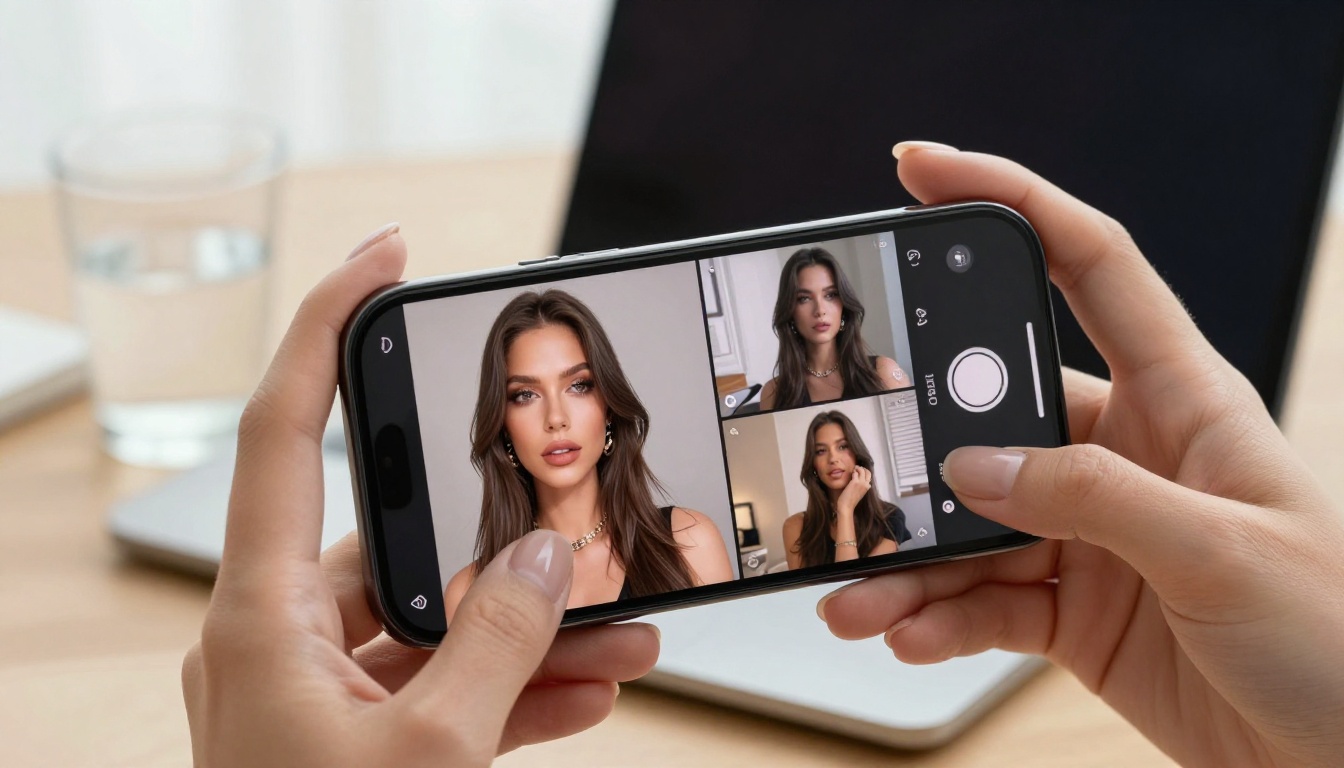
Generating NSFW video from text alone is harder than it looks. The model has to invent a face, a body, lighting, environment, and movement all at once. The result is often inconsistent. Starting from a photo removes most of those variables. The model only has to add motion. This is why image-to-video pipelines consistently outperform text-to-video for this type of content.
💡 The best NSFW AI videos start with high-quality photos. A sharp, well-lit portrait at a natural angle will animate far more convincingly than a blurry or heavily filtered image.
The Photo Quality Checklist
Not every photo makes a good source image. These are the factors that actually affect your output:
- Resolution: Minimum 1024x1024. Higher is always better.
- Lighting: Natural or soft artificial light. Hard flash creates artifacts during animation.
- Pose clarity: The model needs to read the body pose accurately. Obscured limbs cause distortion.
- Background simplicity: Busy backgrounds increase the chance of visual noise in motion.
- Face visibility: If you want facial animation, the face must be clearly visible and unobstructed.
The Best Models for This Job
Not every AI video model handles NSFW content the same way. Some apply strict safety filters. Others, particularly open-weight models and platforms designed for adult content, give you far more latitude. Here are the top performers available right now.
Wan 2.6 I2V: The Open-Weight King
Wan 2.6 I2V is currently the strongest open-weight image-to-video model available. Because it runs on open weights, platform operators can remove content filters entirely, which is why it has become the go-to model for NSFW video generation on platforms that allow it.
The model is remarkably good at preserving identity from the source photo while adding fluid, realistic motion. Hair moves naturally, fabric has weight and physics, and skin texture remains consistent across frames.
For faster generation with slightly reduced quality, Wan2.6 I2V Flash cuts generation time in half while keeping the core identity preservation intact.
Kling V3: Cinematic Motion Control
Kling V3 Omni Video brings something most NSFW video generators lack: motion control. You can specify exactly how the subject moves, whether that is a subtle turn of the head, a slow walk toward camera, or a specific choreographed pose sequence. For glamour content, this level of control is invaluable.
The related Kling v3 Video is the standard version without the motion control layer, and it still delivers excellent cinematic results from a single photo input.
DreamActor-M2.0: Animate Any Character
DreamActor-M2.0 was built specifically for animating a single character photo into video. The model uses a reference image to maintain identity consistency while generating expressive motion. It is particularly strong at facial animation and upper body movement, making it one of the better choices for close-up portrait animation.
Seedance 2.0 for Audio-Synced Results
If you want your video to include synchronized audio, Seedance 2.0 supports native audio generation alongside video. You can generate sensual background music or ambient sound that matches the visual mood automatically, all in a single generation pass.
How to Write Prompts That Work
The image you upload sets the scene. The text prompt controls the motion. These are two completely different things, and most beginners get this wrong by describing the subject's appearance in the prompt when they should be describing movement.
Motion Prompts vs. Appearance Prompts
Bad prompt (describes appearance): "Beautiful woman with long dark hair in a red bikini on the beach"
Good prompt (describes motion): "She turns slowly toward the camera, her hair lifting in a warm breeze, fabric shifting gently, soft smiling expression, cinematic slow motion"
The model already knows what she looks like. Your prompt tells it what to do next.
5 High-Performance Motion Prompts
Here are specific prompt formulas that consistently produce strong NSFW glamour results:
- The Look:
"She slowly tilts her head toward camera, a subtle smile forming, hair drifts in soft wind, shallow depth of field, cinematic 24fps"
- The Approach:
"She walks slowly toward the camera, confident stride, fabric movement, warm golden hour backlighting, slow motion"
- The Water:
"She rises slowly from the pool water, water cascading down skin, hair slicked back, cinematic camera pull-back, 4K"
- The Turn:
"Slow 180-degree turn, revealing her full figure, natural light wrapping around her curves, documentary style, handheld camera"
- The Breath:
"Extreme close-up, chest slowly rising and falling, subtle smile, depth of field blur on background, intimate atmosphere"
💡 Keep motion prompts short and specific. Under 30 words works better than long descriptions. The model handles the physics. You direct the action.
Step-by-Step: Your First NSFW AI Video
This is the actual workflow from photo to finished video.
Step 1: Prepare Your Source Photo
Start with a photo that meets the quality checklist above. If you do not have a good source photo, generate one first using a text-to-image model. For photorealistic adult content, Flux 1.1 Pro and Realistic Vision v5.1 are strong choices. Both preserve natural skin tones and avoid the artificial look that makes video animation harder.
For maximum realism with detailed skin texture, RealVisXL v3.0 Turbo is worth testing. It was specifically fine-tuned for photorealistic human subjects and produces the kind of photo-quality output that animates cleanly.
Step 2: Choose Your Video Model
Pick based on your priority:
Step 3: Upload and Configure
Upload your source image. Set the following parameters for optimal NSFW glamour results:
- Duration: 5-8 seconds. Short clips are sharper and loop better.
- CFG Scale: 6-8. Higher values follow your prompt more strictly.
- Motion Intensity: 40-60%. High motion values cause distortion on skin.
- Seed: Record successful seeds and reuse them for consistent results.
Step 4: Write Your Motion Prompt
Use the motion-focused formula above. Add a negative prompt if the model supports it:
Negative prompt: "distortion, morphing face, extra limbs, unnatural skin, blurry, artifact"
Step 5: Generate and Iterate
First generation is rarely perfect. Common issues and fixes:
| Issue | Fix |
|---|
| Face morphing | Reduce motion intensity, add "stable face" to prompt |
| Skin artifacts | Lower CFG scale, use higher quality source image |
| Unnatural movement | Add "cinematic, smooth, slow motion" to prompt |
| Background warping | Add "stable background, static environment" to prompt |
Different platforms implement these models differently. Settings, interfaces, and content policies vary widely.
For Open-Weight Models
Platforms running Wan 2.5 I2V or Wan 2.6 I2V on uncensored infrastructure will give you the most freedom. Look for platforms that explicitly state NSFW content is allowed. The model itself does not impose content restrictions. The platform does.
For Faster Results
P-Video and LTX-2.3-Pro both support image-plus-audio input, which speeds up the production pipeline significantly if you want a polished result with synchronized sound in one pass.
For Longer Videos
Hailuo 2.3 Fast handles longer video clips better than most models in the same speed tier. If you need more than 8 seconds of continuous video from a single photo, this is the most reliable option to test first.
3 Common Mistakes to Avoid
These are the errors that cause most failed generations:
1. Using a compressed or watermarked photo
JPEG compression artifacts get amplified during animation. Watermarks create persistent visual glitches in the generated video. Always start with a clean, high-resolution source image without any overlays.
2. Describing appearance instead of motion
The model already has the image. Any prompt text spent describing how the subject looks is wasted token budget. Use every word to describe movement, camera behavior, and atmosphere. This single change improves output quality more than any other adjustment.
3. Setting motion intensity too high
It feels counterintuitive, but lower motion settings often produce more realistic results for skin and body animations. Faces especially degrade quickly above 70% motion intensity on most models. Start at 40% and increase only if the result feels too static.
How the Best Source Photos Are Made
If you are generating source images rather than using real photos, the gap between a mediocre and excellent source image is almost entirely in the prompt specificity. The texture and lighting language matters enormously.
For photorealistic results, models like Flux 2 Pro and GPT Image 1.5 respond well to very specific light and texture descriptions. Instead of "beautiful woman in bikini," write:
"Tanned woman in champagne bikini, wet skin, volumetric golden hour light from the left, 85mm f/1.8 depth of field, Kodak Portra 400 grain, photorealistic, RAW 8K"
That level of specificity produces images that animate far more convincingly because the model has resolved all the visual ambiguity upfront.
How to Use Wan 2.6 I2V on PicassoIA
Since Wan 2.6 I2V is the strongest model for this workflow, here is how to use it specifically on PicassoIA.
The Setup Process
- Go to the Wan 2.6 I2V model page on PicassoIA.
- Click Upload Image and select your source photo.
- In the text prompt field, enter your motion prompt only. No appearance description needed.
Parameter Settings for NSFW Glamour
- Motion Strength: Start at 0.45. Increase only if the video looks too static.
- Video Length: 5 seconds for close-ups, 7-8 seconds for full body shots.
- Inference Steps: 30-40 for quality output. Use 20 for quick test runs.
- Guidance Scale: 7.0 is a reliable starting point. Go up to 8.5 for stronger prompt adherence.
Tips for Consistent Results
- Always use the same seed for iterations so you can compare changes in isolation without other variables shifting.
- If the face morphs, add "consistent face, stable facial features" to your prompt.
- For water and pool scenes, add "natural water physics, realistic ripples" to prevent glitchy liquid effects.
- If the platform offers an NSFW or adult content toggle, enable it before generating. Some filters are applied at the platform level before the model even runs, meaning you need platform-level permission, not just the right model.
What Results to Expect Right Now
Realistic expectations matter. Current AI video generation is remarkable but not perfect. Here is what the technology reliably delivers, and where it still struggles.
Reliable:
- Subtle hair movement and fabric dynamics
- Breathing and chest motion
- Head turns and micro-expressions
- Camera movement simulation like zoom and pull-back
- Consistent identity across 5-8 second clips
Still inconsistent:
- Full body walking with anatomically correct leg motion
- Hand and finger movement in close-up
- Extreme camera angles during motion
- Consistent identity beyond 10 seconds
The sweet spot for current NSFW AI video is 5-7 second clips that focus on the upper body or feature simple, elegant motion. Short loops work extremely well. A well-generated 6-second clip that loops seamlessly is more compelling than a glitchy 20-second sequence.
Start Creating Now
The fastest way to get results is to stop reading and start generating. PicassoIA has 89 video models available right now, including all the ones covered in this article. The platform also lets you generate the source photo first using text-to-image models, then feed it directly into a video model without downloading or re-uploading anything.
Start with Wan 2.6 I2V for your first test. Upload a clean portrait, use a simple motion prompt like "she turns slowly toward the camera, hair in the breeze, golden hour light," and set motion strength at 0.45. The result will tell you everything about whether your source image works and what adjustments to make next.
If you want faster iteration, Wan2.6 I2V Flash cuts the wait time significantly while keeping output quality strong enough to evaluate your prompt and settings. Run 3-4 quick tests, find what works, then switch back to the full quality model for your final output.
For character animation specifically, DreamActor-M2.0 is worth a test if you find the standard I2V models struggling to maintain a consistent face across frames. Every generation teaches you something. After five iterations, your results will be dramatically better than the first.


