Taking a still photograph and watching it breathe, move, and come alive as a video is one of the most satisfying things you can do with AI right now. Seedance 2.0 by ByteDance sits at the top of the image-to-video pile for a good reason: it produces natural, physically coherent motion with built-in synchronized audio, all from a single source photo. Whether you want to animate a portrait, a landscape, or a product shot, this model handles it with fewer artifacts and more visual believability than most alternatives. This breakdown covers everything from uploading your first photo to writing prompts that generate clean, cinematic output every time.

What Seedance 2.0 Actually Does
ByteDance released Seedance 2.0 as a significant step forward from its earlier video generation models. The core capability is image-to-video: the model takes a still photo and a motion prompt, then synthesizes a short clip where the scene comes to life with natural physics. What separates it from older approaches is temporal coherence, meaning the model reasons about how motion flows across the full 5-second window rather than animating frames independently. That single distinction is why results look smooth instead of jittery.
Image-to-Video at Its Core
The mechanism is straightforward. You provide a source image and a text prompt describing the motion you want. The model uses your image as the visual reference for appearance, color, and composition, and it uses the text prompt as instructions for what should move and how. It does not distort or warp your original image. It generates entirely new video frames that are visually consistent with your photo and extend the scene forward in time with believable physics.
Output is a 5-second MP4 clip at 24 frames per second, available at 480p or 720p. The model supports any input image aspect ratio and matches the output to your source automatically, so portrait photos produce portrait video and landscape photos produce widescreen output.
Built-In Audio That Syncs
Most competing image-to-video models output silent clips. Seedance 2.0 generates ambient audio as part of the same inference pass, without any extra steps. The model infers appropriate sound from the visual content and the motion described. A coastal portrait with wind in the prompt may produce soft ocean ambience and breeze sound. A city street scene generates subtle traffic texture. A forest scene produces rustling audio that matches the movement on screen.
This matters because it makes the final output usable as-is for social content, without sourcing separate audio or doing any post-processing. The audio is ambient quality rather than broadcast mix quality, but it fits naturally under the video and gives the clip a sense of presence that silent alternatives lack entirely.
💡 Tip: If the generated audio does not match your vision, mute the clip and add your own soundtrack in any video editor. The audio feature adds value by default but you are never locked into it.

How to Use Seedance 2.0 on PicassoIA
Seedance 2.0 is available on PicassoIA without any setup. No local GPU, no installation, no credentials required beyond a PicassoIA account. The entire workflow runs in your browser.
Upload Your Photo
Open the Seedance 2.0 model page on PicassoIA. The generation panel shows an image upload field at the top. Click it to select your source photo from your device, or drag and drop it directly onto the panel.
Things worth knowing about what you upload:
- Resolution: Higher resolution source images produce sharper video frames. Aim for at least 1280x720 pixels.
- Composition: A clear subject with a defined background separates more naturally when animated.
- Aspect ratio: The model matches output to your input by default. A 16:9 landscape photo produces 16:9 video. Portrait photos produce portrait video.
- File format: JPG or PNG both work. Avoid images that are over-sharpened, heavily filtered, or watermarked.
💡 Tip: Photos with natural background separation (shallow depth of field, outdoor bokeh) animate more convincingly than photos with sharp, complex backgrounds throughout the entire frame.
Write the Right Motion Prompt
The text prompt tells the model what to animate, not what the scene looks like. The model already sees your image. Your prompt should describe what moves, how it moves, and how the camera behaves. Everything else is unnecessary.
Effective motion prompt structure:
- Subject and action: Who or what moves, and how?
- Direction and speed: Which direction, and at what pace?
- Camera behavior: Static? Slow push-in? Gentle pan?
- Environmental motion: Wind, light shift, particle effects?
Portrait example:
"Hair gently swept by coastal wind from left to right, slow camera push-in toward face, golden hour light intensifying slightly over 5 seconds, fabric of shirt catching the breeze in soft waves"
Landscape example:
"Slow camera pan from left to right across ridgeline, morning mist rising from valleys below, pine trees swaying gently in wind, sun peeking over peak casting lengthening shadows"
Product example:
"Perfume bottle gently rotates one quarter turn, soft steam rising from adjacent coffee cup, shallow depth of field maintained throughout, camera absolutely static"
Output Settings That Matter

On PicassoIA, the resolution option in the generation panel is the most consequential setting:
| Resolution | Best For | Generation Speed | Visual Quality |
|---|
| 480p | Social sharing, prompt testing, fast iteration | Fast | Good |
| 720p | Portfolio work, client deliverables, final output | Medium | Excellent |
The practical approach: run your first attempt at 480p to test whether the motion looks right. Iterate on the prompt until you get the motion you want. Then re-run once at 720p for the final output. This avoids spending credits on high-resolution tests with wrong motion.
Photos That Work (and Ones That Don't)
Portrait Shots
Portraits are the strongest category for Seedance 2.0. The model was trained on vast amounts of real human video footage, so it has an accurate physical model of how faces, hair, and bodies move. Facial consistency across the 5-second window is noticeably better than most alternatives, meaning the face does not drift or morph as the clip plays.
Portrait conditions that animate well:
- Subject facing forward or at a 45-degree angle (profiles are less reliable)
- Clear separation between subject and background, whether from natural bokeh or distance
- Directional natural lighting with visible light sources in the frame
- Loose hair, lightweight fabric, or other elements with natural motion potential
Portrait sources to avoid:
- Extreme profile views where one eye is not visible
- Heavily retouched or AI-generated source images
- Faces obscured by large accessories or dense accessories that distort the head shape

Outdoor Scenes
Landscapes and environmental scenes work well because they already contain natural motion cues: cloud formations, foliage, water surfaces, atmospheric haze. The model identifies these and generates plausible movement even with minimal prompt guidance, making landscape animation forgiving for beginners.
What makes a landscape animate well:
- Visible depth layers with distinct foreground, mid-ground, and background
- Atmospheric elements in the photo: mist, clouds, fog, haze, or light rays
- Natural elements with obvious motion potential: trees, grass, water, smoke, falling leaves
Scenes to approach more carefully:
- Dense urban environments with complex geometry (distortion is more visible on straight lines)
- Photos where the entire frame is a flat, featureless surface with no motion cues

Product Photos
Product animation is the most demanding category because hard, geometrically defined surfaces are the most sensitive to artifact distortion. When the model animates these surfaces or moves the camera past them, any slight inconsistency becomes immediately visible. The strategy is to use minimal camera motion and include organic contextual elements in the shot itself.
Strategy for product animation:
- Keep camera motion to a very slow push-in or subtle parallax shift only
- Include ambient elements with obvious motion potential: steam rising, water droplets, botanicals that sway in light air movement
- Use source images with natural depth, not flat products on a white sweep background

How to Write Better Motion Prompts
5 Prompt Patterns That Work
These patterns produce consistent, clean results across different source image types:
1. The Gentle Environmental
Describe one natural ambient motion, add a slow camera action.
"Hair gently sweeps from right to left in light breeze, slow camera push-in, soft morning mist rising in the background"
2. The Camera Only
Skip all subject motion. Let the model handle natural parallax depth automatically.
"Camera slowly dollies in 5%, scene completely still except for atmospheric haze drifting across background"
3. The Single Element
Target one specific thing to move, describe everything else as static.
"Only the flower petals in the foreground sway gently in light breeze, everything else perfectly still"
4. The Time Shift
Describe a gradual change unfolding across the full 5 seconds.
"Golden light gradually intensifies from the left, shadows shift slowly, wind picks up slightly toward the end of the clip"
5. The Water Focus
Water physics is one of the things Seedance 2.0 renders exceptionally well.
"Water surface ripples gently from center outward, reflections shimmer, background and subject remain static"
3 Habits to Drop
Habit 1: Describing how the scene looks
The model already has your image. Writing "a beautiful sunset with orange and pink sky" tells it nothing new about motion. Every word in the prompt should describe movement or camera behavior, not visual appearance.
Habit 2: Asking for fast or dramatic camera movement
Prompts like "extreme zoom," "quick pan," or "360-degree rotation" almost always produce heavy artifacts. The model was not designed to produce action-film camera work from still images. Slow, documentary-style movement is where it produces its best output.
Habit 3: Stacking too many motion instructions
Listing five or six different things to animate simultaneously produces confused, artifact-heavy output. Pick two clear motion elements and describe them in one or two direct sentences. Precision produces better results than volume.
Seedance 2.0 vs Other I2V Models
PicassoIA hosts a wide range of image-to-video models. Here is how Seedance 2.0 compares to the closest alternatives for photo animation:
Built-in audio generation is what separates Seedance 2.0 from P Video Animate and Wan 2.7 I2V at a feature level. For pure motion quality with slower generation, Kling v2.6 is a strong competitor, but it outputs silent video only. If you want the fastest iteration cycle with a modest quality trade-off, Seedance 2.0 Fast cuts generation time in half and still produces solid results for portrait and landscape content.
What the Output Looks Like in Practice
Realistic Expectations
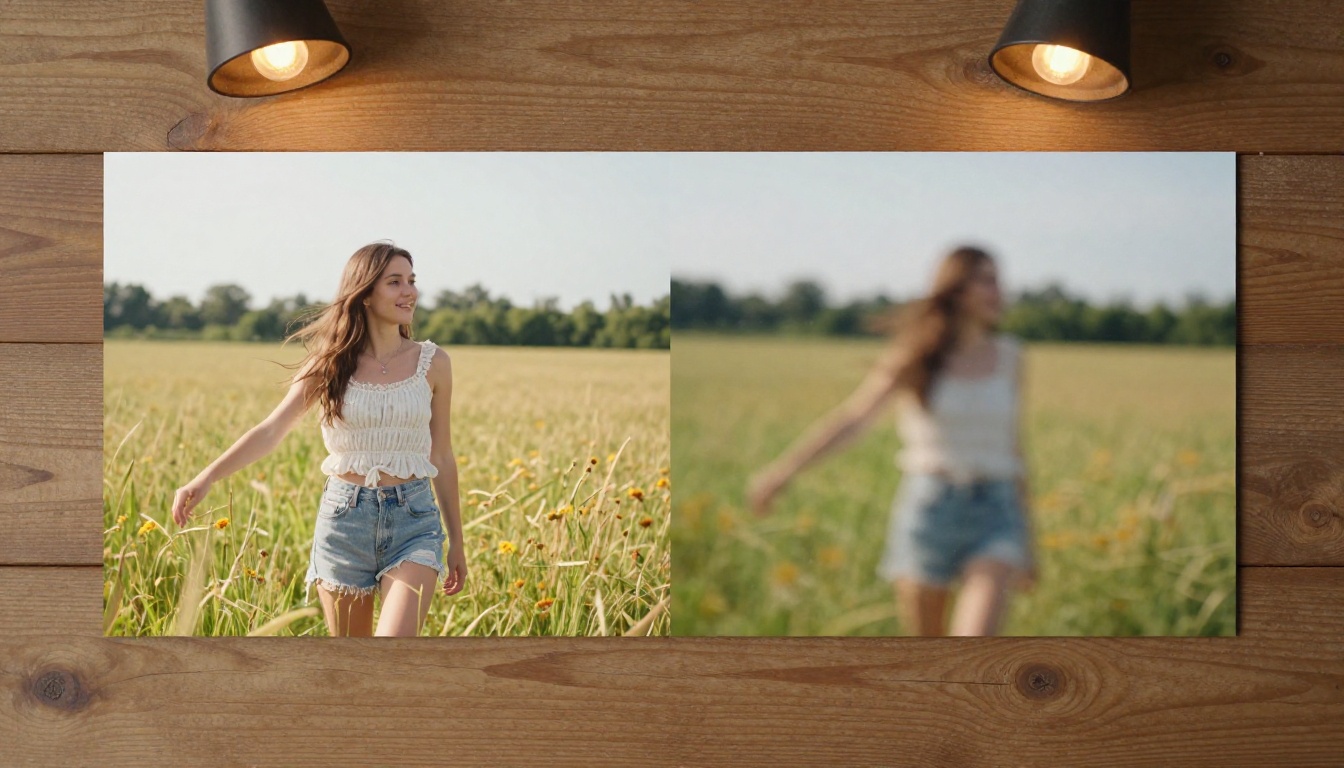
A clean Seedance 2.0 output looks like professional B-roll footage. The motion is smooth, the physics are believable, and at 720p the image quality holds up well on most screens. At its best, the model produces results that are genuinely difficult to distinguish from real video shot on a camera.
Where the model is strongest:
- Natural hair and fabric physics in environmental wind
- Environmental parallax creating a convincing sense of depth
- Atmospheric effects: mist, smoke, light rays, airborne particles
- Water surfaces, reflections, and liquid motion
Where results can vary:
- Hands and fingers in complex or unusual poses
- Text or graphics embedded in the source image
- Very detailed, sharp backgrounds on tight close-up shots
One expectation worth setting upfront: the model does not add objects or characters that are not in your original photo. It animates what is already in the frame. If your photo has a single subject against a blurred background, the video will have the same composition with natural motion applied to what was already there.
Common Issues and Fixes
Issue: Subject face morphs or drifts slightly mid-clip.
Fix: Use a sharper, higher-resolution source photo. The model performs significantly better with clean, well-focused inputs.
Issue: Camera motion causes visible jitter instead of smooth movement.
Fix: Remove explicit camera movement from the prompt and let the model handle natural parallax depth on its own.
Issue: Background elements look smeared or distorted.
Fix: This typically happens with busy, highly detailed backgrounds. Use a portrait photo with natural background bokeh, or simplify the background before uploading.
Issue: The video feels flat with no sense of depth.
Fix: Add a slow camera push-in to the prompt. Even 5 percent of apparent zoom over 5 seconds creates substantial perceived depth and dimensionality.
Other Models Worth Trying on PicassoIA
Once you are comfortable with Seedance 2.0, PicassoIA's catalog offers a wide range of alternatives to experiment with for different creative effects and use cases:
- Seedance 2.0 Mini: A lighter version of the same architecture with native audio. Ideal for quick concept tests before committing to the full model.
- P Video Animate: PicassoIA's own animation-focused model. Fast generation, solid output quality, no audio output.
- Wan 2.7 I2V: Open-source-based architecture particularly strong on environmental and landscape content. A noticeably different motion style worth testing.
- Kling v2.1: Well-established image-to-video model with consistent portrait results across a wide range of input types.
- Ray 3.2: HDR output capability makes it excellent for scenes with dramatic or high-contrast lighting conditions.
- Hailuo 2.3: Strong cinematic camera movement quality. Worth testing for atmospheric landscape animation where visible camera work is part of the creative intent.
- PicassoIA Video: Completely free and unlimited. If you want to generate without any credit cost, this is the right starting point.
The full video model catalog is available at picassoia.com/en/all-models.
Make Your First Photo Come Alive
The gap between a great photograph and a great video has never been smaller. Seedance 2.0 on PicassoIA makes the process fast enough that you can go from uploading a phone photo to watching it move in under two minutes.
The workflow is direct: pick a photo you already have, write a motion prompt that describes one or two specific things you want to see move, and run it at 480p first. Adjust your prompt based on what you see. Once the motion is right, re-run at 720p and download the result. The whole process costs a handful of credits and takes less time than editing a photograph.
What makes photo animation genuinely worth your attention is not just the technology itself. It is what it does for the content you already have. Every portrait shoot, every travel photo, every product image sitting in your archive is now a potential video. The creative backlog you have been sitting on becomes an entirely new category of output.
Head to Seedance 2.0 on PicassoIA and upload your first photo.


