You took the shot. The light was perfect, the subject was right, and the moment was frozen exactly how you wanted it. But a still photo can only do so much. With Seedance 2.0 Mini on PicassoIA, that frozen moment becomes a living, breathing video clip in seconds, complete with native synchronized audio.
This is not a gimmick. ByteDance built Seedance 2.0 Mini as a compact but serious image-to-video model that preserves your photo's composition, lighting, and mood while adding natural motion. Portrait subjects breathe and blink. Landscapes ripple and shift. Street scenes come alive with ambient movement. The results are cinematic, not cartoonish, and the workflow is surprisingly straightforward.
Here is exactly how to use it, what to expect, and how to get the best output from any photo you upload.

What Seedance 2.0 Mini Actually Does
Seedance 2.0 Mini is ByteDance's lightweight video generation model from the Seedance 2.0 family. It accepts a still image as input and produces a short video clip with motion that is physically plausible and visually consistent with the original photo.
The "Mini" designation does not mean low quality. It means the model is optimized for speed and efficiency while retaining the core motion generation capabilities of the full Seedance 2.0. For most use cases, including social media content, presentations, and creative projects, Mini delivers results that are indistinguishable from its larger sibling at a fraction of the generation time.
The ByteDance Architecture Behind It
ByteDance trained the Seedance model family on massive video datasets, focusing specifically on the relationship between a static frame and the natural motion that follows it. The model learns which parts of a scene are likely to move, how fast, and in which direction, based purely on visual context.
What sets it apart from older image animation tools is how it handles three specific challenges:
- Depth and parallax: Objects in the foreground move slightly faster than the background, creating a genuine sense of 3D space.
- Lighting consistency: Shadows and highlights stay coherent as the scene moves, rather than flickering or shifting unnaturally.
- Subject behavior: Faces show micro-expressions. Fabric folds and flows. Water ripples in physically accurate patterns.
None of this requires manual configuration. The model infers it all from your photo.
Mini vs. Full: What You Lose and Gain
| Feature | Seedance 2.0 Mini | Seedance 2.0 Full |
|---|
| Generation speed | Faster | Slower |
| Max clip length | 5–10s | Up to 30s |
| Resolution | Up to 720p | Up to 1080p |
| Native audio | Yes | Yes |
| Motion complexity | Good | Very High |
| Best for | Quick clips, social content | Cinematic productions |
For most photo-to-video workflows, Mini is the right starting point. Move up to the full Seedance 2.0 when the project demands longer, higher-resolution output.
Native Audio: Why It Matters
One feature that often gets overlooked is native audio generation. Seedance 2.0 Mini does not just add stock music on top of your clip. It analyzes the visual scene and generates synchronized ambient sound: ocean waves if the photo is a beach, crowd murmur if it is a street scene, birdsong if it is a forest. The audio is baked into the generation process, not added as a post-processing step. This makes the output immediately usable without any additional audio work.

Why Your Photos Are Perfect Raw Material
Almost any high-quality photograph can become a compelling AI video. The model does not need special preparation, but knowing what makes a photo produce better results will help you get stronger output faster.
Portrait Photos: The Fastest Wins
Portraits are where Seedance 2.0 Mini shines most immediately. A well-lit face with clear subject separation from the background gives the model everything it needs. The subject's eyes may slowly shift focus. Hair moves gently. A slight smile deepens or relaxes. The effect is subtle but powerful.
Best portrait inputs:
- Sharp focus on the face, soft background bokeh
- Natural or studio lighting (avoid harsh overhead flash)
- Neutral or simple backgrounds
- Single subject or small groups
Motion prompt example: "Gentle breeze moves through hair, subject breathes naturally, soft ambient light shifts slowly, gentle dolly-in"
Landscapes and Environmental Shots
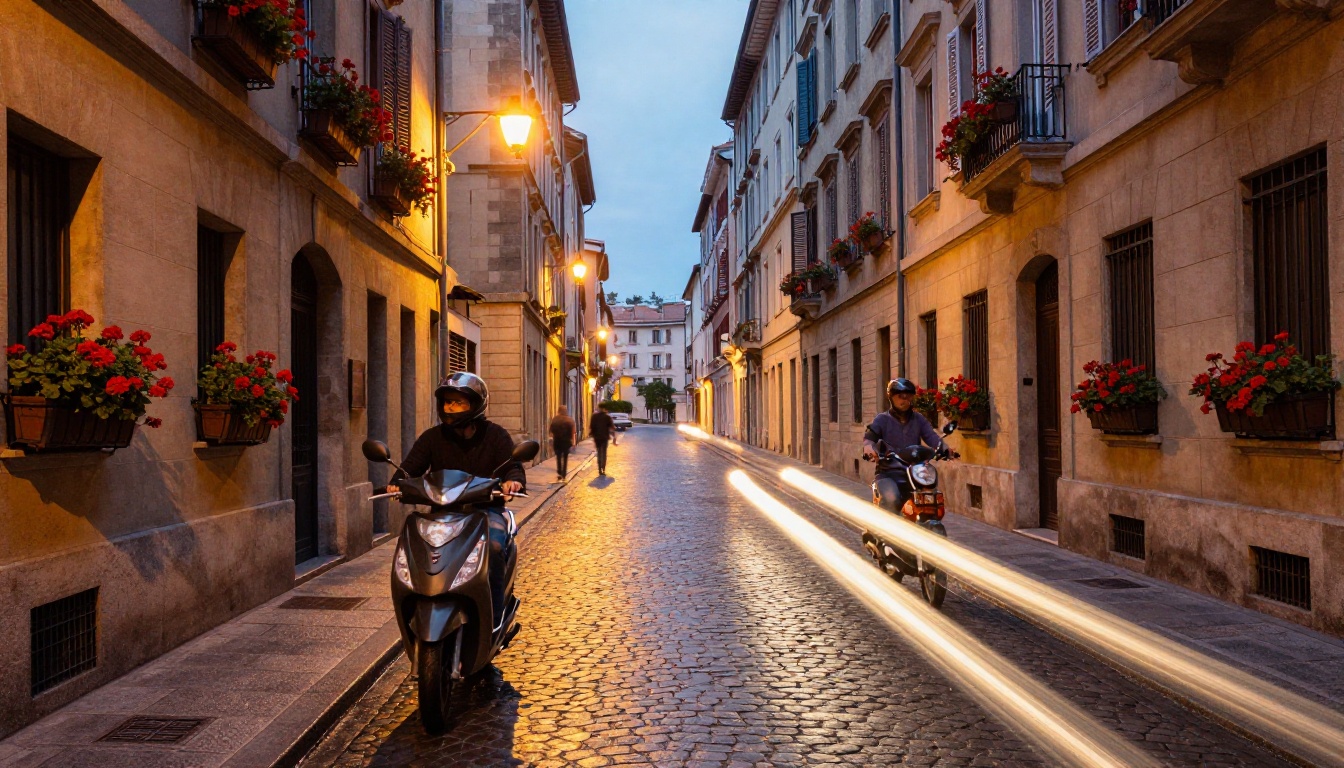
Landscape photos produce some of the most dramatic output. An aerial beach photo becomes a gentle wave animation. A mountain vista gets drifting clouds and morning mist. A city street at dusk fills with the subtle motion of people and vehicles.

The model reads depth cues from the photo and creates layered motion: foreground elements move more than distant ones, and the camera can apply a gentle virtual push-in or pan across the scene.
Best landscape inputs:
- High resolution (1080p or above)
- Clear depth layers: foreground, midground, background
- Natural lighting, not flat overcast
- Scenes with elements that logically move: water, foliage, clouds, crowds
Low-Res Photos: Will It Still Work?
Yes, with caveats. The model can work with images as low as 512px on the short side, but motion artifacts become more visible when the source image lacks detail. If you have a low-resolution photo you want to animate, consider running it through a super-resolution model first.
On PicassoIA, the Super Resolution category has models that upscale images 2x to 4x before you send them to Seedance 2.0 Mini. This two-step approach produces noticeably cleaner output.
Tip: Upscale first, animate second. A sharp input always produces a sharper output from the video model.
How to Use Seedance 2.0 Mini on PicassoIA
PicassoIA hosts Seedance 2.0 Mini as part of its text-to-video collection, with a clean interface that does not require any technical setup. Here is the exact process.

Step 1: Upload Your Photo
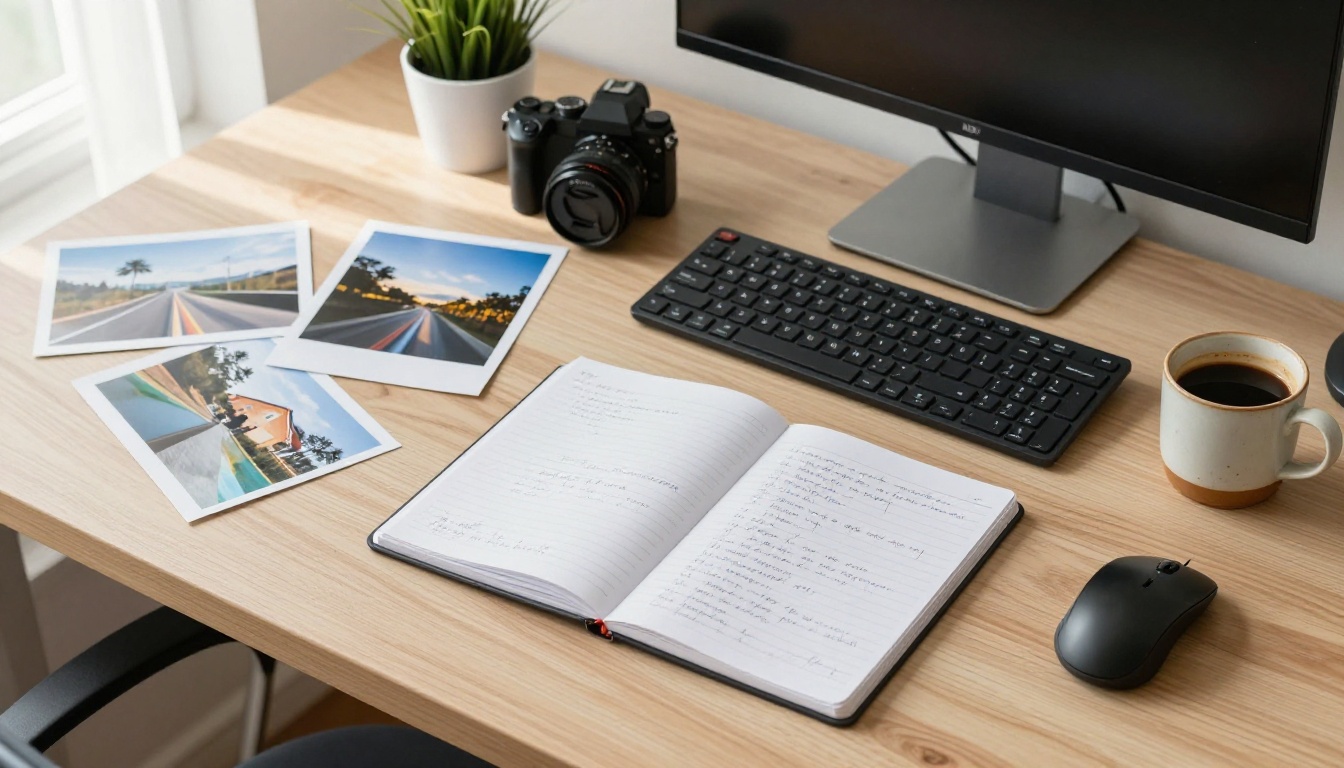
Navigate to the Seedance 2.0 Mini model page on PicassoIA. You will see an image input field at the top of the generation panel. Click the upload area or drag your photo directly in. Supported formats include JPG, PNG, and WEBP.
Check before uploading:
- Image is at least 640px wide
- No text overlays or watermarks (these animate awkwardly)
- The photo is correctly oriented
- File size is under 20MB
Step 2: Writing the Motion Prompt
The motion prompt is the most important factor in your output. It tells the model what should move, how it should move, and what the overall atmosphere should feel like. Seedance 2.0 Mini responds well to prompts that describe physics and behavior rather than abstract aesthetics.

High-performing prompt patterns by scene type:
| Scene Type | Prompt Pattern |
|---|
| Portrait | "Subject breathes slowly, eyes shift slightly left, hair moves in soft breeze" |
| Ocean / beach | "Waves roll in from right, foam dissolves on sand, gentle camera push-in" |
| Forest / nature | "Leaves flutter in wind, dappled light shifts through canopy, birds take flight in background" |
| City street | "Pedestrians walk through scene, vehicle passes left to right, ambient motion throughout" |
| Abstract / product | "Camera slowly orbits subject, ambient light shifts from left to right, subtle shimmer" |
What to avoid in prompts:
- Asking for abrupt or sudden movements (the model prefers smooth, naturalistic motion)
- Requesting multiple rapid scene changes within a 5-second clip
- Describing elements not present in the source photo
Step 3: Output Settings and Resolution
Once your image is uploaded and your prompt is written, check the output settings panel:
- Resolution: 720p is the recommended setting for most use cases, giving you a sharp, shareable clip without excessive generation time.
- Duration: Keep it at 5 seconds for the cleanest output. Longer clips can introduce drift where the model starts to deviate from the original photo composition.
- Audio: Leave native audio enabled unless you plan to add your own soundtrack in post-production.
Hit Generate and wait. Generation typically takes 20 to 60 seconds depending on server load.
Getting the Best Results
Prompt Patterns That Work
The most reliable prompts follow a three-part structure: what moves + how it moves + camera behavior.
For example: "Waves crash against rocky cliff, rising and falling with natural rhythm, slow dolly backward revealing the full coastline."
This structure gives the model clear intent without over-constraining it. You get controlled output with room for the model to fill in realistic physical details.
More prompt patterns:
- Layered motion: Describe motion at multiple depths. "Foreground grass sways, midground trees bend slightly, background clouds drift left."
- Timing language: Use words like "slowly," "gradually," and "continuously" to control the pace of movement.
- Sensory anchoring: Reference temperature or atmosphere to help the model match audio generation. "Warm summer afternoon" often produces appropriate ambient audio automatically.
What Photos to Avoid
Some photos produce poor or unstable results regardless of how the prompt is written:
- Heavy post-processing: Photos with extreme HDR, heavy vignetting, or surreal color grading confuse the motion model because the visual cues do not match real-world physics.
- Busy, cluttered scenes: Photos with dozens of individual objects at similar depths make it difficult for the model to assign coherent motion to each element.
- Extreme close-ups of textures: A macro shot of wood grain or fabric will animate, but usually produces an unsatisfying ripple effect rather than meaningful motion.
- AI-generated images with obvious artifacts: Images that were themselves AI-generated with visible artifacts often produce unstable video output.
Note: If a result looks unstable on the first try, adjust the prompt to describe more restrained motion and regenerate. Reducing the described movement complexity usually stabilizes the output significantly.
Combining with Other Models
Seedance 2.0 Mini works well as one step in a longer workflow. Here are two proven combinations available on PicassoIA:
Portrait pipeline:
- Generate or source a high-quality portrait photo
- Run it through Super Resolution to maximize detail
- Animate with Seedance 2.0 Mini for a natural, audio-included result
Landscape pipeline:
- Start with a wide-angle landscape photo
- Use Wan 2.7 I2V for longer, more complex 1080p animation
- Or use Seedance 2.0 Mini when you need a fast, shareable clip with audio
Seedance 2.0 Mini vs. Competitors
The image-to-video space has gotten crowded. Here is how Seedance 2.0 Mini compares to other models available on PicassoIA:
When to Use the Full Seedance 2.0
If your project demands 1080p output, clips longer than 5 seconds, or more complex multi-plane motion, step up to Seedance 2.0. The full model handles these scenarios significantly better. For anything destined for large-screen display or professional deliverables, it is worth the extra generation time.
When Mini Is the Better Call
Mini is the right choice when:
- You need results fast for social content or quick iterations
- The clip is 5 seconds or under
- You want native audio without any post-production work
- You are experimenting with a photo before committing to a full-quality render
The Mini designation is not a downgrade. It is a different tool for a different job, and for many workflows it is the right one.
More Image-to-Video Options on PicassoIA
PicassoIA hosts an extensive library of image-to-video models beyond the Seedance family. Each has distinct characteristics worth knowing before you commit to a single tool for your workflow.
P Video Animate for Photo Animation
P Video Animate by PrunaAI is one of the fastest photo animation models on the platform. It is optimized for speed and simplicity: upload a photo, write a basic motion prompt, and get a usable clip within seconds. It does not include native audio, but its generation speed makes it ideal for rapid iteration when you are still figuring out which motion direction works best for a particular photo.
Wan 2.7 I2V for HD Animation
Wan 2.7 I2V is the right choice when you need the highest possible visual quality from a still image. The model produces 1080p output with exceptional preservation of the source image's color grading and detail. Motion can be more complex and multi-layered than what Seedance Mini delivers. Trade-off: generation takes longer and there is no native audio output. If you have a cinematic landscape photo and want a proper 1080p clip for a reel or presentation, Wan 2.7 I2V is the stronger choice.
Grok Imagine Video 1.5 for Audio-Synced Clips
Grok Imagine Video 1.5 from xAI is another audio-native option. It takes a different stylistic approach from Seedance, often producing slightly more expressive or interpretive motion from the same source image. Worth testing alongside Seedance 2.0 Mini when you want to compare outputs before finalizing a clip.
You can also try:
The Seedance 2.0 Lineup, Compared
If you are building a regular photo-to-video workflow, it helps to know the full Seedance 2.0 family available on PicassoIA:
Start with Mini when testing a new photo or concept. Move up the chain when the project demands it.
Start Animating Your Photos on PicassoIA
Still photography captures a single instant. AI video generation with Seedance 2.0 Mini gives that instant a few more seconds of life, and often those extra seconds are what make the difference between a post that gets scrolled past and one that stops someone cold.
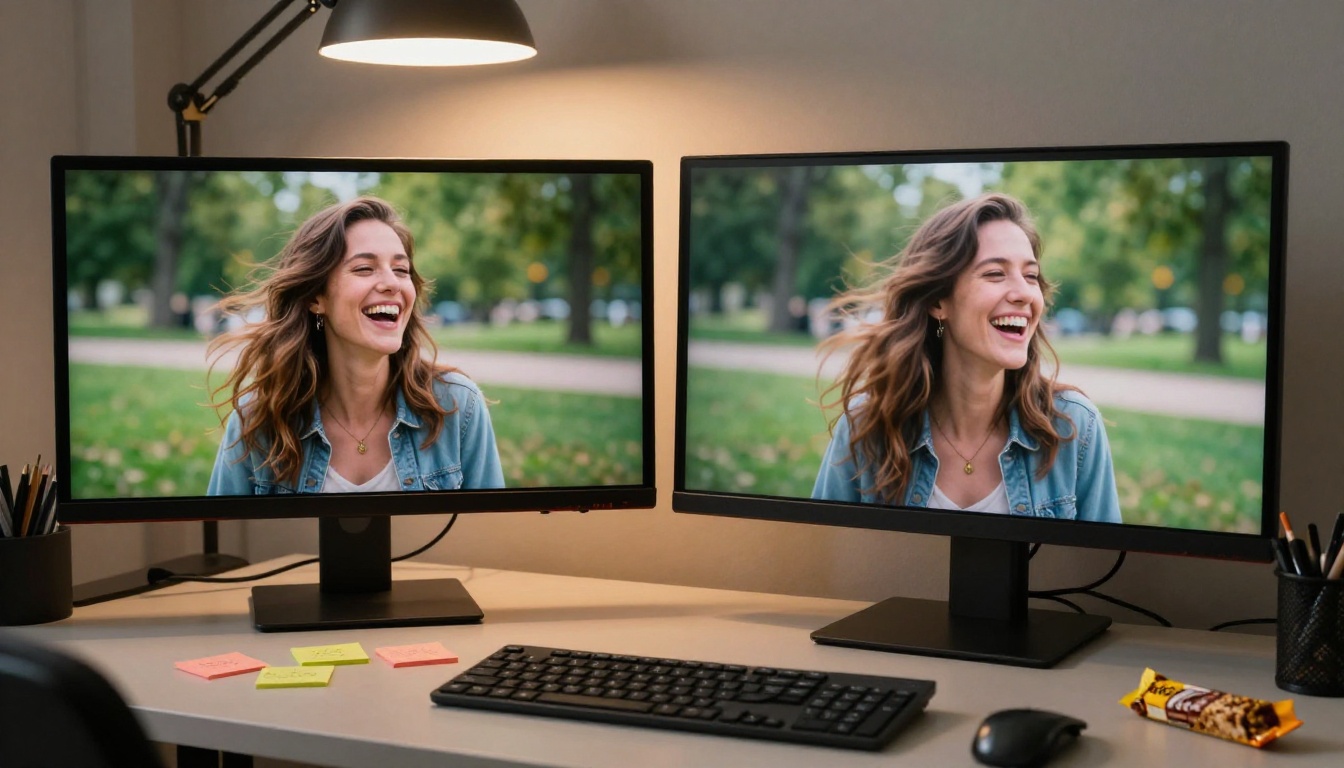
The workflow is direct: pick a photo with clear depth and natural composition, write a specific motion prompt, and let the model handle the rest. You do not need video editing experience or post-production skills. The output is ready to share directly from PicassoIA.
If you have a backlog of photos that never made it to your feed because they felt too static, now is a solid time to put them to work. PicassoIA gives you access to Seedance 2.0 Mini alongside dozens of other image-to-video models, so you can find the right tool for each shot, each project, and each creative need.
Go to picassoia.com/en/all-models to see the full model library, or head directly to Seedance 2.0 Mini and upload your first photo.


