Still images are frozen moments. Kling AI turns them into something alive. Whether it's a portrait of a person mid-smile, a mountain peak at sunrise, or a product on a textured surface, Kling's image-to-video technology reads the spatial depth in your photo and generates realistic motion from it. The result is a short video clip that looks like the camera was there, rolling, the entire time. This article walks through exactly how to turn photos into videos with Kling, which version to use, what settings actually matter, and where you can run the whole process without installing a single piece of software.
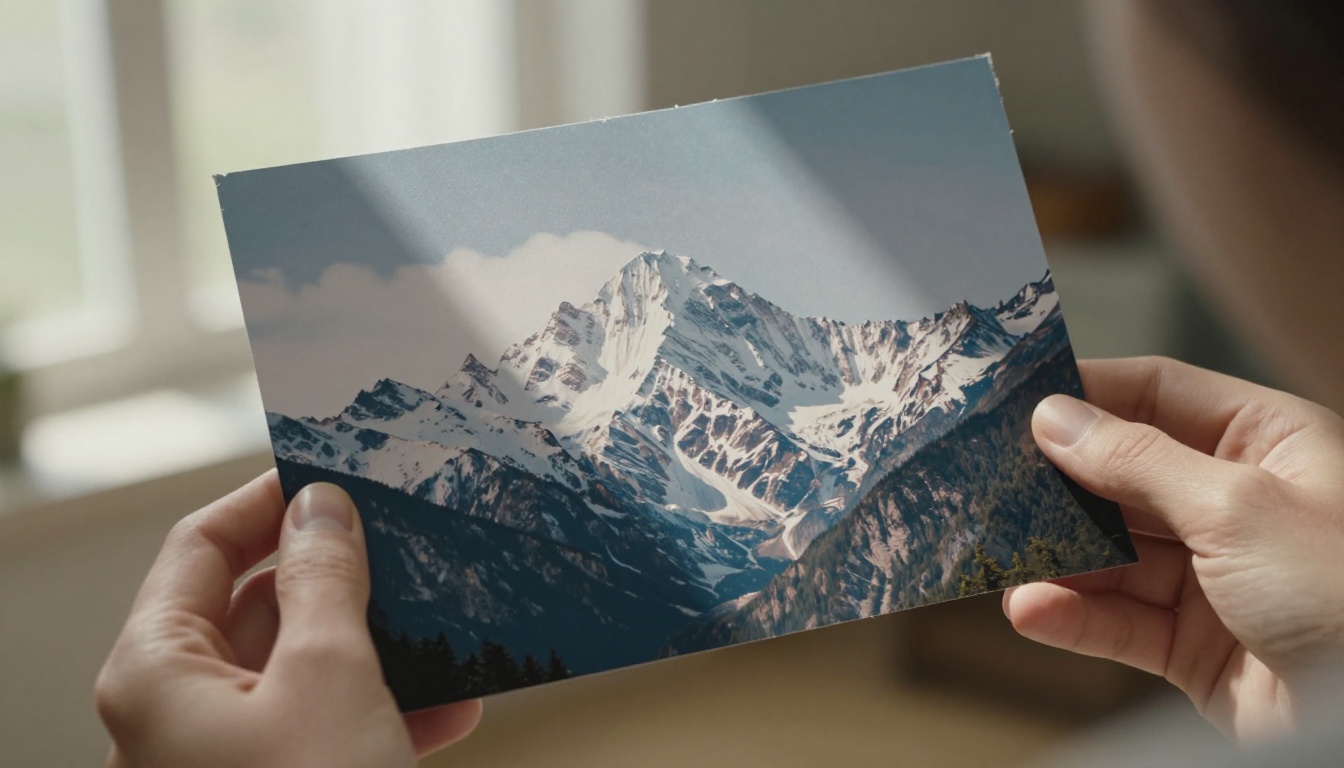
What Kling Does to Your Photo
It's Not a Filter
A lot of people assume photo-to-video AI is just a fancy zoom or a Ken Burns pan. Kling does something fundamentally different. It uses a diffusion-based video model trained on massive datasets of real footage to infer temporal information from a single frame. That means it's not panning across your image. It's generating the frames that would logically come before and after your photo if the scene had been filmed.
The output isn't a slideshow effect. It's a generated video clip, typically 5 to 10 seconds, where the scene has actual motion: hair moves, water ripples, clouds shift, and fabric flows naturally across frames. The result feels like you pressed record at exactly the right moment.
How the Model Reads a Still Image
Kling's image encoder breaks your photo down into semantic components: subjects, backgrounds, depth planes, and lighting gradients. The model then applies motion priors learned from video training data to animate each component in a physically plausible way. Subjects in the foreground move differently than distant backgrounds. Static elements like walls stay stable, while organic elements like foliage or water get realistic motion patterns applied.
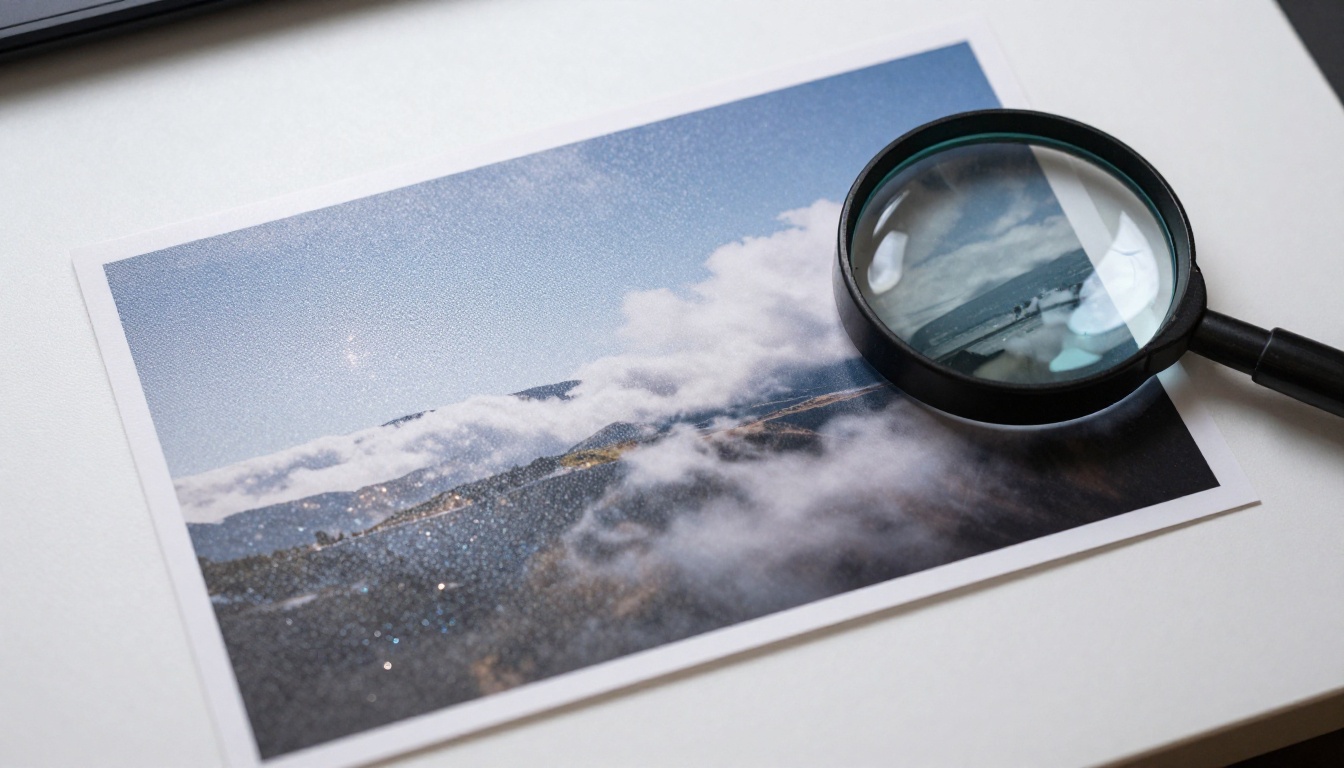
The quality of your input photo has a direct impact on the output. High-resolution, well-lit images with clear subject separation produce significantly better results than dark, noisy, or heavily compressed photos. The model is reading depth from color and edge information, so anything that degrades those signals hurts the final video.
The Kling Model Lineup
Kling has gone through multiple major versions, and the differences between them are real enough to affect your workflow depending on what you're animating.
v1.6, v2.0, and v2.1
Kling v1.6 Standard was the first widely adopted version and outputs at 720p. It's solid for landscape and abstract content where precise subject fidelity isn't the priority. Kling v1.6 Pro bumps resolution to 1080p and handles motion more consistently across a wider range of subject types.
Kling v2.0 brought a meaningful architectural improvement: better subject preservation. Where v1.6 sometimes drifted from the original composition over the course of a clip, v2.0 keeps the scene more anchored to the input photo while still generating natural, fluid movement throughout the duration.
Kling v2.1 is the most capable image-to-video version in this generation. It produces fluid, realistic motion with strong temporal consistency, meaning objects don't warp or flicker between frames the way they sometimes did in earlier versions. For most photo animation tasks, this is where to start.
| Version | Resolution | Best For |
|---|
| Kling v1.6 Standard | 720p | Landscapes, abstracts |
| Kling v1.6 Pro | 1080p | General use, nature scenes |
| Kling v2.0 | 720p | Subject preservation |
| Kling v2.1 | 1080p | Realistic motion, portraits |
v2.5, v2.6, and v3
Kling v2.5 Turbo Pro runs faster than standard v2 versions while maintaining comparable quality output. It's the right choice when you're iterating through multiple photo inputs quickly and need fast turnaround without sacrificing too much fidelity.
Kling v2.6 and Kling v2.6 Motion Control introduced more precise control over how the camera moves and how subjects animate within the frame. With Motion Control, you can specify the direction and intensity of motion rather than leaving everything up to the model's best guess based on your prompt.
Kling v3 Video is the current top-tier model for cinematic output. It handles complex scenes with multiple subjects, produces sharper motion trajectories, and outputs at 1080p with notably less flickering on fine details like hair, fabric, and moving water. When quality is the priority over speed, this is the version to use.
Kling v3 Motion Control adds point-based motion annotation, where you define which parts of the image should move and in which direction. This is the option when you need precise, repeatable results rather than creative generative variation from the model.
Kling v3 Omni Video is the most flexible version in the lineup, handling both text-to-video and image-to-video inputs with full 1080p output and strong motion coherence maintained across the entire clip duration. It also supports Kling Avatar v2 workflows when you need character-level animation from portrait inputs.
💡 For most photo-to-video tasks, start with Kling v2.1 and move to Kling v3 Video when you need maximum cinematic quality.
How to Use Kling on PicassoIA
PicassoIA hosts the full Kling model family alongside dozens of other image-to-video tools, all accessible through a browser with no local installation required. Here's the exact process from photo to finished clip.
Step 1: Prepare Your Photo
Before uploading anything, spend thirty seconds evaluating your source image against these criteria:
- Resolution: 1024px wide at minimum. Higher resolution gives the model more information to work with.
- Compression: Avoid heavily compressed JPEGs. PNG or high-quality JPEG exports are preferred.
- Subject clarity: The model performs best when the main subject is clearly separated from the background by either contrast or depth of field blur.
- Lighting: Even, natural lighting produces more predictable motion results than harsh flash, strong mixed color temperatures, or heavy shadows that obscure detail.
If your original photo is too small or noisy, run it through a super-resolution model first. PicassoIA has several upscaling tools that can sharpen and enlarge a photo before you feed it into Kling, giving the model cleaner input to work from.
Step 2: Choose the Right Kling Version
Use this decision framework to pick the right model for your subject:
Step 3: Write a Motion Prompt
This is where most people underinvest their effort. The text prompt you write alongside your image describes the motion you want, not the scene content. The model already has the scene content from your photo. Effective motion prompts are specific and physical.
Weak prompt: "beautiful cinematic video"
Strong prompt: "gentle ocean breeze moving her hair from left to right, soft background slowly pulling back, natural handheld camera micro-movement"
A good motion prompt describes:
- What is moving (hair, water, leaves, camera, fabric, clouds)
- The direction (left, right, forward, upward, inward)
- Camera behavior (static, slow zoom in, slow pull-back, subtle pan, handheld)
- Pace and atmosphere (gentle, slow, barely perceptible, dramatic, sweeping)
Step 4: Set Duration and Output Quality
Most Kling versions allow you to set clip duration between 5 and 10 seconds. For photo-to-video work, 5 seconds is usually the right choice. Longer clips give the model more time to drift from your original composition, which introduces artifacts and inconsistencies in complex scenes.
Set the output quality to the highest available option for your chosen model. On Kling v2.1 Master, this gives you full 1080p output. On Kling v3 Video, you're getting cinematic-grade 1080p with stronger frame-to-frame consistency across the entire clip.
Getting the Best Results
Photos That Work Well
Not every photo animates with equal quality. These categories produce consistently strong outputs across Kling versions:
- Outdoor portraits with natural light and a slightly blurred background
- Ocean, river, or waterfall scenes where moving water is the dominant element
- Sky-heavy landscapes where dramatic cloud movement can be the main focal motion
- People in slightly dynamic poses, mid-gesture or looking slightly off-frame rather than rigidly posed
- Architecture with foreground foliage that provides natural parallax depth separation
💡 Photos shot with shallow depth of field (blurred background) give Kling clear depth plane information, which results in more convincing 3D parallax motion between foreground and background layers.
Photos That Struggle
Some image types produce inconsistent or poor results and are worth knowing about before you invest generation time:
- Flat product shots with pure white backgrounds: no depth information for the model to use
- Large group photos with many overlapping faces and complex occlusion
- Heavily filtered or processed images where original texture information has been destroyed
- Low-light or noisy images where the model misreads noise as detail or motion
- Heavily compressed social media screenshots with visible JPEG compression artifacts throughout
Prompt Tips for Different Motion Types
| Motion Type | Example Prompt Fragment |
|---|
| Natural, subtle | "light breeze, barely perceptible environmental movement" |
| Portrait life | "subtle chest breathing, eyes softly tracking left" |
| Slow camera push | "very slow push-in toward the subject, maintaining sharp focus" |
| Water scene | "water rippling outward from center in concentric rings" |
| Landscape depth | "slow zoom out revealing foreground-to-background parallax" |
| Camera pan | "smooth slow pan from left to right at constant, even speed" |
Kling vs Other Image-to-Video Models
PicassoIA hosts dozens of image-to-video options. Here's an honest comparison of how Kling stacks up against the main alternatives for photo animation work:
| Model | Strength | Weakness |
|---|
| Kling v3 Video | Subject fidelity, cinematic motion quality | Slower generation time |
| Wan 2.6 I2V | Open source, fast, strong motion | Less cinematic output style |
| Hailuo 2.3 Fast | Speed, face handling, smooth output | Can feel overly smooth on natural scenes |
| Video 01 Live | Artistic aesthetic, rich color treatment | Less photorealistic motion physics |
| Wan 2.5 I2V Fast | Very fast turnaround for iteration | Lower detail ceiling on complex scenes |
Kling's primary advantage is subject fidelity: the output video looks like the person or scene in your photo, not a hallucinated approximation of it. Models trained primarily on text-to-video tasks tend to drift more from the source image composition. Kling's architecture treats the input image as a structural anchor point, which is exactly what photo-to-video work requires.
Real Use Cases That Actually Work
Travel and Landscape Photos
This is where Kling produces its most consistently impressive outputs. A mountain photo becomes a scene with drifting clouds and subtle wind-moved vegetation across the frame. A beach photo gets real-looking wave motion and atmospheric haze. A city skyline at golden hour gets a slow atmospheric zoom with faint shimmer in the air between buildings.
The key is having enough depth in the scene. A flat photo of a wall won't animate with any convincing motion. A photo with clear foreground, midground, and background layers gives the model multiple depth planes to work with, producing that parallax effect where close objects move faster than distant ones and the whole scene gains a sense of three-dimensional space.
Portrait and People Shots
Kling v3 Video handles faces with notably better stability than earlier versions of the model. A well-lit portrait gets subtle life added to it: gentle breathing motion on the chest or shoulders, micro-adjustments in eye focus direction, and environmental effects like wind in the hair or movement in clothing fabric.
For portraits where you want more expressive character animation rather than just environmental motion around a relatively static face, Kling Avatar v2 is worth testing alongside the standard video models. It's specifically built for bringing faces into motion with controlled expression and head movement rather than just adding wind and background parallax.
💡 For portrait animation, write prompts that focus on environmental motion rather than facial expression. "Soft wind moving hair across face" is more reliable and consistent than asking the model to animate facial features directly.
Product Photography
Product shots are the most challenging category for image-to-video AI. They typically lack depth cues and natural motion opportunities, which gives the model little to anchor its animation to. The best approach is to give the model an environment to work with rather than a pure studio cutout.
A perfume bottle photographed on a marble surface with a slightly blurred background animates better than the same bottle floating on pure white. A sneaker on a grass surface with visible foreground depth and a blurred background animates better than a studio cutout against nothing.
When your product photo has limited natural motion opportunities, a very subtle slow camera push or pull-back tends to work reliably. It creates perceived motion and depth without requiring the model to animate the product object itself, which often results in surface distortions on curved or reflective surfaces.
Other Photo-to-Video Options to Try
Once you've worked through Kling's lineup, it's worth spending time with some of the other image-to-video models on PicassoIA for different aesthetic results from the same source photos:
- Wan 2.6 I2V: Fast, open-source option with solid motion quality and good subject retention
- Wan 2.5 I2V Fast: Good for quick iteration when testing which photo works best before committing to a full quality generation
- Hailuo 2.3 Fast: Strong on face-forward content and lifestyle imagery with a clean, smooth output style
- Video 01 Live: Produces a more artistic, slightly stylized motion aesthetic that works well for creative and editorial content
- Kling v3 Motion Control: The right choice when you need precise, point-annotated control over exactly what moves and in which direction
Running the same source photo through two or three different models and comparing the outputs is a legitimate production workflow, not just experimentation. Different models have different motion aesthetics, and the right one depends on your subject, the platform you're publishing to, and the visual tone you're after.
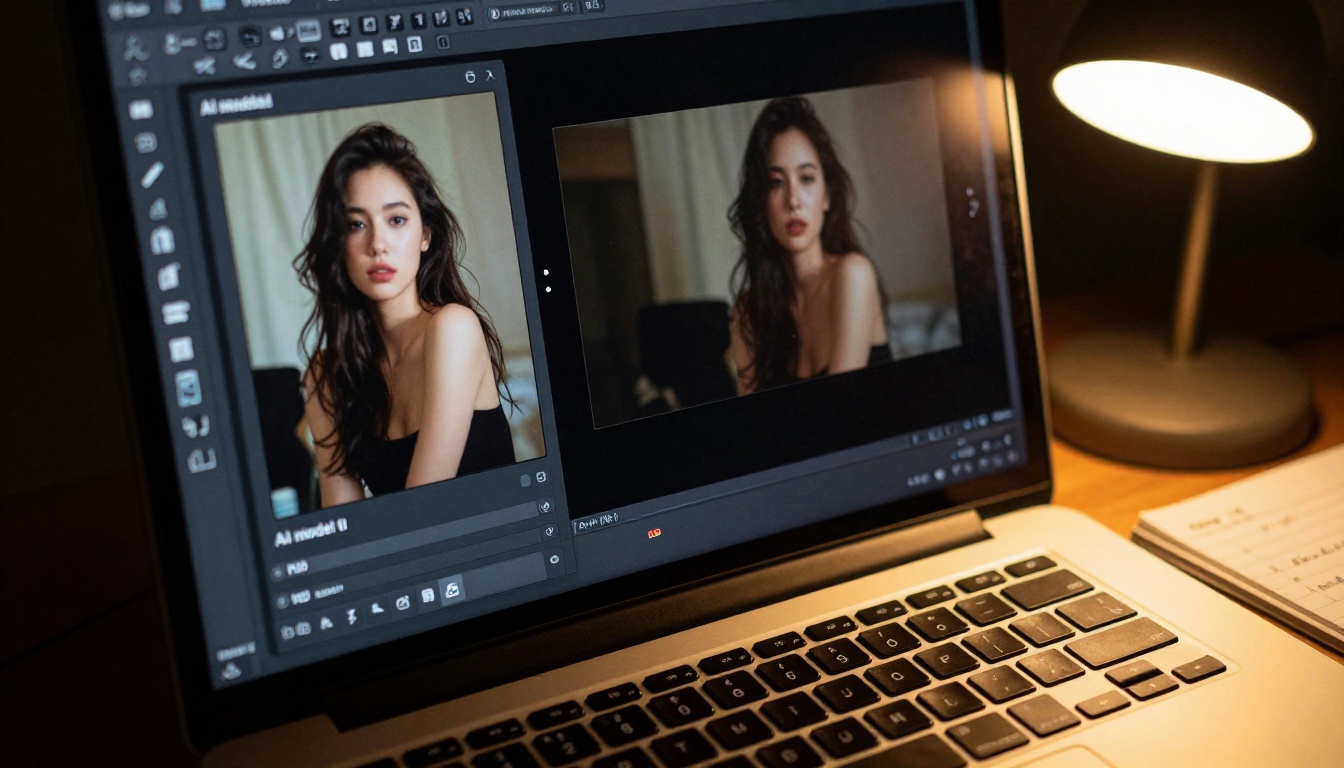
Try It with Your Own Photos
The fastest way to see what photo-to-video AI actually does is to run it on a photo you already have sitting in your camera roll or hard drive. Pick something with real depth, natural lighting, and an obvious motion opportunity: water, sky, foliage, fabric, or a person in a natural rather than rigid pose. Upload it to Kling v2.1 on PicassoIA, write a single specific motion prompt describing what physically moves, and generate your first clip.
PicassoIA gives you access to the full Kling lineup, from Kling v1.6 Standard for quick experiments all the way up to Kling v3 Omni Video for cinematic-quality output, alongside the full range of alternative image-to-video models worth comparing side by side. No downloads, no GPU required, no setup process: just your photo, a text prompt describing the motion, and a click to generate.
The still image you took months ago and never did anything with might be thirty seconds away from becoming a video worth sharing.


