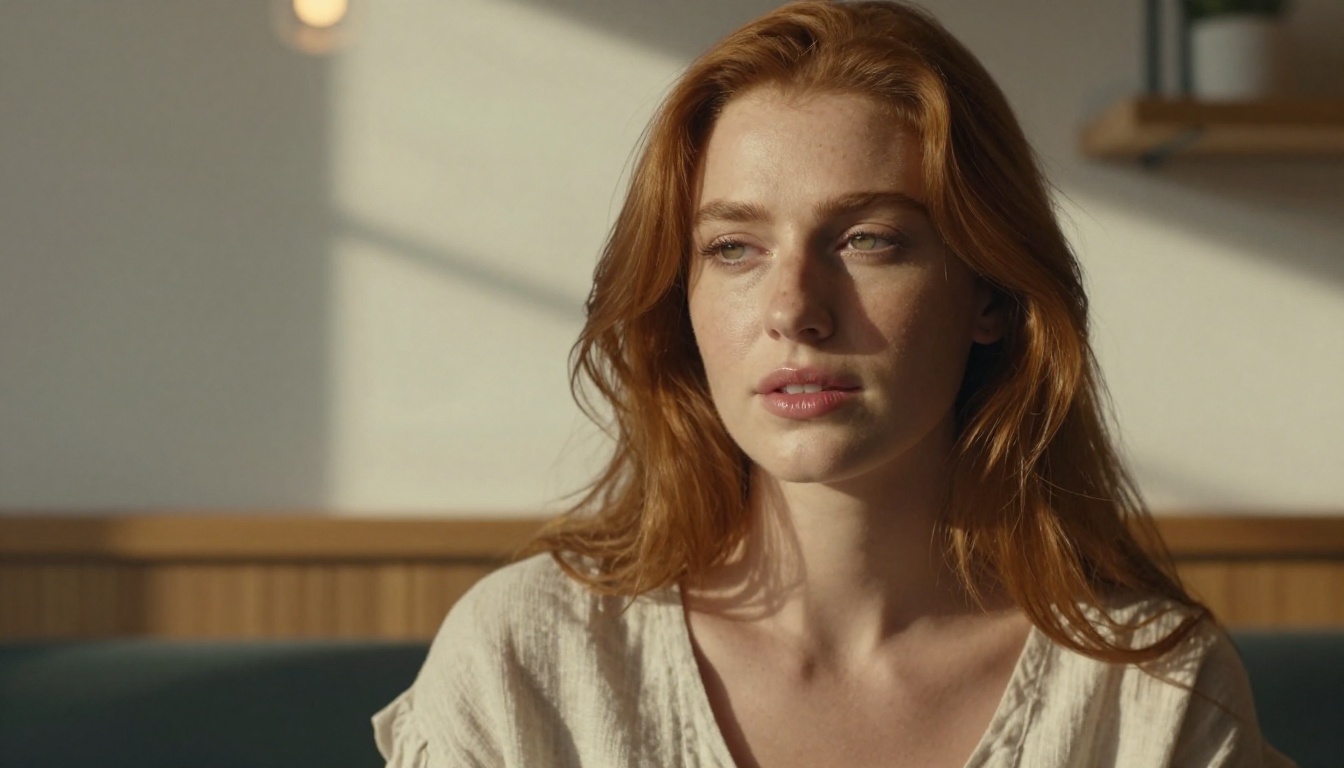
Typing a sentence and watching a stunning, suggestive portrait appear in seconds used to sound impossible. Today it is Tuesday afternoon. Free AI image generators have crossed a threshold most people have not noticed yet: the output is indistinguishable from professional photography, the tools are free, and the prompts are written in plain English. Here is exactly how to turn text into NSFW AI images for free, which models do it best, and why your first attempts keep falling flat.
Why Text-to-Image AI Changed the Rules
The old pipeline for producing high-quality glamour or suggestive imagery required photographers, studios, lighting rigs, models, and post-production teams. A single shoot cost thousands. That barrier kept this category of content expensive and exclusive.
Text-to-image diffusion models collapsed that barrier entirely. Models trained on billions of image-caption pairs learned to associate descriptive language with visual elements: skin texture, lighting quality, fabric drape, composition angle. Type the right words and the model reconstructs a photorealistic scene from statistical patterns.
What "NSFW" Means in AI
NSFW in the AI image context covers a broad spectrum. At one end: tasteful bikini photography, artistic boudoir shots, glamour portraiture. At the other: explicitly pornographic content. This article focuses on the former. The models covered here produce suggestive, beautiful, aesthetically driven imagery — not explicit material. Most free-tier platforms enforce this boundary automatically. Working within it still leaves an enormous creative space.
The Models That Changed Everything
The shift happened with three model generations:
- Stable Diffusion (2022): proved open-source photorealism was possible
- SDXL (2023): raised resolution and detail to commercial quality
- Flux (2024): closed the gap with professional photography almost entirely
Each iteration improved skin rendering, lighting coherence, and compositional logic. Today's best free models produce output a stock photographer would recognize as competitive.
The Best Free Models for NSFW Results
Not all models are created equal for this use case. Some are optimized for illustrations. Others for product photography. A specific set excels at photorealistic human figures, natural skin texture, and soft atmospheric lighting: the exact qualities that make suggestive imagery feel genuine rather than plastic.
Flux Dev and Flux Pro
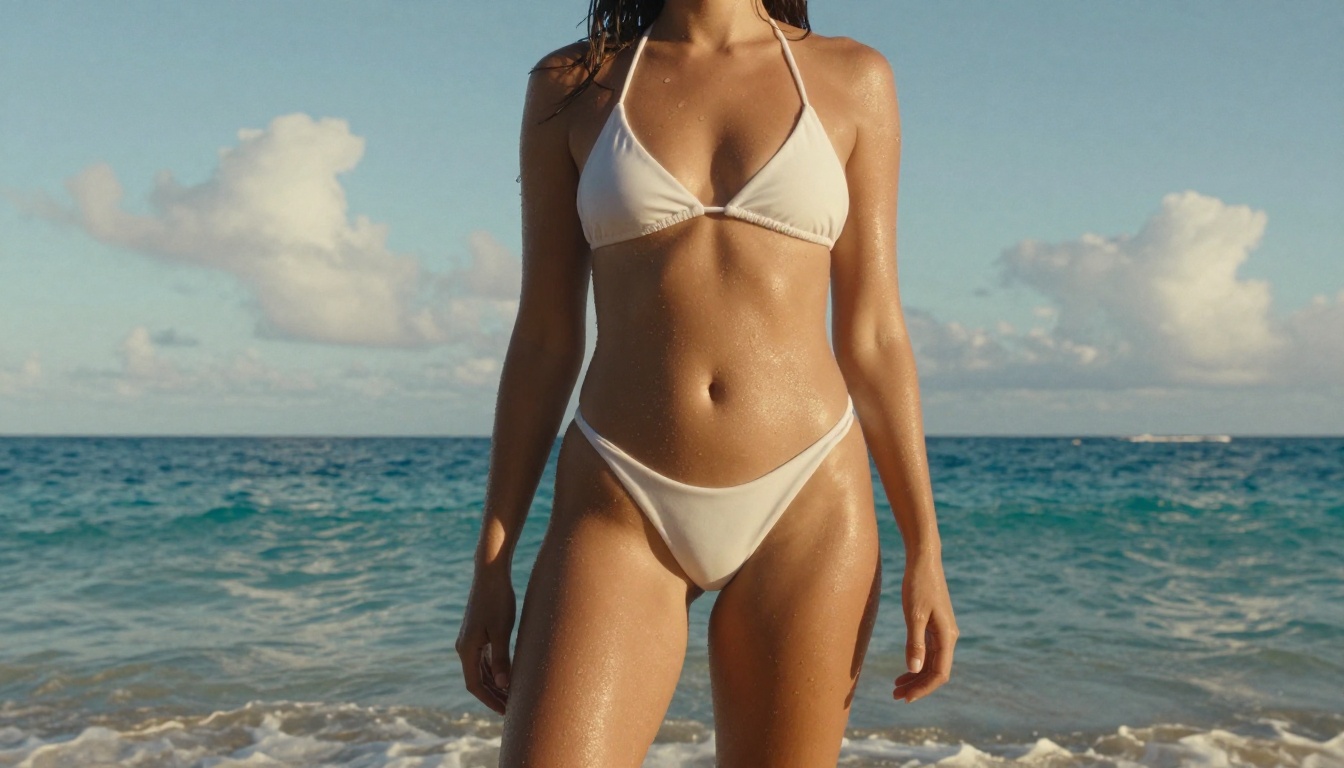
Flux Dev is currently the best free-tier photorealistic model available. It handles skin texture, hair, and fabric with a naturalism that earlier diffusion models could not approach. The key advantage: Flux reads long, detailed prompts accurately. Where Stable Diffusion sometimes ignored half your prompt, Flux Dev processes the full sentence.
Flux Pro steps this up further with higher color fidelity and sharper edge definition. For NSFW glamour work, the difference between Dev and Pro is visible in fabric texture and hair strand detail. Pro is worth using when output quality is the priority.
Flux 1.1 Pro Ultra represents the ceiling of the Flux family: ultra-high resolution, exceptional dynamic range, and the most natural skin rendering currently available in any free-access model.
💡 Pro tip: Flux models respond especially well to photography-style prompts. Describe a camera, a lens, and a film stock. "85mm f/1.4, Kodak Portra 400" consistently improves output compared to prompts that skip technical details.
Stable Diffusion 3.5
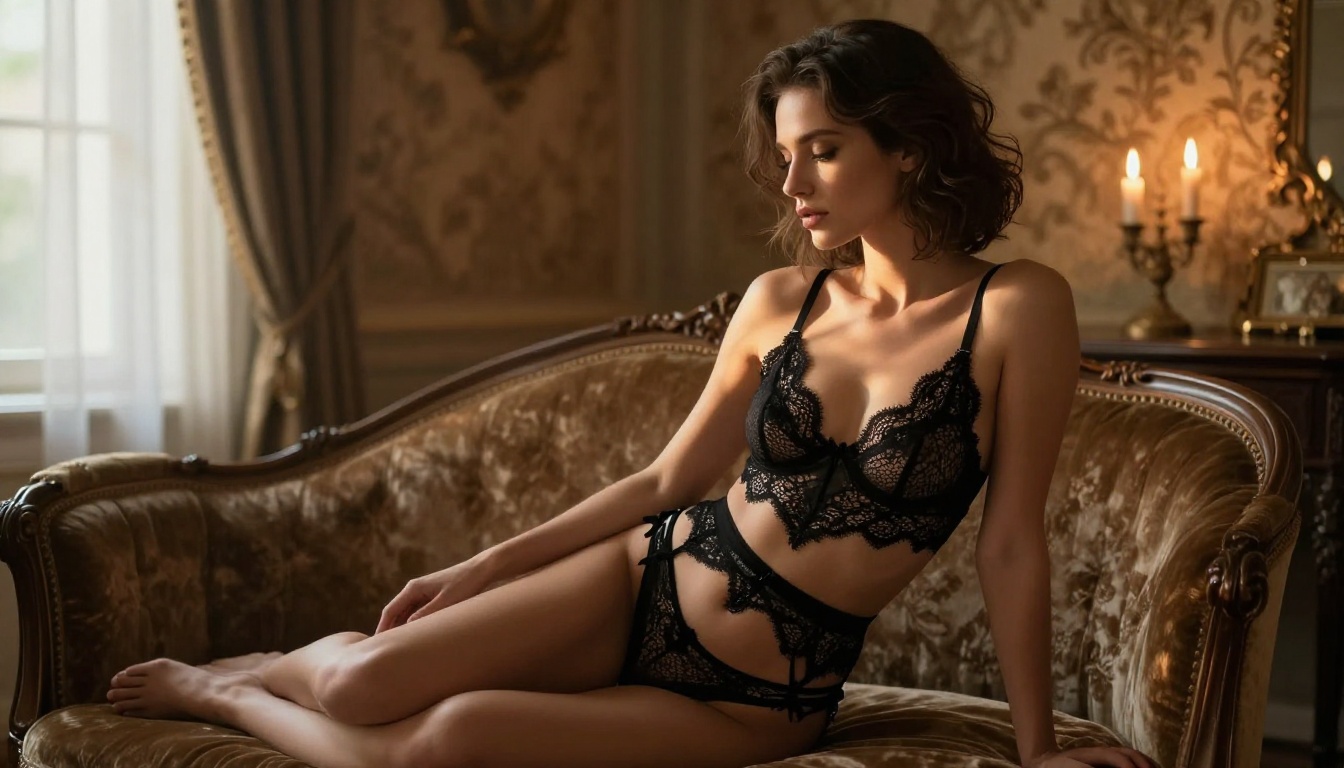
Stable Diffusion 3.5 Large remains a reliable workhorse. It handles artistic boudoir and glamour photography prompts with consistent quality. The model's strength is in atmospheric lighting: candlelit interiors, golden hour portraits, soft studio setups. It produces warm, film-like skin tones naturally.
Stable Diffusion 3.5 Large Turbo sacrifices a small amount of detail for significant speed gains. For iteration and experimentation, it is the better choice. Generate 10 variations quickly, identify what works, then switch to the standard model for final output.
Realistic Vision v5.1
Realistic Vision v5.1 was specifically fine-tuned on photorealistic human portraits. The result is a model that almost defaults to a photography aesthetic without being pushed toward it. For closeup glamour portraits and beauty photography, it consistently outperforms more general models.
The trade-off: full-body compositions are slightly less coherent than portrait crops. Use it for face and shoulder portraits; switch to Flux for full-figure work.
SDXL and DreamShaper
SDXL is the classic choice for anyone who has spent time with Stable Diffusion. Its large training set and high resolution make it versatile across the full range of glamour and suggestive styles.
DreamShaper XL Turbo is a fine-tuned SDXL variant with exceptional handling of dramatic lighting. Evening wear, luxury interiors, and candlelit scenes look particularly strong. It adds a slight cinematic quality to skin rendering that feels distinctly editorial.
How to Write Prompts That Actually Work
The model is not the limiting factor for most beginners. The prompt is. Vague prompts produce vague images. Specific, layered prompts with technical photography vocabulary produce results that look intentional.
The Anatomy of a Strong Prompt
A high-performing NSFW prompt has five layers:
| Layer | What to Include | Example |
|---|
| Subject | Who, what they wear, pose or action | "A woman in a silk slip dress, sitting on the edge of a bed" |
| Environment | Location, background, props | "sun-drenched bedroom, white linen sheets, monstera plant in corner" |
| Lighting | Direction, quality, source | "soft morning light from window on the left, warm shadows" |
| Camera | Lens, angle, aperture | "85mm f/1.4, eye level, shallow depth of field" |
| Film/Style | Stock, grain, aesthetic | "Kodak Portra 400, photorealistic, 8K, film grain" |
Stack all five and the model has a complete visual instruction set. Skip one and you leave the model to guess, which usually means a generic result.
Words That Trigger Quality Results
Certain descriptors reliably improve output quality across all photorealistic models:
- Lighting: "volumetric morning light," "Rembrandt lighting," "golden hour rim light," "soft diffused window light"
- Camera: "85mm f/1.4," "50mm f/2.0," "135mm telephoto," "24mm wide"
- Film: "Kodak Portra 400," "Fujifilm Pro 400H," "35mm film grain"
- Texture: "visible pores," "individual hair strands," "fabric weave texture"
- Style: "editorial fashion photography," "Vogue spread," "high-fashion portrait"
💡 Appending --style raw at the end of prompts used with Flux consistently reduces over-processed AI-looking output and pushes toward photographic naturalism.
Common Prompt Mistakes
Beginners consistently make the same errors:
- Too short: "beautiful woman in bikini" gives the model almost nothing to work with. Write at least 3-4 full sentences.
- Style conflicts: "photorealistic 3D render" contradicts itself. Pick one direction.
- No lighting: Models default to flat, uninspiring lighting without instruction. Always specify.
- Vague clothing: "revealing outfit" is generic. "Black silk slip dress with spaghetti straps" is specific and produces better results.
- No camera reference: Without it, framing is random. "85mm portrait, eye level" anchors the composition.
Step-by-Step on PicassoIA
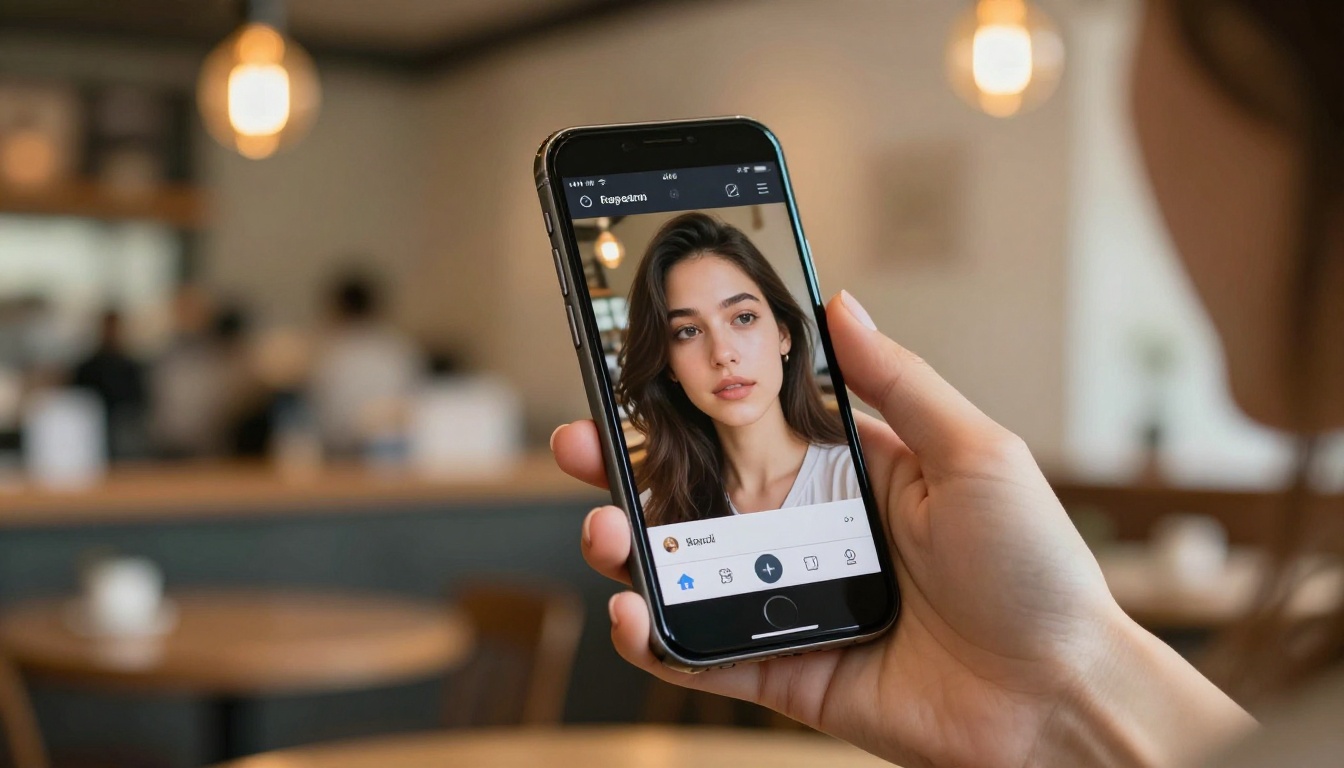
PicassoIA provides access to all the models covered above in a single interface, free to use without software installation. Here is the exact workflow.
Step 1: Pick Your Model
Navigate to the text-to-image collection and select your model based on the use case:
Step 2: Write the Prompt
Use the five-layer structure. Do not rush this step. Here is a full example prompt ready to paste:
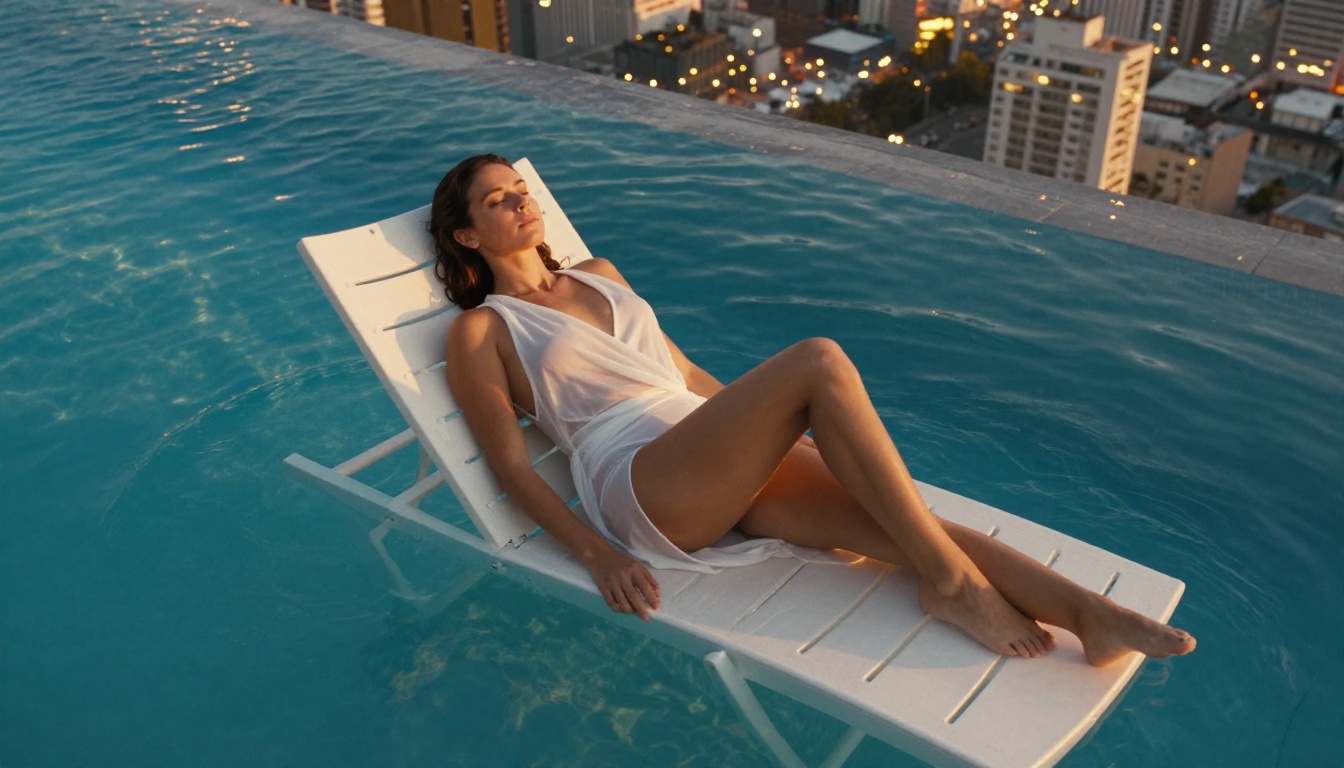
"A confident woman in a white lace bralette and high-waisted shorts standing on a hotel rooftop, warm golden hour light from behind creating a rim light effect on her shoulder and hair, cityscape blurred in background, shot with 50mm f/2.0, eye level, Kodak Portra 400, photorealistic, 8K, individual hair strands visible, fabric texture detailed --ar 16:9 --style raw"
Step 3: Set the Aspect Ratio
16:9 works best for editorial and landscape compositions. 9:16 suits portrait orientation for social media. The model's output quality does not change between ratios, but composition framing does. For full-body standing figures, 9:16 gives more vertical space.
Step 4: Generate and Iterate
First-generation results are a starting point. The standard iteration loop:
- Generate 2-3 variations at once
- Identify which elements worked (lighting, pose, framing)
- Reinforce what worked, replace what did not
- Generate 2-3 more variations
- On the third loop, you typically have a strong result
💡 Save every good result immediately. There is no guarantee a second generation will match it exactly.
Step 5: Refine With Inpainting
If a generated image is almost perfect but has one problem area (an awkward hand position, a distracting background element), use the inpainting tool to fix only that region. Mask the problem area, describe what should replace it, and regenerate that section while keeping the rest of the image intact.
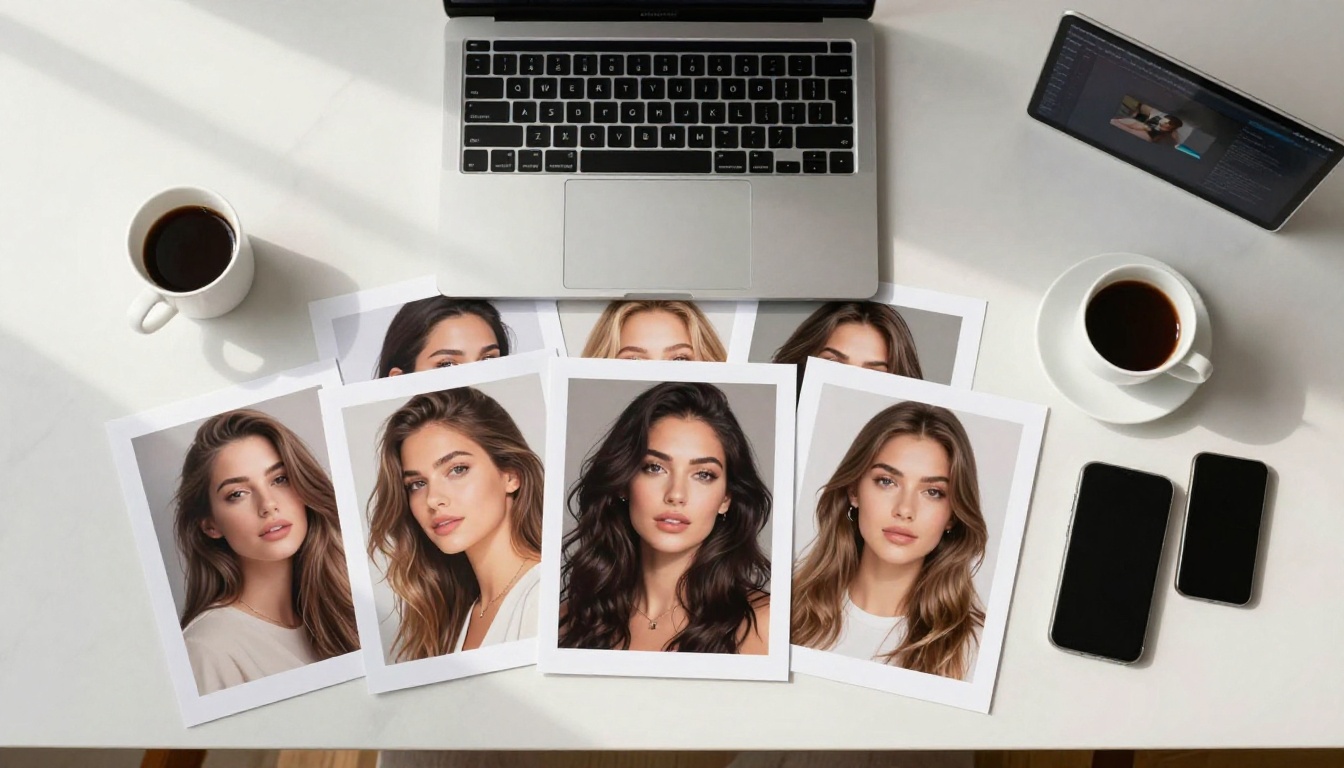
Model Comparison at a Glance
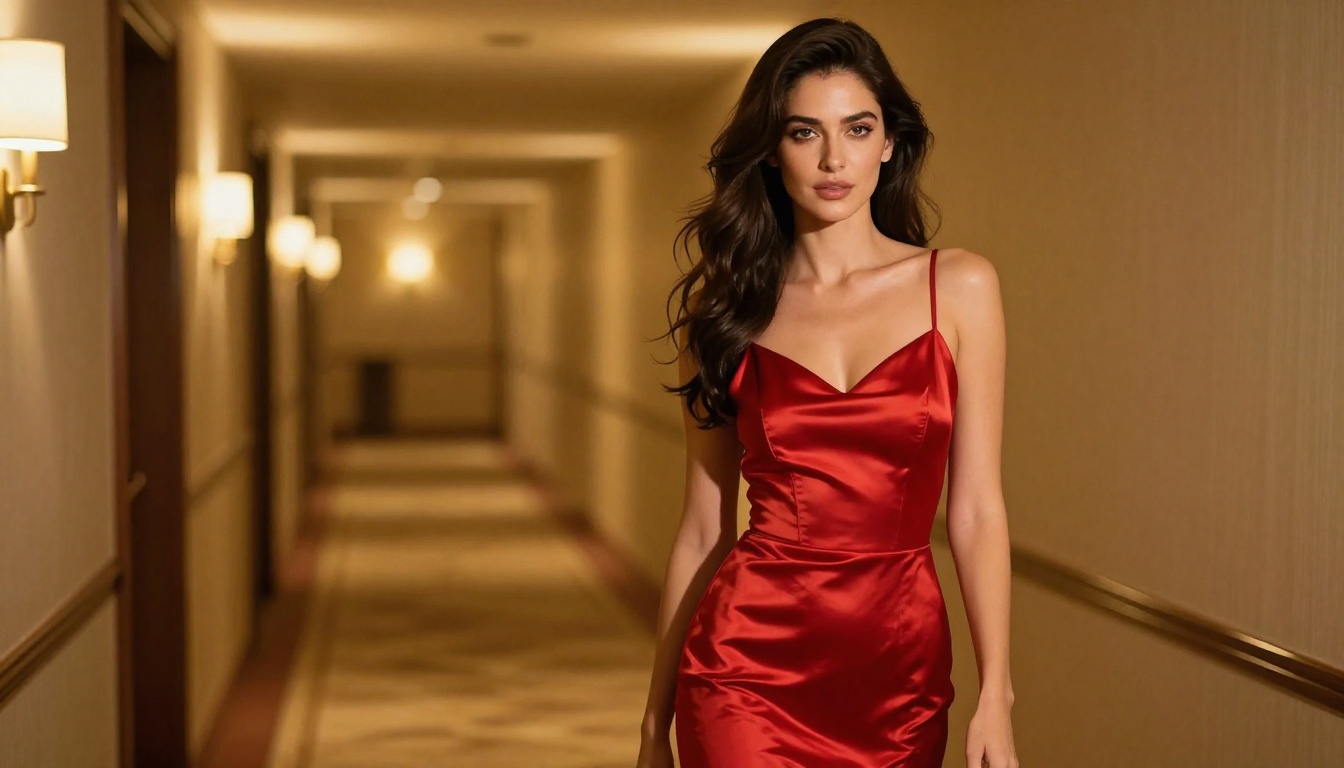
Most people who get mediocre results are making fixable mistakes. These five changes have the largest individual impact:
1. Add a lens specification. Without it, the model has no anchor for framing. "85mm f/1.4" immediately improves portrait composition and depth of field rendering.
2. Name a film stock. "Kodak Portra 400" is not just a style preference. It triggers specific warm tone mapping, highlight roll-off, and grain structure that makes skin tones look human and natural rather than digital.
3. Specify lighting direction. "Soft window light from the left" creates dimension. Flat prompts produce flat images. Direction matters.
4. Describe the background, not just the subject. The model allocates detail budget across the whole frame. A described background is a rendered background. An undefined background is often a distraction.
5. Use negative prompts when available. Models that support negative prompts allow you to explicitly exclude: "cartoon, illustration, CGI, 3D render, plastic skin, overexposed" removes the most common failure modes in a single line.
What the Best Prompts Have in Common
After thousands of generated images, a clear pattern emerges in the prompts that produce consistently strong output. They are not necessarily longer. They are more specific in the right places.
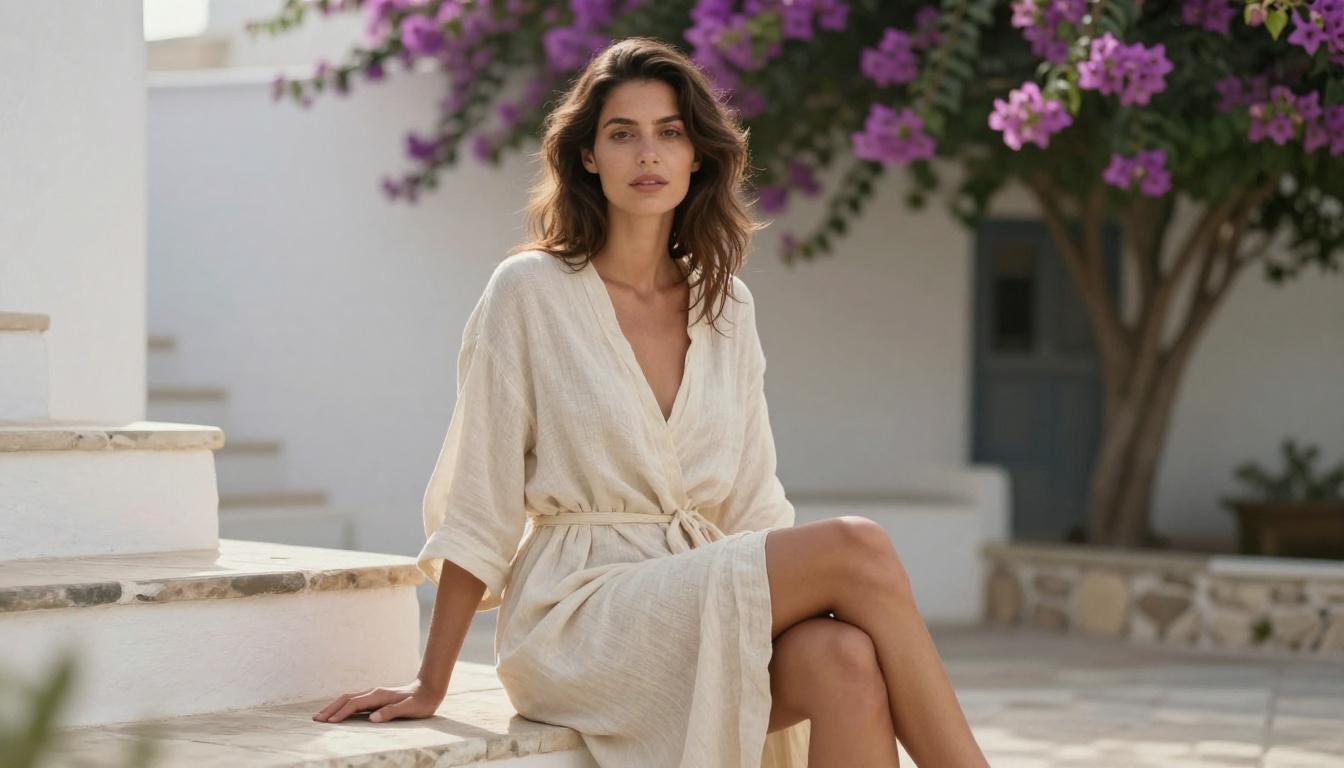
The best prompts name specific materials ("silk," "lace," "satin"), specific locations ("Parisian boudoir," "Malibu beach house," "luxury hotel hallway"), specific time of day ("golden hour," "late afternoon," "blue hour dusk"), and a specific camera setup. Every specific detail is an instruction the model can execute. Every vague phrase is guesswork.
The weakest prompts use categories instead of specifics: "beautiful woman," "nice lighting," "outdoor setting." These prompt the model to average across everything it knows in those categories, which produces generic output.
The gap between an average generator and a skilled user is entirely in the prompt.
💡 Quick reference: Subject + Environment + Lighting + Camera + Film Stock = a prompt that works. Missing any one of these layers is where most results fall apart.
Try It Now on PicassoIA
PicassoIA gives you free access to all the models in this article, including Flux Dev, Flux 1.1 Pro Ultra, Realistic Vision v5.1, DreamShaper XL Turbo, and SDXL. No download, no installation, no payment required for your first generations.
Take the five-layer prompt structure from this article, pick the model that matches your use case, and generate your first image. The output will be better than you expect. The second generation, after applying what you learn from the first, will be better still. That iteration loop is where skill develops fast: write, generate, assess, refine. Within an hour of serious experimentation, you will have developed an intuition for what makes a prompt work.
The tools are free. The access is immediate. The creative ceiling is genuinely high. Start with Flux Dev for your first session: paste the example prompt from Step 2, adjust the clothing and location to your preference, and see what comes back. Everything from there is iteration.


