How to Use ComfyUI for Uncensored AI Image Generation
ComfyUI is the most powerful open-source node-based workflow tool for AI image generation, and when paired with the right checkpoint models and LoRA files, it removes virtually every restriction standing between your prompt and the image you actually want. This article walks through everything from hardware requirements and installation to building your first uncensored workflow, choosing the best NSFW-capable checkpoint models, and running ComfyUI pipelines directly on PicassoIA without touching a terminal.
If you have spent any time with the default AI image generators available online, you already know the frustration. You type a prompt, the safety filter kicks in, and you get a sanitized result that looks nothing like what you described. ComfyUI exists to solve exactly that problem. It is an open-source, node-based visual workflow builder for Stable Diffusion and other diffusion models that gives you complete, unfiltered control over every stage of the generation pipeline. No content policies baked into the interface. No hidden filters trimming your prompts. Just raw diffusion, exactly how you configure it.
This article covers how to use ComfyUI for uncensored AI image generation from the ground up, including what hardware you actually need, how to install it, which checkpoint models produce the best unrestricted results, how to build and tune your workflows, and how to run the same ComfyUI workflows on PicassoIA's Any ComfyUI Workflow model if you want cloud-based power without the local setup.
What ComfyUI Actually Is
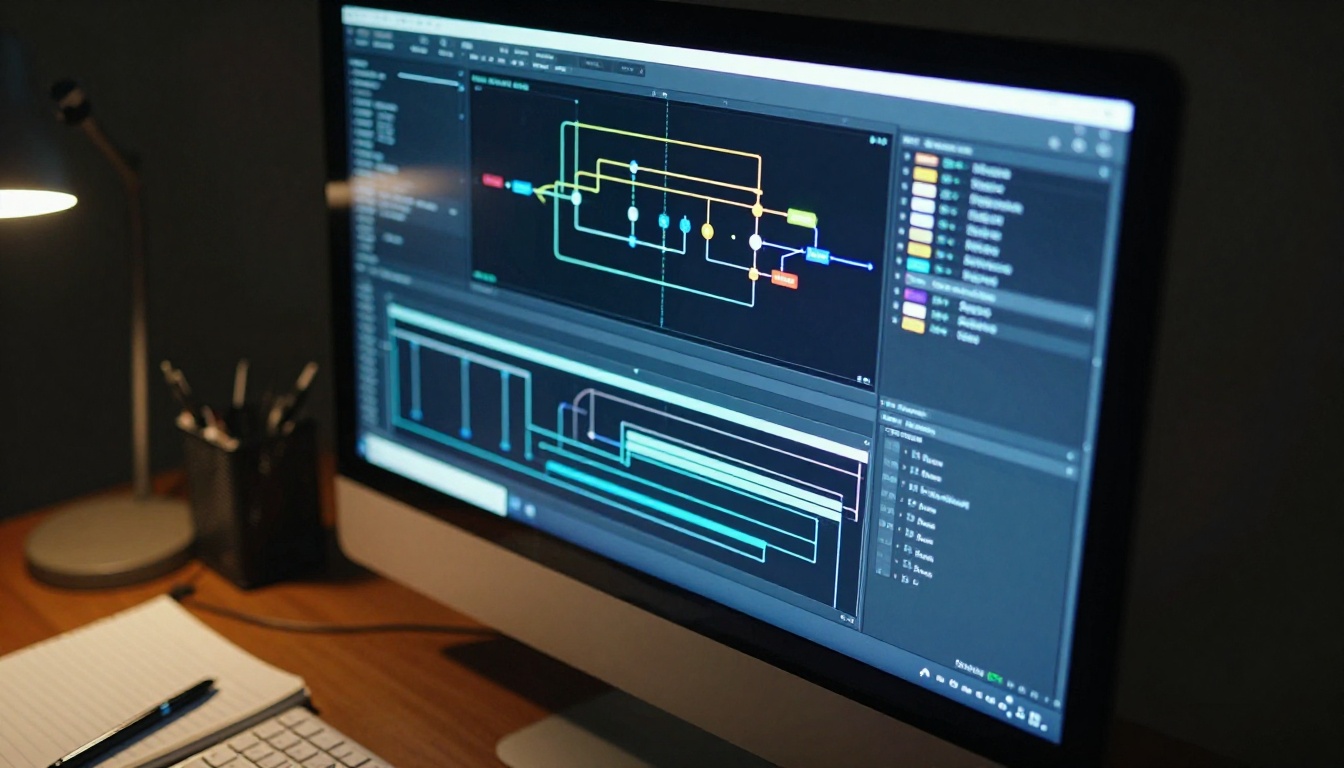
ComfyUI is not a simple drag-and-drop image generator. It is a visual programming environment for diffusion model pipelines. Every operation, from loading a checkpoint to denoising latents to decoding the final image, lives as a node on a canvas, connected by wires that represent the flow of data.
This architecture matters for uncensored generation because:
No built-in content filter sits between your prompt and the model
You can swap any component of the pipeline independently
Custom nodes allow you to add ControlNet, LoRA stacking, upscalers, and more
Workflows are portable JSON files you can share, import, and version
Compare this to something like DALL-E or Midjourney, where the safety layer is server-side and non-negotiable. With ComfyUI, the model runs locally on your machine. There is no server to refuse your request.
💡 The restriction in most AI image tools is not the model itself. It is the wrapper around the model. ComfyUI removes the wrapper.
Why ComfyUI Beats Every Other Tool
There are other ways to run Stable Diffusion locally: AUTOMATIC1111, InvokeAI, Fooocus. Each has its place. But for precision control over uncensored generation specifically, ComfyUI has decisive advantages.
Feature
ComfyUI
AUTOMATIC1111
Fooocus
Node-based workflow
Yes
No
No
Workflow portability
JSON export
Limited
Limited
Multi-LoRA stacking
Native
Extension needed
Limited
ControlNet integration
Native nodes
Extension
No
Speed on same hardware
Fastest
Moderate
Fast
Learning curve
Steep
Moderate
Easy
NSFW restrictions
None (local)
None (local)
None (local)
The learning curve is real. But once you understand the node system, you can build workflows that would be impossible in any other interface, including precise multi-pass inpainting for NSFW detail enhancement, LoRA weight blending, and custom resolution pipelines.
Your Machine Needs These Specs First
Before installing anything, confirm your hardware can actually run the models you want.
Minimum Requirements
GPU: NVIDIA RTX 3060 (12GB VRAM) or better for SDXL-class models
RAM: 16GB system RAM minimum, 32GB recommended
Storage: 30GB free for ComfyUI plus model files (individual checkpoints are 4-7GB each)
OS: Windows 10/11, Ubuntu 20.04+, or macOS 12+ with Apple Silicon
What GPU You Actually Need
VRAM
What Runs Well
6GB
SD 1.5 models at 512x512, slow
8GB
SD 1.5 and some SDXL with optimizations
12GB
SDXL comfortably, Flux Schnell at reduced settings
16GB+
Full Flux Dev, SDXL with ControlNet, fast batch generation
24GB+
Everything, including Flux 1.1 Pro class models locally
💡 AMD GPUs work via ROCm on Linux but have inconsistent support. Stick with NVIDIA for the smoothest ComfyUI experience.
Windows Setup Step by Step
Download the ComfyUI Windows Portable package from GitHub
Extract to a location with 50GB+ free space (e.g., D:\ComfyUI)
Place your checkpoint files in ComfyUI/models/checkpoints/
Place LoRA files in ComfyUI/models/loras/
Run run_nvidia_gpu.bat to launch the web interface
Open your browser to http://127.0.0.1:8188
Mac and Linux Quick Path
On Mac (Apple Silicon) or Linux, install via Python:
Mac users with M1/M2/M3 chips can run SD 1.5 class models well. SDXL runs but is slow. Flux models are very demanding on Apple Silicon.
The Checkpoint Models That Matter
The checkpoint model is the single biggest factor in what your uncensored generations look like. The model determines style, realism, anatomical accuracy, and whether restrictions are baked in at the training level.
Top Uncensored Checkpoints in 2027
For photorealism:
Realistic Vision v5.1: Still one of the most reliable for natural, photorealistic results. Available on PicassoIA. Trained specifically for photo-like output without safety filters.
RealVisXL v3.0 Turbo: SDXL-based with exceptional skin and lighting fidelity. Check it on PicassoIA. Handles complex lighting and body detail at high resolution.
DreamShaper XL Turbo: Versatile model that handles both realistic and stylized prompts. Available on PicassoIA. Fast generation times with strong anatomy.
For stylized NSFW:
Proteus v0.2: Excellent for artistic, painterly styles with uncensored output. Available on PicassoIA.
Proteus v0.3: The anime-focused iteration with strong character detail. Available on PicassoIA.
For maximum quality:
Stable Diffusion 3.5 Large: Stability AI's flagship with superior composition at high resolution. Available on PicassoIA. Requires more VRAM but delivers exceptional results.
SDXL Base: The standard SDXL checkpoint, compatible with the massive ecosystem of SDXL LoRAs. Available on PicassoIA.
Where to Download Them Safely
The primary source for uncensored checkpoint models is Civitai (civitai.com). Models with a red "NSFW" badge on Civitai are trained without safety filters. Always check:
Model type (SD 1.5, SDXL, or Flux)
Base model compatibility (affects which LoRAs work)
Community reviews for anatomy accuracy
VRAM requirements listed in the model card
Download the .safetensors file (never .ckpt from untrusted sources) and place it in your ComfyUI/models/checkpoints/ folder.
Building Your First NSFW Workflow
With ComfyUI open at 127.0.0.1:8188, you start with an empty canvas. The default workflow that loads automatically is a basic text-to-image pipeline and it is a good starting point.
Loading Your Checkpoint Node
The Load Checkpoint node is the foundation. Click on it and select your uncensored model from the dropdown. This node outputs three connections:
MODEL (goes to KSampler)
CLIP (goes to both CLIP Text Encode nodes)
VAE (goes to VAE Decode at the end)
If the model does not appear in the dropdown, verify the .safetensors file is in the correct folder and refresh the browser page.
KSampler Settings for Realism
The KSampler node controls how the diffusion process actually runs. These settings make the biggest difference for NSFW quality:
Parameter
Recommended Value
Why
Steps
25-35
More steps, more detail
CFG Scale
6-8
Higher = follows prompt strictly
Sampler
dpmpp_2m
Best for photorealism
Scheduler
karras
Smooth denoising curve
Denoise
1.0
Full generation from noise
Seed
Any fixed value
For reproducible results
💡 CFG Scale above 10 often creates oversaturation and distorted anatomy. Stay in the 6-8 range for natural-looking NSFW content.
Negative Prompts That Work
Your negative CLIP text encode node is just as important as your positive prompt. These negative terms consistently improve NSFW realism:
bad anatomy, malformed hands, extra fingers, bad proportions, poorly drawn,
blurry, watermark, text, logo, deformed, ugly, amateur, low quality,
jpeg artifacts, oversaturated, plastic skin, doll, mannequin
For anatomical accuracy specifically, add:
extra limbs, missing fingers, fused fingers, too many fingers,
incorrect body proportions, distorted face, cross-eyed
LoRA Files for Specific Results
LoRA (Low-Rank Adaptation) files are small model add-ons, typically 50-200MB, that push the base checkpoint toward specific styles, body types, clothing types, or explicit content levels. They are the most efficient way to customize uncensored output without switching checkpoints.
How to Load LoRAs in the Node Editor
Right-click the canvas, search for Load LoRA
Connect the MODEL output from Load Checkpoint into the LoRA node's MODEL input
Connect the CLIP output similarly
Pass the LoRA outputs to your KSampler and CLIP Text Encode nodes
Set the LoRA strength between 0.5 and 1.0 (higher = stronger effect)
Stack multiple LoRAs by chaining Load LoRA nodes in sequence. This lets you combine, for example, a photorealism LoRA with a body-type LoRA for very specific results.
💡 SDXL LoRAs only work with SDXL base checkpoints. SD 1.5 LoRAs only work with SD 1.5 checkpoints. Mixing them produces broken output.
Where to find NSFW LoRAs:
Civitai is again the main source. Filter by model type, set the NSFW filter to show explicit content, and sort by Most Downloaded or Highest Rated. Popular categories include:
Clothing removal or modification
Body type emphasis (Curvy, Petite, Athletic)
Artistic style (Glamour Photography, Boudoir, Fine Art)
Specific ethnicity or face characteristics
Run ComfyUI Workflows on PicassoIA
Not everyone has the hardware or wants to maintain a local installation. PicassoIA's Any ComfyUI Workflow model solves this by running ComfyUI pipelines entirely in the cloud.
Step 1: Build your workflow locally (optional) or use a pre-made one
You can create workflows in ComfyUI and export them via Save (API Format) from the menu. This produces a JSON file that describes every node and connection.
Paste your workflow JSON or upload the file. The platform reads your node configuration, including which models, samplers, LoRAs, and parameters you defined.
Step 4: Set your inputs
Modify the text prompts and any parameters you want to adjust for this specific generation without changing the whole workflow structure.
Step 5: Generate
Hit generate and PicassoIA's cloud infrastructure runs the full ComfyUI pipeline. You get the same result you would get locally, without needing a high-end GPU or a local installation.
💡 This is especially powerful for complex workflows with ControlNet, multiple LoRAs, or high-resolution upscaling passes that would be slow on consumer hardware.
Even experienced users hit these issues regularly.
Error 1: "CUDA out of memory"
Cause: Your VRAM is not enough for the resolution or model size.
Fixes:
Reduce image resolution to 768x768 or lower
Add --lowvram or --medvram flag when launching ComfyUI
Use a smaller model (SD 1.5 instead of SDXL)
Close other GPU-heavy applications before generating
Error 2: Model Not Appearing in Dropdown
Cause: File is in the wrong folder or is corrupted.
Fixes:
Confirm the file is in ComfyUI/models/checkpoints/ (not a subfolder)
Check file size (a valid SDXL .safetensors is 6-7GB, SD 1.5 is 2-4GB)
Press F5 to refresh the browser after adding new model files
Verify no download errors by checking file hash if provided
Error 3: Broken Anatomy in NSFW Output
Cause: Insufficient steps, wrong CFG, or model mismatch with LoRA.
Fixes:
Increase steps to 30-40
Reduce CFG to 6-7
Add anatomy-specific negatives (see the Negative Prompts section above)
Confirm your LoRA matches the base model architecture
Try a different sampler: euler_a sometimes handles anatomy better than dpmpp_2m
Prompt Writing for NSFW Results
The quality gap between a mediocre and excellent uncensored image almost always comes down to prompt construction. A few principles:
Be specific, not vague. "Beautiful woman" produces generic results. "Professional glamour photography of a woman with long auburn hair, warm studio lighting, chic off-shoulder top, 85mm portrait lens" produces something you can actually use.
Lighting terms matter. Include: cinematic lighting, soft diffused light, golden hour backlighting, studio softbox. These cues push the model toward photographic output.
Reference photography concepts.shallow depth of field, 85mm f/1.4, Kodak Portra 400, film grain all signal photorealism to diffusion models trained on photography datasets.
For artistic NSFW, phrases like tasteful nude, artistic photography, boudoir lighting, implied nudity, fine art figure study tend to produce aesthetically strong results that emphasize beauty over explicitness.
💡 The most effective NSFW prompts describe photography and art direction, not just the subject. Think like a photographer, not a request form.
Whether you want to run a custom ComfyUI workflow JSON in the cloud, experiment with SDXL checkpoints, or stack LoRAs for precise stylistic control, the platform handles the infrastructure so you can focus entirely on the creative work.
Start with a model you already know works for your style. Bring your best prompts. Adjust the KSampler settings using the values from this article. And if the result is not right, swap the checkpoint or add a LoRA, because on PicassoIA, that change takes seconds rather than a full re-download.
The images you have been trying to create are within reach. The only thing left is to open PicassoIA and start generating.