Nano Banana 2 sets a new bar for how fast AI image generation can be without forcing you to trade quality for speed. Developed by Google and now available through PicassoIA, the model handles complex text prompts with remarkable accuracy, producing photorealistic results in a fraction of the time other models require. If you've been stuck waiting seconds per image while iterating on creative concepts, Nano Banana 2 changes that workflow entirely.
This article breaks down exactly how to use Nano Banana 2 on PicassoIA, from account setup to advanced prompt strategies, with real comparisons against other top models on the platform.
What Is Nano Banana 2?
Google's Nano Banana 2 belongs to a family of lightweight, high-throughput diffusion models designed specifically for speed-first scenarios. The "Nano" designation isn't a downgrade from the larger models. It reflects a deliberate design choice: fewer parameters, optimized inference paths, and a distillation process that compresses quality from much larger base models into a faster architecture.
Why Google Built It This Way
The core problem Google addressed with Nano Banana 2 is iteration latency. Professional image creators don't generate one image and call it done. They run dozens of variations, tweak prompts, adjust compositions, and refine until the output matches what they visualized. Every second you wait per generation is friction in that creative loop.
Nano Banana 2 cuts that friction significantly. The model processes prompts and returns images fast enough that you can genuinely iterate in real time, treating it more like a creative partner than a slow rendering engine.
The Lite Version on PicassoIA
On PicassoIA, the model available is Nano Banana 2 Lite, which is the optimized variant tuned for maximum throughput on the platform's infrastructure. The quality difference between Lite and heavier variants is minimal for most use cases, particularly for social media visuals, content mockups, and creative concept exploration.

How to Use Nano Banana 2 on PicassoIA
The process is straightforward once you know where to go. PicassoIA organizes all its models into a browsable collection, and Nano Banana 2 Lite sits inside the text-to-image category.
Step 1: Navigate to the Model
Go directly to the Nano Banana 2 Lite page on PicassoIA. If you're already logged in, you'll land directly on the model's generation interface. If not, creating an account takes under two minutes and gives you access to the full model library.
Step 2: Write Your Prompt
The prompt field is where most people spend their time. Nano Banana 2 responds well to both short, direct prompts and longer descriptive ones. For photorealistic results, you'll want to be specific about:
- Subject: Who or what is in the image
- Environment: Where the subject is and what surrounds it
- Lighting: Direction, quality, and color temperature of the light
- Camera details: Lens focal length, aperture, and shooting angle
- Mood and atmosphere: The emotional tone you want the image to carry
A prompt like "a woman sitting at a desk" produces something generic. A prompt like "a woman with dark hair sitting at a minimalist oak desk, afternoon light from a left window, 85mm f/1.4, Kodak Portra 400 color tone" produces something far closer to what most creators actually need.

Step 3: Adjust Settings
Before hitting generate, check the available settings panel. Most Nano Banana 2 sessions on PicassoIA will give you options for:
- Aspect ratio: For social content, 1:1 or 9:16 often work better. For editorial or blog use, 16:9 is the standard.
- Number of images: Generate multiple variations in one shot to compare outputs.
- Seed: Set a fixed seed if you want reproducible outputs when refining prompts.
Start with a seed set to random for exploration, then lock it in once you find a composition you like, changing only specific prompt elements to compare.
Step 4: Generate and Review
Hit generate and review the output critically. Nano Banana 2 is fast, so you won't wait long. Check for:
- Facial coherence if the image includes faces
- Prompt adherence on the key subject
- Lighting consistency
- Background realism
If any of these fall short, adjust your prompt rather than accepting a flawed output. The speed of the model means you can iterate 10 to 15 times in the time a slower model would give you 2 to 3 attempts.

Prompt Strategies That Get Results
The difference between average and excellent outputs usually lives in the prompt, not the model. Nano Banana 2 follows the same prompt logic as most modern diffusion models, but with a few specific behaviors worth knowing.
Anatomy of a Strong Prompt
The most reliable prompt structure follows this pattern:
[Subject + Action/State] + [Environment] + [Lighting] + [Camera/Lens] + [Texture/Atmosphere] + [Style Reference]
This isn't a rigid formula, but hitting most of these elements consistently produces better results than unstructured descriptions. The model weights specificity: detailed descriptions produce outputs that match your intent far more reliably than vague ones.
💡 Tip: Add film stock references like "Kodak Portra 400" or "Fuji Superia 400" to instantly shift the color science of your output toward a more cinematic, warm-toned look without writing lengthy color descriptions.
What to Avoid in Prompts
Several patterns consistently reduce output quality with Nano Banana 2:
- Contradictory style terms: Don't ask for "photorealistic digital art." Pick one direction.
- Stacking too many subjects: "A woman, a dog, a mountain, a sunset, and a city" confuses the model's composition logic.
- Vague descriptors: "Beautiful," "amazing," or "stunning" add nothing. Replace these with specific visual descriptions.
- Overloaded negatives: Negative prompting works in some interfaces, but piling on too many negatives often produces artifacts.
Prompt Examples by Category
Portrait Photography:
"A woman in her 30s with natural blonde hair, seated in a sunlit cafe, soft diffused window light from the right, 85mm f/1.8 lens, shallow depth of field, natural skin texture, Kodak Portra 400"
Product Mockup:
"A white ceramic coffee mug on a dark walnut table, steaming coffee inside, close-up from 45 degrees above, warm kitchen morning light, 50mm f/2.8, high contrast shadows"
Architecture and Interior:
"A modern Scandinavian living room with white walls and oak flooring, large window with afternoon light, minimal furniture, indoor plant, 24mm wide angle, interior design photography"

Comparing Nano Banana 2 Lite with Other Models
PicassoIA hosts over 90 text-to-image models. Knowing where Nano Banana 2 fits helps you choose the right tool for the right job rather than defaulting to one model for everything.
Speed vs. Quality at a Glance
When to Pick Nano Banana 2
Nano Banana 2 wins when:
- You need volume: generating many variations fast to find the right concept
- You're in early ideation: sketching visual directions before committing to a final render
- You need mobile-friendly content: outputs that look sharp at social media sizes without requiring 4K resolution
- Your workflow loops fast: client feedback rounds where you need to show 3 to 4 variations in minutes, not hours
When to Pick Something Else
Switch to Seedream 5 Pro when you need sharp detail in portraits or complex scenes. Use Reve 2.1 when you want editing capabilities alongside generation. The right model depends on where you are in your creative process, not on which model has the biggest marketing page.

Best Use Cases for Nano Banana 2
The model's speed profile makes it particularly well-suited to specific creative workflows. Here's where it adds the most value.
Content Creation at Scale
Social media managers who need 20 to 30 unique visuals per week face a constant production bottleneck. Nano Banana 2 collapses the time cost of image creation enough that a single person can generate, review, and iterate through a week's worth of social content in a few hours. The outputs are consistently clean at Instagram and X (Twitter) display sizes, and the speed means you're not spending half your production time waiting for renders.

Rapid Visual Prototyping
Designers and product teams often need to quickly visualize concepts before writing a formal brief. Nano Banana 2 works well as a visual prototyping tool. Drop in a rough concept description, generate 6 to 8 variations, pick the two or three that capture the direction best, and use those as reference images in your actual brief. No stock photo licensing, no waiting.
Storyboard and Scene Planning
For video producers, photographers, and directors, scene planning often involves hand-drawn storyboards or rough sketches. Nano Banana 2 replaces that with photorealistic scene mockups generated in seconds. Describe the camera angle, lighting, subject position, and environment, and you'll have a near-production-quality reference image to show clients or crew members almost immediately.
Product Mockup Generation
E-commerce brands that sell physical products often need contextual product shots. Nano Banana 2 can generate realistic-looking mockup scenes: a coffee mug on a kitchen counter, a t-shirt laid flat on a textured surface, a water bottle on a hiking trail. While these outputs shouldn't replace professional product photography for final campaigns, they're excellent for testing visual concepts before investing in a shoot.
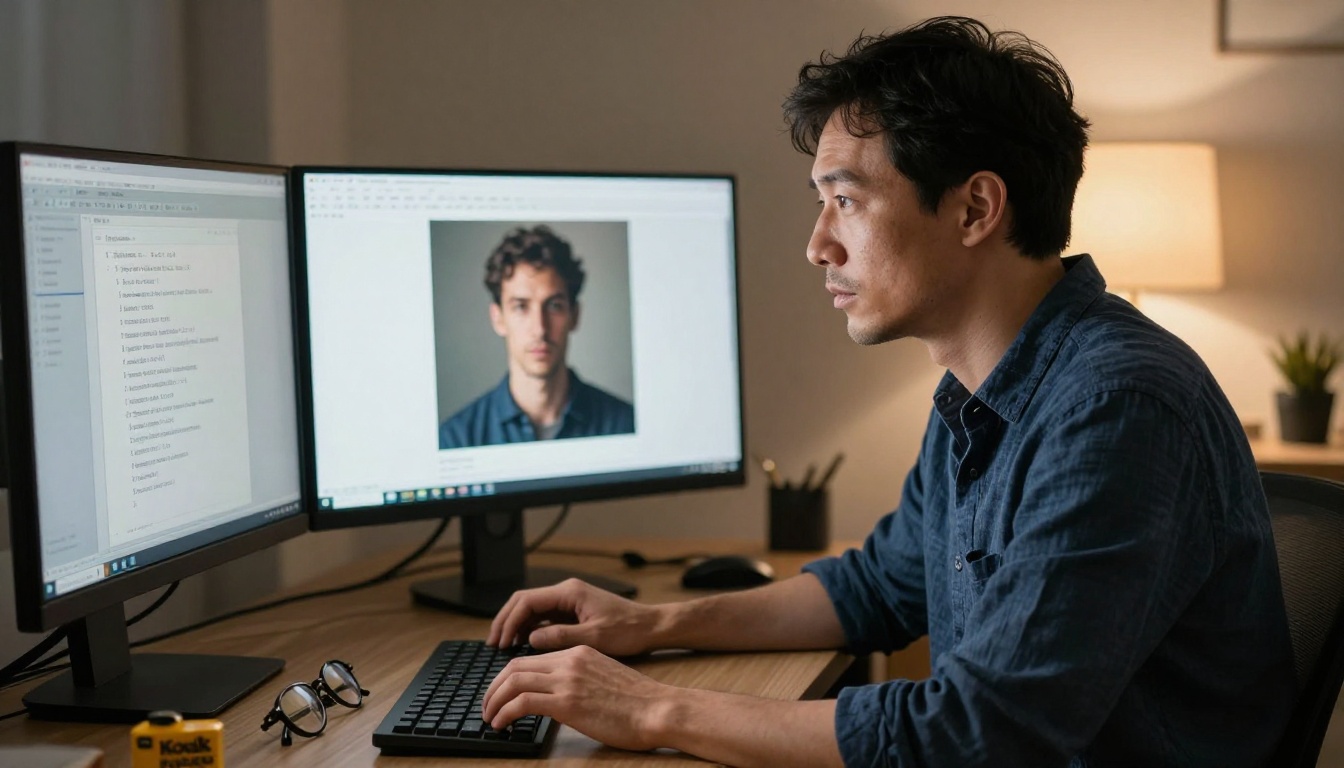
Tips for Getting the Best Results
Most users plateau after a few sessions with Nano Banana 2 because they stop experimenting with prompt structure. These tips push past that plateau.
Lighting Descriptions That Work
Lighting is the single most impactful variable in photorealistic AI image generation. These phrases consistently improve output quality with Nano Banana 2:
- "Volumetric morning light from the left" adds directional warmth
- "Soft overcast diffused light" eliminates harsh shadows for clean, even results
- "Golden hour backlight with slight lens flare" adds cinematic depth
- "Practical lamp illumination from below" creates moody, atmospheric interiors
- "Window light with visible dust particles" adds hyper-realistic micro-detail
Texture and Surface Descriptions
The model responds well to explicit surface texture descriptions. Adding "visible fabric weave texture," "fine leather grain," "rough concrete surface with pores," or "polished stainless steel with brushed finish" dramatically improves material realism in outputs.
Iterating Systematically
Rather than changing your entire prompt between generations, change one variable at a time. Lock the seed, adjust the lighting description, and compare. Then adjust the camera angle while keeping everything else constant. This systematic approach tells you exactly what each prompt element is contributing to the final image.
💡 Tip: Save your best-performing prompts in a simple text file. Over time, you'll build a personal prompt library that produces reliable results across different subject categories.
Combining Nano Banana 2 with Other PicassoIA Tools
Nano Banana 2 works well as a first-pass generation tool. From there, you can refine outputs using PicassoIA's broader capability set:
- Super Resolution: Upscale Nano Banana 2 outputs 2x to 4x for print-quality versions
- AI Image Restoration: Fix any noise or blur artifacts in generated images
- Inpainting: Replace specific areas of an output without regenerating the full image
- Object Replacement: Swap individual elements while keeping the overall composition intact
This combined workflow lets you use the speed of Nano Banana 2 for rapid iteration and then apply targeted refinements rather than regenerating from scratch each time something small needs fixing.

Where Nano Banana 2 Fits in a Professional Workflow
The best way to think about Nano Banana 2 is as a creative accelerator, not a replacement for a full production pipeline. It handles the high-volume, fast-feedback parts of a creative workflow better than almost anything else currently available on PicassoIA.
For creators who previously budgeted 2 to 3 hours for visual ideation, Nano Banana 2 cuts that to 20 to 30 minutes. That time savings compounds across a week, a month, and a production year. At scale, the speed difference matters more than any individual quality delta between this and a slower model.
The practical move is to integrate Nano Banana 2 as your default exploration model, then hand off final assets to higher-fidelity models like Seedream 5 Pro or Reve 2.1 when a specific deliverable requires maximum detail. That two-stage workflow lets you move fast without compromising on final output quality.

Start Generating with Nano Banana 2 Today
PicassoIA gives you direct access to Nano Banana 2 Lite without any setup beyond creating an account. The model is ready to use, and the generation interface requires no technical knowledge to start producing results.
The fastest way to understand what Nano Banana 2 can do is to run 10 to 15 prompts in your first session. Start with subjects you know well: your typical content category, your usual photography style, your standard aspect ratio. That familiarity gives you a calibrated baseline to measure the model's output against.
From there, experiment with the prompt structures covered in this article. Test lighting variations, try different camera lens specifications, and adjust your texture descriptions. Within a few sessions, you'll have a clear picture of what this model does well and exactly where to slot it in your production process.
If you want to see everything PicassoIA has to offer beyond text-to-image, the full model library at picassoia.com/en/all-models covers tools for video, audio, image editing, face swap, background removal, and more.


