Nano Banana Pro is quietly becoming one of the most discussed AI image models right now, and for good reason. It outputs stunning 4K images from simple text prompts, handles complex scenes with remarkable fidelity, and runs fast enough to make real creative workflows possible. If you've been generating mediocre results and wondering what you're doing wrong, this article breaks it all down.
What Makes Nano Banana Pro Different
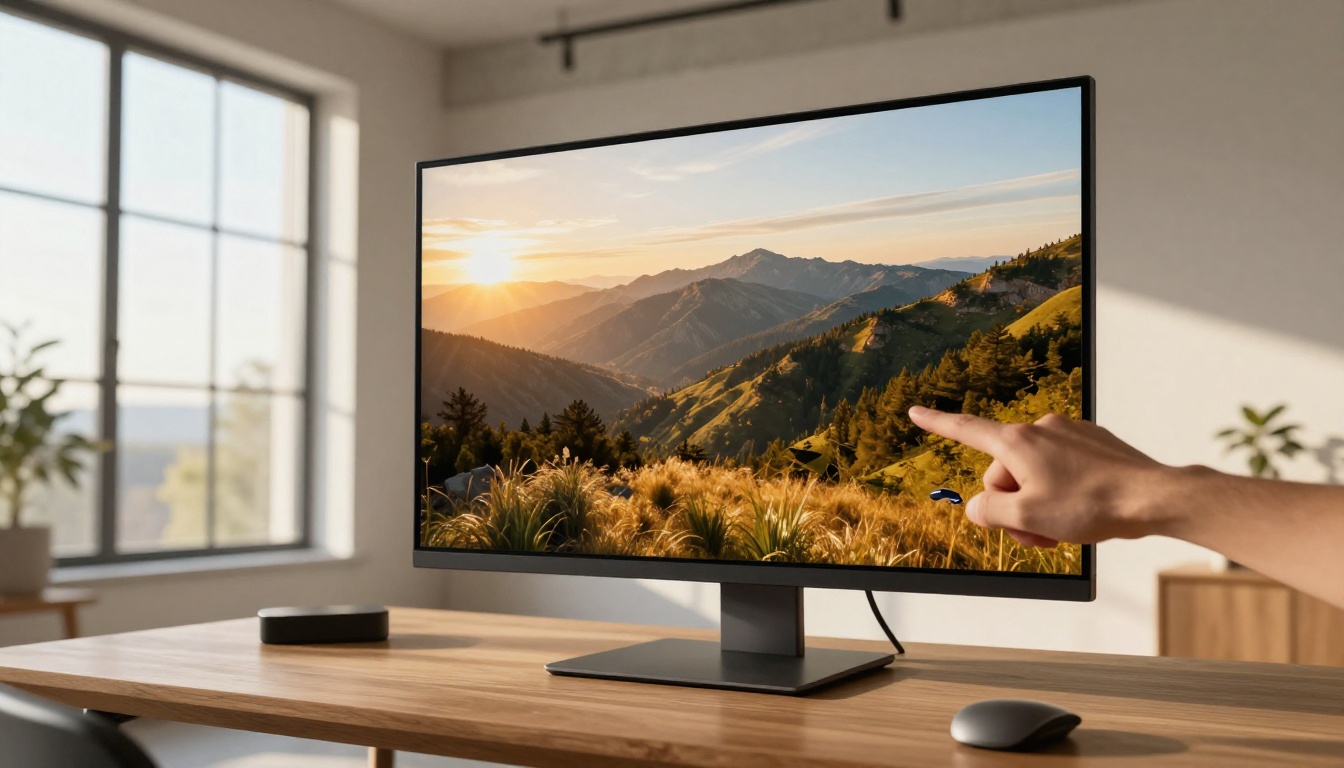
Not every text-to-image model handles all subjects equally. Some are trained to shine on artistic illustrations, others on portraits. Nano Banana Pro was built with photorealism as the core objective, which means it excels at generating images that look like they came from a professional camera rather than a software renderer.
The real difference shows up in how it handles lighting, texture, and spatial depth. A generic AI model might produce something that looks impressive at thumbnail size but falls apart when you zoom in. Nano Banana Pro's architecture maintains fidelity at the pixel level, which is exactly what you need if you're creating content for blogs, social media, or commercial projects.
The 4K Advantage
When people say "4K images," they don't always mean resolution in the strict technical sense. In practice, what matters is the output quality at high resolution: whether skin textures look real, whether fabric folds make physical sense, and whether backgrounds have believable depth rather than a flat, smudged wash of color.
Nano Banana Pro delivers on all three. The model produces images where you can see individual hairs, fabric weaves, and reflective surface gradients without any of the muddy blending that plagues lower-tier models. This matters enormously for professional output.
How It Compares to Other Models
There are dozens of text-to-image options on the platform. Models like Flux Pro and Imagen 4 Ultra each have their strengths. But Nano Banana Pro sits in a sweet spot: better photorealism than most mid-tier models, and faster output than the heaviest ultra-resolution alternatives.
Setting Up Your First Generation
The setup process is straightforward, but where most users go wrong is treating the prompt like a search engine query. It's not. It's a creative brief.
Step 1 - Write Your Prompt
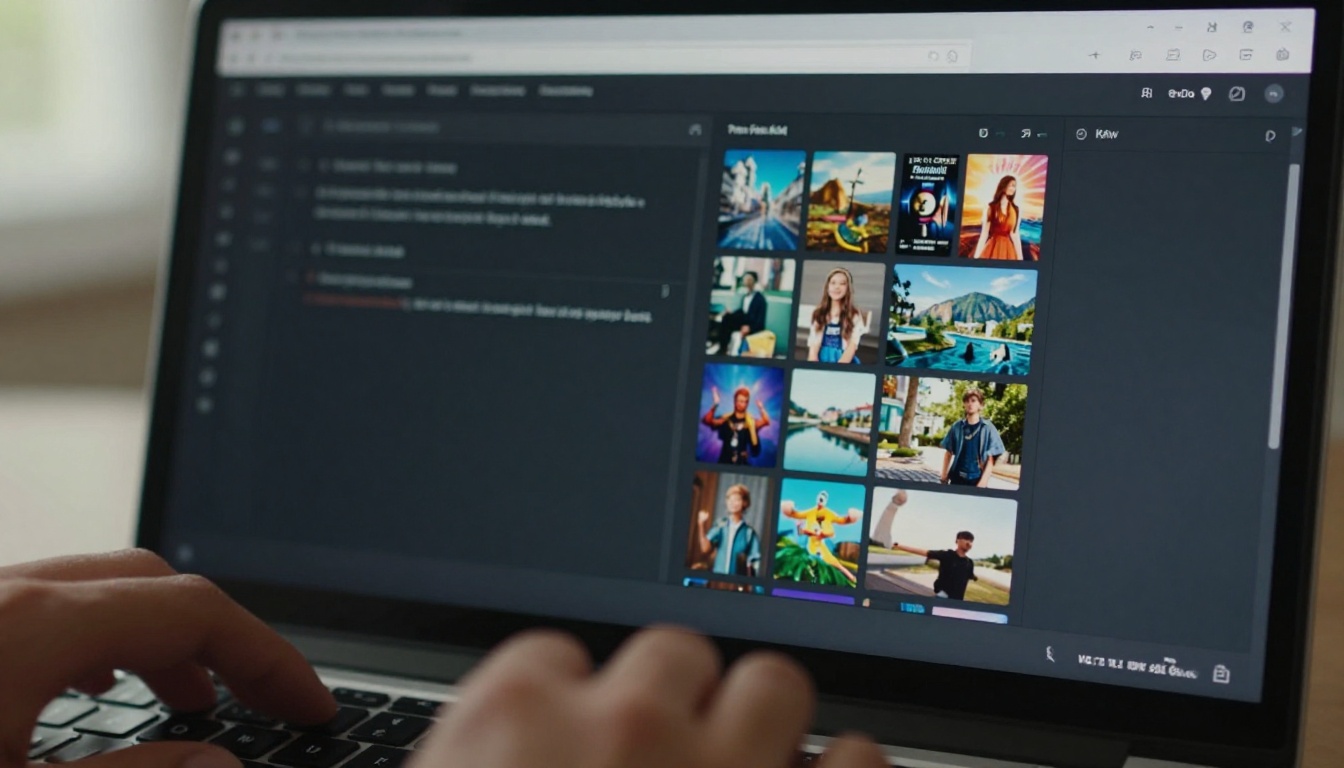
Your prompt is the single biggest factor in output quality. A weak prompt will produce a weak image no matter how good the model is. Start with the subject, then layer in environmental details, then lighting, then camera specifics.
Basic structure:
- Subject: who or what is in the scene
- Setting: where they are, what surrounds them
- Lighting: time of day, direction, quality
- Camera: lens type, aperture, angle
For example, instead of writing "a woman at a desk," try: "A woman in her late 20s seated at a light oak desk in a modern home office, morning sunlight from the left window, 85mm f/1.8 lens, Kodak Portra 400 film grain, photorealistic."
The second version gives the model something to work with. The first gives it almost nothing.
Step 2 - Pick the Right Aspect Ratio
Nano Banana Pro supports multiple aspect ratios. Choosing the right one before generating saves you the frustration of cropping after the fact.
| Ratio | Best Use Case |
|---|
| 1:1 | Profile pictures, social media posts |
| 16:9 | Blog headers, YouTube thumbnails, presentations |
| 9:16 | Stories, Reels, TikTok content |
| 4:3 | Product photography, editorial images |
| 3:2 | Classic photography proportions, prints |
Step 3 - Adjust Quality and Steps
More inference steps mean more detail, but also longer generation time. For quick prototyping, lower step counts work fine. For final output intended for professional use, push it higher. The model's architecture handles higher step counts without introducing artifacts, which is one of the things that separates it from older diffusion models.
How to Use Nano Banana Pro on PicassoIA
This is where the practical workflow comes in. PicassoIA makes accessing Nano Banana Pro simple, even if you've never used an AI image model before.

Open the Model Page
Go directly to the Nano Banana Pro page on PicassoIA. You'll see the prompt input at the top, followed by a set of configuration options. The interface is minimal by design: everything you need is visible, nothing is hidden behind menus.
Tip: Bookmark the model page directly. Navigating through the category browser every time costs you time.
Write a Prompt That Works
Use the structure from the section above. Start broad, get specific. The model responds very well to photographic language: focal lengths, film stocks, lighting directions. Avoid vague adjectives like "beautiful" or "amazing" on their own. Be specific about what is beautiful and why.
Working prompt example:
"A man in his early 30s at a standing desk in a bright Scandinavian studio, holding a coffee mug, morning light from skylight above, natural skin texture, 50mm f/2 lens, RAW photography, Kodak Portra 400."
Weak prompt example:
"Guy at desk looking at computer, nice lighting."
The difference in output quality between these two will be dramatic.
Set Aspect Ratio and Seed
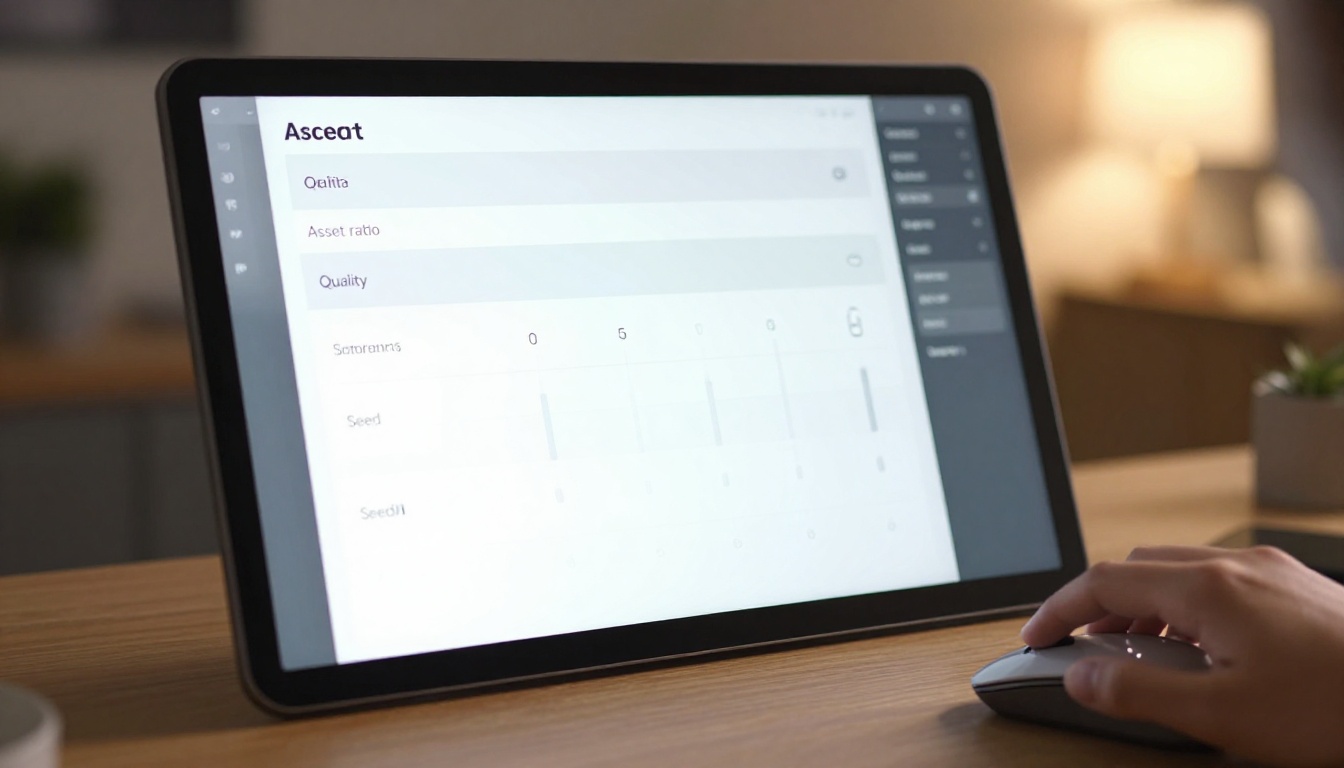
Before you hit generate, set your aspect ratio deliberately. If you're creating blog header images, 16:9 is your default. If you need square thumbnails, switch to 1:1.
Setting a seed value is one of the most underused features. When you find a composition you like, write down the seed number. You can reproduce near-identical framing while changing other elements of the prompt. This is invaluable for creating consistent visual series.
Generate and Download
Hit generate and let the model run. Nano Banana Pro is fast. Your output appears in seconds. If the result isn't quite right, don't completely rewrite your prompt. Change one element at a time: the lighting, the angle, or a descriptor. Isolating variables makes it much easier to see what the model is responding to.
Once satisfied, download at full resolution. The 4K output is ready to use in professional contexts without upscaling.
Writing prompts is a craft. The good news is that a few reliable formulas cover most use cases.
The Photography Formula
This works for any realistic scene:
[Subject + age/appearance] + [location/environment] + [time of day + light direction] + [lens + aperture] + [film stock] + [mood/texture details]
Example: "A woman in her 30s, dark hair, casual white linen shirt, seated in a sunlit rooftop cafe in the afternoon, warm side light from the left, 85mm f/1.4, Kodak Portra 400, natural skin texture, editorial photography."
The Portrait Formula
Close-up portraits have their own rhythm:
[Subject description + expression] + [head/shoulder framing] + [background/setting] + [light source + quality] + [lens + depth of field] + [texture details]
Tip: For portraits, always specify the light source. "Soft morning light from the left window" produces far more precise results than "good lighting." The model knows exactly what to render when you're specific.
What to Avoid in Prompts
- Contradictions: Don't ask for "dark moody atmosphere" and "bright cheerful colors" in the same prompt.
- Abstract emotion without visual anchor: "Happiness" alone doesn't tell the model anything. "A wide smile, relaxed posture, open outdoor setting" does.
- Overloading adjectives: Five synonyms for "beautiful" won't make the image more beautiful. Add one specific detail instead.
Aspect Ratio and Resolution Tips
Getting the aspect ratio right before generating prevents a lot of post-processing headaches. But there's more nuance to this than simply picking 16:9.

Best Ratios for Different Use Cases
The composition of your image is affected by the ratio you pick, not just the crop. A 16:9 generation at Nano Banana Pro will inherently be wider in composition, often showing more environmental context. A 4:3 generation will feel more intimate and centered.
Choose your ratio based on how the image will be used, not just on what looks good in a square grid.
- Social content: 9:16 or 1:1
- Blog and editorial: 16:9
- Product pages: 4:3 or 1:1
- Print/poster: 2:3
Seed Control for Consistency
If you're building a visual series for a blog, brand, or campaign, seed-locking your generations is the professional approach. Here's how to think about it:
- Run a generation without a seed to find a composition you like
- Note the seed number shown in the output metadata
- Reuse that seed while varying other prompt elements
- You maintain spatial consistency while changing lighting, color, or subject details
This works exceptionally well with Nano Banana Pro because the model's deterministic core is stable across prompt variations.
5 Common Mistakes People Make
These show up constantly in forums and feedback threads. Knowing them will save you hours of frustration.

Vague Prompts
The most common mistake by a wide margin. Vague prompts produce average outputs. The model takes the path of least resistance when given little to work with, pulling in generic training data patterns. Specificity forces it to render something particular.
Ignoring Aspect Ratio
People pick 1:1 by default because it's a square and looks fine in previews. But if your use case is a blog header, you now have a square image you need to stretch or crop. Set your ratio first, before you write a single word of your prompt.
Skipping Seed Values
Every time you generate without recording the seed, you lose the ability to replicate good results. This sounds minor until you get one absolutely perfect generation and have no way to reproduce the framing.
Prompt Stacking
Adding too many elements to a single scene creates confusion. "A woman at a desk in a forest in a cafe near the ocean at sunset with rain and sunshine." Pick a scene. Own it. The model will execute one clear vision better than five competing ones.
Not Iterating
Most great results don't come from the first generation. They come from three to five rounds of prompt refinement. Run a test, identify the weakest element, adjust just that, regenerate. This iterative discipline is what separates people who get stunning outputs from those who stop after two tries.
Nano Banana Pro vs. Other Google Models
Google has built out a solid family of image models. Knowing which one to reach for makes your creative process far more efficient.
vs. Nano Banana
The original Nano Banana is capable and fast, but Pro is a meaningful step up in output fidelity. If you're generating content for personal use or quick social posts where 4K isn't necessary, the base Nano Banana is perfectly fine. For professional or commercial work, Pro is the better call.
vs. Nano Banana 2
Nano Banana 2 introduced image fusion and editing capabilities on top of generation. It's a different tool for a different job. If you're starting from scratch with text prompts, Nano Banana Pro is your model. If you want to fuse two existing images or edit a photo, Nano Banana 2 is the right pick.
vs. Imagen 4
Imagen 4 and its Ultra variant are Google's flagship image generators, designed for the highest-fidelity outputs. They're more powerful but also heavier. Nano Banana Pro hits the sweet spot for most workflows: high quality, fast generation, 4K output, without the overhead of running the full Imagen 4 stack.
Which One to Pick
For the majority of creative use cases, Nano Banana Pro is the answer. It's the right balance of speed, quality, and output resolution for content creators, designers, marketers, and anyone building visual assets at scale.
Start Creating Right Now
The best way to get good at this is to actually generate images. Read about it all you want, but real improvement happens when you run your first hundred prompts and see how the model responds to your specific creative language.

Nano Banana Pro is available right now on PicassoIA alongside over 90 other text-to-image models. If it doesn't fit your specific need for a particular project, you have options: Flux 2 Pro, GPT Image 1.5, Imagen 4, and dozens more are just a click away.
Pick a concept. Write a specific prompt. Set your ratio. Generate. Then refine. That cycle, repeated consistently, is what produces professional-grade visual output from AI tools. There's no secret beyond the doing.
Start your first generation with Nano Banana Pro on PicassoIA and see what your prompts can produce.


